
Connectivity has become the lifeblood of modern productivity. Whether you are working from a coffee shop, traveling for business, or navigating a temporary home internet outage, the mobile hotspot is often the bridge that keeps you tethered to the digital world. However, the convenience of a mobile hotspot often fades the moment you realize you have forgotten the credentials required to bridge your laptop or tablet to your smartphone’s data. Finding your mobile hotspot password is a common hurdle, but understanding how to locate, secure, and manage these credentials is a vital skill for any mobile professional.

Locating Your Hotspot Credentials Across Major Platforms
The process of retrieving a hotspot password varies significantly depending on the operating system of your device. Because mobile carriers and manufacturers prioritize security, these settings are rarely left on the home screen.
Navigating iOS Settings
For iPhone users, the Personal Hotspot feature is deeply integrated into the iOS settings architecture. To find your password:
- Navigate to the Settings app on your iPhone.
- Tap on Personal Hotspot.
- Look for the field labeled Wi-Fi Password. If you have never customized it, your iPhone likely generated a secure, alphanumeric string by default.
- If you need to change it to something more memorable, simply tap the field, delete the existing text, and enter a new password that meets the security requirements (usually at least 8 characters).
Once you change this, any device previously connected to your hotspot will be disconnected, and you will need to re-enter the new password on those devices.
Accessing Android Hotspot Configuration
Android devices offer a bit more variety in their interface design, depending on the manufacturer (Samsung, Google, Motorola, etc.). However, the general path remains consistent:
- Open the Settings menu.
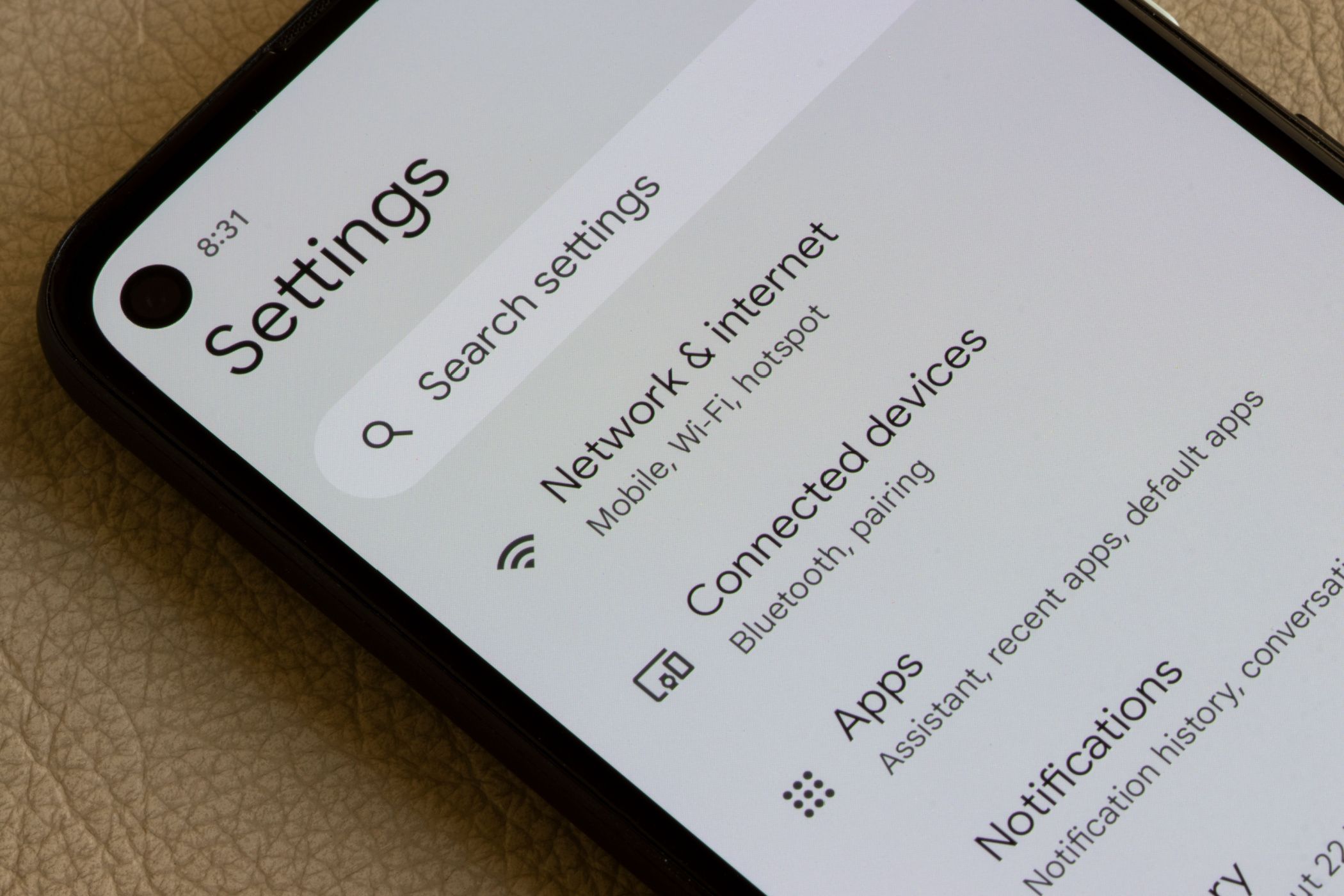
- Tap on Network & Internet or Connections.
- Select Hotspot & Tethering.
- Choose Wi-Fi Hotspot (or Mobile Hotspot).
- Locate the Hotspot password field. In many newer versions of Android, you can tap a “Show Password” toggle or a QR code icon that allows other devices to scan and connect instantly without needing to manually type the string.
If your device provides a QR code, this is the most secure and efficient way to share your connection without exposing the actual password to bystanders.
Enhancing Security: Why Your Hotspot Password Matters
Many users view a hotspot as a temporary utility and neglect to treat it with the same security rigor as their home Wi-Fi network. This is a critical oversight. When you broadcast a mobile hotspot, you are essentially creating a local area network (LAN) that is susceptible to unauthorized access if not properly defended.
The Dangers of Weak Passwords
A simple password like “12345678” or “password” is an invitation for trouble. In a crowded environment—such as an airport lounge or a busy café—unauthorized users can easily scan for open or weak networks. If someone successfully connects to your hotspot, they are not only consuming your valuable cellular data, but they could also potentially intercept data packets transmitted between your devices if your security protocols are not robust.

Choosing Strong Encryption Standards
When configuring your hotspot settings, the encryption protocol is just as important as the password itself. Most modern smartphones support WPA2-PSK (AES) or WPA3.
- WPA2-PSK (AES): The industry standard for many years. It provides a high level of security provided your password is long and complex.
- WPA3: The newest security standard, designed to provide more robust protection against brute-force attacks.
Always select the highest security option available in your hotspot settings menu. If your phone offers a choice between “None” (Open) and a WPA option, never select “None.” An open network allows anyone within range to join your connection, posing a significant threat to your digital privacy.
Best Practices for Managing Hotspot Connections
Managing your hotspot effectively goes beyond just knowing the password. It involves managing data usage, device capacity, and the overall longevity of your connection.
Device Limits and Timeouts
One of the most effective ways to secure your connection is to limit the number of devices that can connect simultaneously. Most smartphone OS settings allow you to cap the number of concurrent connections. By setting this to “1” or “2” if you are a solo traveler, you reduce the surface area for unauthorized access.
Additionally, utilize the “Auto-Shutoff” or “Turn off hotspot automatically” feature. This feature detects when no devices are connected to your hotspot and powers down the radio, saving your smartphone’s battery life and preventing the network from broadcasting unnecessarily when it is not in use.
Managing Data Consumption
Connecting a laptop to a mobile hotspot often triggers background updates, cloud synchronization, and data-heavy processes that can exhaust a mobile data plan in minutes. To prevent this:
- Set Data Limits: Some Android devices allow you to set a data usage warning or a hard limit on your hotspot, which will automatically disable the feature once a specific amount of data (e.g., 500MB) has been consumed.
- Enable Metered Connections: On Windows, you can mark a specific Wi-Fi connection as “Metered.” This prevents Windows from automatically downloading large OS updates and syncing files while connected to your phone.
- Disable Cloud Syncing: If you are on a limited plan, pause Dropbox, Google Drive, or iCloud synchronization while tethered.
Troubleshooting Common Connectivity Issues
Sometimes, knowing the correct password is not enough. If you find that your devices are failing to connect despite having the right credentials, follow these troubleshooting steps to restore your link.
Resetting Network Settings
If you have recently changed your device name or updated your OS, the saved credentials on your laptop or tablet might be corrupted.
- Forget the Network: On the device trying to connect, navigate to Wi-Fi settings, find your phone’s hotspot name, and select “Forget.”
- Restart Both Devices: It sounds cliché, but power-cycling your phone and your computer resolves a vast majority of handshake issues.
- Toggle Compatibility Mode: iPhones, in particular, have a feature called “Maximize Compatibility.” This shifts the hotspot frequency from 5GHz to 2.4GHz. While 2.4GHz is slower, it is significantly more compatible with older devices or those that do not support modern 5GHz bands. If your device cannot “see” your hotspot, enabling this setting is usually the solution.
Checking Carrier Restrictions
Some mobile carriers or specific plans restrict the use of mobile hotspots. If you have verified your password, restarted your devices, and still cannot connect to the internet, check your cellular provider’s app. You may have reached your plan’s specific hotspot data cap, or your plan may not include tethering capabilities. If you see the hotspot icon but no internet traffic passes through, this is almost certainly a carrier-side limitation rather than a device settings error.
In conclusion, managing your mobile hotspot is an essential aspect of digital literacy. By knowing where to find your password, choosing robust security protocols, and managing the devices connected to your data stream, you ensure that your mobile office remains both efficient and secure. Treat your hotspot credentials with the same caution as your primary Wi-Fi password, and you will navigate the digital landscape with confidence and privacy.
aViewFromTheCave is a participant in the Amazon Services LLC Associates Program, an affiliate advertising program designed to provide a means for sites to earn advertising fees by advertising and linking to Amazon.com. Amazon, the Amazon logo, AmazonSupply, and the AmazonSupply logo are trademarks of Amazon.com, Inc. or its affiliates. As an Amazon Associate we earn affiliate commissions from qualifying purchases.