
The setup of your workstation is often the most overlooked aspect of daily productivity. While many professionals invest thousands of dollars into high-performance computers, high-refresh-rate displays, and ergonomic keyboards, they often neglect the physical positioning of these tools. The height of your monitor is not merely a matter of personal preference; it is a critical ergonomic factor that dictates your posture, comfort, and long-term musculoskeletal health. Improper monitor alignment is the primary culprit behind the modern epidemic of “tech neck,” eye strain, and chronic tension headaches.
The Science of Optimal Monitor Positioning
To understand why monitor height matters, one must first look at the human cervical spine. The average human head weighs between 10 and 12 pounds. When your gaze is directed horizontally, the neck muscles support this weight with relative ease. However, for every inch your head tilts forward to look down at a poorly positioned screen, the effective weight on your cervical spine increases exponentially. By the time your chin is tucked toward your chest to view a laptop or a low-sitting monitor, your neck muscles are dealing with up to 60 pounds of force.
The Horizontal Line of Sight
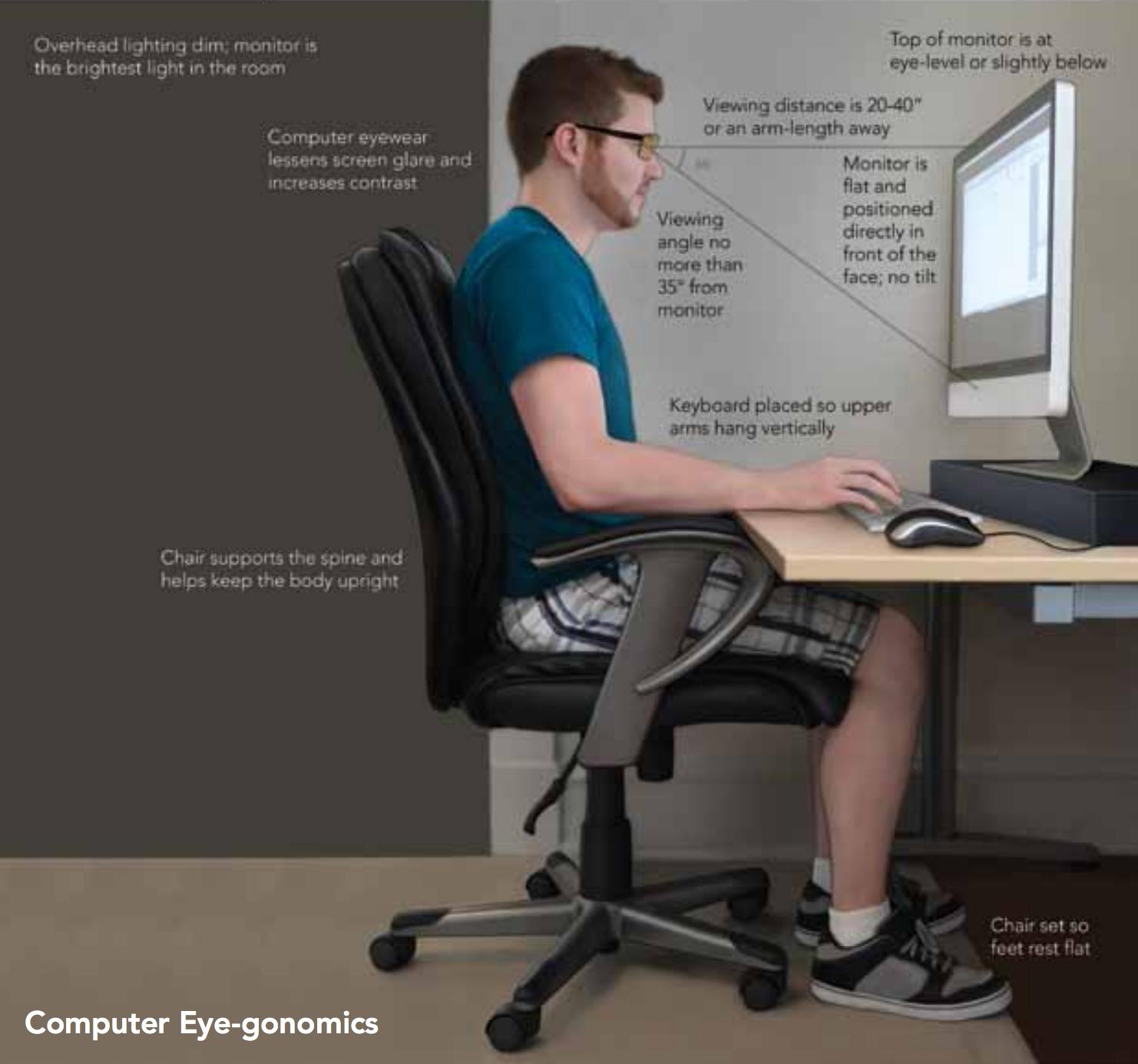
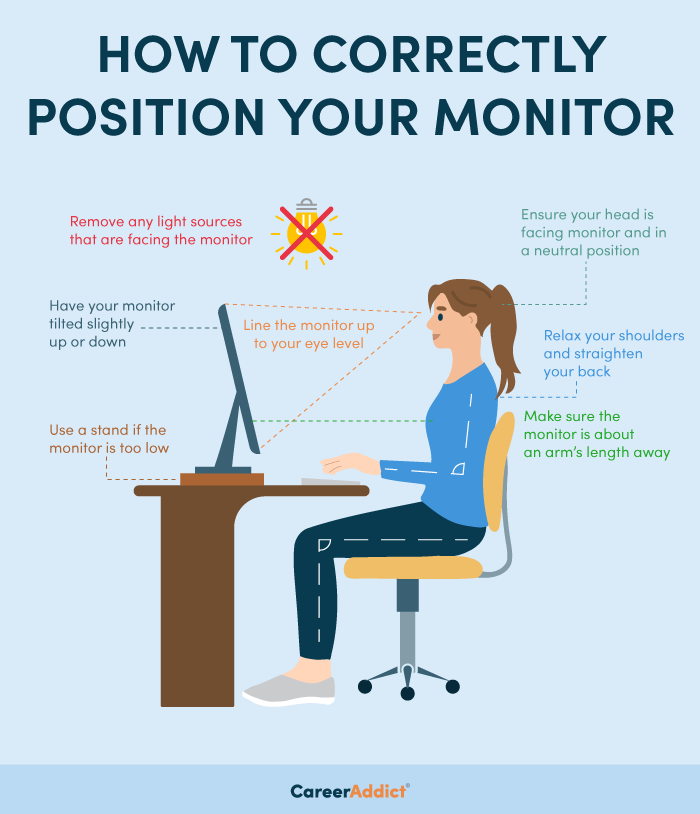
The golden rule of ergonomic display positioning is that the top third of your monitor screen should be level with your eyes. When you are seated in your chair with your back supported and your neck in a neutral, vertical position, your eyes should naturally rest on the top portion of the display. This ensures that when you scan the screen, your eyes move downward—a motion that is physiologically less taxing than looking upward. If you find yourself consistently tilting your chin upward to see the bottom of your screen, your monitor is too high. Conversely, if you are hunching your shoulders or curving your upper back to peer into the center of the display, the monitor is too low.
Distance and Depth
Height does not exist in a vacuum; it must be balanced with depth. The general consensus among occupational health experts is that your monitor should be approximately an arm’s length away from your face. Once you have set the height so that your eyes align with the top third of the glass, extend your arm. Your middle finger should ideally just touch the screen. This distance prevents you from leaning forward to read small text—a common habit that ruins even the best ergonomic setups—and ensures that your field of vision covers the entire display without requiring excessive neck rotation.
Adjusting for Different Workspace Configurations
Not every workstation is the same. Whether you are using a single massive ultrawide display, a dual-monitor setup, or a portable laptop, the physics of your neck and eyes remain constant. Adapting these principles to your specific hardware is the next step in optimizing your digital environment.
The Single Monitor Setup
For users with one primary monitor, the task is straightforward. The center of the screen should be directly in front of you. Utilize a VESA-mount arm or a height-adjustable monitor stand to raise the screen from its factory-default position. Most monitors that ship with static stands are far too short for the average adult. If you cannot afford an aftermarket mount, even a stack of sturdy books can serve as a makeshift riser to achieve the necessary elevation. The goal is to reach that “top third” alignment while maintaining a neutral spine.
The Dual-Monitor Conundrum
Dual-monitor setups are common in creative and technical fields, but they present a unique challenge. If you use both screens equally, place them side-by-side and angle them slightly toward you to create a slight arc. Both monitors should be at the same height, and the gap between them should be directly in front of your nose. If you have one primary monitor and one secondary, keep the primary directly in front of you at the correct height, and place the secondary to the side, tilted inward. Avoid the temptation to put one monitor significantly higher than the other, as this creates a constant, subconscious “head-tilting” habit that will lead to muscle imbalances in the neck and shoulders.
Laptop Integration
Laptops are inherently problematic because the screen is attached to the keyboard. When the screen is at the right height, the keyboard is too high to type comfortably; when the keyboard is at the right height, the screen is far too low. The solution is to decouple the two. Invest in an external keyboard and mouse or a trackpad. Place your laptop on a dedicated stand or a riser so that the top of the display is at eye level, and type on the external keyboard positioned on your desk surface. This is the single most effective change a laptop user can make for their long-term health.
Mitigating Digital Eye Strain
While monitor height is essential for posture, it is intrinsically linked to how our eyes perceive light and information. If a monitor is placed at the wrong height, it can force the eyes into uncomfortable ranges of motion, leading to digital eye strain, also known as Computer Vision Syndrome.
The Impact of Viewing Angles
When you look at a screen from an angle—either too high or too low—the clarity of the text and the color accuracy of the image can shift. Furthermore, improper height often forces users to blink less frequently because their eyes are wide open to compensate for the skewed perspective. A monitor positioned at the correct, neutral height encourages a natural, relaxed blink rate. If you find your eyes feeling dry or gritty by the end of the day, evaluate your monitor height before assuming it is purely an issue with blue light or screen brightness.
Managing Glare and Reflections
Once you have adjusted your monitor for height and distance, consider the light sources in your room. If your window is behind the monitor, the brightness will cause you to squint, even if the height is perfect. If the window is behind you, reflections will bounce off the screen, causing you to crane your neck to find a viewing angle that avoids the glare. Always aim to place your monitor perpendicular to windows. Once the environment is controlled, you can fine-tune the monitor’s tilt. A slight upward tilt (no more than 10 to 20 degrees) is generally acceptable, as it aligns the screen surface more perpendicularly with your natural line of sight.
Developing Ergonomic Discipline
Physical equipment is only half the battle. You can have the most expensive monitor arm and a perfectly calibrated desk setup, but if you do not cultivate good habits, you will still experience discomfort. Ergonomics is a dynamic practice, not a “set it and forget it” configuration.
The 20-20-20 Rule
Even with a perfectly positioned screen, staring at a fixed focal distance for hours on end is fatiguing. Integrate the 20-20-20 rule into your workflow: every 20 minutes, look at something at least 20 feet away for at least 20 seconds. This simple act resets the focusing muscles of the eyes and provides a momentary break for your neck, allowing you to re-adjust your posture if you have begun to slouch.

Periodic Setup Audits
Your seating position may change over time. You might change chairs, adjust the height of your desk, or even switch to a standing desk configuration. Whenever you make a change to your workspace furniture, perform a monitor audit. Sit down, close your eyes, and relax your neck. When you open your eyes, your gaze should naturally fall on the top third of your screen. If it doesn’t, adjust the stand or arm immediately. By prioritizing this alignment, you are not just setting up a desk—you are investing in the longevity of your career and your physical well-being. A small adjustment today prevents a lifetime of chronic pain tomorrow.
aViewFromTheCave is a participant in the Amazon Services LLC Associates Program, an affiliate advertising program designed to provide a means for sites to earn advertising fees by advertising and linking to Amazon.com. Amazon, the Amazon logo, AmazonSupply, and the AmazonSupply logo are trademarks of Amazon.com, Inc. or its affiliates. As an Amazon Associate we earn affiliate commissions from qualifying purchases.