
Accessing your Paramount Plus subscription is a straightforward process, designed to provide seamless entry to its vast library of entertainment across a multitude of devices. As a modern streaming service, Paramount Plus prioritizes user accessibility while incorporating standard digital security measures. Understanding the various login methods and troubleshooting common issues can significantly enhance your viewing experience, ensuring you spend less time configuring and more time enjoying content. This guide delves into the technical aspects of logging into Paramount Plus, covering diverse platforms, security best practices, and common challenges.
Navigating Paramount Plus Access Across Devices
The method for logging into Paramount Plus can vary slightly depending on the device you are using. Each platform — from web browsers to dedicated smart TV apps — offers a tailored experience, though the core requirement of your email and password remains consistent.
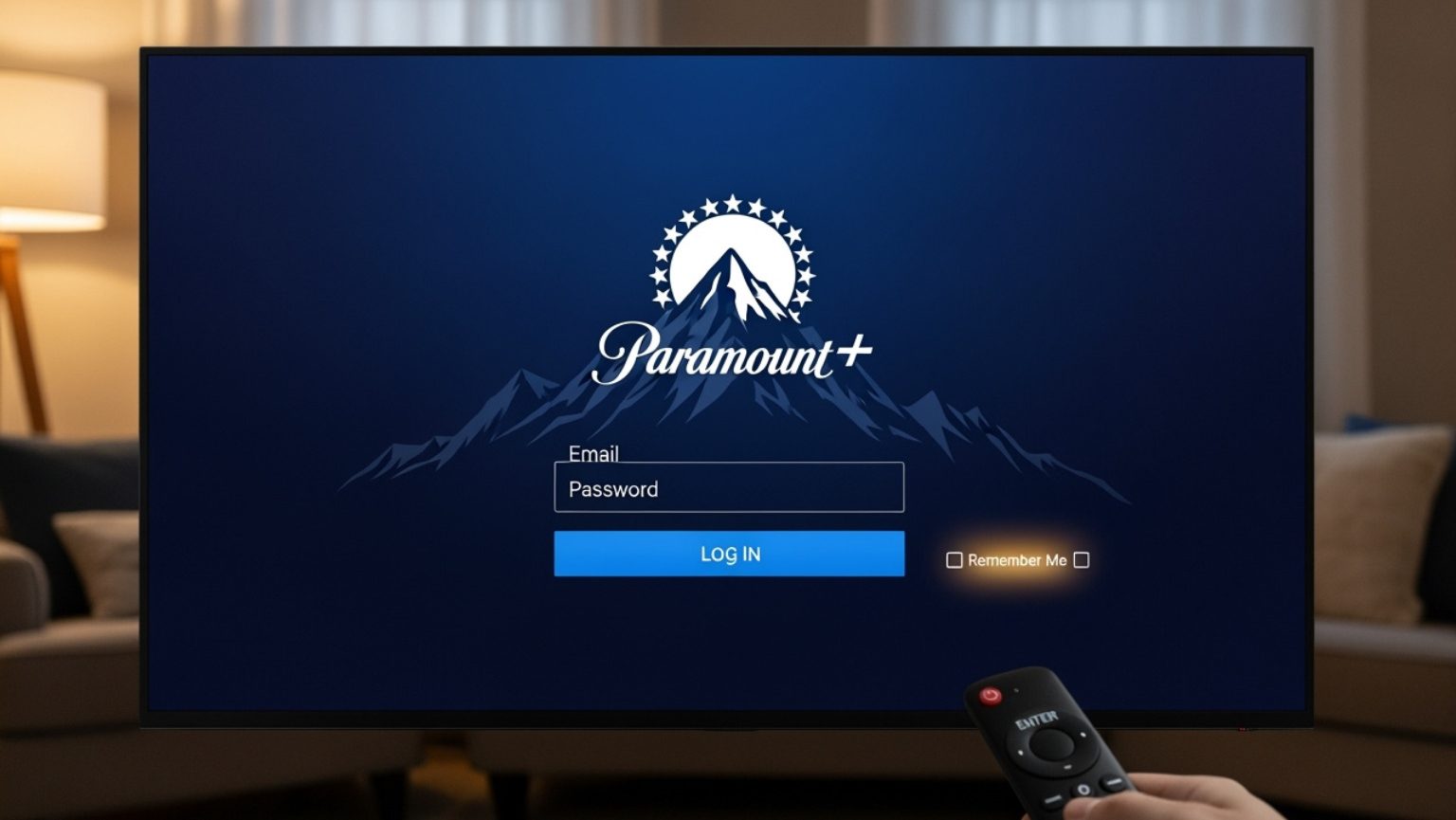
Getting Started: The Web Browser Experience
Logging in via a web browser on a desktop or laptop computer is often the most universal and accessible starting point. This method provides a comprehensive interface for account management in addition to content streaming.
- Open Your Web Browser: Launch your preferred web browser (e.g., Chrome, Firefox, Edge, Safari). For optimal performance and security, ensure your browser is updated to its latest version. Outdated browsers may have compatibility issues or security vulnerabilities that could hinder access or expose your login credentials.
- Navigate to the Paramount Plus Website: In the address bar, type
www.paramountplus.comand press Enter. Always verify that the URL displayshttps://at the beginning, indicating a secure, encrypted connection, which is crucial for protecting your login information. - Locate the Login Button: On the Paramount Plus homepage, typically in the upper right-hand corner, you will find a “Sign In” or “Log In” button. Click on this button.
- Enter Your Credentials: You will be redirected to a login page where you need to input the email address and password associated with your Paramount Plus account. Carefully type these details, paying attention to case sensitivity for passwords.
- Submit Your Information: After entering your credentials, click the “Log In” or “Sign In” button on the form. If your details are correct, you will be directed to your Paramount Plus home screen, ready to stream.
- Browser Security Settings: Consider your browser’s security settings. While convenient, saving passwords directly in the browser can be a security risk if your device is compromised. Using a reputable password manager offers a more secure alternative.
Logging In on Mobile Devices (iOS & Android)
Mobile access is fundamental for streaming services, offering convenience on the go. The process involves downloading the dedicated app and then logging in within the app’s interface.
- Download the Paramount Plus App:
- For iOS Devices (iPhone, iPad): Open the Apple App Store, search for “Paramount Plus,” and tap “Get” or the cloud icon to download and install the app.
- For Android Devices (Phones, Tablets): Open the Google Play Store, search for “Paramount Plus,” and tap “Install” to download and install the app.
- Ensure you are downloading the official app from the respective app stores to avoid malicious look-alikes.
- Launch the App: Once installed, tap the Paramount Plus icon on your device’s home screen or app drawer to open it.
- Initiate Login: Inside the app, you will typically see a “Sign In” or “Log In” option. Tap this to proceed.
- Enter Your Credentials: Input your registered email address and password into the designated fields.
- Complete Login: Tap the “Sign In” or “Log In” button. The app will authenticate your credentials, and upon success, you will gain access to the streaming content.
- App Updates: Regularly update the Paramount Plus app through your device’s app store. Updates often include bug fixes, performance improvements, and crucial security patches that enhance stability and protect your account.
Accessing Paramount Plus on Smart TVs and Streaming Devices
Smart TVs and dedicated streaming devices like Roku, Amazon Fire TV Stick, Apple TV, and Google TV are popular platforms for a home theater experience. Many of these devices utilize a code-based activation method for convenience and security.
- Install the Paramount Plus App: First, navigate to your device’s app store (e.g., Roku Channel Store, Amazon Appstore, Apple TV App Store, Google Play Store for Android TV) and search for “Paramount Plus.” Download and install the official app.
- Launch the App: Open the Paramount Plus app on your smart TV or streaming device.
- Select “Sign In”: Within the app, choose the “Sign In” option.
- Activation Code Method: Most TV-connected devices will present you with an activation code (e.g., a 7-digit alphanumeric code) and instructions to visit
paramountplus.com/activateon a separate web browser (on a computer or mobile device).- On Your Computer/Mobile Device: Open a web browser, go to
paramountplus.com/activate. - Enter the Code: On the activation page, input the code displayed on your TV screen into the designated field.
- Log In on the Web: If you are not already logged into your Paramount Plus account on that browser, you will be prompted to do so. After successful login, your TV will automatically update and grant you access.
- On Your Computer/Mobile Device: Open a web browser, go to
- Direct Login (Less Common on TV Devices): Some devices might offer a direct login option where you enter your email and password directly using the TV’s on-screen keyboard. This can be cumbersome; the activation code method is generally preferred.
- Troubleshooting Connection Issues: If your TV device struggles to connect or activate, ensure it has a stable internet connection (preferably wired Ethernet for smart TVs). Restarting both your device and your router can often resolve temporary network glitches.
Common Login Challenges and Technical Solutions
Even with straightforward instructions, users can encounter issues. Understanding the technical reasons behind these challenges and knowing how to address them is key to a smooth streaming experience.
Forgotten Passwords and Account Recovery
A forgotten password is one of the most frequent login impediments. Paramount Plus, like most secure platforms, offers a robust account recovery process.
- Initiate Password Reset: On any login screen (web, mobile, or smart TV when prompted), look for a “Forgot Password?” or “Trouble Signing In?” link. Click or tap this option.
- Enter Email Address: You will be prompted to enter the email address associated with your Paramount Plus account. This is crucial for the system to identify your account.
- Check Your Email: Paramount Plus will send a password reset link or verification code to that email address. Check your inbox (and spam/junk folders) for an email from Paramount Plus.
- Follow Reset Instructions: Click the link in the email or enter the verification code on the Paramount Plus website/app. You will then be able to create a new password.
- Create a Strong, Unique Password: When creating a new password, employ strong password best practices:
- Length: Aim for at least 12-16 characters.
- Complexity: Combine uppercase and lowercase letters, numbers, and symbols.
- Uniqueness: Do not reuse passwords from other online accounts.
- Password Managers: Consider using a reputable password manager (e.g., LastPass, 1Password, Bitwarden) to generate and securely store complex, unique passwords for all your online services. This significantly enhances your digital security posture.
Troubleshooting Login Errors and Connectivity Issues
Error messages like “Invalid Credentials” or persistent loading screens can be frustrating. A systematic technical approach can help resolve these.
- “Invalid Credentials” Error:
- Double-Check Input: Carefully re-enter your email and password. Ensure there are no typos, extra spaces, or incorrect capitalization. Passwords are case-sensitive.
- Caps Lock/Num Lock: Verify that your Caps Lock or Num Lock keys are not accidentally enabled, affecting your password entry.
- Keyboard Layout: If you use multiple keyboard layouts, ensure the correct one is active.
- Internet Connectivity:
- Verify Connection: Ensure your device has an active internet connection. Try loading another website or app.
- Restart Network Equipment: Power cycle your router and modem. Disconnect them from power for 30 seconds, then plug them back in. This often resolves temporary network glitches.
- Wi-Fi vs. Ethernet: If possible, try connecting your device (especially smart TVs) via an Ethernet cable instead of Wi-Fi to rule out wireless interference or signal strength issues.
- Clear Cache and Cookies (Web Browser): Accumulated browser data can sometimes interfere with login processes.
- Chrome/Firefox/Edge: Go to browser settings -> Privacy/Security -> Clear browsing data. Select “Cookies and other site data” and “Cached images and files.”
- Safari: Go to Safari -> Preferences -> Privacy -> Manage Website Data, then remove data for “paramountplus.com.”
- After clearing, restart your browser and try logging in again.
- Clear App Cache (Mobile/Smart TV):
- Android: Go to Settings -> Apps -> Paramount Plus -> Storage -> Clear Cache and Clear Data.
- iOS: There’s no direct “clear cache” button for individual apps. You might need to offload or reinstall the app to clear its data.
- Smart TV/Streaming Device: Go to the device’s settings -> Applications -> Manage Installed Applications -> Paramount Plus -> Clear Cache/Clear Data (exact path varies by device).
- Reinstall the App: If all else fails, uninstalling and then reinstalling the Paramount Plus app can resolve corrupted installation files.
- Check Paramount Plus Server Status: Occasionally, login issues can stem from problems on Paramount Plus’s end. Websites like DownDetector can provide real-time information on service outages.

Managing Multiple Profiles and User Switching
Paramount Plus allows for the creation of multiple user profiles, which helps personalize recommendations and track watch history for different household members.
- Switching Profiles Post-Login: Once you are logged into your main Paramount Plus account, you can typically switch between profiles from the main menu or a dedicated profile icon (often in the top corner).
- Creating New Profiles: Navigate to your account settings or profile management section (usually accessible via your profile icon) to add, edit, or delete profiles. Assigning appropriate age ratings and parental controls to each profile is a vital technical and security feature for families.
Enhancing Your Paramount Plus Experience: Security and Performance Tips
Beyond just logging in, maintaining a secure and optimized technical environment ensures a better, safer streaming experience.
Account Security Best Practices
Protecting your Paramount Plus account from unauthorized access is paramount.
- Unique, Strong Passwords: As previously emphasized, never reuse passwords. A breach on one service could compromise all others if you use the same credentials.
- Two-Factor Authentication (2FA): While Paramount Plus doesn’t universally offer 2FA for account login at the time of writing, it’s a critical security feature to look for in other services. If it becomes available, enable it immediately.
- Public Wi-Fi Caution: Avoid logging into sensitive accounts, including streaming services, on unsecured public Wi-Fi networks without a Virtual Private Network (VPN). Public networks are susceptible to eavesdropping and data interception. A VPN encrypts your traffic, safeguarding your credentials.
- Recognize Phishing Attempts: Be wary of suspicious emails or messages claiming to be from Paramount Plus asking for your login credentials or payment information. Always go directly to the official Paramount Plus website or app to manage your account.
- Review Logged-In Devices: Periodically check your account settings on the Paramount Plus website for a list of devices currently logged into your account. If you see an unfamiliar device, log it out remotely.
Optimizing Streaming Performance
A smooth, high-quality stream depends on various technical factors.
- Internet Speed: Ensure your internet connection meets or exceeds Paramount Plus’s recommended speeds (typically 5 Mbps for HD, higher for 4K). You can test your speed using online tools.
- Reduce Network Congestion: If multiple devices on your network are simultaneously streaming, gaming, or downloading large files, it can impact your Paramount Plus stream. Consider pausing other high-bandwidth activities.
- Device Performance: Close unnecessary background applications on your streaming device or computer. Ensure your device’s operating system and the Paramount Plus app are up to date, as updates often include performance enhancements.
Utilizing Parental Controls and Privacy Settings
Paramount Plus provides technical tools to manage content access and your privacy.
- Setting Parental Controls: Within the profile management section of your account, you can set age restrictions for individual profiles. This ensures that children only access age-appropriate content. These controls are password-protected, requiring a PIN to change settings or override restrictions.
- Privacy Settings: Familiarize yourself with the privacy settings available on the Paramount Plus website. Understand what data is collected and how it’s used, and adjust your preferences as desired.
Beyond Login: Advanced Account Management
Once successfully logged in, the Paramount Plus platform provides a gateway to comprehensive account management.
Updating Payment Information and Subscription Details
Your account portal (best accessed via the web browser) is where you manage your subscription.
- Access Account Settings: Log into
paramountplus.comon a web browser. Click on your profile icon, then navigate to “Account” or “Subscription.” - Manage Payment: Here you can update credit card details, change your billing address, and review your billing history.
- Subscription Changes: This section also allows you to upgrade or downgrade your plan (e.g., from ad-supported to ad-free), or initiate cancellation. Always note your billing cycle to avoid unexpected charges.

Contacting Paramount Plus Support
When technical issues persist beyond your troubleshooting capabilities, contacting Paramount Plus support is the next step.
- Visit the Help Center: On
paramountplus.com, look for a “Help” or “Support” link, usually in the footer. This portal contains extensive FAQs and troubleshooting guides. - Provide Detailed Information: When contacting support (via chat, email, or phone), be prepared to provide:
- Your account email address.
- The specific device(s) you are using (e.g., Roku Ultra, iPhone 15, Chrome browser on Windows 11).
- A precise description of the problem, including any error messages.
- The troubleshooting steps you have already attempted.
By understanding these technical aspects of logging in, troubleshooting, and securing your Paramount Plus account, users can ensure a reliable, enjoyable, and safe streaming experience across all their devices.
aViewFromTheCave is a participant in the Amazon Services LLC Associates Program, an affiliate advertising program designed to provide a means for sites to earn advertising fees by advertising and linking to Amazon.com. Amazon, the Amazon logo, AmazonSupply, and the AmazonSupply logo are trademarks of Amazon.com, Inc. or its affiliates. As an Amazon Associate we earn affiliate commissions from qualifying purchases.