
In an increasingly digital world, managing our online security is paramount. With a myriad of streaming services, social media platforms, and online banking portals, each requiring a unique set of credentials, the importance of robust password practices cannot be overstated. Paramount Plus, a popular streaming service offering a vast library of content from CBS, MTV, Comedy Central, Nickelodeon, and more, is no exception. Ensuring the security of your Paramount Plus account is crucial, not just to protect your viewing preferences, but to safeguard the personal information associated with your subscription. This comprehensive guide will walk you through the process of changing your Paramount Plus password, explore why such security measures are vital, and equip you with best practices for digital identity protection in the streaming era.

The Essential Guide to Changing Your Paramount Plus Password
Whether you suspect your account has been compromised, are simply adhering to good security hygiene by regularly updating your credentials, or have simply forgotten your existing password, the process for changing your Paramount Plus password is straightforward. It can typically be performed through their website or via the mobile application.
Step-by-Step on a Web Browser
The most common and often most convenient method to change your Paramount Plus password is through a web browser on a desktop or laptop computer.
Navigating to the Paramount Plus Website
Begin by opening your preferred web browser (Chrome, Firefox, Edge, Safari, etc.) and navigating to the official Paramount Plus website. You can do this by typing www.paramountplus.com directly into your address bar.
Accessing Account Settings
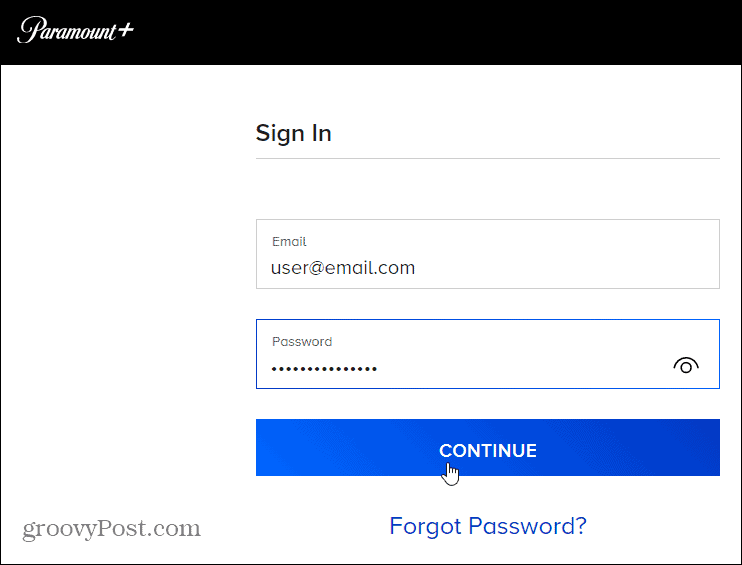
Once on the Paramount Plus homepage, you’ll need to log in to your account if you haven’t already. Look for the “Sign In” or “Log In” button, usually located in the top right corner of the screen. Enter your current email address and password.
After successfully logging in, hover over your profile icon or name, usually in the upper right corner. A dropdown menu should appear. From this menu, select “Account” or “Account Settings.” This will take you to your personal account management page.
The Password Reset Process
Within your “Account” section, you’ll find various details related to your subscription, billing, and profile. Look for a section explicitly titled “Password” or “Security.” There should be an option to “Change Password” or “Reset Password.”
Clicking this option will typically prompt you to enter your current password first for verification purposes. This is a standard security measure to ensure that only the legitimate account holder is attempting to make changes. After entering your current password, you will then be asked to enter your new password twice – once to set it and a second time to confirm it.
Ensure your new password meets any specified criteria (e.g., minimum length, inclusion of special characters, numbers, and both uppercase and lowercase letters). Once you’ve entered and confirmed your new password, click “Save” or “Update Password.” You should receive a confirmation message, and potentially an email, confirming that your password has been successfully updated.
Changing Your Password via the Mobile App
For those who primarily use Paramount Plus on their mobile devices, the process through the app is equally intuitive, though the exact navigation may vary slightly between iOS and Android versions.
App Navigation
Open the Paramount Plus app on your smartphone or tablet. Log in if you’re not already.
Security Settings in-App
Once logged in, navigate to your profile. This is often represented by a profile icon in the top corner or a “My Stuff” or “Settings” tab at the bottom. Within your profile or settings menu, look for an option like “Account,” “Account Settings,” or “Password.”
Similar to the web browser method, you will likely find an option to “Change Password.” Tap this, and you’ll be prompted to enter your current password, followed by your new password twice. Confirm the changes, and your app password will be updated.
What If You’ve Forgotten Your Current Password?
This is a common scenario, and thankfully, Paramount Plus has a clear process for it. You cannot change your password if you don’t know the current one; instead, you’ll need to reset it.
Using the ‘Forgot Password’ Link
On the Paramount Plus login page (either on the website or within the app), below the fields for email and password, you will typically see a link that says “Forgot Password?” or “Reset Password?” Click this link.
Email Verification and Reset Link
You will be prompted to enter the email address associated with your Paramount Plus account. After submitting your email, check your inbox (and sometimes your spam/junk folder) for an email from Paramount Plus. This email will contain a unique link that allows you to reset your password without needing your old one.
Click the link in the email. It will direct you to a secure page where you can create and confirm a brand-new password. Once set, you can use this new password to log in to your Paramount Plus account. If you don’t receive the email within a few minutes, double-check that you entered the correct email address and examine your spam folder.
Why Password Security Matters in Streaming
Beyond simply accessing your favorite shows, maintaining strong password security for services like Paramount Plus is a critical aspect of your overall digital hygiene. The implications of a compromised streaming account extend far beyond just inconvenience.
Protecting Your Personal Information
When you subscribe to Paramount Plus, you provide more than just your viewing preferences. Your account is linked to your email address, potentially your full name, billing address, and credit card information. A breach of your Paramount Plus account could expose this sensitive personal data, making you vulnerable to identity theft, phishing scams, or unauthorized purchases. While streaming services often employ robust encryption for payment details, a compromised login is still a significant security risk.
Preventing Unauthorized Access and Account Theft
If an unauthorized individual gains access to your Paramount Plus account, they can use your subscription without your permission. This is not just frustrating from a usage perspective (e.g., profiles being messed up, watch history altered); it can also be a precursor to more malicious activities. Account theft can lead to changes in your subscription plan, unauthorized content purchases, or even the sale of your account credentials on the dark web, impacting not just you but potentially others.
The Ripple Effect: Linked Accounts and Data Breaches
A common, yet dangerous, practice is using the same password across multiple online services. If your Paramount Plus password is the same as your email, banking, or social media password, a single breach on one platform can grant attackers access to all of them. This “credential stuffing” is a prevalent attack vector. Even if Paramount Plus itself isn’t the direct target, a data breach on another website where you used the same password could indirectly compromise your Paramount Plus account. Regular password changes and unique passwords for each service significantly mitigate this ripple effect.
Best Practices for Robust Password Management
Changing your password is a good start, but comprehensive digital security requires ongoing effort and smart strategies. Here are some best practices to ensure your Paramount Plus account, and indeed all your online presence, remains secure.
Creating Strong, Unique Passwords
The foundation of good security is a strong password. A strong password for Paramount Plus, or any service, should:
- Be long: Aim for at least 12-16 characters. The longer a password, the harder it is to crack.
- Be complex: Include a mix of uppercase letters, lowercase letters, numbers, and special characters (e.g., !, @, #, $).
- Be unique: Never reuse passwords across different accounts. If one service is compromised, all others remain secure.
- Avoid personal information: Do not use your name, birthdate, pet’s name, or other easily guessable personal details.
- Avoid dictionary words: Common words or phrases are easily cracked by “dictionary attacks.”
- Consider passphrases: A series of unrelated words (e.g., “blue_elephant-sky!table”) can be long, complex, and easier to remember than random characters.
The Power of a Password Manager
Remembering dozens of unique, complex passwords is nearly impossible for most people. This is where password managers become invaluable tools. A password manager is an application that securely stores all your login credentials in an encrypted vault, accessible only with a single, strong “master password.”
How They Work and Their Benefits
Password managers like LastPass, 1Password, Bitwarden, or Dashlane can generate extremely strong and unique passwords for you and automatically fill them in when you visit a website or app. This eliminates the need to remember individual passwords and drastically reduces the risk of reusing passwords. They also often offer features like security audits, alerting you to weak or reused passwords.
Popular Options
Many reputable password managers offer free tiers with essential features, while premium versions provide advanced functionalities like dark web monitoring and secure sharing. Investing in a good password manager is one of the most impactful steps you can take for your digital security.
The Role of Multi-Factor Authentication (MFA/2FA)
Multi-Factor Authentication (MFA), sometimes called Two-Factor Authentication (2FA), adds an extra layer of security beyond just a password. If Paramount Plus offers MFA (which many major services are adopting), enable it immediately.
Explaining MFA and Its Importance
With MFA enabled, even if someone manages to guess or steal your password, they won’t be able to access your account without the second “factor.” This second factor is typically something you have (like a code sent to your phone or generated by an authenticator app) or something you are (like a fingerprint or facial scan). For streaming services, it’s most commonly an SMS code or an authenticator app code.
While Paramount Plus historically hasn’t offered traditional MFA for login beyond initial email verification, many services are moving in this direction. Always check your account settings for any enhanced security options and activate them if available. This drastically reduces the risk of unauthorized access.
Regular Password Refreshing
While opinions vary on the exact frequency, changing your password periodically (e.g., every 6-12 months) is a good practice, especially for high-value accounts or if you have any reason to suspect a potential compromise. With a password manager, this process becomes much less burdensome.
Troubleshooting Common Password Issues
Even with the best practices, you might encounter issues. Here’s how to troubleshoot some common Paramount Plus password problems.
“Password Doesn’t Match” or “Invalid Credentials”
- Check for typos: The most common issue. Ensure you’re typing your password correctly, paying attention to case sensitivity (uppercase vs. lowercase).
- Caps Lock/Num Lock: Verify that your Caps Lock or Num Lock keys are not accidentally enabled.
- Keyboard Layout: Ensure your keyboard layout hasn’t changed (e.g., from US English to UK English, which might swap certain symbols).
- Try another device: If you’re having trouble on one device, try logging in from another (e.g., mobile app if web isn’t working, or vice-versa) to rule out device-specific issues.
- Reset your password: If you’re certain you’re entering the correct password but it’s still not working, it’s often easiest to use the “Forgot Password?” option to set a new one.
Not Receiving the Password Reset Email
- Check Spam/Junk Folder: Password reset emails frequently end up here.
- Verify Email Address: Ensure you entered the correct email address associated with your Paramount Plus account. A single typo will prevent the email from arriving.
- Wait a Few Minutes: Email delivery can sometimes be delayed. Give it 5-10 minutes.
- Check Email Filters: Ensure you don’t have any specific filters that might be redirecting or deleting emails from Paramount Plus.
- Try Again: If all else fails, try the “Forgot Password?” process again.
Account Locked or Suspended
Repeated failed login attempts can sometimes temporarily lock your account as a security measure. If this happens, wait for a short period (e.g., 30 minutes to an hour) and then try again, preferably by initiating a password reset. If your account is suspended due to billing issues or terms of service violations, changing your password might not resolve the underlying problem, and you’ll need to contact support.
Contacting Paramount Plus Support
If you’ve exhausted all troubleshooting steps and still can’t access your account or change your password, it’s time to reach out to Paramount Plus customer support. They can provide account-specific assistance, verify your identity, and guide you through the recovery process. Look for “Help,” “Support,” or “Contact Us” links on the Paramount Plus website.

Conclusion
Changing your Paramount Plus password is a fundamental step in maintaining your digital security and ensuring uninterrupted access to your favorite content. By following the clear steps outlined in this guide, you can easily update your credentials through either the web browser or mobile app, or confidently reset your password if forgotten. Beyond the “how-to,” understanding the “why” behind robust password security – protecting personal information, preventing unauthorized access, and mitigating the ripple effect of data breaches – empowers you to take proactive measures. Adopting best practices like creating strong, unique passwords, leveraging password managers, enabling multi-factor authentication where available, and refreshing your passwords regularly will fortify your entire online presence. In the dynamic landscape of digital technology, a vigilant approach to password management is your strongest defense.
aViewFromTheCave is a participant in the Amazon Services LLC Associates Program, an affiliate advertising program designed to provide a means for sites to earn advertising fees by advertising and linking to Amazon.com. Amazon, the Amazon logo, AmazonSupply, and the AmazonSupply logo are trademarks of Amazon.com, Inc. or its affiliates. As an Amazon Associate we earn affiliate commissions from qualifying purchases.