
In today’s hyper-connected world, email remains a cornerstone of professional and personal communication. Yet, for many, the Gmail inbox has transformed from a useful tool into a chaotic digital abyss. Missed messages, forgotten tasks, and the sheer overwhelm of an ever-growing inbox are common ailments. But what if there was a way to bring order to this chaos, to transform your inbox from a source of stress into a highly efficient productivity hub? This is where the concept of Gmail labels steps in, offering a powerful yet often underutilized system for organizing, categorizing, and actioning your emails.
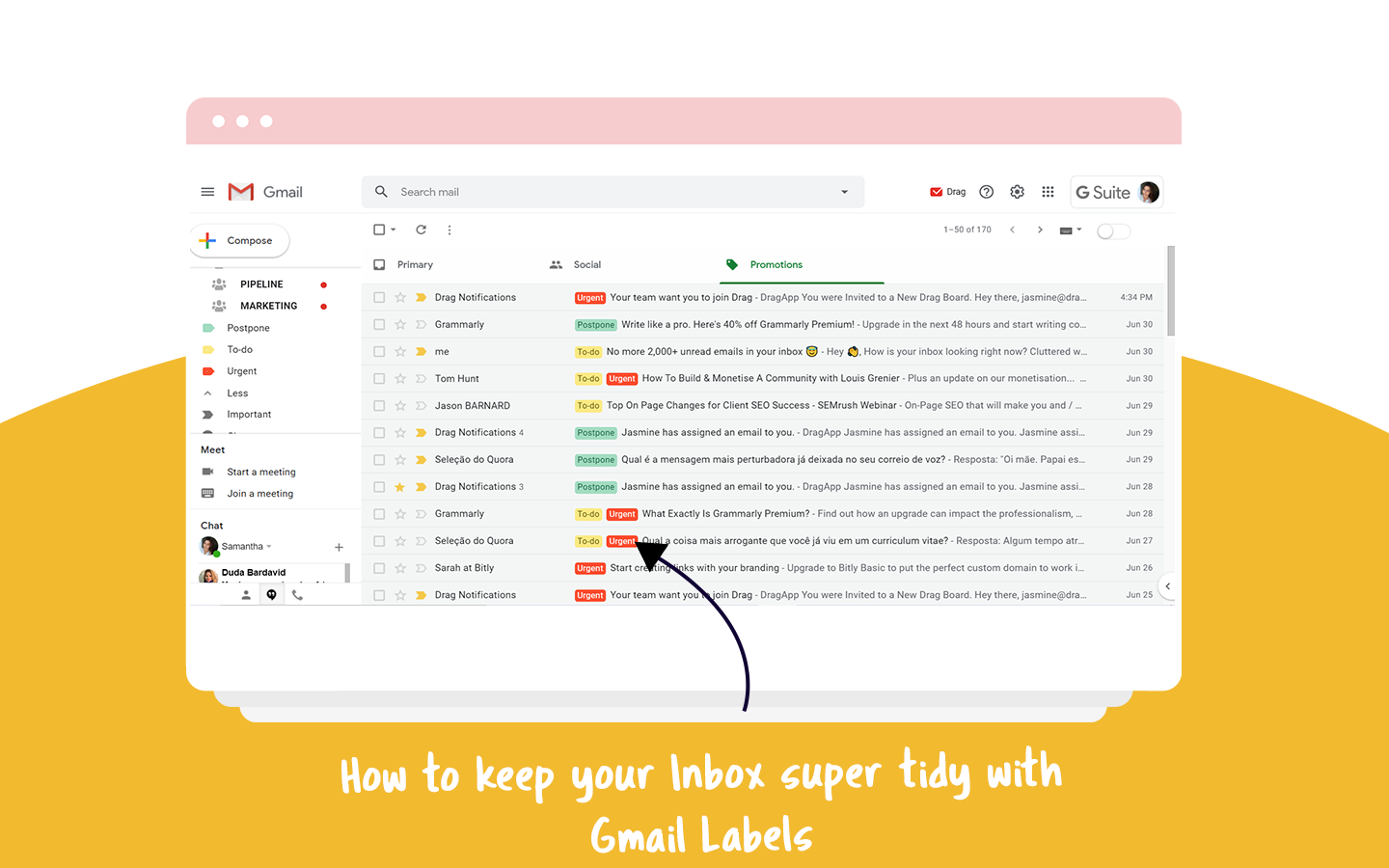
Gmail labels are more than just digital folders; they are dynamic tags that allow you to classify and sort your emails without duplicating them. Unlike traditional email clients where an email can only reside in one folder, a Gmail label can be applied to multiple emails, and an email can have multiple labels. This flexibility is the key to unlocking a sophisticated organizational system that can significantly boost your productivity and streamline your digital life.
In the context of our website’s core pillars – Tech, Brand, and Money – understanding and implementing Gmail labels offers tangible benefits. From a Tech perspective, labels are a fundamental feature of a powerful email client designed for efficiency. For Brand building and management, effectively organized communication channels are paramount for reputation and client relations. And in the realm of Money, meticulous record-keeping and the ability to quickly retrieve financial correspondence are crucial for personal finance and business operations.
This article will delve deep into the world of Gmail labels, exploring what they are, why they are indispensable, and how you can leverage them to transform your email management strategy. We’ll cover everything from basic setup to advanced techniques, providing actionable insights that will help you master your inbox and, by extension, enhance your digital workflow.
The Anatomy of Gmail Labels: Beyond Simple Folders
At its core, a Gmail label is a marker that you can attach to any email. Think of it as a sticky note or a colored tab that you can place on a physical document. The beauty of Gmail labels lies in their non-exclusive nature. When you move an email into a folder in a traditional email client, it resides solely in that folder. However, with Gmail labels, an email can have multiple labels applied.
Imagine receiving an email from a client about a new project. You might want to label it “Client Project Alpha,” but also “Urgent,” and perhaps even “Action Required.” With Gmail labels, this single email can proudly wear all three tags, making it instantly searchable and identifiable across various organizational criteria. This multi-dimensional approach to organization is what sets Gmail labels apart and makes them a powerful tool for individuals and businesses alike.
Creating and Applying Labels: The Foundation of Organization
Getting started with Gmail labels is remarkably straightforward. You can create labels directly from your Gmail interface, and then apply them to individual emails, conversations, or even use them in conjunction with filters to automate the labeling process.
Creating Your First Labels
To create a new label, navigate to the left-hand sidebar in your Gmail inbox. Scroll down and click on the “More” option to reveal additional settings. You’ll find a “Create new label” button. Clicking this will prompt you to name your label. Keep your label names concise and descriptive. Think about the core categories of your emails: “Work,” “Personal,” “Clients,” “Invoices,” “Receipts,” “Travel,” “Newsletters,” or specific project names.
Applying Labels to Emails
Once you have labels created, applying them is as simple as selecting an email or a conversation, and then clicking the “Label” icon (which looks like a tag) in the toolbar above your messages. A dropdown menu will appear, allowing you to select one or more existing labels to apply. You can also create new labels on the fly from this dropdown.
The Power of Nested Labels: Structuring Your System
For more complex organizational needs, Gmail allows you to create “nested” labels. This means you can create sub-labels under a main label, forming a hierarchical structure. For instance, under a “Clients” label, you could create nested labels for each individual client like “Clients/Acme Corp,” “Clients/Beta Solutions,” and so on. This creates a clean, structured hierarchy that mimics the way you might organize files on your computer, making it even easier to drill down into specific categories.
To create a nested label, when you are creating a new label, you can simply type the parent label name followed by a slash, and then the sub-label name (e.g., “Clients/Project X”). This feature is invaluable for managing large volumes of information and ensures that your inbox remains navigable even as it grows.
Leveraging Labels for Enhanced Productivity and Brand Management
The true power of Gmail labels is unleashed when you move beyond simply tagging emails and start integrating them into a strategic workflow. This is where the Tech, Brand, and Money aspects of your digital life converge.
Streamlining Your Workflow with Filters and Automation
The most significant productivity gains with Gmail labels come from their integration with Gmail’s powerful filtering system. Filters allow you to automate actions based on specific criteria, and applying labels is a prime example of this.
Setting Up Filters for Automatic Labeling
To create a filter, go to Gmail’s settings (the gear icon in the top right corner) and select “See all settings.” Then, navigate to the “Filters and Blocked Addresses” tab. Click “Create a new filter.” Here, you can define the criteria for your filter. This could include:
- From: Emails from specific senders (e.g., your boss, a particular client, a newsletter).
- To: Emails sent to a specific address (useful if you have multiple Gmail addresses).
- Subject: Keywords or phrases in the subject line (e.g., “Invoice,” “Meeting Request,” “Order Confirmation”).
- Has the words: Specific words or phrases within the email body.
- Doesn’t have: Words or phrases that should exclude the email from the filter.
Once you’ve defined your criteria, click “Create filter.” On the next screen, you’ll see a list of actions that can be applied. Select “Apply the label” and choose the desired label from the dropdown menu. You can also combine this with other actions like “Mark as read,” “Star it,” “Skip the Inbox (Archive it),” or “Never send it to Spam.”
Advanced Filter Strategies for Efficient Inbox Management
The true magic happens when you combine multiple filters and labels. For instance, you might set up a filter for all emails from your manager that contain the word “Urgent” to automatically apply both a “Manager” label and an “Urgent” label, and also mark it as important. For invoices, you could set up a filter that automatically applies an “Invoices” label and archives the email, so it bypasses your main inbox and is readily accessible when needed.
For Brand management, imagine automatically labeling all emails mentioning your company name or a competitor’s name. This allows you to easily track brand sentiment, customer feedback, and competitive intelligence. For Money management, you can filter all emails from your bank or financial institutions, applying a “Finance” label, ensuring you never miss important statements or alerts.

Utilizing Labels for Enhanced Brand Communication and Reputation
In the professional world, your email communication is an extension of your brand. Inconsistent or disorganized communication can negatively impact your brand perception. Gmail labels offer a sophisticated way to manage this.
Consistent Client and Project Management
For businesses and freelancers, clearly labeling client communications is essential. You can create labels for each client and then further subdivide them by project. This allows you to quickly access all correspondence related to a specific client or project, ensuring timely responses and a professional, organized approach. When a client asks for details about a past interaction, you can instantly pull up all relevant emails, demonstrating your efficiency and attention to detail – key components of a strong brand.
Tracking Customer Feedback and Support
Labels can be invaluable for tracking customer feedback, inquiries, and support requests. By creating labels like “Customer Feedback,” “Support Inquiry,” or “Bug Report,” and filtering emails accordingly, you can ensure that no customer concern falls through the cracks. This proactive approach to customer service is vital for building and maintaining a positive brand reputation.
Monitoring Brand Mentions and Online Presence
Beyond direct communication, labels can help you monitor your brand’s online presence. If you receive email notifications from social media platforms or review sites, you can set up filters to apply a “Brand Monitoring” label. This allows you to easily review mentions of your brand, respond to comments, and gauge public sentiment.
Gmail Labels as a Financial Command Center
The financial implications of effective email organization cannot be overstated. From managing personal finances to overseeing business expenditures, Gmail labels can transform your inbox into a powerful financial command center.
Simplifying Invoice and Receipt Management
For individuals and businesses alike, keeping track of invoices and receipts is crucial for budgeting, tax preparation, and expense reporting. By setting up filters to automatically label emails with keywords like “Invoice,” “Receipt,” or “Order Confirmation,” and directing them to specific labels (e.g., “Finance/Invoices,” “Finance/Receipts”), you create an easily searchable archive of your financial transactions. You can even set up filters to star or mark as important emails from specific vendors or for particular expense categories.
Tracking Income and Payments
Similarly, emails related to income, payments received, or outgoing transactions can be managed with dedicated labels. This is particularly useful for freelancers and small businesses who need to track payments from various clients. Labels like “Payments Received,” “Pending Payments,” or “Expenses” ensure that you have a clear overview of your financial inflows and outflows.
Maintaining Financial Records for Tax Purposes
When tax season approaches, having a well-organized email archive can be a lifesaver. By consistently applying labels to all financial correspondence throughout the year, you can quickly retrieve all necessary documents, statements, and confirmations, significantly reducing stress and potential errors during tax preparation. This meticulous approach to financial record-keeping directly contributes to your financial well-being and reduces the risk of costly mistakes.
Advanced Labeling Techniques and Best Practices
As you become more comfortable with Gmail labels, you’ll discover ways to further refine your system for maximum impact.
Color-Coding Your Labels for Visual Clarity
Gmail allows you to assign a color to each label. This visual cue can significantly enhance your ability to quickly scan your inbox and identify important messages at a glance. You can color-code labels based on urgency, sender type, or project. For example, you might assign red to “Urgent,” blue to “Clients,” and green to “Personal.” This simple visual enhancement can dramatically improve your scanning efficiency and help you prioritize tasks.
To color-code a label, hover over the label name in the left-hand sidebar, click the three vertical dots that appear, and select “Change color.”
Using Stars and Important Markers in Conjunction with Labels
While labels provide robust categorization, Gmail’s star system and “Important” markers can be used to add another layer of prioritization. You can use stars to mark emails that require immediate attention or follow-up, and the “Important” marker (which Gmail automatically assigns based on your perceived importance) can be leveraged in conjunction with filters. For instance, you might create a filter that labels all emails from your boss that Gmail flags as “Important” with an “Urgent/Manager” label.
Regularly Reviewing and Refininig Your Label System
Your needs will evolve over time, and so should your labeling system. Schedule regular check-ins (e.g., monthly or quarterly) to review your labels. Are there any labels you’re no longer using? Are there new categories of emails that you need to accommodate? Don’t be afraid to archive or delete labels that are no longer relevant, and create new ones as needed. A dynamic and well-maintained labeling system is crucial for long-term organizational success.

Conclusion: Reclaim Your Inbox, Master Your Digital Life
Gmail labels are a powerful, yet often overlooked, feature that can fundamentally transform how you manage your digital communication. By understanding their capabilities and implementing them strategically, you can move from an overwhelmed inbox to a highly organized and efficient productivity hub.
From a Tech perspective, mastering Gmail labels means leveraging the full potential of a sophisticated email client. For Brand building and management, they offer a pathway to consistent, professional communication and enhanced reputation. And in the realm of Money, they provide the structure needed for meticulous financial record-keeping and sound financial decision-making.
Don’t let your Gmail inbox be a source of stress and missed opportunities. Embrace the power of Gmail labels, and start building a more organized, productive, and ultimately, a more successful digital life. The time invested in setting up and maintaining a robust labeling system will undoubtedly pay dividends in increased efficiency, reduced cognitive load, and greater control over your digital world.
aViewFromTheCave is a participant in the Amazon Services LLC Associates Program, an affiliate advertising program designed to provide a means for sites to earn advertising fees by advertising and linking to Amazon.com. Amazon, the Amazon logo, AmazonSupply, and the AmazonSupply logo are trademarks of Amazon.com, Inc. or its affiliates. As an Amazon Associate we earn affiliate commissions from qualifying purchases.