
The thrill of a new car often comes with the desire to seamlessly integrate all your favorite amenities, and for many, SiriusXM satellite radio is at the top of that list. Whether you’re upgrading your vehicle, replacing an old one, or simply want to move your existing subscription to a different car in your household, transferring your SiriusXM service might seem like a daunting task. However, with a clear understanding of the process and the right steps, it’s a straightforward technical procedure.
SiriusXM offers a vast array of entertainment, news, and sports channels, making it an indispensable part of the daily commute or long road trips for millions. This comprehensive guide will walk you through the various scenarios and provide detailed, actionable instructions to ensure a smooth transition of your SiriusXM subscription to your new vehicle, keeping you connected to your favorite audio content without a hitch. We’ll delve into the nuances of subscription management, hardware identification, and the necessary technical steps to get your tunes playing in your new ride.
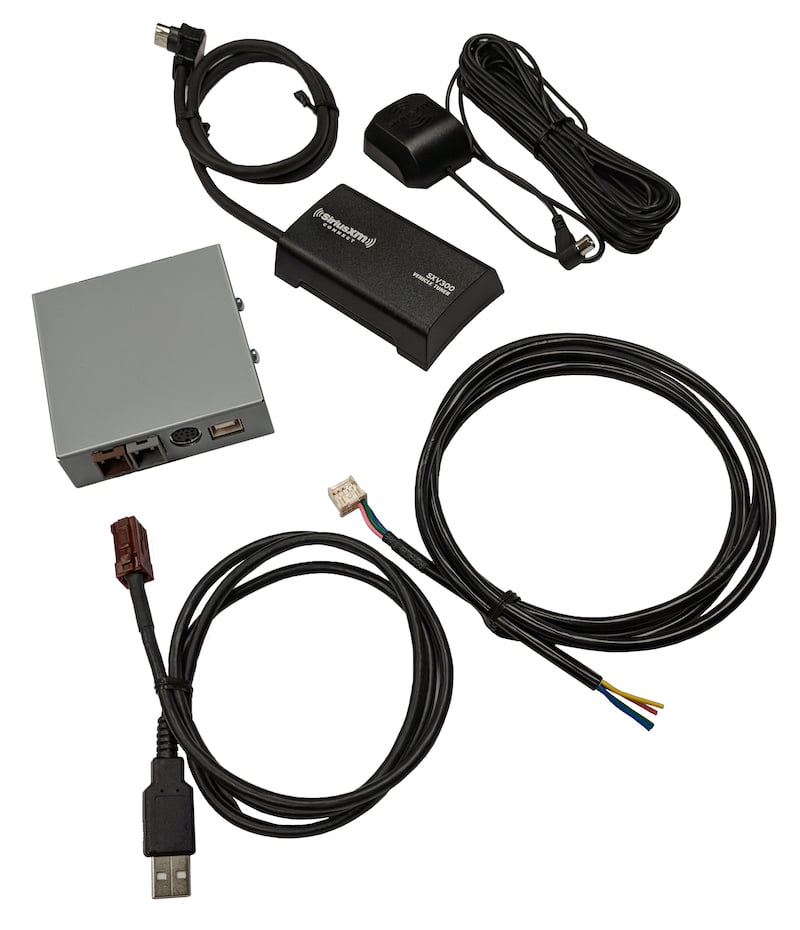
Understanding Your SiriusXM Subscription and Hardware
Before initiating any transfer, it’s crucial to understand the fundamental components of your SiriusXM service: the subscription itself and the hardware through which you receive the signal. Many users mistakenly believe their subscription is tied directly to their vehicle, when in reality, it’s linked to a unique identifier within the radio unit.
Differentiating Between Subscription and Hardware
Your SiriusXM subscription is a service agreement that grants you access to specific channels. This subscription is associated with a unique Radio ID (or ESN/SID), a 12-digit alphanumeric code embedded in each SiriusXM-compatible radio. Think of it like a phone number for your radio. When you pay for a SiriusXM service, you’re paying for that specific Radio ID to receive programming.
The hardware refers to the actual radio receiver. This can be:
- Factory-installed radios: These are integrated directly into your car’s dashboard by the manufacturer. They are permanent fixtures of the vehicle.
- Aftermarket radios: These are units installed after the car was manufactured, often by a stereo shop, and integrate into the car’s existing audio system.
- Portable radios (Dock-and-Play): These are standalone devices that can be moved between vehicles using docking kits, or even used indoors with a home kit. They have their own power and antenna connections.
Understanding this distinction is key because the method of transfer often depends on whether you’re moving just the subscription to a new radio ID or moving the entire portable radio unit to a new car.
Key Information You’ll Need
To ensure a smooth transfer process, gather the following information before you begin:
- Your SiriusXM Account Information: This includes your account number, username, and password. Having this ready will expedite any interactions with SiriusXM customer service or their online portal.
- Old Radio ID (if applicable): If you’re transferring a subscription from a previously active radio, you’ll need its 12-digit Radio ID. You can usually find this by tuning to channel 0 or 1, or by accessing the radio’s display menu.
- New Radio ID (if applicable): For factory-installed or aftermarket radios in your new car, you’ll need the 12-digit Radio ID of the new unit. This is critical for activating service on the new hardware. Again, tune to channel 0 or 1, or check the radio’s display menu for this information.
- Vehicle Identification Number (VIN) of the New Car: While not always strictly necessary for a subscription transfer, having your new car’s VIN handy can be useful, especially if you’re dealing with a new trial subscription or if SiriusXM needs to verify vehicle details.
Having this information organized will significantly streamline the transfer process, whether you complete it online or via phone.
Primary Methods for SiriusXM Transfer
The approach you take to transfer your SiriusXM service largely depends on the type of radio you currently have and the type of radio in your new car. There are generally three main scenarios.
Transferring an Existing Subscription to a New Radio
This is the most common scenario: you have an active SiriusXM subscription on a radio in your old car (or a car you no longer use) and you want to activate that same subscription on a new, different radio in your new car. This new radio might be factory-installed or an aftermarket unit.
The process typically involves:
- Locate the New Radio ID: In your new car, power on the radio and tune to channel 0 or 1. The 12-digit Radio ID will usually be displayed prominently. If not, consult your car’s owner’s manual or the radio’s menu options (often under “SiriusXM Info” or similar). Write this down carefully.
- Contact SiriusXM: You have a few options:
- Online Account Management: The most convenient method is often through your SiriusXM online account. Log in, navigate to the “Manage My Subscriptions” section, and look for an option to “Transfer Service,” “Add a Radio,” or “Replace a Radio.” You’ll be prompted to enter your old Radio ID (if replacing) and the new Radio ID.
- Phone Support: Call SiriusXM customer service directly. Have your account details, old Radio ID, and new Radio ID ready. Explain that you want to transfer your existing subscription to a new radio. A representative will guide you through the process.
- SiriusXM App: In some cases, you might be able to initiate a transfer through the SiriusXM mobile app if your account allows for radio management.
- Activate the New Radio: Once the transfer request is submitted, SiriusXM will send an activation signal to your new radio. Ensure your new car is outdoors with a clear view of the sky (for optimal satellite reception), and the radio is turned on and tuned to a SiriusXM channel (often Channel 184 for a preview or Channel 1 for activation messages). It might take a few minutes for the signal to be received and all your subscribed channels to become available. If channels don’t activate after 10-15 minutes, try driving the car a short distance, or use SiriusXM’s online “refresh signal” tool.
Moving a Portable SiriusXM Radio to a New Vehicle
If you have a portable “dock-and-play” SiriusXM radio, the transfer process is significantly simpler because your subscription is tied directly to that physical radio unit. You are not changing the Radio ID; you are simply moving the hardware.
The steps are:
- Remove from Old Car: Disconnect the portable radio from its docking station, power adapter, and antenna in your old vehicle.
- Install Docking Kit in New Car: You will need a new vehicle docking kit for your new car, or you can carefully remove and re-install the existing kit from your old car. This kit typically includes a mounting bracket, a power adapter (cigarette lighter or USB), and a magnetic antenna that attaches to the exterior of the car (usually the roof or trunk lid).
- Connect and Mount: Install the mounting bracket, run the antenna cable, and plug in the power adapter. Dock your portable SiriusXM radio into the new kit.
- Enjoy: Once connected, your portable radio should power on and immediately receive the same channels as before, since its Radio ID and associated subscription have not changed.
It’s important to ensure the antenna has a clear line of sight to the sky for optimal reception. Avoid placing it under metal obstructions or inside the car if possible.
Activating a New Pre-Installed Radio in a New Car
Many new cars come with a trial subscription to SiriusXM, typically for 3, 6, or 12 months. If your new car has a pre-installed radio with an active trial, and you want to convert that trial to a paid subscription or add it to your existing SiriusXM account, the process is slightly different from a direct transfer.
- Identify New Radio ID: As with other scenarios, find the 12-digit Radio ID on your new car’s built-in radio.
- Activate Trial (if not already): Often, the trial starts automatically when you purchase the car. If not, you might need to call SiriusXM or visit their website to activate it using the Radio ID and VIN.
- Convert or Add to Account:
- Converting Trial: Towards the end of your trial period, SiriusXM will typically contact you to offer a paid subscription. You can also proactively call them or go online to select a package and link it to your account.
- Adding to Existing Account: If you already have a SiriusXM account (perhaps with another radio or a streaming-only plan), you can often add this new radio to your existing account, sometimes qualifying for multi-radio discounts or a “Family Plan.” You’ll use the new Radio ID to link it.

This method isn’t a “transfer” in the sense of moving an existing subscription, but rather activating a new service or integrating a trial radio into your existing account ecosystem.
Step-by-Step Guide: Transferring Your Built-In SiriusXM Radio Subscription
For the most common scenario — moving your subscription from one built-in car radio to another built-in car radio — follow these detailed steps.
Step 1: Gather Necessary Information
This initial preparation is vital for a smooth process.
- Locate Old Radio ID (if applicable): In your old car, turn on the SiriusXM radio. Tune to channel 0 or channel 1. The 12-digit Radio ID should be displayed on the screen. Jot it down accurately. If your old radio is no longer accessible, you might find its Radio ID by logging into your SiriusXM online account under your current subscriptions.
- Locate New Radio ID: In your new car, turn on the SiriusXM radio. Again, tune to channel 0 or channel 1. The 12-digit Radio ID will appear on the display. Record this carefully. If it doesn’t appear, check the radio’s menu for a “SiriusXM Info,” “System Info,” or similar option.
- Retrieve Account Details: Have your SiriusXM account number, username, and password readily available.
Step 2: Contacting SiriusXM for Transfer
With your information in hand, you’re ready to initiate the transfer.
- Online Account Management (Recommended):
- Go to the official SiriusXM website (siriusxm.com).
- Log in to your account using your username and password.
- Navigate to the “Manage My Subscriptions” or “My Account” section.
- Look for options like “Transfer Service,” “Replace a Radio,” or “Add a Radio.” The exact wording may vary.
- Follow the on-screen prompts. You will typically be asked to select the radio you wish to transfer from (your old Radio ID) and then enter the Radio ID of the new radio. Confirm your subscription package details.
- Review the changes and submit the transfer request.
- Phone Support:
- Dial SiriusXM customer service. The number can usually be found on their website.
- When prompted, state that you wish to transfer your SiriusXM service to a new vehicle.
- Provide the representative with your account details, the Radio ID of the old unit, and the Radio ID of the new unit.
- The representative will process the transfer on their end.
Step 3: Activating the New Radio
Once the transfer is processed by SiriusXM, the final step is to activate the service on your new car’s radio.
- Position Your Car: Drive your new car to an open area with a clear view of the sky. This is crucial for the radio’s antenna to receive the satellite signal. Avoid parking under carports, in garages, or near tall buildings that might block the signal.
- Turn On and Tune In: Turn on your new car’s radio. Tune it to a SiriusXM preview channel, often Channel 184, or simply Channel 1.
- Wait for Activation Signal: It may take a few minutes for the activation signal to reach your radio. You might initially see an “Activating” message, “Check Antenna,” or “Subscription Updated.” Be patient.
- Refresh Signal (if needed): If after 10-15 minutes you’re still not receiving your subscribed channels (e.g., only the preview channel or “Subscription Updated” message persists), you can try refreshing the signal. Go back to your SiriusXM online account, find the new radio, and look for a “Send Activation Signal” or “Refresh My Radio” button. Click it. Alternatively, you can call customer service and ask them to send a refresh signal.
Step 4: Confirming the Transfer
Once the activation signal has been received, perform a quick check to ensure everything is working correctly.
- Check Channels: Tune through several of your subscribed channels to ensure they are all playing correctly and are part of your package.
- Verify Online Account: Log back into your SiriusXM online account. The old radio should now be inactive or removed from your subscriptions, and your new radio’s ID should be listed with your active subscription.
Common Challenges and Troubleshooting Tips
While the transfer process is generally smooth, you might encounter a few technical hiccups. Knowing how to address them can save you time and frustration.
Radio ID Not Found / Incorrect Radio ID
- Double-Check Display: Ensure you’re tuning to Channel 0 or 1. Sometimes the Radio ID is on a different screen within the menu system. Consult your car’s owner’s manual for specific instructions on finding the SiriusXM Radio ID for your make and model.
- Read Carefully: The Radio ID is a 12-digit alphanumeric code. Digits like ‘0’ (zero) and ‘O’ (letter O) or ‘1’ (one) and ‘I’ (letter I) can look similar. Double-check your entry.
- Try SiriusXM Website: Some newer vehicles allow you to find the Radio ID by entering your VIN on the SiriusXM website’s activation page, which can be a useful alternative.
Signal Activation Issues
- Clear Line of Sight: The most common reason for activation failure is a blocked satellite signal. Ensure your car is parked outdoors with an unobstructed view of the sky, away from tall buildings, dense trees, or covered parking.
- Radio On and Tuned: Make sure the radio is powered on and tuned to a SiriusXM channel (preferably 184 or 1) for at least 15-20 minutes while awaiting the signal.
- Multiple Refreshes: Sometimes a single refresh signal isn’t enough. Try sending it again from the SiriusXM website, or contact customer support to have them send multiple refreshes.
- Drive Around: Occasionally, driving the car for a few minutes in an open area can help the radio acquire the signal more effectively.
Subscription Discrepancies
- Missing Channels: If some of your channels aren’t playing, or you’re getting an “unsubscribed” message, it could indicate that the wrong package was activated, or the activation didn’t fully process.
- Verify Package Online: Log into your SiriusXM account to confirm that the correct subscription package is associated with your new Radio ID.
- Contact Support: If the package is incorrect, or channels are still missing, contact SiriusXM customer service. They can verify your subscription level and re-send the correct activation signal.

Dealing with Multiple Radios
- Family Plans/Multi-Radio Discounts: If you have multiple cars and want SiriusXM in all of them, inquire about SiriusXM’s “All Access” or “Family Plan” options. These often allow you to add additional radios to your account at a reduced rate, rather than paying for separate full subscriptions. This is typically managed via your online account or by calling customer service.
- Deactivating Old Radios: When transferring, ensure your old radio is properly deactivated to avoid being charged for multiple radios you aren’t using. The transfer process usually handles this automatically, but it’s good practice to verify in your online account.
Transferring your SiriusXM service to a new car doesn’t have to be complicated. By understanding the distinction between your subscription and hardware, gathering the necessary Radio IDs and account information, and following the outlined steps, you can ensure a smooth, technical transition. Utilize SiriusXM’s online tools as your first resource, and don’t hesitate to reach out to their customer support for any persistent issues. With these insights, you’ll be back to enjoying your favorite satellite radio programming in your new vehicle in no time.
aViewFromTheCave is a participant in the Amazon Services LLC Associates Program, an affiliate advertising program designed to provide a means for sites to earn advertising fees by advertising and linking to Amazon.com. Amazon, the Amazon logo, AmazonSupply, and the AmazonSupply logo are trademarks of Amazon.com, Inc. or its affiliates. As an Amazon Associate we earn affiliate commissions from qualifying purchases.