
In an era saturated with digital streaming and on-demand content, the enduring appeal of satellite radio remains strong for many drivers. SiriusXM, formerly known as Sirius Satellite Radio, offers a unique blend of commercial-free music, exclusive talk shows, live sports, and breaking news, all delivered directly to your vehicle with nationwide coverage. The promise of consistent entertainment, regardless of your location, is a powerful draw. However, for new car owners or those acquiring a pre-owned vehicle with satellite radio capabilities, the initial hurdle is often the activation process.
This guide is designed to demystify that process, providing a clear, professional, and comprehensive tutorial on how to get your SiriusXM service up and running in your car. We’ll delve into everything from identifying your radio’s unique ID to troubleshooting common activation snags, ensuring you can quickly unlock a world of audio entertainment on the go. Activating your SiriusXM radio isn’t just about flipping a switch; it’s about connecting your vehicle to a vast network of content, and with the right steps, it’s a straightforward procedure anyone can accomplish.
Preparing for SiriusXM Activation: Understanding Your Radio and Subscription
Before you can enjoy the vast array of content SiriusXM offers, a bit of preliminary work is essential. This foundational understanding ensures a smooth activation process, preventing potential delays or missteps. It involves identifying your specific radio, understanding its capabilities, and choosing a subscription plan that aligns with your listening habits.
Identifying Your SiriusXM Radio ID (ESN)
Every SiriusXM radio, whether factory-installed or an aftermarket unit, possesses a unique identification number. This is often referred to as the Radio ID or Electronic Serial Number (ESN), and it’s the critical piece of information SiriusXM uses to link your subscription to your specific device. Without it, activation is impossible.
Finding your Radio ID is usually quite simple:
- On the Radio Display: The most common method is to tune your car radio to Channel 0 or Channel 1. The Radio ID, typically an 8- to 12-digit alphanumeric code, will usually display prominently on the screen. It might scroll or appear momentarily, so pay close attention. Some units might require you to press an “Info” or “Menu” button while on Channel 0.
- In Your Car’s Manual: For factory-installed units, your vehicle’s owner’s manual often contains information about the SiriusXM system, including where to find the Radio ID.
- Online (for existing accounts): If you’re reactivating a radio that was previously linked to an account, you might be able to find the ID by logging into your SiriusXM online account.
- On the Radio Unit Itself: In rare cases, especially with aftermarket radios, the ID might be printed on a sticker on the back or bottom of the tuner unit. This usually requires removing the radio from the dashboard, which is often best left to a professional.
Make sure to write down this Radio ID accurately, as you’ll need it for the next steps.
Choosing the Right SiriusXM Subscription Plan
SiriusXM offers a variety of subscription tiers designed to cater to different preferences and budgets. Understanding these options is crucial before you activate, as your chosen plan dictates the channels and features you’ll have access to.
Common plan types typically include:
- Music & Entertainment: This foundational plan usually offers a broad selection of ad-free music channels, some talk shows, and basic news and entertainment.
- Platinum: The most comprehensive package, Platinum typically includes everything in Music & Entertainment plus access to premium channels (like Howard Stern, specific sports, and more news), as well as streaming access on the SiriusXM app and online.
- Streaming Platinum: For those who primarily listen on their phone or computer, this plan provides all the content of Platinum but without car radio access. This isn’t relevant for in-car activation but highlights the variety.
- Trial Subscriptions: Many new and certified pre-owned vehicles come with a complimentary trial subscription. This trial often mirrors a premium plan for a limited time (e.g., 3 months, 6 months) and will require you to activate it to start. You’ll still need your Radio ID for this.
Consider what kind of content you listen to most – music genres, specific sports teams, news channels, or talk shows – and choose a plan that provides the best value for your listening habits. You can browse current plan offerings on the SiriusXM website.
Ensuring Your Car is “SiriusXM Ready”
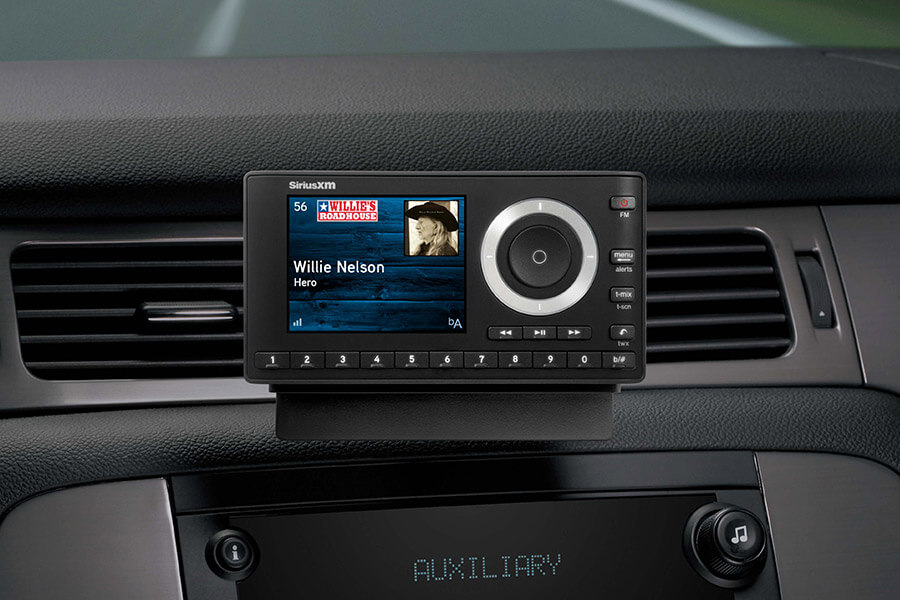
Most modern vehicles come equipped with SiriusXM capabilities either as standard or optional equipment. If your car has a “SAT” or “XM” button on the radio or steering wheel, or if the radio display shows channel numbers far beyond traditional FM/AM ranges, it’s highly likely your vehicle is “SiriusXM Ready.”
- Factory-Installed Systems: These are the most common. The antenna is typically integrated into the car’s roof, and the tuner is part of the existing infotainment system. Activation for these is generally straightforward.
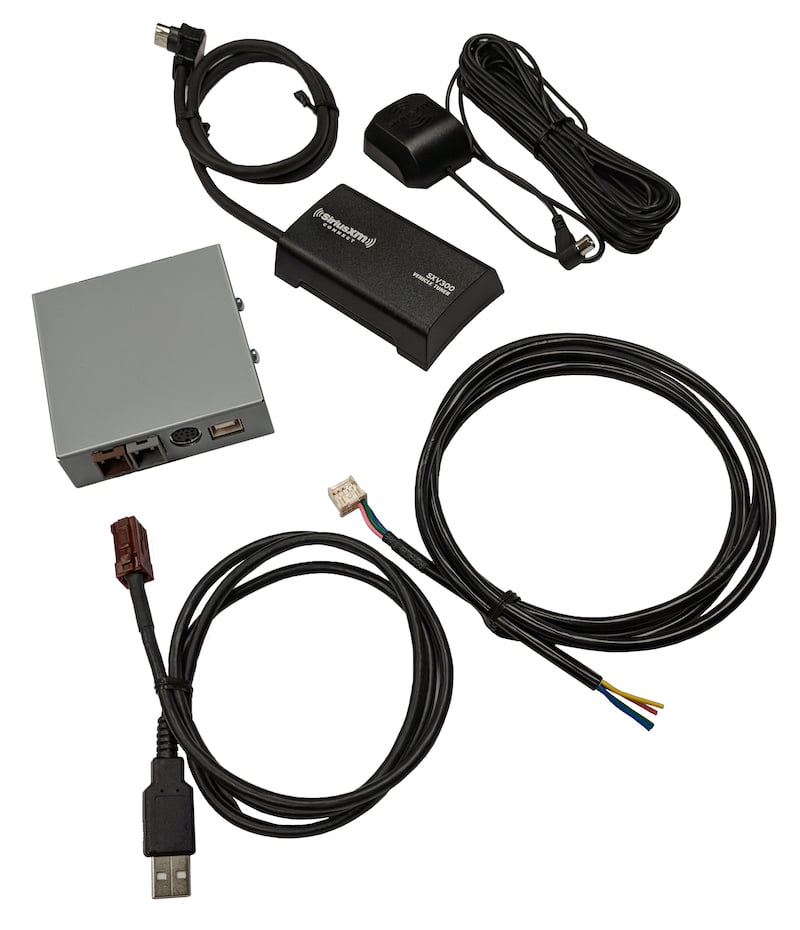
- Aftermarket Kits: If your car didn’t come with satellite radio, you might have had an aftermarket kit installed. These typically involve a small antenna mounted on the dashboard or roof and a tuner unit connected to your existing car stereo. The activation process remains largely the same, but troubleshooting might differ slightly if issues arise with the aftermarket hardware.
If you’re unsure if your vehicle is SiriusXM Ready, consult your car’s owner’s manual or look for the distinctive SiriusXM logo on your radio display or trim.
The Step-by-Step Activation Process
Once you have your Radio ID and have chosen your desired subscription plan, you’re ready to initiate the activation process. This can typically be done online or over the phone.
Preparing for Activation
Before you begin the activation request, ensure your vehicle is in the best possible position to receive the activation signal:
- Park in an Open Area: For the best signal reception, park your car outside, away from large buildings, parking garages, or dense tree cover that might obstruct the satellite signal.
- Turn on Your Radio: Start your car and turn on the radio.
- Tune to Channel 0, 1, or the Preview Channel: Ensure your radio is tuned to Channel 0, Channel 1, or the dedicated SiriusXM preview channel (often 184 or 1 in some units). This allows the radio to be ready to receive the activation signal. You might see a message like “Acquiring Signal,” “Call to Activate,” or “Subscribed” (if a trial is active but not yet refreshed).
Activating Online (Self-Service)
The most common and often quickest method is to activate your SiriusXM radio online:
- Visit the SiriusXM Activation Page: Go to the official SiriusXM website (siriusxm.com) and navigate to their activation or “refresh signal” page. This is usually easy to find under “Support” or “Activate Radio.”
- Enter Your Radio ID: You will be prompted to enter the Radio ID you previously noted down. Double-check for accuracy.
- Select Your Plan: If you’re activating a new subscription or converting a trial, you’ll be guided through selecting your desired plan and providing payment information if applicable. If you’re simply refreshing an existing subscription, this step might be skipped.
- Create/Login to Account: You might be asked to create a new SiriusXM account or log in to an existing one. This account allows you to manage your subscription, view billing, and access online streaming.
- Submit Request: Confirm all details and submit your activation request. SiriusXM will then send an activation signal to your radio.
Activating by Phone (Customer Service)
While online activation is convenient, some users prefer to speak with a customer service representative, or may need to if they encounter issues online.
- Call SiriusXM Customer Service: Locate the dedicated activation or customer service phone number on the SiriusXM website. Have your Radio ID and desired subscription plan ready.
- Provide Information: A representative will guide you through the process, asking for your Radio ID, personal details, and payment information (if initiating a new paid subscription).
- Wait for Activation: The representative will send the activation signal remotely. They will instruct you to wait in your car, ensuring the radio is on and tuned to the correct channel, until the signal is received.
What to Expect Post-Activation Request
After you’ve submitted your activation request (online or by phone), a signal will be sent to your radio.
- The “Refresh Signal” Process: Your radio will process this signal. During this time, you might see channels gradually populate, or a message indicating that the subscription is being updated.
- Timeframe: While activation can sometimes happen in minutes, it’s not uncommon for it to take up to 15-20 minutes. In rare cases, especially in areas with poor satellite reception or during peak activation times, it might take a bit longer. It is crucial to leave your radio on and tuned to Channel 0 or a preview channel during this period. Do not turn off your car or change the station until the channels activate.
- Verification: Once activation is complete, you should be able to tune to the channels included in your subscription. You might notice that previously locked channels are now accessible. To verify, try tuning to a well-known channel (e.g., Channel 100 for Howard Stern if you have Platinum, or a popular music channel like 2 for PopRocks).
Troubleshooting Common Activation Issues
While the activation process is generally smooth, occasionally users encounter hiccups. Here are some common issues and their solutions.
“No Signal” or “Acquiring Signal” Messages
If your radio continuously displays “No Signal,” “Acquiring Signal,” or similar messages even after requesting activation:
- Check Your Location: Ensure your car is parked in an open area with a clear line of sight to the sky. Obstructions like tall buildings, tunnels, or dense foliage can block the satellite signal. Try moving your car to a different spot.
- Antenna Issues: For aftermarket units, check if the antenna is securely connected and correctly positioned (usually on the dashboard or roof with a clear view of the sky). For factory units, antenna issues are less common but can occur if the antenna wiring is damaged.
- Power Cycle: Sometimes, simply turning off your car, opening the door (to cycle power to accessories), closing the door, and restarting the car can help reset the radio and its signal acquisition process.
Channels Not Activating After Refresh
If you’ve waited the recommended time and your channels still aren’t accessible (e.g., showing “Not Subscribed” or still playing only the preview channel):
- Re-send Activation Signal: Log back into your SiriusXM account online or call customer service and request that the activation signal be resent. This is a common first step for persistent issues.
- Verify Subscription Status: Double-check your online account to ensure your subscription is active and correctly linked to your Radio ID.
- Radio Reset: Some car radios have a “reset” function, sometimes found in the settings menu or by disconnecting the car battery for a few minutes (consult your car manual before attempting this). This can resolve software glitches.
Displaying Wrong Channel Lineup
If you’ve activated a specific plan, but your radio is showing channels you shouldn’t have, or missing channels you expect:
- Subscription Mismatch: Verify that the plan activated matches the plan you intended. Sometimes, a trial might default to a different tier.
- Another Refresh: Requesting another refresh signal can often resolve channel lineup discrepancies.
- Contact Support: If the issue persists, contact SiriusXM customer service. They can remotely diagnose your subscription and send targeted refresh signals to correct the channel lineup.
Enhancing Your SiriusXM Experience
Activating your in-car SiriusXM radio is just the beginning. The platform offers a range of features and integration possibilities that can further elevate your listening experience.
Exploring SiriusXM Features Beyond Basic Listening
SiriusXM isn’t just about static radio channels; it’s a dynamic platform.
- On-Demand Content: Many modern factory-installed SiriusXM systems, particularly those with internet connectivity or app integration, allow access to on-demand content. This means you can listen to past episodes of your favorite talk shows or exclusive specials whenever you want, not just when they air live.
- Personalized Recommendations: With app and online integration, SiriusXM often provides personalized channel and content recommendations based on your listening history, helping you discover new shows and artists.
- Favorite Channels and Presets: Utilize your car radio’s preset buttons to quickly access your most-loved SiriusXM channels. Take the time to set these up for convenience, especially if you have a wide range of listening interests.
Managing Your Account Online
Your SiriusXM online account is a powerful tool for managing your subscription and connected devices:
- Billing and Plan Changes: Easily review your billing statements, update payment methods, or change your subscription plan directly through your account portal.
- Adding/Removing Radios: If you have multiple SiriusXM-equipped vehicles or wish to transfer your service, your online account allows you to manage which Radio IDs are active on your subscription.
- Streaming Access: If your plan includes streaming, your online account is where you’ll log in to access SiriusXM via the mobile app, smart speakers, or web player, extending your listening beyond your car.
Integrating with Car Infotainment Systems
Modern car infotainment systems are designed to seamlessly integrate with SiriusXM, offering enhanced usability:
- Voice Commands: Many vehicles allow you to change SiriusXM channels, search for artists, or even access specific shows using voice commands, keeping your hands on the wheel and eyes on the road.
- Steering Wheel Controls: Utilize your steering wheel-mounted controls to effortlessly navigate through channels, adjust volume, and access presets without reaching for the main dashboard controls.
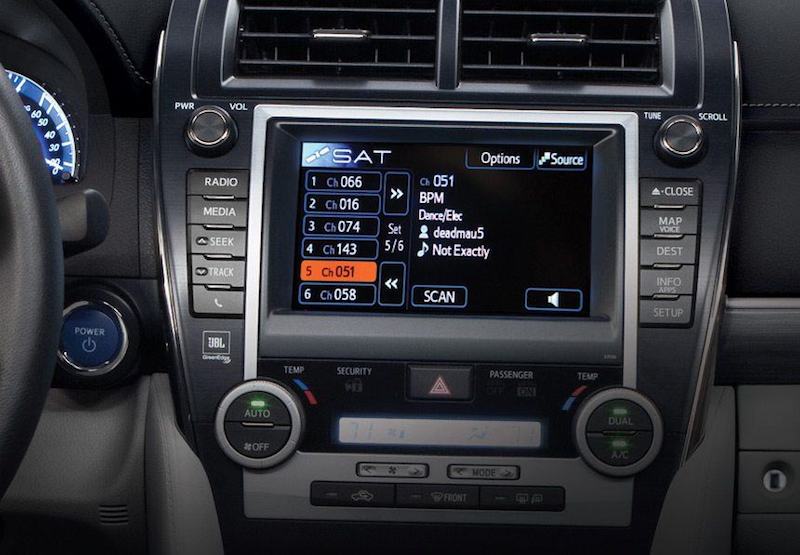
- Display Integration: Factory-installed systems often display rich information like artist names, song titles, album art, and show descriptions directly on your car’s main screen, providing a more engaging visual experience.
By understanding and utilizing these features, you can transform your SiriusXM service from a simple radio into a personalized, intuitive, and entertaining companion for every drive.
Activating SiriusXM in your car is a straightforward process that connects you to a world of exclusive entertainment. By carefully identifying your Radio ID, choosing the right subscription, and following the clear activation steps, you’ll be enjoying commercial-free music, compelling talk, and live sports in no time. While minor troubleshooting might occasionally be needed, the robust support resources from SiriusXM and this guide ensure that you can quickly overcome any hurdles. So, tune in, turn up the volume, and enjoy the unparalleled audio experience that SiriusXM brings to your daily drive.
aViewFromTheCave is a participant in the Amazon Services LLC Associates Program, an affiliate advertising program designed to provide a means for sites to earn advertising fees by advertising and linking to Amazon.com. Amazon, the Amazon logo, AmazonSupply, and the AmazonSupply logo are trademarks of Amazon.com, Inc. or its affiliates. As an Amazon Associate we earn affiliate commissions from qualifying purchases.