
In the digital age, our lives are increasingly intertwined with various online accounts and services. For users immersed in Apple’s expansive ecosystem, the Apple ID is not just another username; it is the master key to a universe of personalized services, devices, and digital content. From accessing your iCloud photos and documents to downloading apps, making purchases, securing your devices with Find My, and communicating via iMessage and FaceTime, your Apple ID is the linchpin that connects all these experiences. Forgetting this crucial identifier can feel like being locked out of your digital home, causing significant inconvenience and frustration.
Yet, despite its paramount importance, it’s remarkably common for users to forget their Apple ID, especially if they have multiple email addresses or haven’t needed to input it in a while due to Touch ID or Face ID convenience. This comprehensive guide is designed to walk you through every possible avenue to rediscover your Apple ID, ensuring you can regain seamless access to all your Apple services and devices. We’ll explore immediate checks on devices you might already be logged into, delve into Apple’s dedicated recovery tools, and finally, discuss proactive strategies to prevent this common dilemma from recurring.
The Centrality of Your Apple ID in the Apple Ecosystem
Understanding the foundational role of your Apple ID is the first step in appreciating why knowing it is so vital. It’s more than just an email address; it’s your personalized digital identity within Apple’s vast network.
More Than Just a Login: What Your Apple ID Controls
At its core, your Apple ID is a single sign-on account that authenticates your identity across all Apple services. This includes, but is not limited to:
- iCloud: Storing and syncing your photos, videos, contacts, calendars, notes, reminders, and documents across all your devices. It also powers iCloud Backup, ensuring your device data is safely stored and recoverable.
- App Store & iTunes Store: Purchasing and downloading apps, music, movies, TV shows, and books. Your purchase history and family sharing settings are also tied to this ID.
- iMessage & FaceTime: Enabling secure, encrypted communication with other Apple users.
- Find My: Locating lost or stolen Apple devices, remotely locking them, or erasing their data to protect your privacy.
- Apple Music, Apple TV+, Apple Arcade: Subscribing to and accessing Apple’s entertainment services.
- Apple Pay: Managing your payment methods and making secure purchases.
- Health App & Apple Watch: Syncing health and fitness data across devices.
- HomeKit: Controlling smart home accessories.
Essentially, without your Apple ID, your Apple devices become significantly less functional and your data isolated. It’s the key to maintaining continuity, security, and a rich, integrated user experience across your iPhone, iPad, Mac, Apple Watch, Apple TV, and even Windows PCs running iCloud for Windows.
Common Scenarios for Needing Your Apple ID
You might suddenly find yourself in urgent need of your Apple ID in various situations:
- Setting up a new Apple device: Whether it’s a new iPhone or a fresh Mac, you’ll need your Apple ID to restore from a backup, download your past purchases, and sign into iCloud.
- Logging into a new Apple service: Subscribing to Apple Music or Apple TV+ for the first time will require your ID.
- Troubleshooting an issue: Contacting Apple Support often requires verifying your identity with your Apple ID.
- Making a purchase: Whether in the App Store or an in-app purchase, your Apple ID is typically required for authentication.
- Using Find My: If you lose a device, you’ll need to log into iCloud.com with your Apple ID to locate it.
- Updating account information: Changing your password, payment methods, or personal details necessitates signing in with your Apple ID.
- Disabling Activation Lock: If you’re selling or giving away an old device, you must remove it from your Apple ID to allow the next user to set it up.
Given these critical functions, knowing your Apple ID and keeping it secure is paramount.
Immediate Checks: Where Your Apple ID Is Likely Already Logged In
The simplest and often most effective way to find your Apple ID is to check an Apple device or service you’re currently using or have used recently. Apple designs its ecosystem to keep you signed in for convenience, so there’s a good chance your ID is visible somewhere.
On Your iPhone, iPad, or iPod Touch
This is usually the quickest way to find your ID if you have access to an unlocked device:
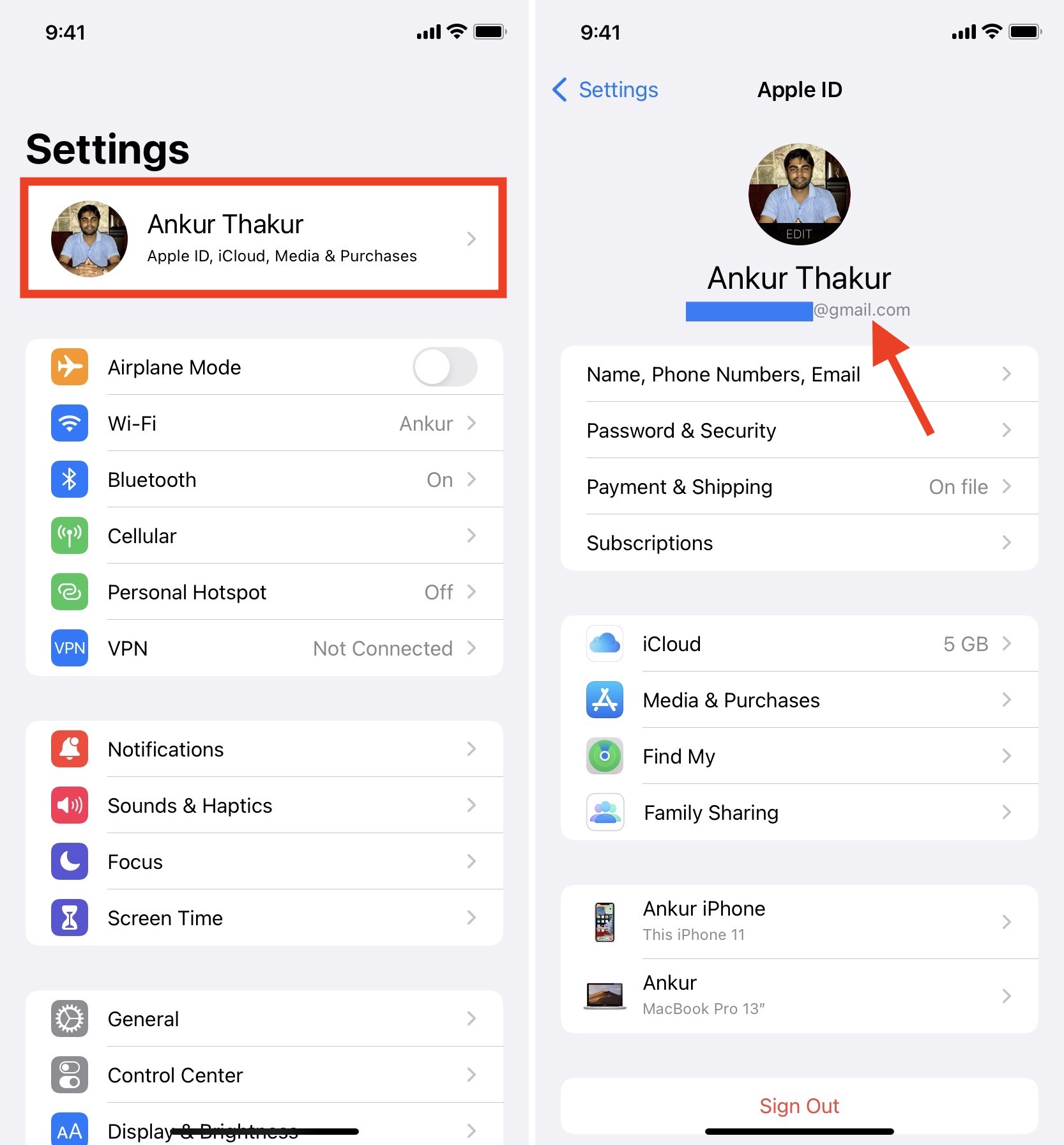
- Open Settings: Tap the grey gear icon on your home screen.
- Tap Your Name: At the very top of the Settings menu, you’ll see your name and picture. Tap on it.
- Your Apple ID is displayed: Your Apple ID (usually an email address) will be prominently displayed right below your name.
On Your Mac
If you have a Mac, your Apple ID is equally accessible:
- Open System Settings/Preferences:
- macOS Ventura or later: Click the Apple menu () in the top-left corner, then choose “System Settings.” Click on your name at the top of the sidebar.
- macOS Monterey or earlier: Click the Apple menu (), then choose “System Preferences.” Click “Apple ID.”
- Your Apple ID is displayed: Your Apple ID will be shown on the screen.
On Your Apple Watch
For Apple Watch users, your ID can be found through the paired iPhone:
- Open the Watch app on your paired iPhone.
- Tap the My Watch tab.
- Tap General, then Apple ID. Your Apple ID will be displayed there.
Through Apple Services (App Store, iTunes, iCloud.com)
Even if you don’t have access to your personal devices, you might find your Apple ID by checking services where you’ve made purchases or logged in.
- App Store / iTunes Store:
- On an iOS device: Open the App Store, tap your profile picture in the top-right corner. Your Apple ID will be displayed.
- On a Mac: Open the App Store or Music app (formerly iTunes). Go to Account > View My Account. You might need to sign in, but if you’re already signed in, your Apple ID will be visible at the top.
- On a Windows PC with iTunes: Open iTunes, go to Account > View My Account.
- iCloud.com: If you’ve ever logged into iCloud.com on a computer and saved your login details, you might find your email pre-filled on the login screen. Even if you’re not logged in, the “Forgot Apple ID or password?” link can be a gateway to recovery.
Via Family Sharing
If you are part of an Apple Family Sharing group, another family member might be able to help:
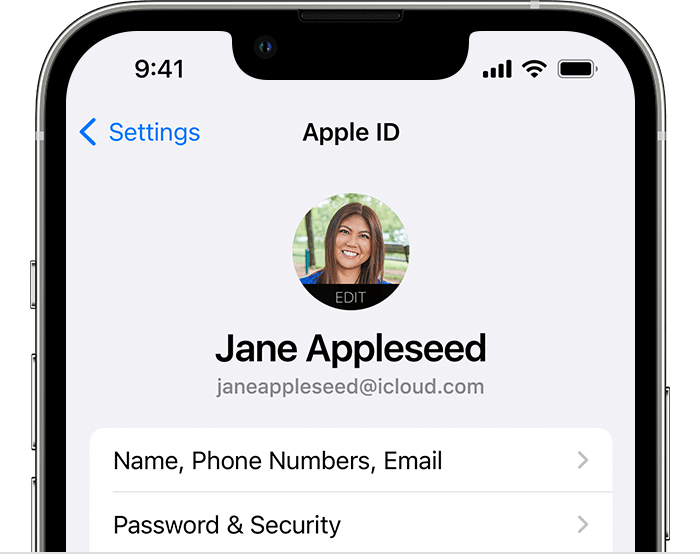
- Ask a family organizer/member to go to their device’s Settings (iOS) or System Settings/Preferences (Mac).
- Tap/Click their name/Apple ID.
- Select Family Sharing. They can then tap on your name within the family list to see your associated Apple ID.
When You’ve Forgotten It: Using Apple’s Recovery Tools
If none of the immediate checks yield your Apple ID, don’t despair. Apple provides robust tools specifically designed for account recovery.
The iForgot Portal: Apple’s Official Recovery Website
The primary tool for recovering your Apple ID (and resetting its password) is Apple’s dedicated iForgot website. This is your go-to if you’re completely locked out.
- Visit iforgot.apple.com: Open a web browser on any device and navigate to iforgot.apple.com.
- Click “Forgot Apple ID?”: Below the password field, you’ll see this option.
- Enter your Name and Email Address: Apple will prompt you to enter your first name, last name, and an email address you think might be your Apple ID. This could be your current email, a previous email, or any email you’ve ever associated with an Apple service.
- Follow the Prompts: If Apple finds a matching ID, it will guide you through verification steps. This might involve:
- Sending a notification to your trusted device: If you have an unlocked iPhone, iPad, or Mac signed into your Apple ID, a notification will appear allowing you to recover your account.
- Sending an email to your recovery email address: An email with instructions will be sent to the email address associated with your Apple ID.
- Answering security questions: If you previously set up security questions, you might be asked to answer them.
Using a Trusted Device for Recovery
If you have another Apple device (iPhone, iPad, Mac) that is already signed in to your Apple ID, you can use it to find your ID or reset your password without going to iforgot.apple.com.
- On a trusted iPhone/iPad: Go to Settings > [Your Name] > Password & Security > Change Password. Follow the on-screen steps.
- On a trusted Mac: Go to System Settings/Preferences > [Your Name] / Apple ID > Password & Security > Change Password. Follow the on-screen steps.
This method leverages the fact that you’re already authenticated on that device, making the process much smoother.
Account Recovery with a Recovery Contact
For added security and recovery ease, Apple allows you to set up account recovery contacts. If you’ve established this, your trusted contacts can help you regain access.
- If you’re initiating recovery via iforgot.apple.com, and you have a recovery contact, you’ll be given the option to involve them.
- Your recovery contact will receive a code on their device, which they can share with you to complete the recovery process.
This feature is incredibly useful for those who frequently forget credentials or want an extra layer of reassurance.
What to Do If You Don’t Have Access to Trusted Devices or Contacts
In the most challenging scenarios – where you’ve forgotten your Apple ID, don’t have access to any trusted devices, and haven’t set up a recovery contact – Apple offers an “Account Recovery” process. This is a secure procedure designed to ensure only you can regain access to your account.
- Start at iforgot.apple.com.
- Enter your personal details as requested.
- Initiate Account Recovery: If other methods fail, the system will offer account recovery. This usually involves:
- Providing a phone number where Apple can reach you.
- Waiting for a specified period (which can range from a few hours to several days, depending on the information you can provide). This waiting period is a security measure to prevent unauthorized access.
- Following instructions Apple sends to the provided phone number or other verified contact information. This might include receiving a recovery code or a link to reset your password.
Be patient with the account recovery process; it’s designed to be thorough to protect your data.
Proactive Measures: Never Forget Your Apple ID Again
Discovering your Apple ID is a relief, but repeatedly finding yourself in this predicament can be avoided with a few smart habits and tools.
Best Practices for Remembering and Securing Your Credentials
- Use a Recognizable Email: When creating your Apple ID, use an email address you check regularly and are unlikely to forget. Avoid obscure or old email accounts.
- Consistency: If you have multiple email addresses, consider consolidating your primary digital identity around one or two for crucial services like your Apple ID.
- Documentation: While not ideal for security, some people keep a secure, encrypted document or a physical note with essential IDs and passwords in a safe place.
- Regular Checks: Periodically check your Apple ID in your device settings to refresh your memory, especially if you’ve recently changed devices or email addresses.
Leveraging Password Managers
This is arguably the most effective and secure method for managing all your digital credentials, including your Apple ID.
- What they are: Password managers (e.g., 1Password, LastPass, Dashlane, Apple’s built-in iCloud Keychain) are secure applications that store all your usernames and passwords in an encrypted vault, protected by a single master password.
- Benefits:
- Memorize only one password: You only need to remember the master password for your password manager.
- Generate strong, unique passwords: They can create complex passwords for each account, dramatically improving security.
- Auto-fill: They can auto-fill your login details, making logging in quick and seamless without ever typing your ID or password.
- Secure sharing: Some allow secure sharing of credentials with trusted individuals.
- Implementation: Choose a reputable password manager, learn how to use it, and commit to saving all new logins there. For existing logins, update them in the manager as you use them.
Understanding and Utilizing Two-Factor Authentication (2FA)
While 2FA doesn’t directly help you find your Apple ID, it’s an indispensable security feature that goes hand-in-hand with account access and recovery.
- What it is: 2FA adds a second layer of security to your Apple ID. Even if someone knows your password, they can’t access your account without also having access to a trusted device (like your iPhone) where a verification code is sent.
- How it aids recovery (indirectly): When you use Apple’s recovery tools, especially iforgot.apple.com, 2FA often simplifies the verification process by sending a code to one of your trusted devices. It ensures that only the rightful owner can proceed with account changes, including finding your Apple ID or resetting your password.
- Enable it: If you haven’t already, enable 2FA for your Apple ID. It’s usually prompted during setup of a new device or can be found in your Apple ID settings under “Password & Security.”

Conclusion
Forgetting your Apple ID can be a momentary setback, but it’s a problem with numerous readily available solutions. By leveraging the settings on your existing Apple devices, exploring the comprehensive recovery options provided by iforgot.apple.com, and understanding the role of account recovery contacts, you can effectively regain access to your digital life. Moreover, by adopting proactive measures such as using a reputable password manager and ensuring Two-Factor Authentication is enabled, you can fortify your account security and prevent future lockout frustrations. Your Apple ID is the cornerstone of your Apple experience; knowing where to find it and how to protect it is fundamental to harnessing the full power of your devices and services.
aViewFromTheCave is a participant in the Amazon Services LLC Associates Program, an affiliate advertising program designed to provide a means for sites to earn advertising fees by advertising and linking to Amazon.com. Amazon, the Amazon logo, AmazonSupply, and the AmazonSupply logo are trademarks of Amazon.com, Inc. or its affiliates. As an Amazon Associate we earn affiliate commissions from qualifying purchases.