
Understanding YouTube TV’s Multiview Feature
YouTube TV has revolutionized the way users consume live television, especially for sports enthusiasts and news junkies. Among its most compelling innovations is the Multiview feature, designed to elevate the viewing experience by allowing simultaneous streaming of multiple live channels. This functionality is a testament to YouTube TV’s commitment to leveraging modern streaming technology to meet evolving consumer demands.
What is Multiview?
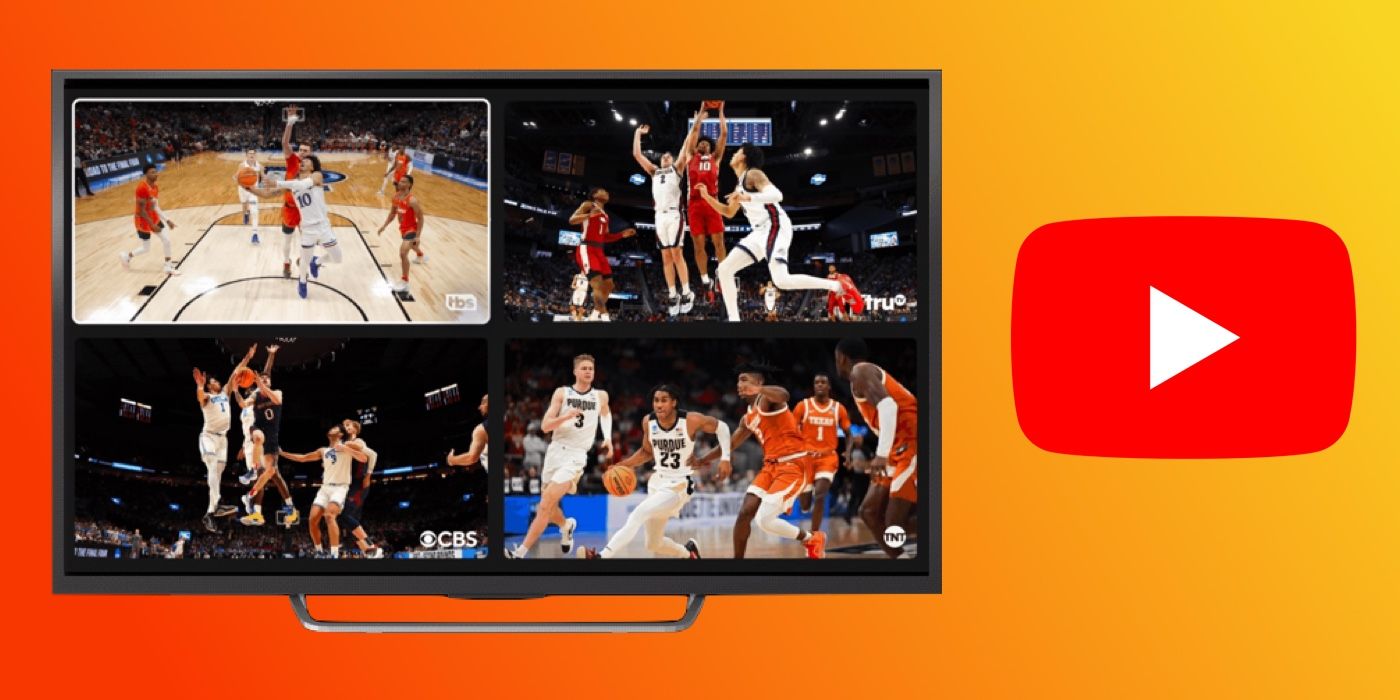
Multiview on YouTube TV enables subscribers to watch up to four different live streams concurrently on a single screen. Imagine keeping an eye on two crucial basketball games, a breaking news report, and a cooking show, all without toggling between channels or needing multiple displays. The screen is dynamically split into multiple quadrants, with one primary stream’s audio active while the others play silently in the background. Users can effortlessly switch the active audio feed to any of the other streams, providing a truly interactive and comprehensive viewing experience. This feature is particularly powerful during major sporting events, election nights, or any scenario where multiple live broadcasts demand attention simultaneously. It moves beyond traditional picture-in-picture capabilities, offering a more robust and integrated solution for multitasking viewers.
Why Multiview Matters for Sports Fans and News Junkies
For sports fans, Multiview is a game-changer. The ability to monitor several games or matches at once ensures that no critical moment is missed, whether it’s a parallel play in a different stadium or the progression of an entire tournament across various channels. During events like March Madness, NFL Sundays, or the Olympics, Multiview transforms the living room into a personalized sports bar, offering unparalleled access and control over live action. Similarly, news junkies benefit immensely. Tracking multiple news outlets simultaneously allows for a broader perspective on developing stories, enabling viewers to compare reporting, identify key differences, and stay updated on various facets of complex events without constant channel switching. This comparative viewing capability fosters a more informed and nuanced understanding of current affairs, making Multiview an indispensable tool for staying ahead.
Evolution of Multiview on YouTube TV
The Multiview feature didn’t appear overnight; it has evolved significantly since its initial rollout. Google, the parent company of YouTube TV, first introduced a limited version of Multiview on select devices, primarily focusing on large-scale events like the NFL Sunday Ticket. Early iterations often involved pre-selected bundles of channels, curated by YouTube TV to offer logical groupings of sports or news feeds. This curated approach ensured a smooth initial experience but offered limited user customization. Over time, as hardware capabilities improved and user feedback poured in, YouTube TV expanded Multiview’s availability across a wider range of smart TVs and streaming devices. The platform has continually refined the user interface, optimizing for ease of navigation and the ability to switch audio seamlessly. Future developments are expected to include even greater personalization, potentially allowing users to build their own custom Multiview layouts from any available live channels, pushing the boundaries of interactive live television. This ongoing evolution underscores YouTube TV’s commitment to innovation in the highly competitive streaming landscape.
Getting Started: Accessing Multiview on Supported Devices
Implementing Multiview successfully hinges on understanding device compatibility and navigating the YouTube TV interface effectively. While the feature aims for broad accessibility, specific hardware and software considerations are paramount for an optimal experience.
Device Compatibility: Smart TVs, Streaming Sticks, and Consoles
Multiview on YouTube TV is primarily designed for larger screens and more powerful streaming devices to ensure a smooth, high-quality experience across multiple simultaneous streams. The feature is most reliably available on:
- Smart TVs: Many modern smart TVs from brands like Samsung, LG, Sony, and others that run native YouTube TV apps, particularly those with more robust processors, support Multiview. Ensure your TV’s YouTube TV app is updated to the latest version.
- Streaming Devices:
- Google TV devices (e.g., Chromecast with Google TV): These devices, being first-party Google hardware, generally offer excellent Multiview support.
- Roku devices: High-end Roku Ultra models and newer Roku streaming sticks often support Multiview, though performance can vary depending on the specific model’s processing power.
- Apple TV (4K models): Apple TV 4K devices are well-equipped to handle the processing demands of Multiview, offering a fluid experience.
- Amazon Fire TV devices: Premium Fire TV Stick 4K Max and Fire TV Cube models typically support the feature.
- Gaming Consoles: PlayStation (PS5) and Xbox (Series X|S) consoles, with their powerful hardware, are also capable of running Multiview efficiently through their YouTube TV applications.
It’s crucial to note that older or lower-spec devices might not support Multiview, or they might struggle to maintain smooth playback across all four streams due to hardware limitations. Performance can also be influenced by internet bandwidth. YouTube TV continually updates its supported device list, so checking the official YouTube TV help pages for the most current information related to your specific device model is always a good practice. As of now, Multiview is generally not available on mobile devices (smartphones, tablets) or web browsers due to screen size and interface limitations, emphasizing its design for a communal, large-screen viewing experience.
The YouTube TV Interface: Locating Multiview Options
Once you’re on a compatible device, accessing Multiview within the YouTube TV app is straightforward. However, it’s important to understand that YouTube TV often curates Multiview bundles rather than allowing complete custom channel selection for all users at all times.
- Home Screen: The most common way to find Multiview options is by navigating to the YouTube TV home screen. During periods of high-interest events (e.g., Sunday NFL games, major news days), YouTube TV will often prominently feature “Multiview” rows or cards. These cards might display titles like “Sports Multiview,” “News Multiview,” or specific event bundles.
- Live Guide: While in the live guide, you might occasionally see Multiview options integrated as a “channel” itself, especially for pre-defined bundles.
- Watch Page: If you are already watching a live channel that is part of a current Multiview bundle, you might see a prompt or an option appear on the screen to “Switch to Multiview” or “Explore Multiview options.” This is particularly common during concurrent sports events.
Clicking on one of these Multiview cards or options will instantly launch the synchronized multi-stream experience. The interface is designed to be intuitive, allowing you to quickly dive into the action.
Initial Setup and Customization Tips
While YouTube TV’s Multiview primarily offers curated bundles, there are some customization and setup tips to optimize your experience:
- Internet Speed Check: Multiview streams up to four separate high-definition feeds simultaneously. This demands significant internet bandwidth. Ensure your internet connection is robust, ideally 50 Mbps or higher, especially if other devices on your network are also consuming bandwidth. A wired Ethernet connection, if possible, can provide greater stability than Wi-Fi.
- App Updates: Always keep your YouTube TV app updated to the latest version. Google frequently releases performance enhancements, bug fixes, and new features, including improvements to Multiview.
- Device Performance: Close other background applications on your streaming device or smart TV to free up resources, ensuring the YouTube TV app has maximum processing power for Multiview.
- Audio Focus: Upon launching Multiview, one stream will have active audio. Use your remote’s navigation buttons (usually directional arrows) to highlight a different stream. Once highlighted, pressing the ‘select’ or ‘OK’ button will switch the audio focus to that stream. This allows you to follow the commentary of the game or news report you are most interested in at that moment.
- Full-Screen Toggle: To momentarily focus on a single stream within the Multiview layout, highlight it and press the ‘select’ or ‘OK’ button twice (or hold it down, depending on your device). This will often expand that stream to full screen while keeping the others in the background, ready to revert with another press.
By following these initial steps and understanding the interface, users can quickly unlock the power of Multiview and enhance their live TV consumption.
Mastering Multiview: Navigation and Personalization
Once you’ve initiated a Multiview session, understanding how to navigate and interact with the multiple streams is key to maximizing its utility. While the level of personalization might vary, efficient management of the view is always possible.
Switching Audio and Focusing on a Specific Stream

The core of the Multiview experience is the ability to control which stream demands your primary attention. YouTube TV simplifies this through intuitive remote controls.
- Audio Focus: When Multiview loads, one of the quadrants will have its audio playing. To switch the audio to a different stream, use the directional arrows on your remote to move the highlight box around the screen. As you highlight a different quadrant, pressing the “Select” or “OK” button on your remote will immediately switch the audio to that highlighted stream. This allows you to effortlessly follow the commentary or narration of your chosen broadcast without disrupting the visual flow of the other streams. This mechanism is crucial for sports fans monitoring multiple games simultaneously, letting them jump between play-by-play calls as the action unfolds.
- Full-Screen Viewing: If a particular moment on one of the streams demands your full attention, you can temporarily expand that stream to fill the entire screen. While the desired stream is highlighted, typically a second press of the “Select” or “OK” button will bring it to full screen. The other streams will continue to play in the background, but they will no longer be visible. To return to the Multiview layout, simply press the “Back” button on your remote. This feature is invaluable for catching a critical play, an important news segment, or simply appreciating a particular broadcast in full detail without leaving the Multiview session.
Customizing Your Multiview Layouts
As of current implementations, YouTube TV’s Multiview feature primarily offers curated bundles. This means that YouTube TV selects the groupings of channels that are available in a Multiview layout. For instance, during a major sports Sunday, you might see curated Multiview options like “NFL RedZone + 3 other games,” or “ESPN + Fox Sports 1 + NBA TV.” Similarly, during breaking news, you might see “CNN + Fox News + MSNBC.”
Limitations:
- No User-Defined Customization: Unlike some advanced PC-based multi-streaming setups, YouTube TV does not currently allow users to select any four channels from their subscription and combine them into a custom Multiview layout. The system presents predefined bundles based on current events, user behavior, and channel availability.
- Dynamic Availability: The Multiview options you see will change dynamically based on the time of day, day of the week, and significant live events happening. You’ll find more Multiview options during major sports weekends or breaking news cycles.
While this curated approach offers simplicity and ensures a stable viewing experience, some users express a desire for more granular control. However, the existing system caters effectively to the most common Multiview use cases, particularly around live sports and news.
Discovering Curated vs. Custom Multiviews
As highlighted, YouTube TV’s Multiview leans heavily on curated experiences. These are bundles hand-picked by YouTube TV’s algorithm and editorial team to make sense for specific contexts. For example:
- Sports Multiviews: Often group channels covering simultaneous games (e.g., multiple college basketball games, different NFL matchups).
- News Multiviews: Combine major news networks for comparative coverage.
- Event-Specific Multiviews: Might combine the main broadcast with a pre-game show, an alternate camera angle (if available), or related programming.
The primary way to “discover” these is to simply browse the YouTube TV home screen during active events. Look for the large Multiview cards that specifically mention these groupings.
The concept of “custom Multiviews” as a user-configurable feature where subscribers can freely select any channels is not broadly available on YouTube TV. While the technological infrastructure could potentially allow for it in the future, the current implementation focuses on stability and user experience by offering pre-optimized bundles. This strategy minimizes potential performance issues for individual users, as the bundles are likely optimized for content types and bitrates.
Troubleshooting Common Multiview Issues
While Multiview is generally robust, users might occasionally encounter issues. Here are common problems and troubleshooting steps:
- Buffering or Lag:
- Internet Speed: This is the most common culprit. Run a speed test on your device. Ensure your bandwidth meets or exceeds the requirements for multiple HD streams (at least 50-100 Mbps recommended, especially for 4K streams).
- Network Congestion: If multiple devices are using the internet heavily, reduce usage or upgrade your internet plan.
- Wi-Fi Strength: Move your streaming device closer to your router, or consider a wired Ethernet connection for stability.
- Router Reboot: A simple router and modem reboot can often resolve temporary network issues.
- Multiview Option Not Appearing:
- Device Compatibility: Double-check if your device is officially supported for Multiview. Older devices may lack the processing power.
- App Update: Ensure your YouTube TV app is updated to the latest version.
- Event Availability: Multiview options are often event-driven. If there are no major concurrent events, you might not see any Multiview bundles available.
- Geo-restrictions/Channel Availability: Ensure you have access to all channels within a specific Multiview bundle through your subscription and location.
- Audio/Video Sync Issues:
- Restart App/Device: Close the YouTube TV app and reopen it, or restart your streaming device entirely.
- Internet Stability: Intermittent internet fluctuations can cause sync issues.
- Poor Picture Quality:
- Resolution Settings: While YouTube TV usually auto-adjusts, ensure your device’s display settings are appropriate for your TV.
- Bandwidth: Again, insufficient bandwidth will force streams to lower resolutions.
If issues persist after these steps, consulting YouTube TV’s official support resources or contacting their customer service with details about your device and network can provide further assistance.
The Technology Behind Seamless Multiview Streaming
Delivering a seamless Multiview experience is a significant technological feat. It involves sophisticated backend infrastructure, intelligent content delivery networks, and efficient utilization of client-side hardware. Understanding these underlying technologies provides insight into why Multiview performs as it does and its potential future.
Bandwidth Requirements and Internet Speed Considerations
At its core, Multiview is a bandwidth-intensive application. When you’re streaming four concurrent live channels, your device isn’t just downloading one video feed; it’s receiving, decoding, and displaying four independent video streams plus one audio stream.
- Individual Stream Bitrate: A typical high-definition (1080p) live stream on YouTube TV can consume anywhere from 5 Mbps to 10 Mbps, depending on the content’s complexity and encoding efficiency. For 4K streams, this can jump significantly.
- Aggregate Demand: If you’re watching four 1080p streams, your device could be pulling a combined 20 Mbps to 40 Mbps (or more) from your internet connection simultaneously. This doesn’t include overhead, other network traffic, or the potential for short bursts of higher bandwidth.
- Recommendations: For optimal Multiview performance, a stable internet connection of at least 50 Mbps is strongly recommended, with 100 Mbps or higher providing a significant buffer and smoother experience, especially if other devices on your network are active. A wired Ethernet connection, bypassing Wi-Fi interference and fluctuations, is often preferred for dedicated streaming setups. Inadequate bandwidth is the most common reason for buffering, dropped frames, or a degradation in video quality across the Multiview layout.
Hardware Acceleration and Device Performance
The client-side device – your smart TV, streaming stick, or gaming console – plays a critical role in rendering Multiview smoothly. It’s not just about downloading data; it’s about processing it.
- Decoding Multiple Streams: Modern streaming devices feature dedicated hardware accelerators for video decoding. Multiview demands that these accelerators efficiently decode multiple video streams (often H.264 or VP9 codecs, with AV1 emerging) in real-time. Devices with more powerful processors and capable GPUs (Graphics Processing Units) excel at this.
- Compositing and Rendering: After decoding, the device’s GPU is responsible for compositing these four separate video feeds into a single, cohesive visual output that fits the Multiview layout. This involves scaling, positioning, and rendering them together without noticeable lag or tearing. Lower-end devices may struggle with this compositing, leading to stuttering or dropped frames.
- Memory Management: Each video stream requires memory for buffering and processing. Devices with ample RAM can handle the multiple data streams more effectively, preventing slowdowns.
- Operating System Overhead: The efficiency of the device’s operating system (e.g., Google TV OS, Roku OS, tvOS) and the YouTube TV application itself also contribute. Optimized software can make better use of available hardware resources. This is why newer, more premium streaming devices and smart TVs generally offer a superior Multiview experience compared to older or entry-level models.

Future of Multiview: AI-Driven Personalization and Enhanced Interactivity
The current iteration of Multiview, while highly functional, represents just the beginning of its potential. Future developments are likely to push the boundaries of personalization and interactivity, driven by advancements in AI and user interface design.
- AI-Driven Content Curation: Imagine Multiview bundles that are dynamically generated based on your viewing history, stated preferences, and even real-time sentiment analysis of sports or news events. AI could learn which combinations of channels you prefer and suggest highly relevant layouts without manual intervention. For instance, if you frequently watch a specific team, AI could automatically build a Multiview bundle featuring their game, a rival’s game, and a sports analysis channel.
- Custom Layout Creator: The most requested feature from users is the ability to build their own custom Multiview layouts. Future iterations could introduce an intuitive interface allowing subscribers to select any available live channels, arrange them in different grid patterns (e.g., one large and three small, four equal quadrants), and save these layouts for quick access. This would empower users with unprecedented control over their live TV experience.
- Enhanced Audio Control: Beyond simply switching audio, future Multiview could offer more sophisticated audio mixing, allowing users to adjust volumes for each stream independently, or even prioritize ambient sound from one stream while listening to commentary from another.
- Interactive Overlays: Imagine clickable overlays within each Multiview quadrant that provide real-time stats, player information, news headlines, or even social media feeds related to that specific broadcast, without obscuring the video.
- Integrated DVR/On-Demand Access: A truly advanced Multiview could allow users to seamlessly jump from a live Multiview stream to the beginning of a DVR recording of one of those channels, or access related on-demand content, all within the Multiview interface.
These advancements would transform Multiview from a powerful concurrent viewing tool into a truly intelligent and deeply personalized live television hub, further solidifying YouTube TV’s position at the forefront of streaming innovation.
aViewFromTheCave is a participant in the Amazon Services LLC Associates Program, an affiliate advertising program designed to provide a means for sites to earn advertising fees by advertising and linking to Amazon.com. Amazon, the Amazon logo, AmazonSupply, and the AmazonSupply logo are trademarks of Amazon.com, Inc. or its affiliates. As an Amazon Associate we earn affiliate commissions from qualifying purchases.