
The modern smart television is far more than just a display for broadcast channels; it’s a central entertainment hub, capable of streaming content, browsing the web, and even interacting with smart home devices. At the heart of this versatility lies the ability to download and utilize a vast array of applications. For owners of Samsung Smart TVs, accessing and managing these apps is a straightforward process, thanks to its intuitive Tizen operating system and the integrated Smart Hub. This guide will walk you through everything you need to know about transforming your Samsung Smart TV into a personalized entertainment powerhouse through its app ecosystem.
Understanding Your Samsung Smart TV’s App Ecosystem
Samsung Smart TVs operate on a robust and user-friendly platform designed to bring a world of digital content directly to your living room. Understanding the foundational elements of this system is key to maximizing your TV’s potential.
The Tizen OS Advantage
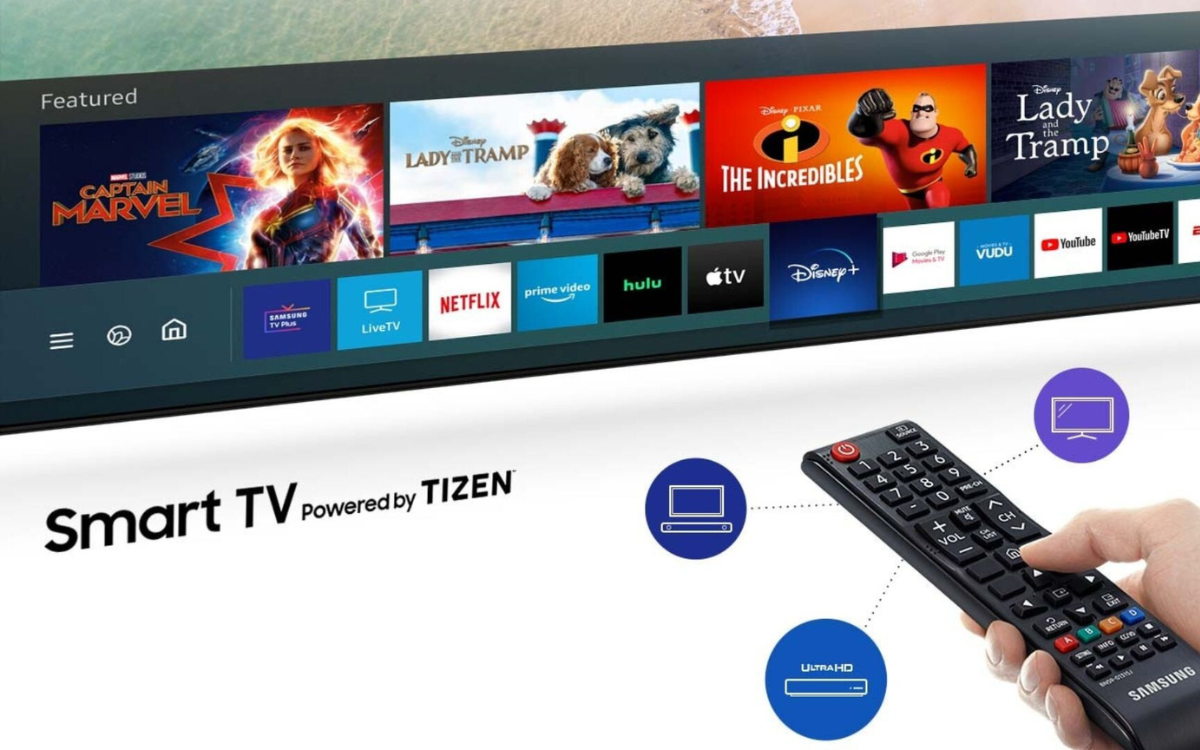
At the core of every modern Samsung Smart TV is Tizen OS, Samsung’s proprietary Linux-based operating system. Tizen is renowned for its speed, responsiveness, and intuitive interface, making navigation and app interaction seamless. It’s designed to be lightweight, ensuring quick boot times and fluid transitions between applications. Furthermore, Tizen OS offers robust compatibility with a wide range of content providers and external devices, facilitating an integrated and cohesive user experience. This dedicated operating system allows Samsung to optimize performance specifically for its hardware, often resulting in a more stable and efficient environment for running applications compared to more generic smart TV platforms. Its continuous development also means regular updates that bring new features, security enhancements, and expanded app compatibility, ensuring your TV remains current with the latest trends and technologies.
Navigating the Smart Hub
The Smart Hub is the gateway to all your Samsung Smart TV’s features, including its extensive app library. It’s the central dashboard that appears when you press the “Smart Hub” or “Home” button on your remote. This user-friendly interface is typically organized into several key panels or bars, providing quick access to live TV, connected devices, settings, and, most importantly, the Apps section. The Smart Hub intelligently learns your viewing habits, often suggesting personalized content and frequently used apps for convenience. You can effortlessly scroll through categories, explore recommended content, and manage your installed applications directly from this central hub. Its design prioritizes ease of use, allowing even first-time smart TV users to quickly find and launch their favorite streaming services, games, or utility apps without complication. The Smart Hub effectively consolidates all your digital media experiences into one accessible and organized location, making your TV a true command center for home entertainment.
Step-by-Step Guide to Downloading Apps
Getting new applications onto your Samsung Smart TV is a simple process that requires just a few clicks. Follow these steps to expand your entertainment options.
Accessing the App Store
To begin downloading apps, you first need to navigate to the “Apps” section within the Smart Hub. Power on your Samsung Smart TV and press the “Home” or “Smart Hub” button on your remote control. This will bring up the horizontal menu bar at the bottom of your screen. Use the directional pad on your remote to scroll left or right until you highlight the “Apps” icon, which often looks like a collection of colorful squares or a generic app store symbol. Select this icon by pressing the “Enter” or “OK” button in the center of your remote’s directional pad. This action will open the Samsung App Store, presenting you with a categorized selection of available applications, featured apps, and popular downloads. Here, you’ll find everything from major streaming services like Netflix, Disney+, and Amazon Prime Video to news channels, fitness apps, and niche content providers.
Searching for Specific Apps
Once you are in the Samsung App Store, you have several methods to find the specific app you’re looking for. You can browse through various categories such as “Video,” “Lifestyle,” “Information,” or “Games” to discover new apps or locate familiar ones. Alternatively, if you know the name of the app you want, the most efficient method is to use the search function. Look for a “Search” icon, usually represented by a magnifying glass, typically located in the top-right corner of the App Store interface. Select this icon, and an on-screen keyboard will appear. Use your remote to type out the name of the app. Many Samsung Smart TVs also support voice commands through the remote (often via a dedicated microphone button), allowing you to simply speak the app’s name into the remote for a quicker search. As you type or speak, relevant app suggestions will populate, making it easier to find your desired application even with partial input.
Installation Process
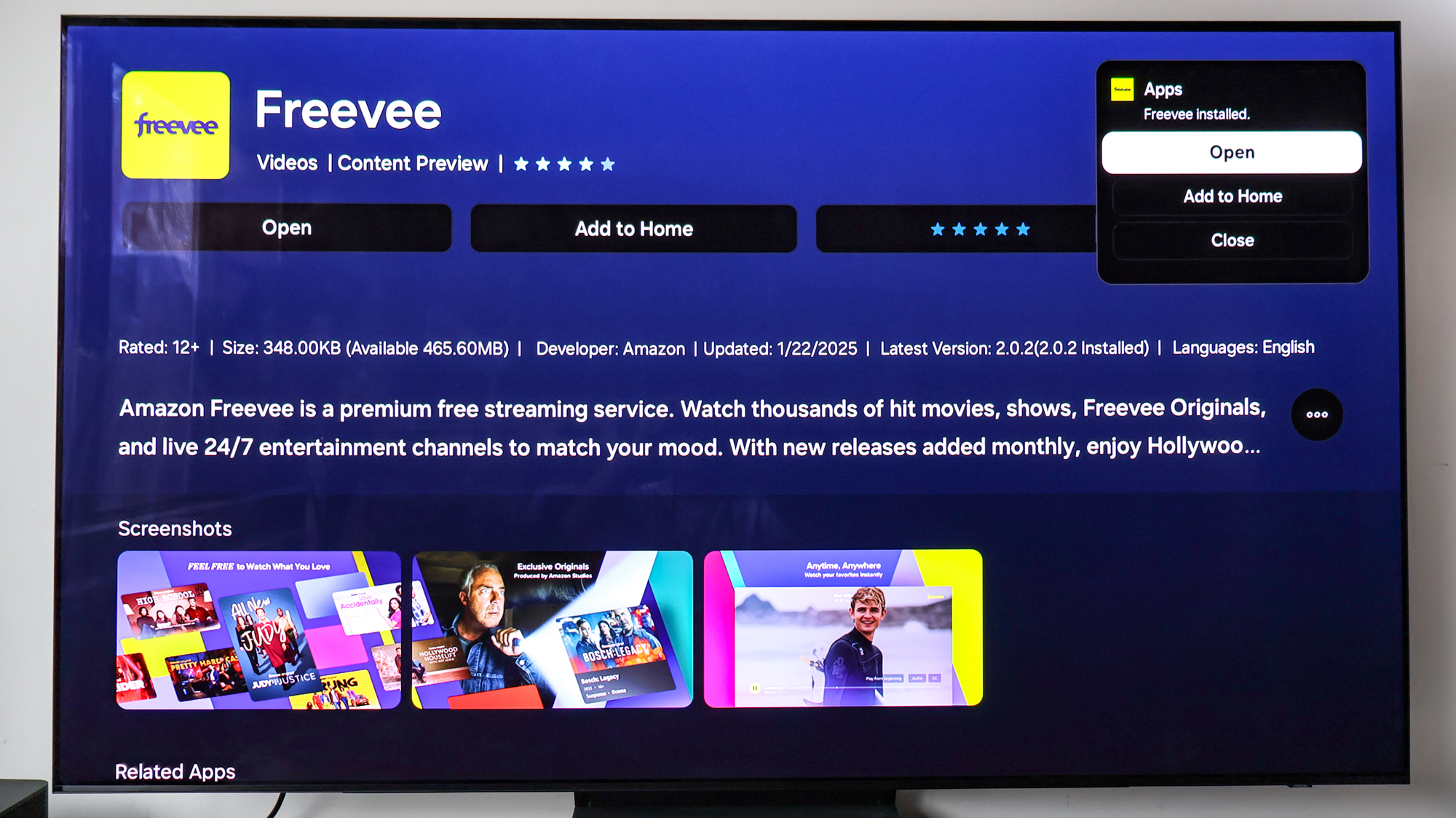
After locating the app you wish to install, select it to view its details page. This page typically provides a description of the app, user ratings, screenshots, and sometimes related apps. You’ll find an “Install” button prominently displayed on this page. Select the “Install” button using your remote. The TV will then begin the download and installation process. A progress bar or percentage indicator will usually appear, showing the status of the download. The time this takes can vary depending on the app’s size and the speed of your internet connection. Once the installation is complete, the “Install” button will typically change to an “Open” button, or an “Add to Home” option might appear. You can then launch the app immediately by selecting “Open,” or return to your Smart Hub to find the newly installed app among your existing applications. For some streaming services, you may be prompted to log in with your existing account credentials after opening the app for the first time.
Managing Downloaded Apps
After installing multiple apps, your Smart Hub can become quite populated. Samsung Smart TVs provide easy ways to manage your downloaded applications, ensuring your home screen remains organized and efficient. To move an app, navigate to the Smart Hub, highlight the app you wish to rearrange, and typically press and hold the “Enter” or “OK” button on your remote. A small menu will appear, offering options like “Move” or “Remove.” Select “Move,” and you can then use the directional arrows to drag the app to your desired position on the Smart Hub bar. Press “Enter” again to confirm its new location. If you want to delete an app to free up space or simply because you no longer use it, follow a similar process: highlight the app, press and hold “Enter,” and then select “Remove” or “Delete” from the options presented. Confirm your choice when prompted. This helps in keeping your app library streamlined and ensures quicker access to your most-used services.
Troubleshooting Common App Download Issues
While downloading apps on your Samsung Smart TV is usually straightforward, you might occasionally encounter issues. Understanding how to diagnose and resolve these common problems can save you time and frustration.
Network Connectivity Problems
The most frequent culprit behind app download failures or slow performance is an unstable or absent internet connection. Your Samsung Smart TV requires a robust connection to download app data. First, check your TV’s network status. Navigate to “Settings” > “General” > “Network” > “Network Status.” This utility will verify if your TV is successfully connected to the internet and identify any issues. If there’s a problem, try restarting your Wi-Fi router and modem by unplugging them for 30 seconds and then plugging them back in. Ensure your Wi-Fi password is correctly entered in your TV’s network settings. If you’re using a wireless connection, consider moving your TV closer to the router or using an Ethernet cable for a more stable wired connection if possible, as this eliminates potential interference and signal drops.
Insufficient Storage Space
Apps, especially larger ones, consume storage space on your TV. If you receive an error message indicating insufficient memory, it means your TV’s internal storage is full. To resolve this, you’ll need to uninstall some unused or less frequently accessed apps. Go to the Smart Hub, navigate to the “Apps” section, and then select the “Settings” icon (often a gear symbol) within the app store. This will show you a list of your installed apps and their sizes. Select the apps you wish to remove and choose the “Delete” or “Uninstall” option. Confirm your decision when prompted. While Samsung Smart TVs typically offer ample storage for a reasonable number of apps, heavy users might need to periodically manage their app library to free up space for new installations or performance optimization.
App Not Found or Unavailable
Sometimes, you might search for an app and find it’s not listed in the Samsung App Store, or it appears but is marked as “unavailable.” Several factors can cause this. Firstly, some apps are geo-restricted, meaning they are only available in specific regions or countries. If your TV’s region setting doesn’t match the app’s availability, it won’t appear. You can check or change your TV’s region in the “Settings” menu, though this might sometimes require a factory reset on older models. Secondly, certain apps may not be compatible with older Samsung Smart TV models or specific Tizen OS versions. Ensure your TV’s software is up to date (see “Software Updates” below). Lastly, an app might have been removed from the store by its developer or Samsung, or it could be a temporary technical glitch. If an app isn’t found, try searching for alternatives or verifying its current status through the app developer’s official website.
Software Updates
Outdated TV firmware can lead to compatibility issues with newer apps or cause existing apps to malfunction. Keeping your Samsung Smart TV’s software updated is crucial for optimal performance, security, and app access. To check for and install updates, go to “Settings” > “Support” > “Software Update” > “Update Now.” Your TV will then search for any available updates and prompt you to install them. This process usually takes a few minutes, during which the TV may restart multiple times. It’s recommended to allow your TV to download updates automatically (an option usually found in the same “Software Update” menu) to ensure you always have the latest firmware. Regular software updates often include bug fixes, performance improvements, and security patches that can prevent app-related issues and enhance your overall smart TV experience.
Optimizing Your Smart TV App Experience
Once you’ve mastered downloading and troubleshooting apps, enhancing your overall smart TV app experience involves thoughtful organization and proactive maintenance.
Organizing Your Home Screen
A cluttered home screen can quickly diminish the convenience of your Smart TV. Samsung’s Smart Hub allows for extensive customization, enabling you to arrange your apps for optimal access. You can prioritize your most frequently used streaming services or utility apps by moving them to the front of the app bar. As mentioned in the “Managing Downloaded Apps” section, simply highlight an app, press and hold the “Enter” button, and select “Move” to drag it to a new position. Consider grouping similar apps together, such as all video streaming services in one block, or positioning productivity tools separately. Regularly decluttering by removing unused apps not only frees up storage but also ensures that finding your favorite content is always a quick and seamless process. A well-organized home screen significantly improves the user interface’s efficiency and user satisfaction.
Keeping Apps Updated
Just like your smartphone or computer, apps on your Samsung Smart TV regularly receive updates that bring new features, performance improvements, and critical security patches. While many apps update automatically, it’s a good practice to periodically check for manual updates, especially if you notice an app behaving erratically. Within the “Apps” section of your Smart Hub, there’s often an option to check for app updates collectively or individually. Ensuring your apps are always on their latest versions prevents compatibility issues, improves stability, and protects against potential vulnerabilities. Moreover, new features rolled out by app developers are often dependent on these updates, meaning you could be missing out on an enhanced user experience or new content offerings if your apps are outdated.
Privacy and Security Considerations
When downloading and using apps, particularly those that require personal login information or access to your network, privacy and security should always be a priority. Only download apps from the official Samsung App Store, as these have undergone vetting for security and functionality. Be cautious about granting excessive permissions to apps, especially those that seem unrelated to their core function. For apps that require login credentials, always use strong, unique passwords. If you share your TV with others, consider signing out of sensitive accounts (like banking or personal email apps, if available) after use. Regularly review your TV’s privacy settings (found in the “Settings” menu) to understand and control data collection preferences. Furthermore, ensuring your TV’s firmware is up to date, as discussed previously, also closes potential security loopholes that could be exploited.
Exploring Alternative Content Sources
While the Samsung App Store provides a comprehensive selection, your Smart TV isn’t limited to just direct app downloads. Samsung Smart TVs support various methods for bringing content from other devices onto your screen. Features like SmartView (Samsung’s screen mirroring technology) allow you to wirelessly cast content, photos, or even your entire phone screen directly to your TV. Many popular mobile apps, such as YouTube or Netflix on your smartphone, include a “Cast” icon (often a rectangle with a Wi-Fi symbol) that enables you to send content directly to your TV without opening the app on the TV itself. For Apple users, newer Samsung models often support AirPlay 2, allowing for seamless streaming from iPhones, iPads, and Mac computers. Additionally, connecting external devices like gaming consoles, Blu-ray players, or dedicated streaming sticks (e.g., Apple TV, Roku, Amazon Fire TV Stick) through HDMI ports further expands your content options, sometimes offering access to apps not natively available on the Tizen platform.
Beyond Basic Downloads: Advanced Tips for Smart TV Users
Maximizing your Samsung Smart TV experience goes beyond merely downloading apps. Leveraging its advanced features can truly integrate your television into your digital lifestyle.
Samsung Smart TVs are increasingly incorporating robust voice assistant capabilities, often powered by Bixby, Samsung’s AI assistant, or sometimes integrating with Amazon Alexa or Google Assistant. You can use voice commands to launch apps, search for specific content within apps, control playback, or even switch inputs. For example, simply saying “Open Netflix” or “Find action movies on Prime Video” can streamline your interaction and eliminate the need for remote navigation. Familiarizing yourself with these voice commands can significantly enhance convenience.
Furthermore, if you have other Samsung devices or a smart home ecosystem, your Smart TV can often act as a central control panel. Through the SmartThings app on your TV, you can monitor and control compatible smart devices like lights, thermostats, and smart cameras directly from your television screen. This integration turns your TV into a truly central hub for your connected home, offering a consolidated view and control interface.
Finally, explore Samsung TV Plus. This is Samsung’s free, ad-supported streaming service that comes pre-installed on many Smart TVs, offering a wide array of live channels and on-demand content across various genres, without requiring any subscriptions or additional downloads. It’s a great way to discover new programming and supplement your existing app library without incurring extra costs. For persistent or complex issues that defy basic troubleshooting, remembering that a factory reset is always an option to return your TV to its original settings, often resolving deep-seated software glitches, though it will require reinstalling all your apps.
aViewFromTheCave is a participant in the Amazon Services LLC Associates Program, an affiliate advertising program designed to provide a means for sites to earn advertising fees by advertising and linking to Amazon.com. Amazon, the Amazon logo, AmazonSupply, and the AmazonSupply logo are trademarks of Amazon.com, Inc. or its affiliates. As an Amazon Associate we earn affiliate commissions from qualifying purchases.