
In the rapidly evolving landscape of digital entertainment, subscription services like YouTube TV have become staples in countless households. Offering a comprehensive alternative to traditional cable, YouTube TV provides live television from major broadcast networks, popular cable channels, and a vast library of on-demand content. As with any recurring subscription, managing your payment method is a fundamental aspect of ensuring uninterrupted service. Whether you’ve received a new credit card, switched banks, or simply wish to consolidate your digital spending, knowing how to update your payment details for YouTube TV is a crucial piece of digital literacy.
This comprehensive guide will walk you through the process, offering insights into why and when you might need to make these changes, providing a detailed step-by-step tutorial, exploring common scenarios and troubleshooting tips, and finally, offering a broader perspective on managing your digital subscriptions effectively. By empowering you with this knowledge, you can maintain seamless access to your favorite shows, sports, and news without any payment-related hitches.
Understanding Your YouTube TV Subscription and Payment Flexibility
Before diving into the mechanics of updating your payment method, it’s helpful to understand the underlying architecture of your YouTube TV subscription and the importance of proactive payment management. YouTube TV leverages Google’s robust billing system, integrating it seamlessly with your Google account. This integration offers a high degree of flexibility but also necessitates a clear understanding of where and how these details are managed.
Why You Might Need to Update Your Payment Details
Life happens, and with it come changes to financial instruments. Several common scenarios necessitate an update to your YouTube TV payment method:
- Expired Credit or Debit Card: This is perhaps the most frequent reason. Cards have expiry dates, and failure to update can lead to service interruption.
- Lost or Stolen Card: For security reasons, a compromised card must be replaced, and subsequently, its details updated across all linked subscriptions.
- Switching Banks or Financial Institutions: A change in your primary banking relationship often means new card numbers or a preference to use a different bank account for recurring payments.
- Consolidating Payments: You might want to move all your streaming services to a single card for easier tracking, or perhaps leverage a card with better rewards for digital subscriptions.
- Budgeting and Financial Planning: Allocating specific expenses to different payment methods can be a part of a broader personal finance strategy.
- Fraud Prevention: Occasionally, banks issue new cards to prevent potential fraud, even if your existing card hasn’t been compromised.
Understanding these triggers allows you to be proactive, updating your information before it becomes an urgent issue, thereby preventing any disruption to your viewing experience.
The Importance of Up-to-Date Payment Information
Maintaining accurate and current payment information isn’t just about avoiding service interruptions; it’s also a critical aspect of your digital security and financial health. Outdated details can lead to:
- Service Suspension: YouTube TV, like any subscription service, will automatically suspend your access if payment fails.
- Late Fees (indirectly): While YouTube TV typically doesn’t charge late fees for a failed payment, repeated failures can lead to account issues that might take time to resolve.
- Security Risks: Using expired or compromised cards, even if not actively being billed, can sometimes leave a vulnerability if not properly managed.
- Administrative Hassle: Dealing with failed payments and reactivating services can be time-consuming and frustrating.
By keeping your payment information current, you ensure smooth, uninterrupted service, protect your financial details, and save yourself potential headaches down the line.
A Step-by-Step Guide to Updating Your Payment Method
The process of changing your payment method for YouTube TV is straightforward and can be completed in a few minutes from any web browser. It’s important to remember that YouTube TV’s billing is managed through your associated Google account, meaning changes made here can sometimes affect other Google subscriptions you might have, such as Google Play purchases or YouTube Premium.
Accessing Your YouTube TV Account Settings
The journey begins by logging into your YouTube TV account via a web browser. While you can watch YouTube TV on various devices, payment management is typically handled through a desktop or mobile browser interface, not directly within the TV app itself.
- Open a Web Browser: Navigate to tv.youtube.com on your computer, tablet, or smartphone.
- Sign In: Ensure you are signed in with the Google account associated with your YouTube TV subscription. If you have multiple Google accounts, double-check that you’re using the correct one.
- Access Settings: Once signed in, locate your profile picture or initial in the top-right corner of the screen and click or tap on it. A dropdown menu will appear.
- Select “Settings”: From the dropdown menu, choose “Settings.” This will take you to your main YouTube TV account management page.
Navigating to the Membership & Billing Section
Within the settings menu, you’ll find various categories for managing your account. For payment-related changes, you’ll need to head to the billing section.
- Locate “Membership & Billing”: On the left-hand navigation pane (or at the top if on a mobile browser), you’ll see several options. Click or tap on “Membership & Billing.”
- Review Current Details: This section will display your current YouTube TV plan, your next billing date, and the payment method currently on file.
Adding a New Payment Method
Now it’s time to introduce your new payment details to the system.
- Click “Update Payment”: Next to your current payment method, you will typically see an “Update Payment” or “Manage Payments” option. Click on this.
- Redirect to Google Pay: You will likely be redirected to Google Pay (pay.google.com), which is Google’s central hub for managing all your payment methods across its services. This redirection is normal and secure.
- Add Payment Method: Within Google Pay, look for an option to “Add payment method” or a similar button.
- Enter Details: You’ll be prompted to enter the details for your new credit card, debit card, or bank account. This includes the card number, expiry date, CVC (security code), and billing address. For bank accounts, you might need routing and account numbers.
- Save: After entering all required information, click “Save” or “Add.” The new payment method will now be listed in your Google Pay account.
Setting Your Preferred Payment Option
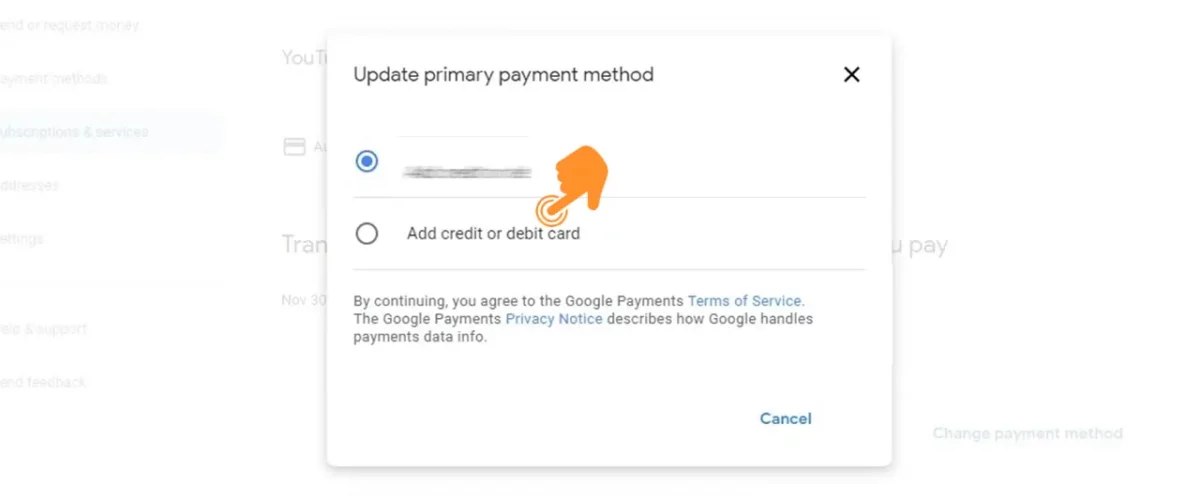
Simply adding a new payment method doesn’t automatically mean it will be used for your YouTube TV subscription. You need to designate it as the primary.
- Return to YouTube TV Settings: Go back to your YouTube TV “Membership & Billing” page (tv.youtube.com/settings/membership). You might need to refresh the page.
- Select New Primary: Under the “Payment method” section, you should now see your newly added card listed as an option. Select this new card or bank account as your preferred payment method.
- Confirm Your Choice: The system might ask you to confirm your selection.
Confirming Your Changes
The final, crucial step is to ensure that your changes have been successfully applied and are reflected in your account.
- Verify on “Membership & Billing”: Check the “Membership & Billing” section again. The “Payment method” displayed should now be your newly selected option.
- Email Confirmation: Google often sends an email confirmation to the primary email address associated with your Google account, notifying you of the payment method change. Keep an eye out for this email as an extra layer of confirmation.
By following these steps meticulously, you can confidently update your payment method, securing your continuous access to YouTube TV.
Common Scenarios and Advanced Payment Management Tips
Beyond the basic update, there are several nuances and common scenarios that users encounter when managing their YouTube TV payments. Understanding these can prevent confusion and streamline your experience.
Dealing with Expired Cards or Bank Account Changes
If your payment method has already expired or your bank account details have changed, the process is largely the same as adding a new card. However, be mindful of the timing. If your next billing cycle is approaching, it’s best to update your details a few days in advance to prevent a failed payment. If a payment has already failed, updating your method will often trigger an immediate retry by the system, restoring your service quickly. Always prioritize updating details for all recurring subscriptions when a card expires or is replaced.
Switching Between Different Card Types or PayPal
YouTube TV (via Google Pay) typically accepts major credit and debit cards (Visa, MasterCard, American Express, Discover) and PayPal. The process for switching between these is identical: add the new method to Google Pay, then select it as the primary payment for YouTube TV. If you opt for PayPal, you’ll be redirected to log into your PayPal account to authorize Google Pay to use it. This offers an excellent way to centralize digital payments if you prefer PayPal’s management tools.
Understanding Payment Processing and Billing Cycles
YouTube TV bills monthly, typically on the same day you initially subscribed. When you change your payment method, your billing date usually remains the same. The system attempts to charge your current primary payment method on that date. If a payment fails, the system usually attempts to retry it a few times over the next few days. Updating your payment method before a retry can resolve the issue swiftly. Keep an eye on your email for any payment failure notifications from YouTube or Google Play.
Managing Multiple Google Accounts and Their Subscriptions
A common source of confusion arises when users have multiple Google accounts. It’s imperative to ensure you are logged into the Google account that is subscribed to YouTube TV when attempting to change payment methods. If you inadvertently update payment information on a different Google account, it won’t affect your YouTube TV subscription. If you manage multiple subscriptions across different Google accounts, consider using distinct, clearly labeled payment methods for each for easier tracking.
Troubleshooting Payment Update Issues and Ensuring Service Continuity
Even with a clear guide, sometimes issues arise. Knowing how to troubleshoot and what steps to take can save you frustration and quickly restore your service.
What to Do If Your Payment Method Fails to Update
If you follow the steps and your new payment method isn’t reflected or you encounter an error message:
- Double-Check Information: Re-enter all card or bank details carefully. Even a single digit error can cause a problem.
- Clear Browser Cache/Try Another Browser: Sometimes browser-specific issues or cached data can interfere. Try clearing your browser’s cache and cookies, or attempt the process in a different browser (e.g., Chrome, Firefox, Edge).
- Check Google Pay Directly: Go directly to pay.google.com and ensure the new payment method is listed there correctly. If it’s not, re-add it within Google Pay first.
- Temporary System Glitch: Occasionally, there might be a temporary hiccup on Google’s end. Wait a few hours and try again.
Resolving Payment Declines or Service Interruptions
If your service has been interrupted due to a payment decline:
- Contact Your Bank/Card Issuer: The most common reason for a decline is an issue with your bank or card issuer. They might have flagged the transaction as suspicious, placed a hold, or there might be insufficient funds. Call the number on the back of your card to inquire.
- Verify Funds: Ensure there are sufficient funds or credit available on the chosen payment method.
- Update and Retry: Once any issues with your bank are resolved, or you’ve added a new, working payment method, the YouTube TV system should automatically retry the payment. You can also sometimes manually trigger a retry by going to your “Membership & Billing” and looking for an option to “Retry Payment” or “Resume Membership.”
Contacting YouTube TV Support for Assistance
If you’ve exhausted all troubleshooting steps and are still facing issues, it’s time to reach out to official support:
- Access Help: From the YouTube TV interface, click your profile picture, then select “Help.”
- Contact Options: Look for options like “Contact Us” or “Chat.” YouTube TV offers chat and sometimes phone support, which can be very effective for billing issues.
- Be Prepared: Have your Google account details, the last four digits of your payment methods, and any error messages handy. Clearly explain the steps you’ve already taken.
Support teams are equipped to handle complex billing issues and can often identify underlying problems that aren’t apparent from the user interface.
Beyond Payment: Maximizing Your YouTube TV Experience
While payment management is critical for service continuity, it’s just one facet of optimizing your YouTube TV experience. A robust understanding of your account settings can unlock further potential and ensure you’re getting the most value from your subscription.
Exploring Other Account Management Features
Take a moment to explore other sections within your YouTube TV settings. You’ll find options to:
- Manage Family Sharing: Add or remove family members to share your subscription.
- Update Location: Ensure your home area is correctly set for local channels.
- Privacy Controls: Adjust what data YouTube TV collects and how it’s used.
- Notification Preferences: Tailor alerts for new shows, sports, or billing.
These features allow for a more personalized and secure viewing environment, demonstrating the comprehensive nature of Google’s account management systems.
Reviewing Your Subscription Plan and Add-ons
Your “Membership & Billing” section is also the place to review your current YouTube TV base plan and any premium add-ons you might have subscribed to (e.g., HBO Max, Showtime, Sports Plus). This is a good opportunity to:
- Evaluate Value: Are you still using all the add-ons? Could you save money by removing some?
- Consider Upgrades/Downgrades: Does a different plan better suit your needs, perhaps with more simultaneous streams or a different channel lineup?
- Seasonal Adjustments: During off-seasons for certain sports, you might consider pausing sports add-ons, reactivating them when the season begins.
Regularly reviewing your subscription ensures you’re only paying for what you actively use and enjoy.
Security Best Practices for Your Payment Information
Finally, securing your payment information across all digital services is paramount.
- Strong, Unique Passwords: Use a strong, unique password for your Google account, and consider a password manager.
- Two-Factor Authentication (2FA): Enable 2FA on your Google account. This adds an extra layer of security, requiring a second verification step (like a code from your phone) in addition to your password.
- Monitor Bank Statements: Regularly check your bank and credit card statements for any unauthorized charges. Report suspicious activity immediately.
- Beware of Phishing: Be cautious of emails or messages asking for your payment details. Always go directly to the official YouTube TV or Google Pay website to make changes.
By adopting these security practices, you not only protect your YouTube TV subscription but also your broader digital financial footprint, ensuring peace of mind in an increasingly interconnected world.
In conclusion, managing your payment method for YouTube TV is a straightforward but essential task for any subscriber. By understanding the process, being proactive with updates, and knowing how to troubleshoot, you can ensure your entertainment is always just a click away, free from billing interruptions. The digital age demands a degree of technical self-sufficiency, and mastering tasks like this is a core component of a seamless online experience.
aViewFromTheCave is a participant in the Amazon Services LLC Associates Program, an affiliate advertising program designed to provide a means for sites to earn advertising fees by advertising and linking to Amazon.com. Amazon, the Amazon logo, AmazonSupply, and the AmazonSupply logo are trademarks of Amazon.com, Inc. or its affiliates. As an Amazon Associate we earn affiliate commissions from qualifying purchases.