
The ubiquity of YouTube as a content platform, from educational tutorials and vlogs to blockbuster music videos and live events, has transformed how we consume media. While mobile devices and computers offer convenient access, the desire to experience this rich content on a larger, more immersive screen — the television — remains paramount. Connecting YouTube to your TV is no longer a niche activity but a common practice, facilitated by a myriad of technological advancements. Understanding the various methods available ensures you can unlock the full potential of your home entertainment system for an unparalleled viewing experience.
The Evolution of TV Connectivity: Why We Stream
For decades, television viewing was a relatively passive experience, primarily dictated by broadcast schedules and cable subscriptions. Content was delivered to our living rooms, and our interaction was limited to channel surfing. The advent of the internet and digital media fundamentally altered this paradigm. We transitioned from a “push” model, where content was sent to us, to a “pull” model, where we actively seek out and stream what we want, when we want it.
YouTube emerged as a pivotal player in this shift, democratizing content creation and consumption. What began as a platform for user-generated videos quickly grew into a global media giant, hosting everything from independent filmmakers and educational channels to major music labels and traditional broadcasters. The sheer volume and diversity of content on YouTube are staggering, making it a primary destination for entertainment, news, and learning.
As our digital lives became increasingly intertwined with our entertainment, the desire to bridge the gap between small screens (phones, tablets, laptops) and the dominant large screen in the home (the TV) grew. Viewing a meticulously produced 4K documentary or a live concert on a smartphone, while convenient, doesn’t capture the visual and auditory impact intended by creators. This intrinsic need for a more immersive, shared viewing experience on a larger display drove the rapid development of various TV connectivity solutions, making it easier than ever to bring YouTube’s vast library into your living room.
Direct Methods: Built-in Smart TV Apps and Casting
The most straightforward and increasingly common ways to get YouTube on your television involve either utilizing your TV’s native capabilities or leveraging wireless casting technologies. These methods prioritize ease of use and often offer the most seamless integration.
Smart TV YouTube App
The vast majority of modern televisions sold today are “smart TVs,” meaning they come equipped with an operating system and internet connectivity, allowing them to run applications much like a smartphone. Brands such as Samsung (Tizen OS), LG (webOS), Sony (Android TV), Vizio, and others integrate app stores where YouTube is almost universally available, often pre-installed.
To connect via your Smart TV’s app:
- Access your Smart TV’s home screen or app launcher. This is typically done via a dedicated “Smart Hub,” “Home,” or “Apps” button on your TV remote.
- Locate the YouTube app. It may be visible on the main screen, or you might need to navigate to the app store (e.g., Google Play Store for Android TV, LG Content Store, Samsung Apps) to download it if it’s not already installed.
- Launch the YouTube app.
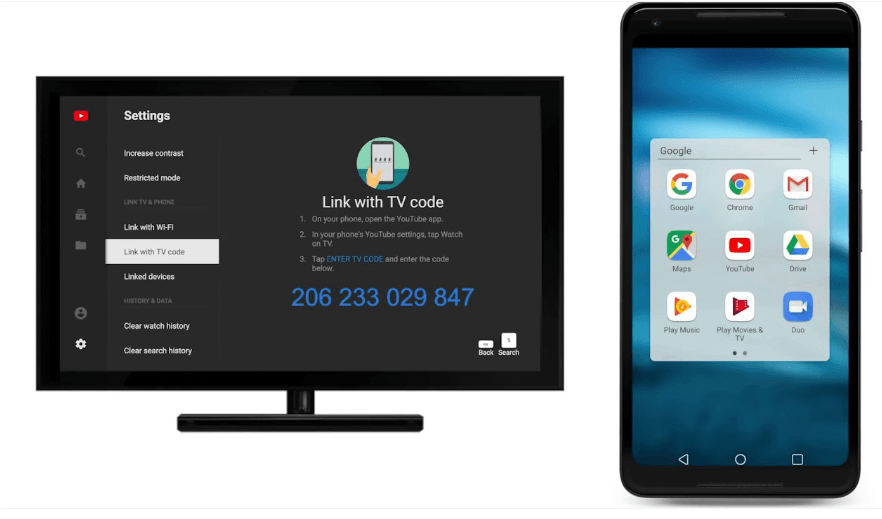
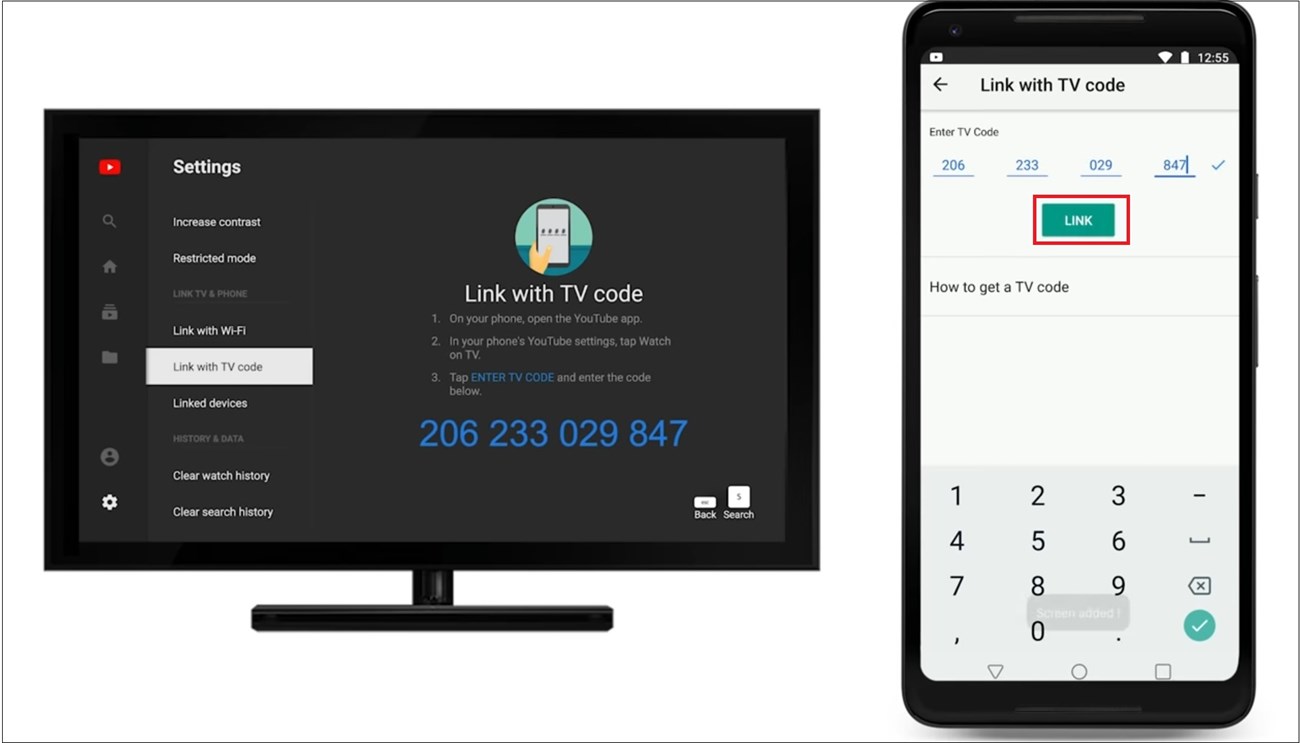
- Sign in (optional but recommended). While you can browse and watch many videos without logging in, signing in with your Google account allows you to access your subscriptions, watch history, playlists, and personalized recommendations, creating a more tailored experience. This usually involves generating a code on the TV screen and entering it on youtube.com/activate on a computer or mobile device.
This method offers the best visual quality, often automatically adjusting to your TV’s native resolution (e.g., 4K), and leverages your TV’s internal processing for smooth playback. The TV remote typically provides full control over playback, search, and navigation.
Casting (Chromecast Built-in, AirPlay, Miracast)
Casting involves sending content wirelessly from a mobile device (phone, tablet) or computer to your TV. Instead of mirroring your device’s screen, the casting instruction tells the TV or casting receiver to fetch the content directly from the internet, freeing up your source device for other tasks.
Chromecast Built-in (Google Cast)
Many smart TVs, particularly those running Android TV or Google TV, come with Chromecast built-in. Alternatively, external Chromecast dongles can be plugged into any TV’s HDMI port.
How it works:
- Ensure your mobile device (Android or iOS) or computer (using the Chrome browser) and your Chromecast-enabled TV or dongle are connected to the same Wi-Fi network.
- Open the YouTube app on your phone, tablet, or go to youtube.com in your Chrome browser.
- Look for the Cast icon (a rectangle with a Wi-Fi symbol in the bottom-left corner). Tap or click it.
- A list of available casting devices will appear. Select your TV or Chromecast device.
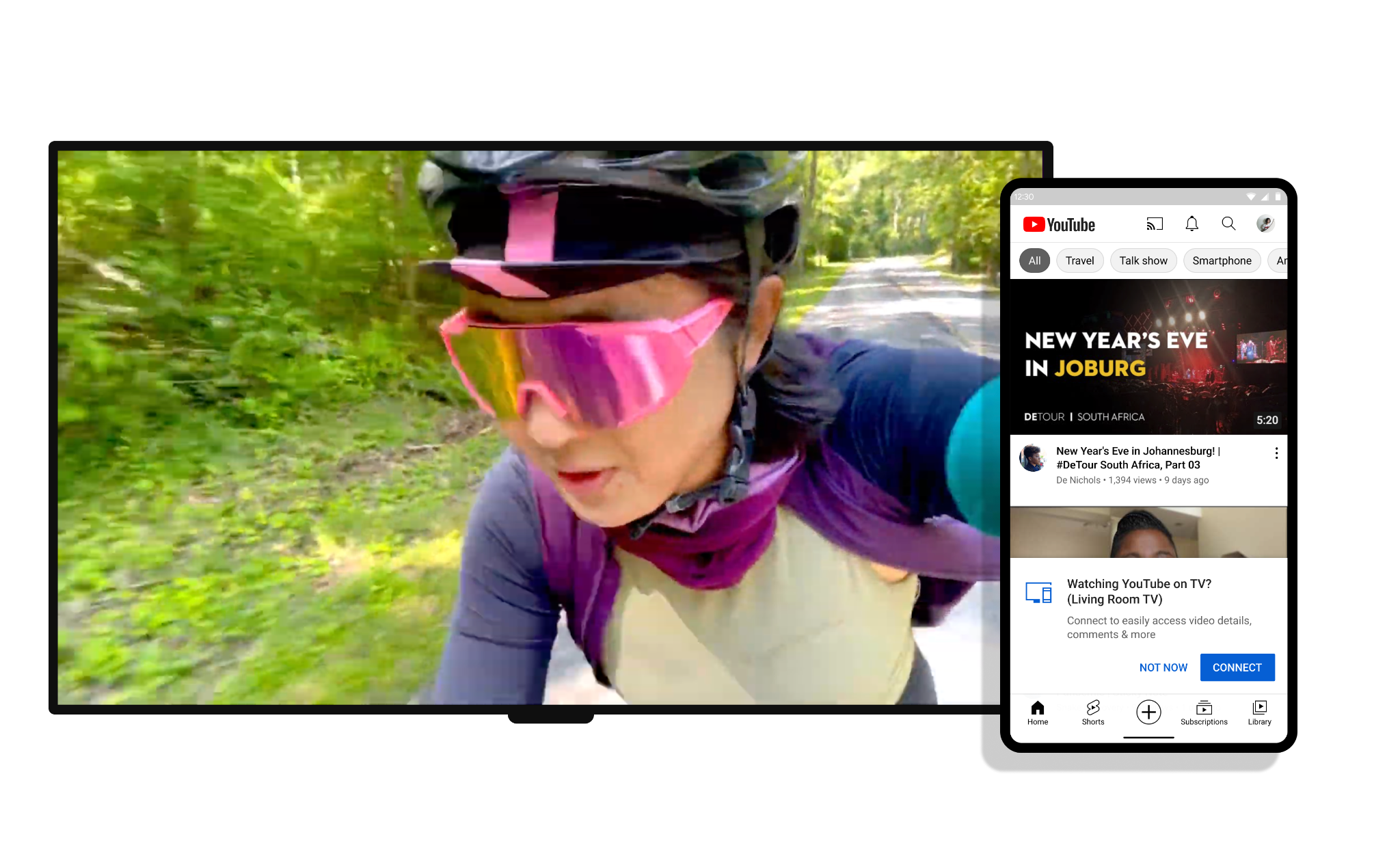
- The YouTube video will begin playing on your TV. Your mobile device then acts as a sophisticated remote, allowing you to control playback, queue videos, and browse other content without interrupting what’s playing on the TV.
This method is highly popular due to its simplicity and the ability to continue using your phone without draining its battery by actively streaming.
Apple AirPlay
For users within the Apple ecosystem, AirPlay offers a similar seamless casting experience. AirPlay 2 is supported by Apple TV streaming boxes and many newer smart TVs from brands like Samsung, LG, Sony, and Vizio.
How it works:
- Ensure your Apple device (iPhone, iPad, Mac) and your AirPlay 2-compatible TV or Apple TV are on the same Wi-Fi network.
- Open the YouTube app on your Apple device.
- Tap the AirPlay icon (a rectangle with an upward-pointing arrow).
- Select your AirPlay-compatible TV or Apple TV from the list.
- The content will begin streaming to your TV. Similar to Chromecast, your Apple device can then be used for other tasks.
Miracast (Screen Mirroring)
Miracast is an older peer-to-peer wireless display standard that allows you to mirror the entire screen of your compatible Android device or Windows PC onto a Miracast-enabled TV or adapter. While it can be used for YouTube, it’s generally less preferred than casting methods because it mirrors the entire screen, consuming more battery on the source device and often providing lower resolution and more latency than direct casting. It’s more suitable for sharing presentations or photos rather than dedicated video streaming.
External Devices: Streaming Sticks, Consoles, and PCs
If your TV isn’t a smart TV, or if you prefer a different user interface or additional features, a range of external devices can transform your TV into a powerful YouTube consumption hub. These options often provide consistent performance and dedicated remote controls.
Dedicated Streaming Devices
These compact devices plug into your TV’s HDMI port and provide a full-fledged smart TV experience, often with a wider array of apps and more powerful processors than some integrated smart TV systems.
- Roku devices (Roku Express, Roku Streaming Stick, Roku Ultra): Known for their user-friendly interface and vast channel selection.
- Amazon Fire TV Stick (Lite, 4K, Max): Integrates well with Amazon’s ecosystem and Alexa voice control.
- Apple TV (HD, 4K): Premium devices offering deep integration with Apple services and a robust app store.
- Google Chromecast (with Google TV): While traditional Chromecasts are just receivers, the “with Google TV” versions are full streaming devices with a remote and on-screen interface.
Setup typically involves:
- Plugging the device into an available HDMI port on your TV and connecting it to power.
- Following the on-screen instructions to connect to your home Wi-Fi network.
- Navigating to the device’s app store (e.g., Roku Channel Store, Amazon Appstore) and downloading the YouTube app.
- Signing in with your Google account.
These devices are excellent for breathing new life into older non-smart TVs or for users who desire a specific ecosystem’s interface and features.
Gaming Consoles
Modern gaming consoles are multimedia powerhouses, capable of much more than just playing games. PlayStation (PS4, PS5) and Xbox (One, Series X/S) consoles all offer dedicated YouTube apps.
How to connect:
- Navigate to the console’s store (e.g., PlayStation Store, Microsoft Store).
- Search for and download the YouTube app.
- Launch the app and sign in with your Google account.
Consoles provide high-quality video playback and often have robust network capabilities. While they might consume more power than a dedicated streaming stick, they are a convenient option if you already own one.
Connecting via Computer (PC/Laptop)
For the most basic, direct connection, you can always use a computer.
HDMI Cable
The simplest way to get YouTube from your laptop or PC to your TV is with an HDMI cable.
- Connect one end of the HDMI cable to your computer’s HDMI output port and the other end to an available HDMI input port on your TV.
- Use your TV remote to select the correct HDMI input (e.g., HDMI 1, HDMI 2).
- On your computer, you might need to adjust display settings to “Duplicate” or “Extend” your desktop to the TV.
- Open your web browser, navigate to youtube.com, and play your desired video.
This method requires a physical cable and is less convenient than wireless options but is reliable and works with virtually any computer and TV combination.
Optimizing Your Viewing Experience and Troubleshooting Common Issues
While connecting YouTube to your TV is generally straightforward, a few considerations can enhance your experience and help resolve common hiccups.
Network Stability and Speed
High-quality video streaming, especially in 4K, demands a stable and fast internet connection.
- Wi-Fi Strength: Ensure your TV or streaming device has a strong Wi-Fi signal. If possible, use the 5GHz band on your router for less interference and faster speeds, though it has a shorter range.
- Ethernet Connection: For stationary devices like smart TVs or gaming consoles, a direct Ethernet cable connection to your router often provides the most reliable and fastest speeds, eliminating Wi-Fi interference.
- Bandwidth: Check your internet speed. For 4K streaming, YouTube recommends at least 20 Mbps.
Resolution and Picture Quality
Most apps will automatically detect and play the highest quality available for your TV and internet speed.
- TV Settings: Ensure your TV’s picture settings are optimized for video (e.g., “Cinema” or “Movie” mode) and that any upscaling features are enabled if viewing lower-resolution content on a 4K TV.
- YouTube App Settings: Within the YouTube app, you can manually select video quality (e.g., 1080p, 4K) if you want to override the automatic setting, useful for troubleshooting or conserving bandwidth.
Audio Synchronization
Occasionally, audio and video can fall out of sync.
- Restart Devices: Often, simply restarting your TV, streaming device, or audio receiver can resolve this.
- TV Audio Delay Settings: Many TVs and sound systems have an “audio delay” or “lip sync” setting you can adjust to compensate for lag.
Common Troubleshooting Steps
If YouTube isn’t connecting or playing correctly:
- Restart Everything: Power cycle your TV, streaming device, router, and the source device (if casting).
- Check for Updates: Ensure your TV’s firmware, streaming device’s OS, and the YouTube app itself are all up to date.
- Clear App Cache: In your TV or device’s settings, find the YouTube app and clear its cache or data. This can resolve corrupted data issues.
- Re-login: Sign out of your Google account in the YouTube app and then sign back in.
- Verify Wi-Fi Connection: Double-check that all devices are on the correct Wi-Fi network and that the internet connection is active.
- HDMI Check: If using an HDMI cable or external device, try a different HDMI port or cable.
Future Trends in TV Connectivity and Content Delivery
The landscape of TV connectivity is constantly evolving, promising even more seamless and integrated experiences for consuming platforms like YouTube.
Deeper Integration and Voice Control
The proliferation of smart assistants like Google Assistant and Amazon Alexa is leading to even more intuitive control. Expect to see greater capabilities for voice commands to control YouTube playback directly through your TV or smart speaker, allowing you to “Play on YouTube” without lifting a finger. This also extends to smart home ecosystems, where your TV becomes an even more central hub for entertainment and information.
Personalized Content Feeds Across Devices
The distinction between viewing YouTube on a phone, tablet, or TV will continue to blur. Future developments will focus on even more sophisticated algorithms that ensure your personalized content recommendations, watch history, and playlists seamlessly follow you across every device. Starting a video on your phone and automatically resuming it on your TV will become even more fluid and reliable.
Enhanced Interactivity and Live Experiences
As YouTube continues to push into live streaming, expect the TV viewing experience to become more interactive. Features like real-time polls, integrated chat overlays, and on-screen Q&A sessions will become commonplace, engaging viewers more deeply with live events, gaming streams, and community-driven content directly from their living room.
Cloud Streaming and Device Agnosticism
The long-term trend points towards a more cloud-centric approach to content delivery. As internet speeds increase and cloud computing power expands, the heavy lifting of processing and rendering content might move further into the cloud. This could make the “how to connect” question even simpler, as devices become more agnostic, capable of tapping into universal content streams with minimal local configuration, leading to a truly ubiquitous YouTube experience across any display.
Connecting YouTube to your TV is no longer a technical challenge but a customizable choice among several robust options. Whether you prefer the simplicity of a built-in app, the flexibility of casting, or the power of a dedicated streaming device, the technological solutions available ensure that YouTube’s vast universe of content is always just a few clicks away from your biggest screen.
aViewFromTheCave is a participant in the Amazon Services LLC Associates Program, an affiliate advertising program designed to provide a means for sites to earn advertising fees by advertising and linking to Amazon.com. Amazon, the Amazon logo, AmazonSupply, and the AmazonSupply logo are trademarks of Amazon.com, Inc. or its affiliates. As an Amazon Associate we earn affiliate commissions from qualifying purchases.