
In the rapidly evolving landscape of digital media, live streaming has emerged as a cornerstone of real-time interaction and content consumption. YouTube, a platform synonymous with video, has long been at the forefront of this revolution, offering a robust ecosystem for creators to broadcast live and for viewers to engage in the moment. Whether you’re interested in breaking news, interactive gaming sessions, educational webinars, or live music performances, YouTube’s live feature connects you directly to the pulse of ongoing events.
This guide delves into the technicalities and best practices for discovering, accessing, and optimizing your experience when watching live content on YouTube. We’ll explore everything from navigating the platform to leveraging interactive features and troubleshooting common issues, ensuring you can fully immerse yourself in the dynamic world of live YouTube streams. Understanding these facets is key to unlocking the full potential of real-time viewing and staying connected with your favorite creators and communities as events unfold.
Discovering Live Streams on YouTube
Finding live content on YouTube is often simpler than one might imagine, thanks to the platform’s intuitive design and various discovery mechanisms. YouTube’s goal is to connect you with the content you love, and live streams are no exception, often being highlighted prominently.
Navigating the YouTube Homepage
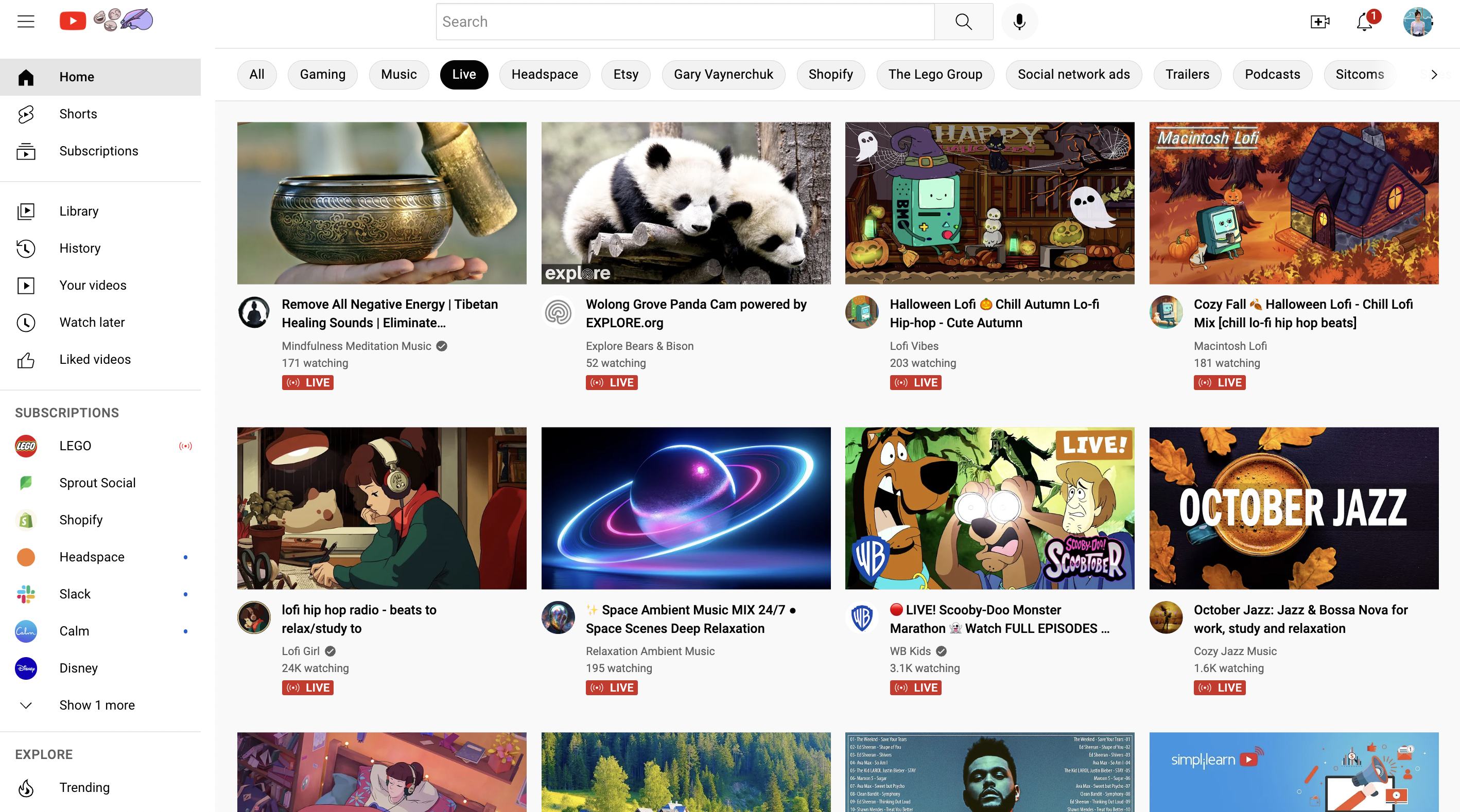
Upon visiting the YouTube homepage, you’ll frequently notice live streams appearing directly in your feed, often prioritized by the algorithm based on your viewing history, subscriptions, and trending topics. These might be prominently displayed as large thumbnails with a “LIVE” badge, or integrated within a “Recommended Live Streams” section. The algorithm is designed to learn your preferences, so the more you interact with live content, the more relevant live streams will be suggested to you. Keep an eye out for these visual cues as you scroll, as they are often the quickest path to discovering something new and engaging.
Utilizing the “Live” Filter and Dedicated Section
For a more direct approach, YouTube provides specific tools to filter for live content. On the left-hand navigation sidebar (or accessible through the “Explore” menu on some interfaces), you’ll often find a dedicated “Live” category. Clicking this will take you to a page exclusively dedicated to currently airing live streams across various categories, from gaming and news to sports and music. This section provides a comprehensive overview of all public live broadcasts happening at that moment, allowing you to browse by popularity or topic. Additionally, when performing a search on YouTube, you can apply a “Live” filter from the filter options to narrow down results to only include active live streams related to your query.
Channel Subscriptions and Notifications
Perhaps the most reliable way to catch live streams from creators you admire is through subscriptions and notification settings. When you subscribe to a channel, you’ll see their content more frequently in your feed, including live broadcasts. Crucially, YouTube offers the option to enable notifications for specific channels. By clicking the bell icon next to the “Subscribed” button on a channel’s page, you can choose to receive “All” notifications, which includes alerts when that channel goes live. This ensures you’re immediately informed via email or push notification on your device, making it almost impossible to miss a stream from your favorite content producers.
Exploring Specific Categories and Topics
Beyond general discovery, YouTube allows you to dive into specific niches. If you’re passionate about a particular topic, such as “live coding tutorials” or “breaking financial news,” simply typing these into the YouTube search bar and then applying the “Live” filter will yield relevant results. The “Explore” page also lists popular categories, and clicking into one (e.g., “Gaming”) will often present a curated selection of live streams pertinent to that genre. This targeted approach is excellent for finding niche communities and creators broadcasting content aligned with your precise interests.
Engaging with Live Content Features
Watching a live stream on YouTube is far more interactive than traditional video consumption. The platform is engineered to foster real-time community and direct communication between viewers and creators. Understanding and utilizing these features enhances the overall experience, transforming passive viewing into active participation.
The Live Chat Experience
At the heart of any YouTube live stream is the live chat, typically displayed alongside or below the video player. This is where viewers converge to share reactions, ask questions, and interact with each other and the streamer. To participate, simply type your message into the chat box. Many streams are moderated by the creator or designated community members to maintain a positive environment. It’s crucial to follow chat etiquette: be respectful, avoid spamming, and adhere to any specific rules set by the streamer. Engaging thoughtfully in chat can make you feel more connected to the content and the community.
Super Chat and Super Stickers
YouTube offers monetization features that allow viewers to financially support their favorite creators while simultaneously gaining visibility in the chat. Super Chat enables you to pay to have your message highlighted and pinned in the live chat for a specified duration, making it more likely for the creator to see and respond. The amount you spend often dictates how long and prominently your message is displayed. Super Stickers operate similarly, allowing you to purchase and send animated digital stickers that also appear in the chat, often standing out more than standard text messages. These features are a popular way for dedicated fans to show appreciation and gain recognition during a live broadcast.
Polls and Q&A Sessions
Many creators leverage interactive tools built into YouTube Live to engage their audience directly. Polls allow streamers to ask questions and receive instant feedback from viewers, who can select from predefined options. These are often used for audience opinions, content suggestions, or simply to add a fun, interactive element. Q&A sessions (Question and Answer) are another common feature, where creators might designate specific periods to address viewer questions. Sometimes, a dedicated “Q&A” section might appear within the chat or video interface, allowing viewers to submit questions that can be upvoted by others, pushing the most popular queries to the top for the streamer to address. Participating in polls and Q&A sessions provides a unique opportunity to directly influence content or get your questions answered.
Picture-in-Picture and Background Playback
For viewers who want to multitask, YouTube offers convenient playback options. Picture-in-Picture (PiP) mode allows you to minimize the live stream into a small, movable window that floats above other apps on your mobile device or desktop. This means you can continue watching the live content while browsing the web, checking emails, or using other applications. On mobile, this feature is typically available to all users within the YouTube app. Background Playback, primarily a feature for YouTube Premium subscribers, allows the audio of a live stream to continue playing even when you exit the YouTube app or lock your phone screen. This is particularly useful for listening to podcasts, music streams, or discussions without needing to keep the video active on your screen, transforming live streams into an auditory experience for on-the-go consumption.
Troubleshooting and Optimizing Your Live Viewing Experience
While watching live streams on YouTube is generally a smooth experience, occasional technical hiccups can disrupt your enjoyment. Understanding common issues and their solutions can help you quickly resolve problems and ensure an optimal viewing experience.
Internet Connection Requirements
The most critical factor for a stable live stream is a robust and consistent internet connection. Live video consumes significant bandwidth, especially at higher resolutions. A slow or intermittent connection will inevitably lead to buffering, pixelation, or outright disconnections. For standard definition, a minimum of 3-5 Mbps is recommended, while HD (720p or 1080p) requires 5-10 Mbps or more. If you’re experiencing issues, first check your internet speed using an online test. If possible, use a wired Ethernet connection instead of Wi-Fi, as it provides a more stable and often faster connection. If using Wi-Fi, try moving closer to your router or reducing the number of devices sharing your network.
Adjusting Video Quality
YouTube automatically adjusts video quality based on your internet speed, but sometimes it doesn’t get it quite right, or you might prefer to manually control it. If you’re experiencing buffering, reducing the video quality can often solve the problem. To do this, click the gear icon (settings) on the video player, then select “Quality.” You can choose a lower resolution (e.g., 480p, 360p, or “Auto”) to reduce bandwidth consumption. Conversely, if your connection is strong, you can manually select a higher resolution to enjoy a sharper image. Experiment with different settings to find the balance between quality and smoothness that works best for your connection.
Common Buffering Issues and Solutions
Buffering is the most frequent complaint when watching live streams. Besides internet speed and video quality adjustments, several other factors can contribute to it.
- Clear Browser Cache and Cookies: Accumulated data can sometimes interfere with playback. Clearing your browser’s cache and cookies can resolve these conflicts.
- Update Your Browser/App: Ensure you’re using the latest version of your web browser (Chrome, Firefox, Edge, Safari) or the YouTube mobile app. Outdated versions might have bugs or compatibility issues.
- Restart the Stream/App/Device: Sometimes, simply refreshing the page, restarting the YouTube app, or even rebooting your entire device can clear temporary glitches affecting playback.
- Disable Browser Extensions: Certain browser extensions (especially ad-blockers or privacy tools) can sometimes conflict with YouTube’s player. Try disabling them temporarily to see if the issue resolves.
- Check YouTube Server Status: In rare cases, the issue might be on YouTube’s end. You can check websites like Downdetector to see if other users are reporting issues with YouTube.
Device Compatibility and Updates
To ensure the best live streaming experience, make sure your device and its operating system are up-to-date. Older devices or operating systems might struggle with the demands of modern video playback, especially live high-definition streams. Similarly, always keep your YouTube app updated to the latest version available from your device’s app store. These updates often include performance enhancements, bug fixes, and security improvements that contribute to a smoother viewing experience. If watching on a desktop, ensure your graphics drivers are also current.
Advanced Tips for a Superior Live Experience
Beyond the basic mechanics, a few advanced considerations can further refine your YouTube live streaming experience, allowing for greater customization and control over how you interact with real-time content.
Customizing Notification Settings
While subscribing and enabling “All” notifications is effective, you might find yourself overwhelmed if you follow many prolific live streamers. YouTube allows for granular control over notifications. Within the YouTube settings (accessible from your profile icon), you can navigate to “Notifications” and fine-tune exactly what alerts you receive. You can choose to get notifications only for specific types of content, manage emails, or even disable notifications for certain channels while keeping others active. This customization ensures you only receive alerts for the live content you truly want to catch, preventing notification fatigue.
Understanding Latency and Delay
It’s important to understand that “live” on YouTube, like most internet-based live broadcasts, isn’t truly instantaneous. There’s always a slight delay, known as latency, between when an event happens and when it appears on your screen. This delay can range from a few seconds to a minute or more, depending on the streamer’s setup, your internet connection, and YouTube’s processing. While this usually doesn’t impact the viewing experience significantly, it’s something to be aware of, especially if you’re interacting with a stream where real-time reactions (like sports betting or synchronous events) are critical. Most interactive features, like chat, are designed to work within this inherent latency.
The Role of YouTube Premium
For those seeking the ultimate ad-free and enhanced experience, YouTube Premium offers several benefits that extend to live streaming. The most prominent is ad-free viewing, ensuring that your live stream isn’t interrupted by commercials, which can be particularly jarring during a live broadcast. As mentioned, Premium also includes background playback on mobile, allowing you to listen to live streams even when the app is minimized or your screen is off. While live streams aren’t typically “downloadable” in the same way regular videos are, Premium’s overall enhancements contribute to a more seamless and uninterrupted viewing environment, making it a valuable consideration for frequent live stream watchers.
Utilizing Keyboard Shortcuts (Desktop)
For desktop users, mastering a few keyboard shortcuts can make navigation and control of live streams much more efficient.
- Spacebar / K: Play/Pause the stream.
- Left/Right Arrow Keys: Seek backward/forward by 5 seconds (though seeking is less common in live streams unless you’re catching up).
- J/L: Seek backward/forward by 10 seconds.
- M: Mute/Unmute audio.
- F: Toggle fullscreen mode.
- C: Toggle captions (if available).
- Shift + < / >: Adjust playback speed (though this isn’t typically useful for live content).
These shortcuts provide quick access to common controls, allowing you to adjust your viewing experience without needing to interact with the mouse.
The Future of Live Streaming on YouTube
YouTube Live is not a static feature; it’s a dynamic platform constantly evolving to meet the demands of creators and viewers alike. The trajectory of live streaming on YouTube points towards even greater interactivity, diverse content formats, and deeper integration into the user experience.
Growth of Interactive Content
The trend towards more engaging and participatory live streams is accelerating. Expect to see an increase in sophisticated interactive elements beyond basic chat and polls. This could include real-time quizzes, audience-controlled camera angles for certain events, collaborative art projects, or even direct in-stream purchasing options for products showcased during a live broadcast. Creators will continue to experiment with new ways to break down the fourth wall, making viewers feel less like an audience and more like active participants in the live event.
Emergence of New Formats
YouTube is likely to explore and support a broader range of live content formats. This might encompass more immersive experiences such as 360-degree VR live streams for concerts or virtual tours, allowing viewers to control their perspective. We could also see more “shoppable” live streams, where products are displayed and immediately purchasable directly within the YouTube interface, mirroring trends seen in other e-commerce platforms. The platform may also enhance features for collaborative live streams, enabling multiple creators to co-host and interact seamlessly, similar to existing multi-guest interview formats but with increased technical sophistication.
Impact on Content Creation and Consumption
The continuous evolution of YouTube Live will undoubtedly reshape how content is created and consumed. Creators will need to adapt their strategies, embracing real-time engagement and developing new skills for live production. For viewers, the line between passive entertainment and active participation will blur further, offering richer, more personalized experiences. Live streams will likely become even more central to community building, breaking news dissemination, and direct communication between public figures and their audiences, cementing their role as an indispensable part of the digital content ecosystem.
In conclusion, watching live on YouTube is a dynamic and interactive experience that offers a direct connection to real-time events and communities. By understanding how to discover live streams, engage with their unique features, optimize your viewing environment, and stay updated on future trends, you can fully leverage the power of this powerful platform. Whether you’re a casual viewer or a dedicated fan, YouTube Live provides an unparalleled window into the world as it unfolds. Dive in and experience the immediacy and excitement of real-time content!
aViewFromTheCave is a participant in the Amazon Services LLC Associates Program, an affiliate advertising program designed to provide a means for sites to earn advertising fees by advertising and linking to Amazon.com. Amazon, the Amazon logo, AmazonSupply, and the AmazonSupply logo are trademarks of Amazon.com, Inc. or its affiliates. As an Amazon Associate we earn affiliate commissions from qualifying purchases.