
YouTube TV has revolutionized how many consumers access live television, blending the familiarity of traditional cable with the flexibility and digital features of modern streaming services. Unlike conventional cable, the concept of “adding channels” on YouTube TV operates within a somewhat different framework. Rather than individually selecting and subscribing to dozens of discrete channels à la carte, users primarily manage their content through a core base package supplemented by premium add-ons. Understanding this distinction is key to effectively customizing your viewing experience and truly “adding” the content you desire.
Understanding YouTube TV’s Channel Lineup
YouTube TV’s offering is built around a comprehensive base package that includes a wide array of popular broadcast and cable networks. This structure simplifies the initial setup, ensuring subscribers have immediate access to a robust selection of content without needing to handpick every single channel.

The Core Package
When you subscribe to YouTube TV, you automatically gain access to a substantial lineup of channels. This includes major local broadcast affiliates (ABC, CBS, FOX, NBC, CW, PBS in most markets), a strong selection of sports channels (ESPN, FS1, NFL Network, MLB Network, NBA TV), news outlets (CNN, Fox News, MSNBC), and a broad spectrum of entertainment and lifestyle networks (FX, TNT, TBS, AMC, Discovery, HGTV, Food Network, Comedy Central, etc.). The specific channels available can vary slightly based on your geographic location due to local broadcasting agreements, but the core offering is designed to be highly inclusive. This base subscription is the foundation upon which any further customization is built. You cannot remove channels from this base package, though you can manage their visibility in your live guide.
Premium Add-ons and Networks
Beyond the standard base package, YouTube TV offers a selection of premium add-ons and specialized channel packages that allow subscribers to further tailor their content. These are akin to the premium movie channels or specialized sports packages offered by traditional cable providers. Examples include:
- Premium Entertainment: HBO Max, Showtime, STARZ, EPIX, Cinemax, MGM+, AMC+
- Sports Packages: NBA League Pass, MLB.TV, Fox Soccer Plus, Sports Plus (includes various niche sports channels)
- Niche Content: CuriosityStream, Shudder, Sundance Now, Acorn TV, Hallmark Movies Now
- Spanish Language Content: A specific Spanish Plus add-on package, including various Spanish-language networks.
These add-ons are where the concept of “adding channels” most directly applies, as they represent optional content streams that you can choose to subscribe to individually on top of your base YouTube TV service. Each add-on comes with its own monthly fee, which is billed alongside your primary YouTube TV subscription.
The Distinction Between Channels and Add-ons
It’s crucial to differentiate between managing existing channels within your base package and subscribing to premium add-ons. You don’t “add” individual channels like ESPN or CNN; they are either part of your base subscription or not available. Instead, you “add” premium services or specialized packages that then grant you access to their respective channels or content libraries. For instance, subscribing to the “Sports Plus” add-on adds channels like beIN Sports and Fox Soccer Plus to your available lineup. Similarly, adding HBO Max gives you access to its linear channels (if applicable) and its extensive on-demand library directly within the YouTube TV interface, or via the HBO Max app using your YouTube TV credentials.
Step-by-Step Guide to Managing Your Channels and Add-ons
Navigating the YouTube TV interface to manage your content is straightforward, whether you’re looking to subscribe to new premium services or simply organize your existing channels.
Accessing Your YouTube TV Settings
To make any changes to your subscription or how your channels appear, you’ll need to access your YouTube TV settings.
- Open YouTube TV: Launch the YouTube TV app on your smart TV, streaming device (Roku, Fire TV, Apple TV, Chromecast), computer browser, or mobile device.
- Navigate to Your Profile: In the upper right corner of the screen (or top left on some devices), you’ll typically see your profile icon. Click or select this.
- Select “Settings”: From the dropdown menu, choose the “Settings” option.
- Go to “Membership” or “Add-ons”: Within the Settings menu, look for sections related to your “Membership,” “Add-ons,” or “Premium Networks.” The exact wording might vary slightly by device or app version. This is where you can view your current subscriptions and explore available additions.
Subscribing to Premium Add-ons
Once in the “Membership” or “Add-ons” section of your settings:
- Browse Available Add-ons: You’ll see a list of premium networks and specialized packages available for subscription. Each will typically show its monthly cost.
- Select Desired Add-on: Click or tap on the add-on you wish to subscribe to.
- Review and Confirm: A confirmation screen will appear, detailing the subscription terms and the monthly cost. Review this information carefully.
- Complete Purchase: Confirm your purchase. The charge will be added to your monthly YouTube TV bill. The new channels or content will typically become available instantly or within a few minutes.
You can also often initiate a free trial for many premium add-ons, allowing you to test the content before committing to a paid subscription. Be mindful of the trial duration to avoid unintended charges if you decide not to continue.
Customizing Your Live Guide (Reordering and Hiding)
While you can’t “remove” channels from your base subscription, you can customize how they appear in your live guide. This is a crucial feature for personalizing your viewing experience, allowing you to prioritize frequently watched channels and hide those you never use.
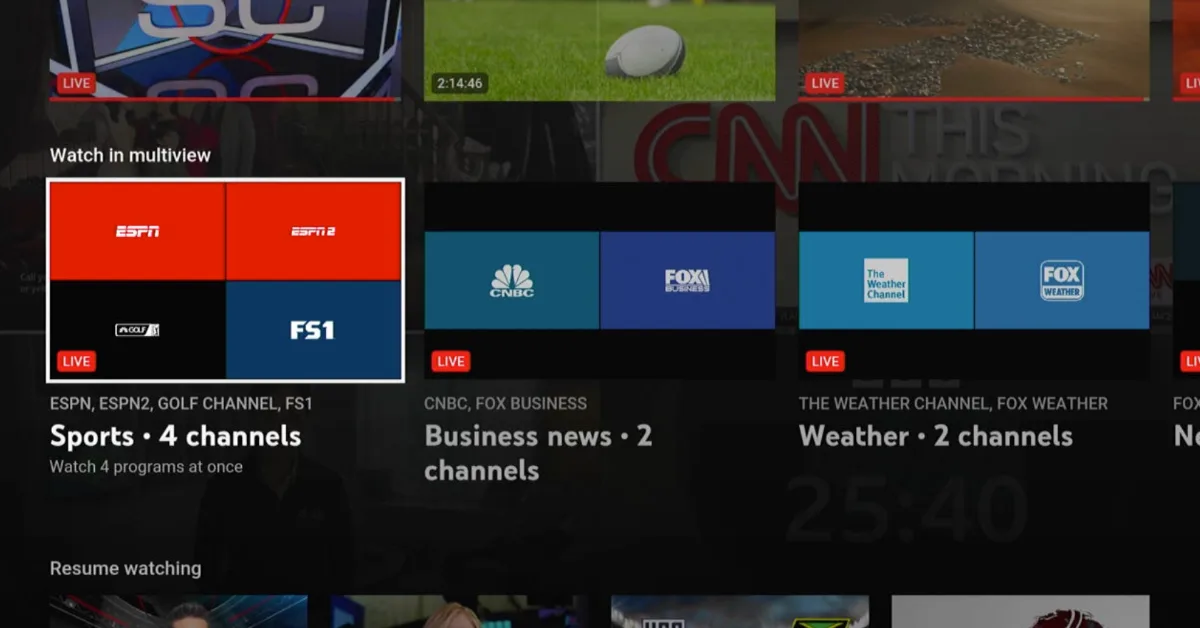
- Access “Live Guide” Settings: From the main Settings menu, look for a section labeled “Live guide” or “Customization.”
- Edit Channel Order: You’ll see a list of all channels available in your subscription, including those from your base package and any premium add-ons.
- Drag and Drop (or Use Arrows):
- To Reorder: On a computer, you can often drag and drop channels to your preferred position. On TV apps, you might use up/down arrows or selection buttons to move channels. Place your most-watched channels at the top for easy access.
- To Hide: Next to each channel, there’s usually a checkbox or toggle switch. Uncheck or toggle off any channels you don’t want to appear in your live guide. This doesn’t remove the channel from your subscription; it just makes it invisible in the guide. You can always unhide them later.
- Save Changes: Ensure you save any changes you make, if prompted. The live guide will update immediately.
This customization is particularly useful for decluttering your guide, especially if you have a large number of channels from various packages.
Troubleshooting Channel Issues
Occasionally, you might encounter issues where a channel you’ve subscribed to isn’t appearing or isn’t working correctly.
- Check Your Subscription: First, verify within your YouTube TV settings (“Membership” or “Add-ons”) that the premium add-on is indeed active and subscribed.
- Refresh/Restart: Try closing and reopening the YouTube TV app, or restart your streaming device entirely. Sometimes a simple refresh can resolve temporary glitches.
- Check Internet Connection: Ensure your internet connection is stable and fast enough for streaming. Poor connectivity can prevent content from loading.
- Verify Location (Local Channels): For local broadcast channels, YouTube TV uses your IP address to determine your location. If you’re using a VPN or experiencing location issues, this could affect your local channel access.
- YouTube TV Status Page: Check the official YouTube TV Twitter account or a service status website (like Downdetector) to see if there are any widespread outages affecting the service or specific channels.
- Contact Support: If the issue persists, contact YouTube TV customer support for personalized assistance.
Maximizing Your YouTube TV Experience
Beyond simply “adding channels,” optimizing your YouTube TV experience involves utilizing its full suite of features to ensure you’re getting the most value from your subscription.
Discovering New Content with the Library and On-Demand
YouTube TV isn’t just live TV; it also boasts an extensive “Library” and on-demand content.
- Cloud DVR: Every YouTube TV subscription includes unlimited cloud DVR space. You can record as many shows, movies, and events as you want, and they’ll be stored for nine months. “Adding” a channel also means its content becomes recordable.
- On-Demand Content: Many channels offer their recently aired shows and a selection of older content for on-demand viewing, often accessible directly from the channel page or the “Home” and “VOD” sections of the app. This allows you to catch up on shows you missed without needing to record them.
- “Show Me More” / Recommendations: The platform’s algorithms learn your viewing habits and recommend content, including live shows, recorded programs, and on-demand options, across all your subscribed channels. This can be a great way to discover new programming within your existing channel lineup.
Leveraging Family Sharing
YouTube TV supports up to six individual accounts within a single family group, each with its own personalized library, recommendations, and live guide customization. This means each family member can “add” their own recordings and customize their channel order without affecting others. To set this up:
- Access Family Settings: Go to your YouTube TV settings and look for “Family sharing” or “Family group.”
- Invite Members: You can invite up to five other Google accounts to join your family group.
- Personalized Experience: Once joined, each member signs in with their own Google account, gaining a private viewing experience under the same YouTube TV subscription.
Optimizing Streaming Quality
To ensure the channels you’ve added look their best, optimize your streaming quality.
- Internet Speed: A stable, high-speed internet connection is paramount. YouTube TV recommends at least 3 Mbps for standard definition, 7 Mbps for a single 1080p stream, and 13 Mbps for 4K.
- Device Capability: Use a streaming device or smart TV capable of handling high-resolution streams. Newer devices generally offer better performance.
- Bandwidth Usage: If multiple devices are streaming simultaneously in your household, ensure your internet plan can handle the combined bandwidth demand. Reduce other internet activities if you experience buffering.
- App Settings: Within the YouTube TV app, you can often manually adjust video quality settings, though it typically auto-adjusts based on your connection.
Considerations for a Personalized Channel Portfolio
Building your ideal YouTube TV channel lineup involves more than just clicking “subscribe.” It requires thoughtful consideration of cost, content value, and usage patterns.
Balancing Cost and Content Value
Each premium add-on comes with an additional monthly cost. While it’s tempting to subscribe to every service that offers a show you like, these costs can quickly accumulate. Regularly review your add-ons to ensure you are actively watching content on each service. If you subscribe to an add-on primarily for one show, consider whether that show is available on a standalone streaming service (like the HBO Max app) where you might subscribe directly for a month or two, then cancel, rather than keeping it perpetually active through YouTube TV. Periodically evaluating your viewing habits against your monthly bill can help you optimize your spending.
Monitoring Your Usage
Take advantage of YouTube TV’s features to monitor what you and your family are actually watching. The “Home” tab’s recommendations and “Library” can give you insight into frequently accessed content. If certain channels from an add-on consistently go unwatched, it might be time to consider unsubscribing from that specific package. The flexibility to add and drop premium add-ons month-to-month is one of the key advantages of streaming services over long-term cable contracts.
The Dynamic Nature of Digital TV
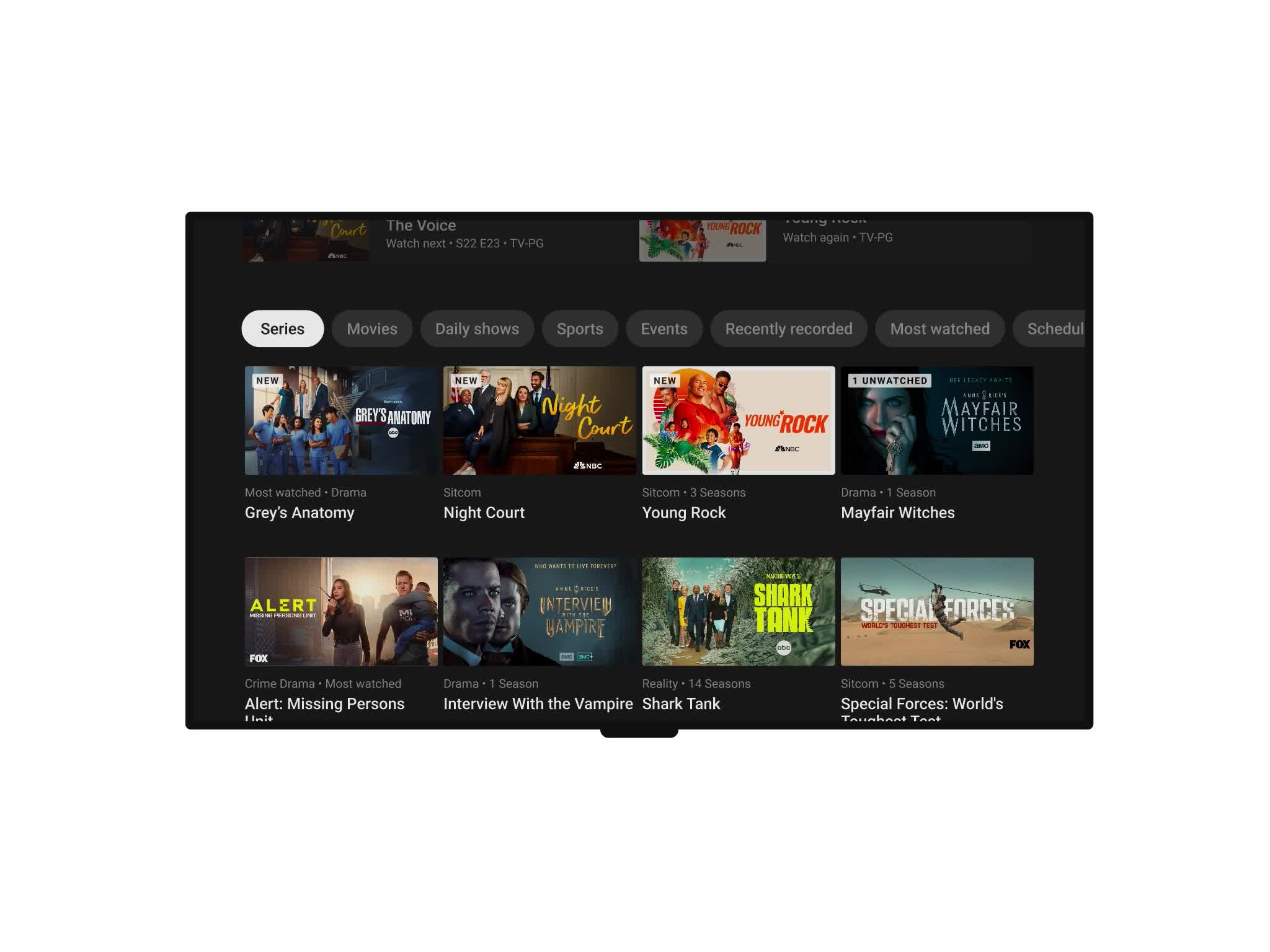
The streaming landscape is constantly evolving. Channels may be added to or removed from the base package (though this is rare and usually announced well in advance), new premium add-ons become available, and pricing structures can change. Staying informed about YouTube TV’s announcements and periodically revisiting your subscription settings will ensure your channel lineup remains perfectly tailored to your entertainment needs and budget. The power to customize is truly in your hands, allowing you to curate a streaming experience that works best for you.
aViewFromTheCave is a participant in the Amazon Services LLC Associates Program, an affiliate advertising program designed to provide a means for sites to earn advertising fees by advertising and linking to Amazon.com. Amazon, the Amazon logo, AmazonSupply, and the AmazonSupply logo are trademarks of Amazon.com, Inc. or its affiliates. As an Amazon Associate we earn affiliate commissions from qualifying purchases.