
In the rapidly evolving landscape of television consumption, traditional cable and satellite services are increasingly being supplanted by a new breed of internet-based live TV streaming platforms. Among these, YouTube TV has emerged as a prominent player, offering a compelling alternative for viewers seeking flexibility, a robust channel lineup, and modern features without the confines of long-term contracts or bulky hardware. Understanding how to effectively stream YouTube TV is key to unlocking its full potential and transforming your home entertainment experience. This guide will delve into the technical intricacies, setup processes, and optimal usage strategies for YouTube TV across various devices.

Understanding YouTube TV: Your Gateway to Live Television
YouTube TV is a subscription-based live television streaming service operated by Google. It distinguishes itself by providing access to a wide array of popular broadcast and cable networks, alongside an impressive suite of on-demand content, all delivered over an internet connection. Unlike its namesake, YouTube.com, YouTube TV focuses exclusively on live and DVR-recorded television programming.
At its core, YouTube TV is designed to replicate and enhance the traditional TV viewing experience. Subscribers gain access to local sports networks, major network affiliates (ABC, CBS, FOX, NBC, The CW), and a diverse selection of cable channels spanning news, entertainment, and lifestyle genres. Key features that set it apart include an unlimited cloud DVR storage, allowing users to record as many shows as they desire and keep them for nine months. It also supports multiple user profiles within a single household, each with its own personalized library and recommendations, and offers the flexibility of watching on up to three simultaneous screens. The absence of annual contracts and the ease of canceling or pausing subscriptions make it an attractive option for the modern, discerning consumer. Its strong device compatibility ensures accessibility across a broad spectrum of hardware, from smart TVs to mobile phones.
Getting Started: Setting Up Your YouTube TV Account
Before diving into the world of live TV, setting up your YouTube TV account requires a few crucial steps to ensure a seamless experience. This involves verifying service availability, understanding pricing structures, and completing the straightforward sign-up process.
Checking Availability and Pricing
YouTube TV’s channel lineup and service availability can vary based on geographic location due to broadcasting rights agreements. The first step is to visit the official YouTube TV website (tv.youtube.com) and enter your zip code to confirm that the service is available in your area and to view the specific local channels offered. This geographical check is critical, as the service is tied to your home location for local channel access and cannot be easily circumvented by VPNs.
Regarding pricing, YouTube TV typically offers a single base plan that includes a comprehensive selection of channels. However, there are often optional add-on packages for premium networks (e.g., HBO Max, Showtime, Sports Plus) or specialized content. Always review the current pricing and any promotional offers, such as free trials, which usually last between 5 to 14 days and provide an excellent opportunity to test the service before committing.
The Sign-Up Process
Signing up for YouTube TV is streamlined, especially if you already have a Google account, which is a mandatory prerequisite.
- Access the Website: Navigate to tv.youtube.com or open the YouTube TV app on a supported device.
- Initiate Sign-Up: Click on the “Try free” or “Sign up” button.
- Google Account Integration: You will be prompted to sign in with your Google account. If you don’t have one, you’ll need to create one first. This account will be linked to your YouTube TV subscription.
- Confirm Home Location: The system will confirm your home zip code again to verify local channel availability. This location is used for billing and content rights and is important for correct local channel access.
- Review Plan and Add-ons: Select your desired base plan and any optional add-ons.
- Enter Billing Information: Provide your payment details. You won’t be charged until the end of your free trial, if applicable.
- Finalize Subscription: Confirm your details, and your subscription will be activated. You can then begin customizing your channel lineup and explore the service.
Streaming YouTube TV Across Your Devices
One of YouTube TV’s greatest strengths is its broad compatibility, allowing you to stream content on nearly any modern device. This flexibility ensures you can watch your favorite shows and live events wherever you are, whether at home or on the go.
Smart TVs and Streaming Media Players
For the optimal home viewing experience, YouTube TV integrates seamlessly with a wide range of smart TVs and dedicated streaming media players.
- Supported Devices: This includes devices like Roku, Amazon Fire TV sticks and cubes, Apple TV, Google Chromecast (including devices with Google TV), and smart TVs running Android TV, Samsung Tizen, or LG webOS.
- Installation: On most smart TVs and streaming players, you’ll need to download the “YouTube TV” app from the device’s respective app store. Search for “YouTube TV” and follow the on-screen prompts to install.
- Logging In: Once installed, launch the app. You’ll be presented with a sign-in screen, often providing a code to enter at tv.youtube.com/start on a computer or mobile device, or allowing direct sign-in with your Google account credentials.
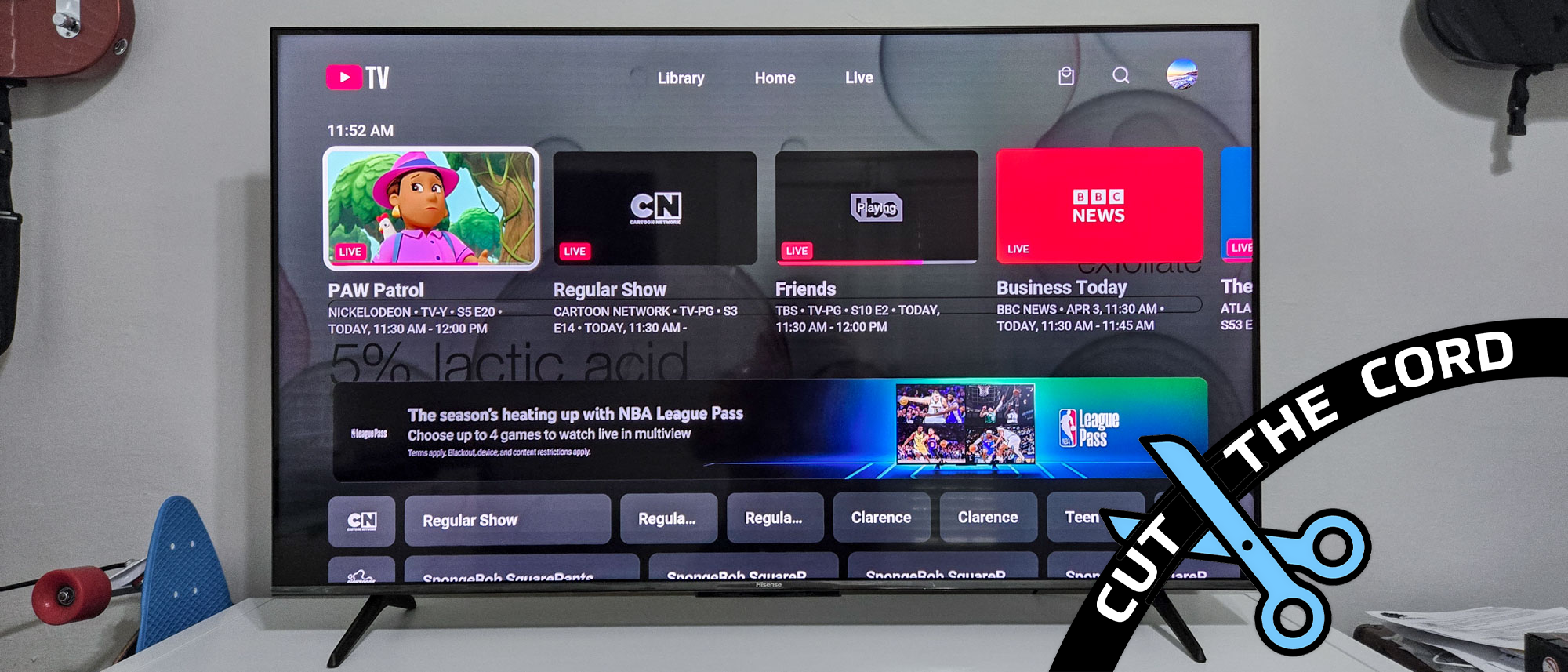
- Navigation: The interface on these devices is typically optimized for remote control navigation, featuring a live guide, home screen with recommendations, and dedicated sections for your library and on-demand content.
Mobile Devices (Smartphones and Tablets)
The YouTube TV app for iOS and Android devices transforms your smartphone or tablet into a portable television.
- App Installation: Download the “YouTube TV” app from the Apple App Store (for iOS) or Google Play Store (for Android).
- On-the-Go Streaming: Log in with your Google account. The mobile app offers the full YouTube TV experience, including live channels, DVR access, and on-demand content. Be mindful of data usage when streaming over cellular networks, as high-definition video can consume significant bandwidth. It’s advisable to prioritize Wi-Fi connections whenever possible.
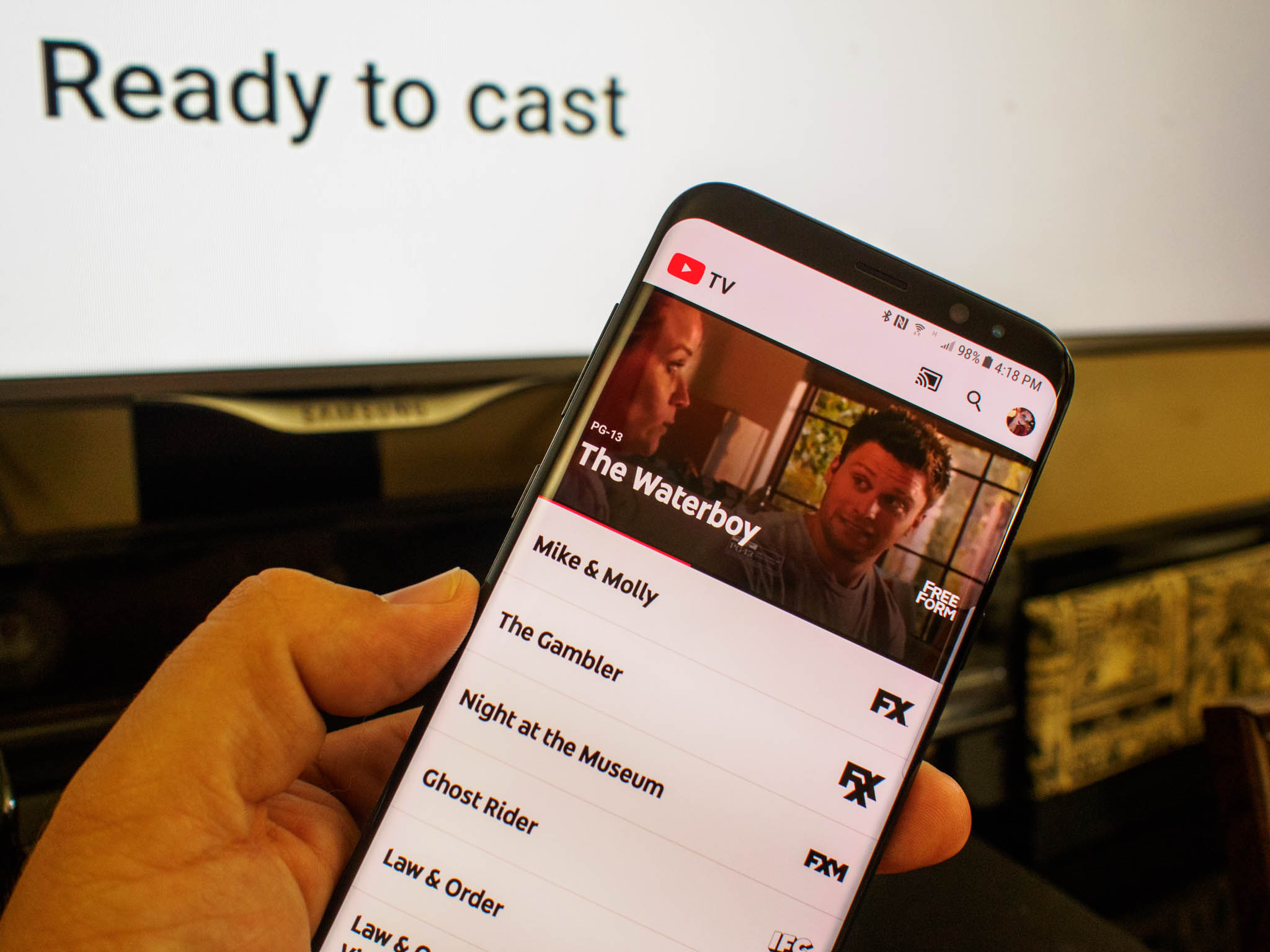
- Casting Functionality: Both iOS and Android apps support casting to compatible devices like Chromecast or smart TVs with built-in Chromecast functionality, allowing you to initiate playback on your phone and then “cast” it to a larger screen.
Computers and Web Browsers
For those who prefer watching on a desktop or laptop, YouTube TV is fully accessible through most modern web browsers.
- Supported Browsers: The service is optimized for Google Chrome, Mozilla Firefox, Apple Safari, and Microsoft Edge.
- Accessing the Service: Simply navigate to tv.youtube.com in your browser. Log in with your Google account.
- Browser-Specific Tips: Ensure your browser is up to date for the best performance. While browser extensions can enhance web browsing, some may conflict with streaming services; consider temporarily disabling them if you encounter playback issues. The web interface offers a robust viewing experience, including the live guide, library management, and settings adjustments.
Gaming Consoles
YouTube TV also extends its reach to popular gaming consoles, offering another avenue for living room entertainment.
- Supported Consoles: The app is available on PlayStation (PS4, PS5) and Xbox (Xbox One, Xbox Series X/S) consoles.
- Installation and Use: Download the YouTube TV app from the console’s respective store. The interface is adapted for game controller navigation, providing a familiar experience to other streaming apps on these platforms.
Maximizing Your YouTube TV Streaming Experience
Beyond simply accessing YouTube TV, understanding its features and interface is crucial for an optimized viewing experience. Leveraging its functionalities can significantly enhance how you consume live and on-demand content.
Navigating the User Interface
YouTube TV’s interface is designed for intuitive navigation across all platforms, though specific button layouts may vary slightly by device.
- Live Guide (EPG): This is your traditional electronic program guide, displaying currently airing and upcoming shows across all your subscribed channels. You can scroll through time slots and channels to find what’s on.
- Library: This section houses all your DVR recordings. Shows you’ve marked to record automatically appear here, organized for easy access. You’ll also find any on-demand content you’ve saved or purchased.
- Home: The “Home” tab provides personalized recommendations based on your viewing habits, trending shows, and quick access to recently watched channels or recorded programs.
- Search Functionality: A robust search feature allows you to find specific shows, movies, or channels quickly. This is particularly useful for discovering new content or locating older episodes.
Managing Your DVR (Cloud DVR)
YouTube TV’s unlimited cloud DVR is a standout feature, allowing you to record as much content as you want.
- Unlimited Storage: Unlike traditional DVRs, there’s no storage limit. You can record every episode of your favorite series without worrying about running out of space.
- Recording Shows: To record a show, simply select it in the Live Guide or search results and choose the “Add to Library” option. You can record individual episodes or entire series.
- Accessing Recordings: All your recordings are stored in your “Library” and are typically available for nine months from the original air date. This means you have ample time to catch up on missed content.
- Fast-Forwarding through Ads: For most DVR recordings, YouTube TV allows you to fast-forward through commercials, providing a more streamlined viewing experience.
Picture Quality and Data Usage
Optimizing your streaming quality involves understanding resolution settings and their impact on internet data.
- Resolution Settings: YouTube TV streams in various resolutions, up to 1080p, with select content available in 4K for subscribers to the 4K Plus add-on. You can manually adjust the video quality settings within the app (often found under the gear icon) to suit your internet speed or data plan.
- Bandwidth Requirements: For smooth HD streaming (720p or 1080p), a stable internet connection of at least 7-10 Mbps per stream is recommended. For 4K content, significantly higher speeds (25 Mbps or more) are required. Inadequate bandwidth can lead to buffering or a reduction in video quality.
- Monitoring Data Consumption: High-quality streaming consumes considerable data. If you have a capped internet plan or are streaming on a mobile device, keep an eye on your data usage. Reducing the video quality can help conserve data.
Multi-User Households and Family Sharing
YouTube TV is designed with families in mind, supporting multiple profiles and concurrent streams.
- Up to 6 Accounts: A single YouTube TV subscription can support up to six individual accounts (known as “family members”), each with their own personalized library, recommendations, and viewing history.
- Simultaneous Streams: The base plan typically allows for up to three concurrent streams. This means three different members of your household can watch YouTube TV on three separate devices at the same time. The 4K Plus add-on often includes an upgrade to unlimited streams within your home network and three streams outside the home.
Troubleshooting Common Streaming Issues
Even with robust technology, occasional hiccups can occur. Knowing how to troubleshoot common YouTube TV streaming problems can save you time and frustration.
Connectivity Problems
The most frequent cause of streaming issues is an unstable or slow internet connection.
- Internet Speed Checks: Use an online speed test (e.g., speedtest.net) to verify your internet speed. If it falls below the recommended bandwidth for HD streaming, this is likely the culprit.
- Router Restart: A simple restart of your modem and Wi-Fi router can often resolve temporary network glitches. Unplug them for 30 seconds, then plug them back in.
- Wi-Fi vs. Ethernet: If possible, connect your primary streaming device (like a smart TV or streaming player) directly to your router via an Ethernet cable. A wired connection is inherently more stable and faster than Wi-Fi. If using Wi-Fi, ensure your device is close enough to the router for a strong signal.
App Freezing or Crashing
If the YouTube TV app becomes unresponsive or crashes frequently, try these steps:
- Clear Cache: On most devices, you can go into the app settings or the device’s system settings and clear the cache for the YouTube TV app. This removes temporary data that might be causing issues.
- Reinstall the App: Uninstalling and then reinstalling the YouTube TV app can often resolve deeper software glitches by providing a fresh installation.
- Device Updates: Ensure your streaming device’s operating system and the YouTube TV app itself are updated to their latest versions. Manufacturers and Google frequently release updates that include bug fixes and performance improvements.
Geolocation and VPNs
YouTube TV’s content licensing is strictly tied to your physical location, which can lead to issues if not managed correctly.
- Location Enforcement: YouTube TV requires you to confirm your current home location periodically (typically once every three months) and detects your IP address to verify you are within your designated service area for local channels.
- VPNs and Geo-restrictions: While VPNs (Virtual Private Networks) are useful for privacy, they are generally ineffective for bypassing YouTube TV’s geo-restrictions. YouTube TV actively detects and blocks known VPN IP addresses to comply with content licensing agreements. Attempting to use a VPN will often result in an error message stating you are outside your home area or an inability to access content.
- Updating Your Home Location: If you move to a new geographic location, you’ll need to update your home area in the YouTube TV settings to receive the correct local channels. Note that you can only change your home location a limited number of times per year.
By understanding these technical aspects and troubleshooting tips, you can ensure a smooth, enjoyable, and uninterrupted streaming experience with YouTube TV, fully leveraging its capabilities as a modern live television service.
aViewFromTheCave is a participant in the Amazon Services LLC Associates Program, an affiliate advertising program designed to provide a means for sites to earn advertising fees by advertising and linking to Amazon.com. Amazon, the Amazon logo, AmazonSupply, and the AmazonSupply logo are trademarks of Amazon.com, Inc. or its affiliates. As an Amazon Associate we earn affiliate commissions from qualifying purchases.