
In today’s interconnected professional landscape, enterprise resource planning (ERP) and human capital management (HCM) platforms are the digital backbone of countless organizations. Among these, Workday stands out as a leading cloud-based solution, centralizing everything from human resources and payroll to finance and planning. For millions of employees worldwide, accessing Workday is a daily necessity, yet navigating its login process can sometimes present unexpected hurdles. This comprehensive guide aims to demystify the Workday login procedure, offering a step-by-step walkthrough, troubleshooting tips, and best practices to ensure secure and efficient access to your essential professional tools.
Understanding Workday: More Than Just a Login Portal
Before diving into the mechanics of logging in, it’s crucial to appreciate the robust platform that Workday represents. Far from being a mere time-tracking system or a simple employee directory, Workday is an integrated suite of applications designed to streamline complex organizational processes.
What is Workday?
Workday is a powerful, cloud-based enterprise management software vendor specializing in human capital management (HCM), financial management, and planning applications. Launched in 2005, it revolutionized enterprise software by offering a unified system delivered entirely through the cloud, replacing the need for cumbersome on-premise installations. Its intuitive interface and real-time data capabilities have made it a favorite among large and medium-sized enterprises seeking to modernize their HR and finance operations. For employees, Workday serves as a self-service portal for managing personal information, accessing pay stubs, requesting time off, enrolling in benefits, tracking performance goals, and much more.
Who Uses Workday and Why?
Workday’s user base spans a vast spectrum, from C-suite executives making strategic financial decisions to entry-level employees checking their vacation accruals. Primarily, HR professionals leverage Workday for talent acquisition, performance management, compensation, and benefits administration. Finance departments utilize it for general ledger, accounts payable, accounts receivable, and financial reporting. Payroll teams ensure accurate and timely compensation. For the average employee, Workday offers a centralized hub for all work-related administrative tasks, empowering them with self-service capabilities that enhance autonomy and reduce the burden on HR and IT support. The “why” is simple: efficiency, accuracy, data integrity, and a unified user experience across critical business functions.
The Importance of Efficient Access
In a fast-paced work environment, every minute counts. The ability to log into Workday quickly and reliably is not just a convenience; it’s a critical component of productivity and employee satisfaction. Delays or frustrations at the login screen can ripple through an employee’s day, impacting their ability to access crucial information, complete urgent tasks, or manage their schedules. Furthermore, secure and efficient access is paramount for protecting sensitive personal and financial data. A well-understood and streamlined login process contributes to overall operational smoothness, minimizes downtime, and fosters a positive digital experience for all users.
The Standard Workday Login Process: Step-by-Step
While the specific URL or company ID might vary by organization, the core steps to logging into Workday remain consistent. Understanding this universal process is key to a smooth experience.
Accessing the Workday Portal
The first step is always to locate your organization’s specific Workday login portal. This is rarely the generic Workday corporate website. Instead, your company will provide a unique URL, often resembling companyname.workday.com or accessible through your company’s internal intranet or single sign-on (SSO) dashboard. It’s crucial to use the correct link; bookmarking it can save time and prevent phishing attempts. Some organizations might require you to first navigate to an internal company portal that then redirects you to Workday, especially if they utilize single sign-on. Always confirm the correct portal URL with your IT department or HR.
Entering Your Credentials
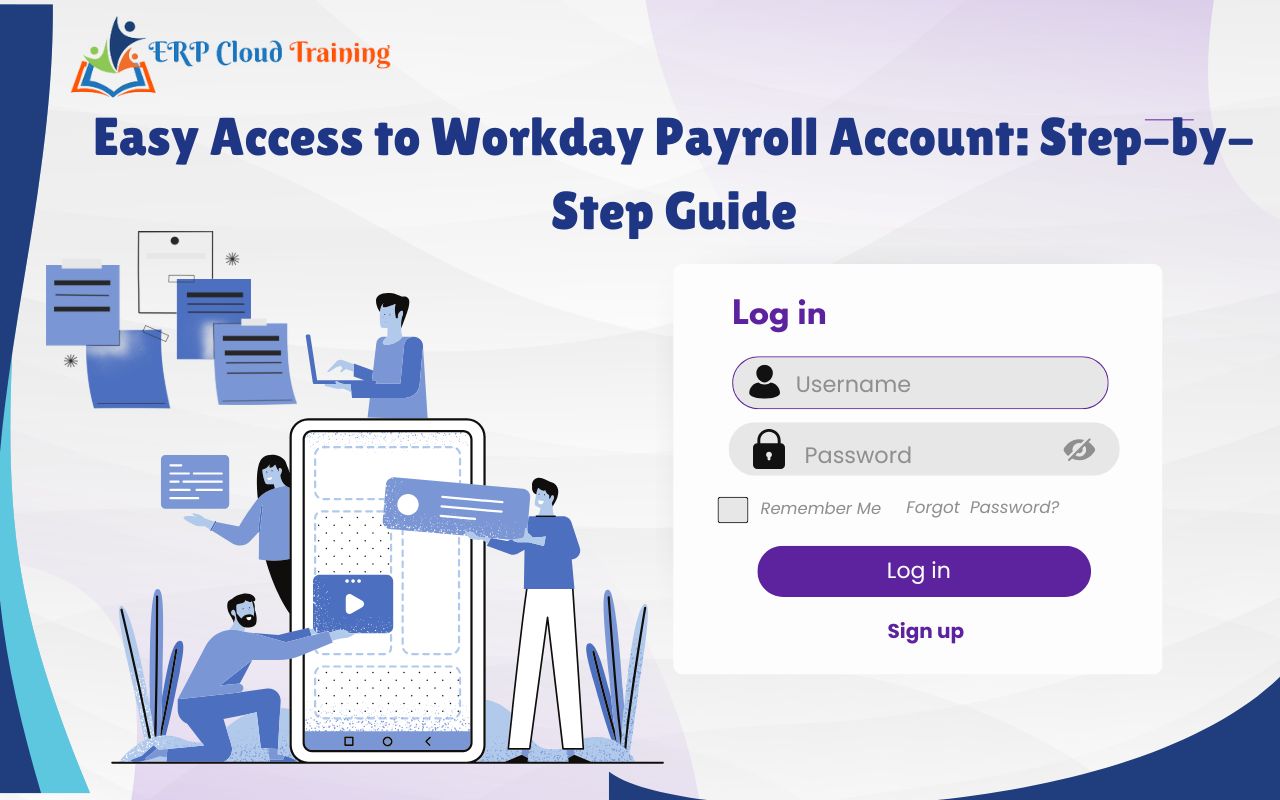
Once you’re on the correct login page, you’ll be prompted to enter your username and password. Your username is typically provided by your HR or IT department during onboarding and could be your company email address, employee ID, or a specific format like firstname.lastname. Your password will either be an initial temporary password that you’ll be prompted to change or one you’ve already set. In some cases, especially for larger organizations or those with multiple Workday tenants, you might also need to enter a “Company ID” or “Tenant Name” before your username, which helps Workday identify your specific organizational instance. Double-check your input for typos, paying attention to case sensitivity.
Navigating Multi-Factor Authentication (MFA/2FA)
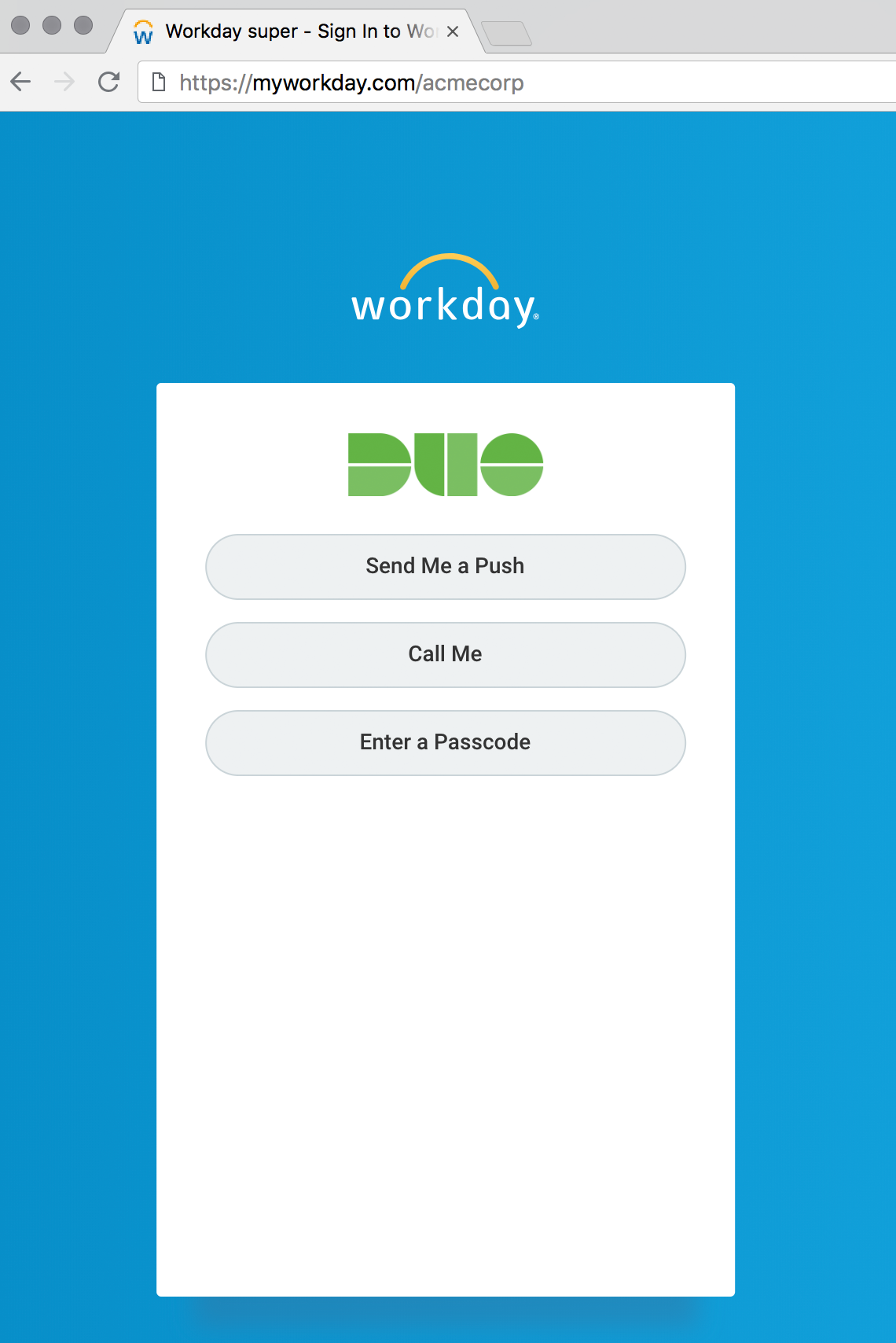
Multi-Factor Authentication (MFA), also known as two-factor authentication (2FA), has become an indispensable layer of security for enterprise applications like Workday. If your organization has MFA enabled (and most reputable ones do), after entering your username and password, you will be prompted for a second verification step. This could involve:
- A push notification to a mobile authenticator app (e.g., Duo Mobile, Microsoft Authenticator, Google Authenticator). You simply approve the login on your phone.
- A verification code sent via SMS to your registered mobile number. You enter this code into the login screen.
- A security key (e.g., YubiKey) plugged into your device.
- Biometric verification like a fingerprint or facial scan on your device.
It’s vital to have your registered MFA device readily available when logging in. This step significantly enhances security by ensuring that even if your password is compromised, an unauthorized user cannot access your account without the second factor.
Initial Setup and First-Time Login Considerations
For your very first login, or if your account has been reset, there are a few additional considerations. You will almost certainly be required to change your temporary password to a strong, unique one that meets your company’s security policies (e.g., minimum length, alphanumeric characters, special symbols). This is also typically when you’ll set up your Multi-Factor Authentication (MFA) preferences. This setup usually involves registering a mobile device for push notifications or SMS codes, or linking an authenticator app. Pay close attention to these prompts, as a correct initial setup ensures hassle-free future logins. If you encounter issues, consult the onboarding documentation provided by your employer or reach out to your IT help desk.
Troubleshooting Common Login Issues
Even with a clear understanding of the process, users occasionally encounter problems. Knowing how to diagnose and resolve common Workday login issues can save time and frustration.
Forgotten Passwords and Account Recovery
The “forgot password” scenario is arguably the most common login hurdle. Workday, like most secure platforms, offers a self-service password reset option. Typically, on the login page, you’ll find a “Forgot Password?” or “Need Help Signing In?” link. Clicking this will usually prompt you to enter your username (or email) and then guide you through a verification process – often involving an email sent to your registered address or a verification via your MFA device. Follow the instructions carefully to set a new, strong password. If self-service fails or isn’t available, your IT help desk is the next point of contact; they can manually reset your account.
Username and Company ID Discrepancies
Incorrect usernames or company IDs are another frequent cause of failed logins. Employees might misremember their exact username format (e.g., first.last vs. flast) or confuse a generic company ID with their personal credentials. Always confirm the exact username format and, if required, the specific company ID or tenant name provided by your organization. This information is usually detailed in your onboarding materials or can be confirmed by a colleague or your HR department. Double-checking these details before attempting to log in can prevent unnecessary “invalid credentials” errors.
Browser and Device Compatibility
Workday is a web-based application, and its optimal performance depends on using a compatible and up-to-date web browser. Older browser versions, or those with conflicting extensions or aggressive privacy settings, can sometimes interfere with the login process.
- Supported Browsers: Ensure you are using a widely supported browser like Google Chrome, Mozilla Firefox, Microsoft Edge, or Apple Safari, and that it’s updated to a recent version.
- Cookies and Cache: Clear your browser’s cache and cookies. Sometimes, stale data can cause login failures. Try logging in using an “incognito” or “private” window, which bypasses cached data and extensions, to see if the issue resolves.
- Mobile App: If you’re attempting to log in via a mobile device, ensure you’re using the official Workday mobile app, available for iOS and Android, and that it’s updated. Logging in via a mobile browser can sometimes be less reliable than the dedicated app.
Locked Accounts and Security Protocols
Repeated failed login attempts (typically three to five incorrect password entries) will often result in your Workday account being temporarily locked as a security measure. This protects against brute-force attacks. If your account is locked, you might need to wait for a specific period (e.g., 15-30 minutes) before attempting to log in again, or you might be prompted to initiate an account recovery process. In some cases, especially after multiple lockouts, only an IT administrator can unlock your account. This is a critical security protocol designed to safeguard sensitive data, so understanding why it happens can help you avoid repeated issues.
Enhancing Your Workday Login Experience and Security
Beyond troubleshooting, there are proactive steps you can take to make your Workday login experience more efficient and significantly more secure.
Best Practices for Password Management
Your password is the first line of defense.
- Strong Passwords: Always use strong, unique passwords for Workday – combinations of uppercase and lowercase letters, numbers, and special characters. Avoid easily guessable information like birthdays or common words.
- Unique Passwords: Never reuse your Workday password for other accounts. If one account is compromised, all others using the same password become vulnerable.
- Password Managers: Consider using a reputable password manager (e.g., LastPass, 1Password, Bitwarden). These tools securely store complex passwords, generate new ones, and autofill login fields, making both security and convenience much easier.
- Regular Updates: While Workday might enforce periodic password changes, it’s good practice to update your password proactively if you have any security concerns.
Leveraging Multi-Factor Authentication (MFA)
MFA is your strongest ally against unauthorized access.
- Always Enable MFA: If your organization offers MFA, always enable it. It adds a crucial layer of security that makes it exponentially harder for attackers to gain access, even if they have your password.
- Authenticator Apps vs. SMS: Where possible, opt for authenticator apps (like Duo, Google, Microsoft Authenticator) over SMS-based codes. Authenticator apps are generally considered more secure as they are not susceptible to SIM-swapping attacks.
- Backup Methods: Set up backup MFA methods (e.g., backup codes, secondary device) if available, so you’re not locked out if your primary MFA device is lost or inaccessible.
Staying Secure: Phishing and Account Protection
Cyber threats are ever-present, and phishing attempts targeting popular platforms like Workday are common.
- Beware of Phishing: Be extremely vigilant about emails or messages asking for your Workday login credentials. Legitimate organizations, including your company and Workday itself, will never ask for your password via email.
- Verify URLs: Always check the URL in your browser’s address bar before entering your credentials. Ensure it’s your company’s official Workday domain. Malicious sites often use similar-looking URLs to trick users.
- Public Wi-Fi Caution: Avoid logging into Workday on unsecured public Wi-Fi networks where data can be intercepted. If you must, use a Virtual Private Network (VPN) for encryption.
- Log Out: Always remember to log out of Workday when you’re finished, especially on shared or public computers, to prevent unauthorized access.
The Workday Mobile App: Convenience and Security
The official Workday mobile app offers a streamlined and often more secure way to access your account on the go.
- Dedicated Application: The app is specifically designed for mobile interaction, providing an optimized user interface.
- Biometric Security: Many organizations configure the Workday mobile app to leverage device-level biometric authentication (Face ID, Touch ID, fingerprint), adding an incredibly convenient and secure login method after the initial setup.
- Push Notifications: The app often integrates seamlessly with MFA push notifications, making the two-factor verification process quicker and more user-friendly.
The Future of Workday Access: Innovations in Identity Management
The evolution of technology continues to shape how we interact with enterprise software. Workday’s login experience is no exception, with ongoing advancements in identity and access management (IAM) paving the way for even more seamless and secure interactions.
Single Sign-On (SSO) Integrations
Single Sign-On (SSO) is rapidly becoming the norm for enterprise applications. Instead of managing separate credentials for Workday, email, CRM, and other tools, SSO allows users to log in once to their corporate network (e.g., via Microsoft Azure AD or Okta) and then gain automatic, secure access to all integrated applications, including Workday, without re-entering credentials. This significantly reduces password fatigue, streamlines the login process, and enhances security by centralizing authentication. Organizations are increasingly adopting SSO to simplify the user experience and strengthen their overall security posture.
Biometric Authentication
Beyond the basic biometrics on mobile devices, the future of authentication is moving towards more sophisticated biometric methods. While still nascent for widespread enterprise web logins, advancements in facial recognition, voice authentication, and even behavioral biometrics (analyzing typing patterns, mouse movements) promise to offer even more robust and frictionless login experiences. For Workday, this could mean logging in to the web portal with a simple glance at your webcam or a quick voice command, further minimizing the reliance on traditional passwords.
AI and Predictive Login Assistance
Artificial intelligence (AI) is already playing a role in enhancing digital security by detecting anomalous login patterns and preventing fraud. In the future, AI could personalize and optimize the Workday login experience even further. Imagine a system that predicts your typical login times and locations, proactively prepares MFA options, or intelligently adapts security challenges based on your usual behavior, flagging anything out of the ordinary. This predictive assistance could make logins almost invisible when legitimate, while bolstering defenses against unusual access attempts.
In conclusion, navigating the Workday login process is a fundamental skill for the modern professional. By understanding the platform, following the correct steps, troubleshooting common issues, and adopting best practices for security, users can ensure a consistent, efficient, and protected experience. As technology continues to advance, the methods for accessing critical enterprise tools like Workday will only become more sophisticated, offering greater convenience and ironclad security in the digital workplace.
aViewFromTheCave is a participant in the Amazon Services LLC Associates Program, an affiliate advertising program designed to provide a means for sites to earn advertising fees by advertising and linking to Amazon.com. Amazon, the Amazon logo, AmazonSupply, and the AmazonSupply logo are trademarks of Amazon.com, Inc. or its affiliates. As an Amazon Associate we earn affiliate commissions from qualifying purchases.