
In an increasingly digital world, the convenience of managing your finances from your smartphone has become not just a luxury, but a fundamental expectation. The Chase mobile app stands as a prime example of this technological evolution, offering a robust platform for everything from monitoring transactions to depositing checks. Among its most essential features is the ability to activate a new credit or debit card directly from your device, bypassing phone calls or ATM visits. This guide delves into the seamless process of activating your Chase card via the app, highlighting the underlying technological advantages and security considerations that make it a superior choice for modern banking.
The Technological Edge: Why App Activation is Superior
Activating a new card is a critical first step towards utilizing its capabilities, and the Chase mobile app streamlines this process with remarkable efficiency and security. Unlike traditional methods that might involve automated phone systems or physical interactions, app-based activation leverages the power of secure, authenticated digital platforms.
The primary advantage lies in immediate accessibility and convenience. Your smartphone is likely always within reach, allowing you to activate your card moments after it arrives. This eliminates the need to remember a specific activation number or locate an ATM. Furthermore, the app provides a guided, visual interface, which can be more intuitive and less prone to errors than navigating a touch-tone menu over the phone.
Enhanced Security Protocols are another significant benefit inherent to mobile banking apps. Chase’s app employs multi-factor authentication, biometric logins (such as fingerprint or facial recognition), and end-to-end encryption to protect your data. When you activate your card through the app, you’re doing so within a highly secured environment, reducing the risk associated with sharing sensitive information over unencrypted lines or in public spaces. The app also verifies your identity using credentials you’ve already established, adding another layer of protection. This integration of advanced security features directly into the activation process underscores the technological sophistication of modern financial applications.
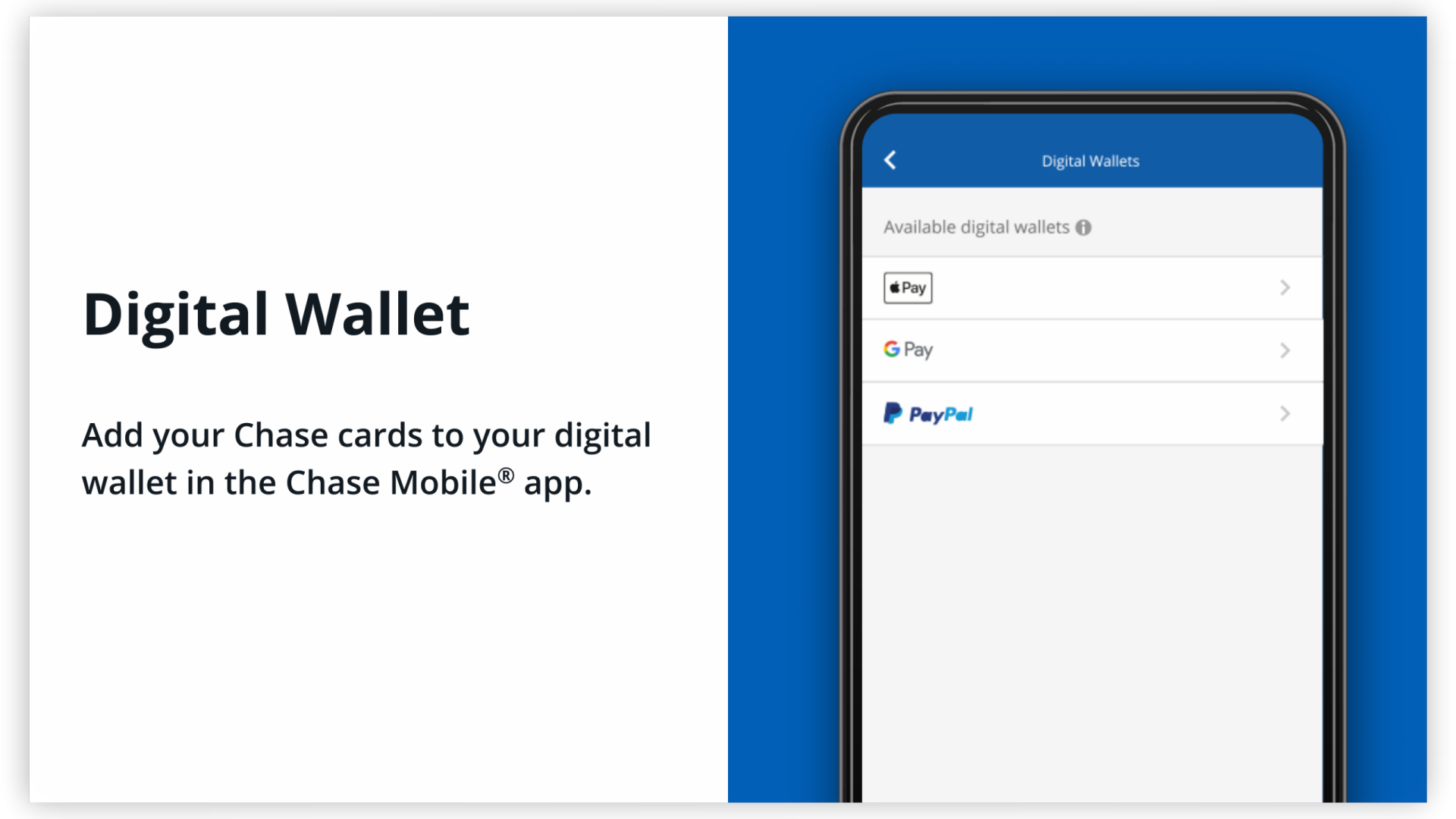
Finally, the app experience often integrates activation with other useful features. Immediately after activation, you can set up digital wallet capabilities (like Apple Pay or Google Pay), manage card alerts, or review your card benefits, creating a cohesive and comprehensive user journey. This holistic approach is a testament to the intelligent design of financial technology, transforming a simple activation into a gateway for full-spectrum card management.
A Step-by-Step Guide to Activating Your Card on the Chase App
Activating your new Chase debit or credit card through the mobile app is a straightforward process designed for user-friendliness. Before you begin, ensure you have your new card in hand and access to your mobile device with the Chase app installed and updated.
Prerequisites Before You Begin
- Download the Chase Mobile App: If you haven’t already, download the official Chase Mobile app from your device’s app store (App Store for iOS, Google Play Store for Android).
- Enroll in Chase Online Banking: To use the app, you must first be enrolled in Chase Online Banking. This provides you with the username and password needed to log into the app. If you’re not enrolled, you can do so quickly on the Chase website.
- Log In to the App: Open the Chase Mobile app and log in using your Chase Online Banking username and password. You may need to complete a multi-factor authentication step, such as entering a code sent to your registered phone number or email.
- Have Your Card Ready: Ensure your new physical card is with you. You will need certain details from it during the activation process.
The Activation Process
Once you’ve logged into the app, follow these steps to activate your card:
-
Locate the Card Activation Prompt:
- Often, upon logging in with a new card recently issued to your account, the app will display a prominent banner or notification prompting you to activate your new card. This is the quickest way.
- If no such prompt appears, navigate to your accounts overview. You should see your new card listed, possibly with a status indicating it’s “Inactive” or “Needs Activation.”
- Alternatively, look for a “Manage Cards” or “Customer Service” section within the app’s menu (usually accessible via a hamburger icon or “More” button). Within this section, there will typically be an option like “Activate Card.”
-
Select the Card to Activate: Tap on the new card that needs activation or select the “Activate Card” option. If you have multiple inactive cards, ensure you select the correct one.
-
Enter Required Information: The app will guide you through entering a few pieces of information to verify your identity and the card. This typically includes:
- The 16-digit card number from the front of your new card.
- The card’s expiration date (month and year).
- The 3-digit security code (CVV2) from the back of your card (for credit cards) or your Social Security Number (SSN) or Date of Birth (for debit cards, or as an additional verification for credit cards).
- For debit cards, you may also be prompted to create a new Personal Identification Number (PIN). For credit cards, your PIN might be sent separately or you can set it up after activation in a “Change PIN” section.
-
Confirm Activation: After entering the required details, review them carefully and tap the “Activate” or “Confirm” button. The app will process your request.
-
Receive Confirmation: You should receive an instant confirmation message within the app, indicating that your card has been successfully activated and is ready for use. You might also receive an email or text message confirmation.
What to Do After Activation
Once your card is active, consider these steps to fully leverage your Chase banking experience:
- Set Up Card Alerts: Configure alerts for transactions, balance changes, or ATM withdrawals to stay informed and detect potential fraud promptly.
- Add to Digital Wallets: Integrate your new card with Apple Pay, Google Pay, or other digital wallets for secure, tap-to-pay convenience.
- Update Recurring Payments: If this is a replacement card, remember to update any subscriptions, bill payments, or online shopping sites that store your card information.
- Review Card Benefits: For credit cards, take a moment to review any rewards programs, travel benefits, or purchase protections now that your card is active.
Ensuring Digital Security During Activation and Beyond
While the Chase app provides a highly secure environment, user vigilance remains paramount in protecting your financial information. Understanding and implementing best practices for digital security is crucial, especially when interacting with sensitive financial data like card activation.
Protecting Your Account
- Strong, Unique Passwords: Always use complex passwords that combine uppercase and lowercase letters, numbers, and symbols for your Chase online banking account. Crucially, avoid reusing passwords across multiple platforms. Consider using a reputable password manager.
- Enable Biometric Login: Take advantage of fingerprint or facial recognition features offered by the Chase app. These biometric methods add a powerful layer of security, as they are unique to you and often more difficult to compromise than a password alone.
- Two-Factor Authentication (2FA): Ensure 2FA is always enabled for your Chase account. This means that even if someone manages to get your password, they won’t be able to access your account without the second factor (e.g., a code sent to your phone).
- Keep Your App Updated: Regularly update the Chase app to its latest version. Developers frequently release updates that include security patches and enhancements to protect against emerging threats. Similarly, keep your device’s operating system updated.
- Secure Your Device: Use a strong passcode or biometric lock on your smartphone. In the event your phone is lost or stolen, this prevents unauthorized access to your banking app and other personal data.
- Avoid Public Wi-Fi for Sensitive Transactions: When activating your card or conducting other sensitive banking activities, avoid using unsecured public Wi-Fi networks. These networks can be vulnerable to eavesdropping. Stick to your home Wi-Fi or cellular data connection, which are generally more secure.
Recognizing and Avoiding Scams
Cybercriminals constantly evolve their tactics, making it essential for users to be aware of common scams that target financial accounts:
- Phishing Scams: Be wary of suspicious emails or text messages that claim to be from Chase and ask you to click on links, download attachments, or provide personal information. Chase will never ask for your full card number, PIN, or online banking password via email or text. Always navigate directly to the Chase website or use the official app.
- Vishing (Voice Phishing): Similarly, be cautious of unsolicited phone calls from individuals claiming to be from Chase who ask for sensitive details. If you suspect a call is legitimate, hang up and call Chase directly using the official number found on their website or the back of your card.
- Fake Apps: Only download the Chase Mobile app from official app stores (Apple App Store or Google Play Store). Verify the developer is “JPMorgan Chase” to avoid malicious copycat applications.
- Physical Card Security: Never share your card details, PIN, or CVV with anyone you don’t trust implicitly. Be mindful of shoulder surfers when entering your PIN at ATMs or POS terminals.
By combining the robust security features of the Chase app with diligent personal security practices, you can ensure your card activation and subsequent banking activities remain safe and protected.
Troubleshooting Common Activation Issues
While the Chase app activation process is typically smooth, occasional technical glitches or user errors can occur. Knowing how to troubleshoot these common issues can save you time and frustration.
-
“Card Not Found” or “Account Mismatch” Error:
- Check Card Details: Double-check that you’ve entered the 16-digit card number, expiration date, and security code (CVV2) precisely as they appear on your new card. A single misplaced digit or incorrect expiration month can cause this error.
- Ensure Correct Card Selected: If you have multiple inactive cards (e.g., you received a new debit and a new credit card around the same time), make sure you’ve selected the correct card for activation within the app.
- Timing: Occasionally, it can take a day or two for a newly mailed card to be fully registered in the system and become available for app activation after its initial processing. If you just received the card today, wait a few hours or until the next day.
-
App Freezes, Crashes, or Doesn’t Load:
- Restart the App: Close the Chase app completely (force quit it) and then reopen it.
- Check Internet Connection: Ensure you have a stable Wi-Fi or cellular data connection. Poor connectivity can prevent the app from communicating with Chase’s servers.
- Restart Your Device: A simple device restart can often resolve temporary software glitches affecting app performance.
- Clear App Cache (Android) / Reinstall (iOS/Android): For Android users, go to your device’s app settings, find the Chase app, and clear its cache. For persistent issues on either platform, consider uninstalling and then reinstalling the app (ensure you remember your login credentials!).
-
“Activation Failed” or General Error Message:
- Try Again Later: Sometimes, a temporary server issue or network hiccup can cause an activation to fail. Wait a few minutes and try the process again.
- Verify Personal Information: Ensure the personal details associated with your Chase online banking account (e.g., date of birth, SSN) match the information Chase has on file. Discrepancies can block activation.
- Check for App Updates: Make sure your Chase app is updated to the latest version. Outdated apps can sometimes have compatibility issues.
-
Forgotten PIN (Debit Cards):
- If you’re activating a debit card and are prompted to create a PIN but forget it, most apps have an option to “Change PIN” or “Reset PIN” within the card management section after activation. For credit cards, you can usually request a new PIN via the app or online banking, which might be mailed to you for security reasons.
If you encounter persistent issues after attempting these troubleshooting steps, the most effective solution is to contact Chase customer service directly. You can find the customer service number on the back of your new card, on the Chase website, or within the “Contact Us” section of the app. Be prepared to provide your account information and describe the issue you’re facing. Chase representatives are equipped to assist with activation problems and verify your account securely.

Beyond Activation: Leveraging Your Chase App for Financial Management
Activating your card is just the beginning of what the Chase mobile app offers in terms of digital financial management. The app serves as a powerful technological hub, empowering users with a comprehensive suite of tools to oversee their accounts, manage expenditures, and ensure financial security from the palm of their hand.
One of the most utilized features post-activation is transaction monitoring. The app provides real-time access to your recent card activity, allowing you to quickly review purchases, identify suspicious transactions, and track your spending habits. This immediate visibility is a cornerstone of digital personal finance, enabling users to stay informed and react swiftly to any discrepancies. Detailed transaction views often include merchant names, categories, and locations, adding a layer of insight into where and how your money is being spent.
The app also excels in customizable alerts and notifications. Beyond the initial activation confirmation, you can set up alerts for specific transaction types (e.g., purchases over a certain amount), low balance warnings, payment due reminders, or even unusual activity alerts. These push notifications are a proactive technological safeguard, ensuring you’re always aware of what’s happening with your accounts, minimizing the risk of fraud, and helping you avoid overdrafts or missed payments.
For seamless everyday banking, the Chase app integrates mobile check deposit, allowing you to deposit checks simply by snapping a photo. This feature, powered by image recognition technology, eliminates trips to the ATM or branch, saving significant time. Similarly, bill pay functionality enables you to set up and manage one-time or recurring payments for various bills directly through the app, providing a centralized platform for managing financial obligations.
Furthermore, the app often includes tools for managing card settings, such as locking or unlocking your card if it’s misplaced, requesting a replacement card, or adjusting spending limits (where applicable). For credit cards, you can typically view your credit score, access statements, and even redeem rewards points, all within the secure application environment.
In essence, the Chase app transforms your mobile device into a sophisticated financial control center. By leveraging its various features, users move beyond mere card activation to embrace a fully digital, highly efficient, and secure approach to managing their financial lives, demonstrating the profound impact of technology on modern banking.
aViewFromTheCave is a participant in the Amazon Services LLC Associates Program, an affiliate advertising program designed to provide a means for sites to earn advertising fees by advertising and linking to Amazon.com. Amazon, the Amazon logo, AmazonSupply, and the AmazonSupply logo are trademarks of Amazon.com, Inc. or its affiliates. As an Amazon Associate we earn affiliate commissions from qualifying purchases.