
In the ever-evolving landscape of technology, staying informed about your operating system’s version is not just a matter of curiosity; it’s crucial for security, compatibility, and accessing the latest features. For Windows 11 users, understanding the nuances of your specific version can unlock enhanced productivity, improved digital security, and even better financial management when leveraging integrated tools. This guide will demystify the process of identifying your Windows 11 version and explore why it matters across the spectrum of tech, brand, and money.
Understanding Your Windows 11 Version: The Foundation of Tech Optimization
At its core, knowing your Windows 11 version is about understanding the specific build of the operating system running on your device. Microsoft continuously refines Windows 11, releasing feature updates, security patches, and cumulative updates to enhance performance, introduce new functionalities, and address potential vulnerabilities. Your version dictates what features you have access to, how compatible your software and hardware are, and your overall security posture.

Why Knowing Your Version is Essential in the Tech World
The tech industry thrives on iteration and improvement. For consumers and professionals alike, staying updated is paramount.
- Security First: This is arguably the most critical reason. Microsoft regularly releases security updates to patch vulnerabilities discovered in Windows. Running an older, unsupported version leaves your system exposed to malware, ransomware, and other cyber threats. Knowing your version ensures you can verify if you’re receiving the latest security intelligence.
- Feature Access: Each major Windows 11 release, often referred to as a “feature update” or “version,” introduces new capabilities. Whether it’s enhanced AI integration, improved multitasking features like Snap Layouts, a revamped Start menu, or new productivity tools, staying current means you can leverage the latest innovations to boost your workflow.
- Software and Hardware Compatibility: Developers build their applications and manufacturers design their hardware with specific Windows versions in mind. If you’re running a significantly older version, you might encounter issues with new software installations or find that certain peripherals don’t function correctly. Likewise, new hardware might require the latest OS to operate at its full potential.
- Troubleshooting and Support: When you encounter a problem, providing your exact Windows 11 version to technical support or searching online forums dramatically speeds up the resolution process. It allows others to pinpoint potential solutions specific to your build.
- Performance Enhancements: Beyond new features, updates often include under-the-hood optimizations that can improve system speed, responsiveness, and battery life. Staying updated ensures your hardware is performing at its best.
How to Effortlessly Discover Your Windows 11 Version
Fortunately, Windows 11 makes it remarkably simple to find the information you need. There are a few primary methods, each catering to different preferences:
Method 1: The Settings App – Your Go-To Hub
The most intuitive and commonly used method involves navigating through the Windows Settings app.
- Open Settings: Click on the Start button (the Windows icon on your taskbar) and select Settings (the gear icon). Alternatively, you can press the Windows key + I on your keyboard.
- Navigate to System: In the Settings window, click on System in the left-hand navigation pane.
- Find About: Scroll down the System menu on the right-hand side and select About.
- Locate Windows Specifications: Within the “About” section, you’ll find a heading for “Windows specifications.” Here, you will see several key pieces of information:
- Edition: This will tell you if you have Windows 11 Home, Pro, Education, or Enterprise.
- Version: This is the crucial number that indicates the major feature update you are running. It will typically look something like “22H2” or “23H2,” representing the year and half of the year the update was released (e.g., the second half of 2022 or 2023).
- OS build: This provides a more granular identifier, indicating the specific cumulative update you have installed within that version.
- Installation date: This shows when the latest feature update was installed.
Method 2: Using the Run Command for Quick Access
For those who prefer keyboard shortcuts and a more direct approach, the Run command offers a swift way to get this information.
- Open the Run Dialog: Press the Windows key + R on your keyboard.
- Type the Command: In the Run dialog box, type winver and press Enter or click OK.
- View the About Windows Window: A small “About Windows” window will pop up, displaying your Windows 11 version number and the OS build. This is a quick and effective way to get the essential details.
Method 3: System Information for Comprehensive Details
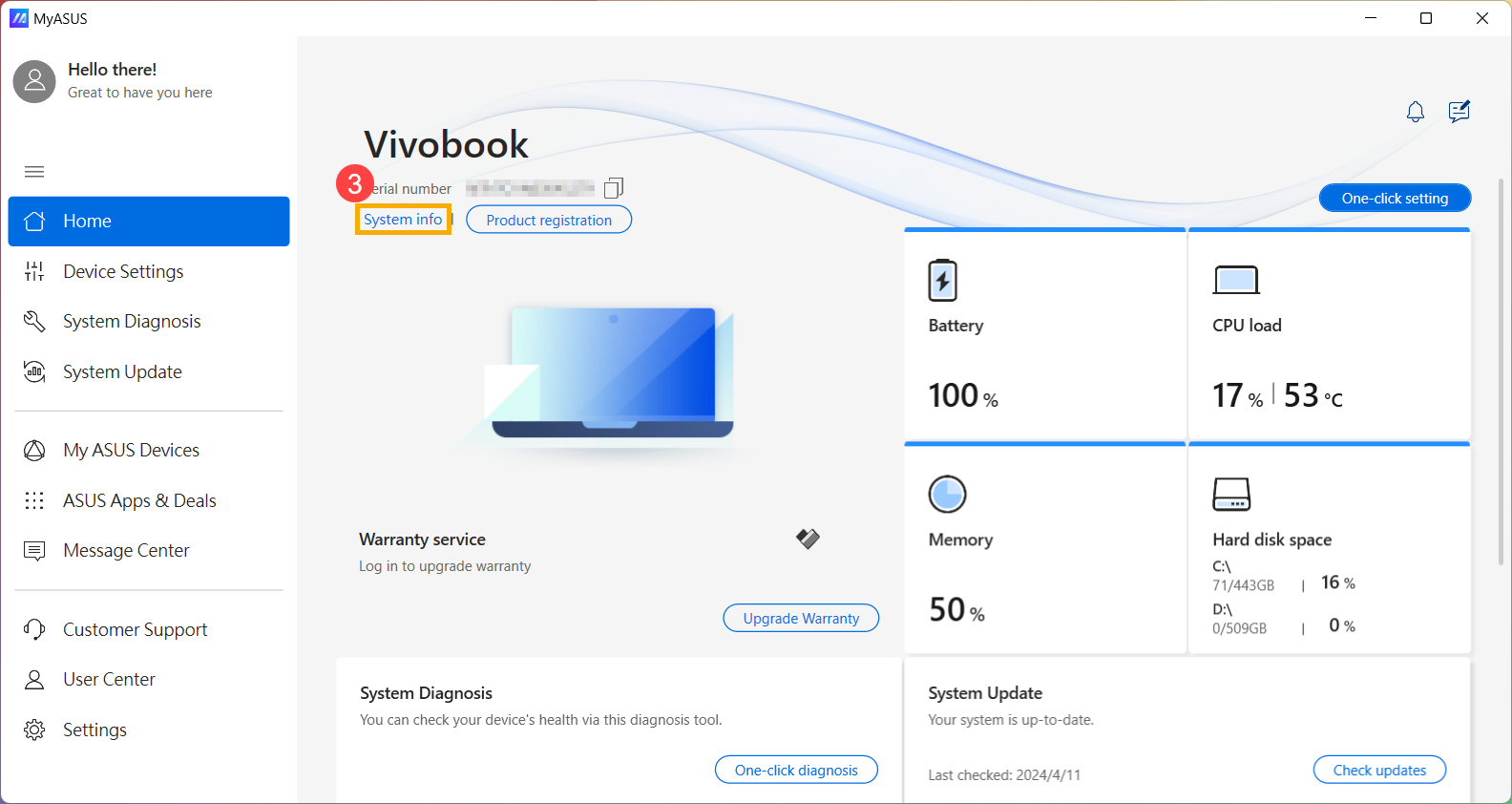
If you need a more extensive overview of your system’s software and hardware, the System Information utility can also provide your Windows version.
- Search for System Information: Click the Start button and type “System Information.” Select the app from the search results.
- Find OS Name: In the System Information window, under “System Summary” on the left pane, look for the “OS Name” field on the right pane. This will typically display “Microsoft Windows 11” followed by the version and build number.
Windows 11 Versions and Their Impact on Brand and Money
While the primary drivers for understanding your Windows 11 version often lie in technology and security, the implications extend subtly but significantly into the realms of branding and personal finance.
How Your Windows 11 Version Can Influence Your Brand
In today’s digital-first world, your online presence and the tools you use are extensions of your personal or corporate brand.
- Professional Image and Reliability: When you’re meeting clients virtually, presenting to colleagues, or collaborating on projects, a well-maintained and up-to-date operating system projects an image of professionalism and attention to detail. Running an outdated version can inadvertently suggest a lack of technical diligence, which can negatively impact how your brand is perceived.
- Access to Modern Collaboration Tools: Many new productivity and collaboration applications, essential for maintaining a strong professional brand, are designed for the latest operating systems. Being on an older version might limit your access to these tools or lead to compatibility issues, hindering your ability to connect and work effectively with others.
- Digital Security as Brand Trust: For businesses and individuals alike, digital security is a cornerstone of trust. A strong brand is built on the perception of reliability and safety. By ensuring your Windows 11 is updated with the latest security patches, you demonstrate a commitment to protecting your data and, by extension, the data of those you interact with. This builds confidence and reinforces your brand’s trustworthiness.
- Showcasing Innovation: For tech-forward brands, being early adopters of new operating system features can be a subtle but powerful way to signal innovation and forward-thinking. Demonstrating proficiency with the latest AI tools or productivity enhancements integrated into newer Windows versions can bolster a brand’s reputation as being on the cutting edge.
The Financial Implications of Your Windows 11 Version
The connection between your operating system version and your finances might not be immediately obvious, but it’s present in several ways, from direct cost savings to enabling new income streams.
- Avoiding Costly Security Breaches: The financial cost of a cyberattack can be devastating. Data breaches can lead to significant financial losses through theft of funds, recovery costs, legal fees, and reputational damage that impacts revenue. By keeping your Windows 11 up-to-date, you are actively investing in preventative security measures that can save you vast sums in the long run.
- Maximizing Productivity for Income Generation: Whether you’re a freelancer, small business owner, or an individual looking to supplement your income with side hustles, efficiency is key. Newer versions of Windows 11 often bring performance improvements and new productivity features that can streamline your workflow. Faster processing, better multitasking, and integrated tools can mean more work completed in less time, directly impacting your earning potential.
- Access to Latest Financial Tools: The world of personal finance and investing is increasingly digital. Many new financial management apps, budgeting tools, and investment platforms are developed with modern operating systems in mind. Ensuring your Windows 11 is current gives you seamless access to these tools, allowing for more informed financial decisions and potentially better returns on your investments or more efficient management of your budget.
- Leveraging AI for Financial Insights: As AI becomes more integrated into operating systems, future versions of Windows 11 may offer more advanced AI-powered insights for personal finance. This could range from personalized spending analysis to predictive budgeting. Staying updated ensures you’re positioned to take advantage of these potentially lucrative tools.
- Longevity of Hardware Investment: Keeping your operating system updated can also help extend the useful life of your hardware. By optimizing performance and ensuring compatibility with new software, you might delay the need for a costly hardware upgrade, thereby saving money on your technology investments.
Staying Ahead: Future-Proofing Your Windows 11 Experience
Knowing your current Windows 11 version is the first step. The next is to ensure you remain on a supported and beneficial path.

Embracing Updates for Continuous Improvement
Microsoft releases updates in a predictable cycle. Feature updates typically arrive twice a year, bringing significant changes, while monthly cumulative updates address security and minor bugs.
- Automatic Updates: For most users, enabling automatic updates in Windows Settings is the easiest way to stay current. This ensures your system receives the latest security patches and feature improvements without manual intervention.
- Manual Checks: If you prefer more control or suspect you might be missing updates, you can manually check for updates by going to Settings > Windows Update and clicking Check for updates.
- Understanding Update Channels: Microsoft offers different update channels, such as “Current Channel” for the latest features and “Long-Term Servicing Channel” for enterprise environments that prioritize stability over rapid feature adoption. Most home users will be on the Current Channel.
By proactively understanding your Windows 11 version and embracing updates, you’re not just maintaining your computer; you’re investing in your digital security, enhancing your productivity, and subtly strengthening your personal or corporate brand, all while making smarter financial decisions. The simple act of knowing “what version of Windows 11 do I have” is a powerful gateway to a more optimized and secure digital life.
aViewFromTheCave is a participant in the Amazon Services LLC Associates Program, an affiliate advertising program designed to provide a means for sites to earn advertising fees by advertising and linking to Amazon.com. Amazon, the Amazon logo, AmazonSupply, and the AmazonSupply logo are trademarks of Amazon.com, Inc. or its affiliates. As an Amazon Associate we earn affiliate commissions from qualifying purchases.