
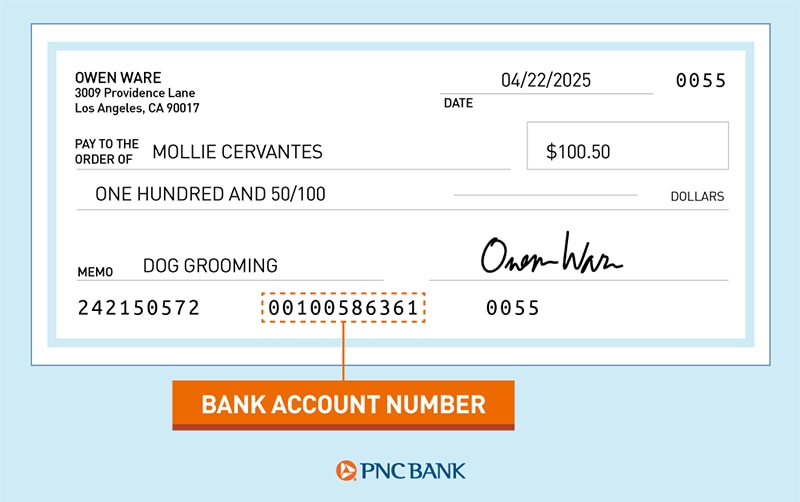
The modern banking landscape is increasingly digital, with mobile applications becoming the primary interface for many users to manage their finances. The PNC Mobile App stands as a robust example, offering a comprehensive suite of tools for everything from depositing checks to paying bills. A common task, often critical for various financial transactions, is locating your account number. While seemingly straightforward, navigating the app’s interface to pinpoint this specific piece of data requires a precise understanding of its design and feature set. This guide delves into the technical process of retrieving your account number directly from the PNC app, emphasizing digital security and interface navigation.
Navigating the PNC Mobile App Interface for Account Details
The design of a banking application is crucial for user experience, especially when users need to access sensitive information quickly and securely. The PNC Mobile App is engineered with a user-centric approach, aiming to make complex financial data accessible.
Initial App Login and Dashboard Overview
Upon launching the PNC Mobile App, users are prompted to authenticate their identity, typically through a username and password, or increasingly, via biometric methods such as fingerprint or facial recognition. This initial security layer is paramount, safeguarding your financial information from unauthorized access. Once successfully logged in, the app typically presents a dashboard or summary screen. This central hub provides an overview of all linked accounts, including checking, savings, credit cards, and loans. Each account is usually displayed with its current balance and a brief identifier, such as “Virtual Wallet Checking” or “Growth Money Market.” This high-level view is designed for quick financial snapshots but does not immediately display the full account number due to security protocols.
Locating Specific Account Information
To find detailed information beyond the balance, users must usually tap on the specific account they wish to investigate. For instance, selecting your “Virtual Wallet Checking” account will transition you from the aggregate dashboard to a dedicated screen for that particular account. This individual account view typically displays recent transactions, pending activities, and often, options to manage the account further. It’s within these deeper layers of the app that the full account number is securely presented. The app’s architecture prioritizes user convenience while maintaining stringent security measures, meaning sensitive data like full account numbers are not exposed on the initial summary screens.
Understanding Account Summary Views
The account summary views within the PNC app are designed to offer a quick yet comprehensive overview. While routing numbers are often more readily visible (as they are less sensitive for general transactions), the full account number is nested deeper. This design choice prevents accidental exposure if someone were to glance at your screen. Users should familiarize themselves with the icons and navigation elements, as these are consistent across various sections of the app, ensuring a predictable user journey when searching for specific data points. The app’s menu structure, often accessible via a hamburger icon or a persistent bottom navigation bar, can also provide alternative routes to account management sections where these details reside.
Step-by-Step Guide to Accessing Your Account Number Digitally
Retrieving your account number through the PNC Mobile App is a precise process that leverages the app’s structured information architecture.
From the Account Overview Screen
After logging into the PNC Mobile App:
- Select the Desired Account: On the main dashboard, tap on the specific checking or savings account for which you need the account number. This action will take you to the individual account details screen.
- Locate “Account Details” or “Show Account Info”: Once on the individual account page, look for a section or button often labeled “Account Details,” “Show Account Info,” or similar. This option is usually prominently displayed, sometimes under a “More” menu or as a dedicated tab. The exact wording and placement can vary slightly based on app updates or device type (iOS vs. Android), but the functionality remains consistent.
- Reveal Account Number: Tapping on this option will typically bring up a screen displaying various account-specific details. Here, you should see your full account number. In some instances, the app might initially show only the last few digits for security and require an additional tap (e.g., “Reveal Full Account Number”) or biometric verification to display the entire sequence. This is an added security layer to prevent shoulder-surfing. Alongside the account number, you will often find the corresponding routing number, which is equally important for certain transactions like direct deposits or wire transfers.
Utilizing the “Statements” Section
Another reliable method to find your account number is through the electronic statements section of the app.
- Navigate to “Statements” or “Documents”: From the main menu or within an individual account’s options, look for a section dedicated to statements, e-statements, or documents.
- Access a Recent Statement: Select a recent bank statement for the account in question. Statements are usually presented as PDF documents within the app’s viewer.
- Locate Information on Statement: Once the PDF statement loads, your full account number, along with the routing number and other banking information, will be clearly printed at the top of the document, just as it would be on a physical statement. This method is particularly useful if you need a comprehensive view of your account details for documentation purposes.
Distinguishing Between Account Number and Routing Number
It is crucial to understand the difference between your account number and your routing number, as they serve distinct purposes:
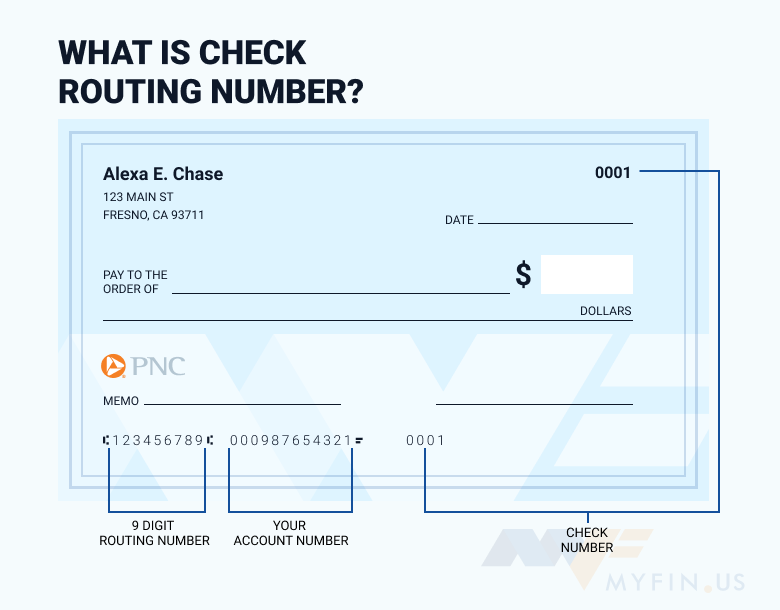
- Account Number: This unique identifier specifically points to your individual bank account. It is used in conjunction with a routing number for transactions like direct deposits, wire transfers, and electronic payments.
- Routing Number: Also known as an ABA (American Bankers Association) number, this nine-digit code identifies the financial institution where your account is held. It directs funds to the correct bank during transactions. A bank can have multiple routing numbers depending on the state or specific types of transactions.
The PNC app usually presents both numbers clearly, often grouped together for convenience. Always double-check which number you are providing for a transaction to avoid errors.
Enhancing Digital Security While Accessing Sensitive Information
Accessing your bank account number via a mobile app inherently carries digital security considerations. Maintaining vigilance and employing best practices are essential to protect your financial data.
Best Practices for Mobile Banking Security

- Strong, Unique Passwords: Always use a complex password for your banking app that differs from passwords used for other online services. Consider using a password manager.
- Enable Biometric Authentication: Utilize fingerprint or facial recognition if your device and the PNC app support it. This adds a convenient yet powerful layer of security, making it harder for unauthorized users to access your account even if they obtain your password.
- Regular Software Updates: Keep your device’s operating system and the PNC Mobile App itself updated. Updates often include critical security patches that protect against newly identified vulnerabilities.
- Secure Wi-Fi Networks: Only access your banking app on trusted, secure Wi-Fi networks or use your mobile data. Avoid public Wi-Fi networks, which are often unencrypted and susceptible to eavesdropping.
- Log Out After Use: While apps often have automatic logouts, it’s good practice to manually log out of your banking app, especially if you’re using a shared device or in a public setting.
- Monitor Account Activity: Regularly review your transaction history within the app to spot any unauthorized activity promptly.
Leveraging App Security Features (Biometrics, PINs)
The PNC app integrates several security features designed to protect user data. Beyond the initial login, some sensitive actions, like revealing a full account number or initiating a transfer, may require re-authentication. This could involve re-entering your PIN, pattern, or re-verifying biometrically. These layered security checks are critical for ensuring that even if someone gains initial access to your logged-in app session, they cannot perform high-risk actions without further verification. Familiarize yourself with these prompts and understand why they occur, as they are your first line of defense against digital threats.
Recognizing and Avoiding Phishing Attempts
Phishing remains a significant threat in the digital realm. Cybercriminals often impersonate banks to trick users into revealing their login credentials or account information.
- Be Suspicious of Unsolicited Communications: Never click on links in suspicious emails or text messages claiming to be from PNC. Always navigate directly to the PNC app or official website.
- Verify Sender Identity: Check the sender’s email address for discrepancies. Phishing emails often use similar but incorrect domain names.
- Look for Red Flags: Generic greetings, urgent demands, poor grammar, or requests for personal information (like your full account number or password via email) are all classic signs of phishing.
- PNC will never ask for your full account number or password via email or text. If in doubt, contact PNC directly through official channels.
Beyond the App: Alternative Digital Methods and Support
While the PNC Mobile App is a highly convenient tool, there are other digital avenues and support channels for obtaining your account number, offering redundancy and flexibility.
Online Banking Portal via Web Browser
The PNC online banking portal, accessible through a web browser on a computer or tablet, offers a similar, often more expansive, set of functionalities compared to the mobile app.
- Access PNC.com: Navigate to the official PNC website and log in to your online banking account using your credentials.
- Navigate to Account Summary: Once logged in, the interface will be familiar to app users, providing an overview of your accounts.
- View Account Details: Click on the specific account to view its details. Similar to the app, there will be a section (often labeled “Account Details,” “Information,” or similar) where your full account number and routing number are displayed. This method provides a larger screen view, which some users might find easier for navigating and locating specific information.
Contacting PNC Digital Support
If you encounter persistent issues accessing your account number via the app or online portal, or if you prefer direct assistance, PNC’s customer service channels are available.
- Phone Support: The most direct method is to call PNC customer service. Be prepared to verify your identity through a series of security questions before they can provide sensitive account information.
- Secure Messaging: Many banking portals and apps offer a secure messaging feature. You can send a message directly to PNC support within the secure environment of your online banking, minimizing the risk associated with email.
- Branch Visit: For in-person assistance, visiting a local PNC branch is always an option. A bank representative can help you access your account information after verifying your identity.
Understanding the Purpose of an Account Number in the Digital Age
In an era dominated by digital payments and instant transfers, the account number remains a fundamental identifier. It is essential for:
- Setting up Direct Deposit: For salary, benefits, or tax refunds.
- Automated Bill Payments: Linking your account for recurring payments.
- Wire Transfers: Both domestic and international.
- ACH Transactions: Electronic fund transfers between banks.
- Linking to Third-Party Financial Apps: For budgeting, investing, or payment services (though many now use Plaid or similar secure token-based systems that don’t directly expose your account number).
Understanding where and how to securely find this critical piece of information within your digital banking tools is a key component of effective personal finance management.
Troubleshooting Common Access Issues
Even with a well-designed app, users can sometimes encounter technical glitches or issues when trying to access information.
App Updates and Compatibility
Ensure your PNC Mobile App is always updated to the latest version. Developers frequently release updates that fix bugs, improve security, and enhance functionality. If you’re experiencing problems, first check your device’s app store (Google Play Store or Apple App Store) for pending updates. Outdated app versions might have compatibility issues with your device’s operating system or may not display information correctly. Also, verify that your device’s operating system (iOS or Android) meets the minimum requirements for the PNC app. Older devices or OS versions might not fully support the app’s features.
Connectivity Problems and Solutions
A stable internet connection is vital for the app to function correctly and retrieve real-time account data.
- Check Wi-Fi/Mobile Data: Ensure your device is connected to a reliable Wi-Fi network or has strong mobile data signal. Try switching between Wi-Fi and mobile data to see if the issue persists.
- Restart App and Device: Sometimes, a simple restart of the PNC app or even your entire smartphone can resolve temporary connectivity or performance issues.
- Clear App Cache: On Android devices, you can try clearing the app’s cache (Settings > Apps > PNC Mobile Banking > Storage > Clear Cache). This can resolve issues related to corrupted temporary data without deleting your login information. For iOS, offloading the app might help, which clears the cache but retains documents and data.
What to Do If You Can’t Log In
Inability to log in is a critical issue that prevents any access to your account details.
- Verify Credentials: Double-check your username and password. Ensure caps lock is not accidentally enabled.
- Password Reset: If you’ve forgotten your password, use the “Forgot Password” or “Forgot User ID” link on the login screen. PNC provides secure processes to reset these credentials, often involving verification via email, phone, or security questions.
- Account Lockout: Multiple failed login attempts can temporarily lock your account for security. If this happens, wait for the specified lockout period or contact PNC customer service for assistance in unlocking it.
- Contact Support: If all troubleshooting steps fail, or if you suspect unauthorized activity on your account, immediately contact PNC customer support. They can diagnose specific account-related issues or guide you through more advanced technical troubleshooting.
Navigating your bank’s mobile application to find sensitive information like your account number is a common digital task. By understanding the app’s design, employing secure practices, and knowing alternative access methods, users can efficiently and safely manage their financial data in the digital age.
aViewFromTheCave is a participant in the Amazon Services LLC Associates Program, an affiliate advertising program designed to provide a means for sites to earn advertising fees by advertising and linking to Amazon.com. Amazon, the Amazon logo, AmazonSupply, and the AmazonSupply logo are trademarks of Amazon.com, Inc. or its affiliates. As an Amazon Associate we earn affiliate commissions from qualifying purchases.