
In the ever-evolving landscape of technology, encountering different file types is a daily occurrence for users of all levels. While some file formats are universally recognized, others, like the .cab file, might raise a few eyebrows. The acronym “CAB” stands for Cabinet, a proprietary archive file format developed by Microsoft. These files are essentially compressed containers, similar in concept to ZIP files, but specifically designed for the Windows operating system to store and distribute system files, drivers, and software components. Understanding how to install a CAB file is crucial for troubleshooting issues, updating system components, or even installing specific software elements.
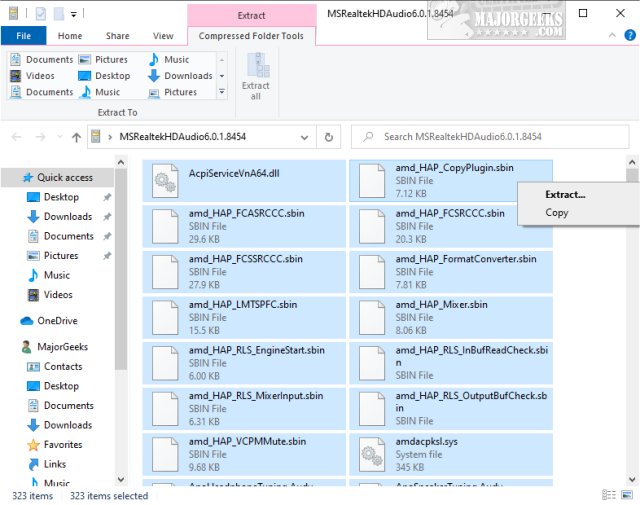
This article will delve into the world of CAB files, demystifying their purpose and providing clear, actionable steps on how to install them. We’ll explore the nuances of these files within the broader context of Windows technology, touching upon their role in software distribution and system integrity.
Understanding the Role of CAB Files in Windows Technology
Before we jump into the installation process, it’s important to grasp why CAB files exist and the significance they hold within the Windows ecosystem.
The Foundation of System Updates and Software Distribution
CAB files have been an integral part of Windows for decades, serving as a primary mechanism for distributing software updates, drivers, and core system files. When you download updates from Microsoft, whether it’s a Windows Update patch or a driver update for your graphics card, the underlying data is often packaged within one or more CAB files.
- Efficiency and Compression: The CAB format employs sophisticated compression algorithms, allowing it to significantly reduce the size of the files it contains. This is vital for efficient software distribution, minimizing download times and bandwidth usage, especially for large updates.
- Data Integrity: CAB files are designed with data integrity in mind. They include mechanisms to ensure that the files within the archive are not corrupted during download or transfer. This is paramount for system stability, as corrupted system files can lead to a wide range of operational problems.
- System File Protection: Many CAB files contain essential Windows system files. These files are the building blocks of the operating system, and their proper functioning is critical for Windows to operate smoothly and securely. Installing a CAB file often means replacing or updating these vital components.
- Driver Installation: Device drivers, which are software that enables your operating system to communicate with hardware devices, are frequently distributed in CAB format. Installing a driver from a CAB file is a common practice when troubleshooting hardware issues or when a manufacturer provides a direct download for a specific driver.
- Software Component Installation: Beyond core system files and drivers, some applications also utilize CAB files for distributing specific components or smaller utility programs. While less common than in system updates, it’s a possibility you might encounter.
Given their role in maintaining system health and facilitating software deployment, knowing how to handle CAB files is a valuable technical skill.
Installing a CAB File: Step-by-Step Guides and Considerations
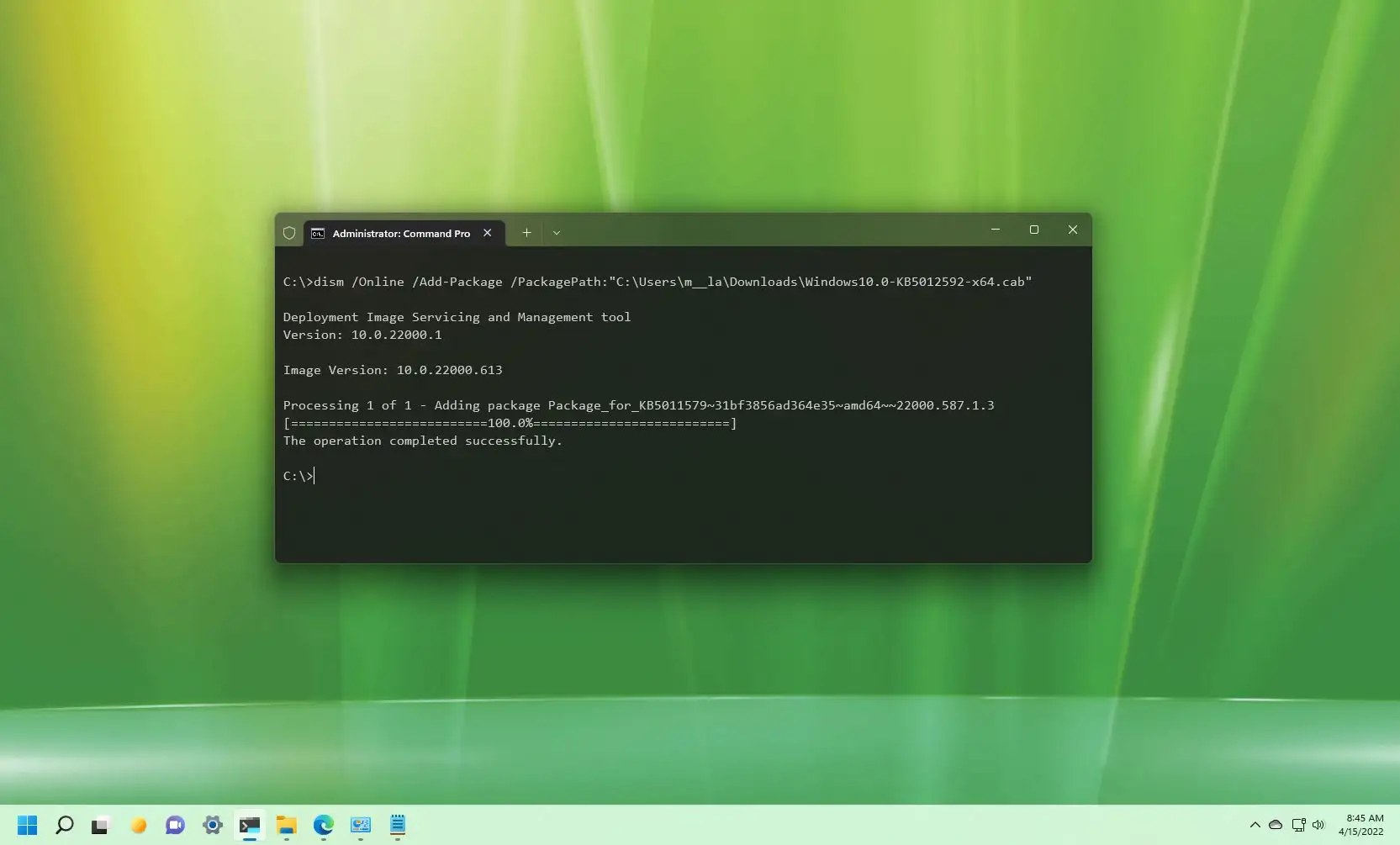
Installing a CAB file isn’t always a direct double-click affair like with an .exe or .msi installer. The method you’ll use depends on the context and the source of the CAB file. Here are the primary approaches:
Method 1: Using the expand Command-Line Utility (Manual Extraction and Installation)
The expand command is a built-in Windows utility that allows you to extract files from compressed archives, including CAB files. This method offers more granular control and is often used when dealing with drivers or specific components that don’t come with a dedicated installer.
When to Use This Method:
- You’ve downloaded a driver update in CAB format from a manufacturer’s website.
- You need to extract specific files from a CAB archive for manual installation or analysis.
- You’re comfortable using the Command Prompt.
Steps:
-
Open Command Prompt as Administrator:
- Click the Start button.
- Type
cmdin the search bar. - Right-click on “Command Prompt” and select “Run as administrator.” This is crucial because installing system files often requires elevated privileges.
-
Navigate to the Directory Containing the CAB File:
- Use the
cdcommand to change directories. For example, if your CAB file is in a folder named “Drivers” on your Desktop, you’d type:
bash

cd C:UsersYourUsernameDesktopDrivers
(ReplaceYourUsernamewith your actual Windows username).
- Use the
-
Extract the Contents of the CAB File:
-
Use the
expandcommand with the-F:*switch to extract all files. The syntax is:expand -F:* CAB_FILE_NAME.cab DESTINATION_FOLDER_PATHCAB_FILE_NAME.cab: Replace this with the actual name of your CAB file.DESTINATION_FOLDER_PATH: This is the folder where you want the extracted files to be placed. You can create a new folder for this purpose.
-
Example: To extract all files from
mydriver.cabinto a folder namedExtractedDriveron your Desktop:
bash

expand -F:* mydriver.cab C:UsersYourUsernameDesktopExtractedDriver
-
-
Install the Extracted Files (Driver Specific):
-
Once extracted, you’ll typically find
.inf(information) files within the extracted contents. These.inffiles are the key to installing drivers. -
Using Device Manager:
- Right-click the Start button and select “Device Manager.”
- Locate the device for which you downloaded the driver.
- Right-click on the device and select “Update driver.”
- Choose “Browse my computer for drivers.”
- Click “Let me pick from a list of available drivers on my computer.”
- Click “Have Disk…”
- Browse to the folder where you extracted the CAB file contents and select the
.inffile. - Follow the on-screen prompts to complete the driver installation.
-
Using
pnputil(Advanced): For more automated driver installation, especially in scripting scenarios, you can use thepnputilcommand.- Open Command Prompt as Administrator.
- Navigate to the directory containing the extracted
.inffile. - Run the command:
bash

pnputil /add-driver your_driver.inf /install
(Replaceyour_driver.infwith the actual name of your driver information file.)
-
Method 2: Using Built-in Windows Update and Driver Installers
Often, you won’t need to manually extract CAB files. Windows itself handles them through its update mechanisms.
When to Use This Method:
- You are installing Windows updates.
- You are updating drivers through Windows Update or a manufacturer’s provided installer (which might internally use CABs).
Steps:
-
Windows Update:
- Go to Settings > Update & Security > Windows Update.
- Click “Check for updates.”
- Windows will automatically download and install any relevant updates, which may include CAB files, in the background. You’ll usually be prompted to restart your computer to complete the installation.
-
Manufacturer-Provided Installers:
- If you download a driver or software package from the manufacturer’s website, it will typically come as an
.exeor.msifile. When you run these installers, they will unpack and install the necessary components, which might include CAB files internally. You simply follow the prompts of the installer.
- If you download a driver or software package from the manufacturer’s website, it will typically come as an

Method 3: Third-Party Archiving Tools (Limited Functionality)
While not the primary or recommended method for installing system components, some advanced third-party archiving tools (like 7-Zip) can open and extract files from CAB archives. However, this is purely for extraction and does not perform the installation of system files or drivers.
When to Use This Method:
- You need to quickly extract files from a CAB for inspection or non-system use.
- You don’t want to use the Command Prompt.
Steps (Using 7-Zip as an example):
- Install 7-Zip: If you don’t have it, download and install 7-Zip from its official website.
- Right-click the CAB file:
- Select “7-Zip” from the context menu.
- Choose “Extract files…” or “Extract Here”: This will unpack the contents of the CAB file into a specified location.
Important Note: This method only extracts the files. You would still need to use the extracted files (e.g., .inf files for drivers) and methods described in Method 1 to actually install them on your system.
Troubleshooting Common CAB File Installation Issues
While installing CAB files is generally straightforward, you might encounter occasional hiccups. Here are some common issues and their resolutions:
Insufficient Permissions
- Problem: You receive an error message stating you don’t have permission to access or modify files.
- Solution: Always run the Command Prompt as an administrator when using the
expandcommand orpnputil. For user-level software installations, ensure you are logged in with an administrator account.
Corrupted CAB File
- Problem: The
expandcommand fails, or extracted files are unusable. - Solution: The CAB file itself might be corrupted. Try re-downloading it from the original source. Ensure your internet connection was stable during the download.
Incorrect Path or File Name
- Problem: The
expandcommand cannot find the specified CAB file. - Solution: Double-check the file path and the exact spelling of the CAB file name. Use the
dircommand in Command Prompt to list files in the current directory and verify the name.
Missing Driver Information (.inf) File
- Problem: After extracting, you can’t find a
.inffile to install a driver. - Solution: Some CAB files might not contain
.inffiles directly. They could be part of a larger driver package or require a specific utility provided by the hardware manufacturer. Check the source where you downloaded the CAB file for any accompanying instructions or additional files.
Compatibility Issues
- Problem: A driver installed from a CAB file causes system instability or doesn’t work correctly.
- Solution: Ensure the driver is specifically designed for your version of Windows (e.g., Windows 10 64-bit). If you suspect a compatibility issue, roll back the driver through Device Manager or uninstall it and reinstall a known stable version.
The Broader Context: CAB Files in Digital Security and Software Management
While the focus of this article is on installation, it’s worth noting the broader implications of CAB files in the digital realm.
Brand Trust and Software Integrity
For software developers and hardware manufacturers, the integrity of their distributed software is paramount to maintaining brand reputation. By using established formats like CAB for updates and installations, they ensure that the delivered components are authentic and haven’t been tampered with. This builds user trust, as they can be more confident that the software they are installing is legitimate and will function as intended.
Digital Security and Malware
Malicious actors can also exploit file formats, including CAB files. While CAB files themselves aren’t inherently malicious, they can be used to package and distribute malware. This is why it’s crucial to always download software and drivers from reputable sources. Be wary of unsolicited CAB files or downloads from suspicious websites, as they could contain harmful code disguised as legitimate system files. Antivirus software plays a vital role in scanning downloaded files, including CABs, for potential threats.
Productivity and System Maintenance
The ability to effectively install and manage software components, including those distributed via CAB files, directly impacts user productivity. Quick and reliable driver updates ensure hardware functions optimally, preventing performance bottlenecks. Efficient system updates keep the operating system secure and introduce new features, ultimately leading to a smoother and more productive computing experience. Understanding how to install a CAB file, especially for driver updates, is a fundamental skill for any user who wants to maintain their system’s health and performance.
Conclusion
CAB files, or Cabinet files, are a foundational element of the Windows operating system’s software distribution and update mechanisms. While they might appear less familiar than other file types, their role in ensuring system integrity, efficient updates, and driver compatibility is undeniable.
For the average user, many CAB file installations will happen seamlessly in the background through Windows Update or manufacturer-provided installers. However, when faced with specific driver updates or manual component installations, understanding how to use the expand command in Command Prompt is an invaluable skill. By following the steps outlined in this guide, you can confidently navigate the process of installing CAB files, troubleshoot common issues, and contribute to the overall health and performance of your Windows system. Remember to always prioritize security by downloading files only from trusted sources, ensuring a safe and productive digital experience.