
In the vast and ever-expanding digital landscape, Google Play credit stands as a versatile, convenient, and secure form of currency within the Android ecosystem. It empowers users to dive into a world of applications, games, movies, books, and various digital subscriptions without the constant need for credit card details. Whether you’re looking to gift digital content, manage spending for younger family members, or simply prefer an alternative payment method, understanding how to acquire and utilize Google Play credit is an essential skill for any Android device owner. This guide will walk you through everything you need to know, from its core definition to the myriad ways you can add it to your digital wallet and effectively manage your purchases.
Understanding Google Play Credit: More Than Just Digital Cash
At its core, Google Play credit is a digital balance tied to your Google account, specifically designed for purchases within the Google Play Store. It acts as a prepaid fund that can be spent on virtually any digital item available through Google’s expansive marketplace.
What is Google Play Credit?
Google Play credit is a form of digital currency that resides within your Google account. It’s not physical money, nor can it be withdrawn as cash. Instead, it serves as a dedicated fund for transactions exclusively on the Google Play Store. This includes a wide array of digital goods and services:
- Apps and Games: From productivity tools to the latest blockbuster mobile games, Google Play credit can be used for both initial purchases and in-app transactions (like buying virtual currency, unlocking premium features, or subscribing to game passes).
- Movies and TV Shows: Rent or purchase your favorite films and series directly from the Play Store.
- Books and Audiobooks: Expand your digital library with millions of titles across various genres.
- Subscriptions: Use credit to pay for recurring services like Google Play Pass (which offers access to hundreds of apps and games without ads or in-app purchases), YouTube Premium, Stadia games, or even subscriptions within third-party apps.
It’s crucial to understand that Google Play credit is typically region-specific, meaning credit purchased in one country might not be redeemable or usable in another due to currency differences and licensing agreements. Once redeemed, the balance is stored securely within your Google account and is accessible from any Android device or web browser logged into that account.
Why Use Google Play Credit?
The appeal of Google Play credit extends beyond its basic utility. Several compelling reasons motivate users to opt for this payment method:
- Convenience and Speed: Once credit is loaded, purchases become instantaneous. There’s no need to repeatedly input credit card details, making for a seamless checkout experience.
- Budget Management: For individuals conscious of their spending, especially parents, Google Play credit provides an excellent budgeting tool. Loading a specific amount pre-emptively ensures that spending on digital content remains within a defined limit.
- Gifting Made Easy: Google Play gift cards are a popular and practical gift for tech-savvy friends and family members, allowing them to choose their preferred apps, games, or media. It eliminates the guesswork of selecting a specific app or game.
- Enhanced Security: By using a pre-loaded balance, you reduce the direct exposure of your primary credit card or bank account details during multiple smaller transactions. If your device is compromised, your financial risk is limited to the credit balance.
- Access to Promotions and Rewards: Google often runs promotions where users can earn Play credit. Furthermore, platforms like Google Opinion Rewards allow users to earn small amounts of credit by completing surveys, turning spare minutes into digital spending power.
The Primary Methods: Where to Purchase Google Play Credit
Acquiring Google Play credit is straightforward, with several convenient avenues available to suit different preferences and situations. Whether you prefer digital convenience or a physical gift card, there’s a method for you.
Direct Purchase via Google Play Store
The most integrated way to add funds to your Google Play balance is directly through the Google Play Store itself. This method leverages your existing payment methods linked to your Google account.
- Process: On your Android device, open the Google Play Store app. Tap your profile icon (usually in the top right corner), then navigate to “Payments & subscriptions” > “Payment methods.” Look for an option like “Add Google Play balance” or “Buy Google Play credit.” If direct balance top-up isn’t explicitly available as an option in your region, you can essentially achieve the same outcome by adding funds to your Google Play balance by purchasing apps or digital content directly with your linked payment methods (credit/debit cards, PayPal, or carrier billing, where supported). The funds will then be available as “Google Play Balance” for future purchases.
- Benefits: This method is immediate and secure, using payment details you’ve already entrusted to Google. It’s ideal for quick top-ups when you’re short on credit for a specific purchase.
Physical Retailers: Gift Cards
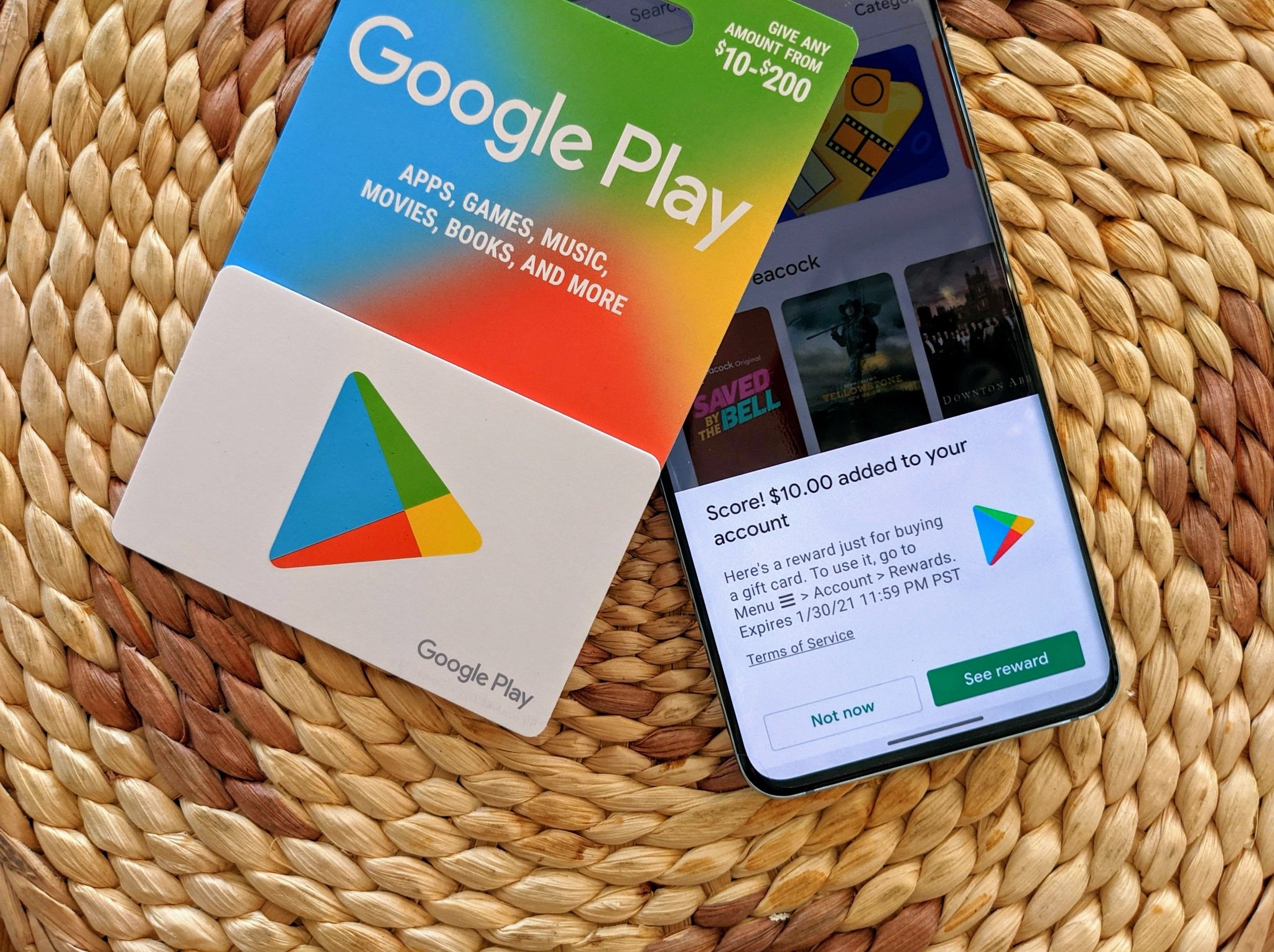
Google Play gift cards are a popular choice, offering flexibility and an excellent gifting option. These are tangible cards with a scratch-off code that, once revealed, can be redeemed for credit.
- Where to Find Them: These cards are widely available at major supermarkets, electronics stores, convenience stores, and general merchandise retailers globally. Think stores like Walmart, Target, Best Buy, 7-Eleven, Walgreens, and many others.
- Denominations: Gift cards come in various fixed denominations (e.g., $10, $25, $50, $100) and sometimes as variable load cards, allowing you to choose any amount within a certain range.
- Activation: The process involves purchasing the card, scratching off the panel on the back to reveal a 16-digit alphanumeric code, and then redeeming this code in the Play Store.
- Benefits: Physical gift cards are perfect for presents, allow users to pay with cash if they don’t have a credit card, and offer a sense of security by not directly linking a bank account to digital purchases.
Online Retailers & Digital Gift Card Vendors
For those who prefer not to visit a physical store, digital Google Play gift codes can be purchased online from various authorized vendors.
- Examples: Reputable online retailers include Amazon, PayPal Digital Gifts, Best Buy online, and sometimes directly from Google’s official gift card portals (availability varies by region).
- Process: You purchase the digital code online, and it’s typically delivered instantly to your email address. You then use this code in the same way you would a physical gift card.
- Benefits: Immediate delivery to your inbox, the convenience of purchasing from home at any time, and often access to special deals or discounts offered by these online vendors.
Other Sources: Loyalty Programs and Rewards

Beyond direct purchases, there are ways to earn or receive Google Play credit through other programs.
- Google Opinion Rewards: This popular app (available on Android and iOS) offers short surveys in exchange for Google Play credit. Survey topics can range from local businesses to YouTube content, and the rewards, while small, accumulate over time, providing a steady stream of free credit.
- Carrier Promotions & Credit Card Rewards: Occasionally, mobile carriers or credit card companies run promotions where you can earn Google Play credit for signing up for services or using your card.
- Third-Party Apps/Websites: Some loyalty programs or reward apps might offer Google Play gift codes as redemption options for points earned through their platforms. Always verify the legitimacy of such sources to avoid scams.
Step-by-Step Guide: Redeeming Your Google Play Credit
Once you’ve acquired a Google Play gift card or digital code, the next step is to redeem it and add the value to your Google Play balance. The process is quick and user-friendly.
Redeeming a Gift Card Code
Whether you have a physical card or a digital code delivered via email, the redemption process is largely the same:
- Open the Google Play Store App: On your Android device, launch the Play Store app.
- Access Your Profile: Tap on your profile icon (usually a circle with your initial or photo) located in the top-right corner of the screen.
- Navigate to Payments & Subscriptions: From the menu that appears, select “Payments & subscriptions.”
- Choose “Redeem gift code”: In the “Payments & subscriptions” menu, you’ll see an option labeled “Redeem gift code” (or similar). Tap on this.
- Enter the Code: Carefully enter the 16-digit alphanumeric code found on your physical gift card (after scratching off the silver panel) or provided in your digital email. Double-check for accuracy to avoid errors.
- Confirm Redemption: Tap “Redeem.” You’ll see a confirmation message indicating the amount being added to your Google Play balance.
- Balance Update: Your Google Play balance will be updated instantly. You can verify this by checking your payment methods section.
Alternatively, you can redeem codes directly through a web browser by visiting play.google.com/redeem and logging into your Google account. This is useful if you don’t have your Android device handy or prefer using a larger screen.
Using Account Balance for Purchases
Once credit is in your Google Play balance, using it for purchases is typically automatic and seamless:
- Automatic Selection: When you go to purchase an app, game, movie, or any other digital content from the Play Store, your Google Play balance will usually be presented as the default payment method if it covers the entire cost of the item.
- Manual Selection: If your balance is insufficient, or if you prefer to use another payment method (e.g., a credit card for accumulating reward points), you’ll have the option to change the payment method during checkout. Simply tap on the current payment method displayed and select your preferred option.
- Combining Payment Methods: For purchases that exceed your Google Play balance, the system will often allow you to combine payment methods. You can use your available balance first, and then pay the remaining amount using a linked credit card, debit card, or PayPal.
Managing Your Google Play Credit and Account
Effective management of your Google Play credit ensures you can make purchases smoothly and avoid any potential issues.
Checking Your Balance
Keeping tabs on your available credit is easy and can be done from multiple locations:
- Via Play Store App: Open the Google Play Store app, tap your profile icon, then select “Payments & subscriptions” > “Payment methods.” Your current Google Play balance will be displayed at the top of the list.
- On Web Browser: Log in to your Google account and visit
play.google.com/store/account. Under the “Payment methods” section, you’ll see your Google Play balance.
Important Considerations & Troubleshooting
While using Google Play credit is generally straightforward, being aware of certain aspects can prevent issues:
- Region Restrictions: As mentioned, Google Play gift cards and credit are typically region-locked. Ensure the card you purchase or redeem matches the country associated with your Google Play account. Attempting to redeem a card from a different region will likely result in an error message.
- Expiration Dates: Purchased Google Play credit generally does not expire. However, promotional credit (e.g., from Google Opinion Rewards or specific campaigns) may have an expiration date. Always check the terms for promotional credit.
- Scams and Fraud: Only purchase Google Play gift cards from authorized retailers, whether physical or online. Be extremely wary of unsolicited requests for Google Play gift card codes, especially from individuals claiming to be from official organizations or offering dubious prizes. Google Play gift cards are frequently used in scams.
- Customer Support: If you encounter issues such as a gift code not working, an incorrect balance, or problems with a purchase, contact Google Play support. They can assist with troubleshooting and resolving account-related problems. Ensure you have proof of purchase for any gift cards.
- Refund Policies: Understand Google Play’s refund policies for apps, games, and other digital content. While your credit can be used for purchases, refunds are subject to specific terms and conditions.
Maximizing Your Credit: Tips & Tricks
To get the most out of your Google Play credit, consider these savvy tips:
- Look for Sales: Google Play frequently offers sales and discounts on apps, games, and movies. Keep an eye on the “Deals” or “Sales” sections within the Play Store to stretch your credit further.
- Subscribe to Google Play Pass: If you’re a heavy app and game user, a Google Play Pass subscription (which can be paid for with Play credit) offers excellent value, providing access to hundreds of apps and games without ads or in-app purchases.
- Utilize Family Library: Google’s Family Library feature allows you to share eligible purchased apps, games, movies, TV shows, and books with up to five other family members. This means one purchase (or one use of your credit) can benefit the entire family.
- Stay Active with Google Opinion Rewards: Regularly checking for and completing surveys on the Google Opinion Rewards app is an effortless way to accumulate free credit over time, helping to offset the cost of future purchases.
In conclusion, buying Google Play credit is a flexible and secure way to participate in the Android digital content ecosystem. With multiple purchasing avenues, an easy redemption process, and robust account management features, users can confidently acquire and spend credit on their favorite apps, games, movies, and more. By understanding the available methods and best practices, you can ensure a smooth and enjoyable experience, always keeping your digital wallet ready for the next exciting tech discovery.
aViewFromTheCave is a participant in the Amazon Services LLC Associates Program, an affiliate advertising program designed to provide a means for sites to earn advertising fees by advertising and linking to Amazon.com. Amazon, the Amazon logo, AmazonSupply, and the AmazonSupply logo are trademarks of Amazon.com, Inc. or its affiliates. As an Amazon Associate we earn affiliate commissions from qualifying purchases.