
Reverting to an older NVIDIA graphics driver can seem counter-intuitive in a world constantly pushing for the latest updates. However, for a specific subset of users, this action is not merely a preference but a critical necessity for maintaining system stability, ensuring software compatibility, or preserving optimal performance for legacy hardware and applications. Understanding the precise circumstances that warrant such a move, the inherent risks involved, and the meticulous process required is paramount for a successful and stable outcome.
The Niche Necessity: Why Revert to Older Drivers?
The decision to install an older NVIDIA driver is rarely arbitrary. It typically stems from specific technical challenges that newer drivers fail to address or, in some cases, actively create. Identifying these scenarios is the first step in determining if reverting is the right path for your system.

Legacy Hardware Compatibility
Many users still rely on older NVIDIA GPUs that, while perfectly functional, may not receive adequate optimization or even full support from the very latest driver releases. As new GPU architectures emerge, driver development naturally shifts focus. Older drivers might offer better stability or performance profiles for these legacy cards, preventing issues like stuttering, crashes, or diminished frame rates that can sometimes accompany newer, unoptimized updates. This is particularly true for cards that have moved into the “legacy support” phase, where only critical security updates are generally provided for newer operating systems.
Software and Game Specificity
Certain professional applications, such as CAD software, video editing suites, or specialized scientific computing tools, are often developed and certified against specific, older driver versions. A newer driver, despite its general advancements, might introduce regressions, bugs, or compatibility issues that disrupt the workflow or functionality of these critical programs. Similarly, some older games might perform optimally with drivers from their era, with newer drivers potentially introducing graphical glitches, performance drops, or even preventing the game from launching altogether. Developers of these applications and games often advise specific driver versions for peak performance or compatibility.
Avoiding Driver-Induced Issues
The continuous development cycle of graphics drivers, while beneficial overall, can occasionally lead to unintended side effects. New driver releases, despite extensive testing, might contain bugs that manifest on specific hardware configurations or with particular software combinations. These issues could range from minor graphical anomalies to severe system instability, crashes (including Blue Screens of Death), or significant performance degradations in otherwise well-performing systems. In such cases, reverting to a previously stable driver version serves as a reliable workaround until NVIDIA releases a patch that addresses the identified problems.
Specific Feature Requirements
On occasion, specific features, control panel options, or specialized APIs might be altered, removed, or deprecated in newer driver versions. If an older application or a particular workflow relies heavily on one of these superseded elements, an older driver might be the only way to retain full functionality. This is less common but can be a deciding factor for highly specialized users.
Navigating the Trade-offs: Risks and Important Considerations
While the reasons for installing older drivers can be compelling, it’s crucial to approach this decision with a full understanding of the potential drawbacks. Reverting to older software components inherently introduces certain risks that must be carefully managed.
Security Vulnerabilities
This is arguably the most significant risk. Older drivers often lack patches for recently discovered security vulnerabilities. Graphics drivers operate at a very low level within the operating system, and an unpatched exploit could provide an attacker with a direct pathway to your system’s core, potentially leading to data theft, system compromise, or malware injection. If you absolutely must use an older driver, it becomes imperative to compensate with robust network security, a strong firewall, and vigilant antivirus software, especially if your system is connected to the internet. Consider isolating the system if possible.
Performance and Feature Loss
By choosing an older driver, you consciously forgo performance optimizations for newer games and applications, critical bug fixes, and access to new features and technologies. This could include advancements like DLSS (Deep Learning Super Sampling) updates, NVIDIA Reflex for reduced latency, new AI features, or improvements to NVIDIA’s control panel. For users focused on the latest gaming titles or cutting-edge computational tasks, this trade-off is often unacceptable.
Instability and Compatibility Headaches
While the goal of reverting is typically to achieve stability, it’s not a guaranteed outcome. Installing an older driver on a modern operating system (e.g., Windows 10 or 11) with updated core components, other hardware drivers, and applications can sometimes introduce new instabilities or conflicts. The older driver might not be fully compatible with newer OS features, leading to unexpected behavior, crashes, or limited functionality.
System Updates
Modern operating systems, particularly Windows 10 and 11, are designed to automatically install the latest drivers to ensure system health and security. This can be a persistent challenge when trying to maintain an older NVIDIA driver. Windows Update might constantly attempt to overwrite your chosen driver with a newer version, leading to a frustrating cycle of reinstallation or potential instability if the process is interrupted. Proactive measures to disable automatic driver updates are essential.
Meticulous Preparation: Setting the Stage for a Smooth Reversion
Before you begin the process of installing an older NVIDIA driver, thorough preparation is key. Rushing this stage can lead to data loss, system instability, or a failed installation.
Back Up Your System
This step cannot be overemphasized. Before making any significant changes to core system drivers, create a system restore point. This provides a quick revert option if something goes wrong. For even greater peace of mind, consider a full disk image backup, especially if your data is critical. This ensures you can return your system to its exact pre-installation state.
Download Necessary Tools
- Display Driver Uninstaller (DDU): This indispensable third-party utility is designed to completely remove all traces of NVIDIA (and AMD/Intel) display drivers from your system. Standard uninstallation methods often leave residual files and registry entries that can interfere with new or older driver installations. DDU ensures a “clean slate” for your chosen driver. Download the latest version from a reputable source (e.g., Guru3D).
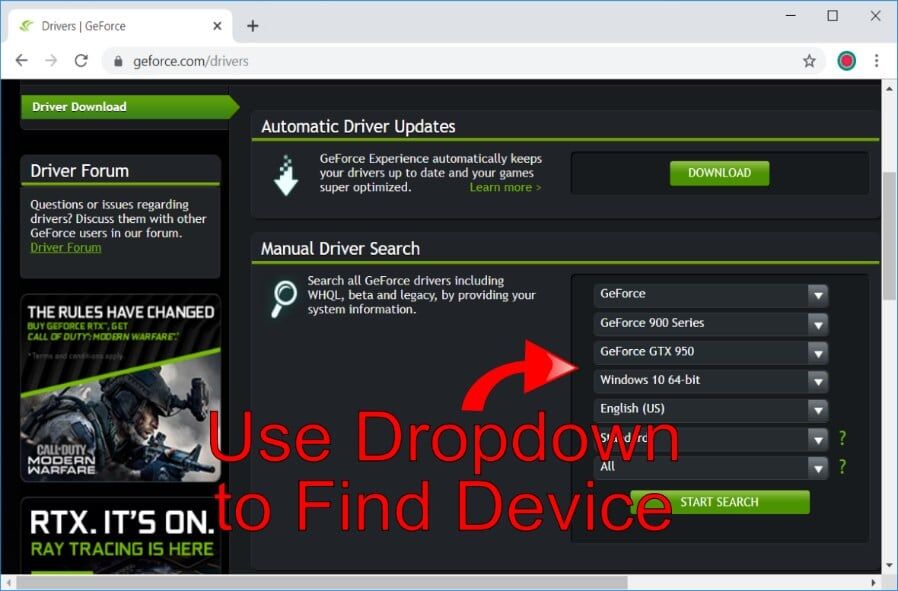
- The Desired Old Driver: Locating the correct older driver is crucial. Visit NVIDIA’s official driver archive website. You’ll need to know your specific GPU model (e.g., GeForce RTX 3080, GTX 1070), your operating system (Windows 10 64-bit, Windows 11 64-bit), and preferably the exact driver version number you wish to install. Download the executable file and save it to an easily accessible location. Double-check that the driver you download matches your exact GPU series and operating system version.
Disable Automatic Driver Updates
To prevent Windows from automatically installing a newer driver and undoing your work, you must disable automatic driver updates.
- For Windows 10/11 Pro/Enterprise: Open the Group Policy Editor (
gpedit.msc), navigate toComputer Configuration > Administrative Templates > Windows Components > Windows Update > Manage updates offered from Windows Update, and enable “Do not include drivers with Windows Updates.” - For Windows 10/11 Home: Search for “Change device installation settings” in the Windows search bar, select “No (your device might not work as expected),” and choose “Save Changes.” This method is less robust than Group Policy, and Windows might still occasionally try to update drivers. Another method for all versions involves using a tool like Microsoft’s “Show or hide updates” troubleshooter to block specific driver updates once they appear.
The Reversion Process: A Step-by-Step Installation Guide
With your preparations complete, you can now proceed with the actual driver installation. This process involves a critical sequence of steps to ensure a clean and successful reversion.
1. Disconnect from the Internet
Before beginning, physically disconnect your computer from the internet (unplug the Ethernet cable or disable Wi-Fi). This prevents Windows from automatically downloading and installing any drivers during the critical uninstallation and installation phases.
2. Boot into Safe Mode
DDU is most effective when run in Windows Safe Mode. This ensures that only essential system services are running, preventing any NVIDIA driver components from being in use and hindering their complete removal.
- Press
Win + R, typemsconfig, and press Enter. - Go to the “Boot” tab, check “Safe boot,” and select “Minimal.”
- Click “Apply,” then “OK,” and restart your computer. Your system will now boot into Safe Mode.
3. Run Display Driver Uninstaller (DDU)
Once in Safe Mode:
- Launch DDU.
- In the “Select device type” dropdown, choose “GPU.”
- In the “Select Vendor” dropdown, choose “NVIDIA.”
- Click the “Clean and restart” button. DDU will now thoroughly remove all NVIDIA driver files, registry entries, and related components. Allow it to complete the process and restart your computer automatically into normal Windows mode.
4. Install the Older NVIDIA Driver
After your system restarts from DDU and is back in normal Windows:
- Locate the older NVIDIA driver executable you downloaded earlier.
- Right-click on the executable and select “Run as administrator.”
- Follow the on-screen prompts. When given the choice, select “Custom (Advanced)” installation.
- On the next screen, carefully review the components. Crucially, uncheck “GeForce Experience” if you primarily want a clean driver installation and to avoid its potential for automatically updating drivers or interfering with your specific setup.
- Ensure that the “Perform a clean installation” checkbox (often found within the Custom options) is selected. This wipes out any leftover profiles or settings from previous installations.
- Proceed with the installation. Your screen may flicker or go black momentarily during the process; this is normal.
- Once the installation is complete, click “Restart now” if prompted, or manually restart your computer.
5. Reconnect to the Internet and Verify
After your system has fully restarted:
- Reconnect your computer to the internet.
- Open Device Manager (
Win + X, then select “Device Manager”). Expand “Display adapters” and double-click on your NVIDIA GPU. Go to the “Driver” tab and confirm that the “Driver Version” matches the older version you intended to install. - Open the NVIDIA Control Panel and verify it launches correctly.
- Most importantly, test the specific game or application that prompted you to revert to an older driver. Ensure it now functions as expected.
Post-Installation Vigilance: Troubleshooting and Maintenance
Successfully installing an older driver is a significant step, but ongoing management is essential to maintain stability and security.
Dealing with Windows Update Persistence
Even with initial safeguards, Windows Update can be persistent. If you notice Windows attempting to install a newer NVIDIA driver, you might need to use the “Show or hide updates” troubleshooter (a Microsoft utility) to specifically block that update. If you have Windows Pro/Enterprise, verify your Group Policy settings are still active. Regularly check Device Manager to ensure your chosen driver version remains in place.
Monitoring System Stability
Keep a close watch on your system’s performance, stability, and temperatures. While the old driver might resolve one issue, it could potentially introduce others. Pay attention to unexpected crashes, graphical glitches, or unusual system behavior. If new problems arise, you might need to reconsider your driver choice.
When to Re-evaluate
Older drivers, by their nature, are static. NVIDIA continuously releases new drivers that incorporate bug fixes, performance improvements, and security patches. Periodically, check NVIDIA’s release notes for new drivers that specifically address the issues that initially compelled you to revert. It’s often beneficial to return to a more current driver once your specific compatibility or performance concerns have been officially resolved.
Reverting Back to Newer Drivers
Should the older driver not meet your expectations, or if new updates eventually resolve your original problem, the process to return to the latest drivers is straightforward: simply repeat the DDU process in Safe Mode, then download and install the newest recommended driver from NVIDIA’s website. This ensures a clean transition back to the most current and secure software.
aViewFromTheCave is a participant in the Amazon Services LLC Associates Program, an affiliate advertising program designed to provide a means for sites to earn advertising fees by advertising and linking to Amazon.com. Amazon, the Amazon logo, AmazonSupply, and the AmazonSupply logo are trademarks of Amazon.com, Inc. or its affiliates. As an Amazon Associate we earn affiliate commissions from qualifying purchases.