
In an increasingly connected world, the ability to disconnect without losing access to your favorite entertainment has become a sought-after luxury. Amazon Prime Video, a leading streaming service, understands this need perfectly, offering robust features that allow subscribers to download a vast array of content for offline viewing. Whether you’re preparing for a long flight, a commute through a data dead zone, or simply want to conserve your mobile data, knowing how to leverage Prime Video’s download functionality is a game-changer. This guide will walk you through the process, uncover essential tips, and address common questions, ensuring you master the art of enjoying Prime Video content anytime, anywhere.
The Convenience of Offline Viewing: Why Download?
The primary allure of downloading content lies in the liberation it offers from the demands of a constant, high-speed internet connection. In today’s mobile-first lifestyle, where entertainment is expected to be accessible on demand, offline viewing capabilities are no longer just a perk but a necessity.
Beating Connectivity Issues
Imagine being halfway through a gripping movie only for your Wi-Fi to drop, or finding yourself in a remote area with patchy cellular service. These scenarios are frustratingly common. Downloads act as a digital safety net, ensuring your viewing pleasure remains uninterrupted, regardless of your internet connection’s stability or absence. For travelers, this is particularly valuable, transforming long flights, train rides, or road trips into personal cinemas, even when Wi-Fi is nonexistent or prohibitively expensive.
Saving Mobile Data
Streaming high-definition video consumes a significant amount of data, a critical concern for anyone with a limited mobile data plan. By downloading content over a stable Wi-Fi connection at home, you can save valuable cellular data for other tasks while on the go. This not only helps avoid costly overage charges but also ensures you have enough data for navigation, communication, or work-related tasks when you really need it. It’s an economically savvy approach to consuming digital entertainment.
Entertainment on the Go
The world is your living room when your entertainment library is downloaded to your device. From gym sessions and doctor’s office waiting rooms to children’s car rides and camping trips, downloaded content transforms otherwise idle moments into opportunities for engagement and relaxation. It’s about maximizing every minute of your day with personalized entertainment, without the prerequisite of an active internet link.
Avoiding Buffering Frustration
Few things are more irritating than a video constantly buffering. Slow internet speeds, network congestion, or even issues with the streaming server can lead to a stuttering, stop-start viewing experience. Downloading eliminates this frustration entirely. Once a video is fully downloaded, it plays back seamlessly and instantly, offering a smooth, high-quality experience identical to what you’d expect from a physical media player. This ensures that the immersion into your chosen content remains unbroken, preserving the artistic intent and your enjoyment.
Official Methods: Downloading within the Amazon Prime Video App
Amazon has made the download process incredibly user-friendly across various platforms. The key is to use the official Amazon Prime Video app, as downloads are typically restricted from web browsers due to digital rights management (DRM) and licensing agreements.
Downloading on Mobile Devices (Smartphones & Tablets)
This is arguably the most common way users download Prime Video content, offering unparalleled portability.
-
Step-by-Step Guide for iOS/Android:
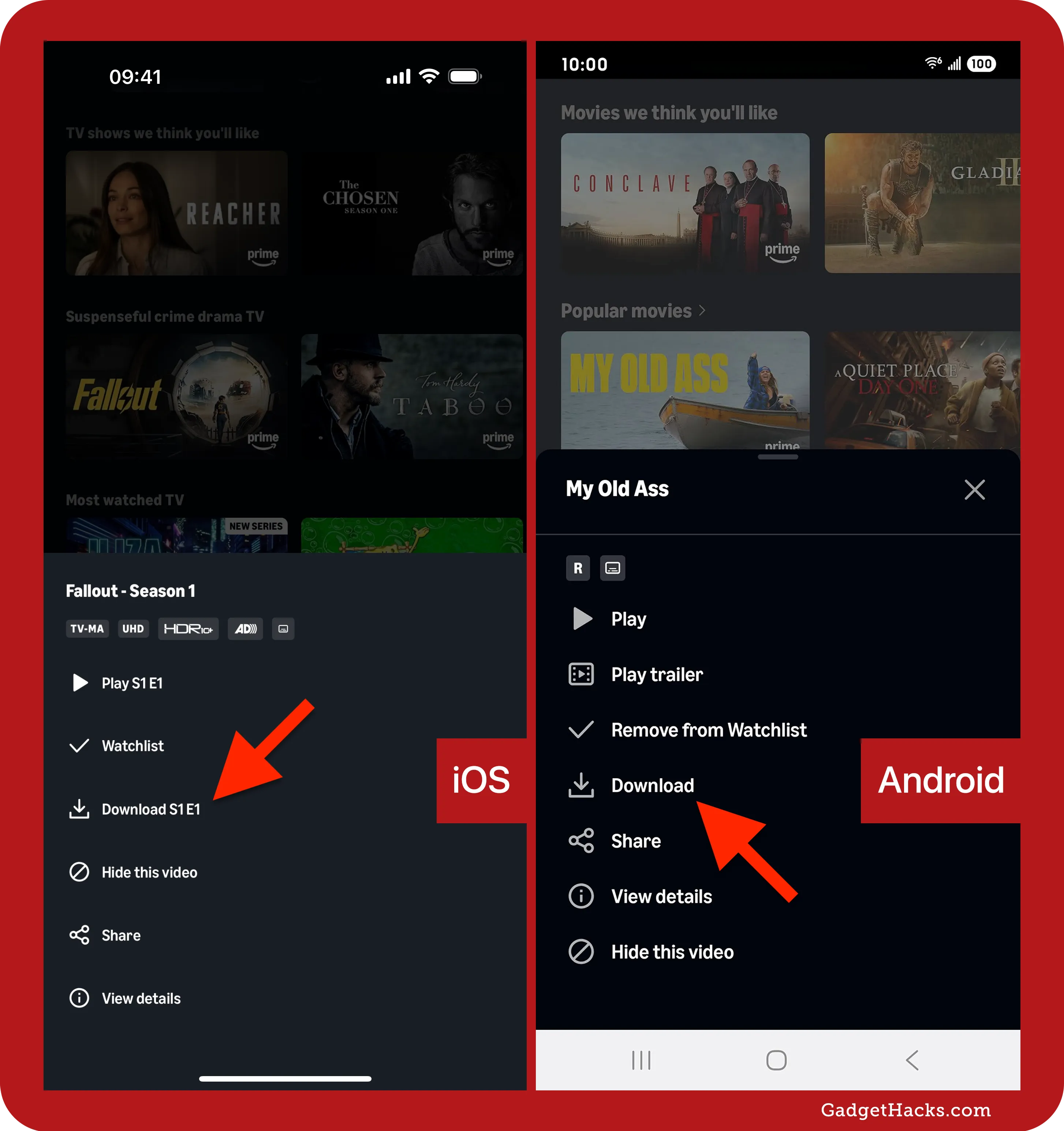
- Open the App: Launch the Amazon Prime Video app on your smartphone or tablet.
- Find Content: Browse or search for the movie or TV show you wish to download.
- Select Download: On the content’s detail page, you’ll see a ‘Download’ button. For TV shows, you can usually download an entire season or individual episodes.
- Choose Quality: Before the download starts, you might be prompted to select a download quality (e.g., Good, Better, Best). Higher quality files take up more storage and download time.
- Monitor Progress: The download will begin, and you can monitor its progress in the ‘Downloads’ section of the app (usually found in the main menu).
- Access Offline: Once completed, navigate to the ‘Downloads’ section to watch your content without an internet connection.
-
Storage Considerations: Downloads consume significant storage space. Ensure your device has enough free memory before initiating large downloads. A standard movie in “Best” quality can be several gigabytes.
-
Download Quality Settings: You can pre-set your preferred download quality in the app’s settings (usually under “Stream & Download” or “Downloads”). This can help manage storage use automatically.
Downloading on Windows 10/11 Desktops and Laptops
While you can stream Prime Video via a web browser on your PC, downloading requires the dedicated Amazon Prime Video desktop application.
-
Using the Amazon Prime Video Desktop App:
- Install the App: If you don’t have it, download the “Amazon Prime Video” app from the Microsoft Store.
- Log In: Open the app and sign in with your Amazon Prime account credentials.
- Find and Download: Navigate to your desired movie or TV show. Similar to the mobile app, you’ll find a ‘Download’ button on the content page.
- Select Quality: Choose your preferred download quality.
- Access Downloads: All your downloaded content will be accessible from the ‘Downloads’ section within the app.
-
Limitations of Web Browser Downloads: It’s crucial to understand that downloading content directly from the Amazon Prime Video website in a web browser (like Chrome, Firefox, Edge, Safari) is not supported. This is due to copyright protection and DRM protocols that require a secure, controlled environment like a dedicated app.
Understanding Download Expiration and Viewing Limits
Prime Video downloads are not permanent additions to your library; they come with specific time limits and viewing restrictions designed to protect content rights.
- Time Limits: Most downloaded content has two primary time limits:
- You typically have 30 days from the date of download to begin watching the content.
- Once you start watching a downloaded title, you usually have 48 hours to finish it before it expires and becomes unavailable, requiring a re-download.
- The expiration timer resets if you re-download the content.
- Device Limits: Amazon Prime Video usually allows downloads on a limited number of devices simultaneously (often two or three). If you try to download on more devices, you might need to remove downloads from an existing device first.
- Subscription Status: Remember that downloaded content is only viewable while your Amazon Prime or Prime Video subscription remains active. If your subscription lapses, you will lose access to all downloaded titles.

Advanced Tips for Managing Your Prime Video Downloads
Efficiently managing your downloaded content ensures a smooth and frustration-free experience, especially when dealing with limited device storage.
Optimizing Storage Space
Downloaded videos can quickly consume your device’s storage. Proactive management is key.
- Deleting Watched Downloads: Get into the habit of deleting movies or TV show episodes immediately after you’ve finished watching them. This frees up space for new content. You can usually find a ‘Delete’ option associated with each downloaded title in the ‘Downloads’ section.
- Changing Download Location (if applicable): On some Android devices and Windows PCs, you might have the option to change the default download location to an external SD card or a different hard drive partition. This can be a lifesaver for devices with limited internal storage. Check the app’s settings under “Stream & Download” or “Downloads” for this option.
Troubleshooting Common Download Issues
Even with the most intuitive features, occasional hiccups can occur. Here’s how to address them.
- “Not Enough Storage” Error: This is a straightforward issue. Check your device’s storage settings and delete unnecessary files, apps, or previously watched downloads from Prime Video itself. You might need to free up several gigabytes.
- “Download Failed” Messages:
- Internet Connection: Ensure you have a stable and strong internet connection, especially Wi-Fi, when initiating downloads. Brief drops can cause failures.
- App Updates: Make sure your Amazon Prime Video app is updated to the latest version. Outdated apps can sometimes have bugs that affect downloads.
- Clear Cache: On mobile devices, clearing the app’s cache (via your device’s app settings) can sometimes resolve persistent issues without deleting your actual downloads.
- Restart Device: A classic but often effective solution for many tech problems.
- Internet Connection Requirements for Initiating Downloads: While you don’t need internet to watch downloaded content, you absolutely need it to start the download process. The app needs to verify your subscription, content availability, and license agreements with Amazon’s servers before it can begin transferring the file.
What You Can’t Download (and Why)
While Prime Video offers extensive download capabilities, not all content is eligible. Understanding these limitations helps manage expectations.
Renting vs. Buying vs. Included with Prime
- Included with Prime: The vast majority of movies and TV shows explicitly labeled “Included with Prime” are available for download as part of your subscription. This is what most users focus on.
- Renting and Buying: Content you rent or buy from Amazon Prime Video is also typically available for download. These titles are often treated similarly to “Included with Prime” content regarding download duration and device limits, but they are yours to keep (bought) or view for a specific period (rented) even if your Prime subscription lapses.
- Add-on Subscriptions: If you subscribe to channels like HBO, Showtime, or Starz through Prime Video Channels, the download availability depends on the specific channel’s agreements with Amazon. Many do support downloads, but it’s not universally guaranteed for all add-on content.
Geo-Restrictions and Content Availability
Content licenses are often tied to geographical regions. A movie available for download in the US might not be available in the UK, or vice-versa, even if you have a Prime subscription in both regions. If you travel internationally, the content available for download (or streaming) will typically default to the region you are currently in, not your home country, unless you have specifically downloaded it before traveling.
DRM and Copyright Protection
The primary reason for download restrictions and time limits is Digital Rights Management (DRM). This technology is used by content owners and distributors to control access to copyrighted material. DRM ensures that content is consumed as intended (e.g., only within the app, for a specific period, on a limited number of devices) and prevents unauthorized copying or distribution. These protections are standard across most major streaming platforms.
Maximizing Your Prime Video Experience
Beyond just downloading, Prime Video offers a suite of features that enhance your overall viewing experience.
Leveraging X-Ray for Enhanced Viewing
X-Ray is an exclusive Amazon feature that provides contextual information about what you’re watching. While playing content, X-Ray can display details about actors on screen, the soundtrack, trivia, and even jump directly to specific scenes. This feature works even with downloaded content, enriching your offline viewing experience with fascinating insights.
Exploring Quality Settings for Streaming and Downloading
Beyond just “Good,” “Better,” and “Best,” you can often find more granular quality settings in the app. For streaming, this can adjust bitrate to save data or improve quality based on your connection. For downloads, these settings directly impact file size and visual fidelity. Experiment to find the balance that suits your device’s storage capacity and your visual preferences.

Utilizing Parental Controls for Family Viewing
If you share your device or account with family members, particularly children, Prime Video’s robust parental controls are invaluable. You can set viewing restrictions based on age ratings, require a PIN for purchases, or even for playing certain content. These controls apply universally, ensuring a safe viewing environment whether content is streamed or downloaded.
By understanding these powerful features and following the guidelines outlined above, you can confidently download and manage your Amazon Prime Video library, transforming your device into a portable entertainment hub. Embrace the freedom of offline viewing and ensure your favorite stories are always just a tap away, no matter where life takes you.
aViewFromTheCave is a participant in the Amazon Services LLC Associates Program, an affiliate advertising program designed to provide a means for sites to earn advertising fees by advertising and linking to Amazon.com. Amazon, the Amazon logo, AmazonSupply, and the AmazonSupply logo are trademarks of Amazon.com, Inc. or its affiliates. As an Amazon Associate we earn affiliate commissions from qualifying purchases.