
The Amazon Firestick has revolutionized home entertainment, offering a gateway to a vast world of streaming content. While official apps are readily available, many users seek to expand their options, accessing a wider array of movies, TV shows, live channels, and more. One such popular, albeit unofficial, application that many users are keen to explore is “The Crew.” This comprehensive guide will walk you through the process of installing The Crew on your Firestick, ensuring you can unlock its full potential.
Before we dive into the installation process, it’s crucial to understand a few prerequisites and important considerations. Installing applications from sources outside the official Amazon Appstore requires a slight adjustment to your Firestick’s security settings. This is a standard procedure for sideloading apps and is essential for enabling the installation of third-party software.
Preparing Your Firestick for Sideloading
To install The Crew, you’ll need to enable a setting that allows your Firestick to install applications from “unknown sources.” This is a critical step and needs to be done before you can proceed with downloading and installing any third-party app.
Enabling “Apps from Unknown Sources”
- Navigate to Settings: On your Firestick’s home screen, scroll to the far right and select “Settings.”
- Select “My Fire TV” or “Device & Software”: The exact wording might vary slightly depending on your Firestick model and software version. Select the option that pertains to your device.
- Choose “Developer Options”: Within the “My Fire TV” or “Device & Software” menu, you’ll find “Developer Options.” Select it.
- Enable “Apps from Unknown Sources”: Locate the “Apps from Unknown Sources” setting. It will likely be turned “OFF” by default. Select it to turn it “ON.”
- Confirm the Warning: You will be presented with a warning message explaining the potential risks of installing apps from unknown sources. Read it carefully and, if you understand the implications and wish to proceed, select “Turn On.”
Important Note on Security: Enabling “Apps from Unknown Sources” does carry some inherent risks. These apps are not vetted by Amazon, and therefore, their security and privacy practices may not be as robust. It is highly recommended to only install applications from trusted sources and to be aware of the permissions each app requests. For enhanced security, consider using a reputable Virtual Private Network (VPN) when streaming content from unofficial sources.
Installing a File Explorer/Downloader App
Since The Crew is not available on the Amazon Appstore, you’ll need a way to download and install its APK (Android Package Kit) file onto your Firestick. The most common and user-friendly methods involve using a dedicated downloader app. The “Downloader” app by AFTVnews is a highly recommended and widely used tool for this purpose.
Using the Downloader App
- Search for “Downloader”: From your Firestick’s home screen, navigate to the search icon (magnifying glass) at the top left. Type “Downloader” and select it from the search results.
- Install the Downloader App: Select the “Downloader” app (usually the one with the orange icon) and click “Get” or “Download” to install it on your Firestick.
- Open the Downloader App: Once installed, open the Downloader app.
Accessing the Download URL
The Downloader app will prompt you to enter a URL. This is where you’ll input the web address that hosts the APK file for The Crew. You can often find these URLs by searching online for “The Crew APK download.” It’s crucial to use a reputable source for downloading APKs to minimize the risk of malware. Many tech blogs and forums dedicated to Firestick and Kodi addons will provide up-to-date and reliable download links.
A common URL structure might look something like this (this is an example, and the actual URL may change):
http://your-trusted-source.com/thecrew.apk
Pro Tip: Bookmark or make a note of reliable websites that provide APKs for popular streaming apps. This will save you time in the future.
Installing The Crew Application
Once you have the Downloader app ready and the correct URL for The Crew’s APK file, you can proceed with the installation.
Step-by-Step Installation Process
- Launch Downloader: Open the Downloader app you just installed.
- Enter the URL: In the main interface of the Downloader app, you’ll see a URL input field. Carefully type in the correct URL for The Crew APK. Pay close attention to spelling and capitalization.
- Click “Go”: After entering the URL, click the “Go” button. The Downloader app will then connect to the server and begin downloading the APK file.
- Grant Permissions: Once the download is complete, you will be prompted to install the application. You might see a screen showing the app’s permissions. Review them and then select “Install.”
- Wait for Installation: The installation process will begin. This usually takes a few moments.
- Installation Complete: You will receive a notification once The Crew has been successfully installed. You will typically see options to “Done” or “Open.”
- “Done”: This will close the installer and return you to the Downloader app. You can then delete the APK file from your device if you wish (Downloader will usually prompt you for this, which is a good idea to free up space).
- “Open”: This will launch The Crew immediately after installation.
Locating and Launching The Crew
After installation, The Crew might not appear on your Firestick’s main home screen immediately. Here’s how to find it:
- Go to “Apps” or “Your Apps & Channels”: From your Firestick’s home screen, scroll down to the section labeled “Your Apps & Channels.”
- Find The Crew: Scroll through your list of installed applications until you find “The Crew.”
- Launch The Crew: Select “The Crew” to launch the application.
If you want to move “The Crew” icon to a more convenient location on your Firestick home screen (e.g., the first row):
- Go to “Your Apps & Channels.”
- Highlight “The Crew.”
- Press the Menu button on your Firestick remote (the button with three horizontal lines).
- Select “Move to Front” or drag it to your desired position.
Understanding The Crew and Content Access
The Crew is primarily known as a popular addon for the Kodi media player. Therefore, once installed on your Firestick, it typically functions within the Kodi environment. This means you’ll likely need to install Kodi first if you haven’t already, and then install The Crew addon within Kodi.
Installing Kodi on Firestick (If Necessary)
If you don’t have Kodi installed, you’ll need to go through a similar sideloading process to install it. You can use the Downloader app again, searching for “Kodi APK download” from a trusted source.
Installing The Crew Addon within Kodi
Once Kodi is installed and running on your Firestick:
- Open Kodi.
- Navigate to Settings (the gear icon).
- Go to Add-ons.
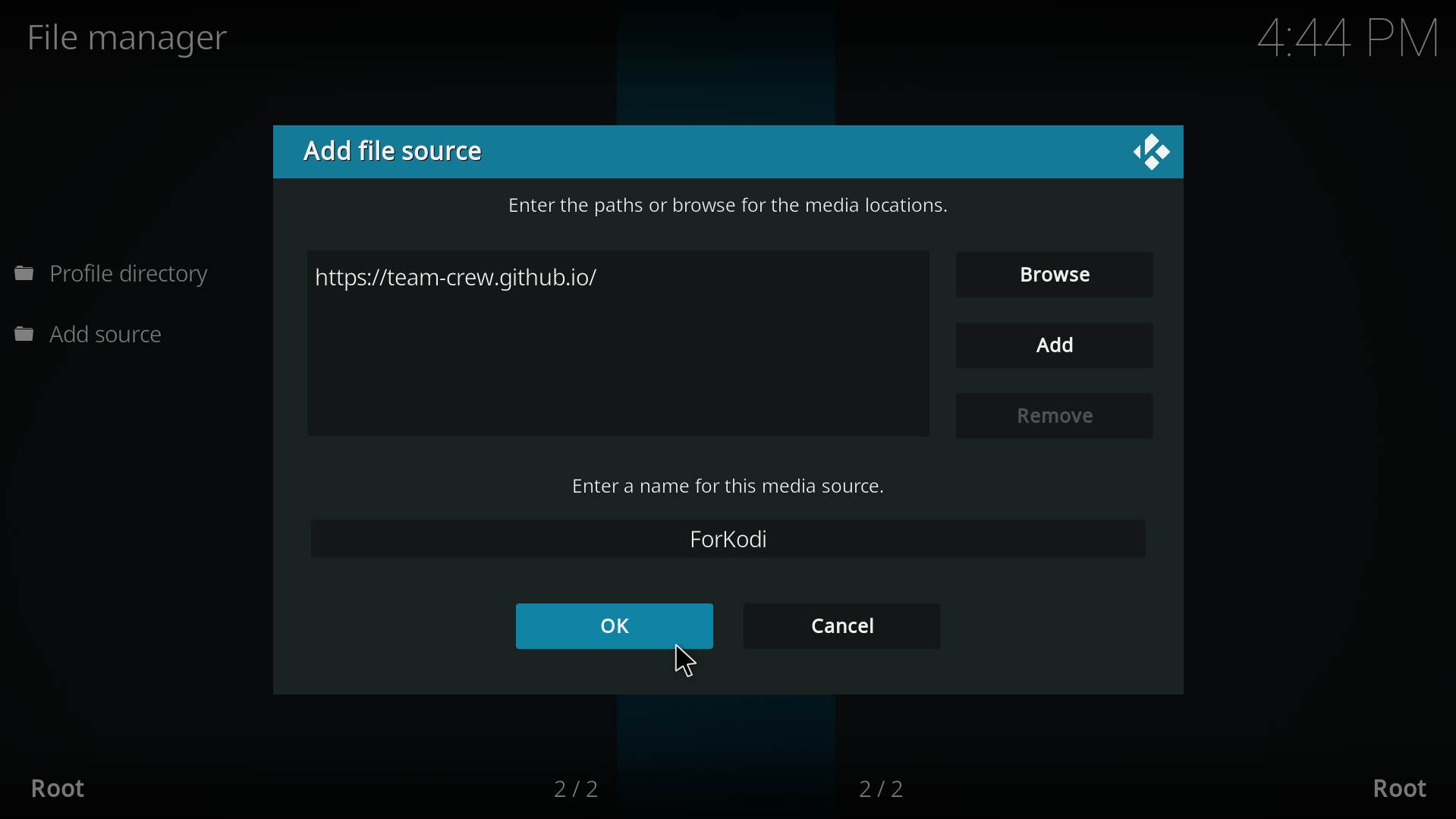
- Select Install from zip file.
- You’ll need to point Kodi to the location where you downloaded the “The Crew” ZIP file. If you downloaded it directly to your Firestick using Downloader, you’ll browse to the “Download” folder.
- Select the “The Crew” ZIP file to begin the installation.
- Kodi will install the addon. You might see a notification when it’s successfully installed.
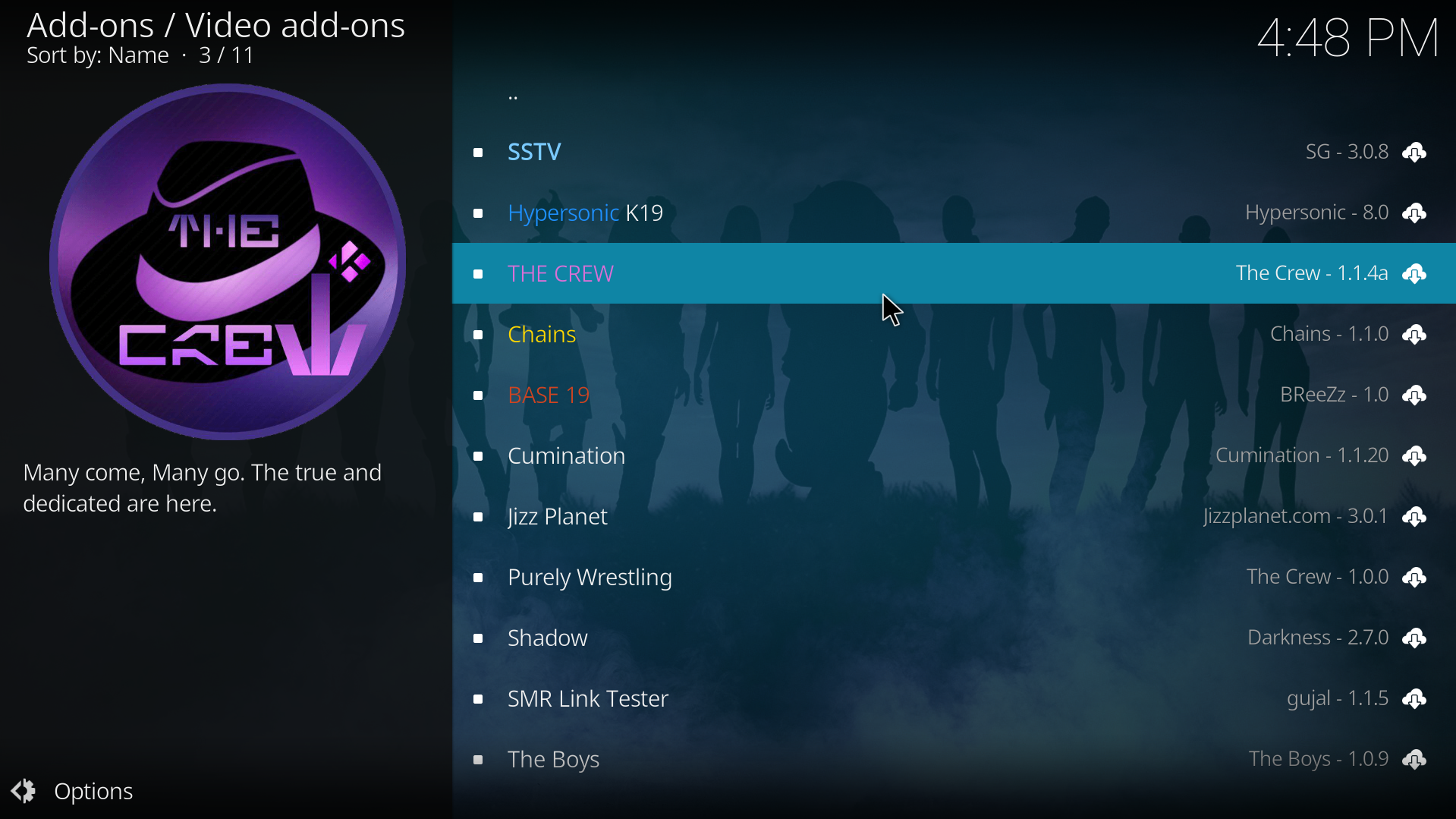
- After installation, you’ll typically find “The Crew” under the Video Add-ons section within Kodi.
Content and Usage Considerations
The Crew addon offers access to a wide range of streaming content, including:
- Movies and TV Shows: A vast library of on-demand content.
- Live TV: Access to various live television channels.
- Sports: Dedicated sections for live sports streaming.
- Kids’ Content: Family-friendly programming.
Important Disclaimers:
- Legality and Copyright: It’s essential to be aware of the copyright laws in your region. While The Crew can provide access to a lot of content, not all of it may be legally available for streaming through unofficial channels. Always ensure you are compliant with local regulations.
- Content Availability: The availability and stability of content within The Crew addon can change frequently. Developers of these addons are constantly updating them, but sources can sometimes go offline.
- Third-Party Software: The Crew is a third-party addon and is not affiliated with Amazon or Kodi. Its functionality and continued support depend on its developers.
- VPN Recommendation: For enhanced privacy and security, and to potentially bypass geo-restrictions, it is highly recommended to use a reputable VPN service when streaming content through unofficial addons like The Crew. A VPN encrypts your internet traffic, making it more difficult for third parties to track your online activities.
By following these steps, you should be able to successfully install and begin using The Crew on your Amazon Firestick. Remember to prioritize security, use trusted sources for downloads, and be mindful of copyright laws in your region. Enjoy your expanded streaming possibilities!
aViewFromTheCave is a participant in the Amazon Services LLC Associates Program, an affiliate advertising program designed to provide a means for sites to earn advertising fees by advertising and linking to Amazon.com. Amazon, the Amazon logo, AmazonSupply, and the AmazonSupply logo are trademarks of Amazon.com, Inc. or its affiliates. As an Amazon Associate we earn affiliate commissions from qualifying purchases.