
For countless gamers worldwide, Minecraft isn’t just a game; it’s a canvas for creativity, a realm for adventure, and a vibrant social hub. However, for those playing on a Mac, the experience can sometimes be hindered by performance bottlenecks, leading to frustrating frame rate drops and stuttering, especially in graphically intensive scenarios or when building elaborate worlds. This is where Sodium steps in – a game-changer for Minecraft Java Edition performance.
Sodium is a free and open-source rendering engine replacement for Minecraft, meticulously designed to significantly boost FPS (frames per second) and reduce micro-stutters, ultimately delivering a much smoother and more enjoyable gameplay experience. Unlike traditional optimization methods that merely tweak existing settings, Sodium revamps how Minecraft renders its world, making it dramatically more efficient. If you’ve been grappling with a sluggish Minecraft on your Mac, this comprehensive tutorial will guide you through every step of installing Sodium, transforming your gaming sessions into fluid, high-performance adventures. We’ll break down the process from understanding what Sodium is and why it’s essential for Mac users, to the detailed installation steps and common troubleshooting tips, ensuring you get the most out of your blocky escapades.
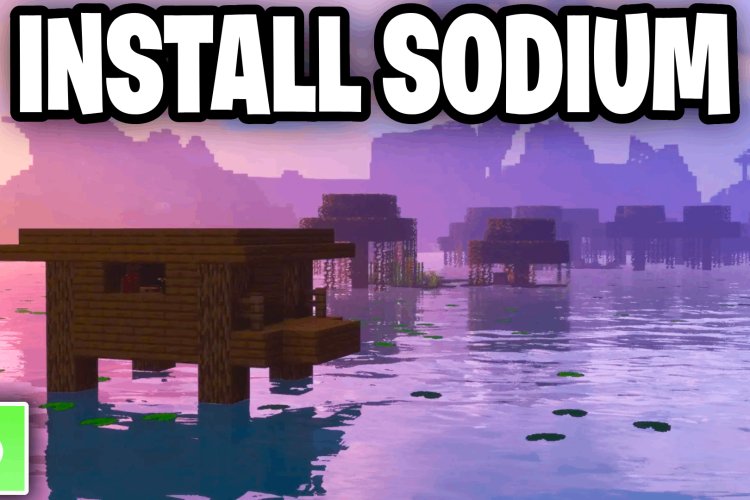
Understanding Sodium and Its Benefits for Mac Users
Before we dive into the nitty-gritty of installation, it’s crucial to understand what Sodium is and why it has become an indispensable tool for many Minecraft players, particularly those on macOS. Mac users often face unique challenges when it comes to gaming performance, and Sodium offers a powerful solution tailored to these needs.
What is Sodium?
At its core, Sodium is a performance-enhancing mod for Minecraft Java Edition. It’s not just another settings tweak; it’s a complete rewrite of Minecraft’s rendering engine. Developed by the Fabric community, Sodium is specifically engineered to improve graphical performance without compromising visual fidelity. It achieves this by optimizing how chunks are loaded, how light is rendered, and how various graphical elements are drawn on screen. The result is a substantial increase in frame rates, often doubling or even tripling performance on various hardware configurations, including those commonly found in Apple’s ecosystem.
Sodium operates on the Fabric mod loader, a lightweight and modular modding toolchain that contrasts with the more established Forge. This choice of platform allows Sodium to integrate deeply and efficiently with Minecraft’s core systems, providing optimizations that other mods might not achieve. Furthermore, Sodium is designed with compatibility in mind, ensuring it can work alongside many other Fabric-based mods, making it a versatile addition to any modded Minecraft setup. Its open-source nature means it’s constantly being refined and improved by a dedicated community, keeping it updated with the latest Minecraft versions and technological advancements, which aligns perfectly with the “Technology Trends” we often cover.
Why Choose Sodium for Your Mac?
Mac computers, while powerful for creative tasks and general computing, have historically faced a unique set of challenges when it comes to demanding games like Minecraft. These often include:
- Integrated Graphics: Many Mac models, particularly MacBooks and Mac Mini, rely on integrated graphics processors rather than dedicated GPUs. While Apple Silicon Macs have significantly improved in this area, older Intel-based Macs or even base-model M-series Macs can still struggle with graphically intensive games.
- Thermal Throttling: Gaming pushes hardware to its limits, leading to increased heat. Macs, known for their sleek designs, sometimes struggle with heat dissipation, leading to thermal throttling where the CPU/GPU intentionally slows down to prevent overheating, causing performance drops.
- Optimization Gaps: Minecraft’s default Java-based engine, while cross-platform, isn’t always perfectly optimized for every hardware configuration, especially for macOS.
Sodium directly addresses these pain points. By providing a highly optimized rendering engine, it:
- Boosts FPS Significantly: The most immediate and noticeable benefit is a dramatic increase in frame rates. This translates to smoother animations, more responsive controls, and a far more immersive experience.
- Reduces Stuttering and Lag Spikes: Sodium minimizes the micro-stutters that often occur when new chunks load or complex scenes are rendered. This leads to a more consistent and fluid gameplay.
- Enhances Playability on Lower-End Hardware: For Mac users with less powerful machines, Sodium can make the difference between an unplayable slideshow and a genuinely enjoyable game. It extends the life and utility of older Macs for gaming purposes.
- Maintains Visual Quality: Unlike some performance mods that achieve FPS gains by aggressively downgrading graphics, Sodium aims to maintain visual fidelity while optimizing underlying processes. You won’t feel like you’re sacrificing aesthetics for performance.
- Energy Efficiency: By making rendering more efficient, Sodium can indirectly contribute to less CPU/GPU strain, potentially leading to lower power consumption and less heat generation, which is a boon for MacBook users concerned about battery life and thermal management.
In essence, for Mac users, Sodium isn’t just a mod; it’s an essential upgrade that unlocks the full potential of Minecraft, transforming a potentially frustrating experience into one that is smooth, responsive, and truly enjoyable. This focus on optimizing software for better user experience aligns perfectly with our website’s “Tech” pillar, specifically under “Software” and “Productivity” (in the sense of productivity for entertainment!).
Essential Prerequisites Before Installation
Before embarking on the Sodium installation journey, it’s crucial to ensure your Mac is properly prepared. Skipping these preliminary steps can lead to frustrating errors and a stalled installation process. Think of this as laying a solid foundation for your optimized Minecraft experience.
Ensuring You Have the Right Setup
A smooth Sodium installation hinges on having the correct versions of key software already in place. Here’s what you’ll need:
-
Minecraft Java Edition:
- Requirement: You must own and have installed the official Minecraft Java Edition. This tutorial does not apply to Minecraft Bedrock Edition (available on the App Store).
- Action: Ensure your Minecraft Launcher is installed and you’ve logged in at least once. It’s also a good idea to run the version of Minecraft you intend to mod (e.g., 1.20.4 or 1.20.1) at least once without any mods. This allows Minecraft to download all necessary game files for that specific version, preventing potential issues later.
-
Java Runtime Environment (JRE) or Java Development Kit (JDK):
- Requirement: Minecraft Java Edition, and by extension, the Fabric Loader, requires a compatible Java installation to run. Modern Minecraft versions (1.17+) typically bundle their own Java, but for the Fabric Installer, you might need a system-wide Java.
- Action:
- Check Java Version: Open your Mac’s Terminal (search for “Terminal” in Spotlight). Type
java -versionand press Enter. If Java is installed, you’ll see version information (e.g.,openjdk version "17.0.X"). - Install/Update Java: If Java isn’t found or you have an older version, you might need to install a newer one. For most users, downloading and installing the latest LTS (Long-Term Support) version of OpenJDK (such as Java 17 or Java 21) from a reputable source like Adoptium (formerly AdoptOpenJDK) is recommended. Follow their on-screen instructions for macOS installation. This is a critical step for Mac users, as Java environments can sometimes be tricky to manage.
- Check Java Version: Open your Mac’s Terminal (search for “Terminal” in Spotlight). Type
-
Internet Connection:
- Requirement: A stable internet connection is needed to download the Fabric Loader, Sodium mod, and any other necessary game files.
- Action: Ensure you are connected to a reliable Wi-Fi or Ethernet network.
-
Sufficient Disk Space:
- Requirement: While Sodium itself is a small file, ensure you have a few gigabytes of free space for game updates and other potential mod files.
- Action: Check your Mac’s storage in System Settings > General > Storage.
-
Target Minecraft Version:
- Requirement: Decide which specific Minecraft version you want to install Sodium for (e.g., 1.20.4, 1.20.1, 1.19.2).
- Action: Remember this version, as you will need to download Fabric and Sodium files that are compatible with it. Mismatched versions are a very common cause of installation failures.
Having these prerequisites squared away will pave the way for a smooth and successful Sodium installation, letting you focus on the performance gains rather than technical hurdles.
Step-by-Step Installation Guide for Sodium on Mac
With your Mac prepped and ready, it’s time to dive into the core process of installing Sodium. This section will walk you through each step meticulously, ensuring you correctly set up the Fabric Loader and integrate Sodium into your Minecraft installation.
Step 1: Installing the Fabric Loader
Sodium relies on the Fabric mod loader to function. The Fabric Loader acts as the bridge between Minecraft and Sodium (and other Fabric-compatible mods).
-
Download the Fabric Installer:
- Open your web browser and navigate to the official Fabric website:
fabricmc.net. - On the homepage, you’ll typically find a prominent “Download” button. Click it.
- You’ll be directed to the download page. Locate and click on the “Download universal .jar” link. This
.jarfile works on all operating systems that support Java, including macOS.
- Open your web browser and navigate to the official Fabric website:
-
Run the Fabric Installer:
- Once the
fabric-installer-X.X.X.jarfile has downloaded, locate it in your Downloads folder (or wherever your browser saves files). - Double-click the
.jarfile. For most Mac users with Java installed correctly, this will launch the Fabric Installer window. - If double-clicking doesn’t work: Open Terminal (Applications > Utilities > Terminal). Navigate to your Downloads folder using the
cdcommand (e.g.,cd ~/Downloads). Then, typejava -jar fabric-installer-X.X.X.jar(replaceX.X.Xwith the actual version number of your downloaded file) and press Enter. This explicitly tells your Mac to run the.jarfile with Java. You might need to grant Java permissions in System Settings > Privacy & Security if prompted.
- Once the
-
Configure the Installer:
- In the Fabric Installer window, ensure the “Client” tab is selected.
- Minecraft Version: From the “Minecraft Version” drop-down menu, select the specific version of Minecraft you intend to play with Sodium (e.g., “1.20.4”). Make sure this matches the version you prepared earlier.
- Loader Version: It’s generally best to stick with the recommended “Loader Version,” which is usually pre-selected.
- Install Location: The installer should automatically detect your Minecraft installation directory (
~/Library/Application Support/minecraft). Do not change this unless you have a custom Minecraft setup. - Create profile: Ensure the “Create profile” checkbox is ticked. This will create a new profile in your Minecraft Launcher specifically for Fabric.
- Click the “Install” button.
-
Confirm Installation:
- A message stating “Successfully installed Fabric Loader” should appear. Click “OK” and close the installer.
Step 2: Downloading the Sodium Mod
Now that Fabric is installed, you need to download Sodium itself. It’s crucial to download the correct version that matches your installed Minecraft and Fabric Loader.
-
Go to the Official Sodium Download Page:
- Sodium is primarily hosted on Modrinth. Open your web browser and go to
modrinth.com/mod/sodium. Alternatively, you can search for “Sodium Modrinth” on Google. - Avoid downloading mods from unofficial or unknown websites to prevent malware.
- Sodium is primarily hosted on Modrinth. Open your web browser and go to
-
Select the Correct Version:
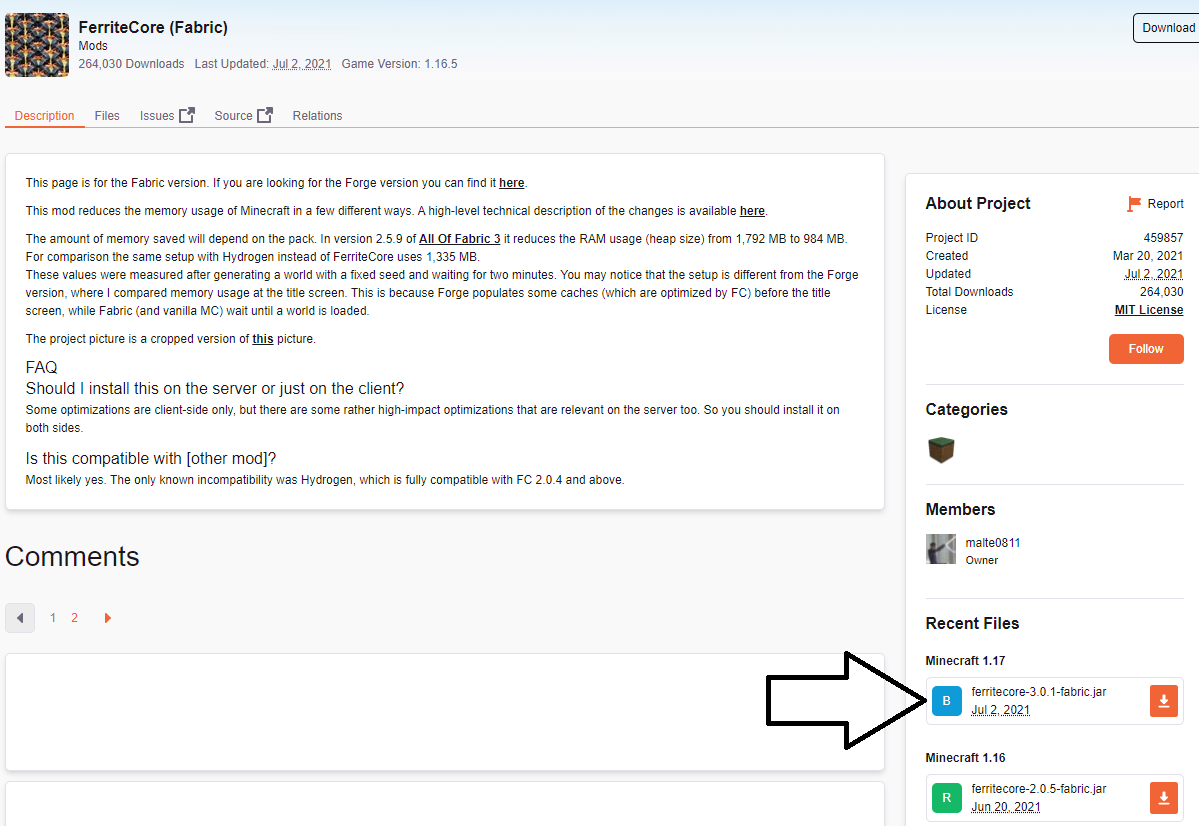
- On the Sodium Modrinth page, navigate to the “Versions” tab (or look for a similar section).
- Crucially, find the version of Sodium that matches your Minecraft version. For example, if you installed Fabric for Minecraft 1.20.4, look for a Sodium version explicitly stating compatibility with “Minecraft 1.20.4”.
- Click the “Download” button next to the appropriate Sodium
.jarfile.
-
Download the .jar File:
- Save the
sodium-fabric-X.X.X.jarfile to an easily accessible location, such as your Downloads folder. Do not open or run this file; it’s meant to be placed directly into a specific folder.
- Save the
Step 3: Placing Sodium into Your Mods Folder
Minecraft reads mods from a dedicated mods folder within its application support directory. You need to move the downloaded Sodium .jar file here.
-
Access Your Minecraft Application Support Folder:
- Open Finder.
- In the Finder menu bar at the top of your screen, click “Go.”
- Hold down the Option (Alt) key on your keyboard. While holding Option, a new “Library” option will appear in the “Go” menu. Click “Library.” (The
Libraryfolder is hidden by default). - Alternatively, in Finder, you can click “Go” > “Go to Folder…” and type
~/Library/Application Support/minecraftthen press Enter.
-
Locate or Create the
modsFolder:- Inside the
minecraftfolder, look for a folder namedmods. - If you see the
modsfolder, open it. - If the
modsfolder does not exist (this is common if you’re installing your first mod), you need to create it. Right-click (or Control-click) within theminecraftfolder, select “New Folder,” and name itmods(all lowercase).
- Inside the
-
Move the Sodium Mod:
- Open your Downloads folder (or wherever you saved the Sodium
.jarfile). - Drag the
sodium-fabric-X.X.X.jarfile from your Downloads folder directly into themodsfolder you just opened/created. - Ensure only the
.jarfile is in there – don’t put the installer or any other files.
- Open your Downloads folder (or wherever you saved the Sodium
Step 4: Launching Minecraft with Sodium
The final step is to launch Minecraft using the Fabric profile and verify that Sodium is active.
-
Open the Minecraft Launcher:
- Launch the official Minecraft Launcher application.
-
Select the Fabric Profile:
- In the bottom-left corner of the launcher, you’ll see a drop-down menu showing your current Minecraft profile (e.g., “Latest release”).
- Click this drop-down and select the “fabric-loader-X.X.X” profile. This is the profile that the Fabric Installer created for you.
-
Start Minecraft:
- Click the large “Play” button. The launcher might download some additional files for Fabric the first time.
- You might see a warning about playing a modded version of Minecraft. Click “Play” again to proceed.
-
Verify Sodium Installation (In-Game):
- Once Minecraft loads to the main menu, navigate to “Options…” -> “Video Settings…”.
- You should see a different layout for the video settings menu compared to vanilla Minecraft, often with a “Sodium” logo or a clear indication that Sodium is active (e.g., “Sodium X.X.X” at the bottom left of the video settings screen).
- Start a new world or load an existing one and observe your FPS (often displayed with F3). You should notice a significant performance improvement!
Congratulations! You have successfully installed Sodium on your Mac, and you’re now ready to experience Minecraft with vastly improved performance.
Troubleshooting Common Installation Issues on Mac
Even with a detailed guide, encountering issues during software installation is not uncommon, especially on macOS where permissions and hidden files can sometimes pose challenges. Here are some of the most frequent problems users face when installing Sodium on a Mac, along with their solutions.
“Java not found” or Installer Issues
This is perhaps the most common hurdle for Mac users attempting to run .jar files.
- Problem: When you double-click the Fabric Installer
.jarfile, nothing happens, or you get an error message like “You need a Java Runtime Environment to open this application,” or “Java not found.” - Solution 1: Install/Update Java: Ensure you have a compatible Java Runtime Environment (JRE) or Java Development Kit (JDK) installed. For modern Minecraft and Fabric, OpenJDK 17 or 21 is usually recommended. Download from Adoptium and follow the installer.
- Solution 2: Use Terminal: If Java is installed but double-clicking fails, open Terminal (
Applications > Utilities > Terminal). Navigate to your Downloads folder usingcd ~/Downloads(or wherever you saved the installer). Then, run the command:java -jar fabric-installer-X.X.X.jar(replaceX.X.Xwith the actual version number). This forces your Mac to use the Java installed on your system. - Solution 3: Grant Permissions: macOS security settings can sometimes block
.jarfiles. If you get a message about the developer not being verified, go toSystem Settings > Privacy & Security, and you might see an option to “Open Anyway” for the Fabric Installer. Click it, then try running the.jaragain.
Sodium Not Appearing in Game
You’ve followed all steps, but when you launch Minecraft with the Fabric profile, the video settings look vanilla, or you don’t see any performance boost.
- Problem 1: Incorrect
modsFolder Location: Themodsfolder is crucial.- Solution: Double-check that the Sodium
.jarfile is specifically in~/Library/Application Support/minecraft/mods. TheLibraryfolder is hidden by default. Remember to access it via Finder’s “Go” menu while holding the Option key. Make sure you don’t accidentally put it in~/Downloads/modsor amodsfolder elsewhere.
- Solution: Double-check that the Sodium
- Problem 2: Mismatched Versions: Sodium, Fabric Loader, and Minecraft versions MUST be compatible.
- Solution: Verify that your Fabric Loader was installed for the correct Minecraft version (e.g., 1.20.4) and that your downloaded Sodium
.jarexplicitly states compatibility with that same Minecraft version (e.g.,sodium-fabric-mc1.20.4-X.X.X.jar). If they don’t match, download the correct files.
- Solution: Verify that your Fabric Loader was installed for the correct Minecraft version (e.g., 1.20.4) and that your downloaded Sodium
- Problem 3: Wrong Profile Selected: You might still be launching vanilla Minecraft.
- Solution: In the Minecraft Launcher, confirm that “fabric-loader-X.X.X” is selected in the bottom-left profile drop-down menu before clicking “Play.”
Game Crashing on Startup
This can be more serious, indicating a conflict or deeper issue.
- Problem 1: Incompatible Mods: While Sodium is highly compatible, other mods you might have added alongside it could be causing conflicts.
- Solution: If you have other mods in your
modsfolder, temporarily remove all of them except Sodium. Launch Minecraft. If it works, gradually add your other mods back one by one to identify the culprit. Check the compatibility of other mods with your specific Minecraft and Fabric versions.
- Solution: If you have other mods in your
- Problem 2: Corrupted Download: A partially downloaded or corrupted
.jarfile can cause crashes.- Solution: Delete the Sodium
.jarfile from yourmodsfolder and redownload it from Modrinth. Ensure your internet connection is stable during the download.
- Solution: Delete the Sodium
- Problem 3: Outdated Fabric Loader: Though less common if you just installed, an outdated Fabric Loader might be the issue if you’re upgrading Minecraft versions.
- Solution: Re-run the Fabric Installer and ensure you select the correct, latest Fabric Loader version for your target Minecraft version.
By systematically going through these troubleshooting steps, most users can resolve common Sodium installation issues on their Mac and get back to enjoying a much-improved Minecraft experience. Remember that persistence and careful checking of versions are key!
Maximizing Your Minecraft Experience After Installation
Now that Sodium is successfully installed on your Mac, you’ve taken a significant step toward transforming your Minecraft gameplay. But the journey doesn’t end there. To truly maximize your experience, you can further configure Sodium and explore complementary mods that work in harmony to deliver unparalleled performance and visual quality. This aligns perfectly with our website’s “Tech” focus on “AI Tools” (indirectly, through intelligent optimization) and “Software” enhancements.
Configuring Sodium for Optimal Performance
Sodium’s magic lies in its powerful optimizations, many of which work silently in the background. However, it also introduces a revamped video settings menu within Minecraft, giving you more granular control over various graphical parameters. Experimenting with these settings can help you strike the perfect balance between high frame rates and visual fidelity tailored to your Mac’s capabilities.
- Access Sodium’s Video Settings: From the Minecraft main menu, go to “Options…” -> “Video Settings…”. You’ll immediately notice that this menu looks different from vanilla Minecraft’s, signaling that Sodium is active.
- Key Settings to Tweak:
- Render Distance: This is often the biggest FPS hog. While Sodium makes it much more efficient, reducing render distance (e.g., from 16 to 12 or 10 chunks) can still yield significant FPS gains, especially on less powerful Macs.
- Simulation Distance: Controls how far around you the game simulates physics, entity behavior, etc. Keep it equal to or slightly lower than your render distance for efficiency.
- Graphics Quality (Fast/Fabulous): Sodium’s “Fast” graphics setting is highly optimized, while “Fabulous” adds more visual flair but at a performance cost. Start with “Fast” for maximum FPS and try “Fabulous” if your Mac handles it well.
- Entity Distance/Shadows: Reducing these can improve performance in areas with many entities or complex lighting.
- Animations and Particles: Sodium provides more control over various particle effects and animations. Disabling or reducing some can free up resources.
- Advanced Options: Dive into the “Advanced” tab for more detailed settings like “Chunk Update Threads,” “Anisotropic Filtering,” and “Mipmap Levels.” Adjusting “Chunk Update Threads” to match your Mac’s CPU cores (minus one or two for system stability) can sometimes improve chunk loading.
- Experimentation is Key: The optimal settings will vary depending on your specific Mac model (CPU, GPU, RAM) and your personal preference. Spend some time in-game, adjusting settings one by one, and observe the FPS changes (use F3 to bring up the debug screen, which displays FPS). Find the sweet spot that offers smooth gameplay without making the world look barren.
Exploring Complementary Mods
Sodium is a fantastic starting point, but it’s part of a broader ecosystem of Fabric mods designed to enhance Minecraft performance and visuals. Combining Sodium with other compatible mods can elevate your experience even further.
-
Lithium (Performance Optimizations):
- While Sodium focuses on rendering, Lithium is another Fabric mod that optimizes various other aspects of Minecraft’s game logic, such as entity AI, block ticking, and chunk loading, further improving server-side and client-side performance. It’s often used in conjunction with Sodium for a comprehensive performance boost.
- Download:
modrinth.com/mod/lithium
-
Phosphor (Lighting Optimizations):
- Phosphor is a mod that optimizes Minecraft’s lighting engine, making light calculations more efficient without changing the appearance of light. This can lead to significant FPS improvements, especially in areas with complex lighting or when exploring caves.
- Download:
modrinth.com/mod/phosphor
-
Iris Shaders (Shader Support):
- If you’ve ever wanted to use shaders (realistic water, dynamic shadows, swaying trees) on your Mac but thought your performance wouldn’t allow it, Iris Shaders is your answer. Iris is a Fabric-compatible shader pack loader that works seamlessly with Sodium. It allows you to use popular shader packs like Complementary Shaders, BSL Shaders, or Sildur’s Vibrant Shaders while benefiting from Sodium’s underlying performance.
- Download:
irisshaders.net - Note: Even with Sodium and Iris, shaders are very demanding. Your Mac’s specifications will heavily influence which shader packs you can run smoothly.
Installation of Complementary Mods:
The process for installing Lithium, Phosphor, Iris, or any other Fabric mod is identical to installing Sodium:
- Download the
.jarfile for the correct Minecraft version from Modrinth (or the mod’s official site). - Place the
.jarfile directly into your~/Library/Application Support/minecraft/modsfolder. - Launch Minecraft using the “fabric-loader” profile.
Important Considerations:
- Compatibility: Always check the compatibility of any mod with your specific Minecraft version and ensure it’s built for Fabric.
- Mod Conflicts: While the trio of Sodium, Lithium, and Phosphor is generally harmonious, adding many mods can lead to conflicts. If you encounter crashes, try removing recently added mods one by one to isolate the issue.
- Performance vs. Aesthetics: Remember that every mod adds some overhead. Choose mods that genuinely enhance your experience without excessively compromising the smooth performance you’ve gained from Sodium.
By carefully configuring Sodium and selectively adding complementary mods, you can transform your Mac’s Minecraft experience from merely playable to truly exceptional, enjoying high frame rates and stunning visuals that might have seemed out of reach before. This exploration of advanced software optimization highlights the “Tech” focus of our platform, empowering users to get the most out of their digital tools.
Conclusion
Bringing a smoother, higher-performing Minecraft experience to your Mac is no longer a pipe dream, thanks to the power of Sodium. By diligently following this comprehensive tutorial, you’ve successfully navigated the steps from understanding Sodium’s benefits to installing the Fabric Loader, integrating the Sodium mod, and even troubleshooting potential pitfalls. Your Mac is now equipped to render the blocky worlds of Minecraft with unprecedented fluidity and responsiveness.
The impact of Sodium is immediate and profound: significantly boosted frame rates, reduced stuttering, and an overall more enjoyable gaming session, regardless of your Mac’s specifications. For Mac users, who often grapple with performance limitations in gaming, Sodium isn’t just an option—it’s an essential upgrade that breathes new life into their Minecraft adventures.
But the journey of optimization doesn’t have to end here. We’ve also touched upon the potential to further refine your experience by tweaking Sodium’s in-game settings and exploring complementary Fabric mods like Lithium, Phosphor, and Iris Shaders. These additions can further enhance performance and even introduce breathtaking visual upgrades, allowing you to tailor Minecraft to your exact preferences and your Mac’s capabilities.
So, fire up your Minecraft Launcher, select your Fabric profile, and delve into your optimized worlds. Whether you’re building epic structures, exploring vast landscapes, or battling formidable foes, you can now do so with the smooth, high-performance experience you’ve always desired. Enjoy your enhanced Minecraft journey, and remember to check back for more tutorials and insights into technology trends, software optimization, and making the most of your digital life. Happy crafting!
aViewFromTheCave is a participant in the Amazon Services LLC Associates Program, an affiliate advertising program designed to provide a means for sites to earn advertising fees by advertising and linking to Amazon.com. Amazon, the Amazon logo, AmazonSupply, and the AmazonSupply logo are trademarks of Amazon.com, Inc. or its affiliates. As an Amazon Associate we earn affiliate commissions from qualifying purchases.