
In an age defined by instant access and personalized entertainment, the smart TV has emerged as the cornerstone of the modern living room. Far more than just a display, these intelligent devices connect us to a universe of content, transforming the passive act of “watching TV” into an interactive and on-demand experience. If you’ve recently acquired a smart TV or are looking to fully harness its capabilities, understanding how to effectively stream content is key to unlocking its full potential. This comprehensive guide will walk you through the essential steps, features, and best practices to ensure you’re making the most of your smart TV’s streaming prowess.
Understanding Your Smart TV’s Capabilities
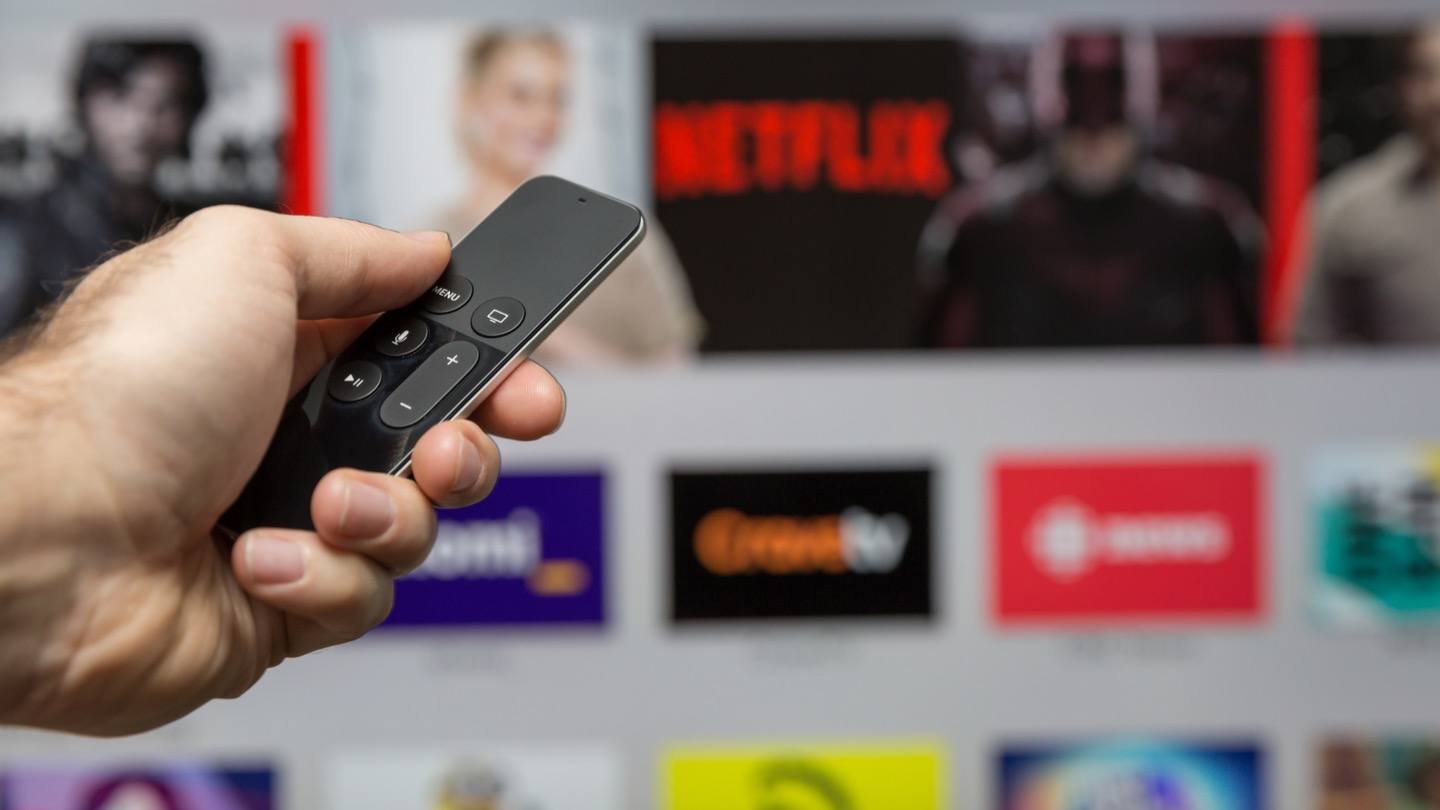
Before diving into the specifics of streaming, it’s crucial to grasp what makes your television “smart” and how its underlying technology facilitates seamless content delivery. A smart TV is essentially a television set with integrated internet connectivity and an operating system, allowing it to run apps and access online services directly, without the need for additional external devices for basic streaming.
What Defines a Smart TV?
At its core, a smart TV is characterized by three primary features:
- Internet Connectivity: Both wired (Ethernet) and wireless (Wi-Fi) capabilities enable the TV to access the internet, which is fundamental for streaming.
- Operating System (OS): Just like your smartphone or computer, a smart TV runs on an OS. This software platform provides the user interface, manages hardware, and allows for the installation and execution of applications.
- App Store/Ecosystem: The OS supports an app store where you can download and install a wide array of streaming services, utilities, and even games, turning your TV into a customizable entertainment hub.
Common Smart TV Operating Systems
The landscape of smart TV operating systems is diverse, with several major players each offering a unique user experience:
- LG webOS: Known for its intuitive “Magic Remote” and card-based interface, webOS offers a smooth and responsive experience, making navigation effortless.
- Samsung Tizen: Samsung’s proprietary OS is celebrated for its sleek, minimalist interface and robust integration with other Samsung devices and SmartThings IoT platform.
- Google TV / Android TV: Found on brands like Sony, Hisense, TCL, and Philips, Android TV offers deep integration with Google services, a vast app library from the Google Play Store, and built-in Chromecast functionality. Google TV is a newer iteration, offering a more content-focused discovery experience.
- Roku TV: Integrated into TVs from manufacturers like TCL and Hisense, Roku TV brings the popular Roku streaming platform directly to your television, known for its simplicity and extensive channel lineup.
- **Amazon Fire TV Edition: Similar to Roku TV, Fire TV Edition (on brands like Insignia and Toshiba) integrates Amazon’s Fire TV experience, offering Alexa voice control and a content-forward interface heavily leaning into Prime Video.
Understanding your TV’s OS can help you anticipate its interface, app availability, and unique features.
Pre-installed vs. Downloadable Apps
Most smart TVs come with a suite of popular streaming apps pre-installed, such as Netflix, YouTube, Amazon Prime Video, and Hulu. However, the true power lies in the ability to download additional apps from your TV’s app store. Whether you’re interested in niche sports streaming, international content, or new premium services, your smart TV’s app library likely has you covered. This flexibility ensures that your entertainment options are virtually limitless, adapting to your evolving viewing preferences.
Essential Setup for Smart TV Streaming
Before you can immerse yourself in your favorite shows and movies, a few fundamental setup steps are necessary to ensure a smooth and reliable streaming experience. These foundational elements lay the groundwork for optimal performance and access.
Establishing an Internet Connection
The most critical prerequisite for streaming is a stable internet connection. Without it, your smart TV is just a very large, high-definition monitor.
- Wi-Fi Connection: This is the most common method. Navigate to your TV’s settings menu, select “Network” or “Connectivity,” choose “Wi-Fi,” and then select your home network from the list. Enter your Wi-Fi password, and your TV should connect. For optimal performance, especially for 4K streaming, ensure your TV is connected to a 5GHz band if your router supports it, as it offers faster speeds and less interference.
- Ethernet Connection: For the most stable and fastest connection, connecting your smart TV directly to your router via an Ethernet cable is recommended. This bypasses potential Wi-Fi interference and ensures consistent bandwidth, crucial for high-quality streaming and avoiding buffering. Locate the Ethernet port on the back of your TV and connect it to an available LAN port on your router. The TV should automatically detect the wired connection.
Creating or Logging into Manufacturer Accounts
Many smart TV operating systems (e.g., Samsung, LG, Google TV) encourage or require you to create or log in with a manufacturer-specific account. This account often provides access to exclusive features, allows you to manage app purchases, sync settings across devices, and sometimes even offers content recommendations. While not always strictly necessary for basic streaming app functionality, it’s highly recommended for a fully integrated experience. Typically, you’ll be prompted to do this during the initial TV setup.
Keeping Your Smart TV Software Updated
Just like any other digital device, your smart TV’s operating system and apps receive regular updates. These updates are crucial for several reasons:
- Performance Improvements: Enhancements that make your TV run faster and more smoothly.
- Security Patches: Protect your device from vulnerabilities and ensure your data remains secure.
- New Features: Introduction of new functionalities or improvements to existing ones.
- App Compatibility: Ensuring that your streaming apps continue to work correctly with the latest service requirements.
It’s a good practice to enable automatic updates in your TV’s settings. If not, regularly check for system updates manually via the settings menu (usually under “Support,” “About TV,” or “System”). Keeping your software current is a simple yet effective way to maintain optimal streaming performance and security.
Exploring Built-in Smart TV Apps
The true magic of a smart TV lies in its ability to run a myriad of applications directly, allowing you to access a world of entertainment without extra hardware. This section guides you through harnessing the power of these integrated apps.

Navigating the Smart TV Interface
Each smart TV OS has its unique interface, but the fundamental navigation principles are similar. Most feature a home screen or a launcher bar that provides quick access to your installed apps, inputs, and settings.
- Remote Control: Your TV’s remote is your primary tool. Look for dedicated buttons for “Home,” “Apps,” “Settings,” and a directional pad or joystick for navigation. Many modern remotes also feature voice control, allowing you to launch apps or search for content using spoken commands.
- Customization: Most smart TVs allow you to customize the order of apps on your home screen or add frequently used apps for quick access. Take some time to arrange your interface to suit your viewing habits.
Discovering and Installing Popular Streaming Apps
Your smart TV comes with an app store—the gateway to virtually endless content.
- Finding the App Store: Look for an icon labeled “Apps,” “App Store,” “Google Play Store,” “LG Content Store,” or “Samsung TV Plus” on your home screen.
- Searching for Apps: Once in the app store, you can browse categories, view featured apps, or use the search function to find specific services like Netflix, Disney+, Max, Paramount+, Peacock, YouTube, Spotify, and many more.
- Installation: Select the app you wish to install and choose “Download” or “Install.” The app will then appear on your home screen or in your app library.
Signing Up and Logging In to Streaming Services
Once an app is installed, the next step is to log in or sign up for the service.
- Existing Subscriptions: If you already have an account with a service (e.g., Netflix), simply launch the app and enter your username and password. Some apps offer a streamlined activation process where you enter a code displayed on your TV into a web browser on your phone or computer.
- New Subscriptions: If you don’t have an account, the app will typically guide you through the sign-up process. This usually involves creating an account, selecting a subscription plan, and entering payment information. While you can often do this directly on the TV, it’s sometimes easier to sign up on a computer or mobile device and then log in on your TV.
Personalizing Your Viewing Experience
Most streaming services offer extensive personalization options to enhance your viewing experience:
- User Profiles: Create individual profiles for family members to keep recommendations, watch histories, and watchlists separate. This ensures each user gets a tailored experience.
- Watchlists/Favorites: Add movies and shows you’re interested in watching to a watchlist, making it easy to pick up where you left off or discover new content later.
- Content Preferences: Many services allow you to “like” or “dislike” content, influencing future recommendations to better align with your tastes.
Leveraging External Streaming Devices (When and Why)
While modern smart TVs are incredibly capable, there are specific scenarios where an external streaming device can offer enhanced functionality, greater choice, or even revitalize an older “smart” TV that has become outdated. These devices, such as Roku, Amazon Fire TV Stick, Apple TV, and Chromecast, connect to your TV via an HDMI port.
Benefits of External Streamers
- Enhanced Performance: Dedicated streaming devices often feature more powerful processors and more RAM than the integrated systems in some smart TVs, leading to faster app loading, smoother navigation, and quicker response times.
- Broader App Ecosystem: While most smart TV platforms have robust app stores, some external devices, particularly Android TV/Google TV boxes and Apple TV, might offer an even wider selection of niche apps or quicker access to new ones.
- Consistent Interface Across TVs: If you have multiple TVs in your home, using a consistent streaming device on each can provide a uniform user experience, making it easier to switch between displays.
- Longer Software Support: Some older smart TVs may stop receiving software updates for their built-in apps, leading to compatibility issues or missing features. External streamers typically receive updates for a longer period, extending the lifespan of your entertainment setup.
- Advanced Features: High-end external devices often support advanced features like Dolby Vision, Dolby Atmos, Wi-Fi 6, or specific gaming functionalities that might not be present in all smart TVs.
Connecting and Setting Up an External Device
The process is generally straightforward:
- Plug In: Connect the streaming device to an available HDMI port on your smart TV.
- Power On: Plug the device into a power outlet (or, for some smaller sticks, directly into a USB port on the TV if it provides sufficient power).
- Select Input: Use your TV remote to switch the input source to the HDMI port where the streaming device is connected.
- Follow On-Screen Instructions: The device will typically guide you through connecting to your Wi-Fi, logging into or creating an account for the device platform (e.g., Roku account, Amazon account), and downloading initial apps.
Integrating External Devices with Smart TV Features
Modern smart TVs and external streaming devices often work well together.
- HDMI-CEC: Most smart TVs support HDMI-CEC (Consumer Electronics Control), which allows devices connected via HDMI to communicate. This means you might be able to use your TV remote to control your streaming device or have your TV automatically switch to the correct input when you turn on the streaming device. Look for settings like “Anynet+” (Samsung), “Bravia Sync” (Sony), or “Simplink” (LG) to enable this.
- Universal Remotes: Consider a universal remote control that can manage both your TV and your streaming device, simplifying your setup.
- Voice Assistants: Many smart TVs and external streamers feature built-in voice assistants (Alexa, Google Assistant). You can often use these to launch apps on the external device or even search for content across connected platforms.
Optimizing Your Streaming Experience & Troubleshooting
A seamless streaming experience isn’t just about having the right connections; it’s also about optimizing your settings and knowing how to troubleshoot common issues.
Ensuring Adequate Internet Speed
Bandwidth is paramount for high-quality streaming.
- Minimum Requirements:
- Standard Definition (SD): 3 Mbps
- High Definition (HD): 5-8 Mbps
- 4K Ultra HD (UHD): 15-25 Mbps
- Household Usage: These are per-stream requirements. If multiple devices are streaming simultaneously or engaging in other high-bandwidth activities (gaming, video calls), you’ll need significantly higher overall internet speeds from your ISP.
- Testing Your Speed: Use an online speed test (e.g., Speedtest.net) on your TV’s built-in browser (if available) or on a device connected to the same network near your TV to assess your actual download speeds. If your speeds are consistently below the recommended thresholds, consider upgrading your internet plan or optimizing your home network.
Adjusting Picture and Sound Settings
While not directly related to streaming the content, optimizing your TV’s picture and sound settings will significantly enhance your enjoyment of streamed content.
- Picture Modes: Experiment with different picture modes (Cinema, Movie, Standard, Vivid, Game) offered by your TV. “Cinema” or “Movie” modes often provide the most color-accurate and natural viewing experience for films and TV shows, while “Game” mode reduces input lag.
- Brightness, Contrast, Sharpness: Fine-tune these settings to your liking. Be wary of over-sharpening, which can introduce artifacts, or excessively bright settings in a dark room.
- Motion Smoothing: Features like “Motion Interpolation” (often called TruMotion, Auto Motion Plus, Motionflow) can make movies look unnatural or like a “soap opera.” Many viewers prefer to turn this off for cinematic content.
- Sound Settings: Explore audio modes (Movie, Music, Clear Voice) and equalizer settings. If you have external sound systems (soundbar, AV receiver), ensure your TV is outputting audio correctly, ideally via HDMI ARC/eARC for the best quality.
Common Streaming Issues and Solutions
Even with the best setup, you might encounter occasional issues.
- Buffering/Lagging:
- Check your internet speed.
- Move your Wi-Fi router closer to your TV or use an Ethernet cable.
- Restart your router and modem.
- Close other bandwidth-intensive apps or devices on your network.
- Clear the cache of the streaming app (usually in the TV’s app settings).
- App Crashes/Freezes:
- Close the app and restart it.
- Restart your TV (a full power cycle, unplugging it for 30 seconds).
- Check for app updates in your TV’s app store.
- Reinstall the problematic app.
- No Sound/Picture:
- Check HDMI cable connections if using an external device.
- Ensure the correct input source is selected.
- Check TV volume and mute settings.
- Restart TV and any connected audio devices.
- Login Issues:
- Double-check your username and password.
- Try logging in on another device to confirm credentials.
- Reset your password if necessary.
Data Usage Considerations
While most home internet plans offer unlimited data, some might have data caps. Streaming, especially in 4K, consumes significant amounts of data:
- HD streaming: 3 GB per hour
- 4K UHD streaming: 7-16 GB per hour
If you have a data cap, monitor your usage through your ISP’s portal. Some smart TVs also offer basic data usage tracking in their settings. To conserve data, you can often lower the streaming quality within the settings of individual apps, although this might reduce visual fidelity.
Mastering how to stream TV on your smart TV opens up an unparalleled world of entertainment, offering convenience, variety, and a personalized viewing experience. By understanding your TV’s capabilities, performing the essential setup steps, exploring its vast app ecosystem, and knowing how to optimize and troubleshoot, you are well-equipped to fully enjoy the modern era of television. Dive in, explore, and let your smart TV be the gateway to your next favorite show or movie.
aViewFromTheCave is a participant in the Amazon Services LLC Associates Program, an affiliate advertising program designed to provide a means for sites to earn advertising fees by advertising and linking to Amazon.com. Amazon, the Amazon logo, AmazonSupply, and the AmazonSupply logo are trademarks of Amazon.com, Inc. or its affiliates. As an Amazon Associate we earn affiliate commissions from qualifying purchases.