
YouTube has long transcended its origins as a simple video-sharing platform, evolving into a global phenomenon that serves as an indispensable hub for entertainment, education, news, and personal expression. From casual viewers seeking the latest viral sensation to professional content creators building multi-million dollar empires, accessing YouTube’s vast ecosystem begins with a fundamental step: signing in. This process, while seemingly straightforward, unlocks a world of personalized experiences, interactive features, and advanced functionalities that are otherwise inaccessible. This comprehensive guide will meticulously walk you through every aspect of signing in to YouTube, from initial account creation to advanced security measures, ensuring a seamless and secure digital journey.

Understanding the Gateway to YouTube’s Ecosystem
Before delving into the mechanics of signing in, it’s crucial to grasp the underlying infrastructure that powers your YouTube experience. Unlike many standalone applications, YouTube operates as an integral part of a much larger digital framework.
The Significance of a Google Account
At the heart of your YouTube access lies your Google Account. YouTube is owned by Google, and as such, all user accounts are seamlessly integrated. This means that if you have a Gmail address, use Google Drive, or any other Google service, you already possess a Google Account. This unified account acts as a single sign-on (SSO) credential across Google’s entire suite of products, streamlining your digital life and consolidating your identity. For those new to the Google ecosystem, creating a Google Account is the prerequisite step to unlocking YouTube’s full potential. This integration isn’t just about convenience; it also underpins YouTube’s sophisticated recommendation algorithms and personalized features.
Why Signing In Matters: Personalized Experience and Features
While it’s possible to browse YouTube as a guest without signing in, doing so severely limits your experience. Signing in transforms YouTube from a passive viewing platform into a dynamic, interactive, and highly personalized environment. When you’re signed in, YouTube can:
- Personalize your recommendations: Based on your viewing history, subscriptions, likes, and comments, YouTube’s algorithms suggest videos tailored precisely to your interests.
- Manage subscriptions: Easily subscribe to your favorite channels and receive notifications for new content.
- Create playlists: Organize videos into custom playlists for future viewing, educational purposes, or sharing.
- Interact with content: Like, dislike, comment on videos, and participate in live chats.
- Upload content: For aspiring creators, a signed-in account is essential to upload, manage, and monetize videos.
- Access watch history and watch later: Keep track of what you’ve viewed and save videos to watch at a more convenient time.
- Control privacy settings: Manage your viewing history, search history, and other personal data settings.
- Benefit from parental controls: If managing accounts for children, signing in enables stricter content filtering and watch time limits.
Without signing in, YouTube remains a vast, undifferentiated ocean of content. With it, it becomes a curated stream flowing directly to you.
Step-by-Step Guide: Creating a New YouTube Account (Signing Up)
For those without an existing Google Account, the journey to full YouTube access begins with creating one. This process is intuitive and designed to be user-friendly, guiding you through each necessary step.
Navigating to the Google Account Creation Page
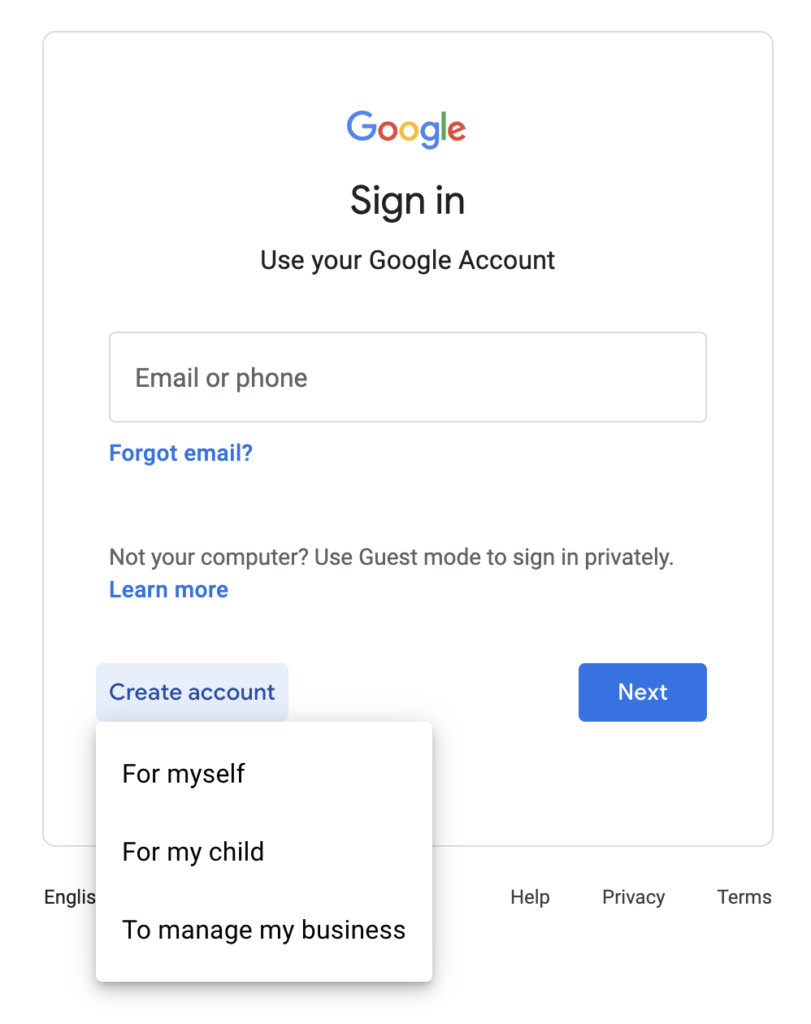
The easiest way to start is to visit YouTube directly (youtube.com) and click the “Sign in” button, usually located in the top-right corner. Since you don’t have an account, the system will prompt you to create one. Alternatively, you can go directly to Google’s account creation page (accounts.google.com/signup).
Essential Information for Account Setup
During the account creation process, you’ll be asked for some fundamental information to establish your digital identity and ensure account security. This typically includes:
- First Name and Last Name: These are used for identification purposes within Google services.
- Username (for Gmail): You’ll need to create a unique username, which will also become your Gmail address. This is critical as it serves as your primary identifier for logging in.
- Password: Choose a strong, unique password. Google recommends a mix of letters, numbers, and symbols, and to avoid using easily guessable information like birthdays or common phrases. We will elaborate on password best practices later.
- Date of Birth: This helps Google determine age appropriateness for certain content and services. Users must generally be at least 13 years old to manage their own Google Account, with regional variations.
- Gender (Optional): You can choose to specify your gender or prefer not to say.
- Phone Number (Optional but Recommended): Providing a phone number significantly enhances account security and facilitates recovery if you forget your password or your account is compromised. It can also be used for verification purposes.
- Recovery Email Address (Optional but Recommended): Similar to a phone number, a recovery email provides an alternative method to regain access to your account.
Google also presents its Privacy Policy and Terms of Service, which you must agree to before proceeding. It’s always advisable to review these documents to understand how your data will be handled.
Setting Up Security and Privacy Preferences
After providing your basic information, Google often offers initial security and privacy settings. This is your first opportunity to customize your account’s digital footprint. You might be prompted to:
- Review ad personalization: Decide whether Google can use your activity to show you personalized ads.
- Manage web & app activity: Control whether Google saves your search history and activity from other Google services.
- Enable/disable location history: Determine if Google tracks your device’s location.
- Choose YouTube history settings: Decide if your YouTube watch and search history should be saved.
Taking a moment to configure these settings upfront can provide greater peace of mind and control over your data from day one. Once these steps are complete, your Google Account is successfully created, and you are automatically signed in to YouTube, ready to explore.
Mastering the Sign-In Process for Existing Users
For the vast majority of users who already possess a Google Account, signing in to YouTube is a simple, often automated, process. However, understanding the nuances across different platforms and troubleshooting common issues can enhance efficiency and security.
Accessing YouTube via Web Browser
- Navigate to YouTube: Open your preferred web browser (Chrome, Firefox, Safari, Edge, etc.) and type
youtube.cominto the address bar. - Locate the Sign In button: In the top right corner of the YouTube homepage, you will typically find a “Sign in” button. Click on it.
- Enter your Google Account credentials: You will be redirected to Google’s sign-in page.
- Email or phone number: Enter the email address associated with your Google Account (usually your Gmail address) or the phone number linked to your account. Click “Next.”
- Password: Enter your password. Click “Next.”
- Two-Factor Authentication (if enabled): If you have two-factor authentication (2FA) enabled (highly recommended), you will be prompted for a second verification step. This could involve entering a code sent to your phone, tapping a notification on a trusted device, or using a security key. Complete this step to proceed.
- Successful Sign-In: Once your credentials are verified, you will be automatically redirected back to YouTube, now signed in to your account. Your profile picture or initial will appear in the top-right corner, signifying a successful login.
Many browsers offer to save your password for convenience. While this can speed up future logins, ensure you are using a secure device and understand the associated risks.
Signing In Through the YouTube Mobile App
The YouTube app, available on iOS and Android, offers an equally seamless sign-in experience, often leveraging existing Google logins on your device.
- Open the YouTube app: Tap the YouTube icon on your smartphone or tablet.
- Access the profile icon: In the top-right corner of the app interface, tap your profile icon (or a generic silhouette if not signed in).
- Select “Sign in”: A menu will appear. Tap “Sign in.”
- Choose an existing account or add a new one:
- If you already have Google Accounts logged into your device, they will be listed. Simply tap the account you wish to use.
- If your desired account isn’t listed, or you need to add a new one, tap “Add account.”
- Enter credentials (if adding a new account): If adding a new account, you will follow a process similar to the web browser method, entering your email/phone and password, and completing any 2FA prompts.
- Successful Sign-In: The app will automatically sign you in, and your profile picture will replace the generic icon, confirming your access.
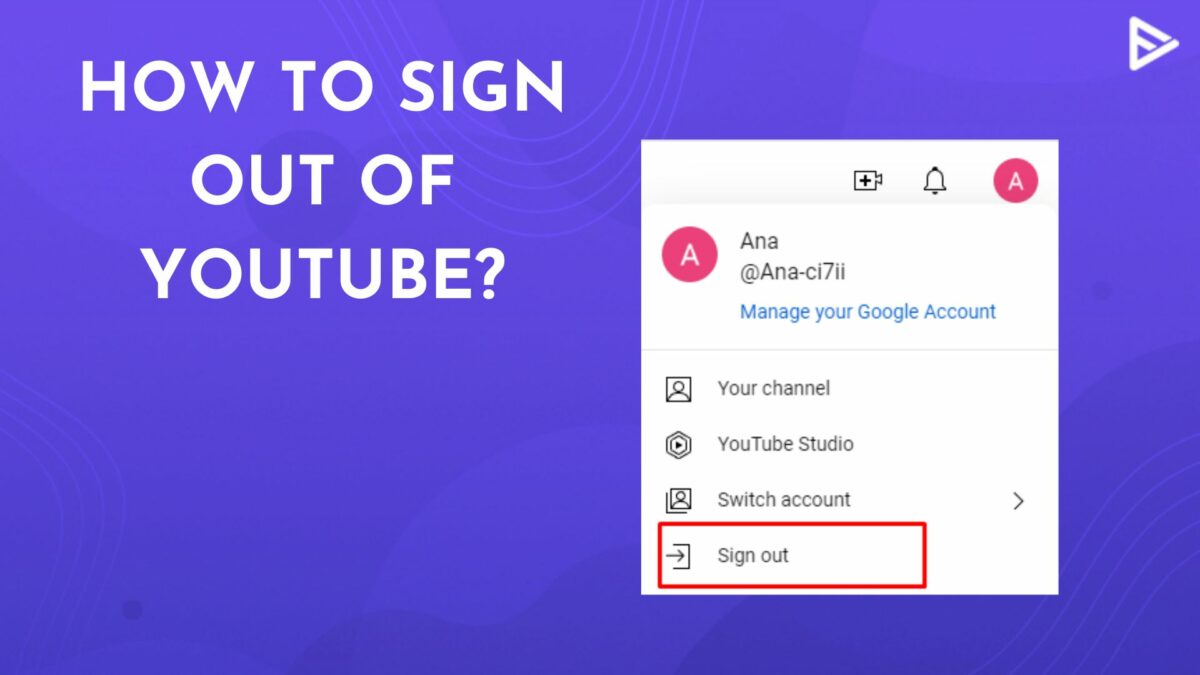
Mobile app sign-in is often more straightforward due to device-level integration with Google Accounts, minimizing the need for repeated credential entry.
Troubleshooting Common Sign-In Issues
Even with a straightforward process, users occasionally encounter hurdles. Here are common issues and their solutions:
- Incorrect Password: This is the most frequent issue. Double-check your CAPS LOCK key. If certain, you’ve forgotten it, use the “Forgot password?” link on the Google sign-in page. Google will guide you through a recovery process using your recovery phone number or email.
- Incorrect Username/Email: Ensure you are entering the correct Gmail address or phone number associated with your Google Account. Typographical errors are common.
- Browser/App Glitches: Sometimes, a simple refresh of the page or restarting the app can resolve temporary glitches. Clearing your browser’s cache and cookies can also help, as corrupted data might interfere with the login process.
- Internet Connection Problems: A stable internet connection is essential for signing in. Verify your Wi-Fi or mobile data connection.
- Account Suspended/Disabled: In rare cases, Google might suspend an account for violating its terms of service. If you suspect this, you’ll usually receive an email notification from Google with information on how to appeal.
- Two-Factor Authentication Issues: If you’re not receiving 2FA codes, check your phone’s signal, ensure the correct phone number is linked, or try an alternative 2FA method if available (e.g., backup codes, Google Authenticator app).
Patience and methodical troubleshooting can resolve most sign-in difficulties, emphasizing the importance of accurate recovery information.
Enhancing Your YouTube Security and Account Management
Signing in is just the first step; maintaining a secure account is an ongoing responsibility. With the prevalence of cyber threats, proactive security measures are paramount to protect your YouTube access and personal data.
Implementing Two-Factor Authentication (2FA)
Two-Factor Authentication (also known as two-step verification) is arguably the most critical security measure you can enable. It adds an extra layer of security beyond just your password. Even if a malicious actor obtains your password, they cannot access your account without the second factor. Google offers several 2FA options:
- Google Prompt: A notification is sent to your smartphone, which you simply tap to approve the sign-in. This is often the easiest and most secure method.
- Authenticator App: Apps like Google Authenticator or Authy generate time-sensitive codes.
- Text Message/Voice Call: A code is sent to your registered phone number.
- Backup Codes: A set of one-time codes to be used if you lose access to your primary 2FA method.
- Security Key: A physical device that you plug into your computer’s USB port.
Enabling 2FA drastically reduces the risk of unauthorized access. You can set this up in your Google Account security settings (myaccount.google.com/security).
Regular Password Management Best Practices
Your password is your first line of defense. Adhering to strong password practices is non-negotiable:
- Use Unique Passwords: Never reuse passwords across different accounts. If one account is compromised, all others using the same password become vulnerable.
- Create Strong Passwords: Aim for passwords that are at least 12-16 characters long, combining uppercase and lowercase letters, numbers, and symbols. Avoid personal information or easily guessable words.
- Utilize a Password Manager: Tools like LastPass, 1Password, or Bitwarden securely generate and store complex, unique passwords for all your accounts, requiring you only to remember one master password.
- Change Passwords Periodically: While a good password manager mitigates the need for frequent changes, updating your most critical passwords every 6-12 months is still a sound practice, especially if there’s any suspicion of a breach.
Recovering a Compromised Account
Despite the best security measures, accounts can occasionally be compromised. Google provides robust account recovery tools:
- Visit the Google Account Recovery page: Go to
accounts.google.com/signin/recovery. - Provide verification details: Google will ask for information to verify your identity, such as your last remembered password, recovery phone number, or recovery email address.
- Follow the prompts: Answer as many questions as you can accurately. The more information you provide, the higher the chance of successful recovery.
- Reset your password: Once your identity is verified, you’ll be prompted to create a new, strong password. Immediately enable 2FA if it wasn’t already active.
- Review account activity: After recovery, check your Google Account’s security settings for any unusual activity, linked devices you don’t recognize, or changes made by the attacker.
Acting quickly and having up-to-date recovery information are crucial for restoring access to a compromised account.
Beyond Basic Access: Optimizing Your YouTube Experience
Once successfully signed in and your account secured, the true power of YouTube begins to unfold. Effectively managing your settings and preferences can significantly enhance your viewing and interaction experience.
Personalizing Your Home Feed and Subscriptions
Your YouTube home feed is the gateway to new content, and personalization is key.
- Subscribe to channels: Actively subscribe to creators whose content you enjoy. This ensures their new videos appear prominently in your subscriptions feed.
- Use the “Not interested” and “Don’t recommend channel” options: When YouTube suggests content you dislike, use these options (found by clicking the three dots next to a video title) to refine your recommendations.
- Engage with content: Liking, commenting, and sharing videos signal your preferences to YouTube’s algorithm, helping it understand what you want to see more of.
- Manage notifications: For your favorite channels, click the bell icon next to the “Subscribed” button to customize notification settings—from receiving all notifications to none, or only personalized ones.
Managing Your Privacy Settings and Data
Google provides comprehensive controls over your privacy. You can access these through your Google Account (myaccount.google.com/data-and-privacy).
- Activity Controls: Here, you can pause or delete your Web & App Activity, Location History, and YouTube History. Pausing YouTube History, for instance, stops YouTube from using your past views to influence future recommendations.
- Ad Settings: Customize your ad personalization preferences, seeing what information Google uses to show you ads and turning off personalization if desired.
- Third-party apps with account access: Review and remove any third-party applications that have been granted access to your Google Account. This is vital for security, as rogue apps could exploit your data.
- Data Download & Deletion: Google allows you to download copies of your data from various services or delete your Google Account entirely if you choose.
Regularly reviewing these settings ensures your digital privacy aligns with your comfort level.
Exploring Advanced Features for Content Creators and Viewers
Beyond standard viewing, a signed-in account unlocks a host of advanced features:
- YouTube Studio (for creators): This dedicated platform allows creators to upload videos, manage channels, track analytics, interact with comments, and manage monetization settings.
- Live streaming: Signed-in users can participate in live chat during streams, and eligible creators can host their own live broadcasts.
- YouTube Premium: A subscription service offering ad-free viewing, background playback, downloads, and exclusive content.
- YouTube Kids/YouTube Music: Access to specialized apps tailored for specific content types, leveraging your main Google Account for family management or music preferences.
- Channel memberships: Support your favorite creators through paid channel memberships, gaining access to exclusive perks.
Signing in to YouTube is more than just a login; it’s an activation point for a rich, interactive, and personalized digital ecosystem. By understanding the process, implementing strong security measures, and actively managing your settings, you can harness the full power of YouTube, transforming it from a simple video platform into an indispensable part of your digital life.
aViewFromTheCave is a participant in the Amazon Services LLC Associates Program, an affiliate advertising program designed to provide a means for sites to earn advertising fees by advertising and linking to Amazon.com. Amazon, the Amazon logo, AmazonSupply, and the AmazonSupply logo are trademarks of Amazon.com, Inc. or its affiliates. As an Amazon Associate we earn affiliate commissions from qualifying purchases.