
The transition from traditional cable to over-the-top (OTT) streaming services has fundamentally changed how we consume media. One of the most significant shifts in this evolution is the move from physical hardware—the bulky Digital Video Recorder (DVR) boxes that sat under our televisions—to the cloud. YouTube TV has emerged as a leader in this space, primarily due to its sophisticated Cloud DVR functionality. Unlike traditional systems that were limited by hard drive capacity and tuner counts, YouTube TV offers a virtually frictionless recording experience. Understanding how to navigate this system is essential for any modern cord-cutter looking to optimize their home entertainment setup.
Understanding the YouTube TV Cloud DVR Ecosystem
Before diving into the mechanical steps of recording, it is crucial to understand the underlying technology that powers YouTube TV’s recording feature. Unlike TiVo or local cable boxes, YouTube TV does not store data on your physical device. Instead, it utilizes Google’s massive server infrastructure to “bookmark” and store broadcasts for individual users. This approach removes many of the technical bottlenecks associated with legacy television recording.
Unlimited Storage: A Paradigm Shift
The most disruptive feature of YouTube TV’s DVR is its unlimited storage capacity. In the era of local hardware, users were constantly forced to manage their storage, deleting old episodes of sitcoms to make room for a high-definition sports broadcast. YouTube TV eliminates this anxiety. Users can record thousands of shows simultaneously without ever hitting a ceiling. This “set it and forget it” mentality is a cornerstone of the platform’s user experience, shifting the focus from storage management to content discovery.
How the Library Function Works
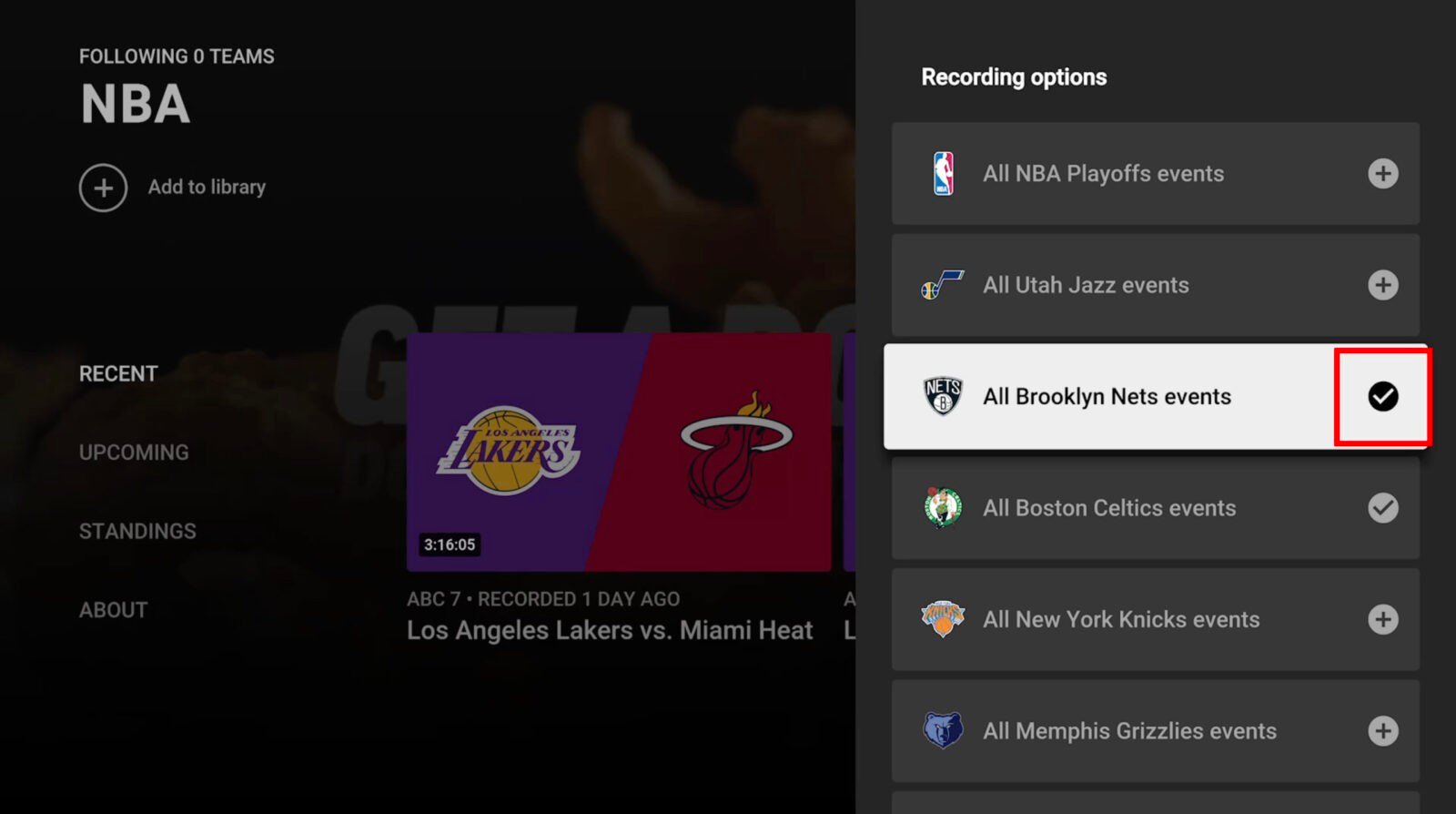
On YouTube TV, the concept of “recording” is synonymous with “adding to library.” When you add a show, movie, or sports team to your library, the system automatically tracks every airing of that content across all included channels. If a show is syndicated on five different networks, the Cloud DVR will record every instance it finds. This ensures that you always have the most complete collection of episodes available. The system also intelligently distinguishes between “New” episodes and “Reruns,” allowing users to filter their viewing experience based on their current progress in a series.
Step-by-Step Guide to Recording Content
The user interface of YouTube TV is designed for cross-platform consistency, meaning the process for recording a show is nearly identical whether you are using a smart TV, a mobile device, or a web browser. The core mechanic revolves around the “plus” (+) icon, which serves as the universal trigger for the Cloud DVR.
Adding Shows via the Search Bar
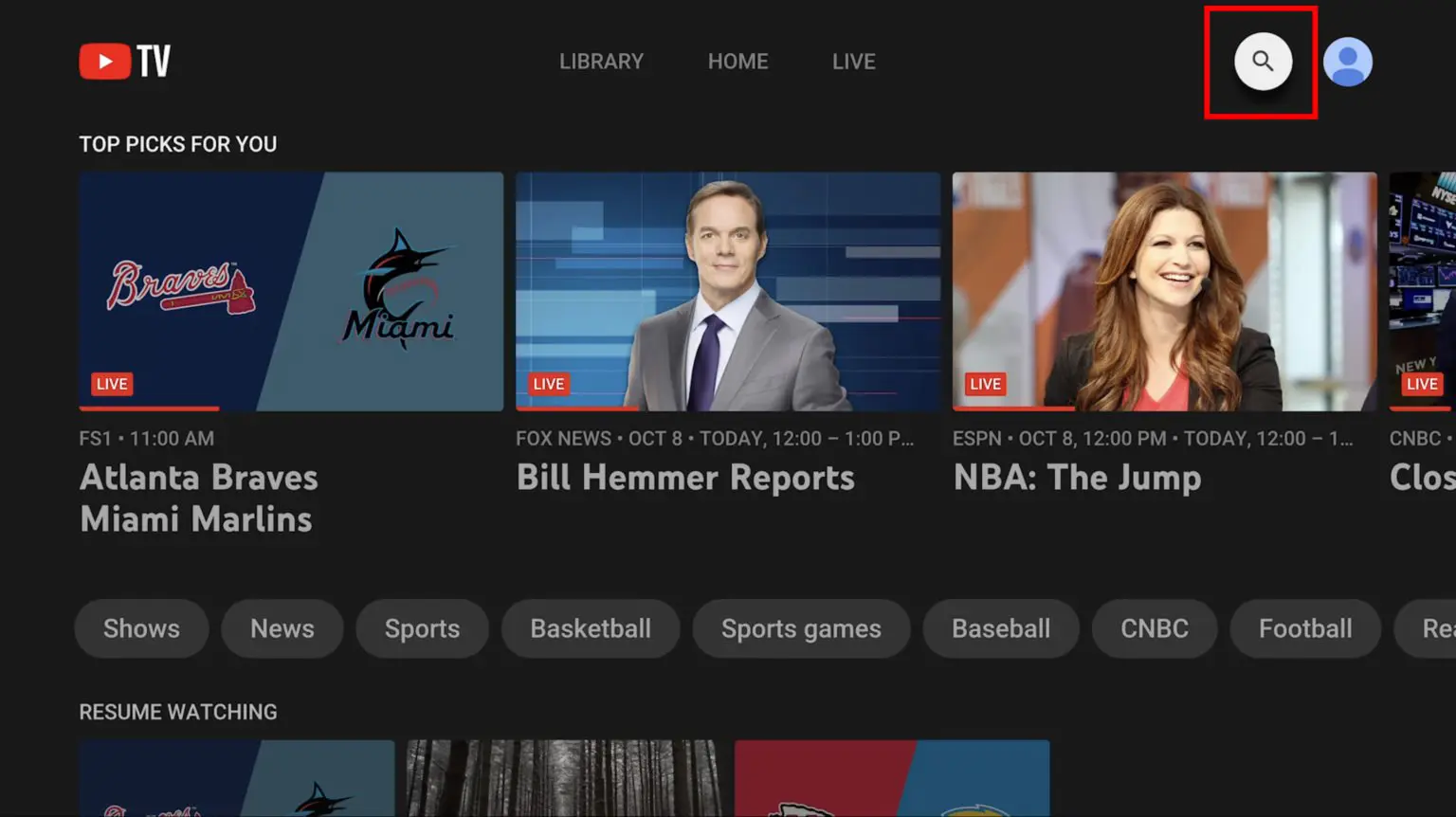
The most efficient way to record a specific program is by using the search function. By clicking the magnifying glass icon at the top of the interface, you can type in the name of a show, movie, or even an actor or director.
- Search: Enter the title of the program you wish to record.
- Select: Click on the thumbnail of the show to open its dedicated landing page.
- Add to Library: Look for the “+” icon labeled “Add to Library.” Once clicked, the icon will turn into a checkmark.
From this moment forward, every upcoming airing of that program will be recorded and stored in your library for nine months.
Recording Live TV in Real-Time
If you are currently watching a live broadcast and decide you want to save the remainder of the program—or ensure you have access to it later—the process is just as simple.
- Interaction: While the live stream is playing, bring up the playback controls (usually by pressing “down” or clicking on the screen).
- Navigate to the Plus: You will see the program title and a “+” sign.
- Confirm: Selecting the plus icon will immediately begin the recording process for that airing and schedule all future airings to be saved as well.
A unique advantage of the Cloud DVR is that even if you start recording halfway through a live broadcast, YouTube TV can often provide the full episode in your library, provided the system was already capturing the stream on its backend.
Managing Your Library and Recordings
Once you have added content, it resides in the “Library” tab, which is the third main section of the YouTube TV interface (alongside “Home” and “Live”). The Library is categorized into several sections:
- New in Your Library: Highlights the most recently recorded episodes.
- Most Watched: Organizes content based on your viewing habits.
- Scheduled: Shows you what is slated to be recorded in the next 24 hours.
- Shows, Movies, and Sports: These tabs allow you to filter your recordings by genre or format.
Because storage is unlimited, there is no technical need to delete recordings. However, if you wish to stop recording a show, you simply return to its page and click the checkmark to remove it from your library. This won’t immediately delete past recordings, but it will stop the system from capturing future airings.
Advanced Features and Optimization Tips

While the basic recording function is straightforward, power users can leverage several advanced features to tailor the experience to their specific needs. YouTube TV’s integration with Google’s AI and data processing allows for features that traditional DVRs simply cannot match.
Sports Recording and Extra Time
One of the most praised aspects of YouTube TV is how it handles live sports. Recording sports can be frustrating on traditional devices because games often run long, leading to the DVR cutting off the most exciting final minutes. YouTube TV uses real-time data feeds to identify when a game is running over its scheduled time slot. The Cloud DVR automatically extends the recording window to ensure the entire event is captured. Furthermore, you can “Add to Library” an entire league (e.g., “All NFL Games”) or a specific team, ensuring you never miss a kickoff, regardless of which network is broadcasting the game.
Family Sharing and Individual DVRs
YouTube TV allows for up to six individual profiles per household. This is a critical feature for maintaining an organized library. Each profile gets its own dedicated, unlimited Cloud DVR. This means a parent’s library won’t be cluttered with children’s cartoons, and recording preferences remain strictly personalized. When you record a show on your profile, it does not affect the library of another family member, even though the subscription is shared. This separation of data is handled seamlessly through Google account integration.
Offline Viewing and 4K Plus Add-ons
For users who travel or have inconsistent internet connections, YouTube TV offers an optional “4K Plus” add-on. Beyond providing access to higher-resolution streams, this package introduces the ability to download DVR recordings to a mobile device for offline viewing. This transforms the Cloud DVR from a strictly homebound service into a portable media server. When you are on your home Wi-Fi, you can select “Download” on a recorded episode, and it will be stored locally on your phone or tablet, allowing you to watch it on a plane or in areas with poor cellular reception.
Troubleshooting and Limitations of YouTube TV Recording
Despite its robust nature, the YouTube TV recording system has specific nuances and limitations that users should be aware of to avoid confusion. These often relate to licensing agreements and the distinction between different types of content delivery.
Ad-Skipping and VOD vs. DVR
A common point of confusion is the presence of commercials. When you record a show on YouTube TV, you can typically fast-forward through commercials just as you would with a physical DVR. However, you may sometimes see two versions of a show in your library: a “DVR” version and a “VOD” (Video On Demand) version. The VOD version is provided by the network and usually contains unskippable ads. If both are available, YouTube TV usually defaults to the DVR version, but in some rare cases involving licensing restrictions, you might be directed toward the VOD version. Knowing how to select the “Choose a version” button on the show’s page can help you ensure you are watching the recording that allows for ad-skipping.
Expiration Dates and Storage Limits
While the storage capacity is unlimited, the storage duration is not. Every recording on YouTube TV is kept for exactly nine months from the date it was recorded. After nine months, the recording expires and is removed from your library. However, because many shows are frequently rerun, the system will often record a fresh copy of an older episode, effectively resetting the nine-month clock. For rare films or one-time events, this expiration date is something to keep in mind if you plan on saving content for long-term archiving.
Device Compatibility and Syncing
Because the DVR is cloud-based, there is a perfect sync across all devices. If you start watching a recording on your living room Roku and pause it at the 15-minute mark, you can open the YouTube TV app on your iPhone while on the bus and resume exactly where you left off. The “Resume” function is deeply integrated into the library, providing a seamless transition across the hardware ecosystem.
The Future of Cloud-Based Media Consumption
The technology behind YouTube TV’s recording feature represents a broader trend in the tech industry: the move toward “Server-Side” processing. By offloading the task of recording and storing video to the cloud, Google has removed the hardware limitations that plagued the television industry for decades. This shift not only benefits the consumer through unlimited storage and multi-device access but also allows the service provider to push updates and new features without requiring users to purchase new equipment.
As internet speeds continue to increase and 5G becomes more ubiquitous, the distinction between “live” and “recorded” content will continue to blur. YouTube TV’s approach—where every broadcast is essentially being recorded by the system at all times and users simply choose which ones to “unlock” in their personal libraries—is the blueprint for the future of broadcast media. For the user, the “How” of recording has become less about managing technology and more about curating a personalized world of content that is available anytime, anywhere, and on any screen.
aViewFromTheCave is a participant in the Amazon Services LLC Associates Program, an affiliate advertising program designed to provide a means for sites to earn advertising fees by advertising and linking to Amazon.com. Amazon, the Amazon logo, AmazonSupply, and the AmazonSupply logo are trademarks of Amazon.com, Inc. or its affiliates. As an Amazon Associate we earn affiliate commissions from qualifying purchases.