
In today’s hyper-connected world, a stable and efficient network connection is no longer a luxury; it’s a necessity. Whether you’re a remote worker relying on video conferencing, a gamer immersing yourself in virtual worlds, a business owner managing critical operations, or simply a student browsing for research, your network drivers play a pivotal role in ensuring your devices can communicate effectively with the internet and other devices on your local network. When these drivers are outdated, corrupted, or missing, you’re likely to encounter frustrating issues like slow internet speeds, intermittent connectivity, or even complete network failure.
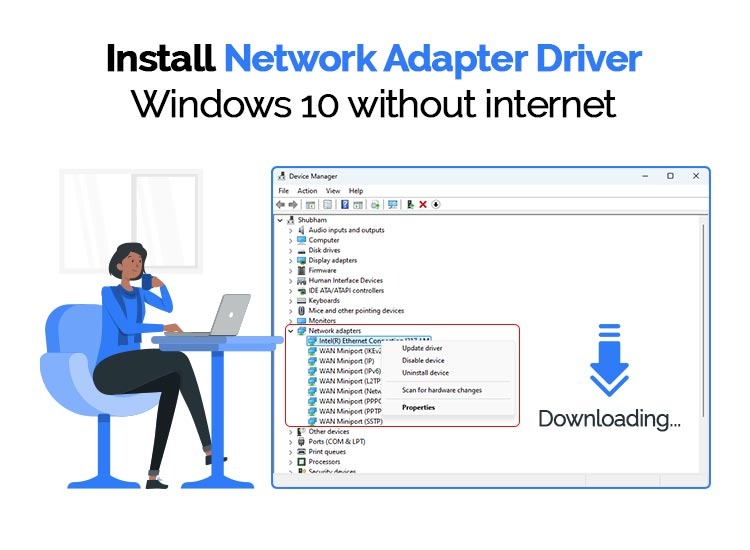
This comprehensive guide, rooted in the core tenets of technology and practical problem-solving, will walk you through the essential steps of installing and updating network drivers. We’ll explore common scenarios, provide clear, actionable instructions, and offer insights to help you troubleshoot and maintain optimal network performance. Understanding how to manage these critical pieces of software is a fundamental skill for anyone navigating the digital landscape, directly impacting your productivity, your ability to access information, and your overall digital experience.
Understanding Network Drivers: The Unsung Heroes of Connectivity
Before diving into the installation process, it’s crucial to understand what network drivers are and why they are so important. At their core, network drivers, also known as network adapters or network interface controller (NIC) drivers, are specialized software programs that act as translators between your operating system (like Windows, macOS, or Linux) and your network hardware (such as your Wi-Fi card or Ethernet port).
Think of your network hardware as the physical road and your operating system as the traffic manager. The network driver is the set of traffic laws and signals that dictate how data packets (the “vehicles”) can travel smoothly and efficiently between your computer and the outside world. Without the correct drivers, your operating system wouldn’t know how to send or receive data through your network adapter, rendering your internet connection useless.
Why Do Network Drivers Need Installation and Updates?
Network drivers are not static entities. Like most software, they are subject to development and improvement. Here are the primary reasons why you might need to install or update them:
- New Hardware Installation: When you install a new network adapter (e.g., a USB Wi-Fi dongle or a new internal Wi-Fi card), your operating system won’t automatically know how to communicate with it. You’ll need to install the specific drivers provided by the manufacturer.
- Operating System Updates: Major operating system updates can sometimes introduce compatibility issues with older drivers or require updated drivers for optimal performance. In some cases, OS updates might even uninstall or corrupt existing drivers.
- Performance Enhancements and Bug Fixes: Manufacturers regularly release driver updates that can improve network speed, reduce latency, enhance stability, and fix bugs that might be causing connectivity problems. These updates are crucial for staying on top of performance.
- Security Patches: Like other software, network drivers can have vulnerabilities. Updates often include security patches to protect your system from network-based threats.
- Troubleshooting Connectivity Issues: When you experience persistent network problems, an outdated or corrupted driver is often a primary suspect. Reinstalling or updating the driver can resolve many of these issues.
Types of Network Drivers
While the term “network driver” is broad, it typically refers to drivers for:
- Wired Ethernet Adapters: These are built into most motherboards and handle your physical Ethernet connection.
- Wireless (Wi-Fi) Adapters: These are responsible for your wireless network connectivity. They can be integrated into your laptop or motherboard, or be external USB devices.
- Bluetooth Adapters: While primarily for short-range device communication, Bluetooth often uses network protocols and thus relies on specific drivers.
The Standard Process: Installing Network Drivers on Windows
Windows, being the most widely used operating system for personal computers, often presents the most common scenarios for driver installation. The process can vary slightly depending on whether you’re dealing with a new piece of hardware or trying to fix an existing problem.
H2: Locating and Installing Drivers Automatically
For most modern hardware, Windows has a robust system for automatically detecting and installing drivers. This is the simplest and most common method.
H3: Using Device Manager for Automatic Updates
Device Manager is your central hub for managing all hardware components connected to your computer. It’s the first place to check when you suspect a driver issue.
-
Open Device Manager:
- Press the
Windows key + Xsimultaneously. - From the power user menu, select “Device Manager.”
- Alternatively, you can search for “Device Manager” in the Windows search bar and open it.
- Press the
-
Identify Your Network Adapter:
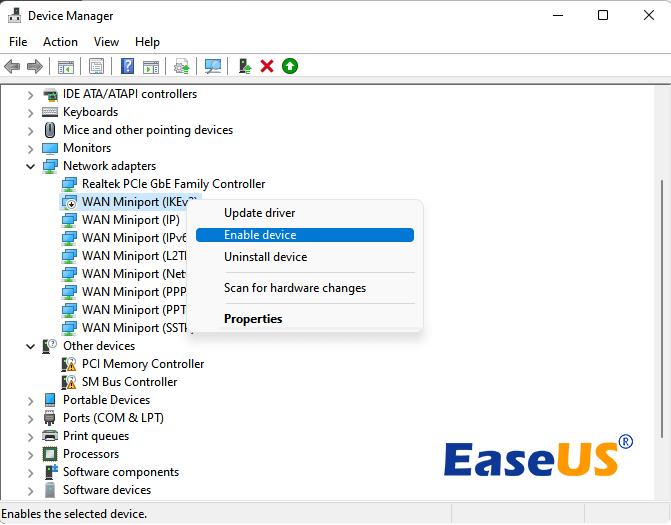
- In the Device Manager window, look for the “Network adapters” category.
- Expand this category by clicking the arrow next to it. You’ll see a list of your installed network devices. Common names include “Intel(R) Wi-Fi,” “Realtek PCIe GbE Family Controller,” or similar.
-
Initiate an Automatic Driver Update:
- Right-click on the specific network adapter you want to update.
- Select “Update driver.”
- You’ll be presented with two options:
- “Search automatically for drivers”: This is the option you want to select for automatic installation. Windows will connect to the internet (if you have an alternative connection, like a mobile hotspot, or if the issue is with your primary Wi-Fi) and search Microsoft’s driver database for the latest compatible driver.
- “Browse my computer for drivers”: This option is for when you have downloaded the driver files manually (which we’ll cover later).
-
Follow On-Screen Instructions: If Windows finds a newer driver, it will download and install it automatically. You may be prompted to restart your computer for the changes to take effect.
H3: Windows Update for Driver Distribution
Beyond Device Manager, Windows Update itself is a significant source of driver updates. Microsoft often collaborates with hardware manufacturers to distribute drivers through this channel.
-
Access Windows Update:
- Go to “Settings” (Windows key + I).
- Click on “Update & Security.”
- Select “Windows Update” from the left-hand menu.
-
Check for Updates:
- Click “Check for updates.”
- Windows will scan for operating system updates and also any available driver updates.
-
View Optional Updates:
- Sometimes, driver updates are categorized under “Optional updates.” Look for a link like “View optional updates” and click it.
- Expand the “Driver updates” section. If your network adapter has a driver update available, it will be listed here.
- Select the desired driver update and click “Download and install.”
-
Restart: As with any driver update, a restart is often required.
H2: Manual Driver Installation: When Automatic Fails
There will be times when Windows’ automatic search falls short, or you need a specific version of a driver. This is where manual installation becomes essential. This typically involves downloading the driver from the manufacturer’s website.
H3: Downloading Drivers from the Manufacturer’s Website
This is the most reliable method for ensuring you have the correct and latest driver for your specific hardware.
-
Identify Your Network Hardware:
- For built-in components: You’ll need to know the make and model of your motherboard (for desktops) or your laptop’s exact model number. This information can usually be found on a sticker on the device itself, in your system’s documentation, or by using system information tools (like
msinfo32.exein Windows). For network adapters, look at the name in Device Manager. - For add-on cards or USB devices: The manufacturer’s name and the specific model number should be clearly marked on the device or its packaging.
- For built-in components: You’ll need to know the make and model of your motherboard (for desktops) or your laptop’s exact model number. This information can usually be found on a sticker on the device itself, in your system’s documentation, or by using system information tools (like
-
Visit the Manufacturer’s Support Website:
- For laptops: Go to the support section of your laptop manufacturer’s website (e.g., Dell, HP, Lenovo, Asus).
- For motherboards: Go to the support section of your motherboard manufacturer’s website (e.g., ASUS, Gigabyte, MSI, ASRock).
- For standalone network adapters (Wi-Fi cards, USB dongles): Go to the website of the chip manufacturer (e.g., Intel, Realtek, Qualcomm Atheros) or the brand of the adapter itself (e.g., TP-Link, Netgear).
-
Locate the Drivers/Downloads Section: Once on the support page, look for a section titled “Drivers,” “Downloads,” “Support,” or “Software.”
-
Enter Your Product Information: You’ll typically be asked to enter your product model, serial number, or let the website detect your system.
-
Select Your Operating System: Crucially, ensure you select the correct operating system version (e.g., Windows 11, Windows 10 64-bit).
-
Download the Network Driver: Find the network driver in the list of available software. It might be labeled as “LAN Driver,” “Wi-Fi Driver,” “Wireless Driver,” or “Network Adapter Driver.” Download the latest stable version. The downloaded file is usually an executable (
.exe) file or a zipped archive containing driver files.
H3: Installing Downloaded Drivers Manually via Device Manager
Once you have the driver file, you can install it through Device Manager.
-
Open Device Manager: (As described in the “Automatic Updates” section above).
-
Locate Your Network Adapter: Expand the “Network adapters” category.
-
Initiate Manual Update:
- Right-click on the network adapter.
- Select “Update driver.”
- This time, choose “Browse my computer for drivers.”
-
Specify the Driver Location:
- Click “Browse…” and navigate to the folder where you downloaded and extracted the driver files.
- If the downloaded file was an
.exeinstaller, you might need to run it first to extract the driver files to a specific folder. Sometimes, running the.exewith command-line arguments like/extractcan help. If you’re unsure, look for a folder named “drivers” or similar within the extracted files. - Ensure “Include subfolders” is checked.
-
Install the Driver:
- Click “Next.”
- Windows will search the specified folder for compatible driver files. If it finds them, it will install the driver.
- You may see a security warning; if you trust the source (the manufacturer’s website), proceed by clicking “Install.”
-
Restart: A restart is almost always recommended after a manual driver installation.
H2: Troubleshooting Common Network Driver Issues
Even with careful installation, you might encounter problems. Here are some common issues and their solutions related to network drivers.
H3: No Internet Connection After Driver Installation
This is frustrating but often fixable.
- Roll Back Driver: If the problem started immediately after an update, the new driver might be incompatible.
- In Device Manager, right-click the network adapter, select “Properties.”
- Go to the “Driver” tab.
- If the “Roll Back Driver” button is available, click it. This will revert to the previously installed driver.
- Uninstall and Reinstall:
- In Device Manager, right-click the network adapter and select “Uninstall device.”
- Crucially, check the box that says “Attempt to remove the driver software for this device” if available. This ensures a clean slate.
- Restart your computer.
- Windows will attempt to reinstall a generic driver or detect the hardware and prompt you for a driver. You can then try the automatic search again or manually install the driver you downloaded.
- Check Network Troubleshooter: Windows has a built-in troubleshooter that can often diagnose and fix network problems. Right-click the network icon in your system tray and select “Troubleshoot problems.”
H3: Slow Internet Speeds
While many factors contribute to slow internet, drivers can play a role.
- Ensure Latest Driver: Always ensure you have the absolute latest driver from the manufacturer. Performance improvements are common.
- Check Power Management Settings: Sometimes, power-saving features in the driver can throttle network performance.
- In Device Manager, right-click the network adapter, select “Properties.”
- Go to the “Power Management” tab.
- Uncheck “Allow the computer to turn off this device to save power.”
- Update Router Firmware: While not a driver issue, an outdated router can bottleneck your connection. Check your router manufacturer’s website for firmware updates.
H3: Network Adapter Not Showing Up in Device Manager
If your network adapter (especially a newly installed one) doesn’t appear at all, it could indicate a hardware problem or a deeply buried driver issue.
- Reseat Hardware: If it’s an internal card, ensure it’s properly seated in its slot. For USB devices, try a different USB port.
- Check BIOS/UEFI Settings: For integrated network adapters on motherboards, ensure they are enabled in your system’s BIOS/UEFI settings.
- Try a Different Driver Version: If the latest driver isn’t working, try an older, stable version if available on the manufacturer’s site.
Maintaining Optimal Network Performance: Beyond Installation
Installing drivers is often just the first step in ensuring a reliable network connection. Proactive maintenance and awareness of best practices can save you a lot of headaches down the line.
Regularly Check for Updates
Make it a habit to visit your hardware manufacturers’ support websites periodically (e.g., every few months) or keep an eye on Windows Update’s optional driver sections. Outdated drivers are a leading cause of network instability and performance degradation.
Keep Your Operating System Updated
As mentioned, OS updates can impact drivers. Keeping your Windows, macOS, or Linux system up-to-date ensures better compatibility and often includes improved driver management features.
Understand Your Hardware
Knowing the exact model of your network adapter or laptop is key to finding the correct drivers. Don’t guess; verify. This knowledge is invaluable not just for driver installation but also for troubleshooting and understanding your system’s capabilities.
Be Cautious with Third-Party Driver Updaters
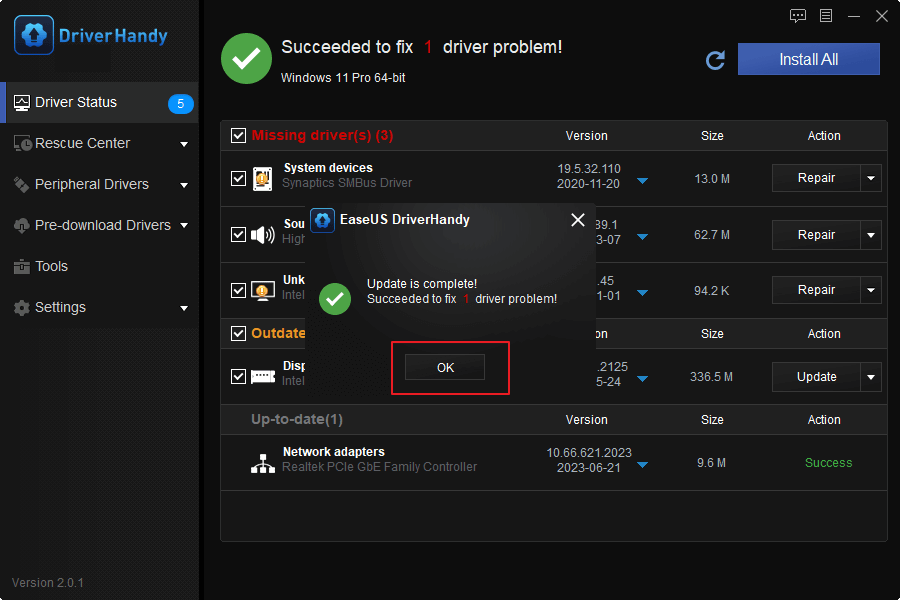
While convenient, many third-party driver update utilities can be unreliable, install incorrect drivers, or even introduce malware. It’s generally safer to download drivers directly from the hardware manufacturer’s official website.
Document Your Installations
For advanced users or in complex IT environments, keeping a record of installed drivers and their versions can be extremely helpful for troubleshooting and consistent system configurations.
In conclusion, mastering the art of installing and managing network drivers is a fundamental skill for anyone who relies on digital connectivity. By understanding the role of these drivers, following the correct installation procedures—whether automatic or manual—and employing effective troubleshooting techniques, you can ensure your network runs smoothly, efficiently, and securely. A well-maintained network driver is the invisible force that powers your online life, enabling seamless communication, productivity, and access to the vast digital world.
aViewFromTheCave is a participant in the Amazon Services LLC Associates Program, an affiliate advertising program designed to provide a means for sites to earn advertising fees by advertising and linking to Amazon.com. Amazon, the Amazon logo, AmazonSupply, and the AmazonSupply logo are trademarks of Amazon.com, Inc. or its affiliates. As an Amazon Associate we earn affiliate commissions from qualifying purchases.