
The landscape of personal finance has been significantly reshaped by mobile applications and digital payment solutions. Among these, Cash App stands out as a popular platform for sending, spending, and investing money. Its associated Cash Card, a customizable debit card linked to your Cash App balance, offers a tangible way to access your funds. However, the true power of modern payment processing lies in its integration with digital wallets like Apple Wallet and Google Wallet. This integration enhances convenience, security, and accessibility, transforming your smartphone into a primary payment tool. Understanding the technical nuances and precise steps to link your Cash App Card to these digital wallets is crucial for leveraging the full spectrum of their capabilities.
Understanding Digital Wallets and Cash App Integration
Digital wallets represent a fundamental shift in how we manage and utilize payment instruments. Instead of physically carrying multiple cards, users can store digitized versions on their smartphones, smartwatches, or other compatible devices. This move from a physical to a digital paradigm is driven by advancements in NFC (Near Field Communication) technology, biometric authentication, and robust data encryption. Integrating your Cash App Card into these digital ecosystems is not merely a convenience; it’s an adoption of a more secure and efficient transaction method.
The Ecosystem of Mobile Payments
Mobile payment ecosystems are intricate networks comprising financial institutions, payment processors, mobile operating systems (iOS and Android), and various app developers. When you add a card to Apple Wallet or Google Wallet, you’re not just storing card numbers. Instead, a process called tokenization occurs. Your actual card number is replaced with a unique, encrypted “token” or “device account number.” This token is what’s transmitted during a transaction, rather than your sensitive card details. This architectural design is a cornerstone of modern digital security, minimizing the risk of data breaches during payments. Cash App, by allowing its card to be tokenized and integrated, participates actively in this secure, interoperable payment infrastructure.
Why Integrate Your Cash App Card?
Integrating your Cash App Card into a digital wallet offers several compelling advantages, primarily revolving around enhanced user experience and security protocols inherent in the technology.
Enhanced Convenience
With your Cash App Card digitized, you can make payments with a simple tap of your phone or smartwatch wherever contactless payments are accepted. This eliminates the need to carry your physical card, reducing wallet bulk and providing a seamless checkout experience. For online purchases, the integration often streamlines the checkout process, autofilling payment details securely.
Robust Security
Digital wallets employ advanced security features that often surpass those of physical cards. Beyond tokenization, transactions typically require biometric authentication (Face ID, Touch ID, fingerprint scan) or a passcode. This multi-factor authentication means that even if your phone is lost or stolen, unauthorized access to your payment methods is significantly harder than simply using a lost physical card. Furthermore, your actual card number is never stored on your device or shared with merchants, adding an extra layer of protection.
Accessibility and Speed
Accessing your Cash App balance becomes almost instantaneous. Whether you’re making a quick purchase at a coffee shop or paying for groceries, the transaction speed is optimized. For users who frequently manage funds within Cash App, this integration provides immediate access to those funds in a widely accepted format, bridging the gap between a mobile-first banking solution and everyday retail environments.
Step-by-Step Guide: Adding Your Cash App Card to Apple Wallet
For iPhone users, integrating the Cash App Card into Apple Wallet transforms the device into a comprehensive payment tool. The process is designed to be intuitive, leveraging the iOS ecosystem’s user-friendly interface.
Prerequisites for iOS Users
Before you begin, ensure the following:
- Active Cash App Account: Your Cash App account must be fully set up and verified.
- Active Cash Card: You must have an activated physical or virtual Cash Card.
- Compatible iPhone: Your iPhone must support Apple Pay (iPhone 6 or later).
- Latest iOS Version: Ensure your device is running the latest stable version of iOS for optimal compatibility and security.
- Strong Internet Connection: A stable Wi-Fi or cellular data connection is necessary for the verification process.
The Process via Cash App
This is often the most straightforward method as Cash App provides direct integration functionality:
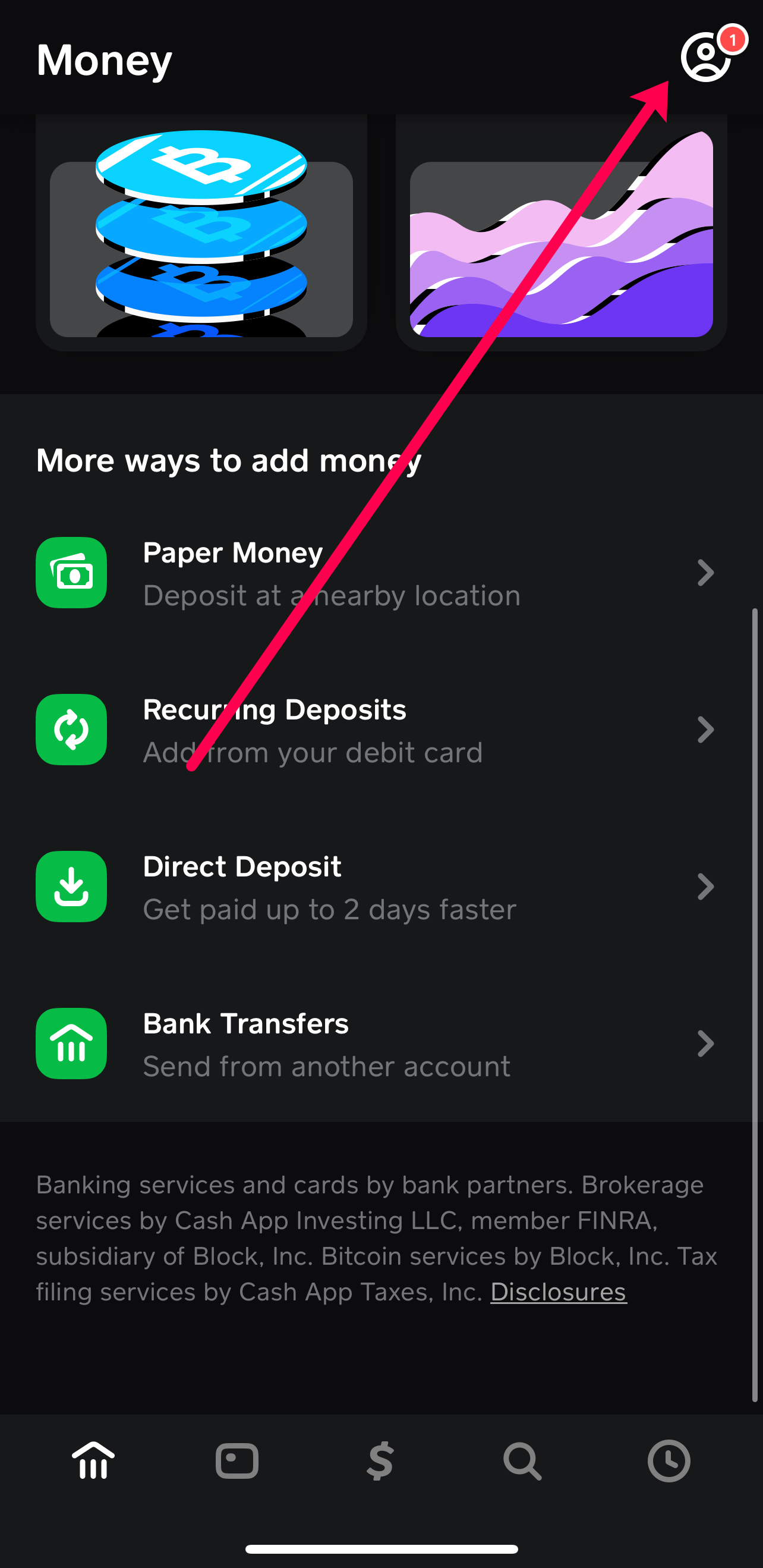
- Open Cash App: Launch the Cash App application on your iPhone.
- Navigate to Cash Card Tab: Tap on the Cash Card icon, typically located on the bottom navigation bar (it looks like a debit card).
- Select “Add to Apple Pay”: Look for an option that explicitly states “Add to Apple Pay” or “Add to Wallet.” It might be under the card image or in the card settings.
- Follow On-Screen Prompts: Cash App will initiate the transfer of card details to Apple Wallet. You will be prompted to confirm your card details.
- Review and Agree to Terms: Apple Wallet will display the terms and conditions from Cash App and Apple. Read them carefully and tap “Agree.”
- Verify (if prompted): In some cases, you might be asked to verify your card via an SMS code sent to your registered phone number or through the Cash App itself.

The Process via Apple Wallet App
Alternatively, you can add the card directly through the Apple Wallet application:
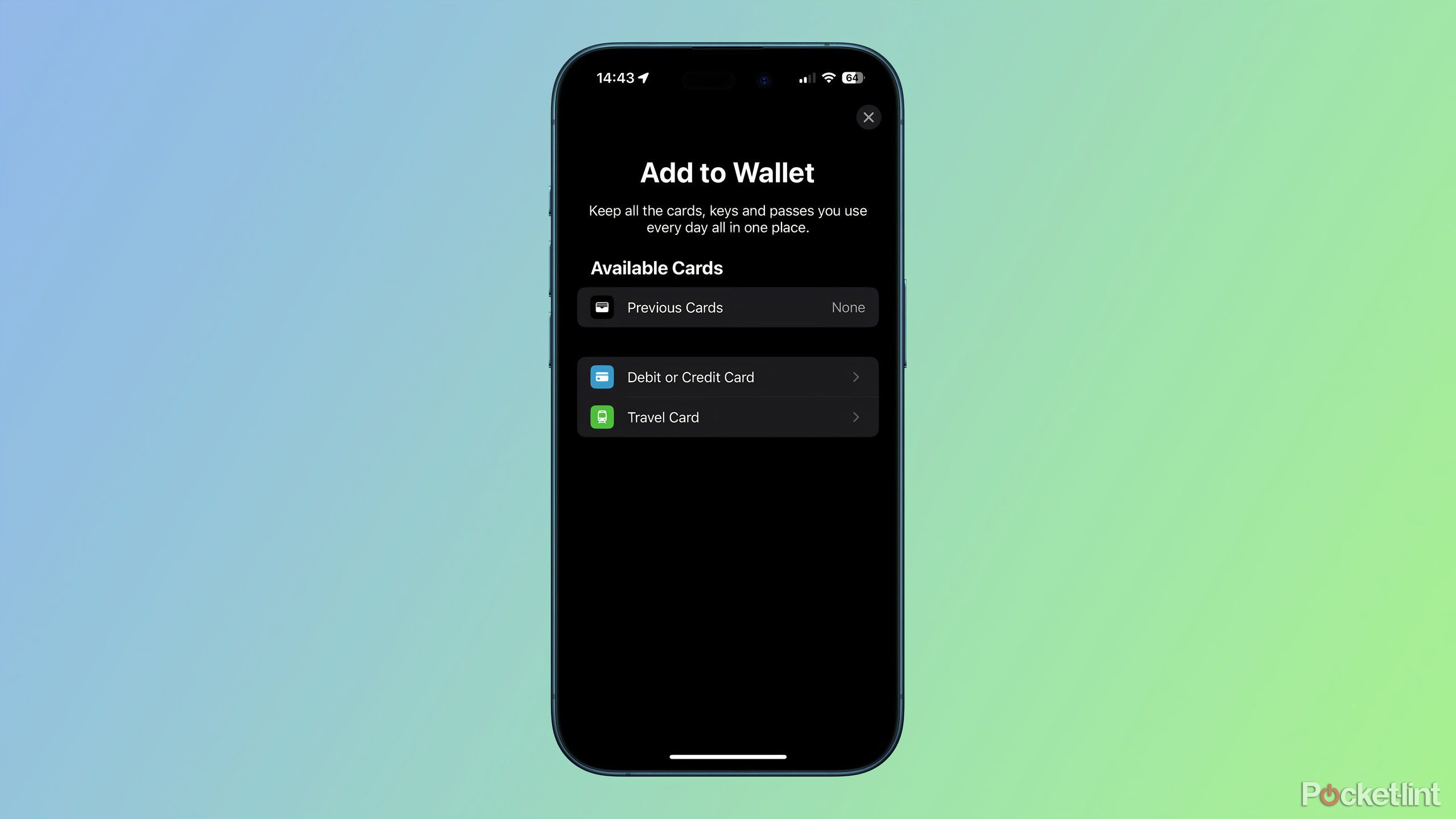
- Open Apple Wallet: Locate and open the Wallet app on your iPhone.
- Tap the Plus Sign (+): In the upper-right corner of the Wallet interface, tap the “+” icon to add a new card.
- Select “Debit or Credit Card”: Choose the option to add a debit or credit card.
- Scan or Enter Details Manually: You can use your iPhone’s camera to scan your physical Cash Card, which will automatically populate most of the card details. If scanning is not feasible or for a virtual card, tap “Enter Card Details Manually” and type in your 16-digit card number, expiration date, and CVV code (found in the Cash App card settings for virtual cards).
- Confirm Information: Review the entered details for accuracy.
- Verify (if prompted): Similar to the Cash App method, Apple may require verification through SMS or a phone call to Cash App support, depending on their security protocols.
Verifying Your Card
Once added, your Cash App Card will appear in your Apple Wallet. It’s good practice to perform a small, test transaction to ensure it’s fully functional. Look for the card’s active status within Apple Wallet.
Step-by-Step Guide: Adding Your Cash App Card to Google Wallet (Google Pay)
Android users can similarly integrate their Cash App Card with Google Wallet (formerly Google Pay) to streamline their digital transactions. The principles are consistent with Apple Wallet, emphasizing security and ease of use within the Android ecosystem.
Prerequisites for Android Users
Ensure the following conditions are met:
- Active Cash App Account: Your Cash App account needs to be fully set up and verified.
- Active Cash Card: You must have an activated physical or virtual Cash Card.
- Compatible Android Device: Your Android smartphone must support NFC for tap-to-pay functionality and be running Android Lollipop (5.0) or higher.
- Latest Google Wallet App: Download and ensure you have the latest version of the Google Wallet app installed.
- Strong Internet Connection: A reliable internet connection is crucial for the setup and verification steps.
The Process via Cash App
Similar to the iOS method, Cash App offers a direct integration path:
- Open Cash App: Launch the Cash App on your Android device.
- Navigate to Cash Card Tab: Tap on the Cash Card icon located in the bottom navigation bar.
- Select “Add to Google Pay”: Look for an option that says “Add to Google Pay” or “Add to Wallet.”
- Follow On-Screen Prompts: Cash App will guide you through adding the card to Google Wallet. Confirm your card details as requested.
- Review and Agree to Terms: Google Wallet will present the terms and conditions from Cash App and Google. Accept them to proceed.
- Verify (if prompted): You might be asked to verify your card through an SMS code or via the Cash App itself to complete the setup.
The Process via Google Wallet App
Alternatively, you can add your Cash App Card directly through the Google Wallet application:
- Open Google Wallet: Launch the Google Wallet app on your Android phone.
- Tap the Plus Sign (+): Tap the “Add a card” button or the plus icon to add a new payment method.
- Select “Debit or Credit Card”: Choose the option to add a new card.
- Scan or Enter Details Manually: You can scan your physical Cash Card using your phone’s camera, or manually input the 16-digit card number, expiration date, and CVV (available in Cash App for virtual cards).
- Confirm Information: Double-check all entered card details for accuracy.
- Verify (if prompted): Google Wallet may require a verification step, often through an SMS code or by directing you to contact Cash App support.
Verifying Your Card
Once successfully added, your Cash App Card will appear in your Google Wallet. It’s recommended to make a small test purchase to confirm the card is properly linked and ready for use.
Technical Considerations and Digital Security
Integrating financial tools like the Cash App Card into digital wallets is underpinned by sophisticated technological frameworks designed to prioritize user security and data privacy. Understanding these aspects provides a deeper appreciation for the robustness of modern mobile payment systems.
Tokenization and Data Protection
At the core of digital wallet security is tokenization. When your Cash App Card is added, its actual 16-digit Primary Account Number (PAN) is replaced with a unique, encrypted Device Account Number (DAN). This DAN is specific to your device and is used for transactions. When you pay, the merchant receives this token, not your real card number. This means that even if a merchant’s system is compromised, your actual card details remain secure. Furthermore, each transaction often generates a dynamic cryptogram, adding another layer of security that makes each payment unique and harder to intercept or counterfeit.
Device Security Best Practices
While digital wallets provide inherent security, user practices play a critical role in maintaining overall safety.
- Strong Authentication: Always use a strong passcode, fingerprint, or facial recognition to secure your device. This is the primary barrier against unauthorized access to your digital wallet.
- Software Updates: Keep your phone’s operating system and all apps (Cash App, Apple Wallet, Google Wallet) updated. Software updates frequently include critical security patches that protect against newly discovered vulnerabilities.
- App Permissions: Be mindful of the permissions you grant to apps. Ensure only necessary permissions are given to financial apps.
- Public Wi-Fi Caution: Avoid making sensitive transactions over unsecured public Wi-Fi networks, which can be susceptible to eavesdropping.
- Lost/Stolen Device Protocols: Familiarize yourself with how to remotely wipe or lock your device through Apple’s Find My or Google’s Find My Device features in case your phone is lost or stolen. Most digital wallets also allow you to suspend or remove cards remotely.
Troubleshooting Common Integration Issues
Despite the streamlined process, users might occasionally encounter issues when adding their Cash App Card. Common problems and their technical resolutions include:
- “Card Not Added” Error: This often relates to an incorrect card number, expiration date, or CVV. Double-check all details, especially if manually entering. Ensure your Cash Card is active and not expired.
- Verification Failure: If SMS verification codes aren’t received, check your phone’s signal and ensure the number registered with Cash App is correct. If still failing, contacting Cash App support may be necessary to manually verify.
- Regional Restrictions: While Cash App is primarily US-based, ensure your region supports both Cash App and the digital wallet service.
- Network Issues: A poor internet connection can interrupt the tokenization process. Try connecting to a stable Wi-Fi network.
- App Glitches: Occasionally, an app might experience a temporary glitch. Try restarting the Cash App or the digital wallet app, or even your entire phone. Clearing the app cache for the relevant apps can also resolve minor software conflicts.
Future Trends in Mobile Payment Technology
The integration of cards into digital wallets is a continuously evolving field. Future developments are likely to include:
- Enhanced Biometrics: More sophisticated biometric methods beyond fingerprints and facial recognition (e.g., iris scans, vein patterns) for even greater security.
- Cross-Platform Interoperability: While largely separate now, future trends may see greater seamlessness between different mobile operating systems regarding payment tokens and digital identity.
- Blockchain and Decentralized Finance (DeFi) Integration: As cryptocurrencies gain mainstream adoption, digital wallets may increasingly integrate decentralized payment methods, allowing users to spend crypto directly from their mobile wallets.
- Personalized Financial Management: Digital wallets are evolving beyond mere payment tools to become central hubs for budgeting, rewards tracking, and real-time financial insights, leveraging AI and machine learning.
By integrating your Cash App Card into your digital wallet, you are not just simplifying payments; you are engaging with the forefront of secure, efficient, and technologically advanced personal finance.
aViewFromTheCave is a participant in the Amazon Services LLC Associates Program, an affiliate advertising program designed to provide a means for sites to earn advertising fees by advertising and linking to Amazon.com. Amazon, the Amazon logo, AmazonSupply, and the AmazonSupply logo are trademarks of Amazon.com, Inc. or its affiliates. As an Amazon Associate we earn affiliate commissions from qualifying purchases.