
In today’s interconnected world, Bluetooth technology has become an indispensable part of our digital lives. From wirelessly connecting headphones and speakers to pairing game controllers and sharing files, its convenience is undeniable. However, sometimes, getting this seamless connectivity up and running on your Windows 10 machine can present a minor hurdle. Whether your system didn’t come with built-in Bluetooth, or you’ve encountered an issue with an existing adapter, this comprehensive guide will walk you through every step of installing and troubleshooting Bluetooth on Windows 10. We’ll cover everything from identifying your Bluetooth hardware to installing drivers and resolving common problems, ensuring you can enjoy the freedom of wireless connectivity.
Understanding Bluetooth on Windows 10
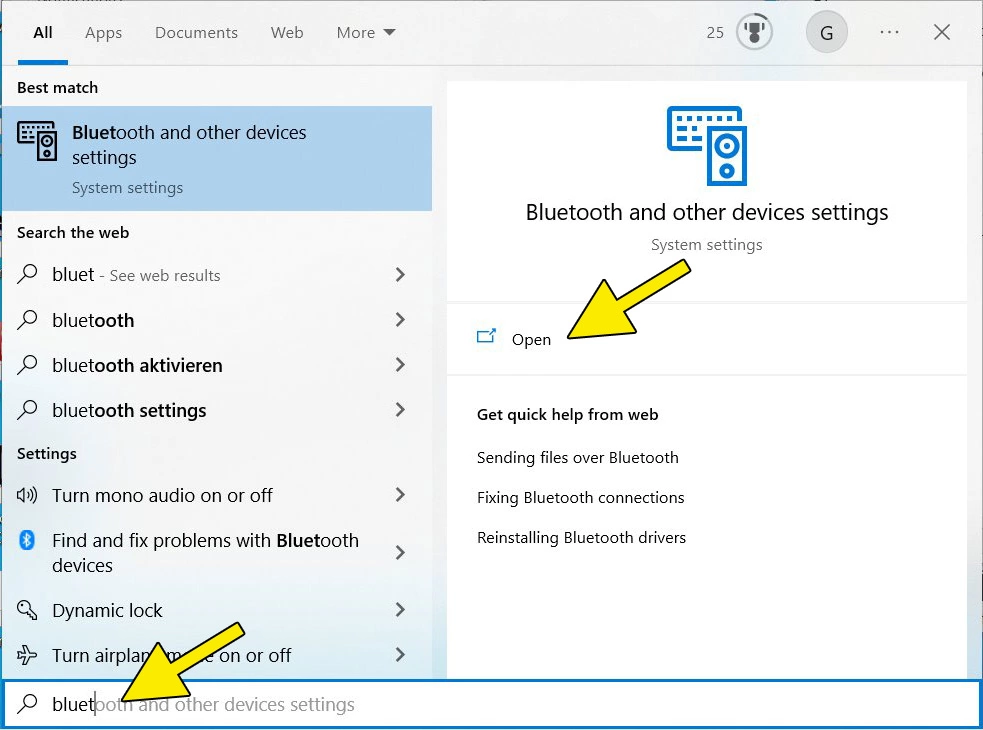
Before diving into the installation process, it’s crucial to understand how Bluetooth works within the Windows 10 ecosystem. Windows 10 has native support for Bluetooth, meaning the operating system itself is designed to recognize and manage Bluetooth devices. The actual functionality, however, relies on a Bluetooth adapter, which can either be integrated directly into your motherboard (common in laptops and many modern desktops) or be a separate external USB dongle.
How Bluetooth Adapters Work
A Bluetooth adapter is essentially a piece of hardware that transmits and receives radio waves within the Bluetooth frequency band (2.4 GHz). This adapter is managed by specific software drivers provided by the manufacturer. These drivers act as intermediaries, allowing Windows 10 to communicate with the Bluetooth hardware and, in turn, to discover, connect to, and manage other Bluetooth-enabled devices. Without the correct drivers, even if the hardware is present, Windows 10 won’t be able to utilize its Bluetooth capabilities.
Identifying Your Bluetooth Hardware
The first step in ensuring a successful installation is to determine if your computer already has a Bluetooth adapter. This is particularly important if you’re troubleshooting an existing connection or setting up a new machine where Bluetooth might not be immediately obvious.
Checking for Integrated Bluetooth
For laptops and many all-in-one PCs, Bluetooth is typically built-in. You can usually check for this in a few ways:
-
Device Manager: This is the most definitive way to check.
- Right-click the Start button (the Windows logo in the bottom-left corner of your screen).
- Select Device Manager from the context menu.
- In the Device Manager window, look for a category named “Bluetooth”. If you see this category, your computer has a Bluetooth adapter. Expand it to see the specific adapter model.
- If you don’t see a “Bluetooth” category, your computer may not have integrated Bluetooth.
-
System Information:
- Press the Windows key + R to open the Run dialog box.
- Type
msinfo32and press Enter. - In the System Information window, navigate to Components > Bluetooth. If Bluetooth is present, you’ll see details about the adapter here.
-
Network Adapter Settings:
- Right-click the Start button and select Network Connections.
- Click on Change adapter options.
- Look for an adapter labeled “Bluetooth Network Connection” or similar. The presence of this adapter often indicates Bluetooth functionality.
Recognizing External Bluetooth Adapters
If you’ve purchased a separate USB Bluetooth dongle, it will appear as a USB device. You can check for this in Device Manager under “Universal Serial Bus controllers” or potentially as an “Unknown device” if the drivers aren’t installed yet. The packaging or markings on the dongle itself will usually indicate it’s a Bluetooth adapter.
Installing Bluetooth Drivers
Once you’ve confirmed you need to install or update Bluetooth drivers, the process can vary depending on whether your computer came with integrated Bluetooth or if you’re using an external adapter.
Installing Drivers for Integrated Bluetooth
If your Windows 10 system has integrated Bluetooth but it’s not working, or if you’ve recently reinstalled Windows, you’ll need to install the correct drivers.
Method 1: Using Windows Update
Windows Update is the first and often easiest place to look for driver updates.
- Go to Settings (press Windows key + I).
- Click on Update & Security.
- Click on Windows Update in the left-hand menu.
- Click the “Check for updates” button.
- Windows will search for available updates, including driver updates. If a Bluetooth driver is found, it will be downloaded and installed automatically.
- You may need to restart your computer for the changes to take effect.
Method 2: Manufacturer’s Website (Recommended)
For the most reliable and up-to-date drivers, it’s best to visit the website of your computer’s manufacturer (e.g., Dell, HP, Lenovo, Asus) or the manufacturer of your motherboard (if you’re using a custom-built PC).
- Identify your computer’s model: This is usually found on a sticker on the bottom of your laptop or the back/side of your desktop. For motherboards, you might need to open your PC’s case or check your system information.
- Navigate to the support or downloads section of the manufacturer’s website.
- Enter your model number or serial number to find the specific drivers for your hardware.
- Locate the Bluetooth driver for Windows 10. Download the latest version.
- Run the downloaded installer and follow the on-screen instructions. This often involves a simple click-through process.
- Restart your computer after the installation is complete.
Method 3: Device Manager Driver Update
If Windows Update and the manufacturer’s website haven’t yielded results, or if you have a specific driver file, you can try updating through Device Manager.
- Open Device Manager (as described earlier).
- Locate the Bluetooth adapter (it might be under “Bluetooth,” or it might appear as an “Unknown device” under “Other devices” if drivers are completely missing).
- Right-click on the Bluetooth adapter.
- Select “Update driver”.
- Choose “Search automatically for drivers” to let Windows find the best available driver.
- If you have downloaded a driver file manually, choose “Browse my computer for drivers” and point Windows to the folder where you saved the driver.
- Follow any prompts and restart your computer if requested.
Installing Drivers for External USB Bluetooth Adapters
If you’ve plugged in a USB Bluetooth dongle and Windows 10 isn’t recognizing it, you’ll need to install its specific drivers.
- Plug in the USB Bluetooth adapter.
- Check Device Manager: Open Device Manager. Look for the adapter. It might be listed under “Bluetooth” (if Windows partially recognized it), “Universal Serial Bus controllers,” or as an “Unknown device” under “Other devices.”
- Windows Update: In many cases, Windows 10 will automatically search for and install drivers for recognized USB devices. If it doesn’t, try running a Windows Update check.
- Manufacturer’s CD/DVD: Many external Bluetooth adapters come with a small CD containing drivers. Insert this disc and run the setup program.
- Manufacturer’s Website: This is the most reliable method.
- Identify the brand and model of your USB Bluetooth adapter.
- Go to the manufacturer’s support website.
- Search for drivers for your specific model and Windows 10.
- Download and run the installer.
- Manual Installation via Device Manager: If you downloaded the driver files (often a
.zipfile containing.inffiles), you can manually install them.- Open Device Manager.
- Right-click on the “Unknown device” or the Bluetooth adapter entry.
- Select “Update driver.”
- Choose “Browse my computer for drivers.”
- Click “Let me pick from a list of available drivers on my computer” or “Browse” to select the folder containing the driver files.
- Follow the prompts.
- Restart your computer after the driver installation is complete.
Enabling and Configuring Bluetooth
Once the drivers are successfully installed, you need to ensure Bluetooth is enabled in Windows 10 and then pair your devices.
Enabling Bluetooth in Windows 10
There are a couple of quick ways to turn Bluetooth on and off:
Using the Action Center
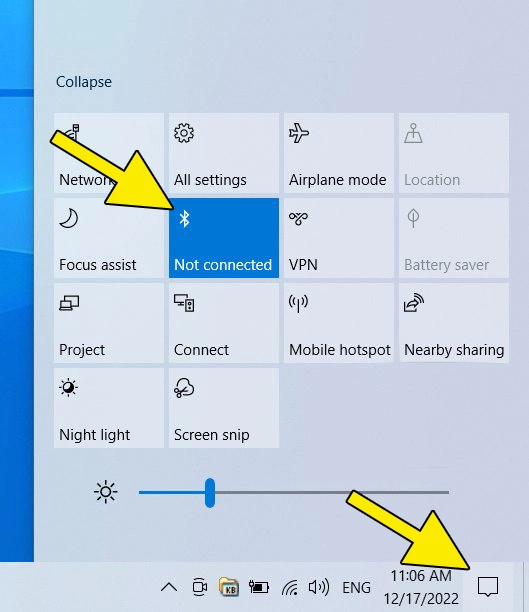
- Click the Action Center icon in the bottom-right corner of your taskbar (it looks like a speech bubble).
- Look for the Bluetooth tile.
- Click the tile to turn Bluetooth On or Off. If the tile is blue, Bluetooth is on. If it’s gray, it’s off.
- If you don’t see the Bluetooth tile, you might need to customize the Action Center. Click “Expand” and then “Customize quick actions” to add it.
Using Settings
- Go to Settings (Windows key + I).
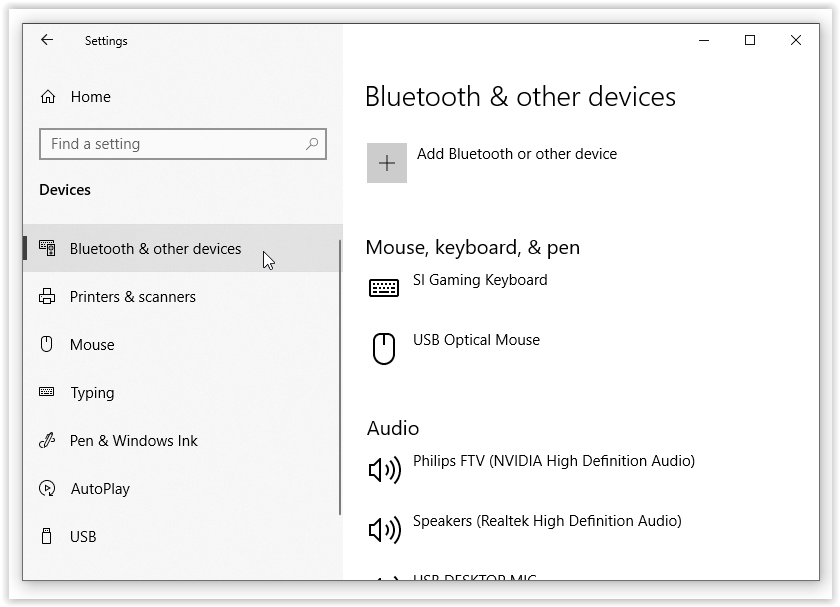
- Click on Devices.
- In the left-hand menu, select Bluetooth & other devices.
- At the top of the window, you’ll see a toggle switch for Bluetooth. Slide it to the “On” position.
Pairing Your Bluetooth Devices
With Bluetooth enabled, you can now start pairing your wireless accessories.
- Ensure your Bluetooth device (e.g., headphones, speaker, mouse) is turned on and in pairing mode. This is usually indicated by a blinking light or a specific sound. Consult your device’s manual for instructions on how to enter pairing mode.
- Go to Settings > Devices > Bluetooth & other devices.
- Click the “+” Add Bluetooth or other device button at the top.
- Select Bluetooth from the options.
- Windows will start scanning for available Bluetooth devices. Your device should appear in the list.
- Click on your device’s name when it appears.
- Follow any on-screen prompts. You might be asked to confirm a PIN code.
- Once successfully paired, your device will appear under “Other devices” or “Audio” in the Bluetooth settings.
Troubleshooting Common Bluetooth Issues
Even with a successful installation, you might encounter problems. Here are some common issues and their solutions:
Bluetooth Not Showing Up in Settings or Device Manager
- Check Hardware: Ensure your Bluetooth adapter is properly connected (if external) or that your integrated adapter is enabled in your computer’s BIOS/UEFI settings. Restarting your computer can sometimes resolve temporary recognition issues.
- Driver Reinstallation: Uninstall the Bluetooth driver from Device Manager (right-click the adapter, select “Uninstall device,” and check “Delete the driver software for this device” if available). Then, restart your PC and let Windows try to reinstall it, or manually install the latest driver from the manufacturer’s website.
- Windows Troubleshooter: Go to Settings > Update & Security > Troubleshoot > Additional troubleshooters and run the “Bluetooth” troubleshooter.
Devices Not Discovering or Connecting
- Device Pairing Mode: Double-check that your Bluetooth device is indeed in pairing mode.
- Proximity: Ensure your device is close enough to your computer. Bluetooth has a limited range.
- Interference: Other wireless devices, microwaves, or even certain USB 3.0 devices can cause interference. Try moving to a different location or temporarily disabling other wireless devices.
- Forget and Re-pair: In Windows Bluetooth settings, find your problematic device, click on it, and select “Remove device.” Then, put your device back into pairing mode and try pairing it again.
- Update Bluetooth Service: Sometimes, the Bluetooth Support Service might have issues.
- Press Windows key + R, type
services.msc, and press Enter. - Find “Bluetooth Support Service.”
- Right-click on it and select “Restart.” If it’s not running, select “Start.” Ensure its “Startup type” is set to “Automatic.”
- Press Windows key + R, type
Audio Issues or Poor Connection Quality
- Driver Updates: Ensure you have the latest drivers for both your Bluetooth adapter and your audio device.
- Quality of Device: The quality of your Bluetooth headphones or speaker can also impact performance.
- Interference: As mentioned above, interference can degrade audio quality.
- Windows Audio Settings: Check that your Bluetooth device is selected as the default playback device in Windows sound settings.
By systematically following these steps for identification, driver installation, and configuration, you can effectively install and utilize Bluetooth on your Windows 10 computer. Most issues are resolved with the correct drivers or a simple re-pairing process, allowing you to enjoy the convenience of wireless connectivity for all your favorite devices.
aViewFromTheCave is a participant in the Amazon Services LLC Associates Program, an affiliate advertising program designed to provide a means for sites to earn advertising fees by advertising and linking to Amazon.com. Amazon, the Amazon logo, AmazonSupply, and the AmazonSupply logo are trademarks of Amazon.com, Inc. or its affiliates. As an Amazon Associate we earn affiliate commissions from qualifying purchases.