
In the ever-evolving landscape of technology, the Android operating system stands out for its flexibility and open nature. While the Google Play Store is the primary and most convenient source for downloading and installing applications, there are numerous occasions when you might need or want to install an app from an APK file directly. This process, known as sideloading, opens up a world of possibilities, allowing you to access apps not available on the Play Store, install older versions, or even develop and test your own applications. This comprehensive guide will walk you through everything you need to know about installing APK files, ensuring you can do so safely and effectively.
Understanding APK Files: The Building Blocks of Android Apps
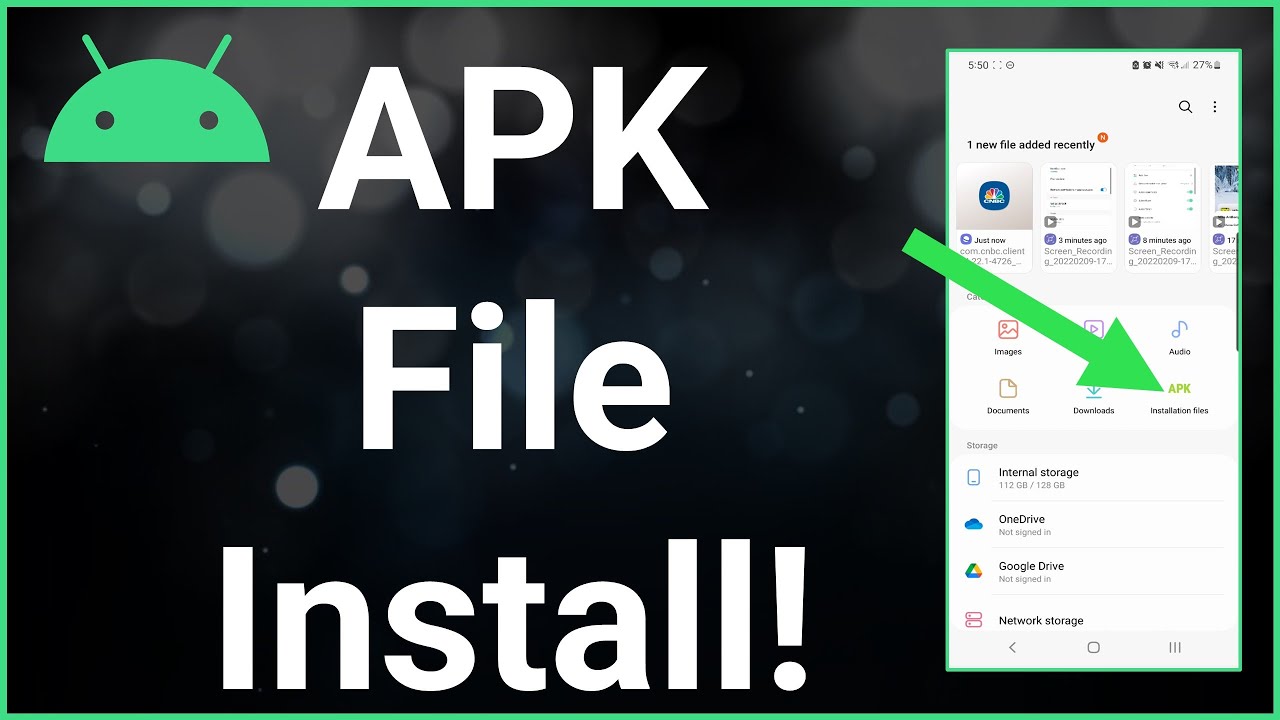
Before we delve into the installation process, it’s crucial to understand what an APK file is. APK stands for Android Package Kit. Think of it as the equivalent of an .exe file for Windows or a .dmg file for macOS. It’s essentially an archive file that contains all the necessary elements for an Android app to be installed on your device. This includes the app’s code, resources (images, sounds, layouts), assets, certificates, and manifest file.
The manifest file is particularly important as it declares the app’s name, version, permissions it requires, and the components it uses. When you download an app from the Google Play Store, the installation process is handled automatically. The Play Store fetches the APK file (or a more optimized version of it), verifies its integrity, and then installs it on your device. However, when you choose to install an APK file directly, you are taking on some of those responsibilities yourself.
Why Sideload an APK? Exploring the Benefits
While the Google Play Store is the go-to for most users, sideloading APKs offers several compelling advantages. Understanding these benefits will help you appreciate the utility of this method:
Accessing Region-Restricted or Unavailable Apps
One of the primary reasons users sideload APKs is to access applications that are not available in their geographical region or have been removed from the Play Store. Developers sometimes restrict app availability based on location due to licensing agreements, regulatory requirements, or market-specific strategies. By obtaining the APK file from a trusted source outside your region, you can bypass these limitations and enjoy the app on your device.
Installing Older Versions of Apps
Sometimes, a new update to an app might introduce bugs, unwanted changes in functionality, or a less intuitive user interface. In such cases, you might prefer to revert to a previous, stable version. Sideloading allows you to download and install an older APK of the app, effectively rolling back your installation to a more satisfactory state. This is particularly useful for power users and those who rely heavily on specific app features that may have been altered or removed.
Testing and Development Purposes
For Android developers, sideloading is an essential part of the development workflow. When building an app, developers need to install and test it on actual devices before publishing it to the Play Store. They can directly generate an APK from their development environment and sideload it onto their test devices for rapid iteration and debugging. This hands-on testing is invaluable for ensuring a polished and functional final product.
Discovering Niche or Experimental Apps
Beyond mainstream apps, there’s a vast ecosystem of niche, open-source, and experimental applications that might not always find their way onto the official Play Store. These can include specialized utilities, custom ROMs, or apps from independent developers experimenting with new technologies. Sideloading provides a gateway to this often-overlooked segment of the Android app landscape.
Keeping Apps Updated Independently
In some instances, you might want to update an app directly without waiting for the Play Store to push the update, or perhaps you’ve found a version with features that haven’t been rolled out yet. Sideloading allows you to manually update your apps by installing a newer APK file. This can be particularly useful if you’re trying to access beta versions or specific feature rollouts.
The Core Process: How to Install an APK on Your Android Device
Installing an APK file directly on your Android device involves a few simple steps. The process is largely the same across most Android versions, though the exact wording of menu options might vary slightly.
Step 1: Enable Installation from Unknown Sources
By default, Android devices are configured to only allow installations from the Google Play Store for security reasons. To sideload an APK, you need to grant your device permission to install apps from sources other than the Play Store.
For Android 8.0 (Oreo) and Later Versions:
- Navigate to your device’s Settings.
- Scroll down and tap on Apps & notifications (or just Apps on some devices).
- Tap on Advanced (if available).
- Select Special app access.
- Tap on Install unknown apps.
- You will see a list of applications. For the browser you’ll use to download the APK (e.g., Chrome, Firefox) or your file manager, toggle the switch to “Allow from this source.” This grants permission for that specific app to install other apps.
For Android 7.0 (Nougat) and Earlier Versions:
- Go to your device’s Settings.
- Tap on Security (or Lock screen and security).
- Look for the Unknown sources option.
- Toggle the switch to enable it. You will likely see a warning message; read it carefully and tap OK if you understand the risks and wish to proceed.
Important Security Note: Enabling “Unknown Sources” or “Install unknown apps” for a specific application increases your device’s vulnerability. It’s crucial to disable this setting once you have finished installing your desired APK, or at least restrict it to only the apps you explicitly trust for this purpose.
Step 2: Download the APK File
Once you’ve enabled installations from unknown sources, the next step is to obtain the APK file you wish to install.
Finding Trusted APK Sources:
This is arguably the most critical step in the entire process. Downloading APKs from untrusted sources is a major security risk and can expose your device to malware, viruses, and potentially malicious code. Always prioritize reputable websites and sources. Some popular and generally trusted platforms for APKs include:
- APKPure: A widely used platform offering a vast library of apps, often including versions not found on the Play Store.
- APKMirror: Known for its commitment to providing legitimate APKs, often hosting older versions and apps removed from the Play Store. They are generally considered very safe.
- F-Droid: A curated repository of free and open-source Android applications. It’s a safe haven for privacy-conscious users.
- Developer Websites: Sometimes, app developers themselves provide direct download links to their APK files, especially for beta versions or apps they choose not to publish on the Play Store.
When downloading, always:
- Verify the source: Stick to well-known and trusted websites.
- Check app reviews and comments: If available on the download site, see what other users are saying.
- Be wary of pop-ups and excessive ads: These can sometimes be indicators of a less reputable site.
Once you’ve found the APK file you want, tap on the download link. The file will be saved to your device’s default download location, usually within the “Downloads” folder.
Step 3: Locate and Install the APK File
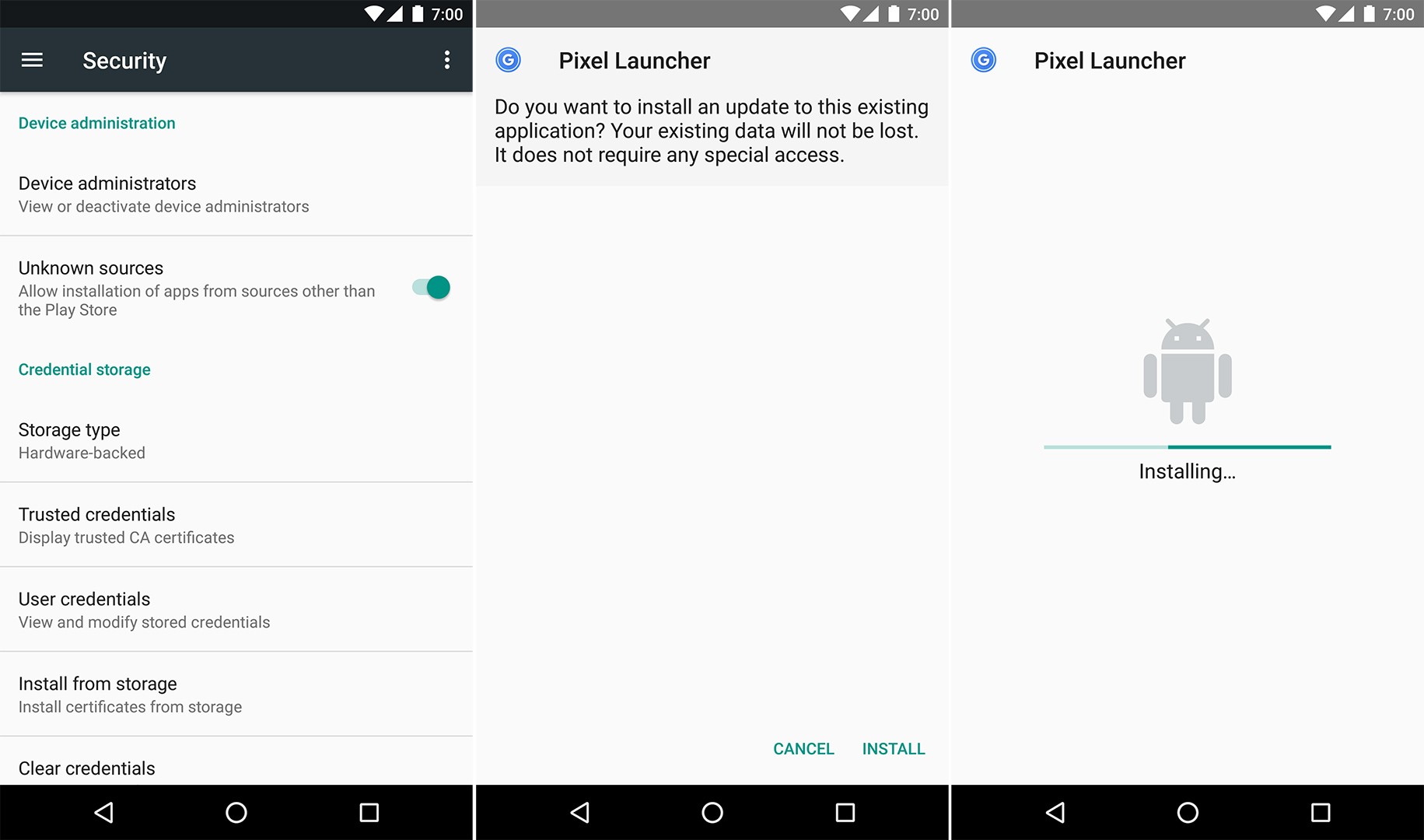
After the APK file has finished downloading, you need to find it on your device and initiate the installation.
Using a File Manager:
- Open your device’s File Manager app (this might be named “Files,” “My Files,” or something similar).
- Navigate to the Downloads folder (or wherever your browser saved the APK).
- You should see the APK file you just downloaded. Tap on it.
- Your device will then prompt you with an “App install” screen, showing you the permissions the app requires.
- Tap Install to proceed.
Using Your Browser’s Download Manager:
In many cases, after the download is complete, your browser will present a notification. Tapping on this notification will often directly open the APK file for installation.
Once the installation is complete, you’ll typically see an “App installed” message with options to Done or Open. You can then launch the app from your app drawer as you would any other application installed from the Play Store.
Advanced Considerations and Troubleshooting
While the process of installing an APK is generally straightforward, there are a few advanced aspects and common issues you might encounter.
Handling App Permissions: A Closer Look
When installing an APK, you’ll be presented with a list of permissions the app requires. It’s vital to review these permissions carefully. If an app asks for permissions that seem excessive or unrelated to its function (e.g., a calculator app asking for access to your contacts or SMS messages), it’s a red flag. This could indicate a malicious app or poor app design.
- Reviewing Permissions: Before installing, take a moment to understand why the app needs each permission.
- Post-Installation Management: Even after installation, you can manage app permissions. Go to Settings > Apps > [App Name] > Permissions to grant or deny specific permissions.
Dealing with Installation Errors and Issues
Occasionally, you might run into problems when trying to install an APK. Here are some common errors and their solutions:
“App not installed” Error:
This is one of the most frequent errors. It can occur for several reasons:
- Corrupted APK File: The downloaded APK file might be incomplete or corrupted. Try downloading it again from the same or a different trusted source.
- Insufficient Storage Space: Ensure your device has enough free storage to install the app.
- App Incompatibility: The APK might be designed for a different Android version or device architecture than yours. Check the app’s requirements before downloading.
- Conflicting App Versions: If you have an older version of the same app already installed (especially from the Play Store), it can sometimes conflict with a sideloaded version. You might need to uninstall the existing version first.
- Security Restrictions: Sometimes, aggressive built-in security features on your device might block the installation.
Parsing Errors:
This error usually means that the APK file is malformed or not properly structured. This often points to a corrupted download or an APK that wasn’t compiled correctly.
“There was a problem parsing the package” Error:
This error is similar to a parsing error and typically indicates an issue with the APK file itself, such as it being incomplete, corrupted, or not a valid Android package.
Signature Verification Failed:
This error occurs when the digital signature of the APK file doesn’t match the expected signature. This can happen if the app has been tampered with or if you’re trying to update an app installed from the Play Store with a different version.
Troubleshooting Steps:
- Re-download the APK: The most common fix.
- Clear Cache and Data: For the browser or file manager you used to download, try clearing its cache and data in Settings > Apps.
- Restart Your Device: A simple reboot can sometimes resolve temporary glitches.
- Check Device Compatibility: Ensure the APK is compatible with your Android version and device model.
- Uninstall Previous Versions: If you have an older version of the app installed, uninstall it before attempting to install the new APK.
- Disable Play Protect (Temporarily and with Caution): Google Play Protect scans apps for malware. While a crucial security feature, it can sometimes flag legitimate sideloaded apps. You can temporarily disable it in the Google Play Store app under Settings > Play Protect > Gear Icon > Scan apps with Play Protect. Remember to re-enable it afterward.
The Role of Digital Security and Personal Branding
When engaging in sideloading APKs, digital security and personal branding considerations become paramount. While the allure of accessing unique apps or older versions is strong, compromising your device’s security can have far-reaching consequences for your digital identity and personal information.
Maintaining Digital Security:
- Source Verification is Non-Negotiable: As emphasized, only download APKs from trusted sources. Avoid random links found on forums, social media, or unsolicited emails.
- Understand Permissions: Be a vigilant reviewer of app permissions. If something seems suspicious, err on the side of caution and do not install the app.
- Antivirus Software: Consider installing a reputable antivirus or anti-malware application on your Android device. These tools can help detect and remove malicious files, even those that might have slipped through initial scans.
- Keep Your Device Updated: Ensure your Android operating system and all your apps are up to date. Updates often include critical security patches.
- Use a VPN: When downloading from less familiar sources or navigating potentially risky websites, using a Virtual Private Network (VPN) can add an extra layer of privacy and security by masking your IP address and encrypting your internet traffic.
Protecting Your Personal Brand:
Your online presence and digital footprint are extensions of your personal brand. Sideloading apps, especially from unverified sources, can inadvertently compromise this.
- Data Privacy: Malicious APKs can steal your personal data, including login credentials, financial information, and private messages. This theft can lead to identity theft, financial loss, and severe damage to your reputation.
- Reputation Management: If your device becomes compromised and is used to send spam, participate in fraudulent activities, or spread malware, it can negatively impact your personal brand and the trust others place in you.
- Account Security: If your accounts are compromised due to a malicious app, the consequences can extend beyond your device, affecting your professional and social networks.
By understanding the risks and taking proactive measures to ensure your digital security, you can enjoy the benefits of sideloading APKs without jeopardizing your personal brand and online safety.

Conclusion: Empowering Your Android Experience with Caution
Installing APKs offers a powerful way to customize and enhance your Android experience, granting you access to a broader range of applications and functionalities. Whether you’re a developer testing your creations, a user seeking apps not available in your region, or someone who prefers a specific app version, sideloading is a valuable skill.
However, this flexibility comes with inherent responsibilities. The key to successful and safe APK installation lies in vigilance and a commitment to digital security. Always prioritize downloading from reputable sources, meticulously review app permissions, and understand the potential risks involved. By following the steps outlined in this guide and maintaining a cautious approach, you can confidently harness the power of APK installations to unlock the full potential of your Android device while safeguarding your digital well-being.
aViewFromTheCave is a participant in the Amazon Services LLC Associates Program, an affiliate advertising program designed to provide a means for sites to earn advertising fees by advertising and linking to Amazon.com. Amazon, the Amazon logo, AmazonSupply, and the AmazonSupply logo are trademarks of Amazon.com, Inc. or its affiliates. As an Amazon Associate we earn affiliate commissions from qualifying purchases.