
In an increasingly digitized world, the ability to effortlessly navigate our technological tools is paramount. Even seemingly simple tasks, such as entering a fraction into a calculator, can sometimes present a stumbling block, leading to frustration and potential errors. This isn’t merely about pressing buttons; it’s about understanding the logic of the device, its diverse interfaces, and the nuances of mathematical representation within a digital environment. From students grappling with homework to engineers solving complex equations, the calculator remains an indispensable device. Mastering its fraction input mechanisms not only streamlines calculations but also deepens one’s understanding of both mathematics and the underlying technology.
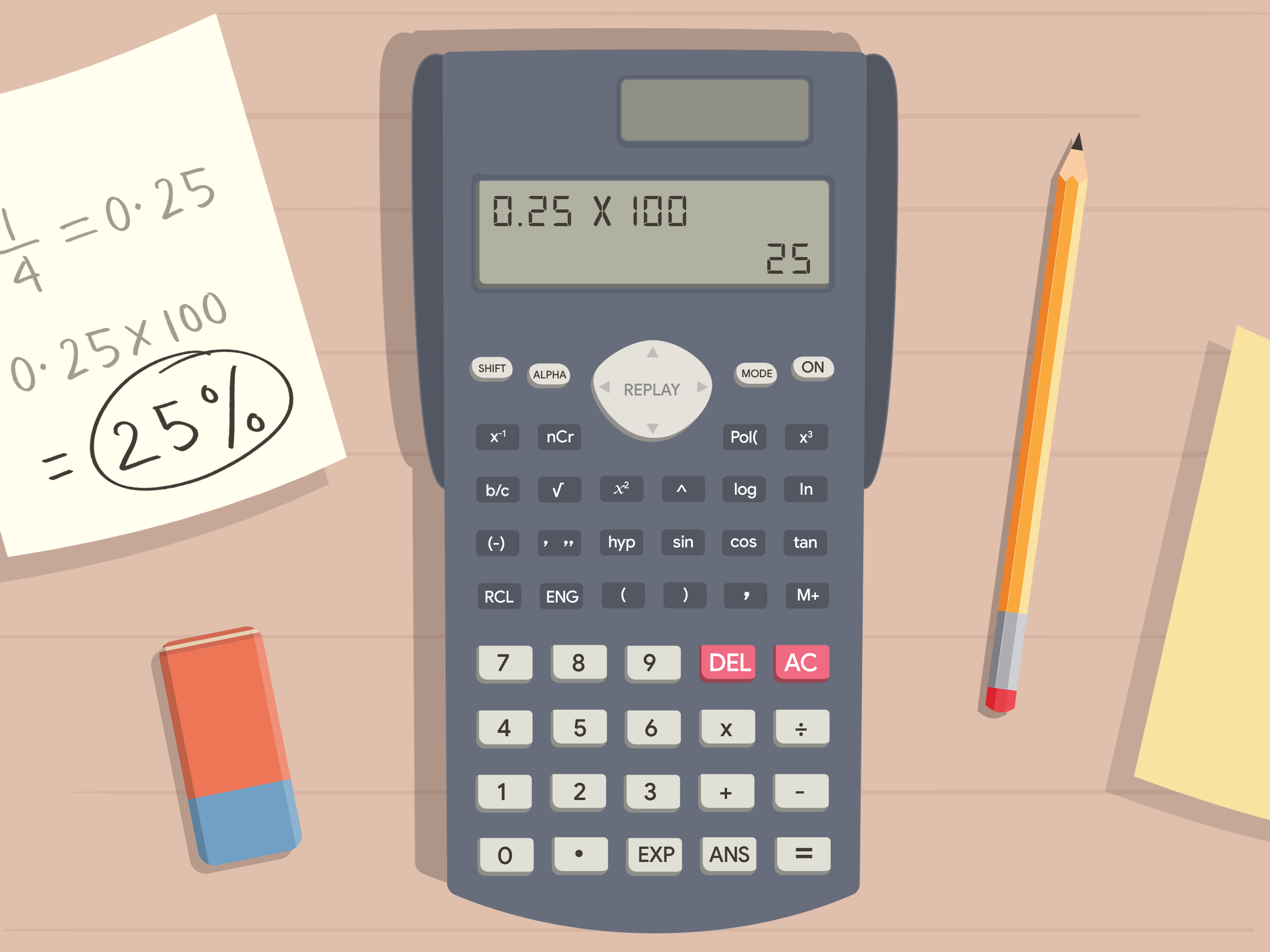
This guide delves into the practicalities and technological considerations of typing fractions into various types of calculators. We’ll explore the common challenges, demystify different input methods, and provide insights into optimizing your interaction with these powerful computational gadgets. By the end, you’ll not only know how to enter a fraction but also why certain methods exist and when to apply them for maximum efficiency and accuracy.
The Foundation: Understanding Fractions and Calculator Interfaces
Before diving into the specifics of input, it’s crucial to establish a common ground regarding fractions themselves and the varied landscape of calculator technology. The way a calculator interprets and displays data is central to its usability, especially for non-integer values.
What is a Fraction and Why Does it Matter?
A fraction represents a part of a whole, expressed as a numerator (the number above the line) over a denominator (the number below the line). For example, 1/2 means one out of two equal parts. Fractions are fundamental in mathematics, science, engineering, and everyday life, appearing in recipes, financial calculations, and design specifications. Their exact representation is often critical; 0.333333 is an approximation of 1/3, not the exact value. Calculators, being precise tools, must be able to handle this distinction. The challenge for users often lies in translating the visual representation of a fraction (like ½ or ¾) into a sequential keypress entry that the calculator understands.
A Spectrum of Calculators: From Basic to Graphing
The term “calculator” encompasses a vast range of devices, each with differing capabilities and user interfaces.
- Basic/Standard Calculators: Primarily handle fundamental arithmetic operations (+, -, *, /) and percentages. They typically lack dedicated fraction keys and require fractions to be entered as division problems.
- Scientific Calculators: Designed for more complex mathematical, scientific, and engineering calculations. They often feature dedicated fraction keys (like “a b/c” or “d/c”) and can display results in fraction form. Examples include models from Casio (fx series) and Texas Instruments (TI-30X series).
- Graphing Calculators: The most advanced handheld calculators, capable of plotting graphs, performing symbolic algebra, and running programs. They offer robust fraction functionality, often with a visual input interface that mimics written fractions on the screen. Popular models include the TI-83/84/89 series and Casio’s fx-CG series.
- Online Calculators and Apps: Web-based tools and smartphone applications often provide intuitive interfaces, sometimes allowing direct visual input of fractions through on-screen keyboards or touch gestures.
Understanding which type of calculator you’re using is the first step towards successful fraction input, as the method will vary significantly across these categories.
The Interface Challenge: Why Fractions Can Be Tricky
The primary challenge in typing fractions stems from the linear input nature of most calculators versus the two-dimensional representation of a fraction. You can’t literally type a horizontal line and stack numbers. This necessitates workarounds or specialized keys. Furthermore, the way a calculator handles order of operations (PEMDAS/BODMAS) becomes critical when fractions involve multiple terms in the numerator or denominator. Users must consciously structure their input to ensure the calculator performs calculations in the intended sequence. This requires not just knowing which button to press, but when and in what context to ensure mathematical accuracy.
Master the Input: Different Calculator Types and Methods
Once you understand your calculator type and the basic principles, you can apply specific methods for entering fractions. Each method caters to different levels of mathematical complexity and calculator sophistication.
Standard and Scientific Calculators: The Division Method
For basic and many scientific calculators without a dedicated fraction key, the most straightforward way to enter a fraction is to treat it as a division problem.
- Simple Fractions: To enter a fraction like
3/4, you would simply type3 ÷ 4. The calculator will display the decimal equivalent (0.75). - Fractions within Operations: If you need to perform an operation with a fraction, say
1/2 + 1/4, you would type1 ÷ 2 + 1 ÷ 4. - Complex Numerators/Denominators: For fractions like
(2+3)/(5-1), it is absolutely essential to use parentheses to ensure the correct order of operations. You would type(2 + 3) ÷ (5 - 1). Without parentheses, the calculator would perform3 ÷ 5first, leading to an incorrect result. This is a common source of error for beginners.
This method is universally applicable but requires the user to remember that the output will almost always be a decimal.
Leveraging the Fraction Key (a b/c, F↔D)
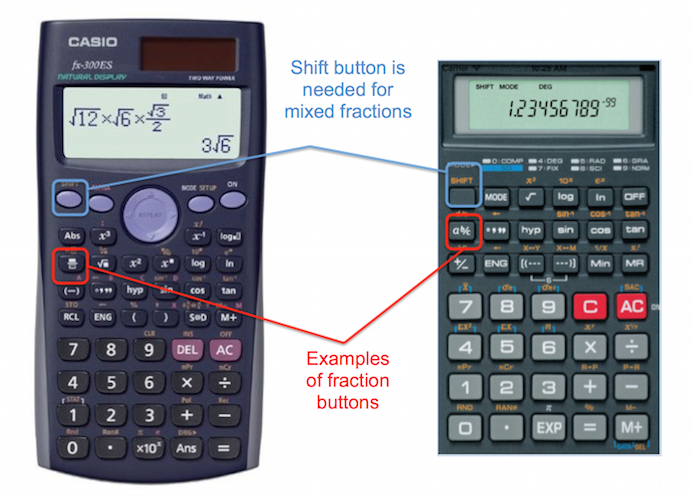
Many scientific calculators are equipped with a dedicated fraction key, often labeled a b/c, d/c, x/y, or sometimes denoted by a symbol like a small box over another box. This key allows for more intuitive input and can often display results in fraction form.
- Entering Proper/Improper Fractions:
- To enter
3/4: Type3then thea b/ckey, then4. The display might show3┘4. - To enter an improper fraction like
7/3: Type7thena b/c, then3.
- To enter
- Entering Mixed Numbers: The
a b/ckey is also used for mixed numbers. To enter2 1/2: Type2thena b/c, then1thena b/c, then2. The display might show2┘1┘2. - Converting Between Forms (F↔D): Scientific calculators often have a
F↔D(Fraction to Decimal) or similar key. After getting a decimal result, pressing this key will attempt to convert it to its fractional equivalent, if possible. Conversely, if you have a fraction displayed, pressingF↔Dwill show its decimal form. This feature is incredibly useful for problem-solving where both forms are acceptable or required.
The dedicated fraction key simplifies input and output, reducing the chances of order-of-operation errors common with the division method, especially for displaying results as simplified fractions.
Graphing Calculators: Advanced Fraction Entry and Manipulation
Graphing calculators offer the most sophisticated fraction capabilities, often featuring interfaces that mimic the visual appearance of written fractions, enhancing clarity and reducing errors.
- Visual Fraction Templates: Modern graphing calculators (like TI-84 Plus CE, Casio fx-CG50) often have a “fraction template” feature. You typically access this through a dedicated key (e.g.,
alpha F1on TI calculators orShift+fraction iconon Casio). This brings up a blank fraction with a numerator and denominator box, which you can then fill in using the cursor keys. This direct visual input is highly intuitive. - Automatic Simplification and Mixed Number Conversion: Graphing calculators usually simplify fractions automatically and can easily convert between improper fractions and mixed numbers. There are often menu options (e.g.,
MATHmenu on TI calculators, orFormaton others) to control how fractions are displayed (e.g.,n/dfor improper,u n/dfor mixed). - Fraction Mode: Some graphing calculators allow you to set a “fraction mode” where all results, if possible, are displayed as fractions by default, rather than decimals. This is particularly useful in algebra or calculus where exact answers are preferred.
The advanced features of graphing calculators make them ideal for complex mathematical work involving fractions, providing visual accuracy and extensive manipulation options.
Online Calculators and Apps: A Digital Approach
Online calculators (e.g., Google’s built-in calculator, Desmos, Wolfram Alpha) and smartphone apps often combine the best of both worlds: the simplicity of the division method with the visual clarity of dedicated fraction keys.
- Slash Input: Many online tools accept fractions typed with a forward slash, e.g.,
3/4. Some are smart enough to interpret(2+3)/(5-1)correctly. - Virtual Keyboards/Templates: Many web apps and mobile apps provide virtual keyboards with dedicated fraction buttons or visual templates that function similarly to those on graphing calculators, allowing you to tap into boxes for the numerator and denominator.
- Contextual Understanding: Advanced online calculators can often interpret natural language input, allowing you to type “one-half plus one-fourth” and receive the correct fractional answer.
The digital environment provides flexibility, often adapting to various input styles and offering immediate visual feedback, which can be particularly helpful for learners.
Beyond Entry: Performing Operations and Interpretations
Simply typing a fraction is only the first step. Understanding how your calculator operates with these values and interprets results is equally important for accurate and efficient problem-solving.
Basic Arithmetic with Fractions
Once fractions are entered, calculators can perform standard arithmetic operations.
- Addition and Subtraction: The calculator automatically finds common denominators when adding or subtracting fractions. For example,
1/2 + 1/3(entered correctly for your calculator type) will yield5/6. - Multiplication and Division: These operations are often more straightforward, as denominators don’t need to be common.
(1/2) * (3/4)will result in3/8. Division typically involves multiplying by the reciprocal:(1/2) ÷ (3/4)becomes(1/2) * (4/3) = 4/6 = 2/3.
The key is consistent and correct input using parentheses if needed, especially when combining operations.
Converting Between Fractions, Decimals, and Mixed Numbers
One of the most valuable features related to fractions in scientific and graphing calculators is the ability to seamlessly convert between different numerical representations.
- Fraction to Decimal: This is the default output for basic calculators and a common conversion on others. Simply perform the division (e.g.,
3 ÷ 4 = 0.75). - Decimal to Fraction: Using the
F↔Dkey or a menu option (e.g.,MATH->Fracon TI calculators), you can convert a decimal back to its simplest fractional form. Not all decimals can be perfectly converted to fractions (e.g., irrational numbers like pi or square roots of non-perfect squares), and repeating decimals might be approximated. - Improper Fraction to Mixed Number: Calculators with fraction capabilities can convert
7/3to2 1/3using specific keys or menu options, often denoteda b/c ↔ d/cor similar. This is crucial for presenting answers in conventional forms.
These conversion capabilities provide significant flexibility, allowing users to choose the most appropriate format for their problem or audience.
Understanding Calculator Output: Exact vs. Approximate
A critical distinction when working with fractions is between exact and approximate answers.
- Exact Answers: When a calculator displays
1/3or2/7, it is providing an exact answer. This is often preferred in pure mathematics to avoid rounding errors that can accumulate in multi-step problems. - Approximate Answers: When a calculator displays
0.3333333333for1/3, it’s an approximation. While often sufficient for practical applications, it carries inherent limitations due to truncation.
Advanced calculators allow users to control whether they prefer exact fractional output or decimal approximations, often through “mode” settings or specific conversion keys. Understanding this difference is vital for maintaining precision in calculations, particularly in fields requiring high accuracy.
Common Pitfalls and Pro Tips for Fraction Handling
Even with the right methods, mistakes can happen. Being aware of common pitfalls and employing some strategic tips can significantly improve your accuracy and efficiency when working with fractions on a calculator.
Parentheses are Your Best Friend: Order of Operations
This cannot be overstated: when dealing with fractions where the numerator or denominator (or both) involve an expression with more than one term, always use parentheses.
- Incorrect:
1 + 2 ÷ 3 + 4(calculator does2 ÷ 3first) - Correct:
(1 + 2) ÷ (3 + 4)(ensures1+2is calculated first, then3+4, then the division)
This adherence to the order of operations (PEMDAS/BODMAS) is the single most important rule to avoid errors when using the division method for fractions.
Dealing with Mixed Numbers and Improper Fractions
- Mixed to Improper First: If your calculator doesn’t have a dedicated mixed number input (like
2 a b/c 1 a b/c 2for2 1/2), it’s generally safest to convert mixed numbers to improper fractions before entering them. For2 1/2, convert it to5/2(2*2+1)/2, then enter5 ÷ 2. This avoids ambiguity and potential order-of-operation issues. - Calculator Settings: Familiarize yourself with your calculator’s settings that control fraction display. Many scientific and graphing calculators allow you to choose whether results should automatically simplify, be displayed as improper fractions, or mixed numbers. Adjusting these can save you manual conversion time.
Troubleshooting: When Your Calculator Behaves Unexpectedly
- “Syntax Error”: This often means you’ve entered an invalid sequence of operations or haven’t closed parentheses. Review your input carefully.
- “Math Error”: This usually indicates an attempt to perform an undefined operation, like dividing by zero, or taking the square root of a negative number. Check your denominator for zero.
- Unexpected Decimal Output: If you expect a fraction but get a decimal, check if your calculator is in a “fraction mode” or if you forgot to use the
F↔Dconversion key. - Incorrect Results: Re-enter the problem slowly, using parentheses generously, especially if using the division method. If using fraction keys, ensure you’re pressing them in the correct sequence for proper vs. mixed numbers.
Maximizing Efficiency: Customizing Your Calculator Settings
Modern scientific and graphing calculators offer a plethora of customization options.
- Default Display Mode: Set your calculator to display results as fractions by default if you frequently work with them. This is usually found in the
MODEorSETUPmenu. - Fraction Type: Choose whether you want improper fractions (
n/d) or mixed numbers (u n/d) as your default output for clarity. - Quick Keys: Learn the shortcuts for accessing fraction templates or conversion functions. On graphing calculators, these are often
ShiftorAlphaactivated keys.
Investing a little time to understand and customize your calculator’s settings can significantly improve your workflow and reduce errors.
The Evolving Tech of Fraction Calculation
The journey of calculating fractions has mirrored the broader evolution of technology, moving from cumbersome manual methods to sophisticated digital interfaces.
From Abacus to AI: A Brief History of Calculation
Early civilizations used tools like the abacus for integer arithmetic, but fractions often required manual, painstaking methods. The invention of logarithms and slide rules offered mechanical ways to approximate calculations, including those involving fractions, but still relied on human interpretation. The advent of electronic calculators in the 20th century revolutionized this. Initially, they were simple, requiring fractions to be treated as division. Over decades, microprocessor advancements allowed for dedicated fraction keys, visual templates, and intelligent conversion algorithms, transforming calculators from mere number crunchers into sophisticated mathematical assistants capable of symbolic manipulation. Today, AI-powered tools and symbolic calculators can solve and explain complex fractional equations, representing the pinnacle of this technological journey.
The Future of Numeric Input: Voice and Gestures
While physical and virtual keyboards dominate, the future of calculator interaction may involve more natural input methods. Voice recognition could allow users to simply speak “two and a half plus three-fourths” and receive an instant, accurate fractional answer. Gesture-based interfaces, common in touch-screen apps, might allow users to draw fractions or manipulate them directly on the screen, mimicking the act of writing on paper. As augmented reality (AR) and virtual reality (VR) mature, we might even see calculators that project interactive fractional workspaces into our environment, further blurring the lines between physical and digital computation. These advancements promise to make fraction input even more intuitive and accessible, catering to diverse learning styles and operational needs.

When to Use a Calculator vs. Manual Calculation
Despite the technological advancements, the question of when to use a calculator versus performing a manual calculation remains pertinent, particularly in an educational context. While calculators provide speed and accuracy, manual calculation (especially for simpler fractions) reinforces fundamental mathematical understanding, number sense, and problem-solving skills. For complex fractions, long chains of operations, or when precision is paramount, the calculator is indispensable. For quick mental checks or when the process of working through the steps enhances learning, manual calculation holds its value. The skilled user understands this balance, leveraging technology as an aid rather than a replacement for cognitive engagement.
In conclusion, typing a fraction into a calculator is a skill that evolves with the technology and the complexity of the problem. By understanding the types of calculators, mastering various input methods, being aware of common pitfalls, and leveraging advanced features, users can unlock the full potential of their devices. As technology continues to advance, our interaction with numerical tools will only become more seamless, making complex calculations, including those involving fractions, increasingly accessible to everyone.
aViewFromTheCave is a participant in the Amazon Services LLC Associates Program, an affiliate advertising program designed to provide a means for sites to earn advertising fees by advertising and linking to Amazon.com. Amazon, the Amazon logo, AmazonSupply, and the AmazonSupply logo are trademarks of Amazon.com, Inc. or its affiliates. As an Amazon Associate we earn affiliate commissions from qualifying purchases.