
In the ever-evolving landscape of technology, the iPhone stands as a titan, a sophisticated piece of hardware powered by an ecosystem brimming with an almost limitless array of applications. From enhancing your productivity and managing your personal finances to keeping you entertained and connected, apps are the lifeblood of your smartphone experience. But for those new to the Apple ecosystem, or perhaps for users who haven’t delved into app installation beyond the initial setup, the process might seem a tad mysterious. Fear not! This comprehensive guide will demystify the art of installing an app on your iPhone, covering everything you need to know, from the fundamental steps to more advanced tips and troubleshooting.
The Gateway to the App Universe: Understanding the App Store
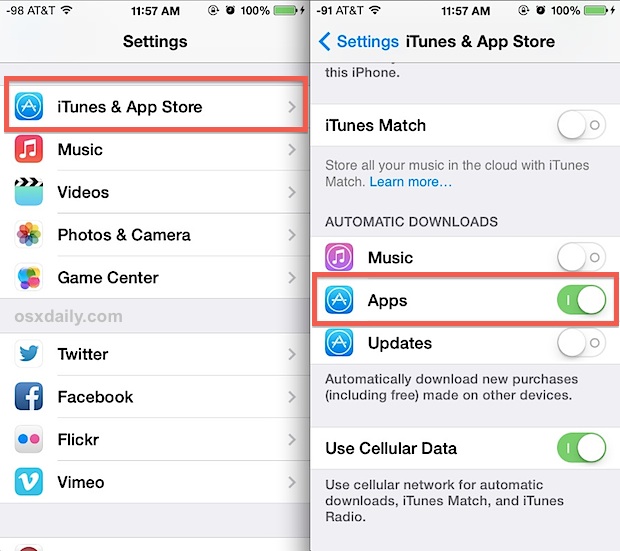
At the heart of every iPhone app installation lies the App Store, Apple’s dedicated digital marketplace. It’s not just a repository for software; it’s a carefully curated environment designed to offer users a safe, reliable, and intuitive way to discover, download, and manage applications. The App Store is managed by Apple, which means every app undergoes a review process to ensure it meets certain quality, security, and content guidelines. This stringent vetting process is a cornerstone of the iPhone’s reputation for security and a smooth user experience.
Navigating the App Store: A User-Centric Design
The App Store is designed with the user in mind. Its interface is clean, organized, and easy to navigate, even for those who might not consider themselves tech-savvy. When you first open the App Store, you’ll typically be greeted with several key sections:
- Today: This tab often features curated collections, daily picks, and editorial content, offering a glimpse into trending apps, new releases, and interesting app stories. It’s a great place to discover apps you might not have searched for directly.
- Games: As the name suggests, this section is dedicated to all things gaming. You’ll find a vast selection of titles, from casual puzzle games to high-octane action adventures, often categorized by genre, popularity, or newness.
- Apps: This is your go-to for non-gaming applications. Similar to the Games tab, Apps are categorized to help you find what you’re looking for. You’ll find sections for productivity, social networking, photography, news, utilities, and much more.
- Arcade: For subscribers to Apple Arcade, this tab provides access to a growing library of exclusive, ad-free games without in-app purchases. It’s a subscription service that offers a premium gaming experience.
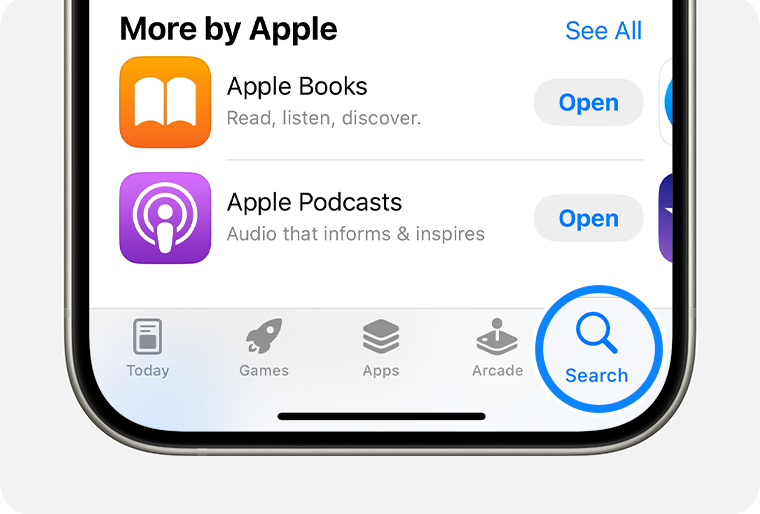
- Search: This is arguably the most powerful tool in the App Store. If you know the name of the app you want or have a general idea of what you’re looking for, the search bar will be your best friend.
Within each of these sections, you can further refine your search using filters and browse through various categories. Each app listing provides detailed information, including screenshots, videos, descriptions, user reviews, and ratings, all of which are crucial for making an informed decision before downloading.
The Core Process: Installing Apps Through the App Store
Installing an app on your iPhone is a straightforward process that can be broken down into a few simple steps. Whether you’re looking for a new social media platform, a personal finance tracker, or a cutting-edge AI tool, the method remains consistent.
Step 1: Locate and Open the App Store
On your iPhone’s Home Screen, look for the blue icon with a white “A” symbol. This is the App Store. Tap on it to open the application. If you can’t find it, you can always use the Spotlight Search function by swiping down from the middle of your Home Screen and typing “App Store.”
Step 2: Search for Your Desired App
Once the App Store is open, tap on the “Search” tab, usually located at the bottom right corner of the screen. In the search bar at the top, type the name of the app you wish to install. Be as precise as possible for the best results. For example, if you’re looking for a popular budgeting app, you might type “Mint” or “YNAB.” If you’re unsure of the exact name, try descriptive keywords like “budget app” or “financial tracker.”
Step 3: Select the App from the Search Results
As you type, the App Store will begin to suggest relevant apps. Once you’ve entered your search query, a list of matching results will appear. Carefully review these results. You’ll see the app’s icon, name, developer, and often a brief description. Tap on the app that you want to install to view its dedicated page.
Step 4: Initiate the Download
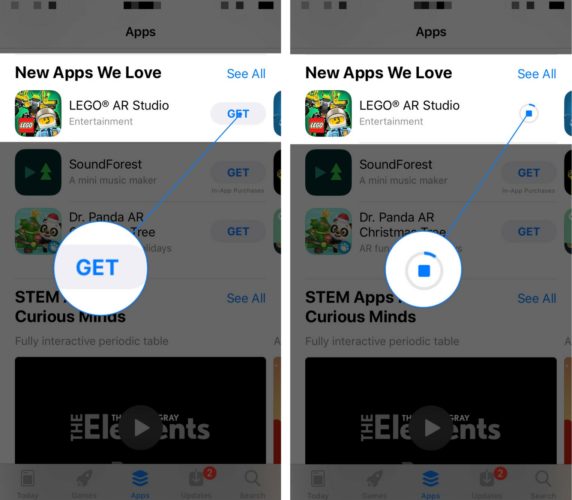
On the app’s page, you’ll see a prominent button. This button will either say “GET” or display the price of the app (if it’s not free).
- For Free Apps: If the app is free, the button will say “GET.” Tap on it. You might then see a button that says “INSTALL.” Tap on this as well.
- For Paid Apps: If the app has a price, the button will display the cost. Tap on it. You will then be prompted to confirm your purchase.
Step 5: Authenticate Your Download
For security and to prevent unauthorized downloads, Apple requires you to authenticate your app installation. This is usually done in one of the following ways, depending on your iPhone’s settings:
- Face ID: If your iPhone has Face ID, you’ll be prompted to double-click the side button and then look at your screen.
- Touch ID: If your iPhone has Touch ID, you’ll be asked to place your finger on the Home button.
- Passcode: In some cases, you might be asked to enter your iPhone passcode.
- Apple ID Password: You may also be prompted to enter your Apple ID password.
Once you’ve successfully authenticated, the download will begin.
Step 6: Track the Download and Installation
You’ll notice the “GET” or price button on the app’s page change to a circular progress indicator. This shows you the download progress. Once the download is complete, the icon will change to an “OPEN” button. Simultaneously, the app’s icon will appear on your iPhone’s Home Screen, with a progress bar underneath it indicating the installation process. When the installation is finished, the progress bar will disappear, and the app will be ready to use.
Beyond the Basics: Advanced Installation Tips and Considerations
While the core process is simple, there are a few additional aspects and tips that can enhance your app installation experience and help you manage your apps effectively.
Managing Your Apple ID and Payment Information
Your Apple ID is your key to the entire Apple ecosystem, including the App Store. Ensure your Apple ID is set up correctly and that any payment information (if you plan to purchase paid apps or subscriptions) is up to date. You can manage your Apple ID settings by going to Settings > [Your Name] > Payment & Shipping. This is also where you can add or remove payment methods and view your purchase history.
Understanding In-App Purchases and Subscriptions
Many apps offer free basic functionality but include optional in-app purchases or subscriptions for premium features, content, or ad removal. These will be clearly indicated on the app’s App Store page. Be mindful of these when downloading, as they can add to your overall spending. You can manage subscriptions and turn off in-app purchases in Settings > [Your Name] > Media & Purchases > Subscriptions.
What to Do If an App Won’t Install
Occasionally, you might encounter issues where an app won’t download or install correctly. Here are a few common troubleshooting steps:
- Check Your Internet Connection: Ensure you have a stable Wi-Fi or cellular data connection. Try switching between them if you suspect a weak signal.
- Check Your iPhone’s Storage: Apps require storage space. If your iPhone is nearly full, it won’t be able to download or install new apps. Go to Settings > General > iPhone Storage to see how much space you have left. If needed, delete unused apps, photos, or videos.
- Restart Your iPhone: A simple restart can often resolve temporary glitches. Press and hold the side button (or top button) and either volume button until the power off slider appears, then drag the slider. Wait 30 seconds for your device to turn off, then press and hold the side button (or top button) again until you see the Apple logo.
- Sign Out and Back into Your Apple ID: Sometimes, issues with your Apple ID can prevent downloads. Go to Settings > [Your Name], scroll down, and tap “Sign Out.” Then, sign back in with your Apple ID and password.
- Check for iOS Updates: Ensure your iPhone is running the latest version of iOS. Go to Settings > General > Software Update.
Installing Apps Using a Computer (Less Common but Possible)
While the iPhone is designed for direct app installation via the App Store, historically, it was possible to manage apps using iTunes on a computer. However, with the evolution of iOS and the discontinuation of iTunes for macOS, this method is largely obsolete for installing new apps directly onto your iPhone in the same way. App management and syncing are now primarily handled through Finder on macOS Catalina and later, or directly on the iPhone itself. For the vast majority of users, the App Store on the iPhone is the sole and most efficient method for acquiring new applications.
Conclusion: Empowering Your iPhone Experience
Installing an app on your iPhone is a fundamental skill that unlocks the true potential of your device. The App Store provides a secure and user-friendly platform for discovering a world of possibilities, from enhancing your productivity with smart AI tools and organizational apps to exploring new avenues for personal finance and investment. By understanding the straightforward steps involved and keeping in mind the helpful tips for management and troubleshooting, you can confidently navigate the digital marketplace and tailor your iPhone experience to perfectly suit your needs and interests. So, dive in, explore, and make your iPhone work for you!
aViewFromTheCave is a participant in the Amazon Services LLC Associates Program, an affiliate advertising program designed to provide a means for sites to earn advertising fees by advertising and linking to Amazon.com. Amazon, the Amazon logo, AmazonSupply, and the AmazonSupply logo are trademarks of Amazon.com, Inc. or its affiliates. As an Amazon Associate we earn affiliate commissions from qualifying purchases.