
In the rapidly evolving landscape of web development, efficiency and reproducibility are paramount. At the heart of the JavaScript ecosystem, particularly for server-side applications and front-end build processes powered by Node.js, lies a fundamental command that orchestrates the entire dependency management workflow: npm install. Far more than a simple download instruction, npm install is the gateway to leveraging a vast universe of open-source packages, enabling developers to build complex applications with speed, stability, and collaborative synergy. For anyone venturing into modern software development, understanding the nuances of this command is not just beneficial—it’s essential for navigating the complexities of project setup, maintenance, and deployment.
This article delves deep into what npm install does, exploring its mechanics, the underlying files it interacts with, its various modes of operation, and its profound impact on developer productivity and the broader tech landscape. We’ll uncover why this command is indispensable for local development, continuous integration, and ensuring a consistent environment across diverse teams.
The Ecosystem of npm install: Node.js and Package Management
To fully appreciate the power of npm install, we must first contextualize it within its native environment: the Node.js ecosystem. Node.js is a server-side JavaScript runtime that allows developers to use JavaScript for back-end applications, command-line tools, and more. With Node.js, JavaScript transcended its browser-bound origins, opening up an entirely new realm of possibilities.
What is npm? A Brief Overview
npm stands for “Node Package Manager.” It is the default package manager for Node.js and is automatically installed alongside Node.js itself. But npm is more than just a piece of software; it’s a two-pronged system:
- A command-line interface (CLI) tool: This is what developers interact with directly through their terminals. Commands like
npm install,npm start,npm test, andnpm publishare all executed via this CLI. - An online registry: This is a massive public database containing hundreds of thousands of open-source JavaScript packages. Developers worldwide contribute to this registry, sharing reusable code that others can easily incorporate into their projects.
The npm registry is a testament to the power of open-source collaboration, fostering a vibrant community where developers can build upon each other’s work, accelerating innovation and reducing redundant effort. When you use npm install, you’re primarily interacting with both these facets – the CLI to fetch packages from the registry.
The Role of Node.js in Modern Web Development
Node.js has revolutionized web development by bringing JavaScript to the server-side. This “JavaScript everywhere” paradigm allows for full-stack development using a single language, streamlining developer workflows and potentially reducing cognitive load. Node.js is celebrated for its non-blocking, event-driven architecture, making it highly efficient for handling concurrent connections, a critical feature for modern web applications, APIs, and real-time services. From robust backend services to complex front-end build toolchains (like Webpack, Babel, and Gulp), Node.js provides the runtime environment, and npm provides the means to manage the multitude of libraries and tools that power these applications.
Understanding Packages and Dependencies
At its core, npm install deals with “packages” and “dependencies.”
- Packages (or Modules): In the Node.js context, a package is a directory with one or more programs, and it must contain a
package.jsonfile. It’s a self-contained unit of code designed to perform a specific function or set of functions. Examples range from small utility libraries (likelodashfor common data manipulation) to large frameworks (likeExpress.jsfor building web servers orReactfor building user interfaces). - Dependencies: When your project relies on one or more external packages to function, these external packages are called your project’s dependencies. For instance, if you’re building a web server with Express.js, then Express.js is a dependency of your project. These dependencies often have their own dependencies, forming a complex “dependency tree.” Managing this tree manually would be an insurmountable task, which is precisely why
npm installis so vital.
The beauty of npm lies in its ability to manage these intricate dependency trees automatically. When you declare your project’s dependencies, npm install takes care of fetching not only those direct dependencies but also all their sub-dependencies, ensuring your project has everything it needs to run.
Deconstructing npm install: How It Works Under the Hood
The magic of npm install isn’t just about downloading files; it’s about intelligently resolving, fetching, and organizing a project’s required software components. This process relies heavily on a few critical files and directories within your project.
The package.json Manifest: Your Project’s Blueprint
The package.json file is the heart of any Node.js project managed by npm. It’s a plain text file written in JSON (JavaScript Object Notation) that acts as a manifest for your project. When you run npm install without any arguments, it primarily consults this file.
Key information stored in package.json includes:
nameandversion: Identifiers for your project.description: A brief explanation of your project.main: The primary entry point of your application.scripts: Custom commands you can run (e.g.,npm start,npm test).dependencies: A list of packages required for your application to run in a production environment. Each entry specifies the package name and a version range (e.g.,"express": "^4.17.1").devDependencies: A list of packages needed only during development and testing, not in production (e.g., testing frameworks likeJest, build tools likewebpack, linters likeESLint).peerDependencies: Used to indicate that your package is compatible with a certain version of a dependency, which is expected to be installed by the consumer of your package.
When npm install executes, it parses the dependencies and devDependencies sections of package.json, identifies the necessary packages, and proceeds to download them.
package-lock.json: Ensuring Reproducibility
While package.json specifies version ranges (e.g., ^4.17.1 means “compatible with 4.17.1 or newer, but not 5.0.0”), package-lock.json pins down the exact version of every single package and its sub-dependencies that were installed.
This file is automatically generated and updated by npm whenever changes are made to node_modules or package.json (e.g., npm install, npm update). Its primary purpose is to ensure that future installations (on your machine, a colleague’s machine, or a CI/CD server) will install the identical dependency tree. This prevents the infamous “it works on my machine” problem, where different developers or environments end up with slightly different versions of dependencies, leading to unpredictable bugs.
package-lock.json contains:
- The exact version of each package installed.
- The exact location (URL) from which the package was fetched.
- The integrity hash of the package, guaranteeing it hasn’t been tampered with.
- A complete, flat list of all dependencies, including sub-dependencies.
Developers should always commit package-lock.json to version control alongside package.json. When npm install is run in a project that already has a package-lock.json, npm prioritizes it to ensure deterministic installations.
The node_modules Directory: Where Packages Reside
Once npm install has identified all required packages and their versions, it downloads them from the npm registry and places them into a directory named node_modules within your project root. This directory serves as the local repository for all your project’s dependencies.
When your Node.js application runs and encounters an require() or import statement for a package, Node.js knows to look for that package within the node_modules directory (among other places like global modules).
It’s crucial to understand that the node_modules directory can become quite large, containing thousands of files and deeply nested directories, especially for projects with many dependencies. For this reason, node_modules is almost always excluded from version control systems (like Git) using a .gitignore file. Instead, developers rely on npm install to recreate this directory based on package.json and package-lock.json whenever they clone a project or pull new changes.
The Installation Process: A Step-by-Step Breakdown
When you type npm install (or npm i as a shorthand) into your terminal within a Node.js project, the following sequence of events typically unfolds:
- Read
package.json: npm first scans yourpackage.jsonfile to identify the direct dependencies listed underdependenciesanddevDependencies. - Check
package-lock.json(if present): If apackage-lock.jsonfile exists, npm verifies its integrity and uses it as the primary source of truth for the exact versions and integrity hashes of all packages to be installed. This ensures a consistent installation. Ifpackage-lock.jsonis missing or out of sync withpackage.json, npm will create or update it. - Resolve Dependency Tree: npm resolves the complete dependency tree. This means it figures out not only your project’s direct dependencies but also all the sub-dependencies of those dependencies, and so on, recursively. It manages version conflicts and attempts to flatten the tree to avoid deep nesting where possible.
- Fetch Packages: npm sends requests to the npm registry to download the specified package archives. These archives typically contain the package’s code,
package.json, and other metadata. - Unpack and Install: The downloaded packages are then unpacked and placed into the
node_modulesdirectory within your project. During this phase, npm also performs necessary post-installation scripts that some packages might define (e.g., compiling native add-ons). - Update
package-lock.json(if necessary): Ifpackage-lock.jsonwas missing or if new packages were added/updated that caused changes to the dependency tree, npm regenerates or updates thepackage-lock.jsonfile to reflect the exact state ofnode_modules.
This intricate process ensures that your project gets precisely what it needs, consistently and efficiently.
Versatility in Action: Common npm install Commands and Scenarios
The basic npm install command is powerful, but npm offers a range of options and flags to fine-tune the installation process for various use cases.
Installing All Project Dependencies
The most common use case:

npm install
# or
npm i
When run without any arguments in a directory containing package.json, this command installs all dependencies and devDependencies listed in that file into the local node_modules directory. If package-lock.json exists, it will use that for deterministic installations.
Installing Specific Packages: Local vs. Global
You can install individual packages:
npm install <package-name>
# or
npm i <package-name>
This command installs a specific package (e.g., npm install axios) into your project’s node_modules folder. By default, it also adds the package and its version to the dependencies section of your package.json file, using a caret (^) prefix for the version.
To install a package for development purposes only:
npm install <package-name> --save-dev
# or
npm i <package-name> -D
This adds the package to the devDependencies section of package.json. This is ideal for tools like testing frameworks, linters, or build tools that are not required for the application to run in production.
For packages that provide command-line tools you want to use across your entire system, rather than just within a single project:
npm install <package-name> --global
# or
npm i <package-name> -g
Installing globally places the package executable in a system-wide directory, making it accessible from any directory in your terminal. Examples include create-react-app, nodemon, or live-server. Global packages do not affect your project’s package.json or node_modules and should be used sparingly for tools, not for project dependencies.
Managing Development and Production Dependencies
The distinction between dependencies and devDependencies is crucial for optimizing your deployed applications. When deploying to a production environment, you often want to minimize the bundle size and attack surface by excluding unnecessary development tools.
To install only production dependencies:
npm install --production
This command will install only the packages listed under dependencies in package.json, completely ignoring devDependencies. This is a common practice in CI/CD pipelines and deployment scripts to ensure that only essential code is shipped to production.
Handling Peer Dependencies and Version Conflicts
Npm also handles peerDependencies, which are dependencies that a package expects its host environment or consuming project to provide. This is common in plugin architectures, where a plugin expects a specific version of the core framework.
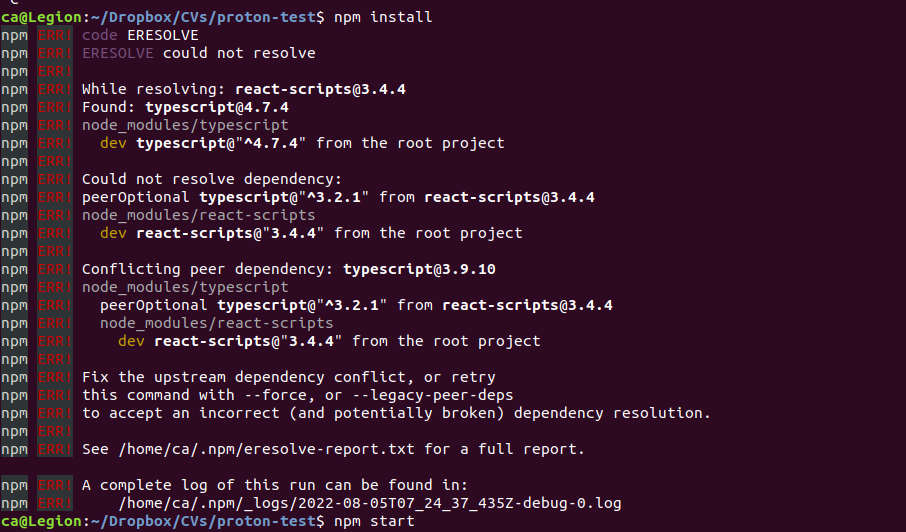
While npm generally manages version conflicts gracefully (e.g., by hoisting common dependencies to higher levels in node_modules to avoid duplication), sometimes complex dependency graphs can lead to warnings or even errors. In such cases, flags like --legacy-peer-deps might be used as a temporary workaround, especially with older packages that might not fully comply with newer npm dependency resolution logic. However, it’s always best to address the underlying version conflicts if possible to maintain project stability.
Beyond Installation: Best Practices and Troubleshooting
A solid understanding of npm install extends beyond just knowing the commands. It involves adopting best practices and being equipped to troubleshoot common issues.
Optimizing npm install for Performance and Security
- Audit for Vulnerabilities: npm includes a built-in security auditing tool. After running
npm install, it’s good practice to run:
bash

npm audit
This command checks your dependencies for known security vulnerabilities and provides recommendations for updates or fixes. Regularly auditing your dependencies is a critical part of maintaining secure software, aligning with modern digital security practices. - Keep npm and Node.js Updated: Older versions of npm and Node.js might have bugs, performance issues, or security vulnerabilities. Regularly update both:
bash

npm install -g npm@latest

# Use a version manager like nvm or fnm to update Node.js
- Clear the Cache: Sometimes, npm’s cache can become corrupted or lead to unexpected behavior. Clearing it can resolve elusive installation issues:
bash

npm cache clean --force
- Use
npm cifor CI/CD and Clean Installations: For continuous integration environments or when you want an absolutely clean, reproducible installation,npm ci(clean install) is preferred overnpm install:
bash

npm ci
npm cidiffers fromnpm installin several key ways:- It requires a
package-lock.jsonornpm-shrinkwrap.jsonfile. - It removes
node_modulesbefore installing. - It installs dependencies based solely on the lock file, ignoring
package.json‘s version ranges. - It is generally faster and more reliable for automated environments.
- It requires a
Common Issues and Their Resolutions
- “npm command not found”: Node.js or npm is not installed or not in your system’s PATH. Reinstall Node.js or check your environment variables.
- Network Errors (
E_CONNREFUSED,ETIMEOUT): Often indicates a problem with your internet connection, proxy settings, or firewall blocking access to the npm registry. Check your network or trynpm config set proxy <proxy-url>. - Permissions Errors (
EACCES): Occurs when npm tries to write files to directories it doesn’t have permission for, especially during global installations. Avoid usingsudo npm install -gunless absolutely necessary. Instead, fix permissions or use a Node.js version manager (likenvm) to manage global packages without elevated privileges. - Dependency Conflicts/Circular Dependencies: npm usually warns about these. Try
npm updateto get compatible versions or manually adjust versions inpackage.jsonto resolve conflicts. - Native Module Compilation Issues: Some packages require compiling native C++ add-ons. If you lack the necessary build tools (like Python, Visual Studio on Windows, or Xcode Command Line Tools on macOS), these installations will fail. Install the required build tools for your operating system.
Integrating npm install into CI/CD Pipelines
In modern software development, npm install is a critical step in continuous integration and continuous deployment (CI/CD) pipelines. When new code is pushed to a repository, a CI server typically performs the following:
- Clones the repository.
- Runs
npm ci(ornpm install --productionfor deployment builds) to install dependencies in a clean environment. - Runs
npm testto execute unit, integration, and end-to-end tests. - Builds the application (e.g.,
npm run build). - Deploys the built application to a staging or production server.
The consistent and reliable nature of npm install (especially with npm ci) makes it perfectly suited for automated environments, ensuring that every build and deployment starts from a known, stable dependency state. This significantly enhances project reliability and reduces deployment risks.
The Broader Impact: npm install in the Developer’s Workflow and Beyond
The seemingly simple act of running npm install reverberates throughout the entire software development lifecycle and even influences the broader tech economy.
Boosting Developer Productivity
Before package managers, developers had to manually download libraries, manage versions, and resolve dependencies, a tedious and error-prone process. npm install automates this entire workflow, freeing developers from manual dependency management so they can focus on writing application-specific logic. This dramatic boost in productivity is a cornerstone of agile development and rapid prototyping, allowing teams to deliver features faster and iterate more effectively. It’s a prime example of how well-designed software tools can enhance human output within the “Tech” domain.
Contributing to the Open-Source Economy
npm install is the primary mechanism through which developers consume and contribute to the vast open-source ecosystem. Every time a package is installed, it reflects the incredible value generated by countless volunteer and commercial developers who share their code with the world. This culture of sharing fosters innovation, reduces development costs, and democratizes access to powerful tools and libraries. It also indirectly touches upon “Money” by reducing development expenses for companies and individuals alike, while also enabling platforms for online income through development.
The Future of Package Management
While npm install remains the dominant force, the landscape of JavaScript package management continues to evolve. Alternatives like Yarn and pnpm offer different approaches to dependency resolution, caching, and disk space management, each with their own strengths. Yarn, initially created by Facebook, aimed to address some performance and security concerns of early npm versions. Pnpm, on the other hand, focuses on strict dependency resolution and efficient disk usage through symlinking and content-addressable storage. These tools, while having their own install commands, largely adhere to the same package.json and package-lock.json conventions, demonstrating the enduring influence of npm’s foundational design. The competition and innovation in this space further underscore the critical role package management plays in the health of the JavaScript ecosystem and future “Tech Trends.”
Conclusion
npm install is more than just a command; it is the vital conduit that connects your Node.js project to the immense and dynamic world of open-source packages. From orchestrating the precise installation of dependencies using package.json and package-lock.json to maintaining a clean node_modules directory, its role is indispensable. Understanding its various modes, best practices, and troubleshooting techniques empowers developers to build, maintain, and deploy robust applications with confidence and efficiency. As the JavaScript ecosystem continues to expand, npm install will undoubtedly remain a cornerstone, enabling the collaborative, fast-paced development that defines modern technology.