
In an increasingly digital world, the ability to send and receive money seamlessly is no longer a luxury but a fundamental expectation. Apple Pay, predominantly known for its secure contactless payments in stores and online, extends its utility with a robust person-to-person (P2P) payment feature. This allows users to instantly send money to friends, family, or anyone with a compatible Apple device, directly through the Messages app. Far more than just a transaction tool, Apple Pay’s P2P functionality is deeply integrated into the Apple ecosystem, offering a blend of convenience, speed, and advanced security that transforms how individuals handle casual financial exchanges. Understanding the mechanics behind this feature, from initial setup to secure transfer, unlocks a powerful technological asset designed for modern digital life.
The Convenience of Apple Pay Person-to-Person Payments
Apple Pay P2P payments leverage the existing infrastructure of Apple’s Wallet app and the ubiquity of iMessage to create a streamlined money transfer experience. This integration isn’t merely about adding a payment option; it’s about embedding financial utility into communication, making the act of settling a bill or repaying a friend as natural as sending a text.
What is Apple Pay P2P?
At its core, Apple Pay P2P allows users to send and receive money using their Apple Cash card, which resides within the Wallet app on eligible Apple devices. When you send money, it’s debited from your Apple Cash balance. If your Apple Cash balance is insufficient, or if you prefer, it can be drawn directly from a linked debit card. When you receive money, it automatically deposits into your Apple Cash balance. From there, funds can be used for other Apple Pay purchases, sent to another contact, or transferred to your linked bank account. This system eliminates the need for third-party apps for simple money transfers between Apple users, consolidating financial interactions within a familiar and secure environment. The technology underpins a frictionless exchange, designed to feel intuitive to anyone accustomed to using Apple’s native applications. It’s a testament to the power of a unified digital platform, where disparate functions converge to offer a holistic user experience.
Why Choose Apple Pay for Sending Money?
The appeal of Apple Pay for person-to-person transfers extends beyond its integration. Several technological advantages make it a compelling choice:
Firstly, Speed and Immediacy: Transfers are often near-instantaneous. Once sent, funds are typically available in the recipient’s Apple Cash balance within moments, allowing for immediate use. This contrasts sharply with traditional bank transfers that can take business days to clear, or even other digital payment platforms that might have processing delays for initial transfers.
Secondly, Seamless Integration: The ability to send money directly from a Messages conversation eliminates the need to switch between apps. This contextual integration enhances user experience by making the payment process less disruptive to ongoing communication. The payment interface pops up directly within the chat, requiring minimal navigation.
Thirdly, Robust Security: Apple Pay is renowned for its security features, and P2P payments benefit from the same high standards. Transactions are encrypted, and sensitive card information is never stored on Apple’s servers or shared with the merchant or recipient. Instead, a unique, device-specific Device Account Number is used. Furthermore, every payment requires authentication via Face ID, Touch ID, or your device passcode, adding a crucial layer of biometric or passcode protection against unauthorized transactions. This level of digital security provides significant peace of mind for users dealing with financial data.
Finally, No Transaction Fees for Debit Cards: When using a linked debit card, Apple does not charge a fee for sending money. This makes it an economically sensible option for regular transfers, distinguishing it from some alternatives that might levy small percentages for immediate transfers or certain funding sources. This focus on user-centric design and cost-efficiency makes Apple Pay P2P a powerful tool in the personal finance tech stack.
Setting Up Your Apple Cash Card for P2P Transfers
Before you can begin sending or receiving money via Apple Pay, there are a few prerequisites and a simple setup process involving your Apple Cash card. This digital card is the central hub for all P2P transactions within the Apple ecosystem.
Prerequisites for Apple Pay P2P
To leverage the full capabilities of Apple Pay P2P, ensure your device and account meet these technical requirements:
- Compatible Apple Device: You’ll need an iPhone (iPhone 6 or later), iPad (iPad Air 2 or later, iPad mini 3 or later, or any iPad Pro), Apple Watch (Apple Watch Series 1 or later), or Mac (with Touch ID).
- Latest iOS/watchOS/macOS Version: Your device must be running the latest version of its operating system to ensure access to all features and security updates.
- Apple ID with Two-Factor Authentication: A fully set up Apple ID with two-factor authentication enabled is mandatory for security reasons. This provides an additional layer of protection for your account.
- Eligible Debit Card: To send money from your bank account or to add funds to Apple Cash, you’ll need to link an eligible debit card to Apple Pay. Credit cards cannot be used to send money via Apple Pay P2P.
Activating Apple Cash
Activating your Apple Cash card is a straightforward process within the Wallet app:
- Open the Wallet App: Locate and tap the Wallet app icon on your iPhone.
- Add Apple Cash: If you haven’t already set it up, you’ll typically see an option to “Set Up Apple Cash” or “Add a Card” and then select “Apple Cash.”
- Follow On-Screen Prompts: You’ll be guided through the process, which usually involves agreeing to terms and conditions and verifying your identity. This verification process is a standard financial technology requirement to prevent fraud and comply with regulations. It may ask for personal information such as your name, address, and the last four digits of your Social Security Number, ensuring the secure and legitimate operation of your digital funds.
- Verification: Once verified, your Apple Cash card will appear in your Wallet, ready for use.
Adding Funds to Apple Cash
While you can often send money directly from a linked debit card, having funds in your Apple Cash balance allows for even quicker transfers, especially if you anticipate frequent small payments.
- Open Wallet App: Tap on your Apple Cash card.
- Tap “Add Money”: Select this option.
- Enter Amount: Specify the amount you wish to add.
- Confirm with Debit Card: Choose a linked debit card as the source and authenticate with Face ID, Touch ID, or your passcode. The funds will then be transferred from your bank account to your Apple Cash balance.
Sending Money with Apple Pay via Messages
The core of Apple Pay’s P2P functionality lies within the Messages app, making the act of payment feel integrated and organic within your daily communications.
Initiating a Payment
The process begins directly from your conversation with the recipient:
- Open Messages App: Start a new conversation or open an existing one with the person you wish to pay.
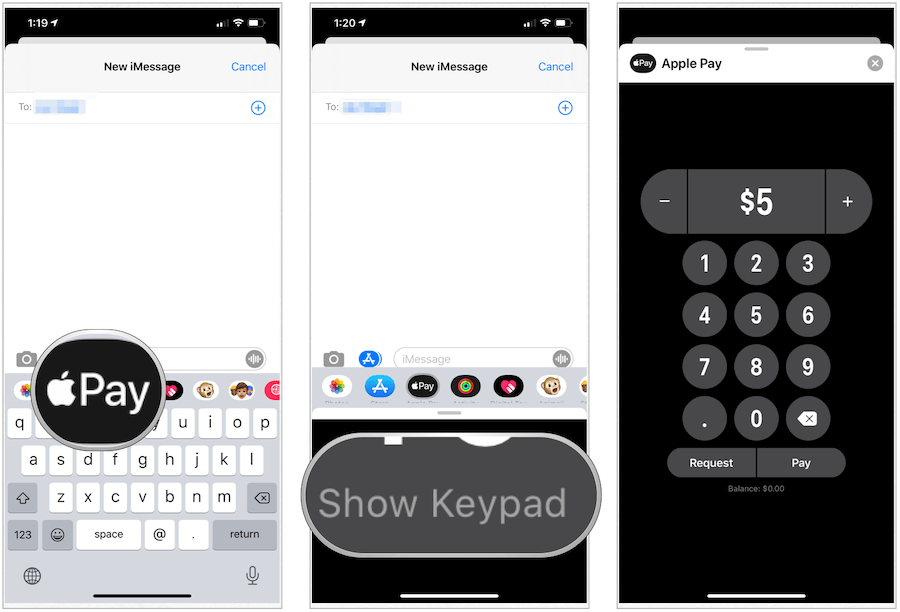
- Tap the Apple Pay Icon: Within the iMessage app drawer (the row of icons above the keyboard), locate and tap the Apple Pay icon. It resembles the Apple Pay logo. If you don’t see it, tap the App Store icon to access the app drawer and find it there.
- Enter Amount: A mini-interface will appear, prompting you to enter the amount you want to send. You can also add a memo to describe the payment, such as “for dinner” or “rent share,” which is helpful for record-keeping.
- Tap “Pay”: After entering the amount, tap the “Pay” button.
Entering the Amount and Confirming
This step involves verifying the details and authorizing the transaction:
- Review Details: The Messages app will present a summary of the transaction: the amount, the recipient, and the funding source (your Apple Cash balance or a linked debit card).
- Confirm with Biometrics/Passcode: To authorize the payment, you’ll be prompted to use Face ID, Touch ID, or enter your device passcode. This critical security step ensures that only you can approve financial transfers from your device.
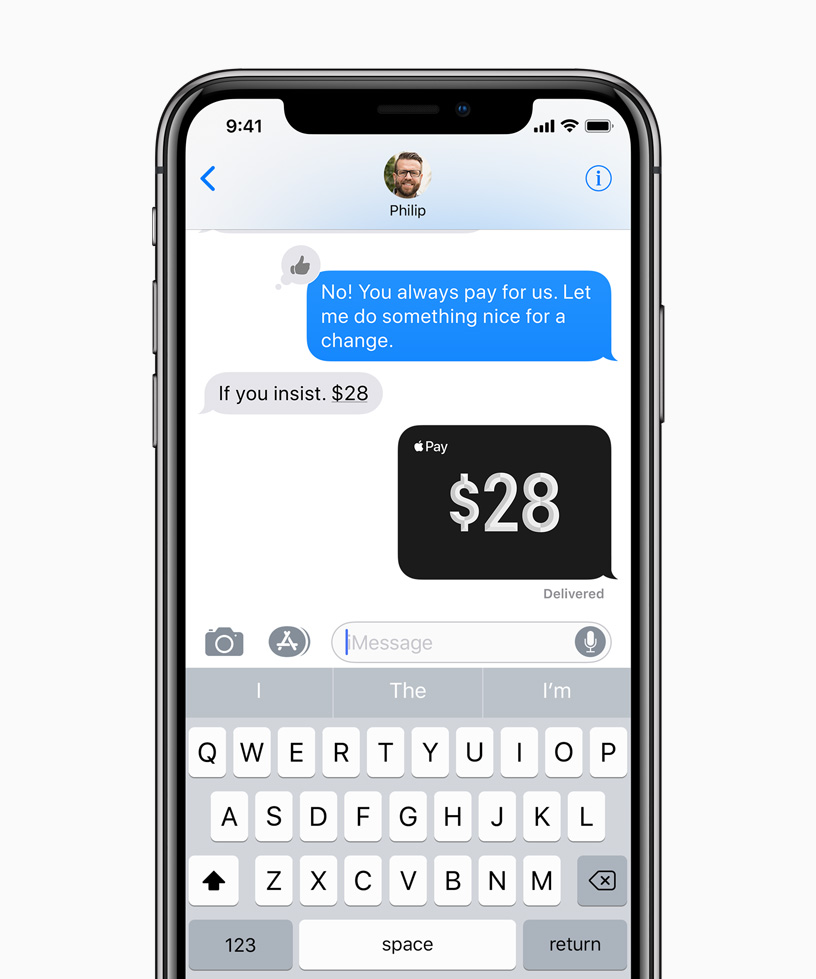
- Send: Once authenticated, tap the “Send” button within the Messages app. The payment message will then be sent in the chat thread, visible to both you and the recipient.
Understanding Transaction Status
After sending, the payment message in the chat thread will display its current status:
- Sent: The payment has been initiated.
- Pending: Occasionally, a payment might be pending review, often for security purposes or if there are new recipients.
- Completed: The funds have been successfully transferred to the recipient’s Apple Cash balance.
- Declined/Failed: If a transaction fails, a message will indicate the reason, such as insufficient funds or a technical error. In such cases, you can reattempt the payment.
The recipient will also receive a notification indicating a payment has been sent to them, and the funds will appear in their Apple Cash balance.
Receiving and Managing Apple Pay P2P Funds
Receiving money through Apple Pay is as straightforward as sending it, with funds typically arriving in your Apple Cash card. Managing these funds involves understanding how they are stored and how to transfer them to a traditional bank account.
Automatic Deposit to Apple Cash
When someone sends you money via Apple Pay, the funds are automatically deposited into your Apple Cash card. You’ll receive a notification, and the payment message in your Messages conversation will confirm the receipt. These funds are immediately available for use within the Apple ecosystem, meaning you can:
- Make purchases: Use your Apple Cash balance for Apple Pay purchases at contactless terminals, in apps, or on the web wherever Apple Pay is accepted.
- Send to others: Use the funds to make new person-to-person payments to other contacts.
Transferring Funds to Your Bank Account
While having funds in Apple Cash is convenient for immediate spending within the Apple Pay ecosystem, you might want to transfer them to your traditional bank account for broader use.
- Open Wallet App: Tap on your Apple Cash card.
- Tap “Transfer to Bank”: This option will be visible below your Apple Cash balance.
- Enter Amount: Specify the amount you wish to transfer. You can transfer all or a portion of your balance.
- Choose Transfer Speed: You’ll typically be presented with two options:
- Instant Transfer (for a fee): For a small percentage fee (usually 1%), funds are transferred to an eligible debit card linked to your bank account within minutes.
- 1 to 3 Business Days (no fee): Funds are transferred to your linked bank account via ACH, with no fee. This option takes longer, but avoids charges.
- Confirm with Biometrics/Passcode: Authenticate the transfer using Face ID, Touch ID, or your passcode.
- Review and Complete: Review the transfer details and confirm. Depending on the chosen speed, the funds will arrive in your bank account accordingly.
Reviewing Transaction History
Keeping track of your financial movements is crucial. Apple Pay provides a clear transaction history for your Apple Cash card:
- Open Wallet App: Tap on your Apple Cash card.
- View Latest Transactions: A summary of your recent transactions will be displayed.
- Tap “More” (or scroll down): For a comprehensive history, you may need to scroll down or tap a “More” or “Transactions” option. Here, you can view all incoming and outgoing payments, including details like the sender/recipient, amount, and date. This feature provides transparency and helps users reconcile their digital spending and receipts.
Ensuring Security and Troubleshooting Common Issues
The seamless experience of Apple Pay P2P payments is built on a foundation of robust security protocols. However, understanding these features and knowing how to troubleshoot potential issues are key to a consistently positive user experience.
Built-in Security Features
Apple’s approach to digital security is multi-layered, protecting users at various points of interaction:
- Tokenization: Instead of transmitting your actual debit card number during a transaction, Apple Pay uses a unique, encrypted Device Account Number. This “token” is unique to your device and card, and changes with each transaction, making it incredibly difficult for fraudsters to intercept and reuse your payment information.
- Biometric Authentication: Every Apple Pay P2P transaction requires authentication via Face ID, Touch ID, or your device passcode. This ensures that even if your device is lost or stolen, unauthorized individuals cannot initiate payments without your unique biometric data or passcode. This is a critical barrier against fraud.
- End-to-End Encryption: All data transmitted during Apple Pay transactions is encrypted, protecting your financial details from eavesdropping. This encryption applies from your device to Apple’s servers and then to the payment networks.
- Secure Enclave: Your biometric data and Device Account Number are stored in the Secure Enclave, a dedicated, isolated hardware component within your Apple device. This means they are never stored on Apple servers, cannot be accessed by iOS or other apps, and are not backed up to iCloud, providing maximum protection.
Tips for Secure Usage
While Apple provides robust security, user awareness and best practices are equally important:
- Verify Recipient Information: Always double-check that you are sending money to the correct person. A mistyped username or phone number could send funds to an unintended recipient, and Apple Pay P2P transactions are generally irreversible once completed.
- Enable Two-Factor Authentication: Ensure your Apple ID has two-factor authentication enabled. This adds an essential layer of security by requiring a second verification step when signing in on a new device.
- Keep Your Device Secure: Maintain a strong passcode and keep your Face ID/Touch ID enabled.
- Be Wary of Public Wi-Fi: When dealing with financial transactions, it’s always safer to use a secure, private Wi-Fi network or cellular data rather than unsecured public Wi-Fi hotspots, which can be vulnerable to interception.
- Monitor Notifications: Pay attention to notifications about Apple Pay activity. If you receive an alert about a payment you didn’t initiate, report it immediately.

Common Troubleshooting Scenarios
Even with robust systems, occasional hitches can occur. Here’s how to address some common issues:
- “Payment Failed” or “Transaction Declined”:
- Check Apple Cash Balance: Ensure you have sufficient funds in your Apple Cash card or that your linked debit card has enough money.
- Verify Debit Card: Confirm your linked debit card is active and has not expired. Sometimes, banks may temporarily block transactions if they detect unusual activity. Contact your bank if necessary.
- Network Connection: Ensure you have a stable internet connection.
- Recipient Issues: Occasionally, the recipient’s Apple Cash account might have issues or limits.
- Recipient Not Receiving Funds:
- Confirm Apple ID/Phone Number: Double-check that you sent the money to the correct Apple ID email address or phone number associated with their Apple Cash account.
- Recipient Setup: The recipient must have Apple Cash set up on their device to receive funds. If they haven’t, they’ll be prompted to set it up before the funds can be claimed.
- Check Transaction History: Verify the status of the transaction in your Apple Cash history. If it shows as “Sent” or “Completed,” the funds have left your account.
- Problems with Apple Cash Verification:
- If you encounter issues during Apple Cash setup, it often relates to identity verification. Ensure the information you provide matches your official records exactly. You may need to contact Apple Support or provide additional documentation if automated verification fails.
By adhering to these security best practices and understanding basic troubleshooting, users can maximize the utility and reliability of Apple Pay’s person-to-person payment feature, further integrating this powerful technology into their daily financial interactions.
aViewFromTheCave is a participant in the Amazon Services LLC Associates Program, an affiliate advertising program designed to provide a means for sites to earn advertising fees by advertising and linking to Amazon.com. Amazon, the Amazon logo, AmazonSupply, and the AmazonSupply logo are trademarks of Amazon.com, Inc. or its affiliates. As an Amazon Associate we earn affiliate commissions from qualifying purchases.