
In an age defined by the relentless flow of information, staying abreast of developments in technology, security, software, and emerging trends is not merely advantageous—it’s essential. For tech enthusiasts, developers, IT professionals, and even the casual gadget user, the sheer volume of data can be overwhelming. This is where Google Alerts emerges as an indispensable, yet often underutilized, tool. Far more than a simple notification service, Google Alerts represents a sophisticated mechanism for personalized information delivery, designed to filter the digital noise and bring precisely what you need directly to your inbox. It acts as your personal, automated research assistant, tirelessly scanning the web for new content related to your chosen keywords and delivering updates in real-time or as a digest.
This comprehensive guide will demystify Google Alerts, transforming it from an obscure feature into a cornerstone of your digital information strategy. We will delve into its core functionalities, provide a step-by-step tutorial for setting up and customizing alerts, and explore advanced strategies specifically tailored for navigating the tech landscape. Whether your goal is to monitor competitive tech developments, track software vulnerabilities, stay updated on AI breakthroughs, or simply keep tabs on your favorite open-source projects, mastering Google Alerts is a pivotal step towards becoming a more informed and efficient digital citizen.
The Technological Underpinnings and Core Benefits of Google Alerts
At its heart, Google Alerts operates on Google’s powerful search indexing capabilities, but with a crucial difference: it actively pushes new content to you, rather than requiring you to pull information through manual searches. Think of it as a persistent, automated search query that constantly runs in the background. When Google indexes new web content—be it news articles, blog posts, research papers, forum discussions, or even new product listings—and that content matches your specified keywords, an alert is triggered. This proactive approach to information gathering is a game-changer for anyone operating within or observing the fast-paced tech sector.
What Exactly is a Google Alert?
Fundamentally, a Google Alert is a notification system that delivers updates about specific topics directly to your chosen delivery method, typically email. It’s an intelligent scanner, perpetually sifting through newly indexed web pages to find mentions of your keywords or phrases. Unlike a one-off Google search that provides a snapshot of existing information, an alert is a continuous monitoring service. It allows you to specify what you want to track, how often you want to receive updates, from which sources, and even in what language and region. This level of granular control ensures that the information pushed to you is highly relevant and timely. It leverages Google’s immense database and sophisticated algorithms to provide an unparalleled scope of monitoring, encompassing a vast array of online sources.
Key Benefits for Tech Enthusiasts and Professionals
For anyone immersed in the world of technology, the strategic application of Google Alerts offers a myriad of advantages that go beyond mere convenience:
- Staying Current with Tech Trends and Innovations: The tech industry evolves at lightning speed. New programming languages emerge, existing ones get updates, AI models are released, and cybersecurity threats constantly shift. Alerts can be set for “machine learning breakthroughs,” “quantum computing advancements,” “new Python libraries,” or “Web3 developments” to ensure you’re always informed about the bleeding edge.
- Monitoring Software Updates and Vulnerabilities: For developers, IT administrators, and security professionals, knowing about critical software updates or newly discovered vulnerabilities is paramount. Setting alerts for “Microsoft Patch Tuesday,” “Linux kernel vulnerabilities,” or “zero-day exploits in [specific software]” can provide crucial early warnings, enabling timely action and patch deployment.
- Competitive Analysis and Market Intelligence: Understanding what competitors are doing is vital. You can set alerts for “[competitor name] product launch,” “[competitor name] acquisition,” or “new AI tools by [competitor]” to gain insights into their strategies, technological advancements, and market positioning. This helps in strategic planning and identifying market gaps.
- Tracking New Gadgets and Hardware Releases: If you’re a gadget enthusiast or a hardware reviewer, alerts like “new smartphone releases 2024,” “next-gen GPU rumors,” or “innovative smart home devices” can give you a significant head start in evaluating and reporting on new products.
- Personalized Learning and Career Development: For those looking to upskill or pivot within tech, alerts can track educational content. “Best JavaScript tutorials 2024,” “cloud computing certification guides,” or “data science career paths” can help curate learning resources and identify opportunities.
- Digital Security and Reputation Monitoring: While primarily a brand benefit, from a tech perspective, monitoring your own open-source projects, personal tech blog, or even mentions of your technical expertise online can be crucial. Alerts for your name or project name can help you track discussions, contributions, or even potential misuse of your work.
These benefits highlight how Google Alerts can serve as a robust, automated information gatekeeper, delivering targeted intelligence directly to you, thus saving invaluable time and ensuring you remain at the forefront of the tech conversation.
Step-by-Step Guide to Setting Up Your First Alert
Setting up a Google Alert is a straightforward process, but understanding each option allows for maximum precision and effectiveness. This section will walk you through the entire procedure, ensuring you can configure alerts that perfectly match your tech information needs.
Accessing the Google Alerts Platform
The journey begins at the official Google Alerts website.
- Open your web browser and navigate to alerts.google.com.
- Ensure you are signed in to your Google Account. While you can view a preview without signing in, creating and managing alerts requires an active Google account. The alerts will be linked to this account and delivered to its associated email address.
Entering Your Search Query
This is the most critical step, as the effectiveness of your alert hinges entirely on the keywords or phrases you choose.
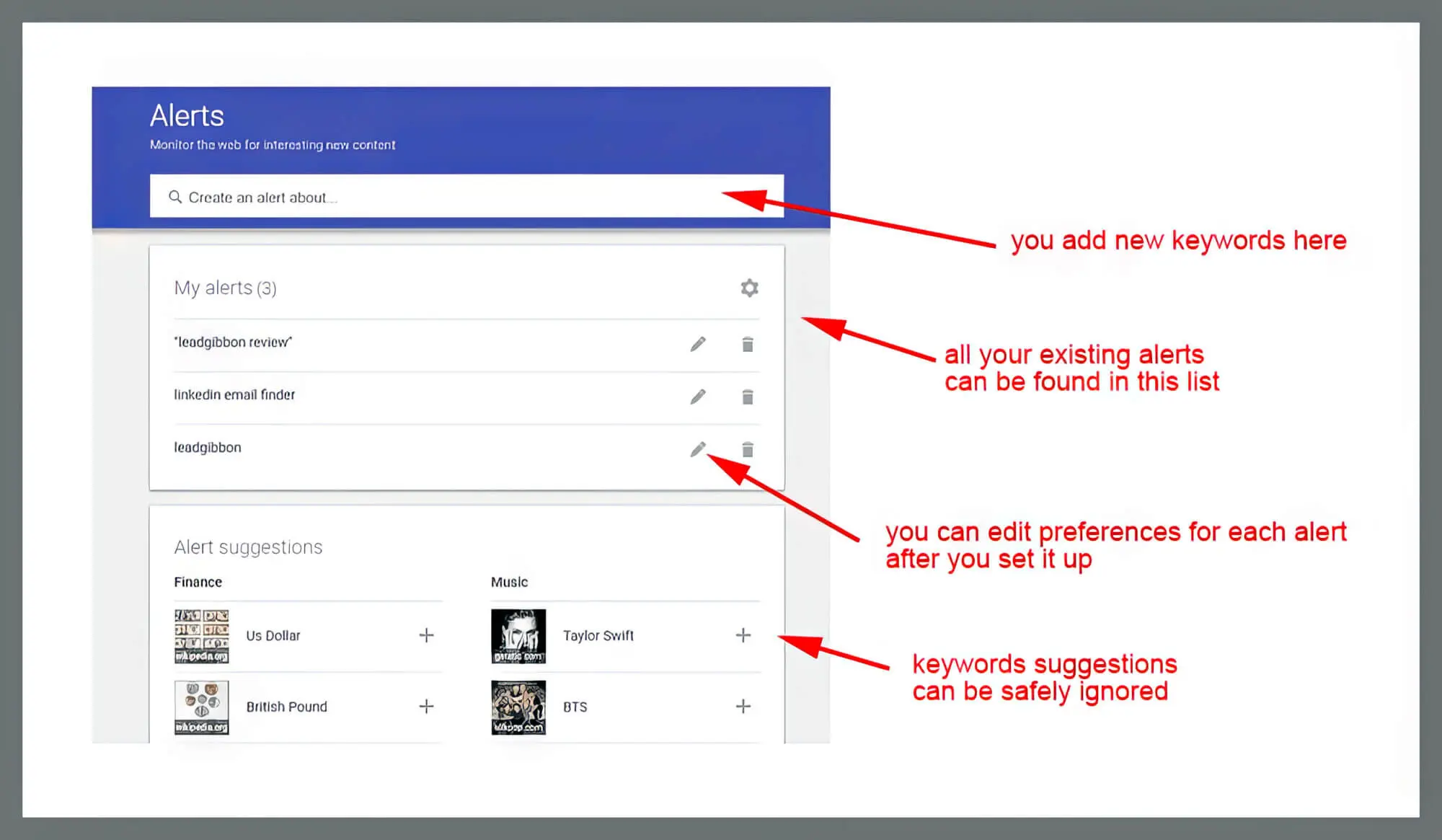
- Locate the “Create an alert about…” search box. This is prominently displayed at the top of the page.
- Type in your desired search term.
- Specificity is key: Instead of a generic “AI,” consider “Generative AI applications” or “Large Language Model ethical concerns.”
- Use quotation marks for exact phrases: If you’re tracking “open-source software,” use
"open-source software"to ensure Google only returns results where these words appear together in that exact order. Without quotes, it might return pages with “software” and “open-source” separated by other words. - Think about variations: If you’re tracking a specific product, consider its full name, acronyms, and common misspellings if relevant.
- Observe the “Alert preview” below the search box. As you type, Google provides a real-time preview of the types of results your alert will generate. This is an invaluable feature for fine-tuning your query. If the preview shows irrelevant results, adjust your search term immediately.
Customizing Your Alert Settings
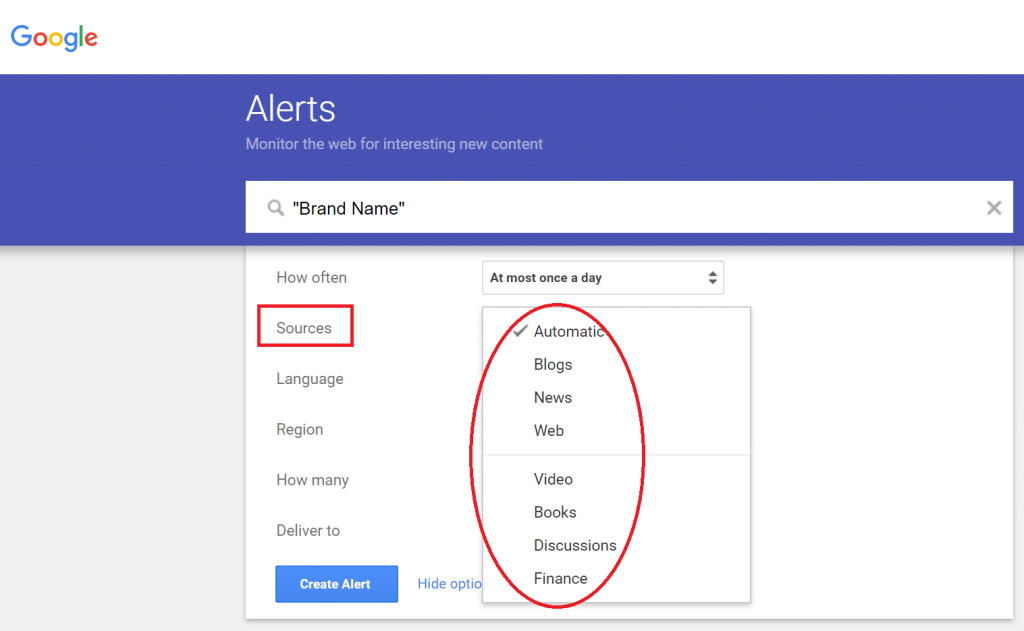
Once you’ve entered a preliminary search query, click on the “Show options” button (or the gear icon if you’ve already created alerts) to reveal the customization settings. These options allow you to refine the scope and delivery of your alerts significantly.
- How often: This dictates the frequency of notifications.
- As-it-happens: Ideal for critical, time-sensitive tech information like security vulnerabilities, zero-day exploits, or major tech news breaks. You’ll receive an email as soon as new content matching your query is indexed.
- At most once a day: Suitable for general tech trends, daily news digests, or monitoring broader topics. You’ll receive one summary email per day containing all new relevant content.
- At most once a week: Best for less urgent, high-level industry updates, weekly roundups, or hobbyist interests. You’ll get a weekly digest.
- Sources: This setting allows you to filter the types of websites Google will monitor.
- Automatic: Google decides the most relevant sources based on your query. This is often the best default.
- News: Focuses on established news outlets.
- Blogs: Ideal for tracking industry opinions, developer blogs, or specific tech community discussions.
- Web: A broad category, including various websites, forums, and informational pages.
- Video: Useful for monitoring tech reviews, tutorials, or conference recordings on platforms like YouTube.
- Books: For academic research or specific tech literature.
- Discussions: Targets forums and discussion boards, excellent for community feedback or troubleshooting.
- Finance: While this guide focuses on Tech, it’s worth noting for financially-related tech news (e.g., tech stock performance).
- Language: Specify the language of the content you wish to receive. This is crucial for tracking international tech developments or resources in a particular language.
- Region: Limit results to content originating from a specific country. Essential for localized tech news, regional regulations, or country-specific product launches.
- How many: This controls the volume of results you receive in each alert.
- All results: Provides every piece of new content Google finds. Use with caution for broad topics, as it can lead to information overload.
- Only the best results: Google attempts to filter out less relevant or lower-quality content, prioritizing more authoritative or impactful sources. This is often the recommended setting for most tech-related alerts to maintain quality.
- Deliver to: This specifies where your alerts will be sent.
- Your Google Account email: The default and most common option.
- RSS feed: For power users who prefer to aggregate alerts in an RSS reader rather than their email inbox. This keeps your inbox cleaner and allows for more structured content consumption.
Creating the Alert and Managing It
After configuring all your settings:
- Click the “Create Alert” button. Your new alert will now appear in your list of existing alerts below the search box.
- Manage your alerts: On the main Google Alerts page, you’ll see a list of all your active alerts.
- Edit: Click the pencil icon next to an alert to modify its settings (frequency, sources, etc.).
- Delete: Click the trash can icon to remove an alert you no longer need.
- Unsubscribe: If you wish to temporarily pause alerts without deleting them, you can often find an “unsubscribe” link within the alert emails themselves.
By following these steps, you can effectively deploy Google Alerts to become your personalized, automated tech news aggregator, delivering pertinent information directly to your digital doorstep.
Advanced Strategies for Maximizing Google Alerts in Tech
While the basic setup of Google Alerts is simple, its true power for tech professionals and enthusiasts lies in leveraging advanced search operators and strategic query formulation. These techniques transform alerts from a simple keyword monitor into a highly sophisticated information intelligence tool.

Monitoring Specific Technologies and Software Versions
To gain granular insights, craft alerts that combine technology names with version numbers, specific features, or known issues.
- Example 1: Software Vulnerabilities:
"[software name] vulnerability" OR "[software name] exploit" AND site:cve.mitre.org- This alert targets specific software vulnerabilities, potentially limiting results to official CVE (Common Vulnerabilities and Exposures) databases for authoritative information.
- Example 2: New Framework Releases:
"React 19 release" OR "new features in Angular 18"- Keeps you informed about major updates and new functionalities in popular web frameworks.
- Example 3: Programming Language Specifics:
"Python 3.12 performance improvements" -tutorial -beginner- Focuses on advanced discussions or documentation about specific language versions, while filtering out introductory content.
- Example 4: Hardware Driver Updates:
"[GPU model] driver update" OR "[chipset name] firmware"- Ensures you’re notified about crucial hardware and driver updates, which can impact performance and security.
Tracking Industry News and Competitor Innovations
Staying ahead in the competitive tech landscape requires diligent monitoring of rivals and broader industry shifts.
- Example 1: Competitor Product Launches:
"[competitor company name] product launch" OR "[competitor company name] new device"- Provides early warnings about new offerings from competitors, allowing for timely analysis and response.
- Example 2: Acquisition Rumors/News:
"[your company] acquisition" OR "[competitor company] acquires"- Crucial for market analysts, business developers, and anyone monitoring corporate strategies.
- Example 3: Emerging Tech Category:
"serverless computing market share" OR "edge AI growth"- Helps track the market penetration, adoption rates, and overall trajectory of specific tech trends.
- Example 4: Tech Policy and Regulation:
"AI ethics regulation" OR "data privacy laws Europe"- Essential for legal tech, compliance officers, and strategists who need to understand the regulatory environment impacting technology.
Personalizing for Career Development and Learning
Google Alerts can be a powerful engine for continuous learning and career advancement within the tech domain.
- Example 1: Skill Development:
"learn Rust programming" -course -udemy OR "advanced SQL techniques"- Helps discover new learning resources, tutorials, or best practices for specific skills.
- Example 2: Certification Updates:
"[certification name] exam changes" OR "new [vendor] certification track"- Keeps you updated on changes to professional certifications, ensuring your knowledge remains current.
- Example 3: Tech Job Market Trends:
"demand for cloud architects" OR "highest paid tech jobs 2024"- Provides insights into current job market needs and salary trends in various tech specializations.
- Example 4: Thought Leadership and Influencers:
"[industry expert name] blog" OR "[leading research institution] new study"- Follows key individuals or organizations whose work significantly influences your tech niche.
Using Search Operators for Precision
Mastering Google’s advanced search operators dramatically enhances the precision of your alerts, filtering out noise and focusing on relevant signals.
"(Quotation Marks): For exact phrase matching. E.g.,"artificial intelligence"will only return pages where “artificial intelligence” appears together.-(Minus Sign): To exclude words. E.g.,apple -fruitwill search for “apple” but exclude mentions of the fruit. Useful for distinguishing between Apple Inc. and apples.OR: To include results containing either of two terms. E.g.,(AI OR "artificial intelligence")will catch both terms. Use parentheses to group terms.site:: To limit results to a specific website or domain. E.g.,site:github.com "new library"to track new libraries on GitHub.intitle:: To find pages with a specific word in the title. E.g.,intitle:"Cybersecurity Trends 2024"filetype:: To find specific file types. E.g.,filetype:pdf "white paper blockchain"for research papers.AROUND(X): To find terms within X words of each other. E.g.,"machine learning" AROUND(5) ethicsfor terms close together. (Note: Google Alerts’ direct support for AROUND is less explicit than core Google Search, but contextual phrasing can often achieve similar results).*(Asterisk – wildcard): For partial word matching or when unsure of the exact word. E.g.,cloud securit*might catch “cloud security” and “cloud securities.”
By combining these operators strategically, tech professionals can craft highly targeted alerts that deliver precisely the information needed, cutting through the internet’s vast content to find the signals that matter most.
Managing and Optimizing Your Alerts for Sustained Effectiveness
Creating alerts is just the first step; effective management and periodic optimization are crucial to ensure they remain relevant, prevent information overload, and continue to serve your evolving tech information needs. An unmanaged alert system can quickly become a source of digital fatigue rather than insightful intelligence.
Reviewing and Editing Existing Alerts
The tech landscape is dynamic, and your information requirements will change over time. What was relevant last year might be less so today.
- Regular Audits: Make it a habit to review your active alerts list on alerts.google.com every few months.
- Adjusting Parameters:
- Refine Keywords: If an alert is consistently sending irrelevant results, modify the search query. Add more specific terms, use the minus operator (
-) to exclude unwanted words, or enclose exact phrases in quotation marks. For instance, if"Apple" productsis bringing up too much news about fruit, change it to"Apple Inc." productsorApple -fruit. - Tweak Frequency: If you’re overwhelmed, change “As-it-happens” to “At most once a day.” If you’re missing critical updates, consider the opposite.
- Update Sources/Regions: As your focus shifts, you might want to broaden or narrow down the sources (e.g., from “News” to “Blogs” for more niche insights) or change the geographical region.
- Refine Keywords: If an alert is consistently sending irrelevant results, modify the search query. Add more specific terms, use the minus operator (
- Deleting Obsolete Alerts: If a project concludes, a specific technology becomes outdated, or your interest wanes, delete the corresponding alert to declutter your inbox and focus your information stream.
Preventing Information Overload
One of the biggest pitfalls of Google Alerts is the potential for an inundation of emails, especially with broad or poorly defined queries.
- Start Specific, Then Broaden: When setting up a new alert, begin with a very specific, narrow query. Monitor the results for a week or two. If it’s too sparse, gradually broaden the terms or remove some exclusions. This iterative approach helps calibrate the alert.
- Leverage “Only the best results”: For many tech topics, choosing this option under “How many” can significantly reduce noise by prioritizing high-quality, authoritative sources, as determined by Google’s algorithms.
- Combine with RSS Readers: If your inbox is getting swamped, consider delivering alerts via RSS feed instead of email. Tools like Feedly or Inoreader can aggregate these feeds, providing a dedicated space for monitoring and allowing you to skim headlines more efficiently without email distractions.
- Use Email Filters: For alerts delivered to your email, set up inbox rules to automatically move Google Alert emails into a specific folder. This keeps your primary inbox clean while still ensuring you have access to the information when you’re ready to review it.
Troubleshooting Common Issues
Even with careful setup, you might encounter issues with your Google Alerts.
- No Results:
- Check Spelling: A simple typo can yield no results.
- Too Specific Query: Your search terms might be too narrow or include too many exclusionary terms (
-). Try removing some, or broadening your keywords. - Limited Sources/Regions: Ensure your chosen sources or regions aren’t excessively restrictive for the information you’re seeking.
- Low Volume Topic: The topic itself might genuinely have very little new online content.
- Too Many Irrelevant Results:
- Broad Query: Your keywords might be too general. Add more specific terms or use quotation marks for exact phrases.
- Missing Exclusions: Identify common irrelevant terms in your results and add them using the minus operator (
-). For example, if “Python” alerts bring up snake information, add-snake. - “All results” Setting: Switch from “All results” to “Only the best results” to leverage Google’s quality filtering.
- Incorrect Source/Region: Ensure your source and region settings are appropriate; sometimes a broader source setting might pick up less relevant content.
- Alerts Not Delivering:
- Check Spam Folder: Emails might be getting filtered into your spam or junk folder.
- Verify Email Address: Ensure the correct email address is associated with your Google Account and selected for delivery.
- Google Outage: Though rare, temporary issues with Google’s services can occur. Check Google’s status pages if you suspect a broader problem.
By proactively managing and optimizing your Google Alerts, you ensure that this powerful tool continues to serve as an effective, efficient, and highly relevant source of tech intelligence, empowering you to stay informed without being overwhelmed.
Conclusion
In the fast-paced, ever-evolving landscape of technology, access to timely and relevant information is not a luxury, but a necessity. Google Alerts, when properly configured and managed, transcends its basic function as a notification service to become an indispensable component of any tech professional’s or enthusiast’s digital toolkit. It empowers you to effortlessly monitor industry trends, track software updates, identify security vulnerabilities, analyze competitor innovations, and curate personalized learning pathways, all while effectively filtering out the digital noise.
From the meticulous crafting of search queries using advanced operators to the strategic adjustment of delivery settings and periodic reviews, mastering Google Alerts is about cultivating a proactive approach to information consumption. It frees up valuable time that would otherwise be spent on manual searches, allowing you to focus on analysis, development, and innovation. Embrace Google Alerts not just as a feature, but as your automated intelligence scout, consistently scanning the digital horizon to bring the critical signals directly to you. By integrating this powerful tool into your workflow, you ensure you remain perpetually informed, strategically positioned, and always one step ahead in the dynamic world of technology.
aViewFromTheCave is a participant in the Amazon Services LLC Associates Program, an affiliate advertising program designed to provide a means for sites to earn advertising fees by advertising and linking to Amazon.com. Amazon, the Amazon logo, AmazonSupply, and the AmazonSupply logo are trademarks of Amazon.com, Inc. or its affiliates. As an Amazon Associate we earn affiliate commissions from qualifying purchases.