
In the dynamic world of computing, where technological advancements are relentless, keeping your hardware optimized is paramount for peak performance and system stability. Among the most critical components in any modern computer, especially for gamers, content creators, and professionals utilizing graphical applications, is the video card – also known as the Graphics Processing Unit (GPU). While a powerful GPU is a significant investment, its true potential is only unlocked and maintained through consistent driver updates. This comprehensive guide delves into the why and how of updating your video card, ensuring your system operates at its best, harnesses the latest features, and remains compatible with emerging software and games.
Understanding Your Video Card and Drivers
To appreciate the importance of updating, it’s essential to first grasp what a video card is and the pivotal role its drivers play in your system’s ecosystem.
What is a Video Card (GPU)?
A video card is a specialized electronic circuit designed to rapidly manipulate and alter memory to produce an output of images to a display device. It’s essentially a dedicated processor for graphics, handling complex calculations related to visuals, freeing up the main CPU for other tasks. Whether integrated into your motherboard’s chipset (iGPU) or a discrete, standalone component (dGPU), its power directly impacts your computer’s ability to render high-resolution images, smoothly run demanding games, and accelerate graphic-intensive applications like video editing software or 3D modeling tools.
The Role of Drivers
Drivers are the essential software bridge that allows your operating system (like Windows or macOS) to communicate effectively with a specific piece of hardware, such as your video card. Without the correct driver, your video card would be a useless piece of silicon, unable to interpret commands from your software or display anything on your monitor. They translate generic operating system commands into specific instructions that your GPU can understand and execute.
Why Regular Updates Matter
Keeping your video card drivers current is not merely a suggestion; it’s a critical maintenance practice with multiple benefits:
- Performance Enhancements: Driver updates frequently include optimizations that can significantly boost frame rates in games, speed up rendering times in applications, and improve overall graphical responsiveness. Manufacturers continuously fine-tune their drivers to extract more power from existing hardware.
- Bug Fixes and Stability Improvements: Like any complex software, drivers can have bugs that lead to crashes, glitches, or compatibility issues. Updates often address these known problems, leading to a more stable and reliable computing experience.
- New Feature Support: Modern games and applications often leverage new graphical APIs (like DirectX, Vulkan, or OpenGL) and technologies (like NVIDIA DLSS or AMD FSR). Driver updates introduce support for these new features, enabling you to experience the latest visual innovations.
- Security Patches: While less common for GPU drivers than for operating systems, security vulnerabilities can occasionally be found and patched through driver updates, protecting your system from potential exploits.
- Hardware Compatibility: Updates ensure your video card remains compatible with new hardware peripherals, display technologies, and even newer versions of your operating system.
Identifying Your Current Video Card
Before you can update your video card drivers, you need to know what video card you have installed and its current driver version. This step is crucial to download the correct drivers from the manufacturer’s website. Installing the wrong drivers can lead to system instability or outright display issues.
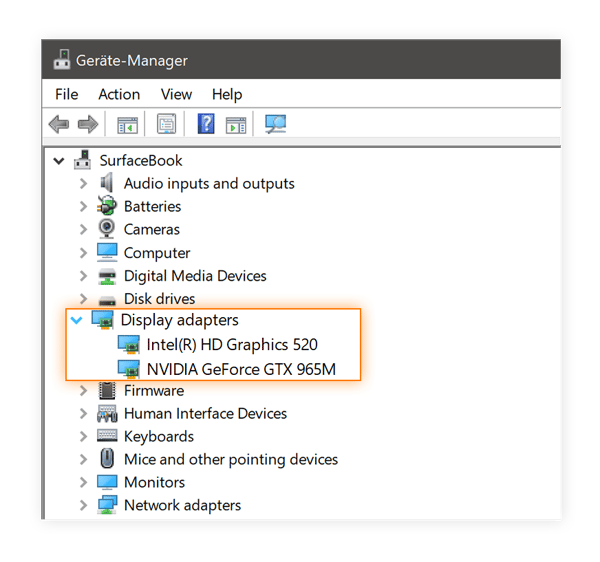
Using Windows Device Manager
The most straightforward method for Windows users is through the Device Manager:
- Open Device Manager: Right-click on the “Start” button (Windows icon) and select “Device Manager” from the context menu. Alternatively, type “Device Manager” into the Windows search bar and press Enter.
- Locate Display Adapters: In the Device Manager window, expand the “Display adapters” category.
- Identify Your GPU: You will see the name of your video card listed here (e.g., NVIDIA GeForce RTX 3080, AMD Radeon RX 6700 XT, Intel Iris Xe Graphics). If you have both an integrated and a discrete GPU, both may be listed.
- Check Driver Version: Right-click on your video card’s name and select “Properties.” Navigate to the “Driver” tab. Here, you’ll find details like the Driver Provider, Driver Date, and Driver Version. Note these details down.
Utilizing Third-Party Tools
For more detailed information, dedicated GPU identification tools are invaluable:
- GPU-Z: A popular, lightweight, and free utility that provides an exhaustive report on your GPU’s specifications, including its name, clock speeds, memory type, driver version, and even sensor readings. It’s an excellent tool for verifying every aspect of your video card.
- Manufacturer Utilities: NVIDIA (GeForce Experience) and AMD (Radeon Software Adrenalin Edition) offer their own software suites that not only provide driver management but also detailed system information and optimization tools. These are highly recommended once you’ve installed the base drivers.
Checking System Information
Other built-in Windows tools can also provide relevant information:
- DxDiag (DirectX Diagnostic Tool): Type “dxdiag” into the Windows search bar and press Enter. After a brief scan, navigate to the “Display” tab(s). This will show you details about your display adapter, including the manufacturer and current driver version.
- System Information (msinfo32): Type “msinfo32” into the Windows search bar. In the System Information window, navigate to “Components” > “Display.” This will list your display adapters and their driver versions.
Once you know your GPU’s exact model and manufacturer (NVIDIA, AMD, or Intel), you’re ready to proceed with downloading the latest drivers.
The Update Process: Step-by-Step Guide
Updating your video card drivers is a relatively straightforward process, but it requires careful attention to detail to ensure a smooth and successful installation.
Downloading the Latest Drivers
This is the most critical step, as obtaining drivers from unofficial sources can expose your system to malware or install incorrect versions.
- Visit the Official Manufacturer’s Website:
- NVIDIA: Go to
nvidia.com/drivers - AMD: Go to
amd.com/support - Intel: Go to
intel.com/support/drivers
- NVIDIA: Go to
- Select Your GPU Model: Use the dropdown menus or search bar on the manufacturer’s site to precisely select your video card model, operating system (e.g., Windows 10 64-bit), and desired driver type (often “Game Ready Driver” for NVIDIA or “Recommended (WHQL)” for AMD). Double-check your choices to avoid compatibility issues.
- Download the Installer: Once you’ve located the correct driver, click the download button to save the installer file to a location you can easily find (e.g., your Downloads folder).

Preparing for Installation
A little preparation can prevent potential headaches during or after the update:
- Close All Applications: Especially any games, video editing software, or programs that heavily utilize your GPU. This ensures no files are in use during the driver update.
- Disable Antivirus (Temporarily): While usually not necessary, some antivirus software can interfere with driver installations. If you encounter issues, consider temporarily disabling it, but remember to re-enable it immediately after the update.
- Consider a Clean Installation (Recommended): Most modern driver installers offer an option for a “clean installation.” This process uninstalls previous driver components before installing the new ones, preventing conflicts or leftover files from older versions. For NVIDIA, this is often an option during the custom installation; for AMD, it’s typically part of the “Factory Reset” option within Radeon Software. If not available, you might consider using a third-party tool like Display Driver Uninstaller (DDU) in Safe Mode for a truly clean slate, though this is usually only necessary for troubleshooting persistent issues.
Performing the Installation
With the installer downloaded and preparations made, you can proceed:
- Run the Installer: Double-click the downloaded driver file. The installer will extract its contents and launch the setup wizard.
- Follow On-Screen Prompts:
- License Agreement: Accept the terms and conditions.
- Installation Options: You’ll typically be presented with “Express” (or “Recommended”) and “Custom” (or “Advanced”) options.
- Express Installation: This is usually sufficient for most users. It installs the drivers and associated software (like GeForce Experience or Radeon Software) with default settings.
- Custom Installation: This allows you to choose which components to install (e.g., you might deselect 3D Vision drivers if you don’t use them) and often includes the crucial “Perform a clean installation” (NVIDIA) or “Factory Reset” (AMD) checkbox. It’s highly recommended to perform a clean installation to avoid potential conflicts.
- Installation Progress: The screen may flicker or go black momentarily during the installation process, as the display drivers are being replaced. This is normal. Your system may also restart one or more times.
- Complete the Installation: Once the installation is finished, the wizard will inform you. Click “Finish” or “Restart Now” if prompted. It’s almost always a good idea to perform a system restart after a driver update, even if not explicitly required.
Post-Installation Verification
After your system restarts, take a moment to verify the update:
- Check Device Manager: Repeat the steps to open Device Manager, go to “Display adapters,” right-click your GPU, and check the “Driver” tab. Confirm that the Driver Date and Driver Version now match the newly installed drivers.
- Open Manufacturer Software: Launch NVIDIA GeForce Experience or AMD Radeon Software to confirm they recognize your GPU and indicate the latest drivers are installed.
- Test Applications: Run a game or a graphics-intensive application you frequently use. Ensure it launches correctly and performs as expected, ideally with improved stability or performance.
Troubleshooting Common Update Issues
While driver updates are generally smooth, occasional issues can arise. Knowing how to troubleshoot them can save you significant frustration.
Driver Installation Failures
- Corrupted Download: If the installer fails to launch or crashes, the download might be corrupted. Delete the file and re-download it. Try a different browser or ensure your internet connection is stable.
- Compatibility Issues: Double-check that you downloaded the correct driver for your exact GPU model and operating system. An incorrect driver will fail to install.
- Insufficient Permissions: Ensure you are running the installer as an administrator (right-click the installer and select “Run as administrator”).
- Conflicting Software: Temporarily disable antivirus or other background programs that might be interfering.
Performance Problems After Update
Sometimes, a new driver might introduce unforeseen issues or reduce performance in specific scenarios.
- Roll Back Driver: If you experience issues immediately after an update, you can roll back to the previous driver. In Device Manager, right-click your GPU, go to “Properties,” then “Driver” tab, and click “Roll Back Driver.” This is why a clean installation is often preferred, as it prevents mixing components of old and new drivers.
- Clean Reinstallation: If rolling back isn’t an option or doesn’t fix it, try performing a truly clean installation. Use DDU (Display Driver Uninstaller) in Windows Safe Mode to completely remove all traces of old drivers, then install the latest drivers again. This often resolves stubborn issues.
- Check Release Notes: Consult the driver release notes on the manufacturer’s website. They might mention known issues or specific settings that need adjustment.
Display Issues
- Black Screen/No Signal: This can happen if the driver installation fails midway or is incompatible. Restart your PC. If it still boots to a black screen, try booting into Windows Safe Mode (F8 or Shift+Restart during boot-up) and either roll back the driver or run DDU.
- Flickering/Artifacts: These often indicate a corrupted driver installation or an unstable GPU overclock. Reinstall drivers cleanly, and if you have overclocked your GPU, revert to default settings.
- Incorrect Resolution: After an update, your display resolution might default to a lower setting. Go to Display Settings (right-click desktop > Display settings) and set your monitor’s native resolution.
Conflicts with Other Software
- Game Overlays: Software like Discord overlay, Xbox Game Bar, or even manufacturer overlays (GeForce Experience, Radeon Software) can sometimes conflict with drivers. Try disabling them if you encounter issues in games.
- Windows Updates: Occasionally, a Windows Update might conflict with a newly installed GPU driver. Ensure both your Windows OS and GPU drivers are fully updated.
Advanced Considerations and Best Practices
Maintaining an updated video card driver is a continuous process. Beyond the basic update, there are further considerations for optimizing your experience.
Automatic Driver Updaters
Both NVIDIA (GeForce Experience) and AMD (Radeon Software) offer utilities that can automatically detect, download, and notify you about new driver versions. While convenient, some users prefer manual control over updates to read release notes and ensure stability before installing. For most users, these automated solutions are perfectly fine, but for professional workflows or competitive gaming, manual review might be preferred. Avoid generic “driver updater” software from third-party vendors, as they often install incorrect or outdated drivers and can sometimes be malicious.
Beta Drivers
Driver manufacturers occasionally release beta drivers, which are experimental versions containing new features or specific optimizations before being fully validated. While they might offer cutting-edge performance or support for unreleased games, they can also be less stable and introduce bugs. Only install beta drivers if you need a specific feature they offer, understand the risks, and are prepared to troubleshoot potential issues. For general use, stick to stable, WHQL-certified (Windows Hardware Quality Labs) drivers.
Firmware Updates vs. Driver Updates
It’s important to distinguish between driver updates and firmware updates. Drivers are software that allows the OS to communicate with hardware. Firmware is low-level software embedded directly onto the hardware itself (like your GPU’s BIOS). While rare, GPUs can receive firmware updates (often called VBIOS updates) to fix specific hardware bugs or improve compatibility. These are typically handled directly by the GPU manufacturer or system builder (e.g., an OEM like Dell or HP) and are much less frequent than driver updates. Follow manufacturer instructions precisely for firmware updates, as a failed firmware update can brick your GPU.

When to Consider a Hardware Upgrade
While driver updates can significantly extend the lifespan and improve the performance of your existing video card, there comes a point where even the latest drivers cannot overcome hardware limitations. If you consistently find your GPU struggling to meet the demands of modern games or applications, even with the newest drivers, it might be time to consider a hardware upgrade. This decision often balances performance needs against budget constraints and the value proposition of newer GPU generations.
Updating your video card drivers is a fundamental aspect of PC maintenance that yields tangible benefits in performance, stability, and feature access. By understanding your hardware, following the update procedure carefully, and knowing how to troubleshoot common issues, you can ensure your video card consistently delivers the best possible graphical experience for years to come. Regular vigilance and adherence to official sources will keep your system running smoothly, allowing you to fully enjoy the ever-evolving world of digital technology.
aViewFromTheCave is a participant in the Amazon Services LLC Associates Program, an affiliate advertising program designed to provide a means for sites to earn advertising fees by advertising and linking to Amazon.com. Amazon, the Amazon logo, AmazonSupply, and the AmazonSupply logo are trademarks of Amazon.com, Inc. or its affiliates. As an Amazon Associate we earn affiliate commissions from qualifying purchases.