
The Amazon Fire Stick has revolutionized home entertainment, transforming any TV into a smart hub capable of streaming a vast array of content. At its core, the Fire Stick’s power lies in its ability to install and run a wide variety of applications, from popular streaming services to niche entertainment apps and productivity tools. Understanding how to navigate the installation process is key to unlocking the full potential of your Fire Stick, allowing you to customize your viewing experience and access a world of digital content.
This guide will walk you through the essential steps of installing apps on your Fire Stick, covering both the straightforward methods available through the Amazon Appstore and the more advanced techniques for accessing content not officially listed. Whether you’re looking to add your favorite streaming service, explore new entertainment options, or even dabble in sideloading, this comprehensive tutorial will equip you with the knowledge you need.
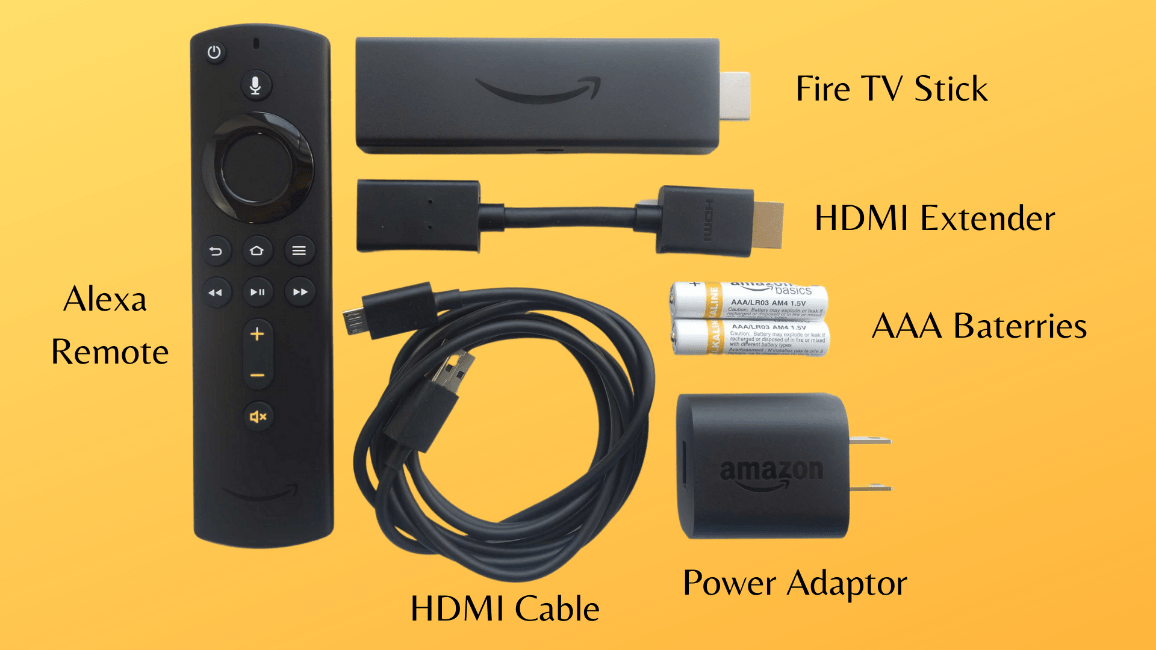
Understanding the Fire Stick Ecosystem
Before diving into installation methods, it’s beneficial to understand the underlying structure of the Fire Stick’s app ecosystem. Amazon’s Fire OS, built on Android, provides a user-friendly interface for accessing a curated selection of applications. The primary gateway for most users is the Amazon Appstore, a platform pre-installed on every Fire Stick. This app store offers a vast library of officially sanctioned applications, ensuring a certain level of quality, security, and compatibility.
However, the Fire Stick is not limited to what’s available in the Amazon Appstore. Its Android foundation allows for “sideloading,” a process of installing apps from sources other than the official store. This opens up a world of possibilities, enabling users to install apps that might be geographically restricted, in beta testing, or simply not yet available through Amazon’s platform. This advanced method requires a bit more technical know-how but is a crucial skill for anyone looking to maximize their Fire Stick’s capabilities.
Navigating the Amazon Appstore: The Official Route
The most common and recommended way to install apps on your Fire Stick is through the Amazon Appstore. This method is straightforward, secure, and ensures that the apps you download are optimized for the Fire Stick’s hardware and software.
Accessing the Appstore and Searching for Apps
- From the Fire Stick Home Screen: Navigate to the top menu bar. You’ll see options like “Home,” “Find,” “Live,” “Channels,” and “Apps.” Select “Apps.”
- Browsing Categories: Once in the Apps section, you’ll find various categories, such as “Featured,” “Categories,” “Top Free,” and “Top Paid.” You can browse through these to discover new apps.
- Using the Search Function: For a more direct approach, select the “Search” icon (magnifying glass) located at the top of the Fire Stick interface. Type the name of the app you’re looking for using the on-screen keyboard. As you type, suggestions will appear, which can help speed up the process.
Installing Apps from the Appstore
Once you’ve found the app you want to install:
- Select the App: Click on the app to view its details page. Here, you’ll find descriptions, screenshots, user reviews, and ratings.
- Click “Get” or “Download”: If the app is free, you’ll see a “Get” or “Download” button. If it’s a paid app, the price will be displayed, and you’ll click “Buy” or “Download.”
- Confirmation: The app will begin downloading and installing automatically. Once complete, you’ll see a confirmation message, and the app will appear in your Fire Stick’s app library.
Managing Installed Apps
To manage your installed apps:
- Access Your Apps: On the Fire Stick’s home screen, navigate to the “Apps” section.
- View All Apps: Select “Your Apps & Channels.”
- Move or Uninstall: You can move apps around on your Fire Stick’s home screen for easier access or uninstall them by highlighting the app, pressing the “Menu” button (three horizontal lines) on your remote, and selecting “Uninstall.”
Exploring Beyond the Appstore: Sideloading Explained
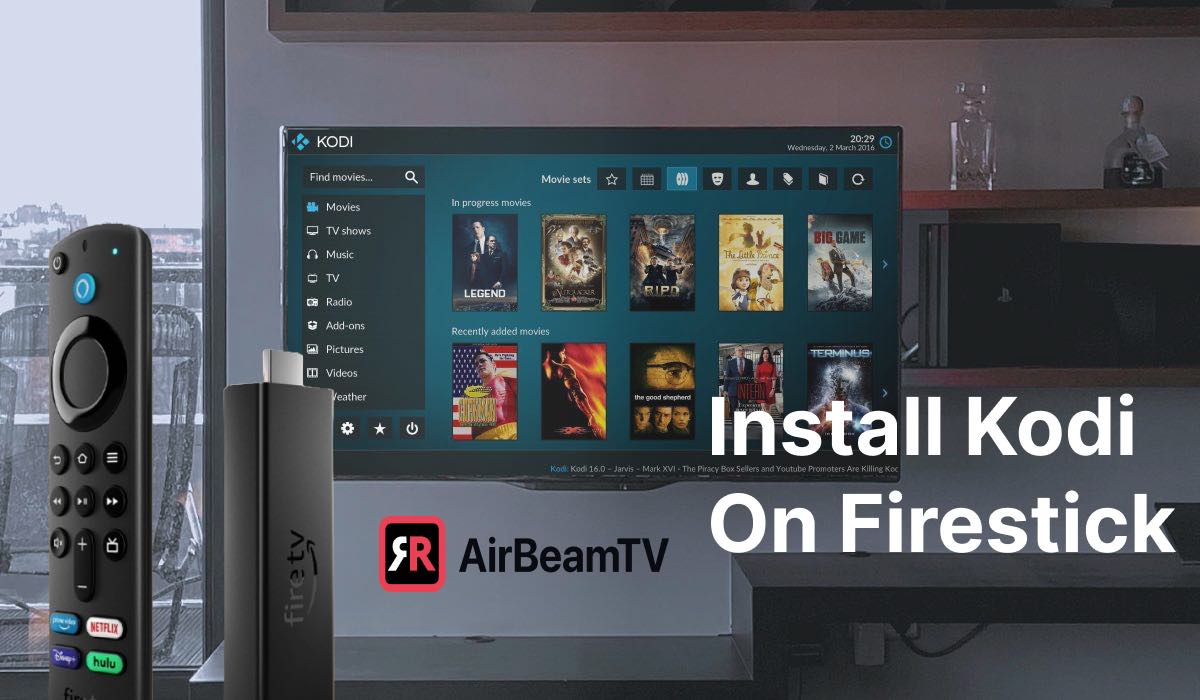
While the Amazon Appstore offers a vast selection, some users may wish to install applications not available there. This is where “sideloading” comes into play. Sideloading is the process of installing an app onto your Fire Stick that you have downloaded as an APK (Android Package Kit) file from a source other than the Amazon Appstore. This method is commonly used for applications like Kodi, specialized media players, or certain VPN applications that might not be officially distributed by Amazon.
Enabling “Apps from Unknown Sources”
Before you can sideload an app, you need to enable a specific setting on your Fire Stick. This is a crucial security step, as it allows the device to install software from sources other than Amazon’s curated store.
- Navigate to Settings: From your Fire Stick’s home screen, go to the “Settings” icon (usually represented by a gear).
- Select “My Fire TV”: Within the Settings menu, find and select “My Fire TV.”
- Choose “Developer Options”: This is where you’ll find the necessary setting. If “Developer Options” is not visible, you’ll need to enable it first. To do so, go back to “My Fire TV,” then select “About,” and then repeatedly press the select button on your Fire Stick remote on the “Fire TV Device Name” until you see a message indicating that “Developer options” are now enabled.
- Enable “Apps from Unknown Sources”: Once you’re in “Developer Options,” locate “Apps from Unknown Sources.” Select it and toggle the switch to “On.” You will see a warning message about the potential risks associated with installing apps from unknown sources. Read it carefully and proceed by selecting “Turn On.”
Important Note on Security: Enabling “Apps from Unknown Sources” should be done with caution. It’s essential to download APK files only from trusted websites to avoid malware or other security threats.

Methods for Sideloading Apps
There are several popular methods for sideloading apps onto your Fire Stick, each with its own set of advantages:
Method 1: Using the “Downloader” App
The “Downloader” app is a highly recommended and user-friendly tool for sideloading. It’s available in the Amazon Appstore and simplifies the process of downloading and installing APK files.
- Install Downloader:
- Go to the Amazon Appstore on your Fire Stick.
- Search for “Downloader.”
- Install the app.
- Obtain the APK File URL: You’ll need the direct download URL for the APK file of the app you want to install. This is typically found on the developer’s website or a trusted third-party app repository.
- Use Downloader to Install:
- Open the “Downloader” app.
- On the main screen of Downloader, you’ll see a URL bar.
- Carefully type or paste the exact URL of the APK file into the bar.
- Press “Go.”
- Downloader will fetch the file. Once downloaded, it will prompt you to install the app. Follow the on-screen instructions.
- After installation, you may be prompted to delete the downloaded APK file to save space. It’s generally a good practice to do so.
Method 2: Using ES File Explorer (Older Method, Use with Caution)
ES File Explorer was a popular file manager that also supported sideloading. However, recent versions have been removed from the Amazon Appstore due to security concerns. If you find an older version and choose to use it, exercise extreme caution and ensure it’s from a reputable source. The general steps would involve downloading the APK to a cloud storage service (like Dropbox or Google Drive), then accessing it through ES File Explorer on your Fire Stick.
Method 3: Using ADB (Android Debug Bridge) – For Advanced Users
This method involves connecting your Fire Stick to a computer and using commands to install APK files. It’s more technical and requires setting up ADB on your computer.
- Enable ADB Debugging: In “Developer Options” on your Fire Stick, also enable “ADB Debugging.”
- Find Your Fire Stick’s IP Address: Go to Settings > My Fire TV > About > Network. Note down the IP address.
- Install ADB on Your Computer: Download and install the Android SDK Platform-Tools, which include ADB.
- Connect via Command Line: Open a command prompt or terminal on your computer and use commands like
adb connect <Fire Stick IP Address>and thenadb install <path/to/your/app.apk>.
This method offers the most control but is best suited for users who are comfortable with command-line interfaces.
Troubleshooting Common Installation Issues
Even with the best guidance, you might encounter hiccups during the app installation process. Here are some common issues and their solutions:
App Not Found in the Appstore
- Geographic Restrictions: Some apps are not available in all regions. Try searching for an alternative or consider using a VPN (which itself can be installed via sideloading).
- Typo in Search: Double-check that you’ve spelled the app name correctly.
- Outdated Fire OS: Ensure your Fire Stick is running the latest firmware. Go to Settings > My Fire TV > About > Check for Updates.
Installation Fails or Fails to Complete
- Insufficient Storage Space: Fire Sticks have limited storage. If your device is full, you’ll need to uninstall some existing apps or clear cache for apps you don’t use frequently. Go to Settings > Applications > Manage Installed Applications to see storage usage.
- Corrupted APK File (for sideloading): If you’re sideloading, the APK file might be corrupted or incomplete. Try downloading it again from a trusted source.
- “App Not Compatible” Error: Some apps are not designed for Fire Stick’s architecture. Ensure the app you’re trying to install is compatible with Amazon Fire TV devices.
- Internet Connection Issues: A stable internet connection is crucial. Restart your router and modem, and ensure your Fire Stick has a strong Wi-Fi signal.
Apps Crashing or Not Launching
- Clear App Cache and Data: Go to Settings > Applications > Manage Installed Applications. Find the problematic app, select it, and then choose “Clear Cache” and “Clear Data.” Be aware that clearing data will reset the app to its default state.
- Restart Your Fire Stick: A simple restart can resolve many temporary glitches. Unplug the power adapter, wait for 30 seconds, and plug it back in.
- Reinstall the App: Uninstall the app and then reinstall it from the Appstore or via sideloading.
“Apps from Unknown Sources” Setting Not Working
- Ensure “Developer Options” are Enabled: As mentioned earlier, you must enable “Developer Options” before you can enable “Apps from Unknown Sources.” If it’s not visible, repeat the process of tapping the “Fire TV Device Name” multiple times in the “About” section.
Conclusion: Personalizing Your Fire Stick Experience
Installing apps on your Fire Stick is the key to unlocking its true potential. From accessing a world of entertainment through the official Amazon Appstore to customizing your device with apps not officially listed via sideloading, the possibilities are vast. By following the steps outlined in this guide, you can confidently install the applications you need to create a personalized streaming and digital experience. Remember to always prioritize security, especially when sideloading, by downloading APKs only from trusted sources. With a little practice, you’ll become a Fire Stick app installation pro, transforming your television into a powerful hub for all your digital needs.
aViewFromTheCave is a participant in the Amazon Services LLC Associates Program, an affiliate advertising program designed to provide a means for sites to earn advertising fees by advertising and linking to Amazon.com. Amazon, the Amazon logo, AmazonSupply, and the AmazonSupply logo are trademarks of Amazon.com, Inc. or its affiliates. As an Amazon Associate we earn affiliate commissions from qualifying purchases.