
In an increasingly connected world, the ability to disconnect without losing access to your favorite entertainment has become an invaluable feature. Amazon Prime Video, a titan in the streaming industry, understands this perfectly, offering users the robust capability to download movies and TV shows for offline viewing. This functionality is not merely a convenience; it’s a strategic tool for managing data, overcoming connectivity challenges, and ensuring uninterrupted entertainment on the go.
This comprehensive guide will demystify the process of downloading content from Prime Video, equipping you with the knowledge to maximize your viewing experience, whether you’re embarking on a long journey, commuting daily, or simply want to save on mobile data. We’ll delve into the step-by-step procedures across various devices, explore critical considerations, and provide insights to optimize your digital library.
The Indispensable Value of Offline Viewing
The concept of offline viewing has revolutionized how we consume digital content. For streaming platforms like Prime Video, it transcends a mere add-on, becoming a cornerstone feature that caters to a diverse user base with varying access to stable internet connections and data plans. Understanding the multifaceted benefits of downloading content illuminates why this feature is a game-changer in the digital entertainment landscape.
Uninterrupted Entertainment, Anywhere, Anytime
The primary allure of offline viewing is the promise of uninterrupted entertainment. Imagine being on a long-haul flight, traversing areas with spotty cellular coverage, or simply lounging in a cabin without Wi-Fi. In these scenarios, streaming live content is impossible, turning a relaxing moment into a frustrating one. Downloading your preferred shows and movies beforehand eliminates this dependency on internet access. Your content is stored locally on your device, ready to play instantly, buffering-free, regardless of your network status. This freedom extends beyond travel, proving invaluable during power outages or even in crowded public Wi-Fi zones where bandwidth contention can degrade streaming quality. It ensures that your viewing pleasure remains paramount, placing control firmly in your hands.
Optimizing Data Usage and Bandwidth
For many, particularly those reliant on mobile data plans, the financial implications of streaming can be substantial. High-definition video consumption is notoriously data-intensive, capable of depleting monthly allowances in a matter of hours. Downloading content over a stable Wi-Fi connection—at home, work, or a public hotspot—is a savvy strategy to circumvent this issue. Once downloaded, the content does not consume any further mobile data during playback, resulting in significant savings and preventing unexpected overage charges. This is especially beneficial for users with limited data caps or those traveling internationally where roaming data charges can be exorbitant. Furthermore, downloading during off-peak hours can leverage less congested networks, leading to faster download speeds and a more efficient use of bandwidth for your household or office network.
Ideal Scenarios for Downloading Content
The utility of Prime Video downloads extends to numerous practical scenarios:
- Long Commutes: Whether by train, bus, or even as a passenger in a car, commutes often present dead zones for mobile data. Pre-downloading ensures your journey is filled with engaging stories rather than staring out the window.
- Air Travel: Airlines may offer Wi-Fi, but it’s often expensive, slow, and unreliable for streaming. Downloading content before takeoff is the definitive solution for in-flight entertainment.
- Remote Locations: Camping trips, vacations to secluded areas, or visits to relatives in rural settings often mean limited or no internet. Your downloaded library becomes your entertainment hub.
- Saving on Mobile Data: As discussed, this is a prime reason for many. Instead of draining your mobile plan on the go, download over Wi-Fi at home.
- Entertainment for Children: Keeping kids entertained on road trips or during errands is easier with their favorite shows available offline, preventing meltdowns due to buffering or lack of signal.
- Preparing for Connectivity Issues: Unexpected internet outages or planned maintenance no longer need to disrupt your evening plans when you have a selection of downloads ready.
By embracing the download feature, Prime Video transforms from a purely online streaming service into a versatile entertainment platform that adapts to your lifestyle and technological limitations, guaranteeing that your shows and movies are always within reach.
Mastering the Download Process on Mobile Devices
Mobile devices — smartphones and tablets — are perhaps the most common platforms for consuming downloaded Prime Video content. Their portability makes them ideal companions for offline viewing. The process is intuitive, designed for ease of use, but understanding the nuances can enhance your experience.
Navigating the Prime Video App Interface
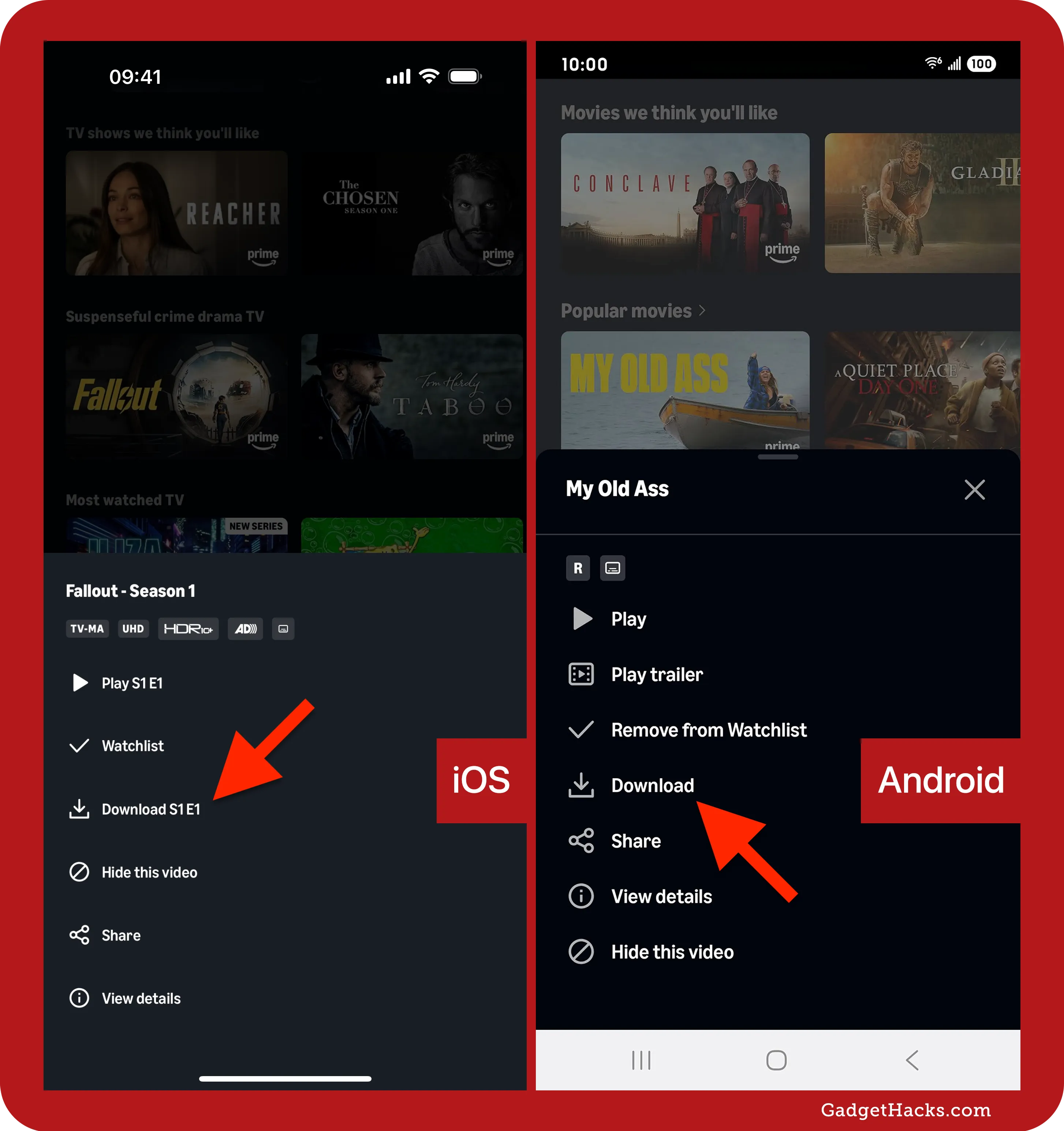
Before you can download, you need the Prime Video app. Ensure it’s installed and updated to the latest version on your iOS or Android device. Once logged in, the app presents a user-friendly interface. You’ll find sections for movies, TV shows, watchlists, and your downloaded content. To find content available for download, you can browse specific titles or look for a download icon (a down arrow) typically displayed next to episodes or movies. Not all content is available for download due to licensing restrictions, so always look for this icon.
Step-by-Step Guide for iOS and Android
The download process is remarkably similar across both major mobile operating systems:
- Open the Prime Video App: Launch the app on your smartphone or tablet.
- Browse or Search for Content: Navigate to the movie or TV show you wish to download. You can use the search bar or browse categories.
- Locate the Download Icon: For TV shows, you’ll typically see a download icon next to each individual episode. For movies, the icon is usually found on the movie’s detail page, often near the “Watch Now” or “Add to Watchlist” buttons.
- Select Download Quality (Optional): Before initiating the download, the app may prompt you to select a download quality (e.g., Good, Better, Best, or Data Saver). Higher quality uses more storage space.
- Initiate Download: Tap the download icon. The icon will usually change to indicate that the download is in progress, often displaying a progress circle or bar.
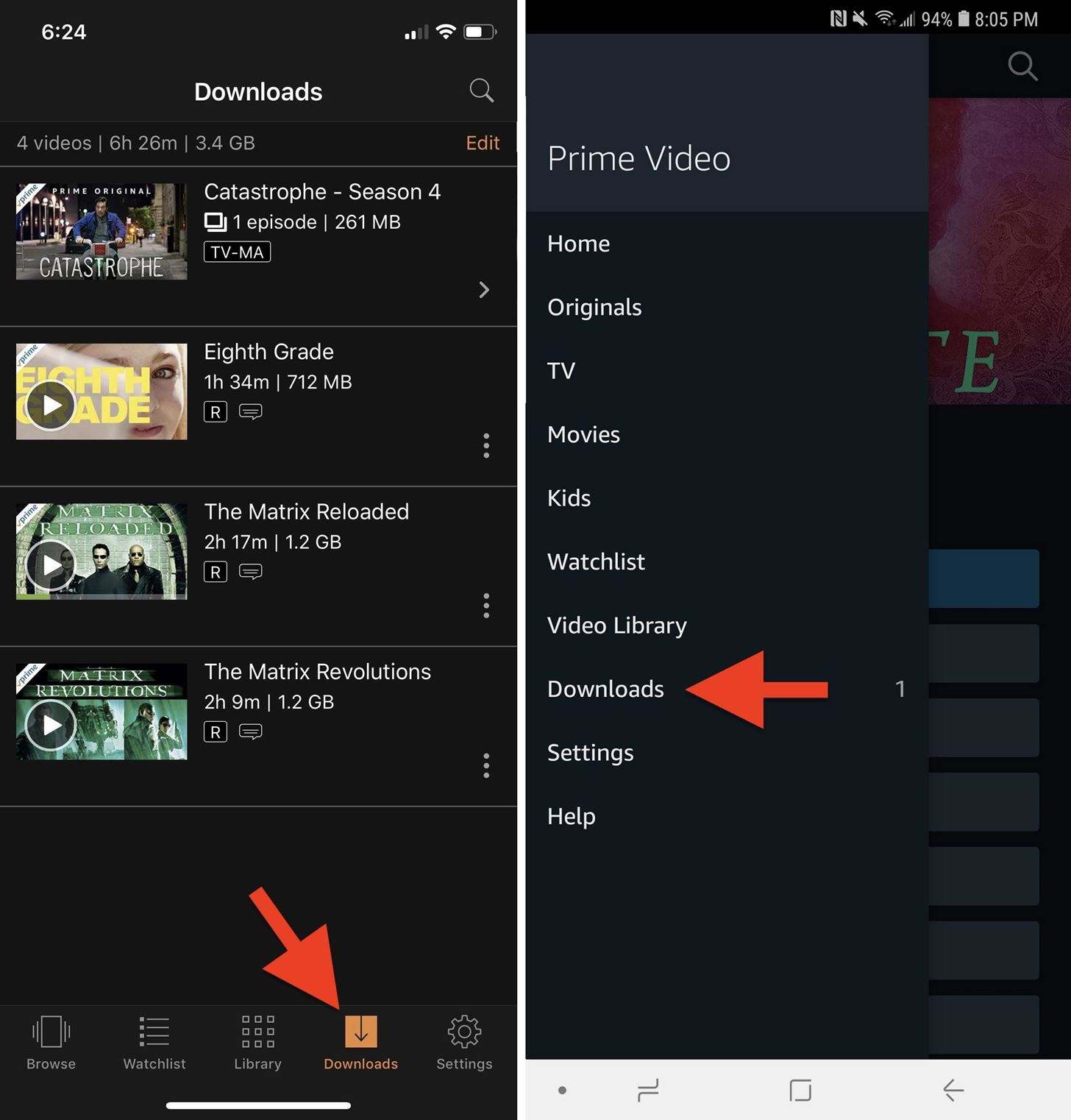
- Monitor Progress: You can monitor the download progress by navigating to the “Downloads” section of the app (usually found in the bottom navigation bar or the main menu).
- Access Downloaded Content: Once complete, your content will be listed in the “Downloads” section, ready for offline playback. Simply tap on a title to start watching.
Understanding Download Quality Settings
Prime Video offers various download quality settings to balance visual fidelity with storage consumption. These usually include:
- Data Saver/Good: Lower resolution, uses less data and storage, ideal for smaller screens or when storage is at a premium.
- Better/Standard: A good balance, offering decent quality without excessive storage use.
- Best/HD: Highest resolution available for download, providing the best visual experience, but consumes the most data and storage.
You can often set your preferred default download quality in the app’s settings (usually under “Downloads” or “Stream & Download”). Choosing wisely allows you to manage your device’s storage effectively, especially for longer trips where multiple titles are desired.
Managing Storage and Deleting Downloads
Downloaded content takes up valuable storage space on your device. Prime Video makes it easy to manage this:
- Access the “Downloads” Section: Go to the “Downloads” tab or menu item within the app.
- Edit/Manage: Look for an “Edit” or “Manage” option, often represented by an edit icon (e.g., pencil) or three dots.
- Delete Individual Titles: Select the specific titles or episodes you wish to remove and confirm deletion.
- Delete All: Some apps offer a “Delete All Downloads” option, useful for quickly freeing up space.
It’s good practice to regularly review and delete content you’ve already watched to free up space for new downloads, ensuring your device doesn’t become cluttered.
Downloading on Desktops and Laptops: A Different Approach
While mobile devices are central to offline viewing, desktop and laptop users also have options, albeit with a slightly different mechanism compared to direct browser-based streaming. Amazon has adapted its approach to provide a dedicated experience for Windows users.
The Prime Video Windows App: Your Gateway to PC Downloads
For users running Windows 10 or 11, the official Prime Video app from the Microsoft Store is the key to downloading content. Unlike browser-based viewing, which primarily facilitates streaming, the dedicated app mirrors much of the functionality found on mobile devices, including offline playback.
Steps to Download on the Prime Video Windows App:
- Install the App: Download and install the “Amazon Prime Video for Windows” app from the Microsoft Store.
- Log In: Open the app and log in with your Amazon Prime credentials.
- Browse and Select: Navigate through the content to find a movie or TV show.
- Locate the Download Option: On the title’s detail page, look for the “Download” button or icon (a downward arrow).
- Choose Quality: Similar to mobile, you’ll often be prompted to select a download quality (e.g., Good, Better, Best).
- Start Download: Click the download button. The progress will be displayed, and you can usually find your ongoing and completed downloads in a dedicated “Downloads” section within the app.
- Watch Offline: Once downloaded, disconnect from the internet (or ensure your device is offline), open the Prime Video app, go to your “Downloads,” and enjoy.
This app provides a streamlined experience for Windows users, bringing the convenience of offline viewing to larger screens and more powerful devices, perfect for long-haul travel with a laptop or when working offline.
The Limitations on Web Browsers (and Why)
It’s crucial to understand that downloading content directly from the Prime Video website via a web browser (Chrome, Firefox, Edge, Safari, etc.) is not possible. Web browsers are designed for streaming content, where video data is temporarily buffered but not permanently stored in an accessible format for offline playback.
The primary reasons for this limitation are:
- Digital Rights Management (DRM): Streaming services employ robust DRM technologies to protect copyrighted content. Allowing direct browser downloads would create significant security vulnerabilities for content piracy. Dedicated apps provide a more secure, sandboxed environment for DRM enforcement.
- Complexity: Building a reliable, cross-browser download feature that handles various file types, storage paths, and DRM securely would be an immense technical challenge and maintenance burden.
- Control over User Experience: Dedicated applications offer a more controlled and optimized user experience, including managing download quality, storage, and playback without browser-specific compatibility issues.
Therefore, for desktop users, the Prime Video Windows app is the only official method for downloading content. macOS users, however, currently do not have a dedicated Prime Video app with download capabilities. Their primary option for offline viewing would be via mobile devices or by utilizing other services if Prime Video’s content isn’t exclusive.
Troubleshooting Common Download Issues on Desktop
Even with a dedicated app, issues can arise. Here are some common problems and their solutions:
- “Download Failed” Error:
- Check Internet Connection: Ensure your internet connection is stable, especially for large files.
- Sufficient Storage: Verify your computer has enough free space for the download.
- App Restart: Close and restart the Prime Video app.
- Update App: Make sure the app is updated to the latest version from the Microsoft Store.
- Content Not Downloading:
- Availability: Double-check if the specific title is actually available for download (look for the download icon). Some titles, especially rentals or specific licensing agreements, might not be.
- Device Limit: Amazon often has limits on how many devices can have the same title downloaded simultaneously.
- Playback Issues with Downloads:
- App Reinstallation: If a downloaded video won’t play, try deleting and re-downloading it. If the issue persists, consider reinstalling the Prime Video app.
- System Requirements: Ensure your Windows OS meets the minimum requirements for the app.
By understanding the unique landscape of desktop downloads and leveraging the official Prime Video app for Windows, users can extend their offline entertainment library beyond mobile devices, albeit with specific platform considerations.
Essential Considerations and Best Practices for Prime Video Downloads
While the “how-to” is straightforward, getting the most out of Prime Video downloads involves understanding several key considerations. These factors dictate what you can download, for how long, and on how many devices, ensuring a seamless and frustration-free experience.
Content Availability: Rentals, Purchases, and Subscription Limits
Not all content on Prime Video is created equal when it comes to downloads. Understanding the different categories is crucial:
- Included with Prime: The vast majority of TV shows and movies included with your Amazon Prime subscription are available for download. These are your bread and butter for offline viewing.
- Rentals: Movies and TV shows you rent from Prime Video generally are available for download. However, they come with strict viewing windows (typically 30 days to start watching, and 48 hours once you begin playback). Downloading doesn’t extend these windows.
- Purchases: Content you purchase (buy) from Prime Video is also available for download. Similar to rentals, the viewing rights are tied to your Amazon account, and you generally have more flexibility in terms of re-downloading.
- Add-on Subscriptions (e.g., Starz, Paramount+): If you subscribe to additional channels through Prime Video, content from these channels is typically available for download within the Prime Video app. The download and viewing rules usually align with the standard Prime content.
- Licensing Restrictions: Occasionally, specific titles, especially newer releases or content from certain studios, may temporarily or permanently be unavailable for download due to licensing agreements. Always look for the download icon as your definitive indicator.
Device Restrictions and Concurrent Downloads
Amazon implements various restrictions to manage content rights and prevent abuse:
- Total Devices for Downloads: There’s usually a limit to the total number of devices you can have downloaded content on at any given time (often 2-4 devices per account, but this can vary). If you hit this limit, you might need to delete downloads from an older device before downloading on a new one.
- Concurrent Downloads of the Same Title: You might be restricted to downloading the same movie or episode on only one or two devices simultaneously. If you try to download the same title on a third device, it might prompt you to remove it from an existing one.
- Geographic Restrictions: While downloads allow offline viewing, the initial download must often occur in the country where your Amazon Prime membership is registered. Once downloaded, you can typically watch it anywhere, but sometimes very specific titles might have temporary playback restrictions if you cross international borders with an active internet connection.
Download Expiration and Viewing Windows
This is one of the most critical aspects to understand: downloaded content doesn’t last forever.
- Subscription Content (Included with Prime/Add-ons): Downloads for content included with your Prime or channel subscription typically remain on your device as long as you maintain your subscription and the content remains available on Prime Video. However, downloaded content often has a soft expiration, usually around 30 days from the download date. After this period, you may need to reconnect to the internet for the app to verify your subscription and content availability, essentially “refreshing” the download. If you don’t reconnect, the download might become unplayable.
- Rentals: Once downloaded, you have a set period (e.g., 30 days) to start watching the rental. Once you begin playback, you typically have 24-48 hours to finish it before it expires, even if it’s downloaded.
- Purchases: Purchased content generally has no expiration date, as you own the digital rights. However, the download itself might still require periodic online verification by the app to ensure your account is active and the content is still licensed to you.
Always plan your downloads considering these expiration windows, especially before extended periods without internet access.
Maximizing Your Offline Viewing Experience
To get the most out of your downloaded Prime Video content:
- Plan Ahead: Before a trip or anticipated offline period, make a list of what you want to watch and start downloading early.
- Use Wi-Fi: Always download over a stable Wi-Fi connection to save mobile data and ensure faster, more reliable downloads.
- Manage Storage: Regularly check your device’s storage and delete watched content. Consider a device with ample storage if offline viewing is a priority.
- Optimize Quality: Select “Best” quality for large screens (tablets) and “Good” or “Better” for smaller screens (smartphones) to balance quality and storage.
- Keep App Updated: Ensure your Prime Video app is always updated. Updates often include performance improvements, bug fixes, and new features related to downloads.
- Periodic Online Check-in: For long-term downloads, periodically open the app while connected to the internet to allow it to refresh licenses and prevent unexpected expirations.
By keeping these best practices and considerations in mind, you can leverage Prime Video’s download feature to its fullest potential, ensuring your entertainment library is always ready, regardless of connectivity.
Frequently Asked Questions About Prime Video Downloads
Even with a clear understanding of the download process, certain questions frequently arise. Addressing these common queries can further enhance your Prime Video download experience and troubleshoot potential hiccups.
How to Check Available Storage
Knowing your device’s available storage is crucial before embarking on a download spree, especially for higher-quality videos.
- On iOS: Go to Settings > General > iPhone/iPad Storage. This shows a breakdown of storage usage and available space.
- On Android: Go to Settings > Storage (the exact path may vary slightly by device manufacturer). This will display your device’s total storage and how much is free, often with categories for different types of files.
- In Prime Video App: While the app itself doesn’t show your total device storage, it will usually indicate how much space a specific download will consume and may warn you if storage is low. Some apps have a “Download Location” or “Storage” setting that shows how much space Prime Video downloads are currently occupying.
Always ensure you have at least 2-3 GB of free space for a movie, or more for TV show seasons, as quality settings significantly impact file size.
Resolving Download Errors
Encountering a “Download Failed” or similar error can be frustrating. Here’s a troubleshooting checklist:
- Internet Connection: Is your Wi-Fi stable? Try pausing and resuming the download, or even restarting your router.
- Sufficient Storage: Double-check your device’s storage. If it’s critically low, the download will fail. Delete unnecessary files or other downloads.
- App Update: Ensure your Prime Video app is fully updated. Outdated apps can have bugs that affect downloads.
- App Restart: Close the Prime Video app completely (force quit) and reopen it.
- Device Restart: Sometimes, a simple device restart can resolve underlying system issues affecting app performance.
- Content Availability: Verify the specific content is still available for download and that your subscription is active. If a title is removed from Prime, existing downloads may stop working or be unavailable for new downloads.
- Clear App Cache (Android): For Android users, clearing the app’s cache (Settings > Apps > Prime Video > Storage > Clear Cache) can sometimes resolve minor glitches without deleting downloaded content. Be careful not to clear “Clear Data” as this will log you out and delete all downloads.
If problems persist, contacting Amazon Prime Video customer support might be necessary.
Can I Transfer Downloads to Another Device?
No, Prime Video downloads cannot be transferred between devices. The downloaded files are encrypted and tied to the specific device and Amazon account on which they were downloaded. This is a crucial aspect of Digital Rights Management (DRM) designed to prevent unauthorized copying and distribution of copyrighted content.
If you want a show or movie on a different device, you must download it again directly onto that device using the Prime Video app, provided it’s within your account’s device limits.
Understanding the “Keep Downloads” Feature (or Similar Settings)
Some streaming apps, including Prime Video, may offer settings related to keeping downloads. While Prime Video doesn’t always have an explicit “Keep Downloads” toggle in the same way some competitors do for auto-deleting watched episodes, its handling of downloads is generally as follows:
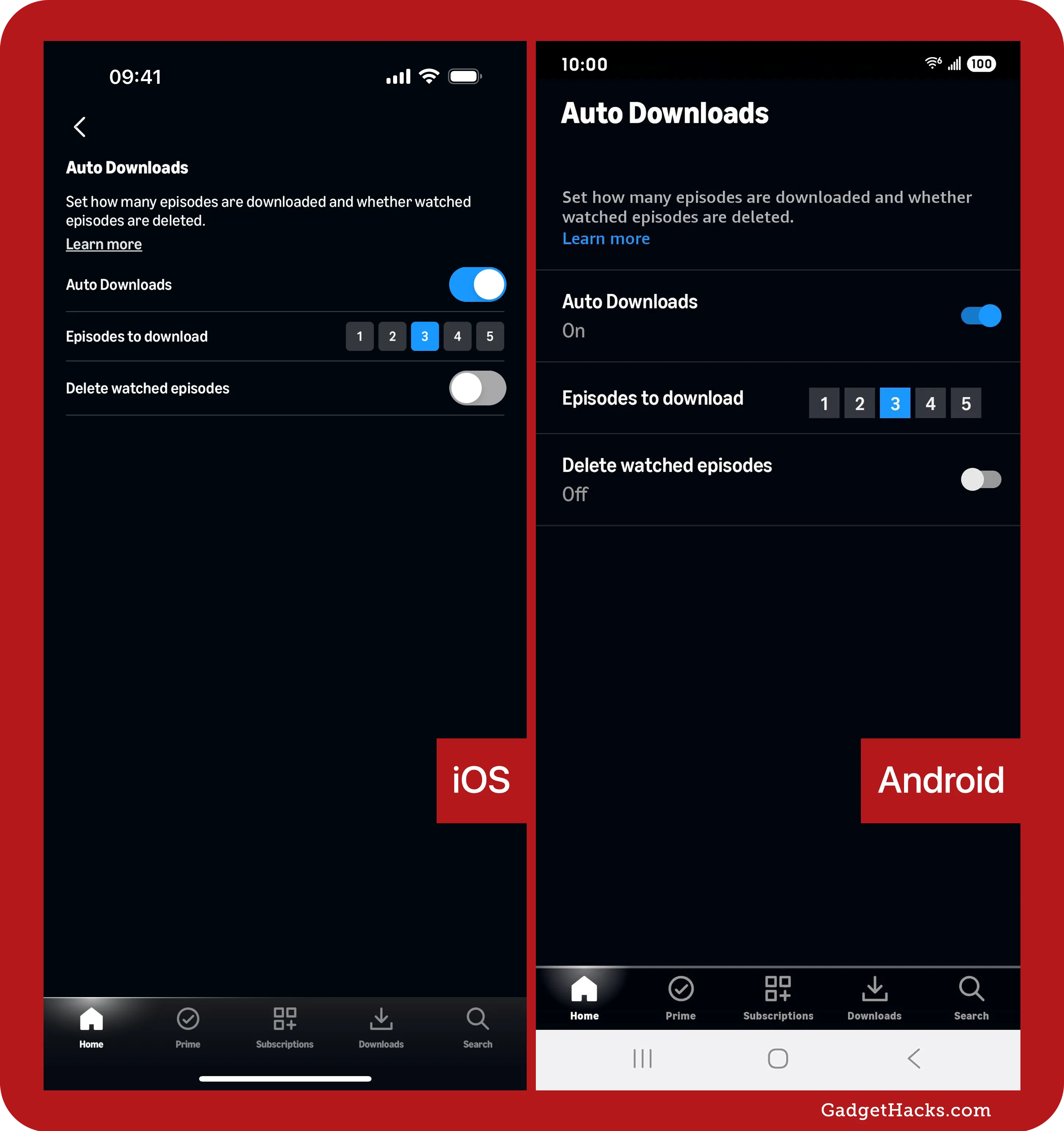
- Automatic Deletion of Watched Episodes (for TV Shows): Often, once you finish watching an episode of a TV series that was downloaded, the app might automatically prompt you to delete it to free up space, or it might do so after a certain period. This is a convenience feature, not a mandatory one. You usually have control over this behavior in the app’s settings.
- Expiration for Unwatched Downloads: As discussed in the previous section, even if unwatched, downloaded content (especially subscription-based) might require an internet connection after about 30 days to verify your subscription and refresh its license. If not verified, it may expire and become unplayable until you reconnect.
- Manual Deletion is Key: Ultimately, the most reliable way to manage your downloaded content and free up space is through manual deletion from the “Downloads” section of the app. This ensures you control what stays and what goes.
Always review the app’s specific settings under “Downloads” or “Stream & Download” to customize your download preferences, including video quality and data usage, ensuring your offline library is managed according to your needs.
By equipping yourself with these answers, you’re better prepared to navigate the practicalities of Prime Video downloads, transforming potential frustrations into seamless entertainment experiences.
Conclusion
The ability to download content from Amazon Prime Video is more than just a convenient feature; it’s a powerful tool that liberates your entertainment from the constraints of internet connectivity and data plans. By following the straightforward steps outlined for mobile devices and leveraging the dedicated Windows app for desktops, you unlock a world of uninterrupted viewing, whether you’re traveling across continents or simply seeking to conserve bandwidth at home.
Understanding the nuances of content availability, device limitations, and download expiration windows is key to maximizing this feature. With proper planning, diligent storage management, and an awareness of best practices, your Prime Video downloads can transform every waiting moment or offline journey into an opportunity for engaging storytelling. Embrace the freedom of offline entertainment and ensure your favorite movies and TV shows are always just a tap away, ready to fill your world with captivating stories, anywhere, anytime.
aViewFromTheCave is a participant in the Amazon Services LLC Associates Program, an affiliate advertising program designed to provide a means for sites to earn advertising fees by advertising and linking to Amazon.com. Amazon, the Amazon logo, AmazonSupply, and the AmazonSupply logo are trademarks of Amazon.com, Inc. or its affiliates. As an Amazon Associate we earn affiliate commissions from qualifying purchases.