
In today’s increasingly interconnected world, understanding and managing digital interactions has become paramount. Whether you’re a parent concerned about your child’s online safety, an employer seeking to ensure workplace productivity, or an individual looking to secure your own digital footprint, monitoring tools offer valuable insights. Among these, mSpy has emerged as a prominent solution, offering a robust suite of features for discreet and effective digital surveillance. This guide will walk you through the intricacies of how to install mSpy, covering the essential steps, considerations, and best practices to ensure a smooth and successful implementation.
The decision to utilize a monitoring application like mSpy often stems from a desire for greater transparency and control in the digital realm. For parents, this translates to safeguarding children from online predators, cyberbullying, and inappropriate content. For businesses, it can involve protecting sensitive data, monitoring employee performance, and ensuring compliance with company policies. Regardless of the specific motivation, the underlying goal is to foster a safer and more productive digital environment.
Understanding the legal and ethical implications of using such software is crucial before proceeding with installation. While mSpy is designed for legitimate purposes, its use is subject to various laws and regulations, often depending on your jurisdiction and the relationship you have with the individual being monitored. It is imperative to familiarize yourself with these laws to ensure responsible and lawful usage. Generally, installing monitoring software on a device you do not own or without the explicit consent of the user can lead to serious legal repercussions. Therefore, always ensure you have the necessary legal grounds and consent before proceeding.
This article aims to provide a detailed, step-by-step approach to installing mSpy, ensuring you have the knowledge to navigate the process effectively. We will delve into the prerequisites, the installation procedures for different operating systems, and essential post-installation steps.
Understanding mSpy: Features and Use Cases
Before embarking on the installation process, it’s beneficial to understand what mSpy offers and how its features can be applied to various scenarios. mSpy is a comprehensive parental control and employee monitoring software that allows users to track activities on a target device remotely. Its core functionality revolves around providing insights into a wide range of digital behaviors.
Key Features of mSpy
- Call Monitoring: View incoming and outgoing calls, including numbers, names, and call durations.
- Text Message Tracking: Read all SMS messages, including deleted ones, along with the sender and receiver information.
- Social Media and App Monitoring: Access messages from popular social media platforms like WhatsApp, Facebook Messenger, Instagram, Skype, and more, as well as track usage of installed applications.
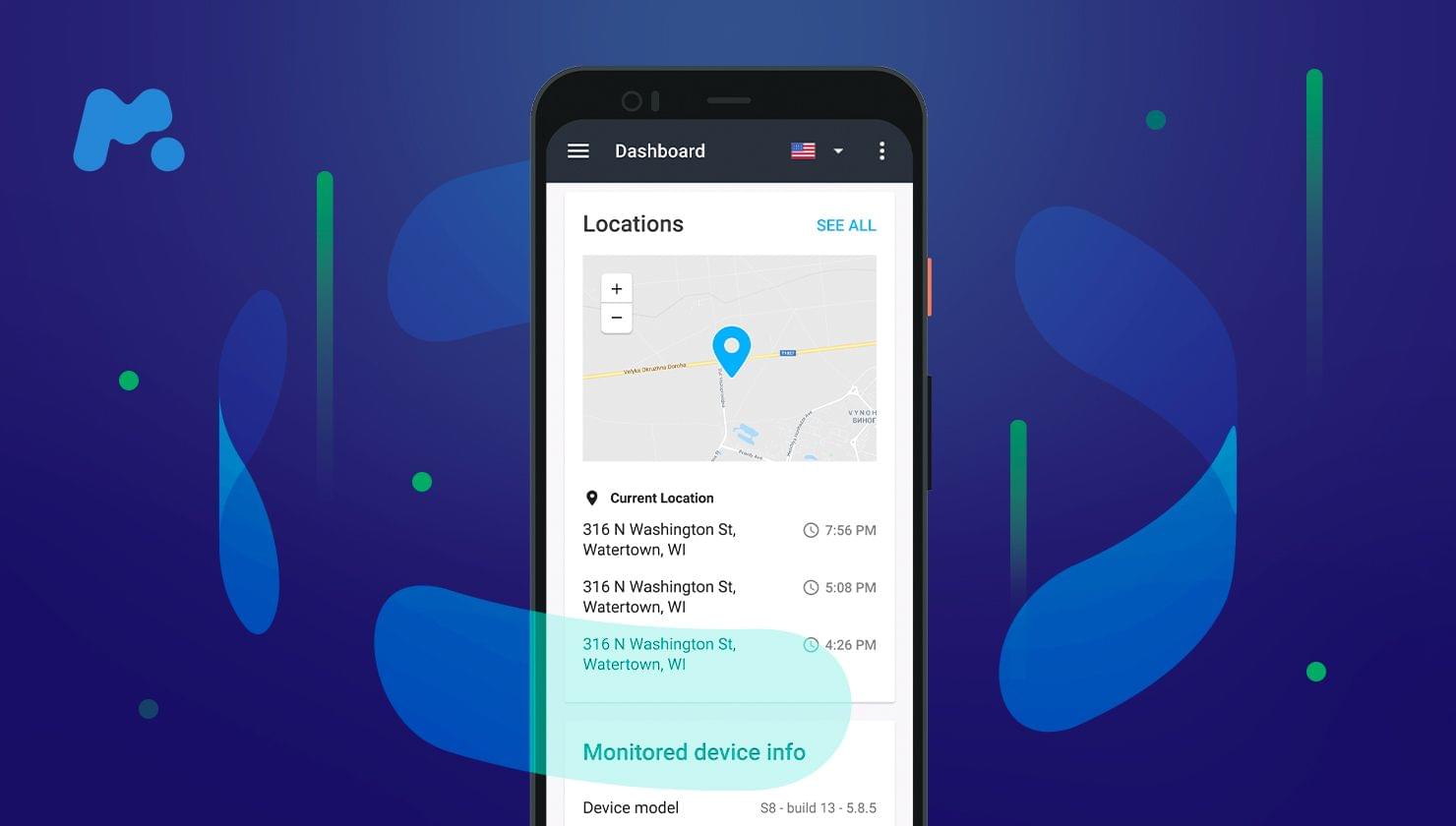
- GPS Location Tracking: Monitor the real-time location of the device and view its historical routes.
- Internet Activity Monitoring: Track browsing history, view visited websites, and identify bookmarks.
- Email Monitoring: Read incoming and outgoing emails sent and received from the device.
- Photo and Video Access: View photos and videos stored on the device.
- Calendar and Contact Management: Access the device’s contacts and calendar entries.
- Keyword Alerts: Set up alerts for specific keywords that appear in messages or searches, notifying you when they are used.
- Remote Control Features: In some cases, mSpy offers remote capabilities like locking the device or uninstalling applications.
Valid Use Cases for mSpy
The utility of mSpy can be broadly categorized into several key areas:
- Parental Control: This is perhaps the most common use case. Parents can use mSpy to:
- Ensure their children are not engaging in risky online behaviors.
- Protect them from cyberbullying and online predators.
- Monitor their social media interactions and prevent exposure to inappropriate content.
- Keep track of their whereabouts for safety.
- Foster responsible digital citizenship by understanding their online habits.
- Employee Monitoring: Businesses may use mSpy to:
- Monitor employee productivity on company-issued devices.
- Protect confidential company data from unauthorized sharing.
- Ensure compliance with company policies regarding device usage.
- Investigate potential security breaches or policy violations.
- Important Note for Business Use: It is absolutely critical to have clear company policies in place regarding device monitoring and to inform employees that their activity may be monitored. Legal counsel should be consulted to ensure compliance with all relevant labor laws and privacy regulations.
- Personal Security: In certain personal situations, individuals might use mSpy on their own devices for:
- Locating a lost or stolen phone.
- Monitoring a device used by a trusted individual with their full knowledge and consent, for example, to check on an elderly relative who may be experiencing memory issues.
It is vital to reiterate that the ethical and legal considerations surrounding the use of mSpy cannot be overstated. Misuse of this software can have severe consequences. Always ensure your actions are transparent, consensual where legally required, and within the bounds of the law.
Pre-Installation Essentials: What You Need Before You Begin
Successfully installing mSpy requires a few crucial prerequisites to ensure a smooth and efficient process. Skipping these steps can lead to complications or even a failed installation. This section will outline the essential elements you need to have in place before you even start the download.
1. A Valid mSpy Subscription
The first and most fundamental requirement is a valid mSpy subscription. mSpy operates on a subscription model, offering different plans based on the duration of use (e.g., monthly, quarterly, yearly) and the features included. You cannot install or use mSpy without purchasing a legitimate subscription.
- Choosing a Plan: Visit the official mSpy website to explore their pricing and feature options. Consider your specific needs and the target device’s operating system when selecting a plan.
- Account Creation: After purchasing a subscription, you will be prompted to create an mSpy account. This account will serve as your portal to access the monitoring data from the target device. You will receive login credentials (username and password) for this dashboard.
2. Physical Access to the Target Device
This is a critical step that cannot be bypassed for most installation methods. For mSpy to function, its software needs to be physically installed on the target smartphone or tablet. This means you will need to have the device in your possession, unlocked, and with you for a period of time to complete the installation process.
- Device Unlocked: The target device must be unlocked. You will need to enter the device’s passcode or pattern to proceed with the installation.
- Internet Connectivity: The target device needs a stable internet connection (Wi-Fi or mobile data) during the installation process. This allows the software to download and communicate with the mSpy servers.
- Sufficient Battery: Ensure the target device has a sufficient battery charge to avoid interruptions during the installation.
3. Understanding the Target Device’s Operating System
The installation process for mSpy varies significantly depending on whether the target device is an Android or an iOS (iPhone/iPad) device. It is crucial to identify the operating system of the device you intend to monitor beforehand.
- Android Devices: Installation on Android typically involves downloading an APK file and running it directly on the device. This usually requires enabling “Unknown Sources” in the device’s security settings to allow the installation of apps from outside the Google Play Store.
- iOS Devices: Installation on iOS can be more complex and may require jailbreaking the device for full functionality or utilizing a method that leverages iCloud backups if the target device is already logged into an iCloud account with backups enabled. Apple’s security measures are more stringent, making direct app installation without app store approval challenging.
4. Account Credentials for the Target Device (for certain iOS methods)
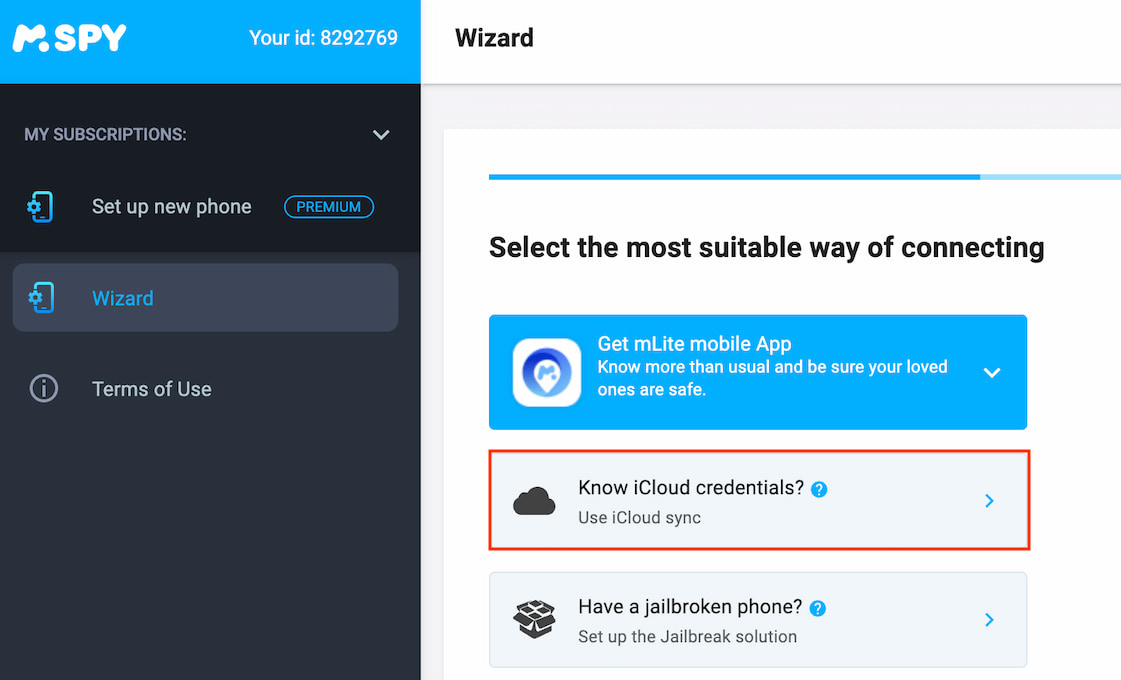
If you are planning to use the iCloud-based monitoring method for an iOS device, you will need the iCloud username and password associated with that device. This method does not require physical access to the device after the initial setup on your mSpy dashboard, but it relies on the device’s iCloud backup being enabled and synchronized.
5. A Stable Internet Connection for Your Monitoring Device
While the target device needs internet for installation and data upload, your device (computer or smartphone) where you will access the mSpy dashboard also needs a stable internet connection. This allows you to log in to your mSpy account and view the collected data in real-time.
By ensuring all these prerequisites are met, you lay the groundwork for a straightforward and successful mSpy installation. Rushing the preparation phase can lead to unnecessary troubleshooting and delays.
Installing mSpy on Android Devices: A Step-by-Step Breakdown
Installing mSpy on an Android device involves a direct download and installation of the mSpy application onto the target phone. This process is generally straightforward but requires careful adherence to the steps to ensure the software functions correctly and discreetly.
Step 1: Prepare the Target Android Device
Before you can begin the installation, you need to configure some settings on the target Android device:
- Enable “Unknown Sources”: This is crucial. By default, Android devices only allow app installations from the Google Play Store. To install mSpy, you must enable installations from “Unknown Sources.”
- Navigate to Settings on the target device.
- The exact path may vary slightly depending on the Android version and manufacturer, but generally, you’ll look for Security or Apps & Notifications > Advanced > Special app access > Install unknown apps.
- Find the browser you will use to download mSpy (e.g., Chrome) and grant it permission to install unknown apps. Alternatively, if the option is available directly, toggle on Unknown Sources.
- Security Note: After installation, it is highly recommended to disable “Unknown Sources” again to enhance the device’s security.
- Disable Google Play Protect: Google Play Protect is a security feature that scans apps for malware. It can sometimes interfere with the installation or operation of monitoring software.
- Open the Google Play Store app on the target device.
- Tap the menu icon (usually three horizontal lines) or your profile icon.
- Select Play Protect.
- Tap the gear icon (settings).
- Toggle off Scan apps with Play Protect. You may need to confirm this action.
Step 2: Download and Install the mSpy Application
Once the target device is prepared, you can proceed with downloading and installing the mSpy application.
- Access Your mSpy Account: On your own device or computer, log in to your mSpy account dashboard (using the credentials you created during the subscription process).
- Get the Download Link: In your mSpy dashboard, you will find instructions and a unique download link or QR code for the mSpy application. This link is specific to your account.
- Download on the Target Device: Using a web browser on the target Android device, navigate to the provided download link or scan the QR code. This will initiate the download of the mSpy APK file.
- Install the APK File: Once the download is complete, locate the downloaded APK file (usually in the “Downloads” folder) and tap on it to begin the installation process. Follow the on-screen prompts to complete the installation.
Step 3: Configure mSpy and Hide the Application

After the application is installed, you need to configure it and ensure it runs discreetly.
- Launch mSpy and Enter License Key: Open the mSpy app on the target device. You will be prompted to enter your mSpy license key, which can be found in your mSpy dashboard. This key links the installed app to your account.
- Grant Permissions: The mSpy app will request various permissions to function correctly. These typically include access to messages, contacts, location services, microphone, camera, etc. Grant all necessary permissions for the features you wish to use.
- Configure Settings: In the mSpy app, you can further configure various settings, such as which features to enable or disable, and set up keyword alerts if desired.
- Hide the Application Icon: For discreet monitoring, it’s essential to hide the mSpy application icon from the app drawer. The mSpy installation process usually provides an option to do this, or there might be a specific code or method to hide it after installation. Refer to the mSpy guide within your dashboard for the precise instructions relevant to your version and the target device’s OS. Often, this involves renaming the app or using a specific uninstall/hide command.
Step 4: Verify Data Sync and Access Your Dashboard
The final step is to ensure that the mSpy application is successfully sending data to your mSpy dashboard and then to access that data.
- Allow Time for Sync: After completing the configuration, allow some time for the mSpy application to sync data from the target device to your mSpy dashboard. This can take a few minutes to a few hours, depending on the amount of activity on the device and your internet connection.
- Log in to Your mSpy Dashboard: On your own device or computer, log back into your mSpy account.
- View Monitored Data: You should now see the data from the target Android device appearing in your dashboard. This includes calls, messages, location history, browsing activity, and more, depending on the features you have enabled.
Troubleshooting Tips for Android:
- Installation Failed: Ensure “Unknown Sources” are enabled and Play Protect is disabled. Check your internet connection.
- App Not Syncing: Verify the license key is entered correctly. Check the target device’s internet connection and ensure mSpy has the necessary permissions. Restarting the target device can sometimes resolve sync issues.
- App Not Hidden: Refer to the specific mSpy guide for instructions on how to hide the application icon on your Android version.
By following these steps carefully, you can successfully install and configure mSpy on an Android device for comprehensive digital monitoring.
Installing mSpy on iOS Devices: Navigating the Nuances
Installing mSpy on iOS devices, such as iPhones and iPads, presents a different set of challenges and methods due to Apple’s robust security ecosystem. Unlike Android, directly installing third-party applications without going through the App Store is significantly more restricted. mSpy offers two primary methods for iOS: the iCloud Method and the Jailbreak Method.
Method 1: The iCloud Method (No Jailbreak Required)
This method is the most convenient as it does not require physical access to the device after the initial setup on your mSpy dashboard and does not involve jailbreaking. However, it has specific prerequisites and limitations.
Prerequisites for the iCloud Method:
- iCloud Credentials: You must have the Apple ID (username) and password of the target iPhone or iPad.
- iCloud Backup Enabled: iCloud Backup must be enabled and actively syncing on the target iOS device. This means the device regularly backs up its data to iCloud.
- Two-Factor Authentication (2FA) Disabled or Accessible: If Two-Factor Authentication is enabled on the target Apple ID, you will need access to a trusted device or phone number to receive the verification code during the mSpy setup. If you cannot disable it or access it, this method might not be viable.
Installation Steps for the iCloud Method:
- Create Your mSpy Account and Purchase a Subscription: As with Android, start by purchasing a subscription on the official mSpy website and creating your mSpy account.
- Select iOS as the Target OS: In your mSpy dashboard, choose iOS as the operating system for the target device.
- Enter iCloud Credentials: You will be prompted to enter the Apple ID and password of the target iOS device.
- Complete the Setup: Follow the on-screen instructions in your mSpy dashboard. The system will attempt to connect to the target device’s iCloud backup.
- Syncing Data: Once successfully connected, mSpy will start fetching data from the iCloud backups. This means the data you see will be based on the last successful iCloud backup. For near real-time monitoring, the target device needs to be regularly backing up to iCloud.
Limitations of the iCloud Method:
- No Real-Time GPS: You won’t get live GPS tracking. Location data will be based on previous backups.
- Limited App Data: Access to data from certain apps or newer messages might be delayed until the next backup occurs.
- No Call Logs or SMS History (Directly): While it can sometimes capture some call or message data if included in the backup, it’s not as comprehensive as the jailbreak method for these specific elements.
- Requires iCloud Credentials: If you do not have access to the iCloud login details, this method is impossible.
Method 2: The Jailbreak Method (Full Features)
Jailbreaking an iOS device removes software restrictions imposed by Apple, allowing for the installation of third-party applications and modifications that are not available through the App Store. This method offers the most comprehensive features, including real-time GPS tracking and full access to app data.
Prerequisites for the Jailbreak Method:
- Physical Access to the Target Device: You need to have the target iPhone or iPad in your possession.
- Jailbroken Device: The target iOS device must already be jailbroken. If it’s not, you will need to jailbreak it first. Jailbreaking is a complex process and can void the device’s warranty and potentially compromise its security if not done correctly.
- Internet Connection: The device needs an internet connection for downloading and installing mSpy.
Installation Steps for the Jailbreak Method:
- Jailbreak the Device (If Not Already Done): Research a reliable and current jailbreaking tool for the specific iOS version on the target device. Follow the jailbreaking instructions very carefully. This is a critical step that requires technical proficiency.
- Enable Unknown Sources (Cydia): After jailbreaking, you will typically have access to Cydia, an alternative app store for jailbroken devices. You may need to add specific repositories or enable installation from untrusted sources within Cydia, similar to enabling “Unknown Sources” on Android.
- Download mSpy on the Target Device: Access your mSpy dashboard and retrieve the download link or instructions for the jailbroken iOS version. Using Safari or another browser on the jailbroken device, navigate to the provided link to download the mSpy installer.
- Install mSpy: Once downloaded, run the installer and follow the on-screen prompts. This will install the mSpy application.
- Configure mSpy and Hide the Application: Similar to Android, launch the mSpy app on the jailbroken device, enter your license key from your mSpy dashboard, and grant all necessary permissions. You will also need to hide the mSpy application icon from the springboard (home screen) and potentially from the list of running applications. Specific instructions for hiding will be provided in your mSpy dashboard.
- Sync Data and Access Dashboard: Allow time for the data to sync to your mSpy dashboard. Log in to your mSpy account to view the monitored information.
Risks and Considerations for Jailbreaking:
- Voided Warranty: Jailbreaking typically voids Apple’s warranty for the device.
- Security Vulnerabilities: Jailbroken devices can be more susceptible to malware and security threats if not managed carefully.
- Instability: Jailbreaking can sometimes lead to device instability, crashes, or performance issues.
- Updates: iOS updates can often break jailbreaks, requiring you to wait for updated jailbreaking tools.
Choosing the Right iOS Method:
The iCloud Method is recommended if you have the iCloud credentials and the target device regularly backs up to iCloud, and if real-time tracking is not a primary requirement. It’s simpler and less risky.
The Jailbreak Method offers the most comprehensive features and is necessary if you need real-time data, direct access to app messages, and call logs. However, it comes with significant risks and technical complexities.
Always consult the most up-to-date installation guides provided within your mSpy account dashboard, as procedures can change with software updates.
Post-Installation: Managing Your mSpy Account and Ensuring Privacy
Once mSpy has been successfully installed on the target device, the process isn’t entirely complete. Effective use and management of the software involve understanding how to access and interpret the data, maintain your account, and, crucially, uphold privacy and legal compliance. This section will guide you through the essential post-installation steps.
Accessing and Interpreting mSpy Data
Your mSpy dashboard is the central hub for all the information collected from the target device. It’s designed to be user-friendly, allowing you to navigate through various categories of monitored activities.
- Logging In: Access your mSpy dashboard by visiting the mSpy website and logging in with your registered email address and password.
- Navigating the Dashboard: The dashboard typically features a sidebar or menu on the left-hand side, categorizing the collected data. Common categories include:
- Dashboard Overview: A summary of recent activities.
- Calls: A log of incoming and outgoing calls.
- Messages: SMS messages and messages from various chat applications.
- Location: Real-time GPS tracking and location history.
- Internet Activity: Browsing history and visited websites.
- Apps: List of installed applications and their usage.
- Photos & Videos: Access to media files.
- Contacts: Device contacts.
- Emails: Monitored email communications.
- Keywords: Alerts for specific keywords.
- Interpreting the Data: While the data is presented clearly, understanding its context is vital. For example, a series of messages might require you to look at the timestamps and sender/receiver information to piece together a conversation. Similarly, location data should be correlated with the device’s activity logs.
- Utilizing Alerts: Set up keyword alerts and geofencing alerts (if available) to be proactively notified about specific events or locations, rather than having to constantly sift through data.
Maintaining Your mSpy Account and Subscription
To ensure uninterrupted monitoring, it’s essential to manage your mSpy account and subscription effectively.
- Subscription Renewal: Keep track of your subscription expiry date. mSpy will usually send renewal reminders, but it’s your responsibility to ensure the subscription remains active to avoid losing access to data or stopping the monitoring.
- Account Security: Protect your mSpy account login credentials. Treat them with the same importance as you would any other sensitive online account. Avoid sharing your login details.
- Software Updates: mSpy may release updates for its software, both on the server-side and for the installed application on the target device. These updates often include new features, bug fixes, and security enhancements. Keep an eye on your dashboard or email for notifications about available updates and follow the provided instructions for applying them. For the target device, updates might require re-accessing the device for a brief period.
Upholding Privacy and Legal Compliance
This is arguably the most critical aspect of using any monitoring software. Responsible usage is paramount to avoid legal repercussions and ethical breaches.
- Consent is Key: Always ensure you have the legal right and, where applicable, the explicit consent of the individual whose device you are monitoring. Monitoring a spouse, partner, or employee without their knowledge or consent can lead to severe legal penalties, including civil lawsuits and criminal charges, depending on your jurisdiction.
- Know Your Local Laws: Familiarize yourself with the specific laws and regulations regarding electronic surveillance and data privacy in your region. These laws vary significantly from place to place.
- Purpose of Monitoring: Use mSpy only for legitimate purposes. As discussed earlier, these typically include parental control, employee monitoring (with proper notification and policies), or personal security on your own devices. Avoid using it for stalking, harassment, or any other illicit activities.
- Data Security: While mSpy provides a secure platform, you are responsible for the security of your own mSpy account and the data you access. Do not share sensitive information gathered through mSpy with unauthorized individuals.
- Transparency (When Appropriate): For parental monitoring, open communication with your children about online safety and the use of monitoring tools can foster trust and understanding, rather than relying solely on stealth. For employee monitoring, clear, documented policies are essential.
- Regular Review: Periodically review your monitoring needs and practices. If the circumstances that necessitated the monitoring change, consider whether continued use is still appropriate or legally permissible.
By diligently managing your mSpy account, regularly reviewing the collected data, and strictly adhering to privacy and legal guidelines, you can leverage mSpy as a powerful tool for digital oversight while maintaining ethical standards and respecting individual rights.
aViewFromTheCave is a participant in the Amazon Services LLC Associates Program, an affiliate advertising program designed to provide a means for sites to earn advertising fees by advertising and linking to Amazon.com. Amazon, the Amazon logo, AmazonSupply, and the AmazonSupply logo are trademarks of Amazon.com, Inc. or its affiliates. As an Amazon Associate we earn affiliate commissions from qualifying purchases.