
Amazon Prime has become an indispensable service for millions worldwide, transforming how we shop, consume media, and access various digital benefits. From expedited shipping to an expansive library of streaming content, the allure of Prime is undeniable. However, with multiple family members often sharing accounts, or subscriptions sometimes being activated inadvertently, a common query arises: “How can I definitively check if I have Amazon Prime?” This guide provides a comprehensive, step-by-step tutorial on verifying your Prime membership status, exploring the digital footprints of an active subscription, and managing your account efficiently within the Amazon ecosystem.
The Definitive Method: Verifying Membership Through Your Amazon Account
The most reliable way to confirm your Amazon Prime status is by directly accessing your account settings on the Amazon website or through their official app. This central hub provides an accurate, real-time overview of your subscription details, including renewal dates and payment information.
Step-by-Step Guide to Account Access
To begin, you’ll need to log into the Amazon account that you suspect might have the Prime membership linked to it. It’s crucial to ensure you’re using the correct credentials, as many users might have multiple Amazon accounts or forgotten login details from years past.
- Open Amazon: Navigate to Amazon.com on your web browser or open the Amazon Shopping app on your mobile device.
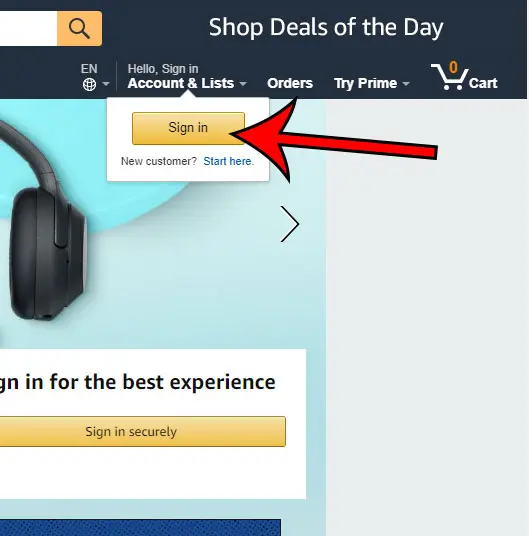
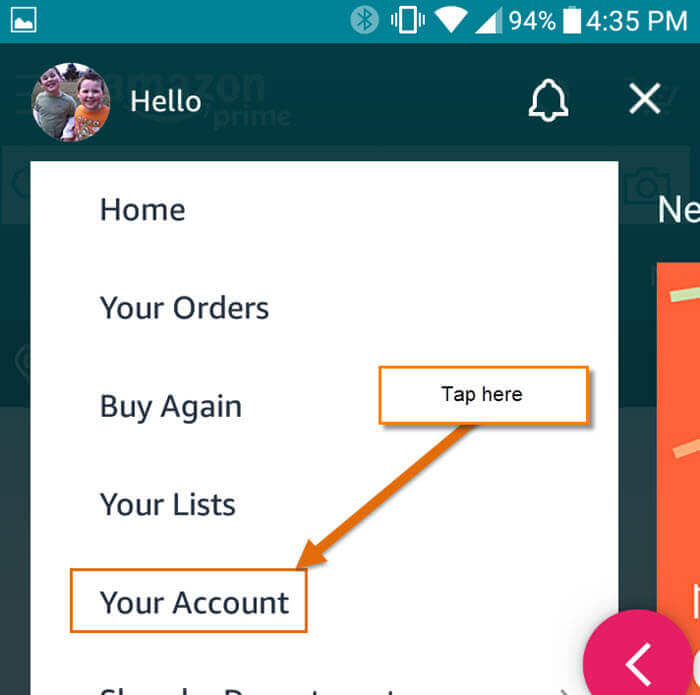
- Sign In: Locate the “Accounts & Lists” dropdown menu in the top right corner of the Amazon homepage (or the “hamburger” menu icon in the app, usually found on the top left or bottom right, then select “Account”). Click or tap on “Sign in.”
- Enter Credentials: Input your registered email address or mobile number and your password. If you’ve forgotten your password, utilize the “Forgot your password?” link to initiate the recovery process. Accessing your account securely is the first and most critical technical step.
Locating Your Prime Membership Status
Once you’ve successfully logged in, the next step involves navigating to the specific section dedicated to your Prime membership. Amazon’s interface is designed to make this information accessible, but knowing precisely where to look saves time and prevents confusion.
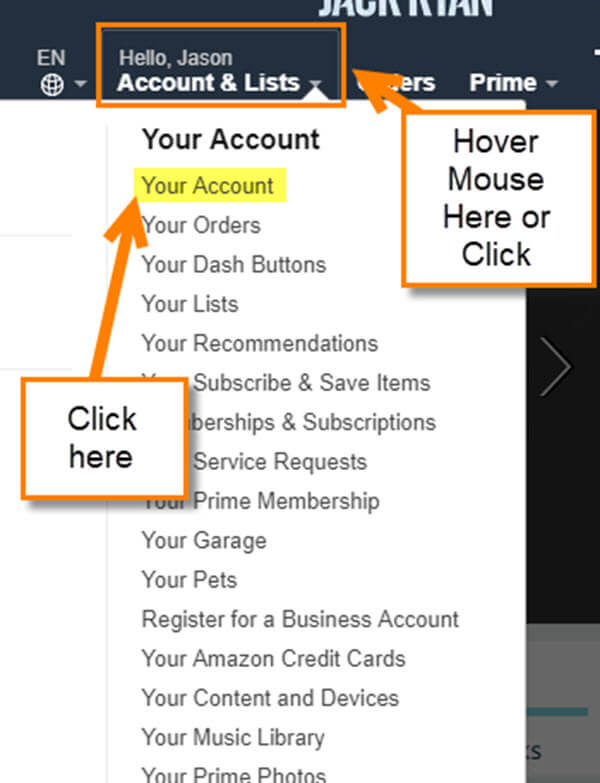
- Access Your Account: From the “Accounts & Lists” dropdown, select “Your Account.” In the mobile app, after tapping “Account,” you’ll usually find an option like “Your Account” or “Manage Prime Membership.”
- Find Prime Membership: On the “Your Account” page, look for a section or link labeled “Prime” or “Prime Membership.” This is often found under the “Digital content and devices” or “Memberships and subscriptions” categories. Click or tap on “Prime Membership.”
- Interpret Your Status: This dedicated Prime page will clearly display your current membership status.
- Active Membership: You will see a message confirming your active Prime membership, often stating when it started and when your next billing date is. It might say something like “Your Prime membership is active” or “You are currently an Amazon Prime member.”
- Free Trial: If you are on a free trial, it will explicitly state “Your Prime free trial is active” and show the trial’s end date.
- Expired/Cancelled: If your membership has expired or been cancelled, it will indicate this status and often provide options to rejoin Prime.
- No Membership: If you do not have Prime, the page will typically prompt you to “Join Prime” or “Start your 30-day free trial.”
This section provides not just a confirmation but also essential details like the upcoming renewal date and the associated payment method, offering a comprehensive digital snapshot of your subscription.
Understanding Membership Details
Beyond a simple “active” or “inactive” status, the Prime Membership page offers critical technical and financial details that users should be aware of.
- Renewal Date: This date is crucial for understanding when your membership will automatically renew and when your payment method will be charged. It’s an important piece of information for budgeting and subscription management.
- Payment Method: The page displays the credit card or other payment method linked to your Prime subscription. This allows you to verify that the correct payment source is being used and update it if necessary, preventing service interruptions due to expired cards.
- Membership Type: It will also specify whether you have a monthly or annual membership, which impacts your billing cycle and overall cost. Students, EBT/Medicaid cardholders, and other specific demographics might also see their special Prime Student or Prime Access status reflected here.
- Benefits Overview: This page often provides a quick overview of the Prime benefits included with your membership, acting as a reminder of the value you’re receiving from the digital service.
Alternative Indicators You’re a Prime Member
While checking your account settings is the definitive method, several operational clues within the Amazon platform can also strongly suggest an active Prime membership. These are user experience indicators that reveal the backend system recognizing your Prime status.
Prime Shipping Benefits
One of the most immediate and tangible benefits of Amazon Prime is expedited shipping. Observing specific shipping options during your shopping experience can be a strong indicator.
- “Prime” Badge on Products: When browsing products, items eligible for Prime shipping will often display a small “Prime” badge next to the price. This badge signifies that the product qualifies for Prime benefits.
- Free Two-Day Shipping at Checkout: The most obvious sign is the availability of free two-day, one-day, or even same-day shipping options at no extra cost when you proceed to checkout. If standard shipping costs are waived and expedited options are free, it’s a clear sign of an active Prime subscription.
- “Ships from Amazon” Filter: While not exclusively Prime, prioritizing products fulfilled by Amazon often goes hand-in-hand with Prime shipping benefits.
Accessing Prime Video and Music
Amazon Prime’s digital entertainment offerings are a core component of its value. Attempting to access these services can quickly confirm your membership status.
- Prime Video: Navigate to the Prime Video website (primevideo.com) or open the Prime Video app. If you can stream content marked “Included with Prime” without additional payment, your Prime membership is active. If you’re prompted to subscribe or rent/buy content that should be free with Prime, it indicates a lack of membership or an issue with your account.
- Amazon Music Prime: Similar to Prime Video, open the Amazon Music app or visit music.amazon.com. If you can access the ad-free, limited catalog of Prime Music, you likely have an active Prime membership. A prompt to upgrade to Amazon Music Unlimited would suggest you only have the basic Prime Music tier.
- Prime Reading/Kindle Owners’ Lending Library: If you can borrow books or magazines from the rotating selection of titles available for free, this also confirms Prime status.
Other Prime Perks
Amazon Prime includes a suite of less-publicized benefits that can also act as passive indicators of your membership.
- Amazon Photos: Prime members receive unlimited full-resolution photo storage. If your Amazon Photos account shows unlimited storage, you have Prime.
- Twitch Prime (Prime Gaming): If you’ve linked your Amazon Prime account to Twitch and receive free games, channel subscriptions, or exclusive in-game content, your Prime membership is active.
- Prime Try Before You Buy: If you can order clothing items to try on at home before purchasing, you are using a Prime-exclusive benefit.
- Whole Foods Market Discounts: In-store discounts at Whole Foods, accessed by scanning your Amazon app at checkout, are another benefit exclusive to Prime members.
Managing Your Prime Membership and Subscription
Beyond merely checking if you have Prime, understanding how to manage your subscription is vital for any tech user. This includes updating information, modifying your membership, or sharing benefits.
Changing Payment Methods or Renewal Cycles
Maintaining accurate payment information is key to uninterrupted service.
- Access Prime Membership Page: Follow the steps to get to your “Prime Membership” page (Your Account > Prime).
- Update Payment: Look for options like “Manage Membership,” “Update Payment Method,” or “Change Payment.” From here, you can add new credit cards, remove old ones, or designate a different default payment option.
- Change Renewal: On the same page, you might see an option to “Change membership plan” or similar, allowing you to switch between monthly and annual billing cycles, which can offer cost savings.
Cancelling or Pausing Your Membership
Should you decide Prime is no longer for you, the cancellation process is straightforward, though Amazon often tries to retain members with offers.
- Navigate to Prime Membership Page: As before, go to “Your Prime Membership.”
- End Membership: Look for a button or link that says “End Membership and Benefits,” “Manage Membership,” or “Update, Cancel and More.”
- Follow Prompts: Amazon will typically ask you to confirm your decision, sometimes offering a prorated refund for annual members or a reminder of the benefits you’ll lose. They might also offer a temporary pause option or a discount to stay. Completing these steps ensures your membership is properly terminated, preventing unwanted charges.
Sharing Prime Benefits (Amazon Household)
Amazon Household is a feature that allows Prime members to share certain benefits with another adult and up to four children. This is a significant tech convenience for families.
- Access Amazon Household: From “Your Account,” look for “Amazon Household” under “Shopping programs and rentals.”
- Add Members: You can invite another adult to share Prime benefits by entering their name and email address. They will need to accept the invitation and agree to share payment methods.
- Manage Profiles: You can manage profiles for children, allowing them to access appropriate content. This feature helps maximize the value of a single Prime subscription across multiple users within a household.
Troubleshooting Common Prime Membership Issues
Even with clear instructions, technology can sometimes present unexpected challenges. Here are solutions to common issues users face when trying to verify or utilize their Prime membership.
I Think I Have Prime, But My Account Says Otherwise
This is a frequent point of confusion, often stemming from multi-account usage.
- Check All Email Addresses: Many users inadvertently create multiple Amazon accounts over the years. Try logging in with any other email addresses or phone numbers you might have used previously. Prime membership is tied to a specific account ID.
- Family Member’s Account: If someone else in your household pays for Prime, your email might be part of an Amazon Household. Ensure you’re logging into the account that holds the primary Prime membership or confirm you’ve been invited and accepted into an Amazon Household.
- Expired Payment Method: If your Prime subscription lapsed, it might be due to an expired credit card or an issue with your payment method. Check your “Prime Membership” page for any alerts regarding payment.
Prime Benefits Not Appearing
You’re logged in, your account says you have Prime, but you’re still seeing shipping charges or cannot access Prime Video content.
- Clear Browser Cache/Cookies: Old browser data can sometimes interfere with how websites display information. Clearing your browser’s cache and cookies can resolve display issues.
- Try a Different Browser or Device: Isolate the problem by attempting to access Prime benefits on another web browser (e.g., Chrome instead of Firefox) or a different device (your phone instead of your computer). This helps determine if the issue is with your device/browser or your Amazon account itself.
- Sign Out and Sign In Again: A simple log out and log back in can often refresh your account status on Amazon’s servers.
- Check for Specific Product Eligibility: Remember that not all products on Amazon are Prime eligible. Always look for the Prime badge. Similarly, not all content on Prime Video is free; some might require rental or purchase even with Prime.
Unexpected Charges
Discovering an unexpected charge from Amazon can be alarming.
- Review Your Orders: Check your “Order History” for any purchases that might have triggered a Prime membership (e.g., opting for a free trial that automatically converted to a paid membership).
- Check “Prime Membership” Page for Recent Activity: The “Prime Membership” page will show recent charges related to your subscription.
- Family Members: If you share your account or have an Amazon Household, a family member might have initiated a Prime membership or a related subscription.
- Contact Amazon Customer Service: If you’ve exhausted all options and cannot identify the source of the charge, contact Amazon customer service directly. They have access to detailed billing records and can provide clarification or assist with refunds. Prepare your account details and the date/amount of the charge.
Maximizing Your Amazon Prime Membership
Once you’ve confirmed your Prime membership, understanding and utilizing all its facets can significantly enhance your digital lifestyle and extract maximum value from the subscription. Prime is more than just shipping; it’s a comprehensive suite of digital services.
Exploring Lesser-Known Benefits
Many Prime members only leverage shipping and streaming, missing out on valuable additions.
- Prime Wardrobe / Prime Try Before You Buy: Order clothing, shoes, and accessories, try them on at home, and only pay for what you keep.
- Amazon Photos: Unlimited full-resolution photo storage, plus 5 GB for video, a robust cloud solution for your precious memories.
- Amazon Kids+ (formerly FreeTime Unlimited) Discounts: Prime members receive discounted rates on this subscription service, offering thousands of kid-friendly books, movies, TV shows, educational apps, and games.
- Early Access to Lightning Deals: Prime members often get a 30-minute head start on Lightning Deals, securing popular items before they sell out.
- Prime Reading: A rotating selection of thousands of books, magazines, and comics available to read for free on any device.
Utilizing Prime Day and Exclusive Deals
Prime Day is Amazon’s biggest shopping event, exclusively for Prime members.
- Annual Sales Event: Occurring typically in July, Prime Day offers massive discounts across virtually all product categories. Keeping your Prime membership active ensures you can participate.
- Year-Round Exclusive Deals: Beyond Prime Day, Amazon frequently offers “Prime Exclusive Deals” on various products. Look for these special prices indicated on product pages, often identifiable by the Prime badge or specific deal labels.
- Subscribing to Newsletters/Notifications: Sign up for Amazon’s email newsletters or enable app notifications to be alerted to Prime-exclusive deals and upcoming events.
Conclusion
Confirming your Amazon Prime membership status is a straightforward process, primarily managed through your “Your Account” section on Amazon’s website or app. By following the clear digital pathways and understanding the various indicators, you can quickly ascertain your subscription status, manage your payment details, explore the full spectrum of benefits, and troubleshoot any potential issues. Prime is a robust digital service, and being fully aware of your membership details ensures you’re maximizing its technological advantages and convenience, from expedited deliveries to an expansive world of digital entertainment. Take control of your Amazon experience today by confidently checking and managing your Prime status.
aViewFromTheCave is a participant in the Amazon Services LLC Associates Program, an affiliate advertising program designed to provide a means for sites to earn advertising fees by advertising and linking to Amazon.com. Amazon, the Amazon logo, AmazonSupply, and the AmazonSupply logo are trademarks of Amazon.com, Inc. or its affiliates. As an Amazon Associate we earn affiliate commissions from qualifying purchases.