
In an increasingly digital world, streaming services have become a cornerstone of modern entertainment, and Amazon Prime Video stands out as a formidable contender. Offering an expansive library of movies, TV shows, Amazon Originals, and live sports, it’s a service many subscribe to, often as part of a broader Amazon Prime membership. However, navigating the myriad ways to access and enjoy this content can sometimes seem daunting, particularly for those new to the streaming landscape or looking to optimize their viewing experience. This article serves as a definitive tech guide, detailing every conceivable method for watching Amazon Prime Video, ensuring you can enjoy your favorite content anytime, anywhere, and on virtually any device. We’ll delve into the specific hardware, software, and connectivity considerations that make your Prime Video journey seamless and enjoyable, strictly adhering to the realm of technology.
Versatile Access: Prime Video on Smart Devices
The widespread adoption of smart technology has made watching streaming content more convenient than ever. Amazon Prime Video is designed to integrate seamlessly with a vast array of smart devices, transforming your living room into a personalized cinematic experience. Understanding how to leverage these devices is key to unlocking the full potential of your subscription.
Smart TVs and Dedicated Streaming Players
Modern Smart TVs are often the first port of call for Prime Video enthusiasts, thanks to their large screens and integrated connectivity. Most leading smart TV brands, including Samsung, LG, Sony, Vizio, and Panasonic, come with the Amazon Prime Video app pre-installed or readily available for download from their respective app stores. The process is typically straightforward: navigate to the app store, search for “Amazon Prime Video,” download, and then log in with your Amazon account credentials.
Beyond built-in smart TV functionalities, dedicated streaming players offer an exceptional and often more robust streaming experience. Amazon’s own Fire TV devices (Fire TV Stick, Fire TV Cube, Fire TV Edition TVs) provide the most native and optimized experience, with Prime Video deeply integrated into the user interface and voice control features via Alexa. Other popular streaming players like Roku devices, Apple TV, and Google Chromecast also fully support Amazon Prime Video. For Roku and Apple TV, you simply download the app from their channel/app stores. For Chromecast, you cast content from the Prime Video app on your smartphone, tablet, or Chrome browser, sending the stream to your TV. These devices are particularly useful for upgrading older non-smart TVs or enhancing the performance of existing smart TVs.
Gaming Consoles and Blu-ray Players
For many households, gaming consoles serve a dual purpose as entertainment hubs. Both Sony PlayStation (PS4, PS5) and Microsoft Xbox (Xbox One, Xbox Series X/S) platforms offer the Amazon Prime Video app. Gamers can easily switch from their favorite titles to streaming Prime Video content by downloading the app from the PlayStation Store or Microsoft Store. The app’s interface is designed to be intuitive with console controllers, making navigation effortless.
Even some older Blu-ray players from manufacturers like Samsung, Sony, LG, and Panasonic, especially those marketed as “smart Blu-ray players” with internet connectivity, may include the Amazon Prime Video app. While not as common in newer models, if you own one of these legacy devices, it’s worth checking its app menu or store for the Prime Video application. This provides a cost-effective way to bring streaming to an existing home theater setup.
Personal Computing and Mobile Device Freedom
The flexibility of Amazon Prime Video extends far beyond the living room, allowing you to carry your entertainment wherever you go. Personal computers and mobile devices offer unparalleled portability and convenience, ensuring your favorite shows and movies are always within reach.
Web Browsers on PCs, Macs, and Linux
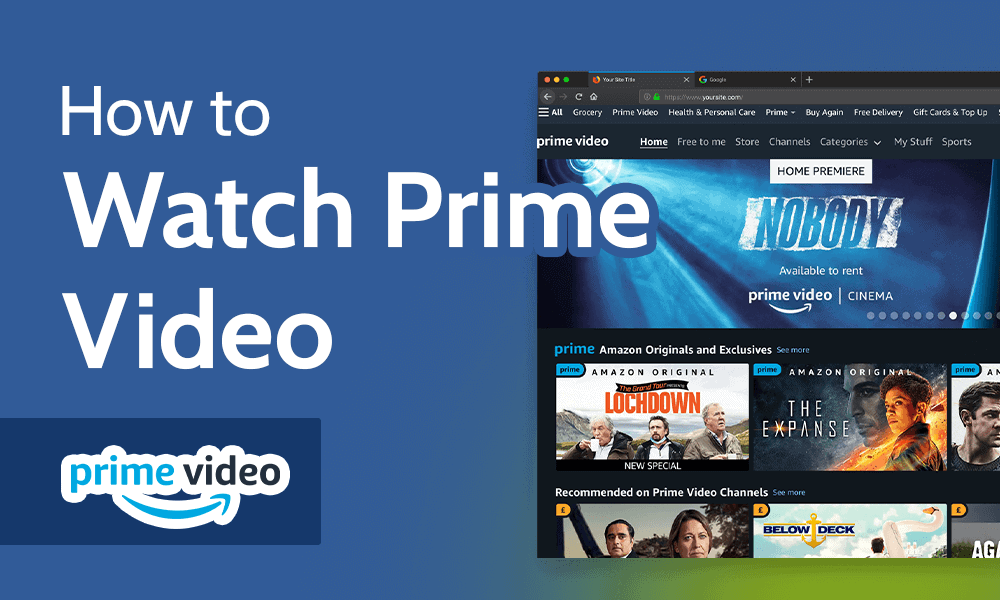
The most universal method for watching Amazon Prime Video is through a web browser. On any desktop or laptop computer running Windows, macOS, or Linux, simply open your preferred web browser (Google Chrome, Mozilla Firefox, Microsoft Edge, Apple Safari, etc.), navigate to primevideo.com, and log in with your Amazon account. The web interface is fully featured, allowing you to browse, search, manage your watchlist, and stream content directly. This method requires no software installation beyond your browser, making it incredibly accessible for quick viewing or on shared computers. Ensure your browser is updated to its latest version for optimal performance and security.
Dedicated Desktop and Mobile Applications
For a more integrated and often smoother experience on personal computers, Amazon offers dedicated applications. Windows users can download the Amazon Prime Video app from the Microsoft Store. This app provides a cleaner interface, often better performance, and the ability to download content for offline viewing – a significant advantage over browser-based streaming.
For mobile devices such as smartphones and tablets (running iOS or Android), the Amazon Prime Video app is indispensable. Download it from the Apple App Store for iPhones and iPads, or from the Google Play Store for Android phones and tablets. The mobile app is feature-rich, offering:
- Offline Downloads: A crucial feature for travelers or those with limited data, allowing you to download titles over Wi-Fi and watch them later without an internet connection.
- X-Ray Feature: Provides instant access to IMDb information about actors, songs, and trivia relevant to the scene you’re watching.
- Picture-in-Picture (PiP): On supported devices, you can minimize the video to a small window while performing other tasks.
- Casting Capabilities: Easily cast content to compatible devices like Chromecast or Fire TV.
The mobile app truly transforms your device into a portable entertainment powerhouse, making commutes, flights, or even just relaxing in a different room much more enjoyable.
Optimizing Your Prime Video Viewing Experience
Simply accessing Amazon Prime Video is only half the battle; optimizing your setup for the best possible viewing experience is where true technological savvy comes into play. From ensuring stable internet to managing video quality and utilizing specific features, a few technical adjustments can significantly enhance your enjoyment.
Ensuring Optimal Internet Connectivity
A robust and stable internet connection is paramount for high-quality streaming. Amazon Prime Video automatically adjusts stream quality based on your internet speed, but to enjoy content in HD, 4K Ultra HD, or HDR, you’ll need sufficient bandwidth.
- Standard Definition (SD): At least 1-2 Mbps
- High Definition (HD): At least 3.5-5 Mbps
- 4K Ultra HD/HDR: At least 15-25 Mbps (and potentially higher for a consistently smooth stream)
For the best experience, especially for 4K content, a wired Ethernet connection is preferable over Wi-Fi for stationary devices like Smart TVs or streaming players, as it offers greater stability and speed. If Wi-Fi is your only option, ensure your router is centrally located, your device is within good range, and consider upgrading to a newer Wi-Fi standard (e.g., Wi-Fi 6) if experiencing frequent buffering. Regularly restarting your modem and router can also help resolve minor connectivity issues.
Managing Streaming Quality and Data Usage
Amazon Prime Video offers settings to control streaming quality, which directly impacts data usage. This is particularly important for mobile users with limited data plans or those trying to conserve bandwidth on a shared home network.
- In-App Settings: Most Prime Video apps (mobile and some desktop/TV versions) allow you to manually select streaming quality (e.g., “Good,” “Better,” “Best,” or specific resolutions like “SD,” “HD”). Lowering the quality will reduce data consumption and buffering likelihood on slower connections.
- Downloads for Offline Viewing: As mentioned, downloading content over Wi-Fi is the ultimate solution for data conservation on mobile. The app also allows you to choose the download quality, letting you balance storage space with visual fidelity.
- Auto-Play Next Episode: While convenient, turning off auto-play for series can prevent accidental data usage if you fall asleep or step away from your device.
Utilizing Advanced Features: Downloads, Profiles, and Parental Controls
Beyond basic streaming, Prime Video integrates several features designed to enhance usability and family management:
- Downloads (Offline Viewing): Available on the Windows desktop app and all mobile apps, this feature allows you to download content to watch without an internet connection. It’s perfect for travel or areas with unreliable internet.
- User Profiles: Create individual profiles for different family members. This keeps recommendations, watch histories, and watchlists separate, providing a personalized experience for everyone. It’s also essential for distinguishing between adult and child content.
- Parental Controls: Amazon Prime Video offers robust parental control options. You can set viewing restrictions based on content ratings (e.g., G, PG, R) for specific profiles, and even require a PIN for purchases or access to certain content. These settings are managed through your Amazon account online, applying across all devices associated with that account.
Troubleshooting Common Tech Issues
Even with the most advanced technology, occasional glitches can occur. Knowing how to troubleshoot common Amazon Prime Video problems can save you time and frustration, getting you back to your entertainment faster. These solutions are generally tech-focused, dealing with device settings, app issues, and network connectivity.
Login and Account Verification Problems
If you’re having trouble logging in, consider these technical checks:
- Check Credentials: Double-check your Amazon email and password. Ensure caps lock is off.
- Internet Connection: Verify your device has an active internet connection. Try loading a website to confirm.
- App/Browser Update: Ensure your Prime Video app is updated to the latest version, or your web browser is current. Outdated software can cause login issues.
- Two-Factor Authentication (2FA): If you have 2FA enabled on your Amazon account, ensure you have access to your verification method (e.g., phone, authenticator app) to input the code.
- Clear Cache/Cookies: For browser issues, clear your browser’s cache and cookies. For app issues, try clearing the app’s cache in your device settings.
Buffering and Playback Errors
Buffering is often the most frustrating issue for streamers. Here’s a tech-centric approach to resolving it:
- Internet Speed Check: Use an online speed test (e.g., Speedtest.net) to verify your current internet download speed meets or exceeds Prime Video’s recommendations.
- Router/Modem Restart: Power cycle your internet router and modem. Unplug them for 30 seconds, then plug them back in.
- Reduce Network Congestion: Disconnect other devices from your Wi-Fi network that might be consuming bandwidth (e.g., other streaming, large downloads, online gaming).
- Lower Video Quality: Manually select a lower video quality setting within the Prime Video app or web player.
- Wired Connection: If possible, connect your streaming device directly to your router with an Ethernet cable.
- Device Overheating: Ensure your streaming device (Smart TV, Fire TV Stick, console) is well-ventilated and not overheating, as this can impact performance.
- App/Browser Update: Again, ensure your app or browser is updated.

Device Compatibility and App Updates
Keeping your technology current is crucial for a smooth streaming experience:
- Check Compatibility: Ensure your device meets the minimum system requirements for the Prime Video app. Older devices or operating systems might no longer be supported.
- Operating System Updates: Keep your device’s operating system (e.g., iOS, Android, Windows, TV OS) updated to its latest version. These updates often include performance improvements and bug fixes crucial for app functionality.
- App Updates: Enable automatic app updates, or regularly check for and manually install updates for the Amazon Prime Video app from your device’s app store. Developers frequently release updates to fix bugs, improve performance, and add new features.
- Reinstall App: As a last resort for persistent app issues, try uninstalling and then reinstalling the Prime Video app. This can often resolve corrupted files or configuration problems.
In conclusion, watching Amazon Prime Video is designed to be an accessible and enjoyable experience, thanks to its extensive compatibility across a wide spectrum of technological devices. From the comfort of your living room on a Smart TV or gaming console, to on-the-go viewing on your smartphone or laptop, the options are plentiful. By understanding the various access points, optimizing your internet connectivity, utilizing smart features, and knowing how to troubleshoot common technical hiccups, you can ensure a consistently high-quality and uninterrupted streaming journey. Embrace the technology, and dive into the vast entertainment library that Amazon Prime Video has to offer.
aViewFromTheCave is a participant in the Amazon Services LLC Associates Program, an affiliate advertising program designed to provide a means for sites to earn advertising fees by advertising and linking to Amazon.com. Amazon, the Amazon logo, AmazonSupply, and the AmazonSupply logo are trademarks of Amazon.com, Inc. or its affiliates. As an Amazon Associate we earn affiliate commissions from qualifying purchases.