
In today’s digitally driven world, a reliable and efficient web browser is not just a tool; it’s your gateway to information, entertainment, and productivity. Among the plethora of options available, Google Chrome consistently stands out as a leading choice, renowned for its speed, robust features, and seamless integration with the Google ecosystem. Whether you’re a seasoned tech enthusiast or new to the digital landscape, understanding how to install and optimize Google Chrome can significantly enhance your online experience. This guide will walk you through the process, covering everything from initial download to essential tips for a smoother browsing journey, all while considering its relevance to technology trends, brand perception, and financial efficiency.

The Ubiquitous Presence of Google Chrome: Beyond Just a Browser
Before diving into the installation process, it’s crucial to understand why Google Chrome has become such a dominant force in the browser market. Its rise is a testament to a multifaceted strategy that touches upon technology, brand building, and even economic considerations for users.
Technological Prowess and User Experience
At its core, Chrome’s success is rooted in its advanced technology. Built on the open-source Chromium project, it boasts a V8 JavaScript engine that allows for lightning-fast execution of web applications and scripts. This translates to quicker page loads, more responsive interactions, and a generally snappier browsing experience, a critical factor in user retention and satisfaction. Furthermore, Chrome’s architecture, which isolates tabs into separate processes, enhances stability. If one tab crashes, it rarely affects the entire browser, preventing frustrating interruptions.
The user interface is another significant contributor to its popularity. Chrome sports a minimalist and intuitive design, prioritizing content and ease of navigation. The omnibox, a combined address bar and search bar, simplifies how users interact with both web addresses and search queries. This elegant simplicity reduces cognitive load, making it accessible to a broad audience.
The browser’s extensibility is a key technological advantage. The Chrome Web Store offers a vast marketplace of extensions and themes, allowing users to customize their browsing experience to an unprecedented degree. From productivity boosters and ad blockers to creative tools and entertainment apps, these extensions empower users to tailor Chrome to their specific needs, further cementing its position as a versatile platform.
Brand Dominance and Trust
Google Chrome’s brand recognition is virtually unparalleled. Leveraging the established trust and vast reach of Google itself, Chrome benefits from a powerful halo effect. The “Google” brand is synonymous with innovation, reliability, and accessibility, and Chrome has inherited these attributes. This strong brand identity instills confidence in users, making them more inclined to choose Chrome over less familiar alternatives.
Google’s consistent marketing efforts, from prominent placement in search results to integration with other Google products like Gmail, Drive, and YouTube, have reinforced Chrome’s presence in the minds of consumers. The continuous development and updates, often featuring new functionalities and security enhancements, showcase Google’s commitment to the product, fostering a perception of a forward-thinking and dependable brand. This proactive approach to development and marketing not only attracts new users but also retains existing ones, creating a loyal user base.
Financial Efficiency and Value Proposition
While Chrome itself is free to download and use, its perceived financial value proposition extends beyond its zero cost. For individuals and businesses alike, Chrome can contribute to financial efficiency in several ways. Its speed and responsiveness mean less time spent waiting for pages to load, translating into increased productivity for professionals and students. This saved time can be directly linked to economic value, whether it’s completing tasks faster, engaging in more online learning, or maximizing time spent on income-generating activities.
Furthermore, the availability of free and powerful extensions can reduce the need for paid software. For example, free ad blockers can improve browsing speed and reduce data consumption, while certain productivity extensions can streamline workflows that might otherwise require dedicated, paid applications. For businesses, Chrome’s robust enterprise management features and its integration with Google Workspace can offer significant cost savings compared to other software suites. The seamless cloud synchronization of bookmarks, history, and settings across devices also eliminates the hassle and potential data loss associated with manual file transfers, offering a subtle but significant economic benefit in terms of time and reduced risk.
Installing Google Chrome: A Step-by-Step Journey
The process of installing Google Chrome is designed to be straightforward, ensuring that users of all technical backgrounds can get up and running quickly. The fundamental steps remain consistent across major operating systems, though minor variations may exist.
Downloading the Chrome Installer
The first and most crucial step is to obtain the official Chrome installer. This ensures you are downloading a legitimate and secure version of the browser.
-
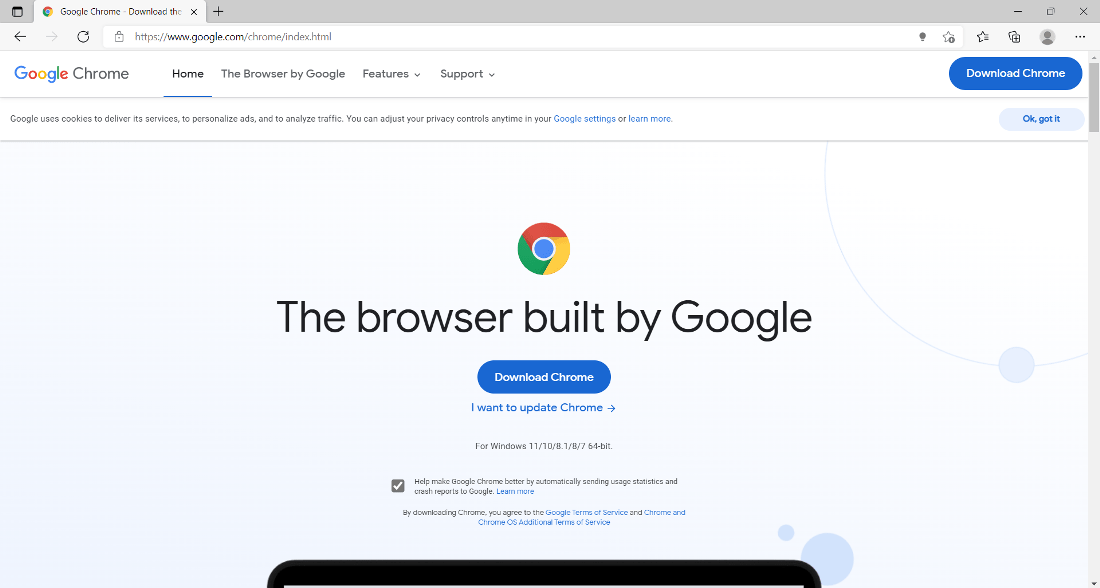
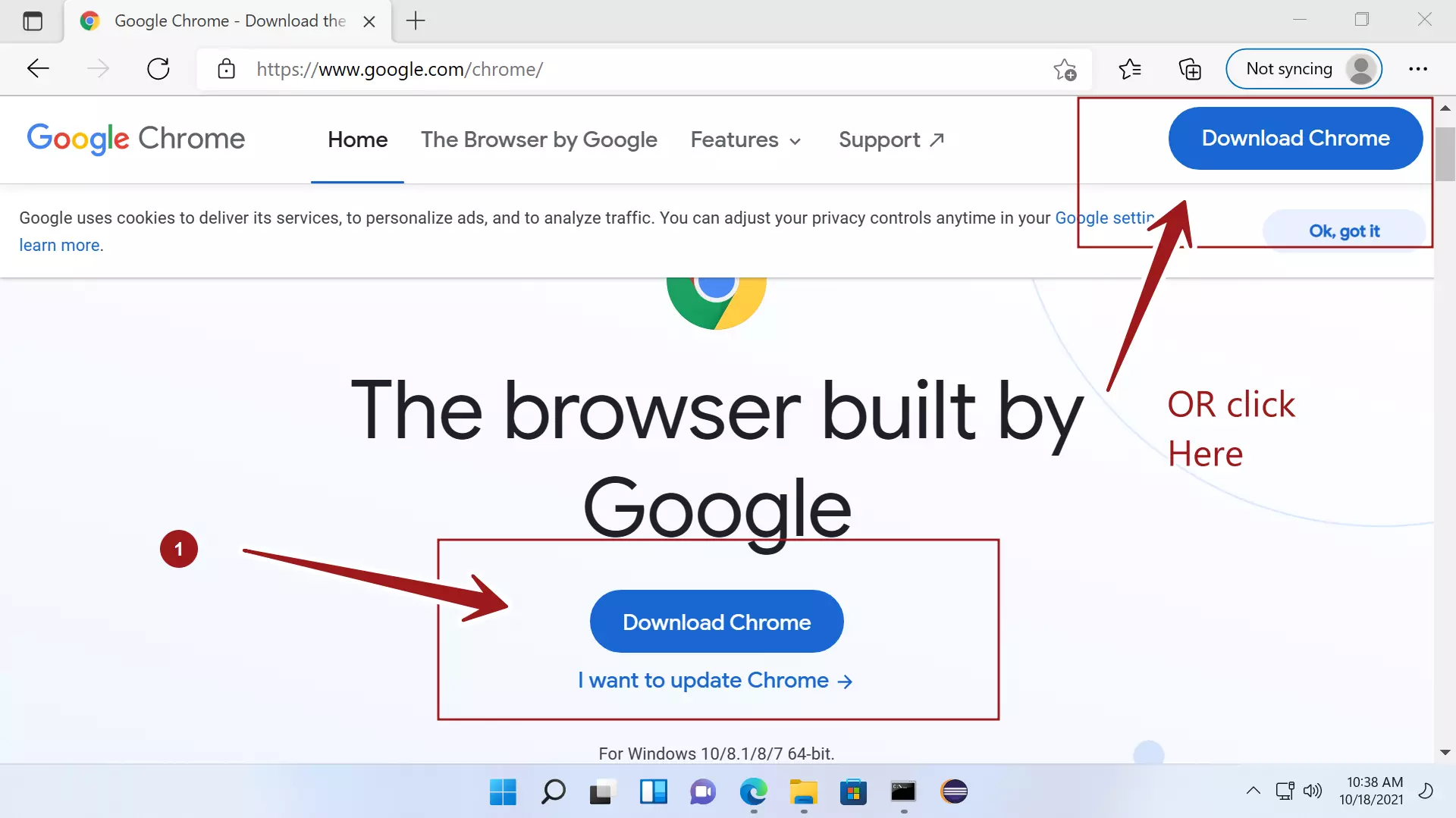
Navigate to the Official Google Chrome Website: Open your current web browser (e.g., Microsoft Edge, Safari, Firefox) and go to the official Google Chrome download page. You can typically find this by searching for “download Google Chrome” on any search engine, or by directly typing
www.google.com/chromeinto your address bar. It is paramount to ensure you are on the official Google site to avoid downloading malware or unofficial versions. -
Initiate the Download: On the Chrome download page, you’ll usually see a prominent “Download Chrome” button. Clicking this button will prompt you to accept the terms of service. Once accepted, the download of the installer file will begin. The installer is a small file that contains all the necessary components to install the full Chrome browser on your computer.
-
Choose Your Operating System (If Prompted): Most often, the website will automatically detect your operating system (Windows, macOS, Linux) and offer the correct download. However, in some cases, you might be given an option to select your OS manually. Ensure you select the version compatible with your system.
Installing Chrome on Windows
For Windows users, the installation process is typically a simple execution of the downloaded installer.
-
Run the Installer: Once the download is complete, locate the downloaded file (usually in your “Downloads” folder). It will typically be named something like
ChromeSetup.exe. Double-click this file to run it. -
User Account Control (UAC) Prompt: Windows will likely present a User Account Control (UAC) prompt asking if you want to allow the app to make changes to your device. Click “Yes” to proceed.
-
Automatic Installation: The Chrome installer is designed to be largely automatic. It will download the necessary files from Google’s servers and install Chrome in the background. You’ll see a progress bar indicating the installation status.
-
Launch Chrome: Once the installation is finished, Google Chrome will usually launch automatically. You will then be guided through a brief initial setup process, which may include signing in with your Google account and setting Chrome as your default browser.
Installing Chrome on macOS
Mac users will experience a slightly different, but equally straightforward, installation process.
-
Open the Downloaded Disk Image: After downloading the Chrome installer file (which will be a
.dmgfile), locate it in your “Downloads” folder. Double-click the.dmgfile to open it. This will mount a virtual disk image containing the Chrome application. -
Drag and Drop to Applications: Inside the opened disk image window, you will typically see the Google Chrome icon and an “Applications” folder alias. To install Chrome, simply drag the Google Chrome icon into the “Applications” folder. This action copies the application to your Mac’s main application directory.
-
Eject the Disk Image: After the copy is complete, you can eject the Chrome disk image by dragging its icon from your desktop or Finder sidebar to the Trash icon (which will transform into an eject symbol).
-
Launch Chrome: You can now find Google Chrome in your “Applications” folder or by using Spotlight search (Command + Spacebar, then type “Chrome”). The first time you launch it, macOS might ask for confirmation that you want to open an application downloaded from the internet. Click “Open.” You’ll then be guided through the initial setup.
Installing Chrome on Linux
Linux users have multiple methods for installing Chrome, with package managers being the most common and recommended.
-
Download the .deb or .rpm Package: Visit the official Google Chrome download page and select the Linux option. You’ll be prompted to choose between a
.debpackage (for Debian-based distributions like Ubuntu and Mint) and an.rpmpackage (for Fedora, openSUSE, and other Red Hat-based distributions). Download the appropriate package for your system. -
Install via Package Manager (Recommended):
- For .deb packages (Ubuntu/Debian): Open a terminal, navigate to your Downloads folder (or wherever you saved the file), and run the command:
bash

sudo dpkg -i google-chrome-stable_current_amd64.deb
(Replacegoogle-chrome-stable_current_amd64.debwith the exact filename if it differs). If there are dependency issues, run:
bash

sudo apt --fix-broken install
- For .rpm packages (Fedora/openSUSE): Open a terminal, navigate to your Downloads folder, and run the command:
bash

sudo rpm -i google-chrome-stable_current_x86_64.rpm
(Replacegoogle-chrome-stable_current_x86_64.rpmwith the exact filename if it differs). For Fedora, you might also use:
bash

sudo dnf install google-chrome-stable_current_x86_64.rpm
- For .deb packages (Ubuntu/Debian): Open a terminal, navigate to your Downloads folder (or wherever you saved the file), and run the command:
-
Launch Chrome: Once installed, you can launch Chrome from your application menu or by typing
google-chrome-stablein the terminal.
Beyond Installation: Optimizing Your Chrome Experience
Installing Google Chrome is just the beginning. To truly leverage its capabilities and ensure a smooth, secure, and productive browsing experience, consider these essential steps and tips.
Setting Chrome as Your Default Browser
Making Chrome your default browser ensures that all web links you click on from other applications will automatically open in Chrome.
- On Windows: When you first launch Chrome, it will likely prompt you to set it as your default browser. If you skip this, you can go to Chrome’s Settings (
chrome://settings), find the “Default browser” section, and click the “Make default” button. Alternatively, you can do this through Windows’ own default app settings. - On macOS: Similar to Windows, Chrome will prompt you upon first launch. If you miss it, go to Chrome’s Settings (
chrome://settings) and click “Make default.” You can also manage default applications in macOS’s System Preferences. - On Linux: The process is usually managed through your desktop environment’s settings. In Chrome’s settings, you’ll find an option to “Make default,” which will typically trigger your system’s default application manager.
Signing In and Syncing Your Data
Signing into Chrome with your Google account is highly recommended. This enables a powerful feature: synchronization.
- What Syncs? When you sign in and enable sync, Chrome will securely sync your bookmarks, history, passwords, extensions, settings, and open tabs across all devices where you are signed into Chrome with the same Google account.
- Benefits: This seamless synchronization is a massive productivity booster. You can start browsing on your desktop, then pick up exactly where you left off on your laptop or phone. It also acts as an implicit backup for your browsing data.
- Privacy Considerations: While syncing is convenient, it’s essential to be aware of what data is being shared. Google offers granular control over what gets synced. You can manage these settings in Chrome’s
chrome://settings/syncSetuppage.
The Importance of Updates and Security
Google Chrome is constantly being updated to introduce new features, improve performance, and, crucially, patch security vulnerabilities.
- Automatic Updates: By default, Chrome is set to update automatically. This is the best way to ensure you’re always protected. You can check your current version and update status by going to
chrome://settings/help. If an update is available, Chrome will download and install it, usually prompting you to relaunch the browser. - Digital Security: Keeping Chrome updated is a cornerstone of your digital security. Security experts regularly discover and report vulnerabilities in web browsers. Google is quick to address these, and updates deliver these essential patches. Running an outdated browser leaves you exposed to malware, phishing attacks, and other online threats.
- Extensions and Permissions: Be judicious about the extensions you install. Only install extensions from trusted developers and sources. Regularly review the permissions granted to your extensions, as some might have access to more data than you intend.
Leveraging Chrome’s Features for Productivity and Financial Awareness
Google Chrome offers a wealth of features that can significantly boost productivity and help you manage your finances more effectively online.
- Tab Management: As you accumulate more tabs, your browser can become cluttered and slow. Chrome offers features like tab groups to organize your open pages, making it easier to manage complex research or multiple projects.
- Password Manager: Chrome has a built-in password manager that securely stores your login credentials. It can also generate strong, unique passwords for new accounts, enhancing your online security and saving you the mental effort of remembering countless passwords.
- Incognito Mode: For private browsing sessions, Incognito mode is invaluable. It prevents Chrome from saving your browsing history, cookies, and site data for that session. This is useful for researching sensitive topics, shopping for gifts, or using a shared computer.
- Developer Tools: For those interested in web development or understanding how websites are built, Chrome’s Developer Tools (accessible by pressing F12 or right-clicking on a page and selecting “Inspect”) offer a deep dive into a webpage’s structure, scripts, and network activity.
- Financial Tracking Extensions: Numerous Chrome extensions can assist with personal finance management, such as price trackers for online shopping, budgeting tools that integrate with your bank accounts, or extensions that help you find discount codes and coupons, all contributing to saving money.
Conclusion
Installing Google Chrome is a straightforward gateway to a more efficient, secure, and personalized online experience. By following the simple installation steps tailored to your operating system, you’ll quickly have this powerful browser at your fingertips. Remember that the journey doesn’t end with installation; actively engaging with Chrome’s features, keeping it updated, and signing in to sync your data across devices will unlock its full potential. From its technological underpinnings that ensure speed and stability, to its strong brand recognition that inspires trust, and its ability to contribute to financial efficiency through productivity and cost-saving tools, Google Chrome remains a cornerstone of modern digital life. Embrace its capabilities, and navigate the web with confidence and ease.
aViewFromTheCave is a participant in the Amazon Services LLC Associates Program, an affiliate advertising program designed to provide a means for sites to earn advertising fees by advertising and linking to Amazon.com. Amazon, the Amazon logo, AmazonSupply, and the AmazonSupply logo are trademarks of Amazon.com, Inc. or its affiliates. As an Amazon Associate we earn affiliate commissions from qualifying purchases.