
In today’s interconnected world, streaming services have become a cornerstone of home entertainment, offering unparalleled access to live TV, on-demand content, and a vast library of shows and movies. YouTube TV stands out as a robust contender, providing a comprehensive cable-replacement experience with an impressive channel lineup, unlimited cloud DVR, and the flexibility of streaming across various devices. However, for families looking to maximize their subscription’s value, understanding how to effectively share YouTube TV with multiple household members is paramount. This guide delves into the technical intricacies and best practices for setting up and managing YouTube TV family sharing, ensuring everyone enjoys their personalized viewing experience seamlessly.
Unlocking the Potential: Understanding YouTube TV’s Family Group Mechanics
At the heart of YouTube TV’s sharing capability lies the Google Family Group. This foundational infrastructure, common across various Google services like Google Play, Google One, and YouTube Premium, is the gateway to extending your YouTube TV subscription to other household members. Far more than just a simple password share, the Google Family Group is designed to provide each member with a personalized and independent viewing experience, complete with their own profiles, recommendations, and DVR recordings.
The Role of Google Family Groups
A Google Family Group acts as a centralized hub for up to six members (including the Family Manager) to share eligible Google products and services. When you subscribe to YouTube TV, designating it for family sharing essentially links it to your Google Family Group. This means that once a family group is established, all invited and accepted members gain access to the YouTube TV subscription without needing to log in with the primary subscriber’s credentials. This not only enhances security but also significantly improves the user experience by eliminating the common pitfalls associated with shared logins, such as conflicting watch histories or accidental playlist deletions.
Core Benefits for Each Family Member
The beauty of YouTube TV’s family sharing model lies in its ability to offer a highly individualized experience to each member. Unlike traditional cable boxes where everyone shares the same interface, YouTube TV allows each family member to:
- Maintain a Personal Library: Each member gets their own dedicated library for saving shows, movies, and events they wish to watch.
- Access Unlimited Cloud DVR: The unlimited cloud DVR storage is personal to each member. They can record their favorite programs without worrying about storage limits or overwriting someone else’s recordings.
- Receive Personalized Recommendations: YouTube’s powerful recommendation engine works independently for each profile, suggesting content based on individual viewing habits and preferences.
- Manage Playback Progress: Each user can pause a show on one device and resume it from the same point on another, all within their own profile.
- Set Parental Controls: The Family Manager can implement content restrictions for younger members, ensuring they only access age-appropriate programming.
This level of personalization is crucial for modern families, catering to diverse tastes and viewing schedules without compromise. It transforms a single subscription into multiple distinct experiences, dramatically increasing its perceived value and utility across the household.
Step-by-Step Guide: Establishing Your YouTube TV Family Sharing
Setting up family sharing for YouTube TV is a straightforward process, primarily involving the creation and management of your Google Family Group. Whether you’re an existing Google user or new to the ecosystem, the steps are intuitive and designed for ease of use.
Creating and Managing Your Google Family Group
The first prerequisite for sharing YouTube TV is to either create a new Google Family Group or join an existing one as the Family Manager. If you already have one, you can proceed directly to inviting members. If not, follow these steps:
- Access Google Family Management: Navigate to
families.google.comor open the Google Home app and look for Family Group settings. - Become the Family Manager: If you don’t have a Family Group, you’ll be prompted to create one. You, as the primary account holder, will automatically be designated as the Family Manager.
- Invite Family Members:
- From the Family Group interface, select “Invite family member” or a similar option.
- You can invite up to five other individuals (for a total of six, including yourself).
- Enter their email addresses (associated with their Google Accounts).
- An invitation will be sent to their email.
- Accepting Invitations: Each invited family member must open the email and click the “Accept Invitation” link. They’ll be guided through a quick process to confirm their participation in the Family Group.
- Important Eligibility: For a successful setup, all family members must meet specific criteria:
- They must have a Google Account.
- They must be 13 years of age or older (accounts for children under 13 can be managed through Family Link, but their direct YouTube TV access might be restricted or require specific settings).
- Crucially, they must reside in the same physical household as the Family Manager. Google periodically verifies this by checking IP addresses and the primary subscriber’s billing address. Attempting to share with individuals outside your household can lead to access issues and potential suspension of sharing privileges.
- Important Eligibility: For a successful setup, all family members must meet specific criteria:
Tying YouTube TV to Your Family Group
Once your Google Family Group is established and all members have joined, the final step is to link your YouTube TV subscription to it.
- Open YouTube TV: Log in to YouTube TV with the Family Manager’s account.
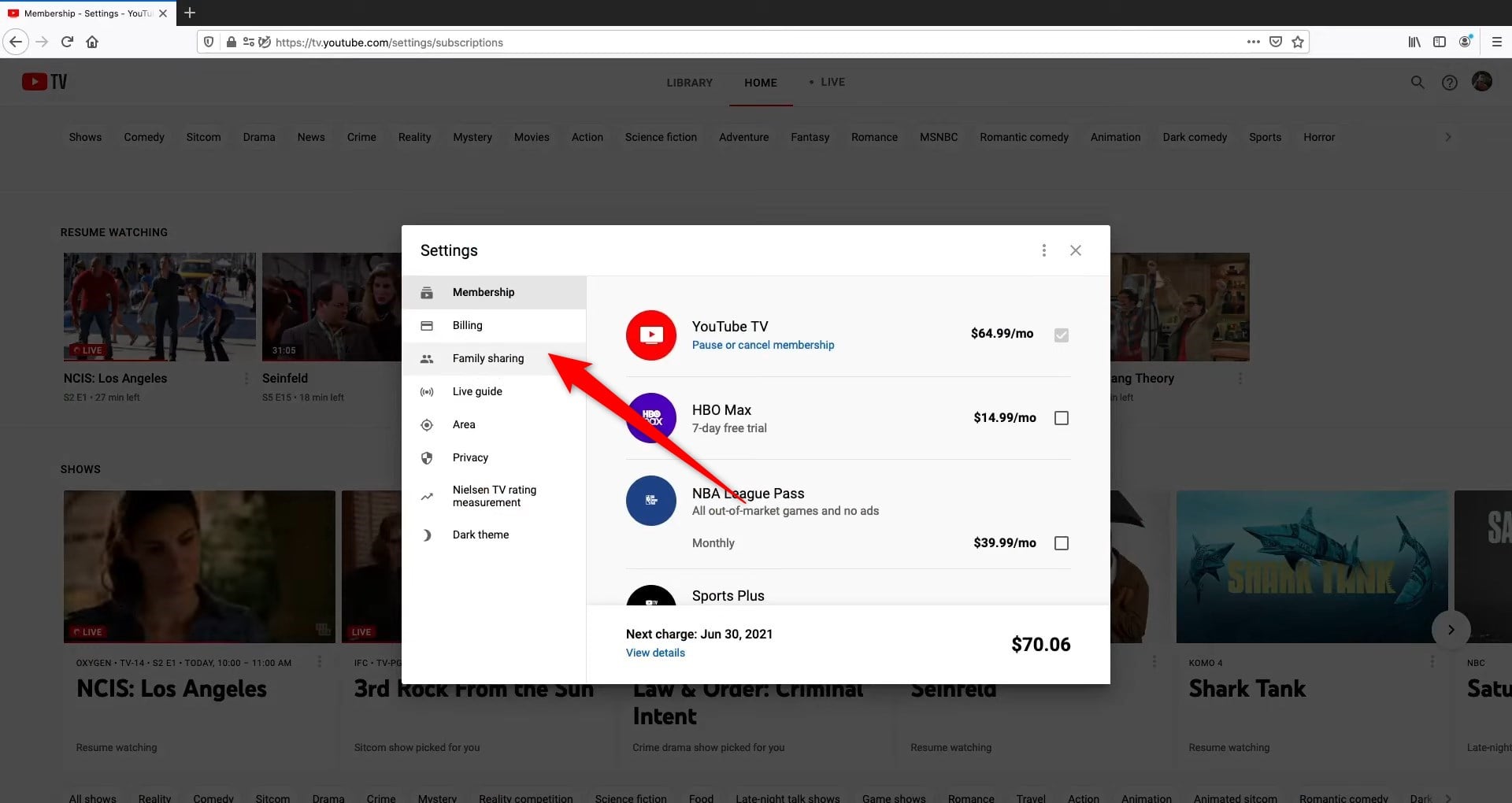
- Access Settings: Navigate to your profile icon in the top right corner and select “Settings.”
- Go to Family: Within the Settings menu, look for the “Family” or “Family Sharing” option.
- Share with Family Group: You should see an option to “Share with family group” or confirmation that your subscription is already shared with the detected Family Group. If it’s not already linked, follow the prompts to activate it.
Upon successful linking, all members of your Google Family Group who meet the eligibility criteria will automatically gain access to YouTube TV through their own Google Accounts. They simply need to log in to the YouTube TV app or website using their personal credentials.
Navigating Limitations and Optimizing Performance
While YouTube TV’s family sharing offers remarkable flexibility, it’s essential to understand its inherent limitations, particularly concerning simultaneous streams and location requirements, to avoid frustrating interruptions. Proper management and optimization can significantly enhance the family viewing experience.
Understanding Simultaneous Stream Limits

One of the most common points of confusion for YouTube TV families revolves around simultaneous stream limits. YouTube TV allows:
- Three simultaneous streams outside the home network. This means up to three different devices can stream content concurrently from different locations using separate profiles.
- Unlimited simultaneous streams within the home network. If all devices are connected to the same Wi-Fi network associated with the Family Manager’s billing address, theoretically, an unlimited number of devices can stream at once.
It’s critical to differentiate these. The “three streams” rule primarily applies when family members are accessing YouTube TV from different physical locations (e.g., one parent watching at work, a child watching at a friend’s house, and another watching on a mobile device). Within the same house, a family could, for example, have YouTube TV playing on a living room TV, a bedroom TV, and two tablets simultaneously without hitting the “three streams” limit. Misunderstanding this can lead to unwarranted errors or complaints about stream capacity.
Adhering to Household Location Requirements
As mentioned, a strict requirement for YouTube TV family sharing is that all members must reside in the same physical household. Google enforces this by periodically checking the IP address of the devices used by family members against the Family Manager’s home location (determined by the billing address for the YouTube TV subscription).
- How Google Checks: If a family member attempts to watch YouTube TV from a location significantly different from the primary residence for an extended period, Google may prompt them to verify their home location.
- Resolving Location Issues: If you encounter a “not in home area” error:
- Ensure the device is physically within the primary household’s geographical area.
- Use the YouTube TV app on a mobile device to update the current playback area (Settings > Location > Current Playback Area > Update). This uses the device’s GPS to verify the location.
- If a family member is temporarily away (e.g., college student), they might need to use a mobile device connected to the home network periodically to re-verify their location, or be prepared to stream only from approved locations for limited durations. Persistent violation can lead to loss of access for that member.
Managing and Troubleshooting Your Family Group
Effective management ensures a smooth experience for everyone.
- Adding/Removing Members: The Family Manager can easily add or remove members from the Google Family Group at any time via
families.google.com. When a member is removed, they immediately lose access to shared services like YouTube TV. - Changing Family Manager: While possible, changing the Family Manager involves dismantling the current group and creating a new one with the desired individual as the manager. This should be done cautiously as it affects all shared services.
- Common Troubleshooting Steps:
- “Not in home area” errors: Re-verify location via the YouTube TV mobile app while physically at home.
- Login issues: Ensure each member is using their own Google Account associated with the Family Group.
- Missing channels/recordings: Verify that the YouTube TV subscription is correctly linked to the Family Group and that the individual profile is selected.
- VPN usage: Using a VPN can interfere with location verification, leading to access issues. It’s generally recommended to disable VPNs when using YouTube TV to ensure proper location detection.
Elevating the Family Viewing Experience
Beyond the technical setup, several strategies can help optimize your family’s YouTube TV experience, making it more enjoyable and catering to individual needs.
Leveraging Individual Profiles and Customization
Encourage every family member to fully utilize their individual profile. This isn’t just about personal DVR space; it’s about tailoring the entire platform to their preferences.
- Personalized Recommendations: The more each person watches under their profile, the smarter YouTube TV’s algorithm becomes at recommending content they’ll genuinely enjoy, minimizing time spent browsing.
- Custom Channel Lineups: Each user can mark favorite channels, making it easier to navigate directly to their preferred content.
- Continue Watching: With individual profiles, everyone can pick up exactly where they left off on their shows, regardless of which device they’re using or what others in the family are watching.
Implementing Robust Parental Controls
For families with younger viewers, robust parental controls are an invaluable feature. As the Family Manager, you can:
- Set Content Restrictions: Through Google Family Link (if managing accounts for children under 13) or directly within YouTube TV settings for other family members, you can restrict content based on ratings (e.g., G, PG, TV-Y, etc.).
- Manage YouTube Kids Profiles: While YouTube TV is distinct from regular YouTube, YouTube Kids profiles can be managed through Family Link, influencing the overall content accessibility for children across YouTube platforms.
- Review Watch History: While privacy is important, Family Link allows managers to monitor activity on children’s Google accounts, including YouTube viewing, offering peace of mind.
Educating family members about these features, especially how to create and switch between profiles, is key to maximizing these benefits.

Strategic Device Management
While YouTube TV allows generous simultaneous streams, particularly within the home network, being mindful of device usage can prevent potential bottlenecks and ensure smooth streaming for everyone.
- Designate Primary Viewing Devices: For critical viewing (e.g., live sports), consider prioritizing devices connected via Ethernet for the most stable connection.
- Wi-Fi Optimization: Ensure your home Wi-Fi network is robust enough to handle multiple simultaneous high-definition streams. Upgrading to a mesh Wi-Fi system or a newer router might be beneficial for larger households or those with many connected devices.
- Educate on Stream Limits (Out-of-Home): Remind family members about the three-stream limit when they are watching outside the home. A polite notification or shared calendar could help avoid conflicts during peak viewing times.
Sharing YouTube TV with family is more than just a cost-saving measure; it’s about creating a unified yet personalized entertainment hub for everyone in your household. By understanding the underlying Google Family Group mechanics, adhering to the platform’s requirements, and actively managing your settings, you can unlock the full potential of your YouTube TV subscription, making it a cornerstone of your family’s digital lifestyle. This ensures that every member, regardless of their viewing preferences or location within the household, enjoys a seamless, rich, and tailored live TV experience.
aViewFromTheCave is a participant in the Amazon Services LLC Associates Program, an affiliate advertising program designed to provide a means for sites to earn advertising fees by advertising and linking to Amazon.com. Amazon, the Amazon logo, AmazonSupply, and the AmazonSupply logo are trademarks of Amazon.com, Inc. or its affiliates. As an Amazon Associate we earn affiliate commissions from qualifying purchases.