
For countless gamers, the vanilla version of a beloved title is just the starting point. The true depth and longevity often lie in the vibrant world of modifications, or “mods.” Mods are user-created alterations to a game’s content, ranging from minor tweaks to expansive new features, visual overhauls, and entirely new gameplay experiences. They breathe new life into older titles, fix developer-overlooked issues, and allow players to tailor their gaming world precisely to their preferences. This guide will walk you through everything you need to know about installing mods, ensuring you can unlock the full potential of your favorite games safely and effectively.

I. Understanding the World of Game Mods
Before diving into the technicalities of installation, it’s crucial to grasp what mods are, why they’re so popular, and what foundational steps you should take before embarking on your modding journey.
What Exactly Are Mods?
At its core, a “mod” (short for modification) is a piece of software that alters a video game from its original form. These alterations can be incredibly diverse, created by individual players or entire communities using a game’s development kit, third-party tools, or by directly manipulating game files.
Mods can fall into several broad categories:
- Visual Enhancements: These are often the most noticeable, improving graphics, textures, lighting, character models, and environments. Think high-resolution texture packs, realistic weather effects, or comprehensive graphical overhauls that make older games look brand new.
- Gameplay Overhauls: These mods fundamentally change how a game is played. This could include new mechanics, rebalanced combat systems, enhanced AI, or entirely new quest lines and factions. Some can even transform a game’s genre, turning an RPG into a strategy game, for instance.
- Quality of Life (QoL) Improvements: Often subtle but immensely impactful, QoL mods streamline user interfaces, add convenient shortcuts, fix frustrating bugs that developers never addressed, or introduce minor features that significantly improve the player experience without altering core gameplay.
- New Content: This category encompasses additional items, weapons, spells, characters, maps, levels, or even entire new stories and expansions that weren’t part of the original game.
- Bug Fixes and Performance Optimizations: Many dedicated modders take it upon themselves to squash bugs that remain in games long after official support has ended, or to optimize code for better performance on modern hardware.
From Skyrim’s endless parade of new quests and graphical updates to Minecraft’s infinite possibilities with new blocks and biomes, mods are a testament to the creativity and passion of gaming communities worldwide.
Why Mod Your Games?
The reasons players turn to mods are as varied as the mods themselves, but generally boil down to a desire for a richer, more personalized, and often extended gaming experience:
- Extended Replayability: Mods can breathe new life into games you’ve already completed multiple times. New quests, characters, or gameplay mechanics can make revisiting an old favorite feel fresh and exciting.
- Personalization and Customization: Mods allow you to tailor a game to your exact preferences. Don’t like a particular UI element? There’s probably a mod for that. Want your character to look a certain way? Find a mod. This level of control makes the game truly “yours.”
- Innovation and Creativity: Modders often push the boundaries of what’s possible within a game engine, introducing concepts and features that even developers hadn’t considered. This fuels a continuous cycle of innovation within the gaming community.
- Bug Fixes and Performance Enhancements: Especially for older titles, the community often takes over where official support left off. Unofficial patches can fix long-standing bugs, improve stability, and optimize performance for modern systems.
- Enhanced Visuals: Many games, particularly those a few years old, can benefit immensely from graphical mods that update textures, lighting, and environmental details, making them competitive with contemporary titles.
- Community Engagement: Modding fosters a strong sense of community. Players share tips, collaborate on projects, and provide feedback, creating a vibrant ecosystem around their favorite games.
In essence, modding transforms games from static products into dynamic, evolving platforms that can be continuously shaped and improved by their passionate player base.
Essential Preparations Before You Begin
While modding offers incredible benefits, it’s not without its risks. A little preparation can save you a lot of headaches down the line.
- Backup Your Game Saves and Files: This is the golden rule of modding. Before installing any mod, especially if it alters core game files, make a backup of your existing game saves. Ideally, back up the entire game folder if you’re undertaking extensive modding. This way, if something goes wrong, you can easily revert to a working state without losing progress or having to reinstall the entire game. You can usually find save files in your
Documentsfolder or within the game’s installation directory. - Understand Compatibility and Requirements: Not all mods work together, and not all mods work with every game version. Always read the mod’s description carefully. Check for:
- Game Version Compatibility: Does the mod support your current version of the game? Updates to the base game can often break older mods.
- Dependencies: Does the mod require other mods (e.g., a “master file,” a scripting extender like SKSE for Skyrim, or Forge/Fabric for Minecraft) to function? Install these dependencies first.
- Conflicts: Does the mod conflict with other mods you plan to use? Mod authors often list known conflicts.
- System Requirements: Some high-fidelity graphics mods can be very demanding on your hardware. Ensure your PC can handle them.
- Legal and Ethical Considerations (TOS): Be aware that some game developers consider extensive modding, particularly those that bypass security measures or give unfair advantages in online multiplayer, a violation of their Terms of Service (TOS). While single-player modding is generally tolerated and often encouraged, always exercise caution with online games. Using mods in competitive online environments can lead to bans.
- Acquire Essential Tools:
- Archive Extractor: Most mods are downloaded in compressed formats like
.zip,.rar, or.7z. You’ll need a program like 7-Zip (free and open-source) or WinRAR to extract their contents. - Mod Manager (Recommended): For games with extensive modding communities (e.g., Bethesda games like Skyrim/Fallout, CD Projekt Red’s The Witcher), a dedicated mod manager is invaluable. Tools like Vortex, Mod Organizer 2, or Nexus Mod Manager automate much of the installation process, manage load orders, and help resolve conflicts. We’ll delve into these more deeply later.
- Game-Specific Utilities: Some games require specific tools beyond a general mod manager, such as script extenders (e.g., SKSE for Skyrim), dedicated mod loaders (e.g., Forge or Fabric for Minecraft), or texture optimizers.
- Archive Extractor: Most mods are downloaded in compressed formats like
By taking these preparatory steps, you establish a solid foundation for a successful and enjoyable modding experience, minimizing the frustration of crashes and broken saves.
II. Core Methods for Mod Installation
With your preparations complete, it’s time to explore the two primary approaches to installing mods: the meticulous manual method and the streamlined process offered by mod managers. Understanding both will equip you to tackle nearly any modding scenario.
The Manual Installation Process
Manual installation involves directly placing mod files into your game’s directory. While more labor-intensive and prone to human error, it’s a fundamental skill and sometimes the only option for smaller mods or games without robust mod manager support.
Here’s a step-by-step guide:
- Download the Mod: Obtain the mod file from a reputable source. The most common and reliable platforms include Nexus Mods, ModDB, or official game forums. Always check the comments section and endorsements to gauge a mod’s stability and popularity.
- Extract the Mod Files: Most mods come in compressed archives. Use your chosen archive extractor (7-Zip or WinRAR) to unpack the contents. It’s best to extract them to a temporary folder on your desktop or a dedicated “Mod Downloads” folder, rather than directly into your game directory.
- Pro Tip: After extraction, carefully examine the folder structure. Sometimes, the extracted archive will contain an extra folder (e.g.,
MyMod/MyModFiles) instead of directlyMyModFiles. You need to identify the core files that actually belong in the game directory. Look for folders likeData,Meshes,Textures,Scripts,.espor.esmfiles (for Bethesda games), or.dllfiles.
- Pro Tip: After extraction, carefully examine the folder structure. Sometimes, the extracted archive will contain an extra folder (e.g.,
- Locate Your Game’s Installation Directory: This is where your game’s executable file (e.g.,
SkyrimSE.exe,Fallout4.exe,MinecraftLauncher.exe) and core game folders reside. Common paths include:- Steam:
C:Program Files (x86)Steamsteamappscommon[Game Name] - GOG Galaxy:
C:Program Files (x86)GOG GalaxyGames[Game Name] - Epic Games:
C:Program FilesEpic Games[Game Name] - If unsure, right-click the game shortcut, select “Open file location,” or use your game launcher’s “Browse Local Files” option.
- Steam:
- Identify the Correct Destination Folder: This is the most critical step. The mod’s description will usually tell you where to put the files. Common destinations include:
- The game’s root directory.
- A
Datafolder within the root directory (very common for Bethesda games). - A
Modsfolder. - Specific subfolders like
Textures,Meshes,Scripts, orSounds.
- Copy and Paste the Mod Files: Drag and drop or copy/paste the identified mod files/folders from your temporary extraction location into the correct destination within your game’s directory.
- Crucial Warning: If prompted to overwrite existing files, exercise extreme caution. Only do so if the mod explicitly states it replaces existing game assets, or if you are deliberately replacing an older version of the same mod. Always ensure you have backups before overwriting.
- Activate the Mod (If Necessary): Some games require you to enable mods after installation. This might involve:
- Checking a box in an in-game “Mods” menu.
- Editing a configuration file (
.inior.txt). - Using a separate launcher or tool provided by the mod. For games like Skyrim or Fallout, you’ll need to enable
.espor.esmfiles through the game’s launcher or a mod manager’s plugin tab.
- Test the Game: Launch your game and check if the mod is working as intended. If you encounter crashes or issues, disable the most recently installed mod and re-test.
Manual installation gives you granular control but requires careful attention to detail and a good understanding of file structures.
Streamlining with Mod Managers
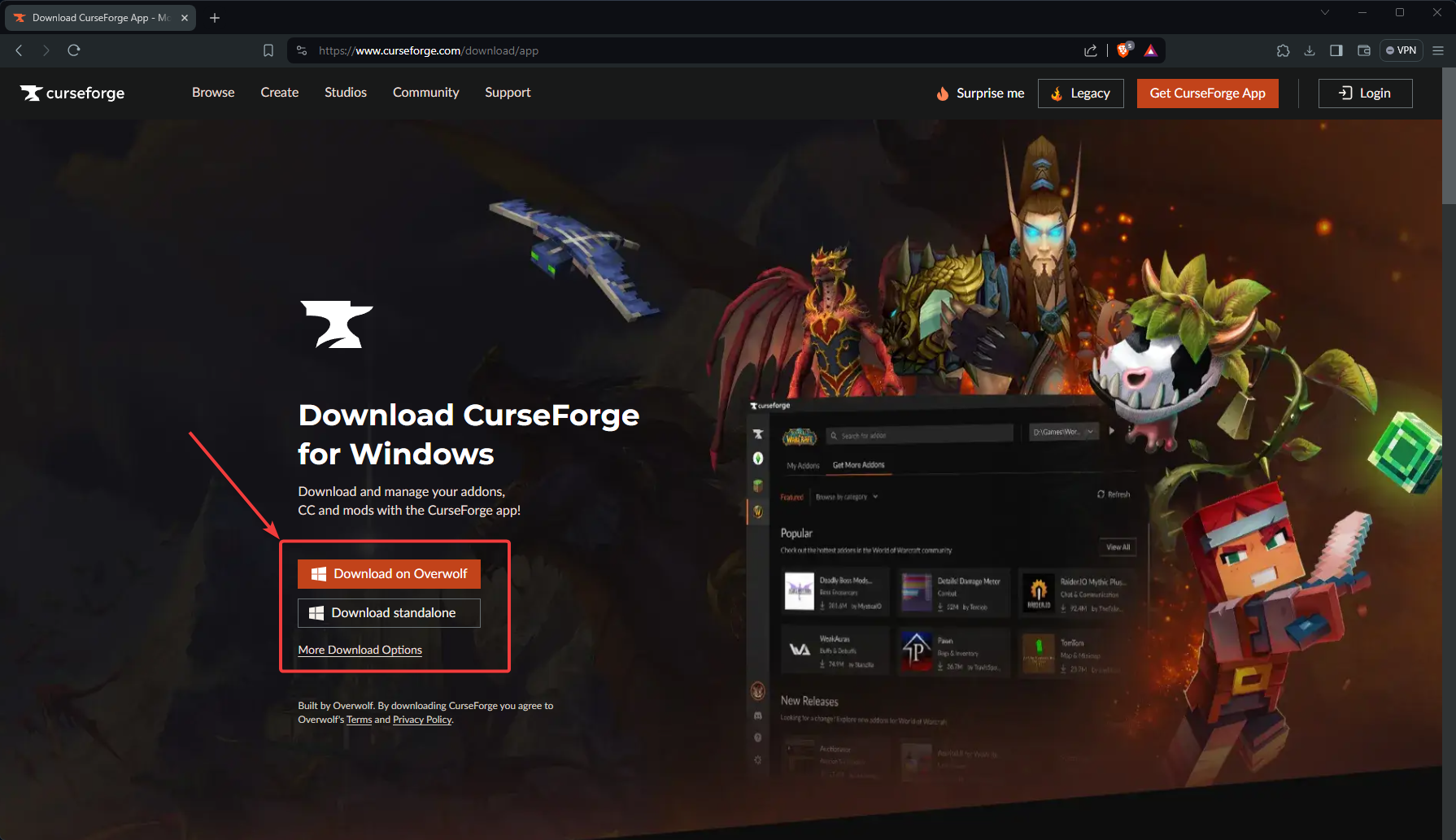
For games with extensive modding scenes, especially those from Bethesda, mod managers are indispensable. They automate complex tasks, significantly reduce the chances of errors, and make managing large numbers of mods much more feasible.
What is a Mod Manager?
A mod manager is a utility that helps you install, uninstall, enable, disable, and manage the load order of your mods. Key benefits include:
- Automated Installation: Instead of manual copying, you simply point the manager to the downloaded mod archive, and it handles the extraction and placement.
- Conflict Resolution: Sophisticated managers can detect conflicts between mods (e.g., two mods trying to modify the same file) and often provide tools to help you decide which mod “wins.”
- Load Order Management: The order in which mods load can be crucial for stability. Managers allow you to easily drag and drop mods to change their load order and often suggest optimal orders based on community data.
- Virtual File System (VFS): Advanced managers like Mod Organizer 2 use a VFS, meaning mods aren’t physically copied into your game directory. Instead, they’re “mounted” virtually. This makes uninstallation clean and prevents your game folder from becoming cluttered with conflicting files, making it easier to troubleshoot.
- Profiles: Create different mod setups for different playthroughs without interfering with each other.
Popular Mod Managers:
- Vortex (Nexus Mods Official): User-friendly, actively developed, and integrated directly with Nexus Mods. Good for beginners and experienced users.
- Mod Organizer 2 (MO2): Considered the gold standard for advanced users, especially for Bethesda games, due to its powerful virtual file system and extensive conflict resolution tools. Has a steeper learning curve.
- Nexus Mod Manager (NMM Community Edition): An older, legacy manager that has largely been superseded by Vortex and MO2 but is still used by some.
Basic Workflow with a Mod Manager (e.g., Vortex):
- Install and Configure the Mod Manager: Download and install your chosen manager. During setup, it will usually detect your installed games and prompt you to link them.
- Associate with Nexus Mods (Optional but Recommended): For Vortex, you can log in with your Nexus Mods account, allowing for “Mod Manager Download” links directly from mod pages, automating the download process.
- Download Mods:
- Manual Download: Download the mod file to your computer, then drag and drop it into your mod manager’s “Mods” tab, or use the “Install From File” option.
- Mod Manager Download: Click the “Mod Manager Download” button on a mod’s Nexus Mods page, and it will automatically be downloaded and imported into Vortex.
- Install/Deploy the Mod: Once imported, select the mod in your manager and click “Install” (or “Deploy” in Vortex). The manager will handle placing the files.
- Resolve Conflicts (If Any): If the manager detects conflicts, it will prompt you. Follow its guidance to determine load order or file priority. This is where reading mod descriptions becomes critical.
- Enable/Activate Plugins: Ensure any
.espor.esmfiles associated with the mod are enabled in the manager’s “Plugins” tab. - Launch the Game Through the Manager: Always launch your game through the mod manager to ensure all mods and tools (like script extenders) are correctly loaded.
- Test: Verify the mod is working in-game.
Mod managers transform modding from a chore into an enjoyable part of the gaming experience, empowering you to experiment and customize with confidence.
Game-Specific Modding Paradigms
While manual installation and mod managers cover most scenarios, some games have unique modding ecosystems that require specific tools or approaches.
- Bethesda Games (Skyrim, Fallout): These games are the quintessential examples for mod managers like Vortex and Mod Organizer 2. They rely heavily on
.esp(plugin) and.esm(master file) files for new content, alongside loose files for textures and meshes. Script extenders (like SKSE for Skyrim) are often essential dependencies for more complex mods. - Minecraft: Modding Minecraft primarily involves installing mod loaders like Forge or Fabric. These loaders create a modified game client that can then run
.jarfiles (the mods themselves) placed in a dedicatedmodsfolder within your Minecraft directory. Mod packs (collections of pre-selected and configured mods) are also very popular, often managed by launchers like the CurseForge Launcher or ATLauncher. - Grand Theft Auto V (GTA V): GTA V modding is unique due to its
.rpfarchives (Rockstar Package File). Tools like OpenIV are essential for editing these archives, allowing you to replace vehicle models, textures, and even add new scripts. Manual installation is common, but extreme caution is needed to avoid corrupting game archives or triggering anti-cheat measures in GTA Online (stick to single-player for modding). - Stardew Valley: This charming farm simulator is modded using SMAPI (Stardew Modding API). SMAPI acts as a mod loader, allowing
.dllmods (called Content Patcher packs or SMAPI mods) to run. You install SMAPI first, then place compatible mods into aModsfolder. - The Witcher 3: Modding often involves a mix of manual installation for textures/models and using The Witcher 3 Mod Manager to manage conflicts and apply scripts, alongside Script Merger to combine conflicting script files.
Understanding these game-specific nuances is key to a successful modding experience beyond the general methods. Always research the best practices for the specific game you intend to mod.
III. Navigating the Modding Landscape: Best Practices and Troubleshooting
Even with the right tools and knowledge, modding can sometimes present challenges. Adopting best practices and knowing how to troubleshoot common issues will save you time and frustration, ensuring your modding journey is mostly smooth sailing.
Golden Rules for a Smooth Modding Journey
Following these guidelines will significantly reduce the likelihood of encountering problems:
- Read Mod Descriptions Thoroughly: This cannot be stressed enough. The mod author usually provides critical information: installation instructions, dependencies, known conflicts, load order advice, and troubleshooting tips. Skipping this step is the leading cause of modding issues.
- Install One Mod at a Time and Test: Especially when dealing with complex or numerous mods, install them individually. After each installation, launch the game and verify that everything is working as expected. If an issue arises, you’ll immediately know which mod is causing it. This iterative approach is crucial for troubleshooting.
- Prioritize Reputable Sources: Stick to well-established modding sites like Nexus Mods and ModDB. These platforms generally have community moderation, user reviews, and endorsement systems that help identify stable, high-quality mods. Be wary of downloading mods from obscure forums or unknown websites, as they might contain malicious software or be poorly made.
- Always Keep Backups: As mentioned in the preparation section, regularly back up your game saves and, for extensive modding, your entire game folder. This provides a safety net if a mod breaks your game or corrupts your saves.
- Stay Updated (Game and Mods): Keep your game updated to the latest official version unless a mod specifically requires an older version. Similarly, periodically check for updates to your installed mods. Mod authors often release updates to fix bugs, improve performance, or add new features.
- Understand Load Order: For games like Skyrim or Fallout, the order in which mods load is critical. If two mods modify the same game element, the one loaded later (lower in the load order) typically “wins.” Mod managers usually handle this, but for manual installations or complex setups, you might need to use tools like LOOT (Load Order Optimisation Tool) to automatically sort your plugins.
- Don’t Overdo It (Initially): While it’s tempting to download hundreds of mods, start with a few well-recommended ones. Gradually add more as you become comfortable with the process and understand how your game handles them. A bloated mod list increases the chance of conflicts and performance issues.
Common Modding Problems and Their Solutions
Even with the best practices, problems can arise. Here’s how to tackle some of the most frequent modding headaches:
- Game Crashing to Desktop (CTD):
- Cause: Often due to conflicting mods, missing dependencies, or resource limitations.
- Solution:
- Isolate the Culprit: Disable recently installed mods one by one. If the game stabilizes, you’ve found the problematic mod.
- Check Dependencies: Ensure all required master files or script extenders are installed and updated.
- Verify Game Files: Use your game launcher (Steam, GOG, Epic) to verify the integrity of game files. This can fix issues caused by corrupted vanilla files.
- Review Load Order: Use a mod manager or a tool like LOOT to optimize your load order.
- Memory/Resource Issues: For heavily modded games, ensure your system has enough RAM and VRAM. Some older games might benefit from memory patchers.
- Mods Not Appearing/Working In-Game:
- Cause: Incorrect installation path, mod not enabled, missing dependencies, or overwritten by another mod.
- Solution:
- Re-check Installation: Double-check that all mod files are in the correct directory.
- Activate Plugin: Ensure the mod’s
.espor.esmfile is checked/enabled in your mod manager or game launcher. - Check Dependencies: Verify all prerequisite mods are installed and active.
- Load Order: Ensure the mod isn’t being overwritten by another mod loading later.
- Game Version: Confirm the mod is compatible with your current game version.
- Graphical Glitches or “Missing Textures” (Pink/Purple Textures):
- Cause: Corrupted texture files, missing textures, or texture conflicts.
- Solution:
- Reinstall Texture Mod: Re-download and reinstall the problematic texture mod.
- Check Load Order: Ensure your desired texture mod is loading correctly (often, the last-loaded texture wins).
- Verify Game Files: If vanilla textures are missing, verify game integrity.
- VRAM Limitations: Extremely high-resolution textures can overwhelm your graphics card’s VRAM, leading to issues.
- Poor Performance/Low FPS:
- Cause: Too many demanding mods (especially high-res textures, complex scripts), conflicting scripts, or a mod impacting performance negatively.
- Solution:
- Reduce Mod Count: Disable performance-heavy mods to see if FPS improves.
- Texture Optimization: Use tools to optimize textures for lower VRAM usage.
- Check for Performance Patches: Some modding communities offer performance-enhancing mods or INI tweaks.
- Update Drivers: Ensure your graphics card drivers are up to date.
- Reverting to a Vanilla State:
- Cause: Wanting to start fresh, troubleshooting, or playing online.
- Solution:
- Uninstall Mods with Manager: If you used a mod manager, use its uninstall feature.
- Manual Deletion: If installed manually, carefully delete the mod files you added. This can be tricky if you overwrote vanilla files.
- Verify Game Files (Steam/GOG/Epic): The easiest method is to verify the integrity of game files through your launcher. This will replace any modified or missing original game files with fresh copies.
- Reinstall Game: For severe corruption, a clean reinstall is sometimes the only way to guarantee a pristine vanilla state.

The Future of Modding and Community Etiquette
The world of modding is constantly evolving. With advances in AI, we might see more sophisticated, perhaps even AI-generated, mod content. Game developers are also increasingly embracing modding, offering official SDKs, Steam Workshop integration, and even built-in mod support to encourage community contributions.
As a mod user, remember to:
- Respect Mod Authors: Their work is often a labor of love, requiring significant time and skill. Always credit them, follow their instructions, and consider donating if they have a Patreon or similar.
- Be a Constructive Community Member: If you encounter a bug, provide detailed, polite feedback to the mod author. Avoid demanding updates or being rude.
- Support the Community: Share your mod lists, offer tips, and help new modders. A thriving community benefits everyone.
In conclusion, installing mods can transform your gaming experience, unlocking new levels of enjoyment, creativity, and longevity for your favorite titles. While it requires a bit of technical understanding and careful attention, the rewards of a personalized, enhanced game world are well worth the effort. By following this comprehensive guide, embracing best practices, and learning how to troubleshoot, you’ll be well on your way to mastering the art of game modding. Happy gaming!
aViewFromTheCave is a participant in the Amazon Services LLC Associates Program, an affiliate advertising program designed to provide a means for sites to earn advertising fees by advertising and linking to Amazon.com. Amazon, the Amazon logo, AmazonSupply, and the AmazonSupply logo are trademarks of Amazon.com, Inc. or its affiliates. As an Amazon Associate we earn affiliate commissions from qualifying purchases.