
FFmpeg is a powerful, open-source, and incredibly versatile multimedia framework. It’s the engine behind many of the video and audio processing tools you use daily, from YouTube’s video conversion to the editing software on your computer. If you’re involved in content creation, software development, digital media management, or simply want to gain more control over your media files, understanding how to install and utilize FFmpeg is an essential skill. This guide will walk you through the process of installing FFmpeg across different operating systems, along with key considerations and initial steps for its effective use, all within the broader context of technology trends, effective branding, and smart financial decisions for individuals and businesses.
Understanding FFmpeg’s Role in the Digital Landscape
Before diving into the installation process, it’s crucial to grasp why FFmpeg is so significant in today’s digital world. The sheer volume of digital content being created and consumed necessitates robust tools for handling various media formats. FFmpeg excels in this domain, offering a command-line interface (CLI) that allows for sophisticated manipulation of audio and video streams. Its capabilities include:
- Conversion: Transforming files between a vast array of formats (e.g., MP4 to AVI, MP3 to WAV).
- Encoding/Decoding: Compressing and decompressing multimedia data.
- Streaming: Facilitating real-time transmission of audio and video.
- Filtering: Applying effects, watermarks, resizing, and other modifications.
- Recording: Capturing screen content or input from devices.
For professionals in areas like software development, FFmpeg often forms the backbone of applications that require media processing. For content creators, it can automate complex workflows, saving significant time and resources. In the realm of digital security, it can be used for analyzing media for forensic purposes. Even for individuals looking to optimize their media libraries or prepare files for different platforms, FFmpeg offers unparalleled flexibility.
The rise of AI tools has also seen FFmpeg integrated into more sophisticated workflows, such as AI-powered video editing or analysis. Understanding FFmpeg is therefore not just about mastering a single tool, but about engaging with a fundamental technology that underpins much of our digital media interaction.
Why FFmpeg Matters for Your Brand and Business
While the technical aspects of FFmpeg are clear, its impact extends to brand strategy and financial considerations.
- Brand Consistency: For businesses, consistent media delivery across various platforms is crucial for brand identity. FFmpeg can ensure that video and audio assets are optimized and formatted correctly for websites, social media, and advertising campaigns, maintaining a professional and cohesive brand image.
- Cost-Effectiveness: Many commercial video processing solutions come with hefty price tags. FFmpeg, being open-source, offers a powerful, free alternative. This can significantly reduce operational costs for startups and established businesses alike, freeing up capital for investment in other areas like marketing or product development.
- Scalability and Customization: As a business grows, its media needs will evolve. FFmpeg’s command-line interface and extensive library of functions allow for custom solutions and automation that can scale with your business. This flexibility is invaluable for businesses that need to adapt quickly to market changes or integrate media processing into unique software solutions.
- Monetization and Online Income: For individuals or businesses generating income online through content creation (e.g., video tutorials, online courses, streaming), efficient media handling is paramount. FFmpeg can help optimize video quality for better viewer engagement, reduce file sizes for faster uploads and downloads, and automate repetitive tasks, contributing to a smoother and more profitable online presence. It can also be a key component in side hustles involving video editing or media conversion services.
Installing FFmpeg: Your Gateway to Multimedia Mastery
The installation process for FFmpeg varies slightly depending on your operating system. We’ll cover the most common platforms. It’s important to note that FFmpeg is primarily a command-line tool, meaning you’ll interact with it through your terminal or command prompt.
Installing FFmpeg on Different Operating Systems
The method of installing FFmpeg depends on the operating system you are using. Each platform offers distinct approaches, from package managers to direct downloads.
Installing FFmpeg on Linux
Linux users have the easiest and most recommended way to install FFmpeg: through their distribution’s package manager. This ensures that FFmpeg is installed correctly, along with its dependencies, and makes updates straightforward.
Using Package Managers (Debian/Ubuntu-based distributions)
For distributions like Ubuntu, Debian, and Linux Mint, the apt package manager is your tool of choice.
-
Update Package Lists:
Open your terminal and run the following command to ensure you have the latest information about available packages:sudo apt update -
Install FFmpeg:
Now, install FFmpeg with this command:sudo apt install ffmpegThis command will download and install FFmpeg along with any necessary libraries. You might be prompted to confirm the installation by pressing ‘Y’.
-
Verify Installation:
To confirm FFmpeg is installed and to see its version, use:
bash

ffmpeg -version
Using Package Managers (Fedora/CentOS/RHEL-based distributions)
For Fedora, CentOS, RHEL, and similar distributions, you’ll typically use dnf (or yum on older versions).
-
Update Package Lists (if using
yum):sudo yum update(For
dnf, this step is often integrated into the install command or handled automatically.) -
Install FFmpeg:
Fedora often includes FFmpeg in its repositories. For CentOS/RHEL, you might need to enable the EPEL (Extra Packages for Enterprise Linux) repository first, and then potentially the RPM Fusion repository for the most up-to-date FFmpeg build.-
Fedora:
sudo dnf install ffmpeg -
CentOS/RHEL (with EPEL and RPM Fusion):
First, install EPEL (if not already installed):
bash

sudo yum install epel-release -y
Then, enable RPM Fusion for multimedia packages:
bash

sudo dnf install https://mirrors.rpmfusion.org/free/el/rpmfusion-free-release-$(rpm -E %rhel).noarch.rpm https://mirrors.rpmfusion.org/nonfree/el/rpmfusion-nonfree-release-$(rpm -E %rhel).noarch.rpm -y
Finally, install FFmpeg:
bash

sudo dnf install ffmpeg ffmpeg-devel -y
-
-
Verify Installation:
bash

ffmpeg -version
Installing from Source (Advanced)
While package managers are preferred for simplicity and maintenance, installing from source gives you the most control over compilation flags and the latest development versions. This is a more involved process and generally recommended for advanced users or specific development needs. The steps involve downloading the source code, configuring the build, compiling, and installing. This is outside the scope of a beginner’s guide but is an option for those who need it.
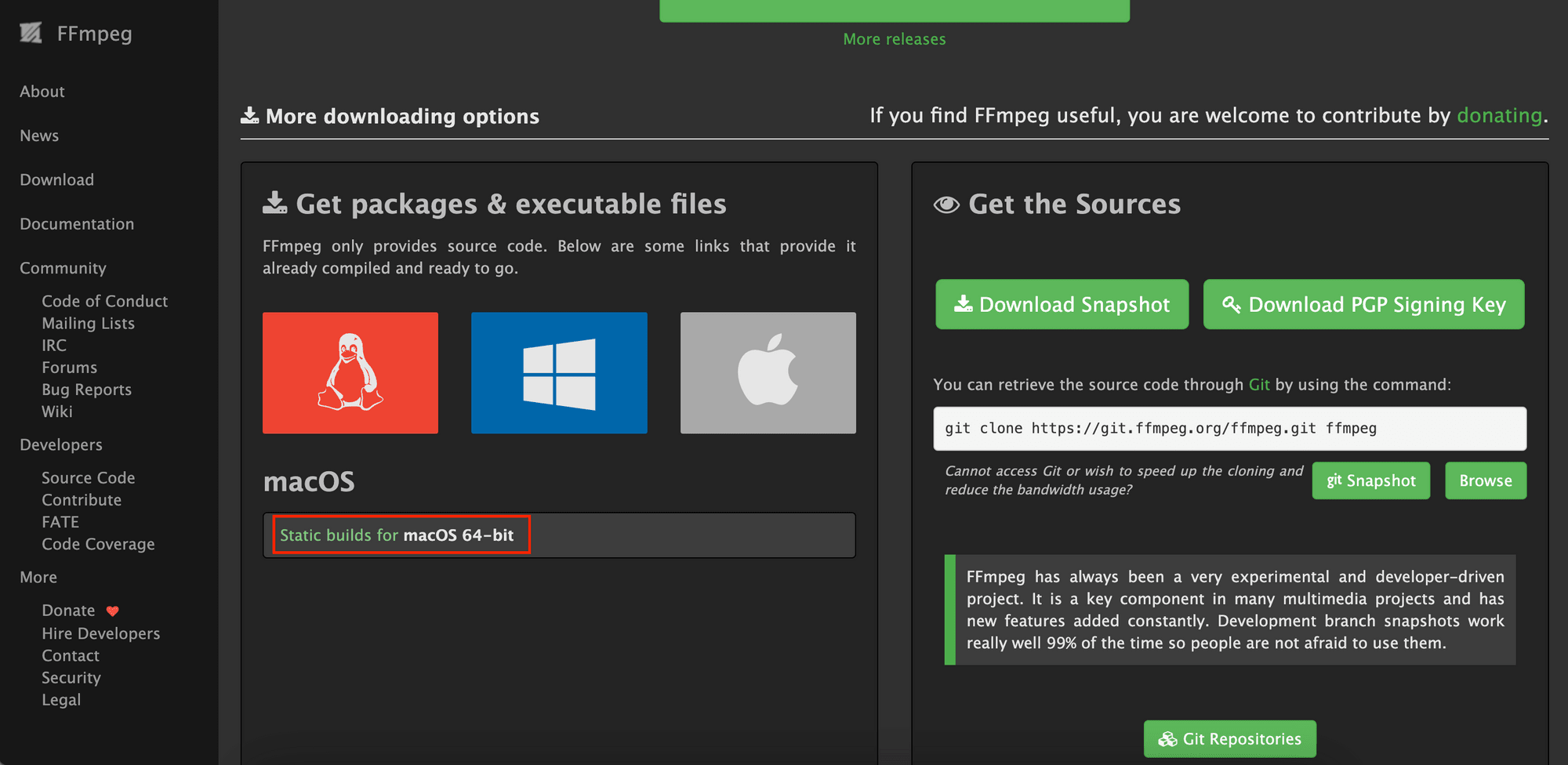
Installing FFmpeg on macOS
macOS users can leverage the Homebrew package manager, which is the de facto standard for installing command-line tools on Apple’s operating system.
Using Homebrew
If you don’t have Homebrew installed, you can install it by opening your Terminal and pasting the following command (obtained from the official Homebrew website):
/bin/bash -c "$(curl -fsSL https://raw.githubusercontent.com/Homebrew/install/HEAD/install.sh)"
-
Update Homebrew:
After installing Homebrew, it’s good practice to update it:brew update -
Install FFmpeg:
Install FFmpeg using thebrewcommand:brew install ffmpegHomebrew will download FFmpeg and its dependencies, compiling them if necessary.
-
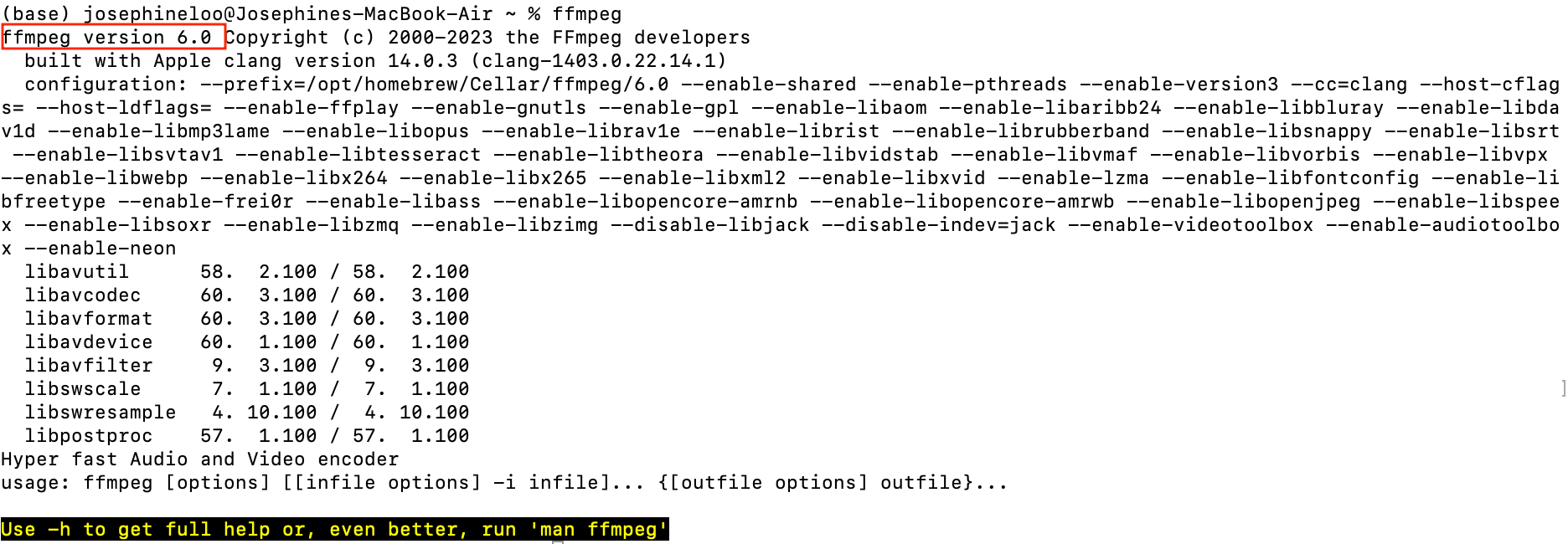
Verify Installation:
Check the installation:
bash

ffmpeg -version
Installing from Source (macOS)
Similar to Linux, installing from source on macOS is an option for advanced users. It typically involves using Xcode Command Line Tools and following a similar configure-make-make install process.
Installing FFmpeg on Windows
Installing FFmpeg on Windows requires a slightly different approach, as it’s not typically managed through a system-wide package manager in the same way as Linux or macOS.
Downloading Pre-built Binaries
The easiest and most common method for Windows is to download pre-built executables.
-
Visit the Official FFmpeg Website:
Go to the official FFmpeg download page: https://ffmpeg.org/download.html -
Choose Your Build:
Look for the Windows icon. You’ll typically find links to download pre-built Windows builds from third-party providers. It’s crucial to download from reputable sources to avoid malware. The FFmpeg website often links to reliable options. You might see options like:- Release Builds: Stable, but might not have the absolute latest features.
- Shared vs. Static Builds: Shared builds depend on external DLLs, while static builds are self-contained. Static builds are often simpler for standalone use.
Download a
releaseoressentialsbuild, preferably a static one if available and suitable for your needs. You’ll typically download a.zipor.7zarchive. -
Extract the Files:
Extract the downloaded archive to a location on your computer. A common practice is to create a folder likeC:ffmpeg. Inside this folder, you’ll find abindirectory containing theffmpeg.exeexecutable, along withffplay.exeandffprobe.exe. -
Add FFmpeg to Your System’s PATH Environment Variable:
This is the most important step to use FFmpeg from any command prompt window.- Open System Properties: Search for “Environment Variables” in the Windows search bar and select “Edit the system environment variables.”
- Click “Environment Variables…”: In the System Properties window, click the “Environment Variables…” button.
- Edit the PATH Variable: Under “System variables,” find the
Pathvariable, select it, and click “Edit…”. - Add FFmpeg’s Bin Directory: Click “New” and add the full path to your FFmpeg
bindirectory (e.g.,C:ffmpegbin). Make sure you have the correct path. - Confirm Changes: Click “OK” on all open windows to save the changes.
-
Verify Installation:
Open a new Command Prompt window (it’s important to open a new one after changing environment variables so it picks up the new PATH). Then, type:
cmd

ffmpeg -version
If everything is set up correctly, you should see the FFmpeg version information.
Using Package Managers for Windows (Less Common)
While less common than direct downloads, package managers like Chocolatey or Scoop can also be used to install FFmpeg on Windows, offering a more automated installation and update process.
-
Using Chocolatey:
If you have Chocolatey installed, open an Administrator PowerShell and run:choco install ffmpeg -
Using Scoop:
If you have Scoop installed, open a Command Prompt or PowerShell and run:
powershell

scoop install ffmpeg
These package managers will handle downloading, extracting, and often setting up the PATH for you.
Getting Started with FFmpeg: Basic Commands and Considerations
Once FFmpeg is installed, you’re ready to start exploring its capabilities. The power of FFmpeg lies in its command-line interface, which, while intimidating at first, offers unparalleled flexibility and automation.
Your First FFmpeg Command
Let’s perform a simple conversion to get your feet wet. Suppose you have a video file named input.mp4 and you want to convert it to an AVI format.
ffmpeg -i input.mp4 output.avi
ffmpeg: This invokes the FFmpeg executable.-i input.mp4: This specifies the input file.output.avi: This is the name of your desired output file. FFmpeg infers the output format from the file extension.
This command will use default encoding settings, which might not always be optimal for quality or file size.
Essential Options and Concepts
As you delve deeper, you’ll encounter numerous options to control encoding quality, codecs, bitrates, resolution, and more.
-
Codecs: These are algorithms used to compress and decompress video and audio. Common video codecs include H.264 (libx264), VP9 (libvpx-vp9), and AV1 (libsvtav1). Audio codecs include AAC, MP3, and Opus. You can specify codecs using options like
-c:v(for video codec) and-c:a(for audio codec).- Example: Convert to MP4 with H.264 video and AAC audio:
bash

ffmpeg -i input.mov -c:v libx264 -c:a aac output.mp4
- Example: Convert to MP4 with H.264 video and AAC audio:
-
Bitrate: This determines the amount of data used per second for audio and video, directly impacting quality and file size. Higher bitrates generally mean better quality but larger files.
- Example: Set a video bitrate of 2000 kbps:
bash

ffmpeg -i input.mp4 -b:v 2000k output.mp4
- Example: Set a video bitrate of 2000 kbps:
-
Resolution and Scaling: You can resize your videos using the
scalevideo filter.- Example: Resize video to 1280×720:
bash

ffmpeg -i input.mp4 -vf scale=1280:720 output_720p.mp4
- Example: Resize video to 1280×720:
FFmpeg and Digital Security
In the context of digital security, FFmpeg can be a valuable tool for forensic analysis. It can extract metadata from media files, convert obscure formats for easier examination, or even help in anonymizing video content by re-encoding it. For professionals in cybersecurity, understanding FFmpeg’s capabilities can provide a deeper insight into media manipulation and evidence handling.
FFmpeg for Productivity and Automation
For individuals and businesses aiming to boost productivity, FFmpeg is a cornerstone for automating media-related tasks. Batch processing of files, creating standardized video formats for an entire content library, or integrating video conversion into a larger software pipeline are all achievable with FFmpeg. This not only saves time but also reduces the likelihood of human error, ensuring consistent quality and adherence to brand standards.
Financial Planning for Tech Investments
While FFmpeg itself is free, effective use of multimedia processing might involve other costs. Investing in powerful hardware (CPUs, GPUs) can accelerate encoding times, which is crucial for businesses dealing with large volumes of video. Cloud computing services for large-scale processing also represent a financial consideration. Smart financial planning involves evaluating the ROI of such investments, whether it’s the direct cost savings from using FFmpeg versus proprietary software or the indirect benefits of faster content delivery for marketing campaigns. For personal finance, optimizing media storage by converting to more efficient formats can save on cloud storage costs.
Conclusion: Empowering Your Digital Workflow with FFmpeg
Installing FFmpeg is the first step towards unlocking a world of powerful multimedia manipulation. Whether you’re a developer building the next generation of media applications, a content creator striving for professional quality, or a business looking to optimize its digital presence, FFmpeg offers an indispensable set of tools. By mastering its installation and understanding its basic commands, you equip yourself with a technology that is fundamental to the digital landscape.
From enhancing your personal brand through polished video content to driving operational efficiencies and cost savings within a corporate structure, FFmpeg’s impact is far-reaching. Its integration with AI tools continues to expand its possibilities, making it a relevant and essential skill for years to come. Take the time to install it, experiment with its commands, and discover how this open-source powerhouse can transform your digital workflow and contribute to your overall success in the ever-evolving tech, brand, and financial ecosystems.
aViewFromTheCave is a participant in the Amazon Services LLC Associates Program, an affiliate advertising program designed to provide a means for sites to earn advertising fees by advertising and linking to Amazon.com. Amazon, the Amazon logo, AmazonSupply, and the AmazonSupply logo are trademarks of Amazon.com, Inc. or its affiliates. As an Amazon Associate we earn affiliate commissions from qualifying purchases.