
The iPhone, a device synonymous with seamless integration of hardware and software, truly comes alive through its applications. From enhancing productivity and fostering creativity to providing endless entertainment and facilitating communication, apps are the lifeblood of the iOS experience. For new iPhone users or those looking to deepen their understanding of Apple’s ecosystem, mastering the art of installing and managing apps is fundamental. This comprehensive guide will walk you through the entire process, from finding and downloading your first app to managing your digital library efficiently, ensuring you harness the full potential of your device within Apple’s secure and user-friendly framework.
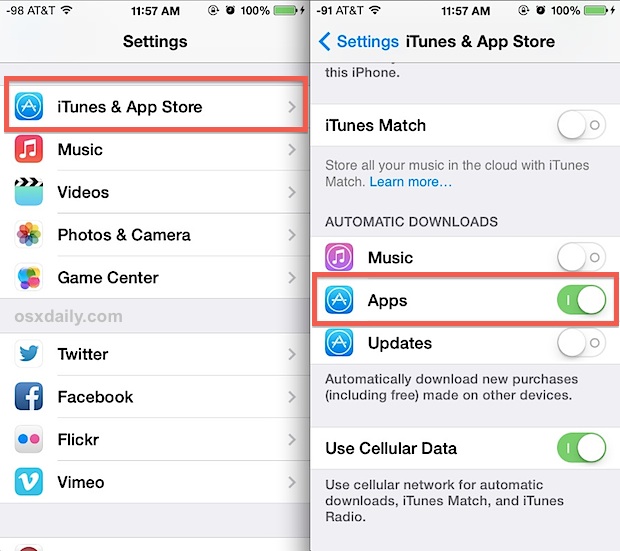
The iPhone App Ecosystem: Your Gateway to Digital Utility
At the heart of the iPhone’s application universe lies the App Store – a curated digital marketplace launched by Apple in 2008. More than just a download portal, the App Store represents a cornerstone of Apple’s technology strategy, emphasizing quality, security, and a consistent user experience. Every app available here undergoes a rigorous review process by Apple to ensure it meets strict guidelines for performance, privacy, and content. This meticulous vetting process provides users with a reliable and safe environment, significantly reducing the risk of encountering malware or poorly designed software that might compromise their device or data.
The App Store itself is a testament to the “Tech” aspect of digital innovation, constantly evolving with new features, discovery tools, and categories. It’s where cutting-edge software and AI tools often make their debut, offering users access to the latest advancements. Whether you’re seeking a robust photo editor, an innovative productivity suite, a new social media platform, or a game to pass the time, the App Store is designed to make discovery intuitive and rewarding. Understanding its role and how to navigate it is the first step towards transforming your iPhone into a powerful, personalized tool. It’s not just about installing an app; it’s about tapping into a vast network of digital utility that empowers users in their daily lives, for work, leisure, or learning.
Step-by-Step Guide to Installing Apps from the App Store
Installing apps on your iPhone is generally a straightforward process, thanks to Apple’s intuitive design. However, knowing the nuances can enhance your experience and ensure you make the most of the App Store’s features.
Opening the App Store and Navigation
To begin your app journey, you first need to locate and open the App Store application on your iPhone. It’s typically represented by a blue icon featuring a white “A” logo, often found on your Home Screen or within a folder like “Utilities.”
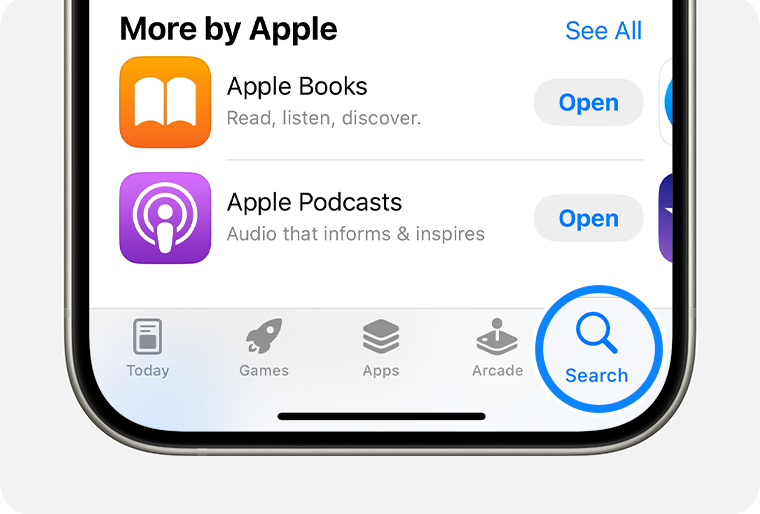
Upon opening the App Store, you’ll be greeted by its main interface, which is designed for easy discovery and navigation:
- Today: This tab offers a daily dose of stories, interviews, and curated lists featuring new and noteworthy apps, often highlighting developers or specific trends. It’s a great place to discover hidden gems.
- Games: As the name suggests, this tab is dedicated entirely to games, categorized for easy browsing of different genres.
- Apps: This tab focuses on non-gaming applications, similarly organized into categories like social networking, utilities, lifestyle, and more.
- Arcade: This tab is for Apple Arcade subscribers, offering exclusive access to a library of premium games without ads or in-app purchases.
- Search: Crucially, the magnifying glass icon at the bottom right allows you to directly search for specific apps, developers, or keywords. This will be your primary tool for finding what you need.
Familiarizing yourself with these tabs will allow you to either browse for inspiration or pinpoint exactly what you’re looking for.
Finding Your Desired App
Once you’re in the App Store, there are several effective ways to locate the app you wish to install:
- Using the Search Bar: This is the most direct method. Tap the “Search” tab at the bottom, then tap the search bar at the top of the screen. Type in the name of the app (e.g., “WhatsApp,” “Microsoft Word”), a relevant keyword (e.g., “to-do list,” “photo editor”), or even a developer’s name (e.g., “Google,” “Adobe”). The App Store’s search algorithm is quite intelligent and will often suggest relevant apps as you type.
- Exploring Categories and Curated Lists: If you’re unsure what you need or just want to browse, the “Games” and “Apps” tabs offer categorized browsing. You can filter by genre, popularity, editor’s choice, and more. The “Today” tab is also excellent for discovering new apps through editorial features.
- Top Charts: Both the “Games” and “Apps” sections usually feature “Top Free” and “Top Paid” charts, which can be useful for seeing what’s popular among other users.
Once you find an app that interests you, tap on its icon to view its product page. This page provides essential information: a description, screenshots, user reviews and ratings, app size, compatibility requirements, privacy details, and any in-app purchases or subscriptions it may offer. Always review these details to ensure the app meets your expectations and privacy comfort level.
Downloading Free Apps
Many excellent applications on the App Store are available for free. The process for installing them is quick and easy:
- Locate the “GET” button: On the app’s product page, for free apps, you’ll see a button labeled “GET” next to the app icon. Tap this button.
- Authenticate Your Download: For security purposes and to confirm your intent, your iPhone will prompt you to authenticate the download. This typically involves:
- Face ID: If your iPhone has Face ID, simply double-click the side button, then look at your phone.
- Touch ID: If your iPhone has Touch ID, place your finger on the Home button.
- Passcode: If neither Face ID nor Touch ID is set up for App Store purchases, or if they fail, you’ll be prompted to enter your Apple ID passcode.
- Note: The very first time you download an app, or if you’ve recently changed your Apple ID settings, you might be asked to sign in with your Apple ID password.
- Installation Begins: Once authenticated, the “GET” button will change to a circular progress indicator. The app will begin to download and install on your device. Its icon will appear on your Home Screen, initially grayed out with a progress bar. Once the installation is complete, the icon will become fully colored, and you can tap it to open the app. The app may also appear in your App Library automatically if your settings are configured that way.
Purchasing Paid Apps
While a vast selection of apps is free, some premium applications require a one-time purchase. These often offer advanced features, an ad-free experience, or higher quality that justifies the cost.
- Identify the Price: For paid apps, instead of a “GET” button, you’ll see a button displaying the app’s price (e.g., “$4.99”). Tap this price button.
- Confirm Purchase: The button will briefly change to “BUY” (or “Install” for a moment, then back to the price, depending on iOS version). Tap it again.
- Payment Method and Authentication: Your iPhone will then prompt you to authenticate the purchase using Face ID, Touch ID, or your Apple ID passcode, similar to downloading free apps. Before confirming, it will usually display the payment method linked to your Apple ID (e.g., credit card, Apple Pay balance). Ensure your payment information is up-to-date in your Apple ID settings.
- Managing Your Money: This aspect ties into the “Money” theme of our website. It’s crucial to manage your payment methods tied to your Apple ID. You can review and update these in
Settings > [Your Name] > Media & Purchases > View Account > Manage Payments. Be mindful of your spending, especially with recurring subscriptions or frequent paid app purchases.
- Managing Your Money: This aspect ties into the “Money” theme of our website. It’s crucial to manage your payment methods tied to your Apple ID. You can review and update these in
- Download and Installation: Once the purchase is authenticated and successful, the app will begin to download and install, just like a free app. The price button will then change to “OPEN,” indicating it’s ready to use.
Important Note on In-App Purchases (IAPs) and Subscriptions: Many “free” apps operate on a freemium model, offering basic functionality for free but requiring in-app purchases or subscriptions to unlock premium features, content, or to remove ads. Always read the app description and “In-App Purchases” section on the product page to understand if additional costs are involved beyond the initial download. Subscriptions, in particular, are recurring charges, and it’s important to manage these proactively via Settings > [Your Name] > Subscriptions to avoid unwanted expenses.
Managing Your Apps: Updates, Offloading, and Organization
Installing apps is only half the battle; effective app management ensures your iPhone remains fast, secure, and tailored to your needs. This involves keeping apps current, optimizing storage, and organizing your Home Screen.
Keeping Apps Up-to-Date for Performance and Security
App developers frequently release updates to introduce new features, improve performance, fix bugs, and, critically, patch security vulnerabilities. Running outdated software can expose your device to risks and hinder functionality.
- Automatic Updates: The easiest way to stay current is to enable automatic app updates. Go to
Settings > App Storeand toggle on “App Updates.” Your iPhone will then download and install updates in the background when connected to Wi-Fi. - Manual Updates: If you prefer manual control or need to update an app immediately, open the App Store, tap your profile picture in the top right corner. Scroll down to see “Upcoming Automatic Updates” or “Available Updates.” Tap “Update All” or “Update” next to individual apps.
Regular updates are a key aspect of “Digital Security” and “Productivity,” ensuring your apps run optimally and are protected against emerging threats.
Optimizing Storage with Offloading
iPhones, especially models with smaller storage capacities, can quickly fill up with apps, photos, and videos. iOS offers a smart solution called “Offload Unused Apps” to reclaim space without losing app data.
- What is Offloading? When you offload an app, the app itself is deleted from your device, but its documents and data are retained. This means if you reinstall the app later, all your saved information (like game progress or settings) will be restored.
- How to Offload Apps:
- Go to
Settings > General > iPhone Storage. - Scroll down to see a list of your apps, sorted by the space they consume.
- Tap on an app you wish to offload.
- Select “Offload App.” You’ll see the option “Delete App” below it; choose “Offload App” to save your data.
- Alternatively, you can enable “Offload Unused Apps” in the “iPhone Storage” settings, and iOS will automatically offload apps you haven’t used in a while when storage runs low.
- Go to
- Reinstalling Offloaded Apps: An offloaded app’s icon will still appear on your Home Screen, but with a small cloud icon next to its name. Tap the icon, and your iPhone will automatically redownload the app from the App Store and restore your data.
Offloading is a fantastic “Productivity” tip, allowing you to manage your device’s resources efficiently without permanently deleting valuable data.
Organizing Your Digital Workspace
A cluttered Home Screen can be as distracting as a messy desk. Organizing your apps makes them easier to find and improves your overall iPhone experience.
- Folders: To create a folder, simply drag one app icon on top of another. Your iPhone will suggest a category name, which you can change. You can then drag more apps into this folder.
- Rearranging Apps: Press and hold an app icon until all icons begin to jiggle. You can then drag apps around your Home Screens or into folders. To exit jiggle mode, tap “Done” in the top right corner or press the Home button (on older iPhones).
- App Library: Introduced in iOS 14, the App Library is a new way to organize apps automatically into categories on the very last Home Screen page. You can choose to have newly downloaded apps go directly to the App Library instead of your Home Screen in
Settings > Home Screen. This keeps your primary Home Screens clean. - Deleting Apps: To permanently remove an app and all its associated data from your iPhone:
- Press and hold the app icon until it jiggles.
- Tap the “—” (minus) icon in the top left corner of the app icon.
- Select “Delete App” from the options that appear. Confirm your choice.
- Note: Deleting a paid app does not entitle you to a refund, nor does it prevent you from re-downloading it later for free (as you’ve already purchased it).
Effective organization is key to digital productivity, making your iPhone a more pleasant and efficient tool to use.
Beyond the App Store: Exploring Alternatives and Considerations
While the App Store is the primary and most secure channel for installing apps, it’s worth briefly touching upon alternative methods and important security considerations for a complete understanding of the iPhone’s app landscape.
Enterprise and Developer Apps
For most users, the App Store is the only source needed. However, certain scenarios allow for apps to be installed outside of it:
- Enterprise Apps: Businesses can deploy custom apps to their employees using Mobile Device Management (MDM) solutions. These apps are signed with an enterprise developer certificate and are intended for internal use only.
- Developer Sideloading and TestFlight: Developers often install apps directly onto their own devices or distribute beta versions to testers via Apple’s TestFlight app. These methods are for specific development and testing purposes and are not part of the standard user experience.
It’s crucial to emphasize that installing apps from unknown sources or through unofficial channels carries significant security risks and is generally not recommended for the average user. Such practices can bypass Apple’s security checks, potentially exposing your device to malware or privacy breaches.
Security and Privacy Considerations
The App Store’s review process inherently provides a high level of “Digital Security,” but users still have a role to play in protecting their privacy:
- App Tracking Transparency (ATT): Introduced in iOS 14.5, ATT requires apps to ask for your permission before tracking your activity across other companies’ apps and websites. Always review these prompts carefully and make informed decisions.
- Reviewing App Permissions: When you first use an app, it will often ask for various permissions (e.g., access to your camera, microphone, location, contacts). Think critically about whether the app truly needs these permissions to function. You can review and adjust app permissions at any time in
Settings > Privacy & Security. - Reputable Sources: Stick to the official App Store for your app downloads. This significantly reduces your exposure to malicious software and ensures you’re getting legitimate versions of apps.
Understanding these security and privacy aspects empowers you to make smarter choices about the apps you install and how they interact with your personal data, reinforcing the “Digital Security” pillar of effective tech usage.

Conclusion: Maximizing Your iPhone Experience Through Smart App Management
The iPhone’s capability is directly tied to the rich ecosystem of apps available at your fingertips. From the initial thrill of discovering a new utility or game to the ongoing process of managing your digital life, the App Store provides a secure, reliable, and user-friendly platform. By following the straightforward steps outlined in this guide – from navigating the App Store and making informed download choices to diligently updating, offloading, and organizing your applications – you can unlock the full potential of your iPhone.
Embrace the continuous innovation in “Technology Trends,” whether it’s through AI tools, productivity apps, or new forms of digital entertainment. Remember to always prioritize “Digital Security” by leveraging Apple’s built-in protections and being mindful of app permissions. Thoughtful app management is not just about keeping your device running smoothly; it’s about curating a personalized digital experience that enhances your “Productivity,” enriches your daily life, and keeps you connected to the world’s most innovative software. Your iPhone is a powerful tool; with smart app choices, you are the architect of its utility.
aViewFromTheCave is a participant in the Amazon Services LLC Associates Program, an affiliate advertising program designed to provide a means for sites to earn advertising fees by advertising and linking to Amazon.com. Amazon, the Amazon logo, AmazonSupply, and the AmazonSupply logo are trademarks of Amazon.com, Inc. or its affiliates. As an Amazon Associate we earn affiliate commissions from qualifying purchases.