
In today’s hyper-connected world, a stable and reliable Wi-Fi connection is no longer a luxury; it’s a fundamental necessity for work, communication, entertainment, and even basic day-to-day tasks. Whether you’re a student needing to access online lectures, a professional relying on video conferencing, a gamer seeking uninterrupted gameplay, or simply someone wanting to stream your favorite shows, a functioning Wi-Fi connection is paramount. However, there are times when this essential link to the digital realm can falter, and often, the culprit is a missing or corrupted Wi-Fi driver.
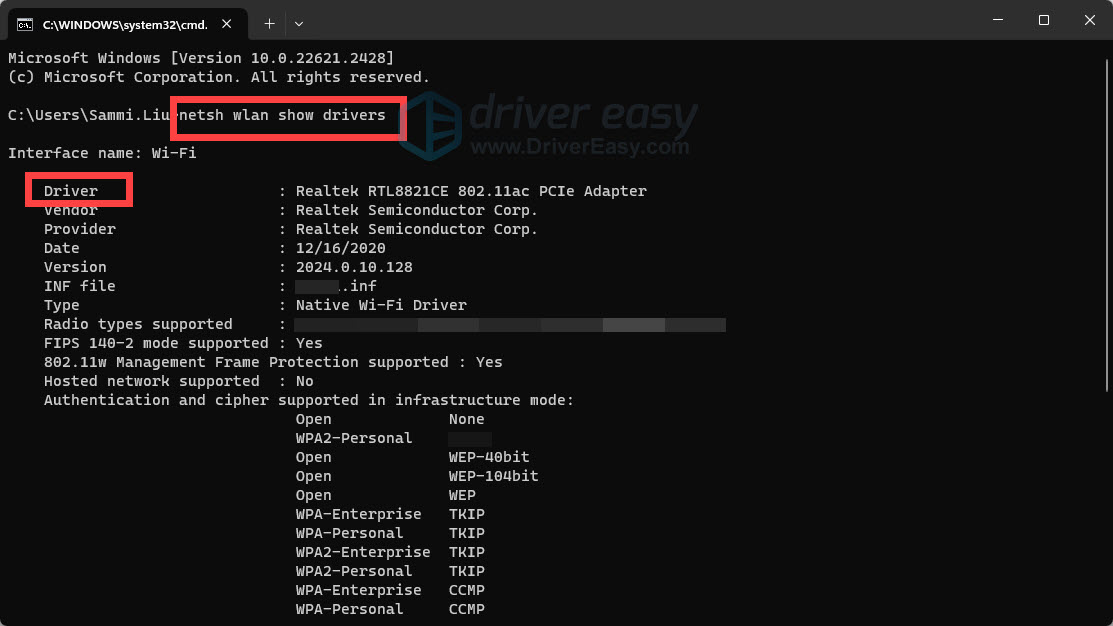
Drivers are essentially the translators between your operating system and your hardware. They are small pieces of software that enable your computer to communicate with and control specific hardware components, like your Wi-Fi card. Without the correct driver, your Wi-Fi adapter might not be recognized by your system, rendering your wireless networking capabilities useless. This guide will walk you through the process of identifying, obtaining, and installing Wi-Fi drivers, empowering you to troubleshoot and resolve connectivity issues effectively. We will cover various scenarios, from the most common automatic updates to manual installations when necessary, ensuring you can get back online swiftly and efficiently.
Understanding the Importance of Wi-Fi Drivers
Before diving into the installation process, it’s crucial to understand why these drivers are so important. Think of your Wi-Fi card as a specialized piece of equipment. Your operating system, be it Windows, macOS, or Linux, speaks a general language. The Wi-Fi driver acts as a universal adapter, translating the general commands of the OS into specific instructions that your particular Wi-Fi hardware can understand and execute.
The Role of Drivers in Hardware Communication
Every piece of hardware connected to your computer, from your graphics card to your mouse, requires a driver to function. For Wi-Fi, the driver is the bridge that allows your computer to:
- Scan for available networks: The driver enables your Wi-Fi adapter to broadcast its presence and actively search for nearby Wi-Fi signals.
- Connect to a network: Once a network is identified, the driver handles the authentication process, sending your network name (SSID) and password to the router for access.
- Transmit and receive data: The driver manages the flow of data packets between your computer and the router, ensuring that information can be sent and received efficiently and without errors.
- Manage power settings: Drivers also play a role in how your Wi-Fi adapter consumes power, optimizing it for performance or battery life.
- Provide diagnostic information: When issues arise, the driver can often provide error codes or status messages that help pinpoint the problem.
Common Scenarios Requiring Driver Installation or Updates
Several situations can lead to Wi-Fi driver issues:
- New Hardware Installation: When you install a new Wi-Fi adapter, either internally or as a USB dongle, your operating system won’t automatically know how to use it without the correct driver.
- Operating System Updates: Major Windows, macOS, or Linux updates can sometimes introduce compatibility issues with existing drivers. In such cases, an updated driver might be necessary to ensure continued functionality.
- Driver Corruption or Damage: Like any software, drivers can become corrupted due to disk errors, malware, or abrupt system shutdowns. This can lead to intermittent connectivity or complete failure.
- Performance Issues: An outdated or poorly optimized driver can negatively impact your Wi-Fi speed and stability. Updating to the latest version can often resolve these performance bottlenecks.
- Troubleshooting Connectivity Problems: When your Wi-Fi isn’t working, and you’ve exhausted other basic troubleshooting steps (like restarting your router), a driver issue is a prime suspect.
Identifying Your Wi-Fi Adapter and Its Driver Status
The first step in resolving a Wi-Fi driver problem is to identify your specific Wi-Fi adapter and check the status of its driver. This information is crucial for finding the correct replacement driver if needed.
Using Device Manager (Windows)
For Windows users, the Device Manager is your go-to tool for managing hardware and drivers.
- Open Device Manager: You can do this by pressing
Windows Key + Xand selecting “Device Manager” from the power user menu, or by typing “Device Manager” into the Windows search bar. - Locate Network Adapters: In the Device Manager window, expand the “Network adapters” category.
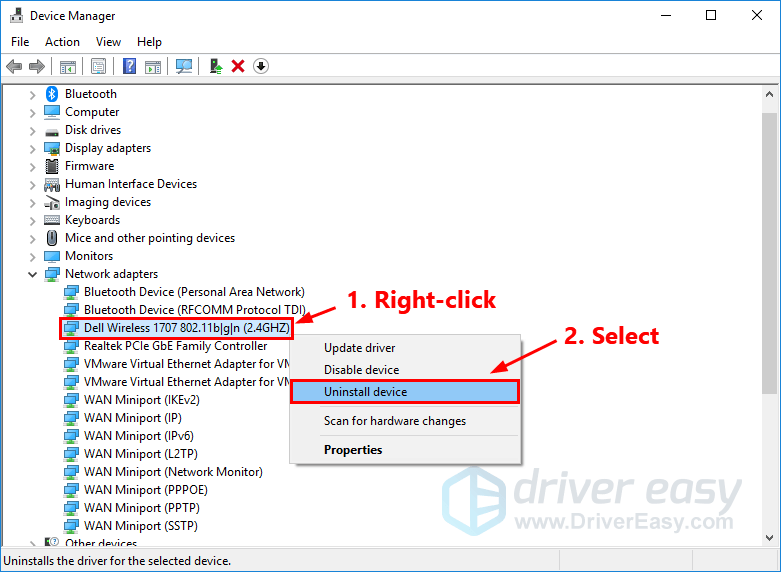
- Identify Your Wi-Fi Adapter: Look for an entry that clearly indicates a wireless or Wi-Fi adapter. It might have names like “Intel(R) Dual Band Wireless,” “Realtek PCIe GbE Family Controller” (though this is usually Ethernet, some might have Wi-Fi capabilities), or a generic “Wireless Network Adapter.”
- Check for Errors: If your Wi-Fi adapter has a problem, you’ll usually see a yellow exclamation mark next to its name, or it might be listed under “Other devices” with a question mark. Right-clicking on the adapter and selecting “Properties” will provide more detailed error information under the “General” tab.
Using System Information (macOS)
macOS users can access hardware information through the System Information utility.
- Open System Information: Click the Apple menu in the top-left corner of your screen, hold down the
Optionkey, and select “System Information.” - Navigate to Network: In the left-hand sidebar, under the “Hardware” section, click on “Network.”
- Select Wi-Fi: In the “Network” section, choose “Wi-Fi” from the list of interfaces.
- Review Adapter Information: On the right side, you’ll see details about your Wi-Fi hardware, including its model and the driver version in use. While macOS generally manages drivers automatically, this information is useful for advanced troubleshooting.
Linux Command Line Tools
For Linux users, several command-line tools can provide detailed hardware and driver information.
-
lspci: This command lists all PCI devices. To filter for network controllers, you can use:lspci | grep -i networkThis will output information about your wireless card, including its vendor and model.
-
lshw: This provides a more comprehensive hardware listing. To see network-related information, run:sudo lshw -class networkLook for the “wireless” interface.
-
dmesg: This command displays the kernel ring buffer messages, which often include information about hardware detection and driver loading.
bash

dmesg | grep -i wifi
Methods for Installing and Updating Wi-Fi Drivers
Once you’ve identified your Wi-Fi adapter and confirmed a driver issue, you can proceed with installation or updates. There are several approaches, ranging from fully automated to manual methods.
Automatic Driver Updates (The Easiest Method)
For most users, especially on Windows and macOS, the operating system will attempt to automatically detect and install the correct drivers.
Windows Update
Windows Update is designed to download and install drivers for detected hardware.
- Open Windows Update: Go to
Settings > Update & Security > Windows Update. - Check for Updates: Click “Check for updates.” Windows will scan for available updates, including driver updates.
- Optional Updates: Sometimes, driver updates are listed under “Optional updates.” Click on “View optional updates” and look for any driver updates related to your network adapter. Select them and click “Download and install.”
macOS Software Update
macOS handles driver updates as part of its system-wide software updates.
- Open System Preferences: Click the Apple menu and select “System Preferences.”
- Go to Software Update: Click on “Software Update.”
- Install Updates: If an update is available, it will be listed. Click “Update Now” or “Upgrade Now.” macOS will download and install all necessary system and driver updates.
Manual Driver Installation
When automatic updates fail, or you need a specific version, manual installation is necessary. This usually involves downloading the driver from the manufacturer’s website.
Obtaining the Correct Driver
The most reliable source for drivers is the manufacturer of your Wi-Fi adapter or your computer’s manufacturer.
- Identify the Wi-Fi Adapter Manufacturer: Refer to the information gathered from Device Manager (Windows), System Information (macOS), or command-line tools (Linux). Common Wi-Fi chip manufacturers include Intel, Realtek, Broadcom, Atheros, and Qualcomm.
- Identify the Model Number: Look for the specific model number of your Wi-Fi card.
- Visit the Manufacturer’s Website:
- For Computer Manufacturers (Dell, HP, Lenovo, Apple, etc.): Go to their support or downloads section. Enter your computer’s model or service tag to find drivers specific to your system. This is often the safest route as these drivers are tested for compatibility with your specific hardware configuration.
- For Wi-Fi Adapter Manufacturers (Intel, Realtek, etc.): Navigate to their driver download pages. You may need to search for your specific Wi-Fi chip model or series.
- Download the Correct Driver: Ensure you download the driver that matches your operating system (e.g., Windows 10 64-bit, macOS Monterey) and architecture (32-bit or 64-bit). Drivers are typically downloaded as executable files (.exe for Windows) or compressed archives (.zip, .tar.gz).
Installing Drivers on Windows
Once you have downloaded the driver file:
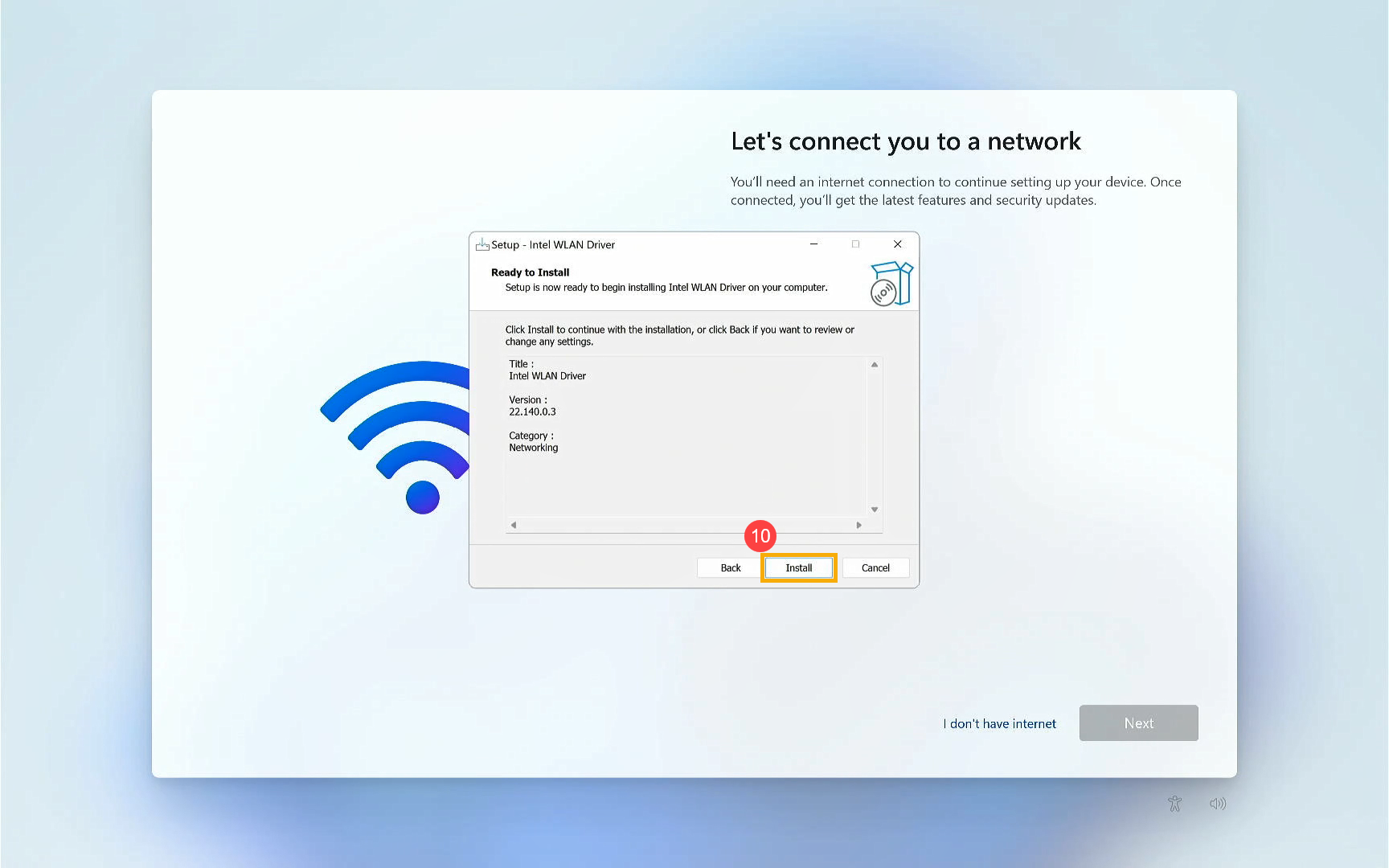
- Run the Installer: If you downloaded an executable file (.exe), double-click it and follow the on-screen instructions. The installer will guide you through the process of installing the driver.
- Manual Installation via Device Manager: If the executable installer doesn’t work or you downloaded a compressed file containing driver files (.inf, .sys, .cat):
- Open Device Manager.
- Right-click on your Wi-Fi adapter (the one with the error).
- Select “Update driver.”
- Choose “Browse my computer for drivers.”
- Click “Let me pick from a list of available drivers on my computer” if you want to select a specific driver, or “Browse…” to point to the folder where you extracted the driver files (specifically look for the .inf file).
- Follow the prompts to complete the installation.
Installing Drivers on macOS
macOS generally handles driver installation automatically. If you suspect a driver issue with third-party Wi-Fi hardware, you might need to check the manufacturer’s website for specific macOS drivers or compatibility information. Some advanced users might compile drivers from source code on Linux, but this is rarely needed for Wi-Fi on macOS.
Installing Drivers on Linux
Linux distributions often have a vast repository of open-source drivers.
- Check for Proprietary Drivers: Many distributions offer a tool to check for and install proprietary drivers. For example, in Ubuntu, you can go to
Software & Updates > Additional Drivers. - Manual Compilation (Advanced): If no driver is available or a specific proprietary driver is needed, you may need to download the driver source code from the manufacturer or a community project and compile it yourself. This typically involves using tools like
makeandgcc. The exact steps vary significantly depending on the driver and distribution. Online resources and forums dedicated to your specific Linux distribution are invaluable for this process.
Troubleshooting Common Wi-Fi Driver Issues
Even with the correct driver installed, you might encounter issues. Here are some common problems and their solutions.
Wi-Fi Adapter Not Recognized
- Windows: If your Wi-Fi adapter isn’t showing up in Device Manager at all (even under “Other devices”), ensure it’s properly seated if it’s an internal card or a USB dongle. Try a different USB port. If it’s an internal card, you might need to physically reseat it.
- BIOS/UEFI Settings: In rare cases, the Wi-Fi adapter might be disabled in your computer’s BIOS/UEFI settings. Reboot your computer and enter the BIOS/UEFI setup (usually by pressing F2, F10, Del, or Esc during boot). Look for options related to “Onboard Devices” or “Wireless” and ensure it’s enabled.
Wi-Fi Connection is Slow or Unstable
- Update Driver: This is the first step. Newer drivers often include performance optimizations and bug fixes.
- Check for Interference: Other electronic devices (microwaves, Bluetooth devices, cordless phones) can interfere with Wi-Fi signals.
- Router Issues: Restart your router and modem. Ensure your router’s firmware is up to date.
- Network Adapter Settings: In Windows Device Manager, right-click your Wi-Fi adapter, select “Properties,” and go to the “Advanced” tab. Experiment with settings like “Wireless Mode” (ensure it’s compatible with your router’s standard, e.g., 802.11ac) or “Power Management” (ensure it’s not aggressively saving power, which can cause drops).
“Wi-Fi Adapter Not Found” or “No Wi-Fi Available” Errors
- Reinstall Driver: Uninstall the current Wi-Fi driver from Device Manager (checking the box to delete the driver software if prompted), then restart your computer. Windows will attempt to reinstall it automatically. If not, perform a manual installation as described above.
- Check Network Troubleshooter (Windows): Windows has a built-in troubleshooter that can often diagnose and fix common network problems, including driver-related issues. Go to
Settings > Network & Internet > Status, and under “Network troubleshooter,” click “Network troubleshooter.”
Conclusion
A properly installed and up-to-date Wi-Fi driver is the cornerstone of reliable wireless connectivity. While modern operating systems have made driver management increasingly seamless, understanding the underlying processes and knowing how to manually intervene is an invaluable skill for any tech-savvy individual. By following the steps outlined in this guide – identifying your hardware, obtaining the correct drivers from reputable sources, and employing the appropriate installation methods – you can effectively resolve Wi-Fi connectivity issues and ensure your digital life remains uninterrupted. Remember that driver updates are not just about fixing problems; they can also enhance performance and security, keeping your system running smoothly and efficiently. Should you encounter persistent issues, don’t hesitate to consult the support resources provided by your hardware manufacturers or your operating system vendor.
aViewFromTheCave is a participant in the Amazon Services LLC Associates Program, an affiliate advertising program designed to provide a means for sites to earn advertising fees by advertising and linking to Amazon.com. Amazon, the Amazon logo, AmazonSupply, and the AmazonSupply logo are trademarks of Amazon.com, Inc. or its affiliates. As an Amazon Associate we earn affiliate commissions from qualifying purchases.