
Terraria has evolved from a simple 2D sandbox game into a cultural phenomenon within the gaming community, largely due to its robust ecosystem of user-generated content. For many enthusiasts, the base game—often referred to as “Vanilla”—is merely the foundation. The real depth lies in the modification (modding) layer, which allows users to introduce new mechanics, biomes, bosses, and quality-of-life improvements. From a technical standpoint, installing Terraria mods has transitioned from a complex process of manual file overwriting to a streamlined, API-driven experience. This guide provides a comprehensive technical breakdown of how to install and manage Terraria mods using modern tools and frameworks.
Understanding the Technical Framework: tModLoader
Before diving into the installation process, it is essential to understand the software that makes modding possible. Unlike some games that have native mod support built into the executable, Terraria requires a dedicated modding API (Application Programming Interface).
What is tModLoader?
tModLoader (TML) is the definitive open-source modding API for Terraria. It functions as a bridge between the game’s core engine and the custom code written by modders. Technically, TML is a modified version of the Terraria executable that provides a platform for loading mods without requiring players to decompile or manually edit the game’s source code. In recent years, it has become so integral to the ecosystem that Re-Logic, the developers of Terraria, officially recognized it as a free DLC on the Steam platform.
Steam Integration vs. Standalone Installation
The architectural shift of tModLoader to the Steam Store significantly simplified the user experience. Previously, users had to manually inject files into the game directory, which often led to versioning conflicts and file corruption. Now, the Steam version of tModLoader functions as a separate installation. This technical separation ensures that your original “Vanilla” files remain untouched, allowing for a dual-boot style setup where a player can launch the modded or unmodded version of the game independently.
Step-by-Step Installation Protocols
The methodology for installing mods depends largely on the storefront from which the game was purchased. While Steam is the most popular, GOG users also have a clear technical path to modding.
Automating with the Steam Workshop
The integration of the Steam Workshop has revolutionized how assets are distributed. To install mods via Steam, follow these technical steps:
- Locate tModLoader on Steam: Search for “tModLoader” in the Steam store. It is listed as a separate, free entity.
- Initialization: Once installed, launch tModLoader. The software will automatically create the necessary directory structures in your
Documents/My Games/Terraria/tModLoaderfolder. - Workshop Subscription: Navigate to the Steam Workshop page for tModLoader. When you “Subscribe” to a mod, Steam’s content delivery network (CDN) downloads the mod files and places them in the appropriate workshop folder.
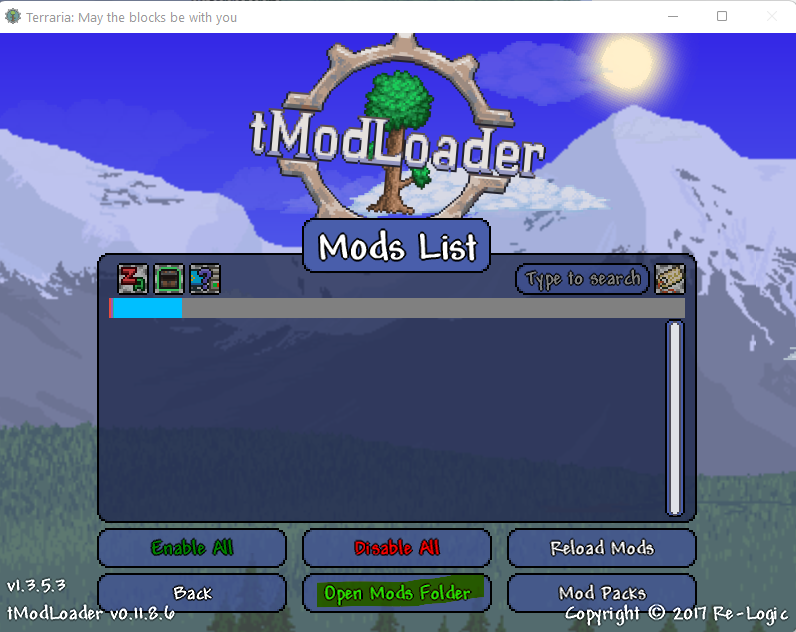
- Activation: Inside the tModLoader menu, navigate to “Manage Mods.” Here, the software recognizes the downloaded
.tmodfiles. You must toggle them to “Enabled” and click “Reload Mods” to compile the active mod list into the current game session.
Manual Installation for GOG and Legacy Versions
For users who prefer a DRM-free experience or are using versions outside of Steam, manual installation is required. This involves interacting directly with the file system:
- Download the TML Distribution: Fetch the latest release from the official tModLoader GitHub repository.
- Directory Mapping: Extract the files into your Terraria installation folder. On Windows, this is typically found in
C:GOG GamesTerraria. - File Overlap: You will be prompted to replace existing files. This is because the TML executable must replace the standard
Terraria.exelogic to hook into the modding API. - Manual Mod Placement: Since you lack the Steam Workshop, you must manually place
.tmodfiles into theModsfolder located within the local application data or the “My Games” directory.
Navigating the In-Game Mod Browser and External Repositories

Once the API is installed, sourcing the right software extensions is the next phase. There are two primary ways to discover and download mods within the technical ecosystem.
Using the Integrated Mod Browser
tModLoader includes a built-in “Mod Browser” that acts as a front-end for a massive database of community-created content. This browser allows users to search by popularity, version compatibility, and update recency.
- Version Checking: The browser automatically checks the mod’s version against your TML version. If a mod is “Outdated,” the software will flag it, preventing potential crashes caused by API mismatches.
- Dependency Management: Many large-scale mods, such as “Calamity” or “Thorium,” require support mods or “Lib” (Library) files. The integrated browser often detects these dependencies and prompts the user to download the necessary prerequisites, ensuring the software stack remains stable.
Sourcing Mods from GitHub and Forums
For experimental builds or niche tools, users may need to look beyond the automated browser.
- GitHub Repositories: Many high-level modders host their source code on GitHub. This is ideal for users who want to test “Alpha” versions or contribute to the code. Users download the
.tmodfile from the “Releases” section and manually move it to theModsdirectory. - The Terraria Community Forums: This remains a hub for documentation. Technical changelogs, compatibility patches, and “mod packs” (curated lists of mods designed to work together) are frequently found here, offering a more curated experience than the raw search results of the Workshop.
Optimizing Performance and Troubleshooting Common Technical Issues
Modding essentially adds additional layers of code to a game engine that was not originally designed for such extensibility. As such, hardware optimization and software troubleshooting are critical for a smooth experience.
Memory Management and 64-bit Transitions
Historically, Terraria was a 32-bit application, which limited it to using only 4GB of RAM. This was a significant bottleneck for “Mega-modded” playthroughs that required high memory overhead for thousands of new sprites and sound assets.
- The 64-bit Advantage: Modern tModLoader builds (specifically version 1.4 and later) are 64-bit by default. This allows the game to access more of your system’s RAM, significantly reducing “Out of Memory” (OOM) crashes.
- Heap Allocation: If you experience stuttering, you may need to check your system’s heap allocation. In the tech world, this refers to how the software requests memory. Closing background applications and ensuring your
pagefile.sysis managed by the OS can help maintain high performance during intense modded boss fights.
Resolving Mod Conflicts and Versioning Errors
When two mods attempt to modify the same “Hook” (a specific point in the game’s code), a conflict occurs.
- Logging: If your game crashes, tModLoader generates a
client-crashlog.txt. This log is an invaluable technical resource. By reading the stack trace, you can identify which specific mod caused the “NullReferenceException” or “IndexOutOfRangeException.” - Load Order: While TML handles most load orders automatically, some mods must load before others to properly inject their data. Users can manually adjust priorities in the mod list to resolve initialization errors.
Security Best Practices for Modding Your Software
Modding involves running third-party code on your machine. While the Terraria community is generally safe, practicing digital hygiene is paramount when modifying any software.
Identifying Verified Mod Authors
When using the Steam Workshop or the Mod Browser, look for high download counts and active community ratings. These serve as a “crowdsourced” verification system. Mods with thousands of active users are less likely to contain malicious code or game-breaking bugs. Furthermore, many prominent mods are open-source, meaning their code is transparent and subject to peer review on platforms like GitHub.
Managing Backups and Data Integrity
The most critical rule in software modification is data redundancy.
- Character and World Backups: Modded data is often stored in a different format than vanilla data. Before installing a major mod like “Overhaul,” navigate to
%USERPROFILE%DocumentsMy GamesTerrariaand create a copy of yourPlayersandWorldsfolders. - Cloud Synchronization Hazards: Be cautious with Steam Cloud. Occasionally, the cloud may attempt to sync a modded world file back to a vanilla client, which can result in data corruption. It is a technical best practice to keep modded saves on a local drive and manually back them up to an external source or a dedicated cloud drive.
By understanding the technical underpinnings of tModLoader, the architecture of mod distribution, and the importance of performance optimization, users can transform Terraria into a virtually infinite experience. Whether you are adding a few utility scripts or completely rewriting the game’s progression, the key is a methodical approach to installation and a proactive stance on software maintenance.
aViewFromTheCave is a participant in the Amazon Services LLC Associates Program, an affiliate advertising program designed to provide a means for sites to earn advertising fees by advertising and linking to Amazon.com. Amazon, the Amazon logo, AmazonSupply, and the AmazonSupply logo are trademarks of Amazon.com, Inc. or its affiliates. As an Amazon Associate we earn affiliate commissions from qualifying purchases.